
Canva에서 크기 조절하는 방법
Pro 계정이 있든 없든 Canva에서 디자인 크기를 조절하는 방법을 알아보세요. 소셜 미디어, 인쇄 또는 사용자 지정 크기에 맞게 치수를 몇 번의 클릭만으로 손쉽게 변경할 수 있습니다.
This guide provides a step-by-step process for resizing designs in Canva. The resizing feature allows users to adjust their designs to fit different dimensions and formats.
Note that resizing in Canva is a feature available with a Pro Membership, which requires an upgrade to access.
You can resize images, text, videos, or entire designs in Canva using resize handles, position settings, or the Resize & Magic Switch feature (for Pro users).
1. Resize Using Handles:
Click the element (image, text, video) you want to resize.
Drag the corner handles to resize while maintaining aspect ratio.
Use side handles to stretch width or height independently.
2. Resize with Position Settings:
Select the element.
In the top toolbar, click on Position or Size (depending on your version).
Enter specific Width and Height values.
Use the lock icon to maintain or unlock aspect ratio.
3. Using Resize & Magic Switch (Pro feature):
Open your design.
Click Resize & Magic Switch from the top menu.
Choose a preset size or enter custom dimensions.
Select Resize (to update current design) or Copy & resize (to create a new one).
4. Resizing an Entire Design:
Available for Canva Pro, Teams, Education, and Nonprofits.
Go to Resize & Magic Switch, select your new dimensions or template (e.g., Instagram Post, A4), and confirm.
5. Resizing Videos:
Select the video element.
Use the resize handles or enter exact size under Position settings.
Videos can also be resized using Magic Switch for optimal social media formats.
Step-by-Step Guide: how to resize in Canva
Step 1
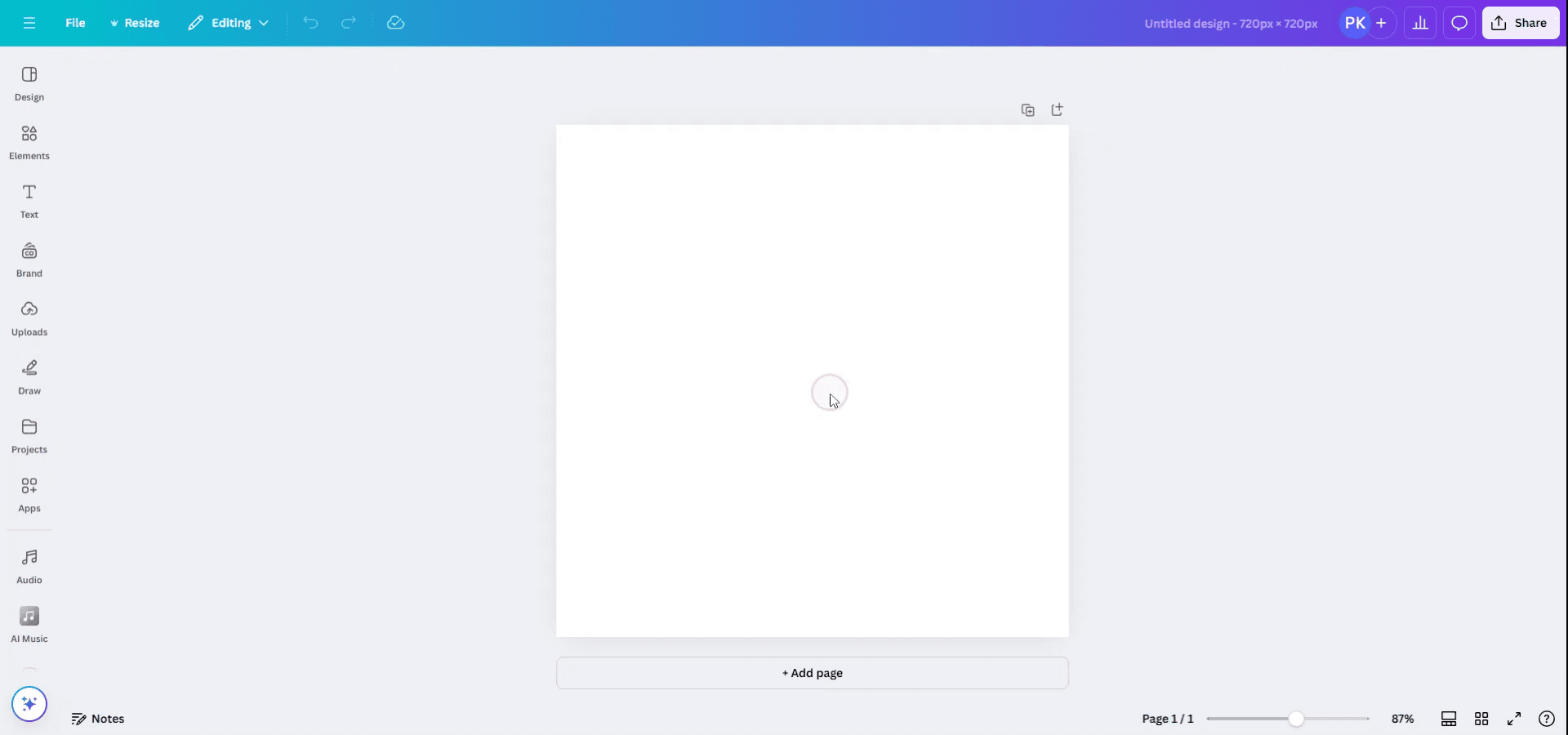
To resize a design in Canva, begin by opening an existing design.
Step 2
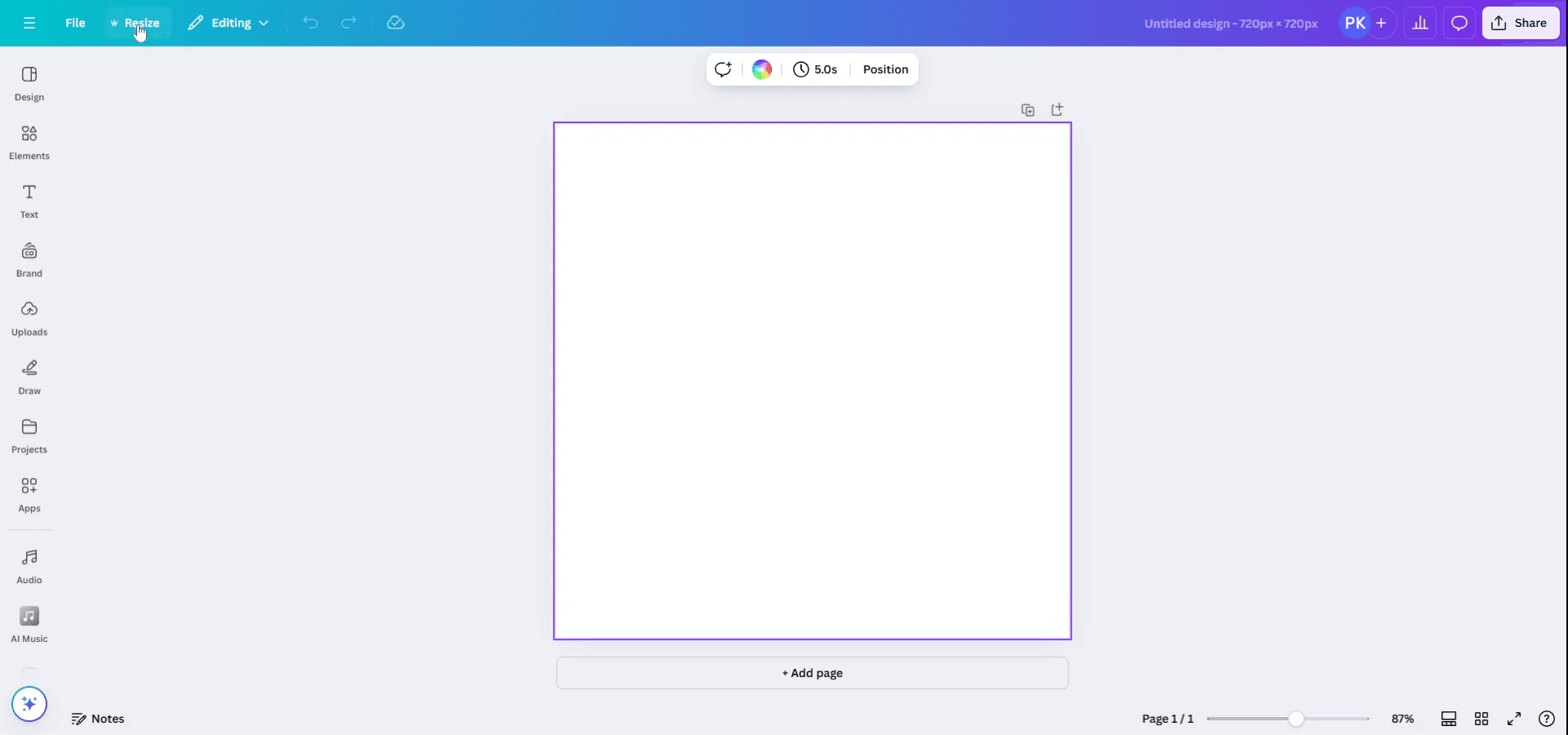
Once the design is open, navigate to the menu at the top and click on the 'Resize' button. Please note that this is a feature available only to Canva Pro members, so ensure your subscription is upgraded to access this functionality.
Step 3
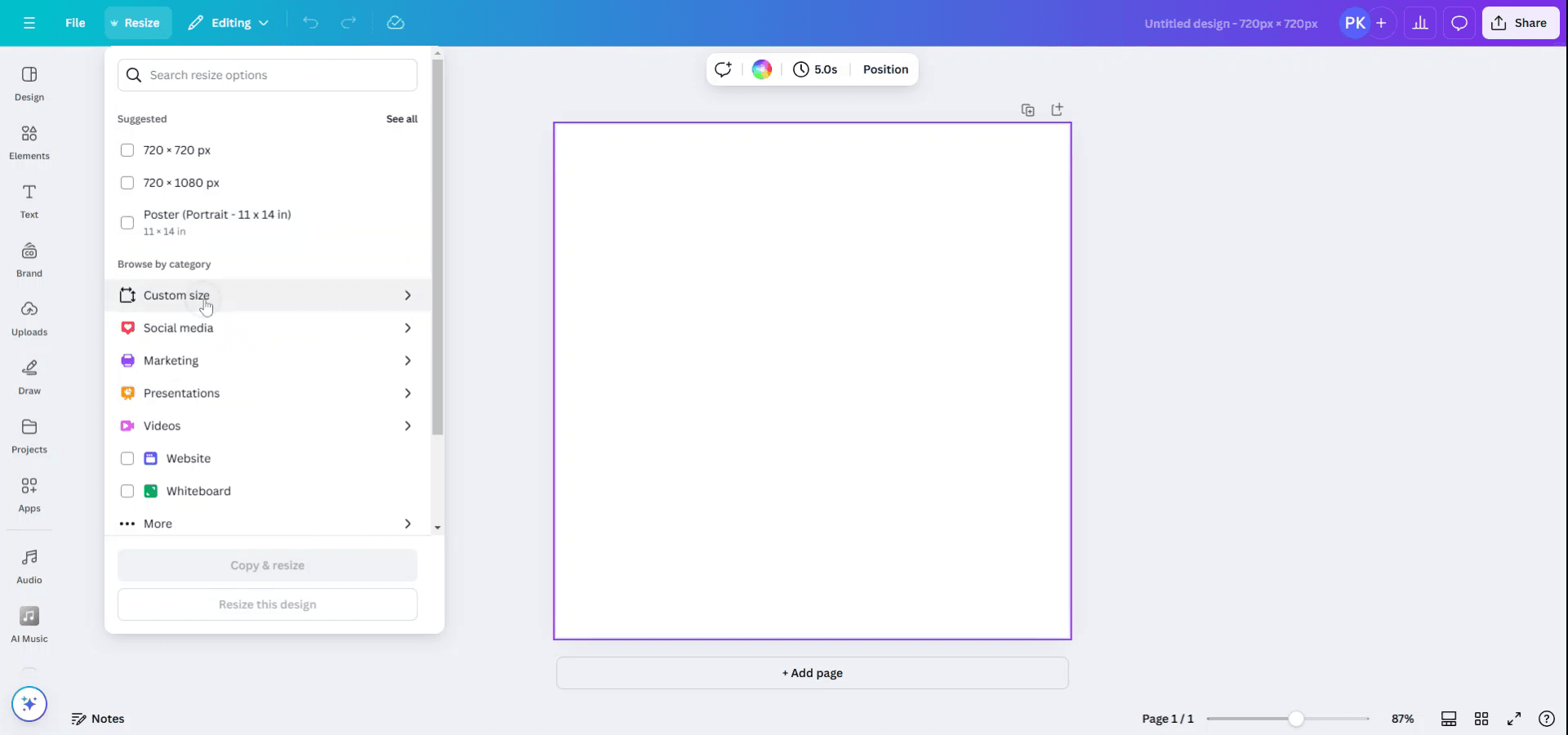
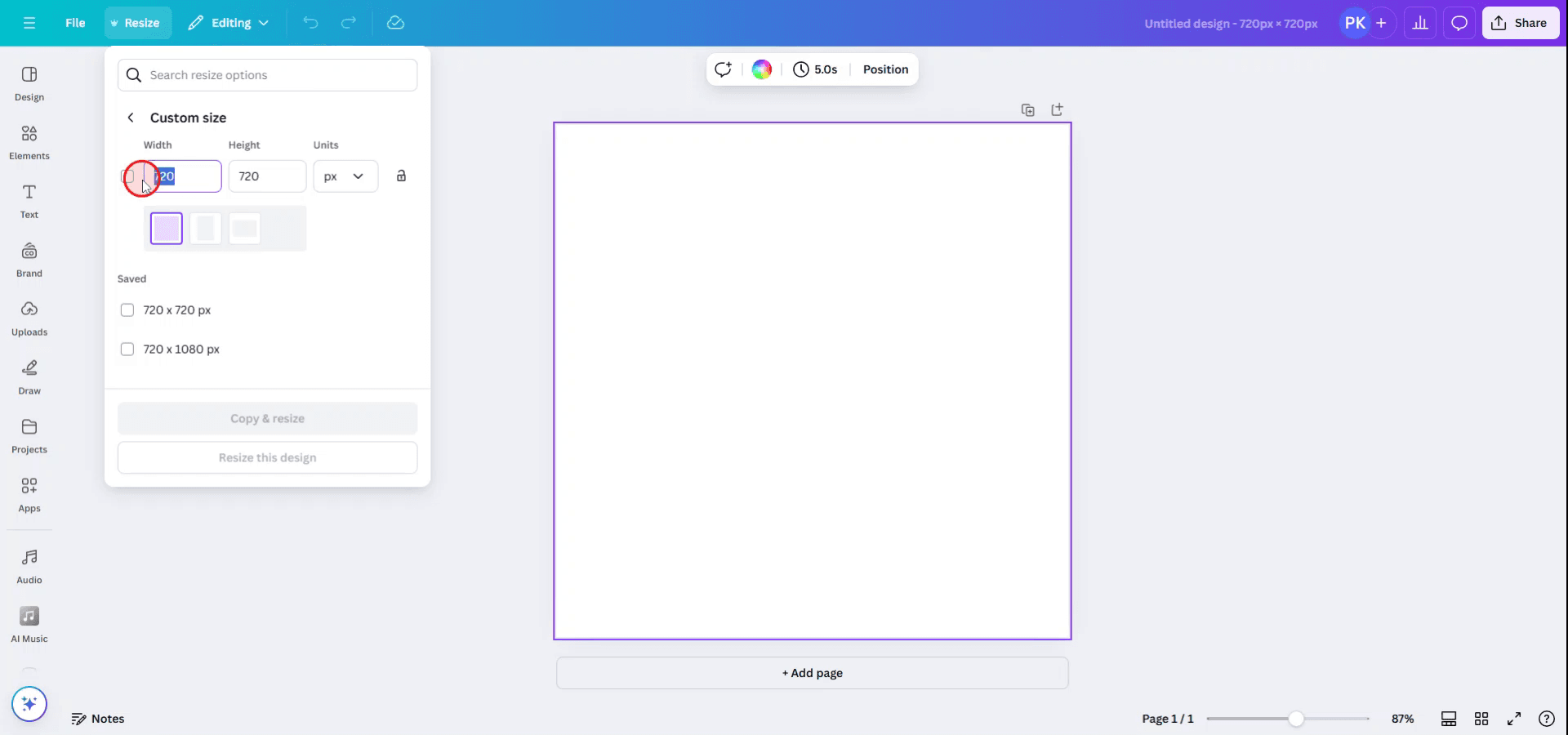
After selecting 'Resize', you will see suggested resizing options. You may choose from these suggestions or explore different categories to find the right size. If you have specific dimensions in mind, click on 'Custom Size' to enter your own measurements.
Step 4
Enter the desired width and height for your design to suit your requirements.
Once you've entered the dimensions, verify that everything is correct and then click on 'Resize' to adjust your design accordingly.
Step 5
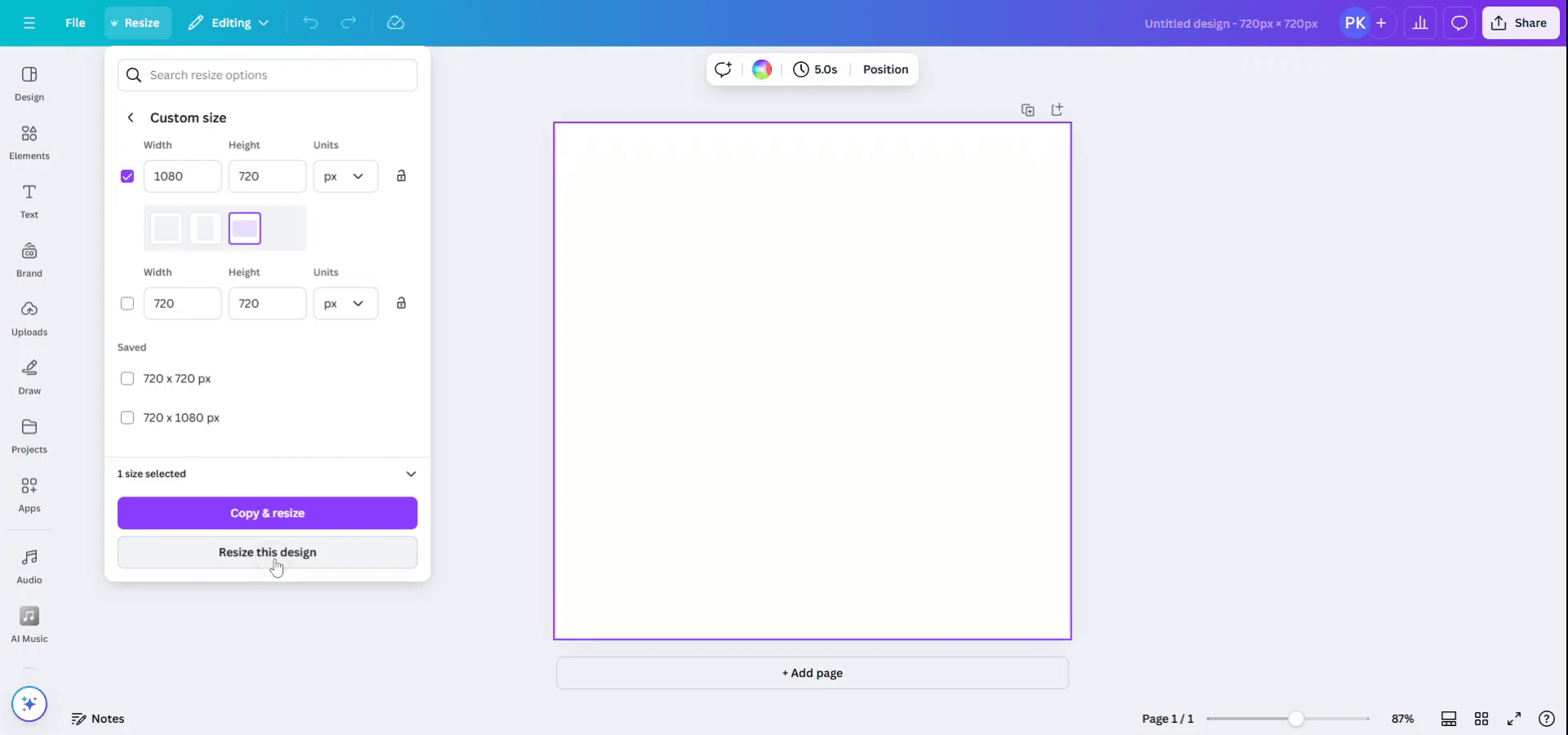
At this stage, you have the option to either resize the existing design or to 'Copy & Resize', which will open your design in a new window with the new dimensions.
Step 6
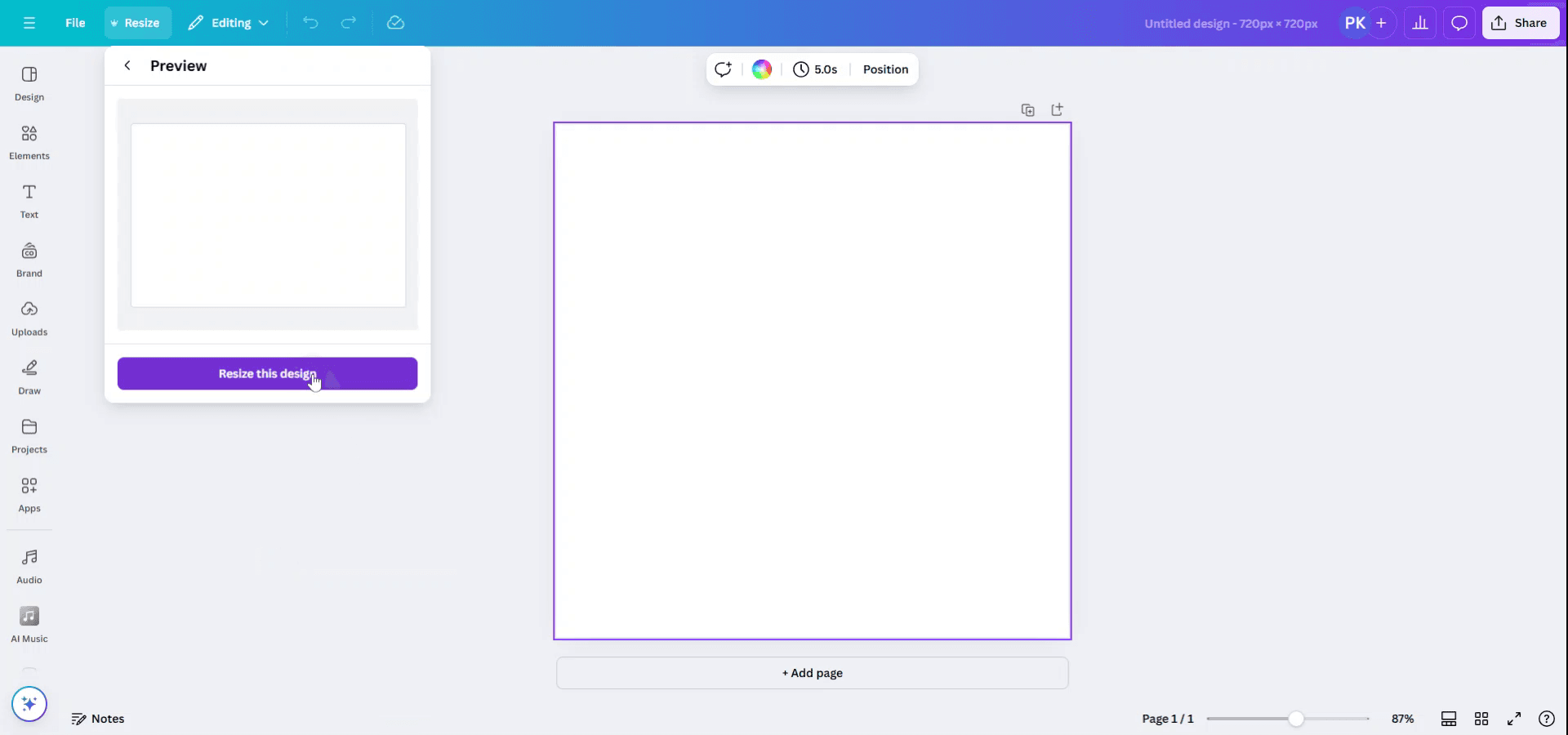
A preview of the resized design will be displayed. Click 'Confirm' to finalize the resizing of your design.
Canva에서 크기 조정할 때 유용한 팁
크기 조정 도구 사용하기 (Canva Pro): Canva Pro 사용자라면 왼쪽 상단의 "Resize" 버튼을 사용해 디자인을 다양한 크기에 빠르게 맞출 수 있습니다. 미리 설정된 크기에서 선택하거나 사용자 지정 치수를 입력할 수 있습니다.
요소를 수동으로 크기 조정하기: 텍스트, 이미지, 도형처럼 개별 요소의 크기를 조정하려면 해당 요소를 클릭한 뒤 모서리 핸들을 드래그해 크기를 조절하세요. 크기 조정 중에는 "Shift"를 누른 채로 유지하면 비율이 유지됩니다.
캔버스에 맞게 크기 조정하기: 디자인 안에 들어가지 않는 더 큰 요소를 추가했다면, 요소를 클릭하고 크기 조정 핸들을 사용해 더 작게 만들거나 레이아웃을 그에 맞게 조정할 수 있습니다.
복사 & 크기 조정: 템플릿으로 작업 중이라면 크기 조정 전에 "Make a copy" 버튼을 사용해 원본 디자인을 그대로 유지하세요.
그리드 또는 정렬 도구 사용하기: Canva의 그리드 또는 정렬 가이드를 사용하면 크기 조정한 요소를 캔버스 안에서 정확하게 배치하는 데 도움이 됩니다.
Canva에서 크기 조정할 때 흔한 실수와 피하는 방법
크기 조정 중 요소가 찌그러져 보임: 때로는 크기 조정 과정에서 요소가 늘어나거나 눌린 것처럼 보일 수 있습니다.
해결: 크기 조정 중에는 "Shift" 키를 누른 채로 원래 비율을 유지하세요.크기 조정 후 요소 정렬이 어긋남: 크기 조정 후에는 요소가 디자인 내에서 정렬을 잃을 수 있습니다.
해결: Canva의 정렬 도구 또는 그리드 보기로 요소가 올바르게 정렬되었는지 확인하세요.잘못된 종횡비: 전체 디자인의 크기를 조정하면 종횡비가 바뀌어 최종 결과물에 영향을 줄 수 있습니다.
해결: 종횡비를 잠그기(크기 조정 중 "Shift"를 누르기) 또는 일관성을 위해 미리 설정된 크기를 사용하세요.이미지 품질 저하: 작은 이미지를 크게 확대하면 해상도가 떨어져 픽셀처럼 보일 수 있습니다.
해결: 크기 조정해도 품질이 저하되지 않는 고해상도 이미지를 사용하세요.디자인 레이아웃을 고려하지 않음: 디자인의 크기를 조정하면 요소가 배치되는 방식이 달라져 지저분해 보이거나 정렬이 제대로 되지 않을 수 있습니다.
해결: 요소를 조금씩 크기 조정하고 최종 확정하기 전에 전체 디자인을 확인하세요.
Canva에서 크기 조정(리사이즈)을 위한 자주 묻는 질문
Canva 디자인 크기는 어떻게 조정하나요?
Canva Pro에서는 "리사이즈(Resize)" 버튼을 클릭해 미리 설정된 크기 또는 사용자 지정 크기로 조정하거나, 요소의 가장자리를 직접 드래그해 크기를 변경할 수 있습니다.품질 저하 없이 Canva 디자인 크기를 조정할 수 있나요?
더 나은 결과를 위해 작은 이미지를 확대하지 말고 고해상도 요소를 사용하세요. Canva Pro 사용자는 품질을 유지하면서 전체 디자인을 리사이즈할 수 있습니다.Canva에서 템플릿 크기도 조정할 수 있나요?
네, "리사이즈(Resize)" 도구(Pro)를 사용하거나 캔버스와 요소를 직접 크기 조정해 템플릿을 리사이즈할 수 있습니다.리사이즈하면 디자인 레이아웃에 영향을 주나요?
네, 리사이즈는 레이아웃에 영향을 줄 수 있습니다. 리사이즈 후 정렬과 간격을 꼭 확인해 모든 요소가 보기 좋게 배치되었는지 확인하세요.Canva에서 텍스트 크기는 어떻게 조정하나요?
네, 텍스트 상자를 클릭한 다음 모서리 핸들을 드래그해 크기를 조정하면 됩니다. 더 정밀하게 제어하려면 도구 모음을 사용해 글꼴 크기를 조정하세요.mac에서 화면 녹화하는 방법은 무엇인가요?
Mac에서 화면 녹화하려면 Trupeer AI를 사용할 수 있습니다. 전체 화면을 캡처할 수 있으며, AI 아바타 추가, 보이스오버 추가, 영상에서 줌인/줌아웃 같은 AI 기능을 제공합니다. trupeer의 AI 비디오 번역 기능을 사용하면 영상을 30+개 언어로 번역할 수 있습니다.화면 녹화에 AI 아바타를 추가하는 방법은 무엇인가요?
화면 녹화에 AI 아바타를 추가하려면 AI 화면 녹화 도구.를 사용해야 합니다. Trupeer AI는 AI 화면 녹화 도구로, 여러 아바타로 영상을 만들 수 있도록 도와주며, 영상에 사용할 나만의 아바타를 만드는 데도 도움을 줍니다.windows에서 화면 녹화하는 방법은 무엇인가요?
Windows에서 화면 녹화하려면 기본 제공되는 게임 바(Game Bar)(Windows + G) 또는 Trupeer AI 같은 고급 AI 도구를 사용할 수 있습니다. AI 아바타, 보이스오버, 번역 등 더 고급 기능을 제공합니다.영상에 보이스오버를 추가하는 방법은 무엇인가요?
영상에 보이스오버를 추가하려면 trupeer ai 크롬 확장 프로그램을 다운로드하세요. 가입 후, 음성이 포함된 영상을 trupeer에 업로드하고 원하는 보이스오버를 선택한 다음 편집한 영상을 내보내세요.화면 녹화 중에 어떻게 확대(줌인)하나요?
화면 녹화 중 확대하려면 Trupeer AI의 줌 효과를 사용하세요. 특정 순간에 맞춰 줌인/줌아웃을 할 수 있어 영상 콘텐츠의 시각적 임팩트를 강화합니다.
추천 읽을거리
관련 튜토리얼



