
샌드박스 Salesforce에 로그인하는 방법
테스트 로그인 URL과 샌드박스 사용자 이름 형식을 사용해 Salesforce 샌드박스에 로그인하는 방법을 알아보세요. 이 빠른 단계별 튜토리얼을 따라 Trupeer로 워크플로 가이드를 만들어 보세요.
Salesforce 샌드박스에 로그인하려면 수정된 사용자 이름을 사용하고, My Domain URL 또는 test.salesforce.com URL을 통해 샌드박스 환경에 액세스해야 합니다. 수정된 사용자 이름은 프로덕션 사용자 이름에 샌드박스 이름을 덧붙인 형태입니다.
Salesforce 샌드박스에 로그인하는 단계:
1. 올바른 URL 찾기:보안 강화를 위해 권장되는 샌드박스의 My Domain 로그인 URL을 사용하거나 https://test.salesforce.com를 통해 샌드박스에 액세스하세요. My Domain을 사용하는 경우 URL 형식은 MyDomainName--SandboxName.sandbox.my.salesforce.com입니다. 샌드박스의 My Domain Setup 페이지에서 My Domain URL을 확인할 수 있습니다.
2. 수정된 사용자 이름 사용하기:샌드박스에 로그인하는 사용자 이름은 샌드박스 이름이 덧붙은 프로덕션 사용자 이름입니다. 예를 들어 프로덕션 사용자 이름이 user1@acme.com이고 샌드박스 이름이 test라면, 샌드박스 사용자 이름은 user1@acme.com.test가 됩니다.
3. 비밀번호 입력하기:프로덕션 Salesforce 조직에 로그인할 때 사용하는 것과 동일한 비밀번호를 입력하세요.
4. 로그인:샌드박스 환경에 액세스하려면 "Log In" 버튼을 클릭하세요.
단계별 가이드: Sandbox Salesforce에 로그인하는 방법
1단계
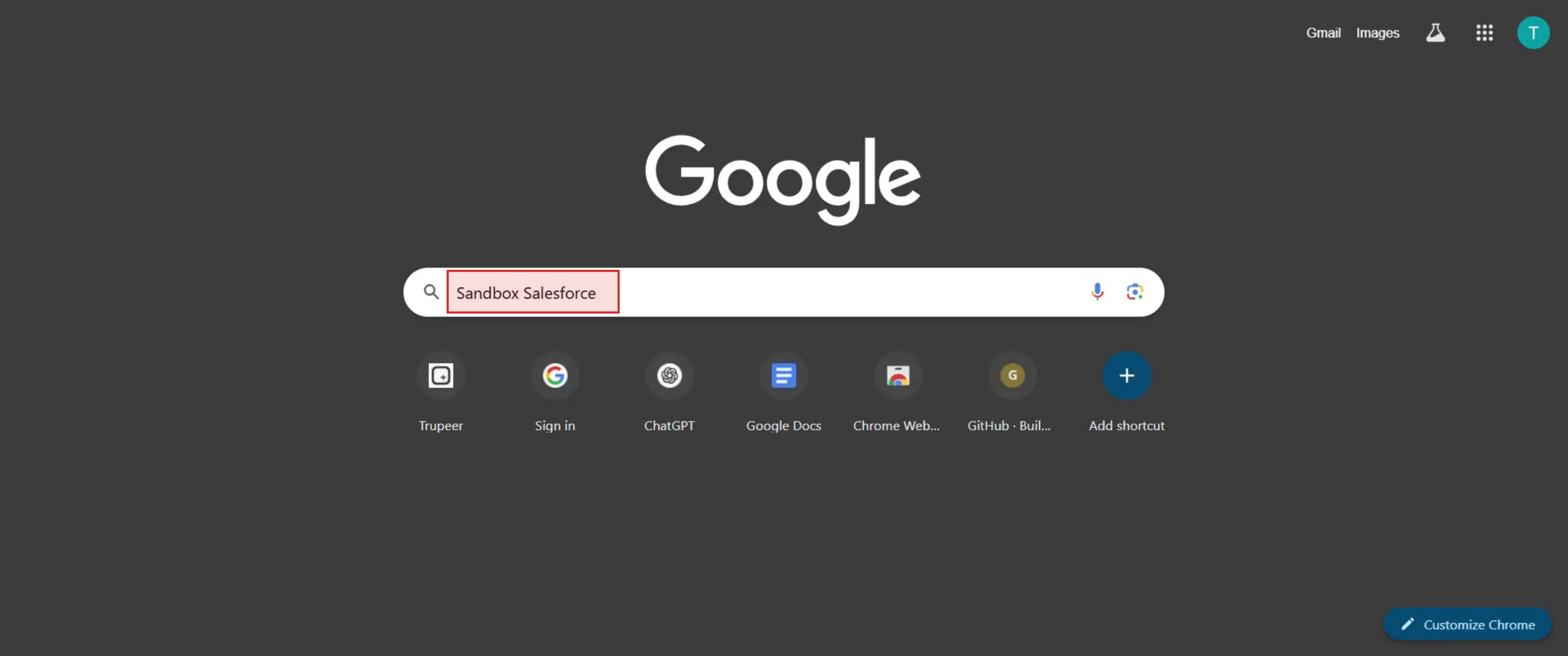
먼저 Google에서 "Sandbox Salesforce"를 검색하세요.
2단계
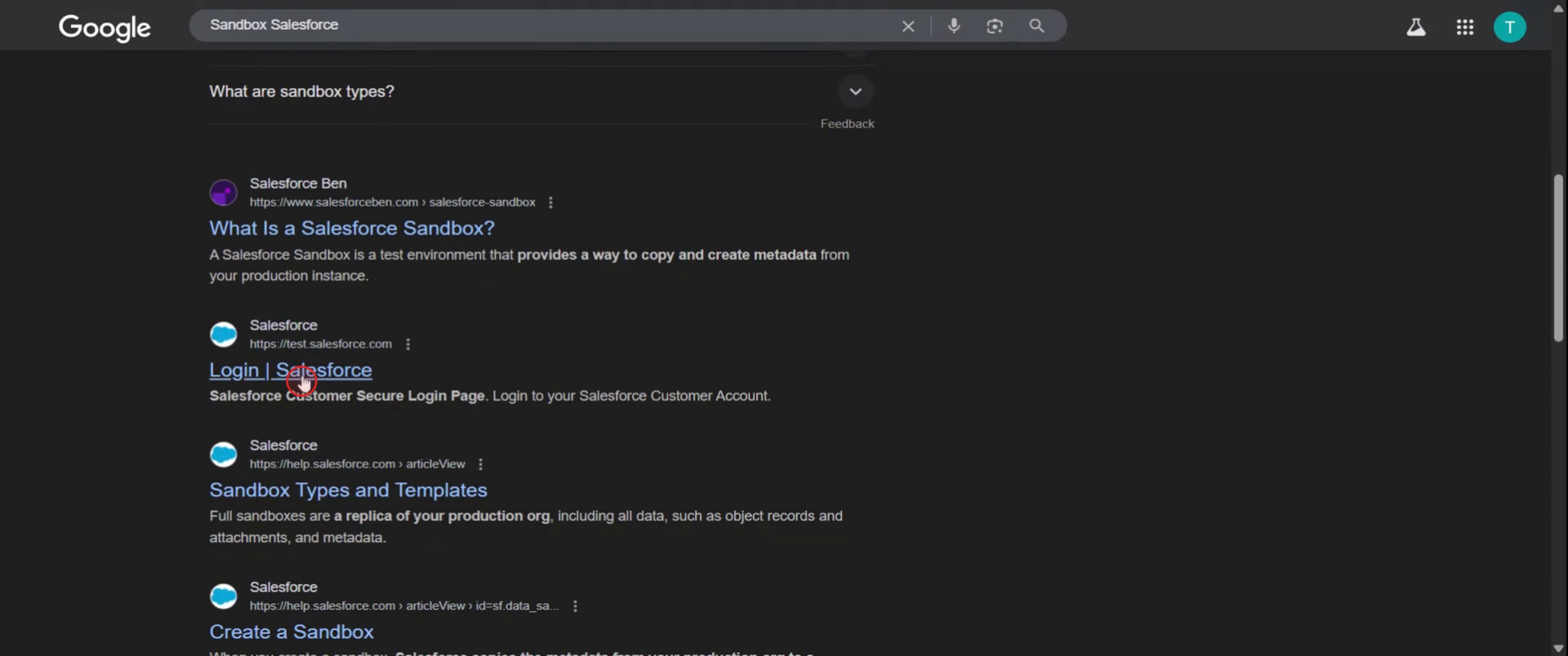
"Login to Salesforce" 옵션을 클릭하세요.
3단계
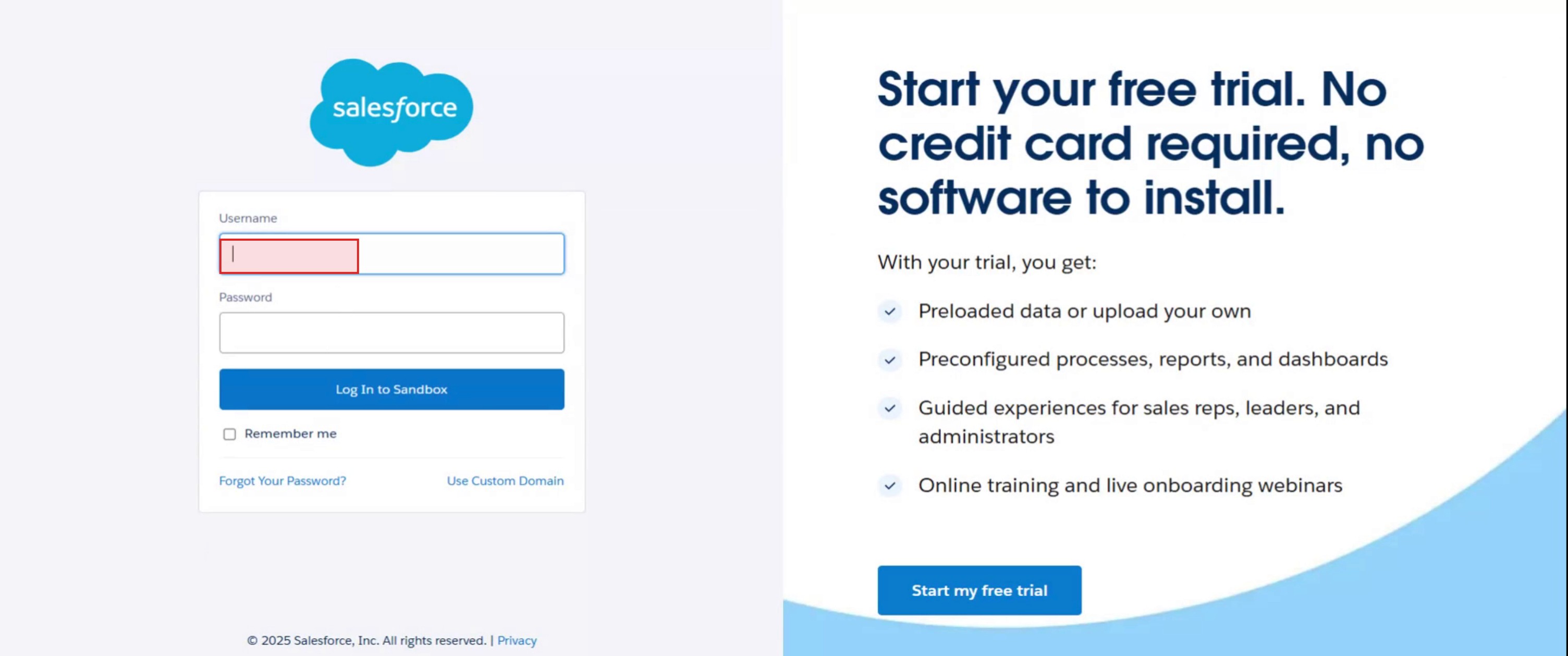
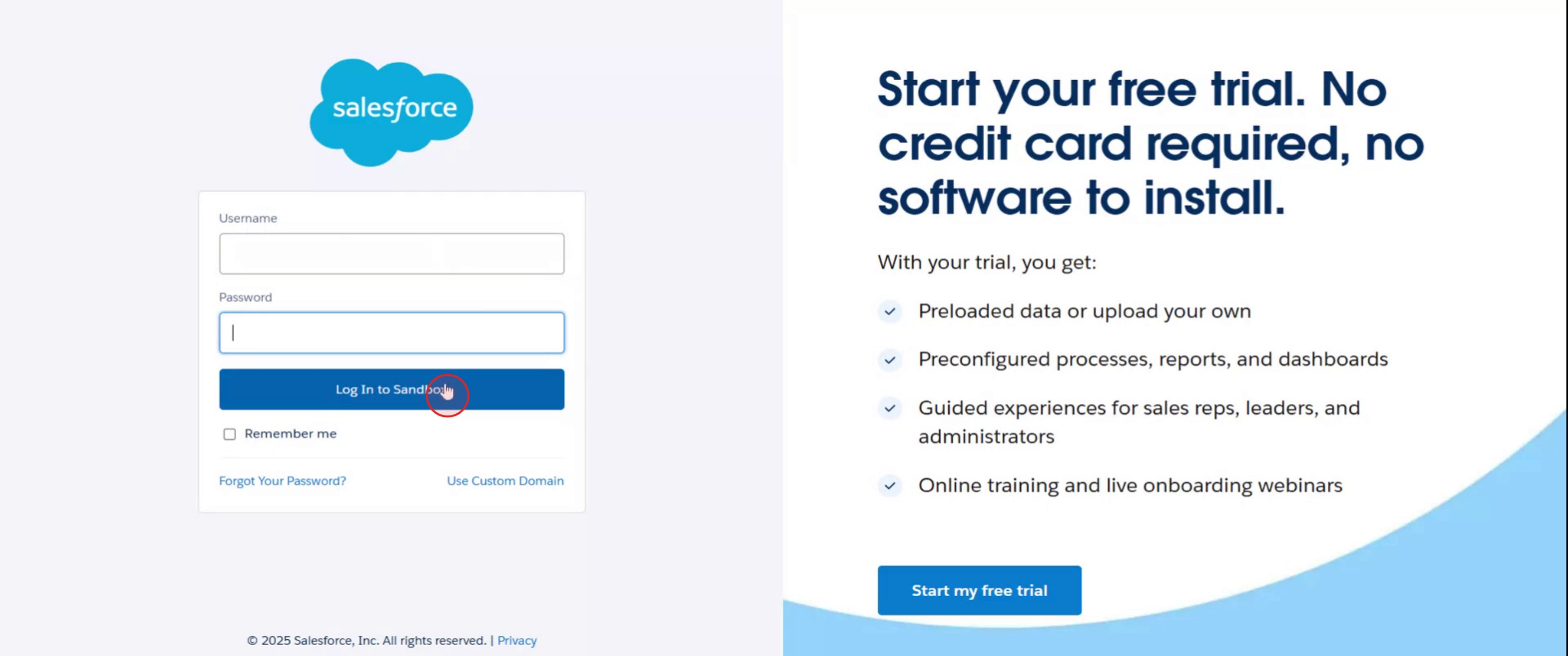
지정된 필드에 사용자 이름과 비밀번호를 입력하세요.
4단계
"Login to Sandbox"를 클릭하여 Sandbox Salesforce 환경에 액세스하세요.
Pro Tips for Logging into Sandbox Salesforce
Open Your Web Browser
Use any modern browser like Chrome, Firefox, or Edge for the best experience.Visit the Sandbox Login Page
Go to https://test.salesforce.com, which is the official login page for Salesforce Sandbox.Enter Your Sandbox Username
Use your full Sandbox username, which usually ends with.sandboxnameEnter Your Password
Input the same password you use for your Salesforce production account unless it has been changed for Sandbox.Click the ‘Log In’ Button
After entering your credentials, click the Log In button to access the Sandbox environment.Verify the Environment
Once logged in, you will notice that the interface has a different color or label to indicate it’s the Sandbox version.
Common Pitfalls and How to Avoid Them
Using the Wrong URL
Do not use the regular login page (login.salesforce.com) for Sandbox. Always use test.salesforce.com.Incorrect Username Format
Make sure your username includes the Sandbox name after the period.Password Mismatch
Your Sandbox password may not match your production password if it was changed. Reset it if needed.Trying to Use SSO (Single Sign-On)
SSO may not work for Sandbox logins unless explicitly configured. Use direct credentials for simpler access.Account Locked After Multiple Attempts
After several failed login attempts, your Sandbox account may get locked. Contact your admin to unlock it.
Common FAQs About Logging into Sandbox Salesforce
What is the Sandbox login URL for Salesforce?
The correct URL is https://test.salesforce.com.Is the Sandbox username the same as the production one?
No, it usually ends with.sandboxname, depending on the name of your Sandbox environment.Can I use my production password to access the Sandbox?
Yes, if it hasn’t been changed in the Sandbox. Otherwise, reset it separately in the Sandbox.How do I know if I’m in the Sandbox or Production?
The interface will usually display a label like “Sandbox” or have a different theme color.Can I access Sandbox Salesforce from a mobile app?
Yes, but you’ll need to change the login host in the app settings to test.salesforce.com before logging in.How to screen record on mac?
To screen record on a Mac, you can use Trupeer AI. It allows you to capture the entire screen and provides AI capabilities such as adding AI avatars, add voiceover, add zoom in and out in the video. With trupeer’s AI video translation feature, you can translate the video into 30+ languages.How to add an AI avatar to screen recording?
To add an AI avatar to a screen recording, you'll need to use an AI screen recording tool. Trupeer AI is an AI screen recording tool, which helps you create videos with multiple avatars, also helps you in creating your own avatar for the video.How to screen record on windows?
To screen record on Windows, you can use the built-in Game Bar (Windows + G) or advanced AI tool like Trupeer AI for more advanced features such as AI avatars, voiceover, translation etc.How to add voiceover to video?
To add voiceover to videos, download trupeer ai chrome extension. Once signed up, upload your video with voice, choose the desired voiceover from trupeer and export your edited video.How do I Zoom in on a screen recording?
To zoom in during a screen recording, use the zoom effects in Trupeer AI which allows you to zoom in and out at specific moments, enhancing the visual impact of your video content.
Suggested Reads
Technical Documentation Generator
How to Create a Journal in Canva
How to Print Double Sided on Canva
관련 튜토리얼



