

Excel에서 나이를 계산하는 방법
DATEDIF 함수 또는 사용자 지정 수식을 사용해 Excel에서 나이를 계산하는 방법을 알아보세요. 이 가이드는 생년월일에서 오늘 날짜까지의 정확한 나이 계산을 다룹니다.
In this process, we will guide you through the steps to calculate age using Excel.
This involves entering a specific formula into the desired cell, allowing the automatic calculation of age based on the provided data.
There are a few ways to calculate someone’s age in Excel, depending on how accurate you want the result to be. Here are the most common methods, explained simply:
1. Using YEARFRAC and INT (more accurate)
If you want an accurate age calculation that accounts for leap years and partial years, this is a great option.
Formula:=INT(YEARFRAC(date_of_birth, TODAY()))
Replace
date_of_birthwith the cell containing the person’s birthdate.TODAY()gets the current date automatically.YEARFRACcalculates the total number of years (including decimals) between two dates.INTremoves the decimal part to give the full number of years.
2. Using YEAR and TODAY (quick and simple)
This method is easier but may be off by a year if the birthday hasn’t occurred yet this year.
Formula:=YEAR(TODAY()) - YEAR(date_of_birth)
It just subtracts the birth year from the current year.
It doesn’t account for whether the birthday has already passed, so it’s not always precise.
3. Using DATEDIF (less common but accurate)
Another accurate way is with the DATEDIF function, which isn’t listed in Excel’s suggestions but works reliably.
Formula:=DATEDIF(date_of_birth, TODAY(), "y")
This calculates the number of full years between the birthdate and today.
It’s accurate and simple once you know the formula.
Step-by-Step Guide: How To Calculate Age In Excel
Step 1
Select the cell where you want the age to be displayed.
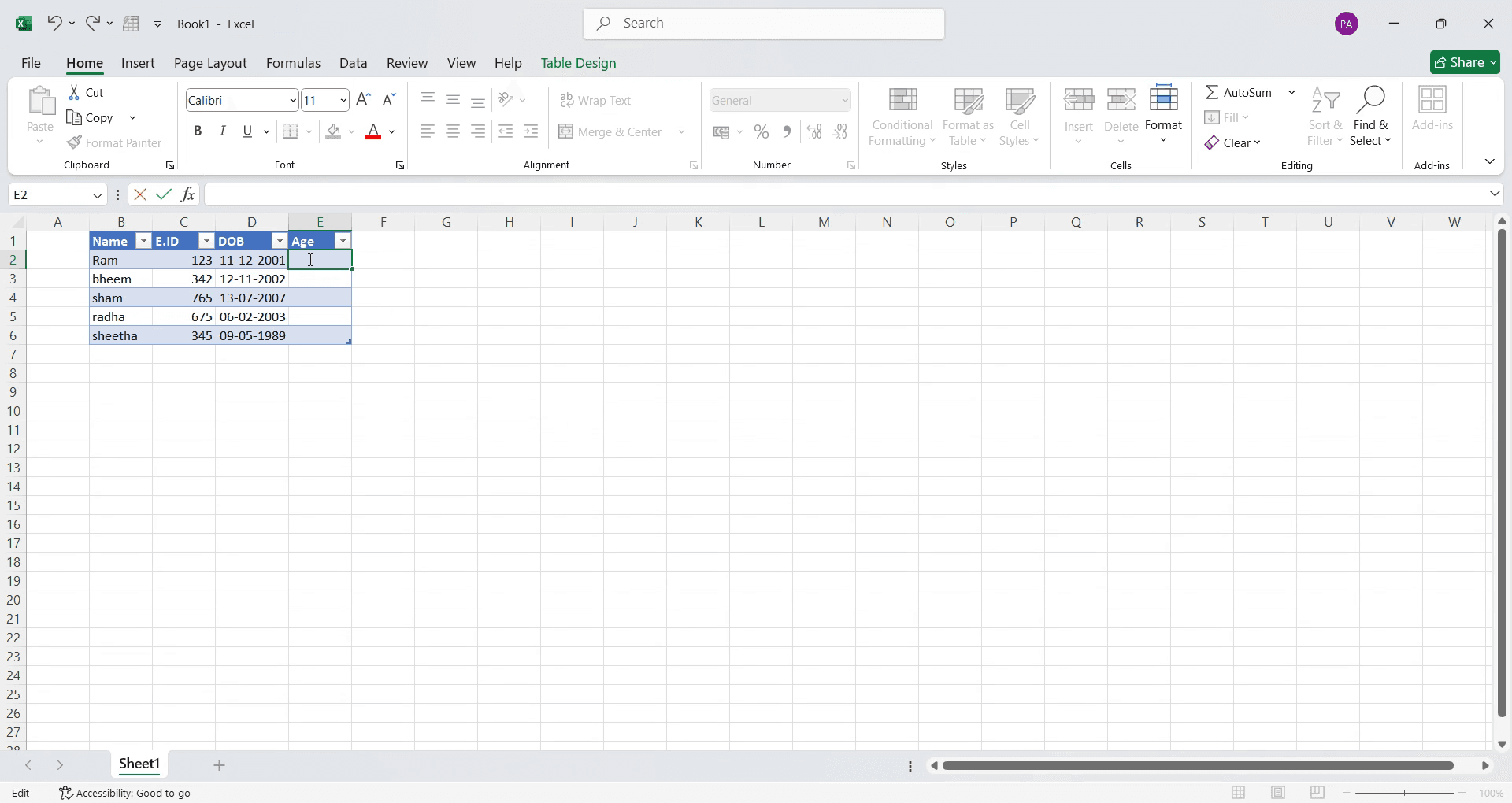
Step 2
Click on that cell and enter the following formula: =TRUNC(YEARFRAC(<start_date>, TODAY(), 1)). Refer to the video for a detailed walkthrough.
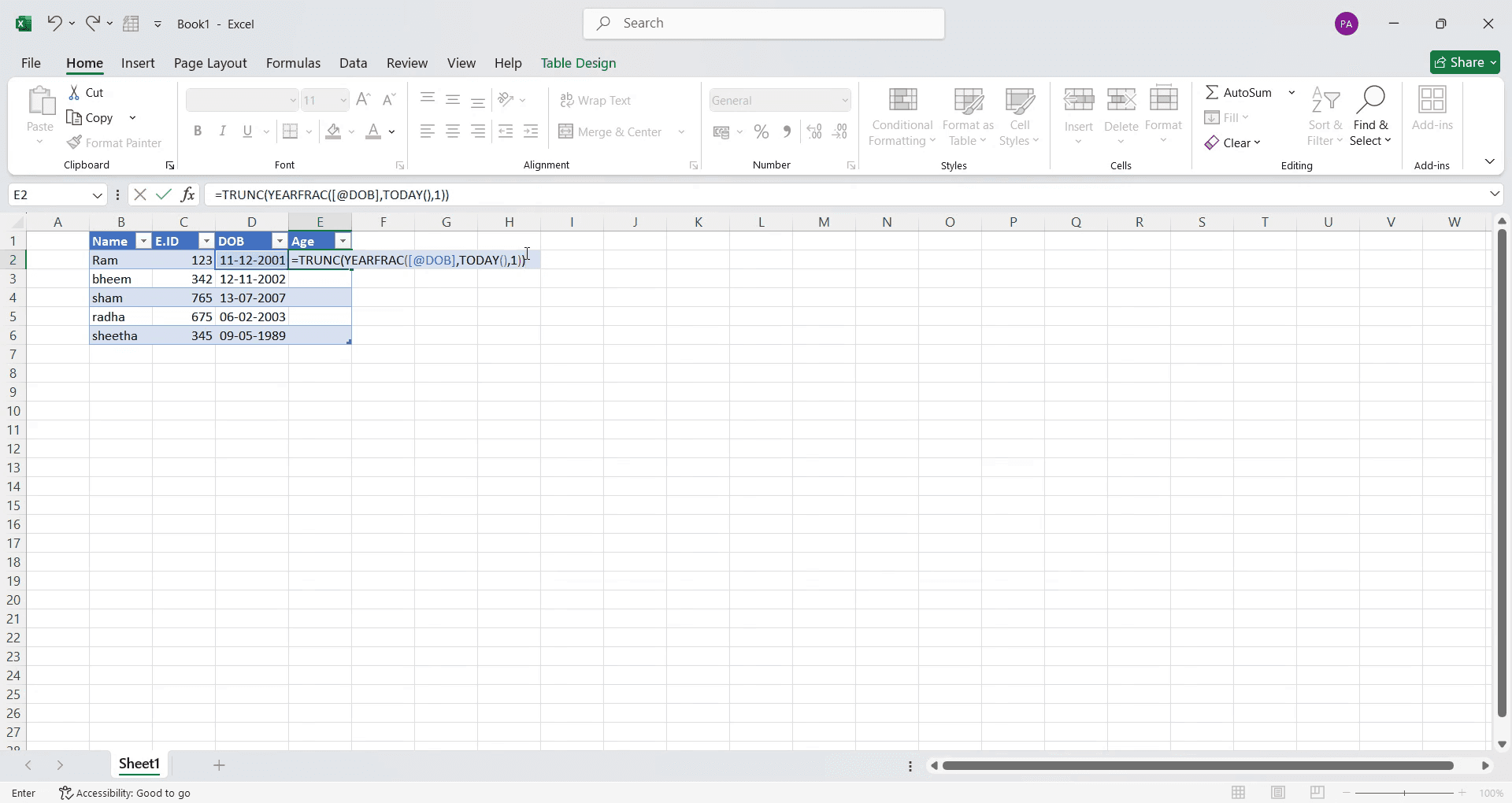
Step 3
Once done, press "Enter." This will automatically calculate and display the ages in the selected cell.
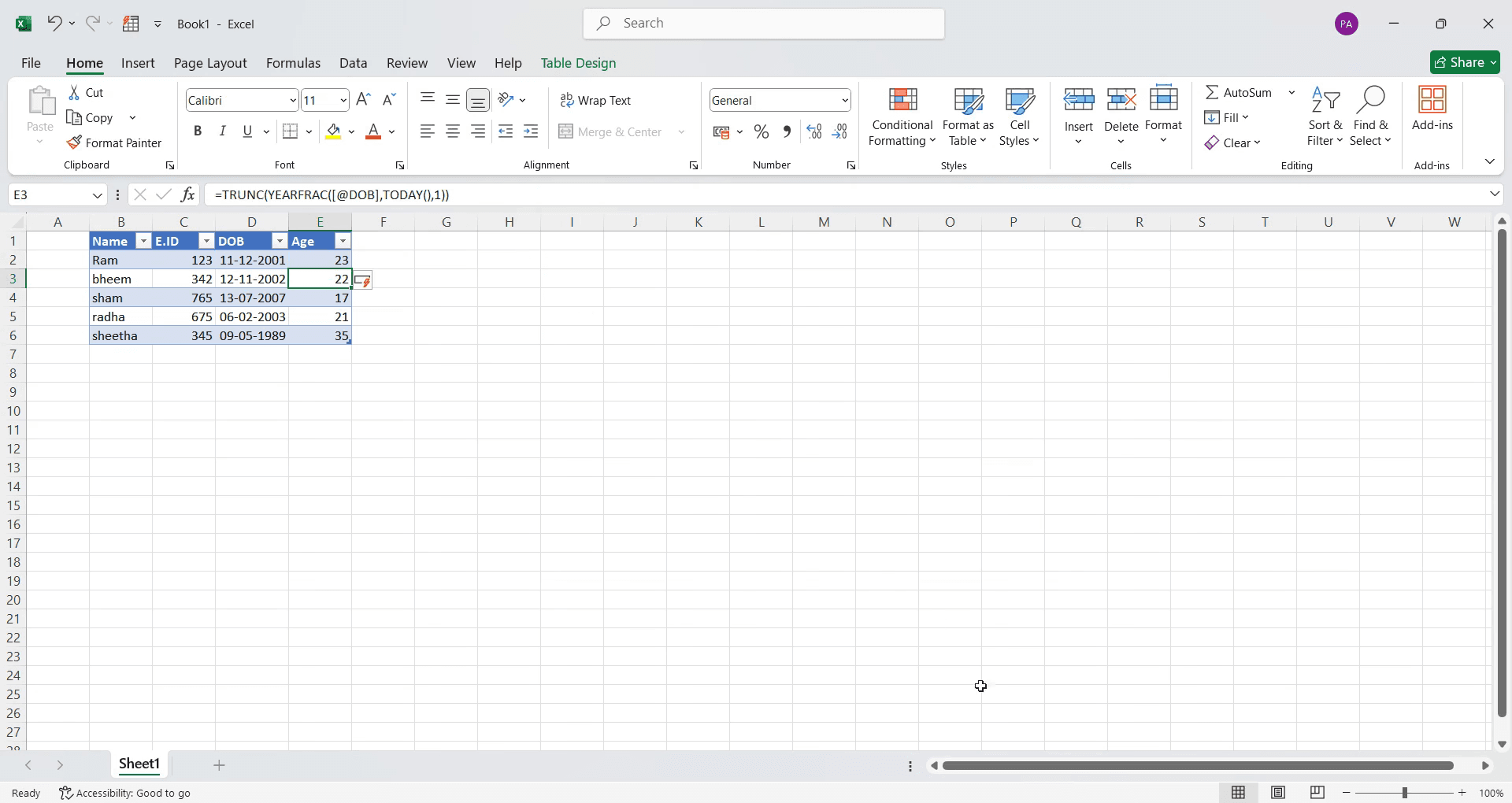
MS Excel에서 나이 계산을 위한 프로 팁
=DATEDIF(A1, TODAY(), Y)와 함께DATEDIF함수를 사용해 나이를 연 단위로 정확하게 계산하세요.윤년을 고려해야 하는 경우 특히, 정확한 나이 계산을 위해
YEARFRAC와INT를 함께 사용하세요.계산 오류를 피하려면 생년월일 형식이 올바른지 확인하세요(MM/DD/YYYY 또는 DD/MM/YYYY).
MS Excel에서 나이 계산 시 흔한 실수와 피하는 방법
잘못된 날짜 형식을 사용하면 오류가 발생할 수 있으므로, 계산을 수행하기 전에 날짜 셀을 항상 Date로 설정하세요.
참조 날짜를 업데이트하는 것을 잊으면 결과가 잘못될 수 있습니다. 나이 계산을 동적으로 유지하려면
TODAY()를 사용하세요.단순 뺄셈만 의존(예:
=YEAR(TODAY())-YEAR(A1))하면 부정확한 결과로 이어질 수 있습니다. 정밀도를 위해DATEDIF를 사용하세요.
MS Excel에서 나이를 계산하기 위한 공통 FAQ
MS Excel에서 나이를 계산하는 가장 쉬운 수식은 무엇인가요?
가장 간단한 수식은=DATEDIF(A1, TODAY(), Y)이며, A1에는 생년월일이 들어 있습니다.나이를 연도, 개월, 일로 계산하려면 어떻게 하나요?
자세한 분해를 위해DATEDIF(A1, TODAY(),Y) & Years, & DATEDIF(A1, TODAY(), YM) & Months, & DATEDIF(A1, TODAY(), MD) & Days를 사용하세요.Excel에서 나이 계산에 오류가 표시되는 이유는 무엇인가요?
날짜 형식이 올바르지 않거나 생년월일이 오늘 날짜 이후인 경우 오류가 발생할 수 있습니다. 적절한 형식과 값을 확인하세요.오늘 날짜 대신 특정 날짜로부터 나이를 계산할 수 있나요?
네.TODAY()를 비교할 날짜가 들어 있는=DATEDIF(A1, B1, Y)같은 참조 날짜로 바꾸면 됩니다.Excel에서 매년 나이를 자동으로 업데이트하려면 어떻게 하나요?
수식에TODAY()를 사용하면 파일을 열 때마다 나이가 동적으로 업데이트됩니다.mac에서 화면 녹화하는 방법은?
Mac에서 화면 녹화하려면 Trupeer AI를 사용할 수 있습니다. 전체 화면을 캡처할 수 있으며 AI 아바타 추가, 보이스오버 추가, 영상에서 줌 인/아웃 같은 AI 기능을 제공합니다. trupeer의 AI 비디오 번역 기능을 사용하면 영상을 30+개 언어로 번역할 수 있습니다.화면 녹화에 AI 아바타를 추가하는 방법은?
화면 녹화에 AI 아바타를 추가하려면 AI 화면 녹화 도구.를 사용해야 합니다. Trupeer AI는 AI 화면 녹화 도구로, 여러 아바타로 영상을 만들 수 있도록 도와주며 영상용 아바타를 직접 만드는 데도 도움이 됩니다.windows에서 화면 녹화하는 방법은?
Windows에서 화면 녹화하려면 기본 제공 Game Bar(Windows + G) 또는 Trupeer AI 같은 고급 AI 도구를 사용해 AI 아바타, 보이스오버, 번역 등 더 다양한 기능을 활용할 수 있습니다.영상에 보이스오버를 추가하는 방법은?
영상에 보이스오버를 추가하려면 trupeer ai 크롬 확장 프로그램을 다운로드하세요. 가입 후, 보이스가 포함된 영상을 업로드하고 trupeer에서 원하는 보이스오버를 선택한 다음 편집한 영상을 내보내세요.화면 녹화에서 줌인하는 방법은?
화면 녹화 중 줌인을 하려면 Trupeer AI의 줌 효과를 사용하세요. 특정 순간에 맞춰 줌 인/아웃이 가능해져 영상 콘텐츠의 시각적 임팩트를 강화합니다.
추천 읽을거리
관련 튜토리얼


