4.8/5
무료 AI 스크린샷 생성기 | 화면을 캡처하고 주석을 달아 더 빠르게 공유하세요
Trupeer AI 스크린샷 생성기를 사용하면 화면을 캡처하고 자동으로 주석을 추가한 뒤, 스크린샷을 몇 초 만에 단계별 가이드로 변환할 수 있습니다. 오늘 무료 스크린샷 메이커를 사용해 보세요.

온라인 웹사이트 스크린샷 생성기
Trupeer의 AI 스크린샷 생성기는 스크린샷을 즉시 캡처하고 주석을 추가한 뒤, 전문적이고 바로 공유 가능한 시각 자료로 다듬어 줍니다. 이 스크린샷 AI는 모든 클릭을 읽으므로, 단계별 가이드를 만들고 핵심 작업을 강조하며 몇 초 만에 브랜드 문서를 생성할 수 있습니다.
Trupeer의 스크린샷 메이커로 단계별 가이드를 자동 생성하고, 핵심 작업을 강조한 뒤, 문서용 브랜드 비주얼을 모두 몇 초 만에 만들 수 있습니다. 스크린샷을 찍는 방법은, 전부 글로 쓰는 것보다 한 번 과정을 기록하는 편이 더 쉬운 경우가 많습니다.
AI 정밀도로 어떤 웹 또는 앱 인터페이스든 스크린샷을 캡처하세요.
Trupeer의 내장 편집기로 사용자 작업을 자동 주석 처리하고 강조 표시하세요.
모든 프로세스에서 AI 기반 단계별 지침을 생성하세요.
브랜드 색상, 로고, 도형으로 스크린샷을 맞춤 설정하세요.
어디서든 스크린샷을 즉시 공유, 내보내기 또는 삽입하세요.
전문가를 위한 온라인 스크린샷 생성기
Trupeer의 스크린샷 생성기는 AI로 구동되어 어떤 화면, 프로세스, 제품 워크플로우든 가장 쉽게 캡처할 수 있는 방법입니다.
몇 초 만에 원본 캡처를 풍부한 시각 문서로 바꿔, 모든 클릭과 단계를 자동으로 설명합니다.
Trupeer로 어떤 프로세스든 캡처하세요
어떤 워크플로우든 주석이 달린 스크린샷, 캡션, AI 생성 제목이 포함된 단계별 가이드로 바꿔 경쟁에서 돋보이세요.
Trupeer의 스크린샷 메이커로 5단계 시각 가이드를 단 5초 만에 만들 수 있습니다.
Trupeer의 스크린샷 메이커를 사용해:
제품 튜토리얼, 온보딩 가이드, 시각 SOP를 만드세요.
스크린샷의 각 단계를 자동으로 주석 처리하고 번호를 매기세요.
여러 탭 또는 데스크톱 앱 전반의 프로세스를 캡처하세요.
빠른 문서를 위한 템플릿에 액세스하세요.
핵심 UI 영역을 강조하면서 민감한 정보를 흐리거나 가리세요.
팀과 협업해 일관된 문서를 유지하세요.
Trupeer는 전문 문서를 만들고 관리하는 더 스마트한 방법입니다.
스크린샷 생성기로 Trupeer를 사용하는 이유는?
개발자, 트레이너, 제품 마케터 누구든 Trupeer의 스크린샷 메이커가 수동 디자인, 편집, 가이드 제작에 드는 시간을 몇 시간씩 절약해 줍니다.
Trupeer가 돋보이는 이유는 다음과 같습니다:
1. 손쉽게 웹사이트 스크린샷 캡처하기
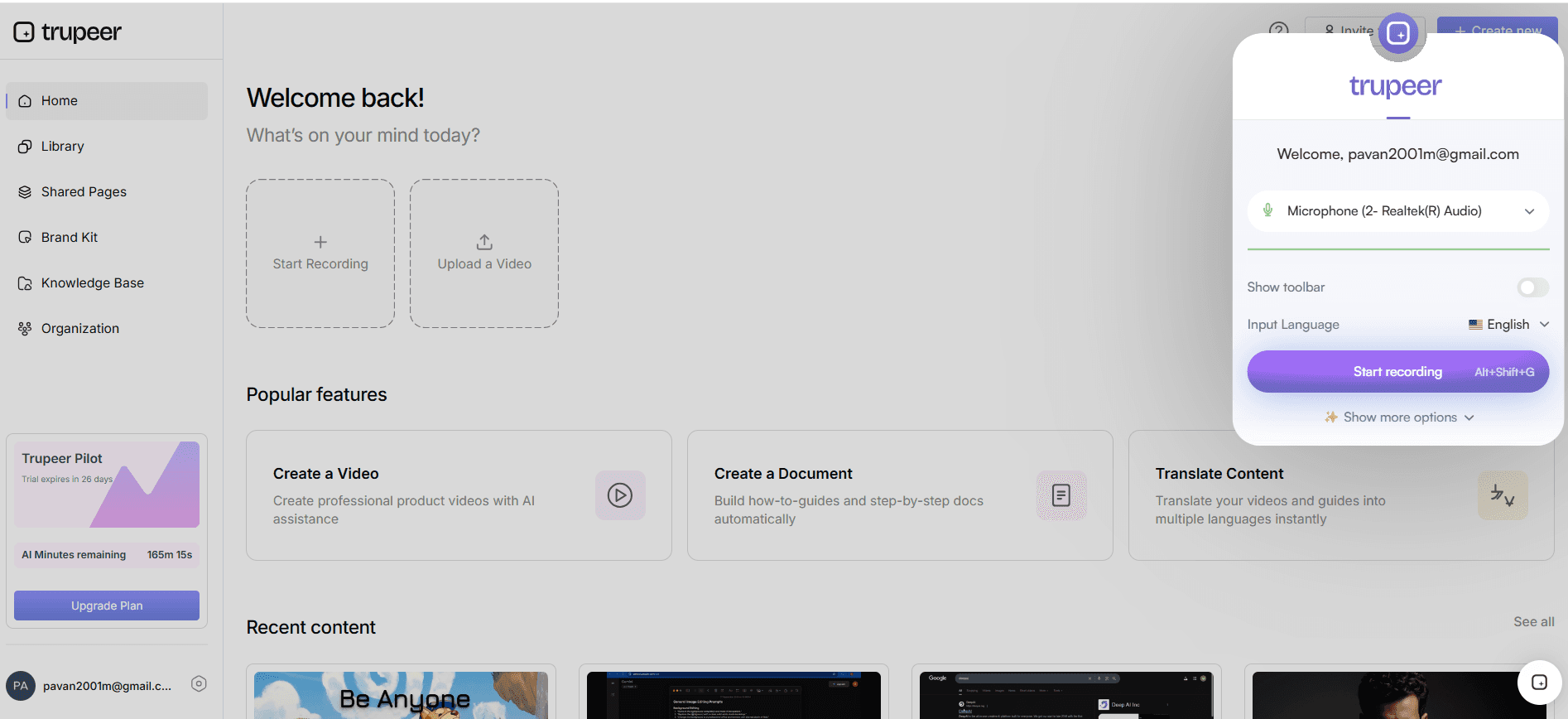
Trupeer의 웹사이트 스크린샷 생성기는 브라우저, 앱, 도구 전반에서 화면을 캡처하며, 다양한 기기 레이아웃에 맞게 자동으로 조정합니다.
AI 엔진이 즉시 다음을 추가합니다:
깔끔한 제목과 부제.
앱 또는 제품 링크.
각 단계에 대한 AI 생성 설명.
자동 주석이 달린 스크린샷.
목업이나 수동 크롭은 필요 없으며, Trupeer가 대신 처리합니다.
2. 스크린샷을 즉시 주석 처리하고 업데이트하기
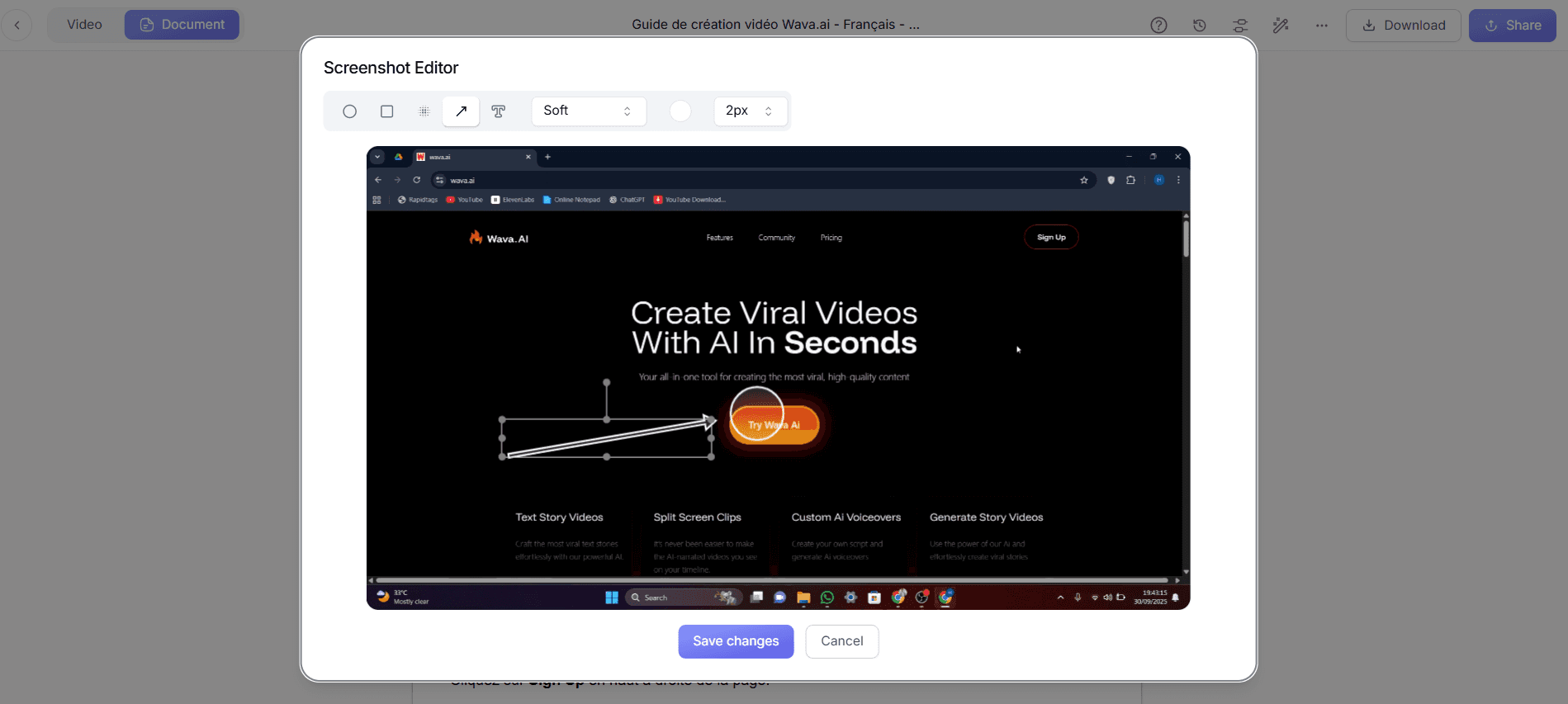
스크린샷을 캡처한 뒤 Trupeer는 텍스트 캡션, 화살표, 단계 번호로 자동 주석을 추가합니다.
그다음 쉽게:
AI 제안을 사용해 제목, 부제, 주석을 편집하세요.
단계를 위한 애니메이션 GIF로 스크린샷을 병합하세요.
콜아웃, 알림 또는 팁을 추가하세요.
스크린샷을 드래그해 순서를 바꾸거나 흐름을 결합하세요.
Trupeer Pro로 기본을 넘어 레이아웃, 색상, 도형을 맞춤 설정해 브랜드에 완벽하게 일치시키세요.
3. 브랜드 룩을 맞춤 설정하세요
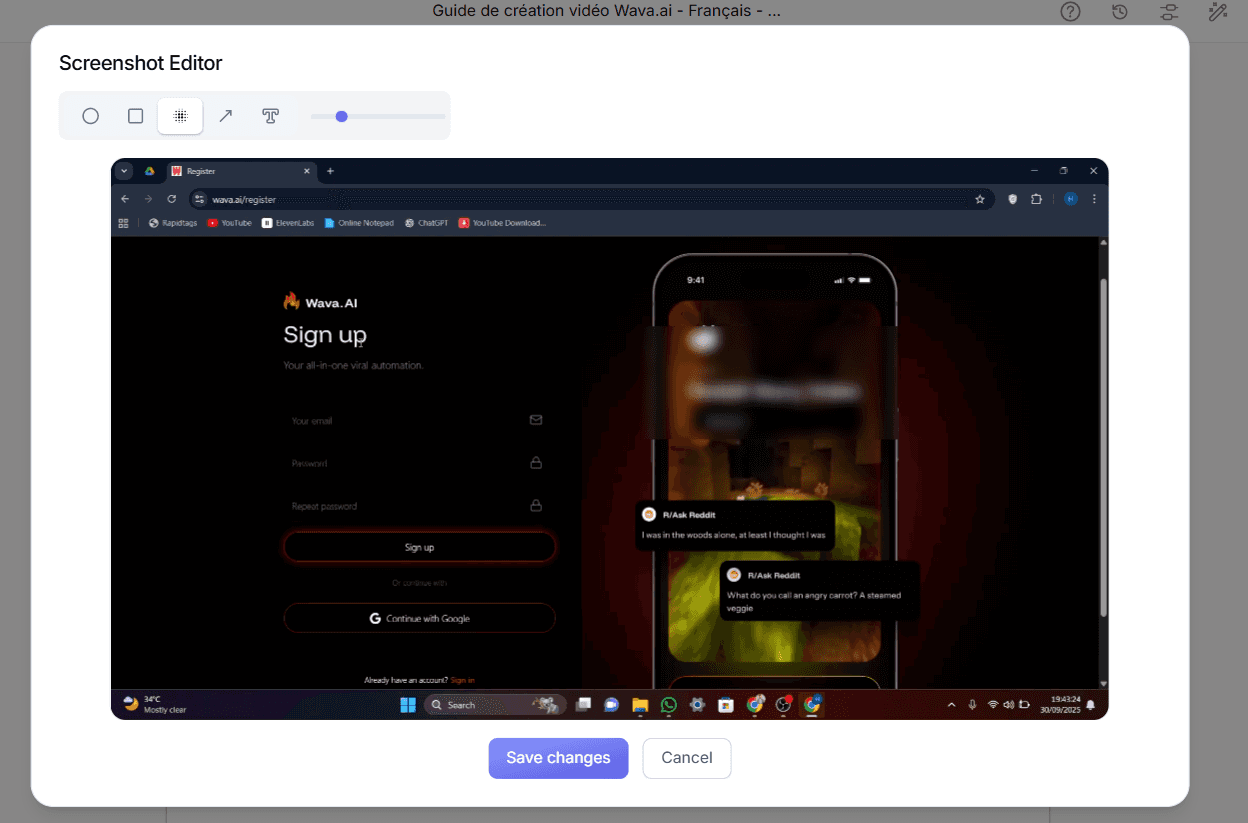
Trupeer의 스크린샷 생성기를 사용하면 일관되고 전문적인 비주얼을 디자인할 수 있습니다:
로고, 배경 색상, 글꼴을 추가하세요.
버튼과 집중 영역을 강조하세요.
개인 정보를 흐리거나 가리세요.
더 나은 가독성을 위해 아이콘과 도형을 사용하세요.
사용자가 만드는 모든 스크린샷 가이드는 브랜드 아이덴티티를 반영할 수 있습니다.
4. 공유하는 방법은 여러 가지
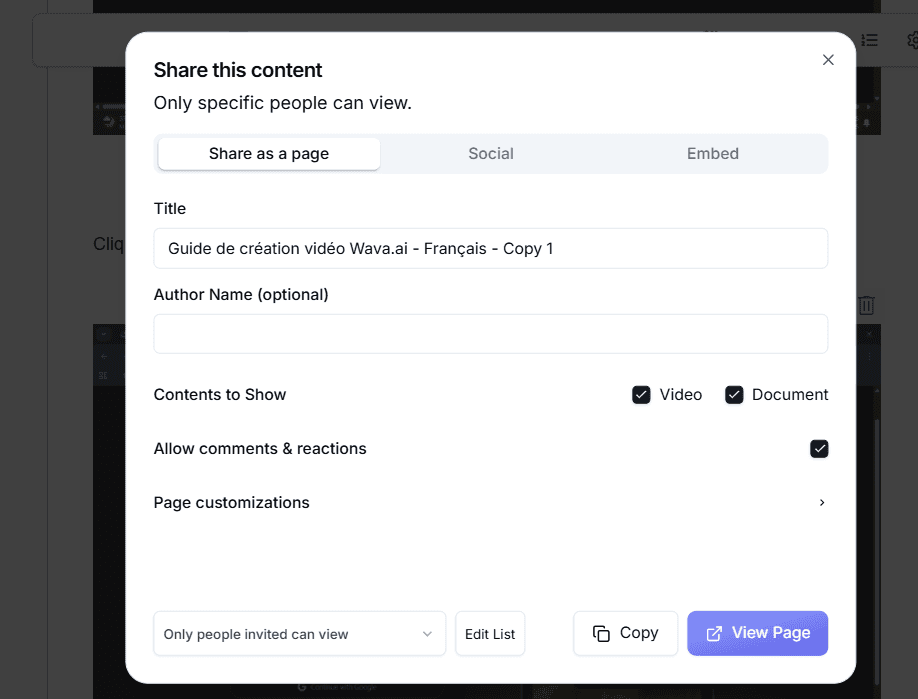
가이드를 만들면 공유는 즉시 가능합니다:
권한 제어로 공유 가능한 링크를 생성하세요.
웹사이트, 위키 또는 지식 기반에 직접 삽입하세요.
PDF, HTML, DOCX 또는 Markdown으로 내보내기.
SEO 최적화를 사용해 시각 가이드를 온라인에서 더 쉽게 찾을 수 있게 하세요.
Trupeer의 스크린샷 AI는 어떻게 작동하나요
기본 캡처 도구와 달리 Trupeer의 스크린샷 AI는 워크플로우를 이동하는 동안 각 작업을 감지하고 자동으로 캡션을 추가합니다. AI 스크린샷 생성기는 모든 단계를 번호로 매기고 설명을 작성한 뒤, 수동 편집 없이 완성된 가이드를 조립합니다.
스크린샷을 자동으로 단계별 가이드로 바꾸기
대부분의 스크린샷 도구는 캡처에서 멈춥니다. Trupeer는 계속 진행합니다. 워크플로우를 이동하는 동안 매 클릭마다 스크린샷을 캡처하고, 번호가 매겨진 주석 단계별 가이드로 조립합니다. 각 단계에는 AI가 작성한 캡션도 포함됩니다. 따라서 이미지를 하나씩 가져와 문서에 붙여 넣는 대신, 한 번만 과정을 실행하면 완성된 가이드를 얻을 수 있습니다. 이 방식은 일회성 캡처뿐 아니라 온보딩 가이드, 제품 튜토리얼, 시각 SOP에 적합합니다. 동일한 스크린샷을 단계별 가이드 생성기 또는 SOP 생성기로 바로 전체 가이드에 연결할 수 있습니다.
한 곳에서 스크린샷에 주석을 달고 편집하세요
별도의 스크린샷 편집기가 필요하지 않습니다. Trupeer의 내장 주석 도구를 사용하면 캡처한 동일한 화면에서 영역을 강조하고 화살표, 번호, 도형을 추가하며, 민감한 정보를 흐리거나 가리고, 브랜드 색상과 로고를 적용할 수 있습니다. 각 단계는 캡처되는 즉시 자동으로 주석 처리될 수 있으므로, 마무리하는 순간 깔끔하게 표시된 스크린샷 세트가 준비됩니다. 더 강력한 개인정보 보호가 필요하다면, 이미지 블러 및 가리기 가 전체 세트에 포함된 민감한 콘텐츠를 처리합니다.
Trupeer vs 기본 스크린샷 도구
내장 Snipping Tool이나 키보드 단축키 같은 빠른 캡처 유틸리티는 단일 이미지를 가져오는 데는 충분합니다. 하지만 전체 프로세스를 문서화해야 하는 순간, 그런 도구들은 이미지를 이어 붙이고 단계를 손으로 작성하게 만듭니다. Trupeer는 다단계로 공유 가능한 문서를 만들도록 설계되었습니다. 모든 단계는 캡처되고 자동으로 주석 처리, 번호 매기기, 브랜딩이 적용된 다음, 이미지로 내보내거나 사이트에 삽입하거나 완성된 가이드로 게시할 수 있습니다.
사람들이 또한 묻는 질문
기술 문서 생성기
AI 트레이닝 비디오 메이커
동영상을 위한 AI 보이스 체인저
AI 제품 비디오 메이커
이미지 블러 및 가리기
단계별 가이드 생성기
AI 문서 생성기
매뉴얼 생성기
주석 생성기
Trupeer 스크린샷 생성기의 주요 기능
AI로 스크린샷을 자동으로 캡처
Trupeer AI 크롬 확장 프로그램으로 스크린샷을 자동으로 캡처하세요. 클릭을 감지하고 실시간으로 스크린샷을 캡처하여, 수동 작업 없이도 손쉽게 문서화를 할 수 있습니다.
전환율을 높이기 위해 로고와 링크를 추가하세요
로고, 맞춤 색상, 디자인 요소를 스크린샷에 추가해 브랜드 일관성을 유지하세요. 모든 가이드와 튜토리얼이 브랜드 아이덴티티와 자연스럽게 일치하도록 하세요
웹사이트 또는 지식 베이스에 손쉽게 임베드
AI가 생성한 단계별 가이드와 주석이 포함된 스크린샷을 Markdown, PDF 또는 HTML로 내보내세요. 문서, 헬프 센터 또는 내부 지식 베이스에 손쉽게 포함할 수 있어 원활한 접근이 가능합니다
Trupeer 스크린샷 생성기로 시작하는 방법
1단계
스크린샷을 캡처하세요.
2단계
스크린샷 편집기 도구로 편집 및 주석 추가
3단계
스크린샷을 내보내고 공유하세요
자주 묻는 질문
Trupeer.ai 스크린샷 생성기란?
Trupeer.ai 스크린샷 생성기는 어떤 웹페이지나 워크플로우에서든 고품질 스크린샷을 즉시 캡처하고 주석을 달아 공유할 수 있는 온라인 스크린샷 제작 도구입니다. AI를 사용해 복잡한 요소를 정리하고 핵심 영역을 강조하며, 문서화나 프레젠테이션에 바로 사용할 수 있는 전문적인 비주얼을 만들어줍니다. mac에서 스크린샷을 자르는 방법은, 전부 글로 작성하는 것보다 한 번 과정을 녹화하는 편이 더 쉬운 경우가 많습니다.
스크린샷에서 민감한 정보를 흐리거나 가릴 수 있나요?
네. Trupeer의 편집기는 이름, 이메일, 계정 번호 같은 기밀 정보를 흐리거나 가릴 수 있게 해줍니다. 그러면서도 화면의 핵심 부분은 계속 강조하므로, 문서와 가이드에서 스크린샷을 안전하게 공유할 수 있습니다.
다운로드하기 전에 스크린샷을 커스터마이즈할 수 있나요?
네! Trupeer.ai를 사용하면 내장 편집 도구로 스크린샷을 완전히 커스터마이즈할 수 있습니다. 자르기, 크기 조정, 민감한 영역 흐리기, 화살표·하이라이트·텍스트로 주석 추가까지 가능합니다. 이를 통해 스크린샷이 선명하고 브랜드에 맞게 정리되어 튜토리얼, 데모, 보고서에 바로 사용할 수 있습니다.
무료 AI 스크린샷 생성기가 있나요?
Trupeer.ai는 기본 기능으로 제한된 수의 스크린샷을 생성할 수 있는 무료 플랜을 제공합니다. 무제한 이용, 고해상도 내보내기, 고급 AI 편집을 원하시면 Pro 또는 Scale 플랜으로 업그레이드하세요. 모든 플랜은 웹 기반이며 소프트웨어 다운로드가 필요 없습니다.
AI 스크린샷 생성기는 어떤 기기나 브라우저에서도 작동하나요?
물론입니다. Trupeer.ai 스크린샷 생성기는 주요 브라우저인 Chrome, Firefox, Safari, Edge 전반에서 원활하게 작동합니다. 클라우드 기반이기 때문에 Windows, macOS, Linux에서도 아무것도 설치하지 않고 접속할 수 있습니다. 로그인한 뒤 캡처하고 생성하기만 하면 됩니다.



