4,8/5
Convert PowerPoint (PPT) to Video with AI Voiceover
Upload your PowerPoint and turn your existing slides into a narrated video with an AI-written script, voiceover, captions and scenes. No recording or video editing needed.

TL;DR: Trupeer converts PowerPoint to video with narration you don't have to record. Upload a PPT or PPTX file, and the AI writes a script that explains your slides, builds video scenes from them, adds a natural voiceover and captions, and exports an MP4. It is the fastest way to turn a deck that was built to be presented into a video people can watch on their own.
Convert PPT and PPTX files to video without re-recording the presentation.
AI narration explains each slide instead of reading the bullets out loud.
Add an AI voice, captions and an optional AI avatar presenter.
Edit the script before you export, and update the video when the deck changes.
Works in the browser on Windows and Mac. Free to start, no credit card required.
A slide deck on its own rarely tells the whole story. The explanation usually lives in the presenter's head, which is why a deck sent over email gets skimmed and forgotten. PowerPoint to video AI fills that gap: it adds the missing narration, so the video carries the explanation that would normally come from the person presenting.
Convert PPT to Video Without Rebuilding Your Presentation
You don't need to recreate your slides in a video editor. Start with the deck you already have, and Trupeer does the rest in four steps.
Upload your PowerPoint
Drag a PPT or PPTX file into the converter above. Sales decks, training decks, product presentations and lecture slides all work. If your deck is in Google Slides or Keynote, use Presentation to Video instead.
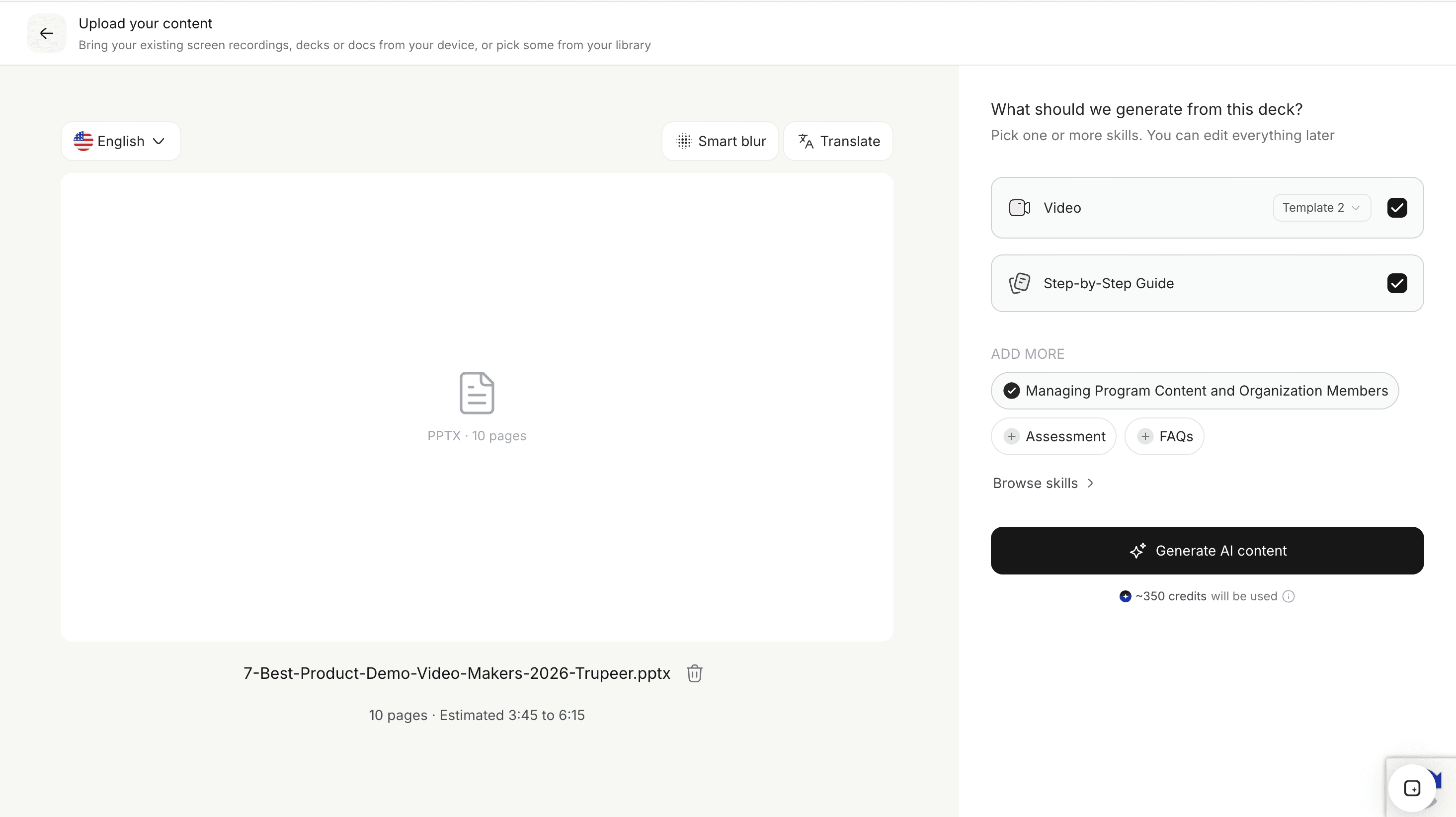
Turn slides into video scenes
Trupeer reads the content of each slide, including titles, bullets and key figures, and turns it into video scenes in the same order as your deck, so the flow of your presentation stays intact.
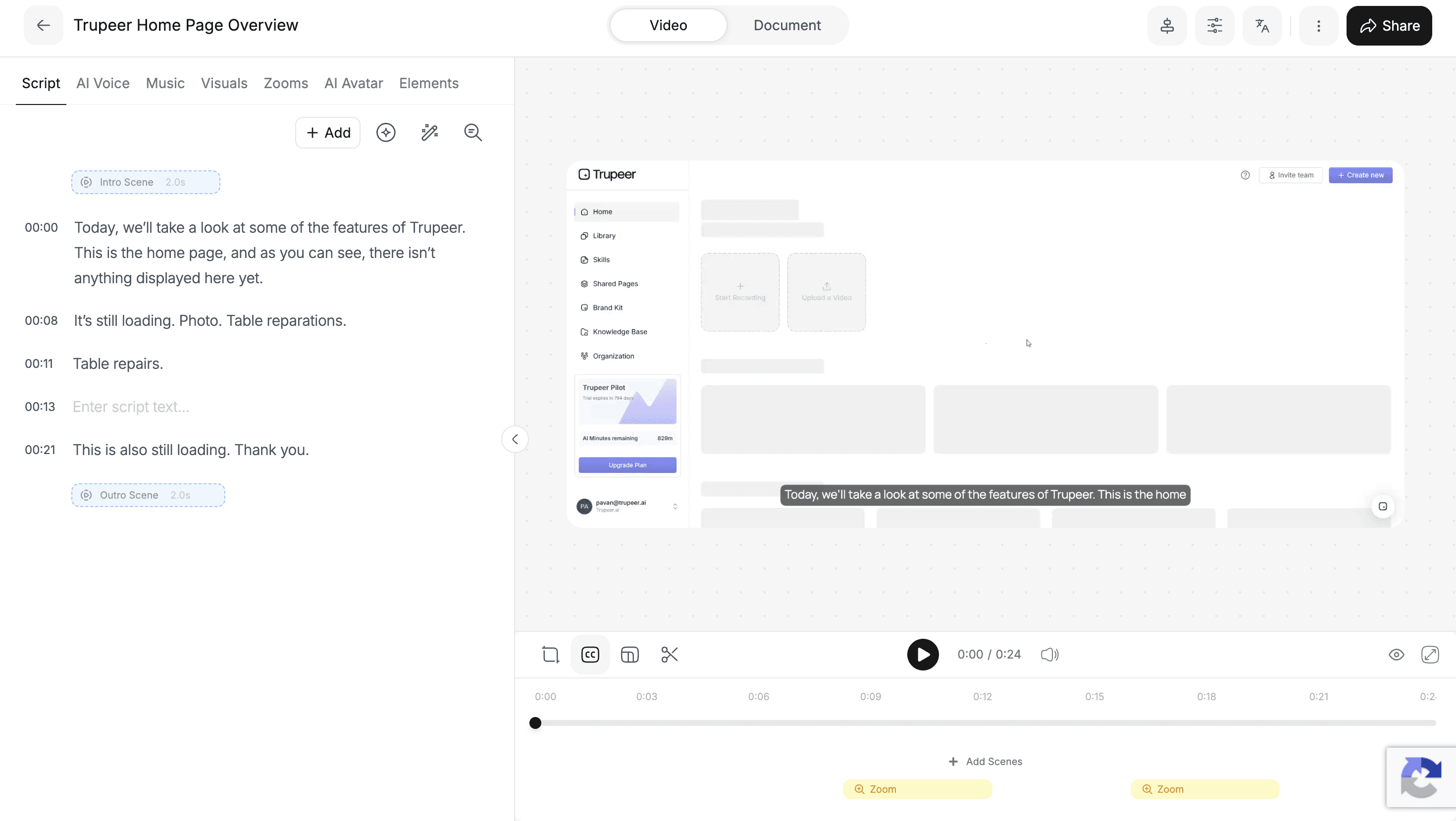
Review the narration script
The AI writes a spoken script for every scene. This is where AI scripting does the work a presenter would: it expands short bullet points into full sentences and connects one slide to the next. Edit any line before you generate the video. Tip: the AI writes from what is on your slides, so make sure the key number or claim you want explained is visible on the slide, and delete hidden or backup slides you don't want in the video.
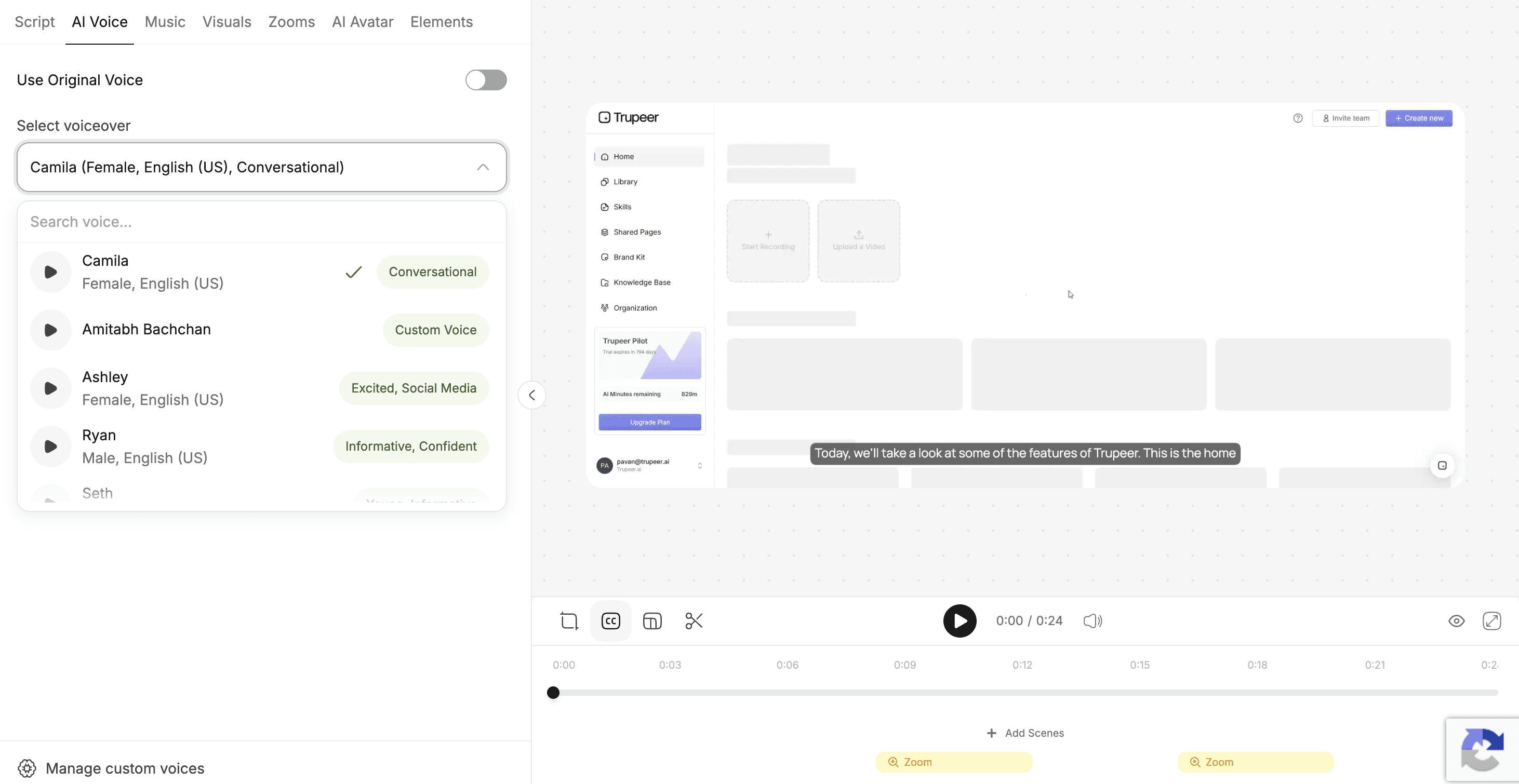
Add an AI voice or avatar
Choose a voice, add an optional custom AI avatar presenter and apply your brand kit. Then export the video as an MP4 or share it with a link.
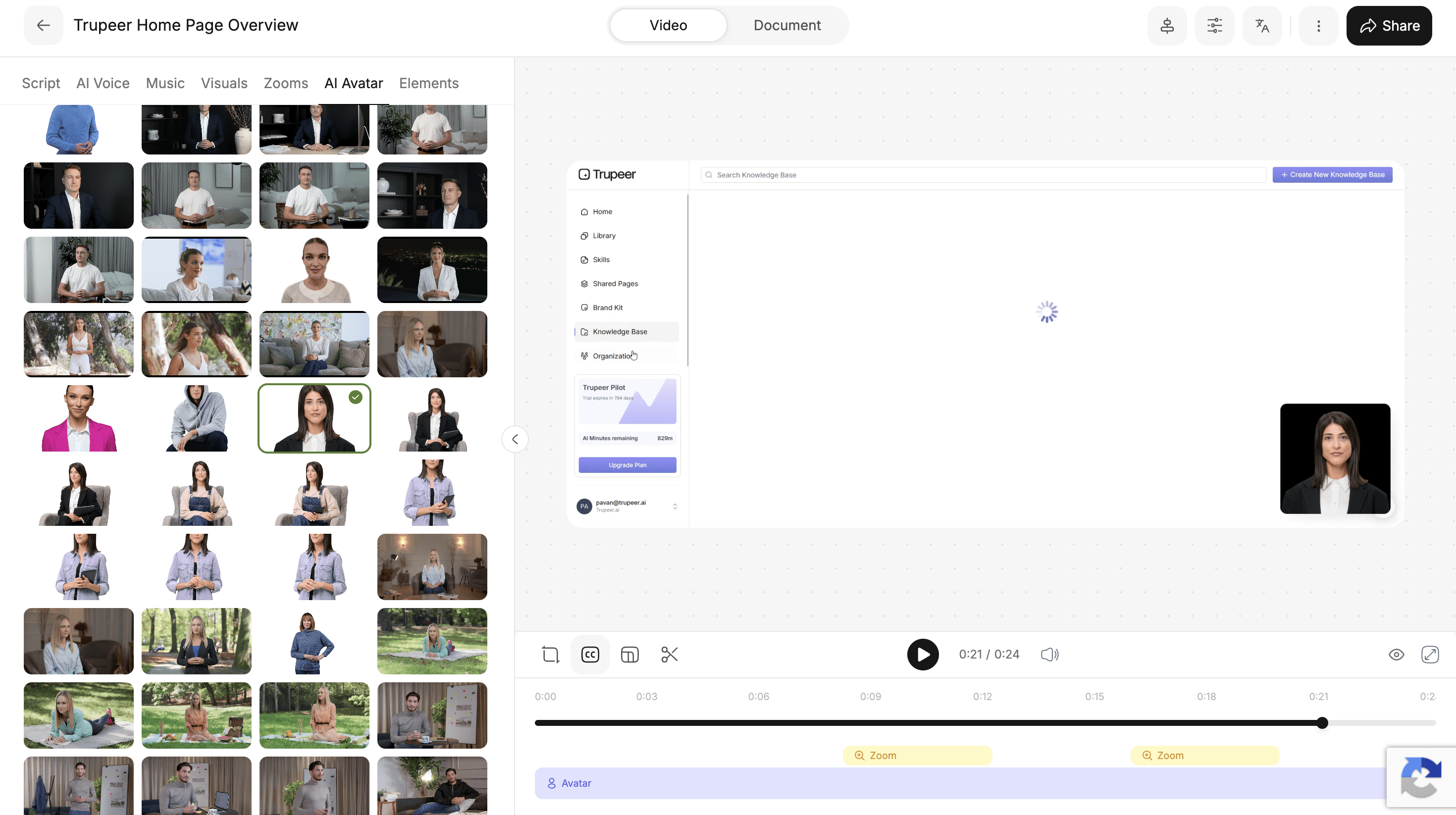
Make Your PPT Video Sound Like a Real Presentation
The difference between a good presentation and a slide deck is the person talking. Bullet points like "Q3 churn down 12%" or "New onboarding flow" mean little without someone explaining why they matter. Trupeer's narration is written from your slides, not read off them, so it does what a presenter would do.
It explains, then moves on. Each slide gets a short explanation of its point, then a natural transition to the next one.
It adapts to the audience. A sales pitch sounds different from a training lesson. The video style you pick in the converter changes the tone and depth of the narration.
It stays in your control. You review and edit the script, so product names, numbers and messaging are exactly right before anyone hears them.
Add AI Voiceover and Captions to Your PowerPoint Video
Most people converting a PowerPoint to video want one thing above all: audio. With Trupeer, every PowerPoint video comes with sound, and you can build on it.
AI voiceover. Pick from natural AI voices across accents and styles, from calm and informative to upbeat and conversational.
Captions. Generated from the narration, so your PPT video works on mute and is accessible to every viewer.
AI avatar presenter. Put an AI talking head beside your slides with lip-synced narration, which works well for training and customer-facing videos.
Other languages. Present the same deck to other regions with video translation, including dubbed voiceover and subtitles.
If you want to convert PowerPoint to video with audio in your own voice instead, PowerPoint's built-in export is an option, as long as you record the narration yourself.
Go Beyond PowerPoint's Built-In Video Export
PowerPoint can already export a presentation as a video. On Windows, go to File, Export, Create a Video. On Mac, go to File, Export and choose MP4 or MOV. So why use a PowerPoint to video converter at all? Because the built-in export only packages what you have already recorded.
Narration has to be recorded by you. Only audio you record in Slide Show makes it into the export. Without a recording, you get a silent video.
Timing is manual. Without recorded timings, every slide stays on screen for the same default duration, whether it holds one word or a full chart.
Changes mean re-recording. Update one slide, and the narration for that part has to be recorded again before you export.
Some effects drop out. Microsoft notes that on Mac, animation effects don't play in exported movies, and embedded media may not play in the video.
Trupeer takes the opposite approach. You export PowerPoint to video without recording anything: the narration is written and voiced for you, pacing follows the script, and a change to the deck is a change to a few lines of text. The built-in export is fine when you want your own recorded voice. Trupeer is the better fit when nobody has time to record, or the presenter isn't available.
Turn Sales, Training, and Product Decks into Videos
Sales and pitch decks
Send prospects a deck that presents itself. A narrated pitch video works as a follow-up after a call or as a first touch before one, part of a wider sales enablement workflow.
Product presentations
Turn launch and feature decks into videos for your website, release notes or customer emails. See more ideas for product marketing, or use Document to Explainer Video when you're starting from a written brief.
Training presentations
Convert employee training decks into lessons people can take on their own schedule, and reuse them for every new cohort. Teams build training videos this way without booking a trainer for each session. For manuals and policies, Document to Training Video is the better starting point.
Customer onboarding decks
Turn onboarding presentations into guided videos customers can watch before their first call, which is how many customer success teams scale onboarding.
Lectures and lessons
Teachers and trainers convert lecture slides into narrated lessons students can pause and rewatch, without recording the class.
Internal updates
Company all-hands decks, quarterly reviews and process updates become short videos people watch asynchronously, especially useful during change management.
Edit the Script Instead of Re-Recording Your Presentation
AI creates the first version, and you decide what goes out. Trupeer's AI-powered video editor works on the script, so changing a PowerPoint video feels like editing a document, not re-running a recording session.
Fix a line. Change a word in the script and the voiceover and captions update.
Reorder or cut scenes. Drop the agenda slide, move the key result to the start, or split one dense slide into two scenes.
Change the voice. Try a different AI voice or add an avatar without touching the script.
Share it your way. Export an MP4, share a link, or embed the video in your LMS, website or knowledge base.
Keep Your PowerPoint Video in Sync with Your Deck
Decks are living documents. Pricing slides change every quarter, product decks change with every release, and training decks change when a process does. A recorded presentation goes out of date the moment one of those slides changes. With Trupeer, your PowerPoint stays the source of truth, and the video follows it.
Update only what changed. Edit the scenes that match the updated slides. Everything else, including voice, pacing and branding, stays exactly as it was.
Retire the old version. Swap the updated video in wherever the old one was shared, so nobody watches last quarter's numbers.
Refresh translated versions. After updating the source video, regenerate its translated versions so every region sees the same change.
This matters most for decks that many people rely on at once, such as company-wide update decks or sales decks your whole team sends to prospects.
Convert PowerPoint to Video Online Without Recording
You don't need a microphone, a camera, a quiet room or desktop video software. Trupeer runs in the browser, so you can convert PPT to video online on Windows or Mac, and nobody has to sit down and present the deck. That also means you can create the video when the person who built the deck isn't available to record it.
You can start for free, with no credit card required, and test the full workflow on one of your real decks. Free plans have limits on things like video length and exports; when you need longer videos, avatars, translation or team features, compare plans on the pricing page.
What Makes Trupeer Different from a Basic PPT to Video Converter?
Many online PPT to video converters simply turn each slide into a still frame and stitch the frames into an MP4, sometimes with a voice reading the slide text. Trupeer is built to produce a presentation people actually follow.
Pacing follows the content. Each scene lasts as long as its narration needs, not a fixed number of seconds per slide.
The narration explains. Viewers can read a slide themselves. Trupeer's voiceover adds the explanation the slide leaves out.
You edit before anyone watches. The script is editable, so names, numbers and messaging are right before export.
It looks like your brand. Your logo, colors and fonts are applied to every PowerPoint video.
It keeps up with the deck. Updating a scene takes minutes, so the video never drifts from the slides.
Working from a PDF export of your deck instead? Use PDF to Video. For Word files and other documents, start from Document to Video.
Explore Related Tools
Why Teams Use Trupeer Instead of Recording PowerPoint Presentations
Narration Without Recording
AI writes and voices the explanation for every slide, so nobody has to sit down and record the presentation.
Scenes, Not Static Slides
Your deck becomes paced video scenes with captions, instead of slides that sit on screen for a fixed number of seconds.
Update With the Deck
Edit the script when your slides change. No re-recording, and the rest of the video stays as it was.
Create Your PowerPoint Video in Minutes
Étape 1
Upload your PPT or PPTX file
Étape 2
Review the AI narration script for each slide
Étape 3
Pick a voice or avatar and export your video as MP4
Foire aux questions
What is PowerPoint to video AI?
PowerPoint to video AI turns a presentation into a narrated video. It reads your slides, writes a spoken script that explains each one, and adds an AI voiceover, captions and optionally an AI avatar presenter, so you get a video without recording the presentation yourself.
Which PowerPoint to video AI tool works best?
It depends on the video you need. If you want your own recorded voice, PowerPoint's built-in export works well. If you want narration without recording, choose a tool that writes an editable script from your slides, offers natural AI voices and captions, and lets you update the video when the deck changes. Trupeer is built for that second case, especially for sales, training and onboarding decks.
Can I convert PowerPoint to video on Mac?
Yes. Trupeer runs in your browser, so you can convert PowerPoint to video on Mac the same way as on Windows. PowerPoint for Mac can also export MP4 or MOV through File, then Export, but narration only appears if you record it yourself.
How do I convert PowerPoint to video with audio?
Upload your PPT or PPTX file to Trupeer, review the AI-generated narration script, choose an AI voice and export. The voiceover and captions are added automatically, with no microphone or recording needed.
Can I convert PPT to video online for free?
Yes. You can convert PPT to video online for free with Trupeer, with no software to install and no credit card required. Free plans have limits on things like video length and exports, and paid plans add longer videos, avatars, translation and team features.
Plus d’outils


