Trupeer Blog
Summarise

As HR managers, you face the constant challenge of staying updated with the latest software tools, ensuring your team can operate at its best. Workday Human Capital Management (HCM) is a powerful suite, but mastering it isn't always straightforward. Training videos have become an essential tool to bridge the knowledge gap, offering a flexible and comprehensive learning experience. Consider this: a recent survey revealed that
83% of HR professionals found video-based learning significantly improved their understanding of complex software systems.
This guide is tailored for HR managers handling Workday HCM, breaking down each module into digestible parts. You'll learn how targeted videos can transform your training process, making it more efficient and effective.
Why do Workday HCM training videos matter?
Workday HCM training videos are critical because they address the unique complexities of human capital management software. HR managers often deal with intricate processes, from payroll to talent management, that require precise execution. Training videos simplify this complexity by offering visual demonstrations of workflows, making it easier for teams to understand and implement new processes. With Workday HCM's numerous features, written instructions can be overwhelming and easy to misinterpret, while videos provide clarity and context.
Another major reason is consistency in training. Live training sessions can vary depending on the instructor’s expertise and delivery style, leading to inconsistent learning outcomes across teams. With training videos, every team member receives the same high-quality instruction, ensuring uniform understanding and application of Workday’s capabilities. This consistency is especially important in large organizations where teams are spread across different locations. It's also crucial for onboarding new employees, allowing them to learn at their own pace and revisit material as needed, reducing the pressure to absorb everything in one go.
What are the benefits of Workday HCM training videos?
Training videos offer several advantages that enhance the learning process for HR managers and their teams.
Enhanced Understanding. Visual aids in sap training guide show that employees grasp complex concepts more quickly with video demonstrations.
Increased Accessibility. Videos can be accessed anytime, anywhere, allowing for flexible learning schedules that fit around busy work commitments.
Consistent Training Quality. Every user gets the same information, reducing discrepancies in understanding and application of the Workday HCM features.
Scalable Learning. A single AI video platform can train multiple teams simultaneously, making scaling training across global offices fast and efficient.
Improved Retention. Repeated exposure to video content reinforces learning, leading to better retention of information over time, as shown in studies where video learners scored 15% higher.
Cost-Effective. Once created, videos incur no additional costs, unlike live training sessions, which require ongoing investment in trainers and resources.
Which Trupeer features help you create Workday HCM training videos?
Trupeer offers several powerful features tailored to enhance your Workday HCM training videos, making them more engaging and efficient for your team.
AI Screen Recording with Auto-Zoom and Click Detection
Trupeer’s AI screen recording technology allows you to capture your Workday HCM sessions with precision. The auto-zoom feature ensures that every important detail is highlighted, while click detection makes it clear where users need to interact with the software. This eliminates guesswork for viewers, making the learning process straightforward. By highlighting key actions automatically, it reduces editing time and enhances viewer engagement, ensuring that critical steps in workflows aren’t missed.
Silent Screen Recording with Automatic AI Narration
Sometimes, recording audio during sessions isn't feasible. Trupeer’s silent screen recording feature steps in here, allowing you to add automatic AI narration post-recording. This means you can focus on demonstrating without worrying about narrating in real-time. The AI-generated narration can be adjusted for pace and tone, ensuring it matches the learning style of your audience. This feature is especially useful when creating content for global teams with varying language preferences.
Automatic Filler-Word Removal
One of the challenges in creating professional training videos is maintaining a polished delivery. Trupeer’s automatic filler-word removal feature cleans up your recordings by eliminating unnecessary “ums” and “ahs.” This results in a more professional and concise video, keeping viewers engaged. This feature is particularly beneficial for HR managers who may not be professional presenters, allowing them to produce high-quality content without extensive training.
AI Voiceover in 65+ Natural Voices
Trupeer offers AI voiceover capabilities in over 65+ natural voices, which can be customized to match your brand’s tone. This diversity allows you to create content that resonates with different audiences, whether local or international. The ability to adjust pace and tone ensures that the voiceover aligns with the instructional content, enhancing the learning experience. It's a vital tool for organizations with diverse teams, ensuring inclusivity in training materials.
Automatic SOP Generation from Any Recording
Creating standard operating procedures (SOPs) from your training videos is simplified with Trupeer’s auto-generated documentation feature. This capability allows you to transform recordings into edit-ready, exportable SOPs, which can be a valuable resource for your team. By providing clear, step-by-step guides, you ensure that your team has access to reliable resources that can be referenced long after the training session. This enhances the overall learning process and reduces the need for repeat training sessions.
STOP
How do you create Workday HCM training videos step by step with Trupeer?
Step 1: Capture the Screen
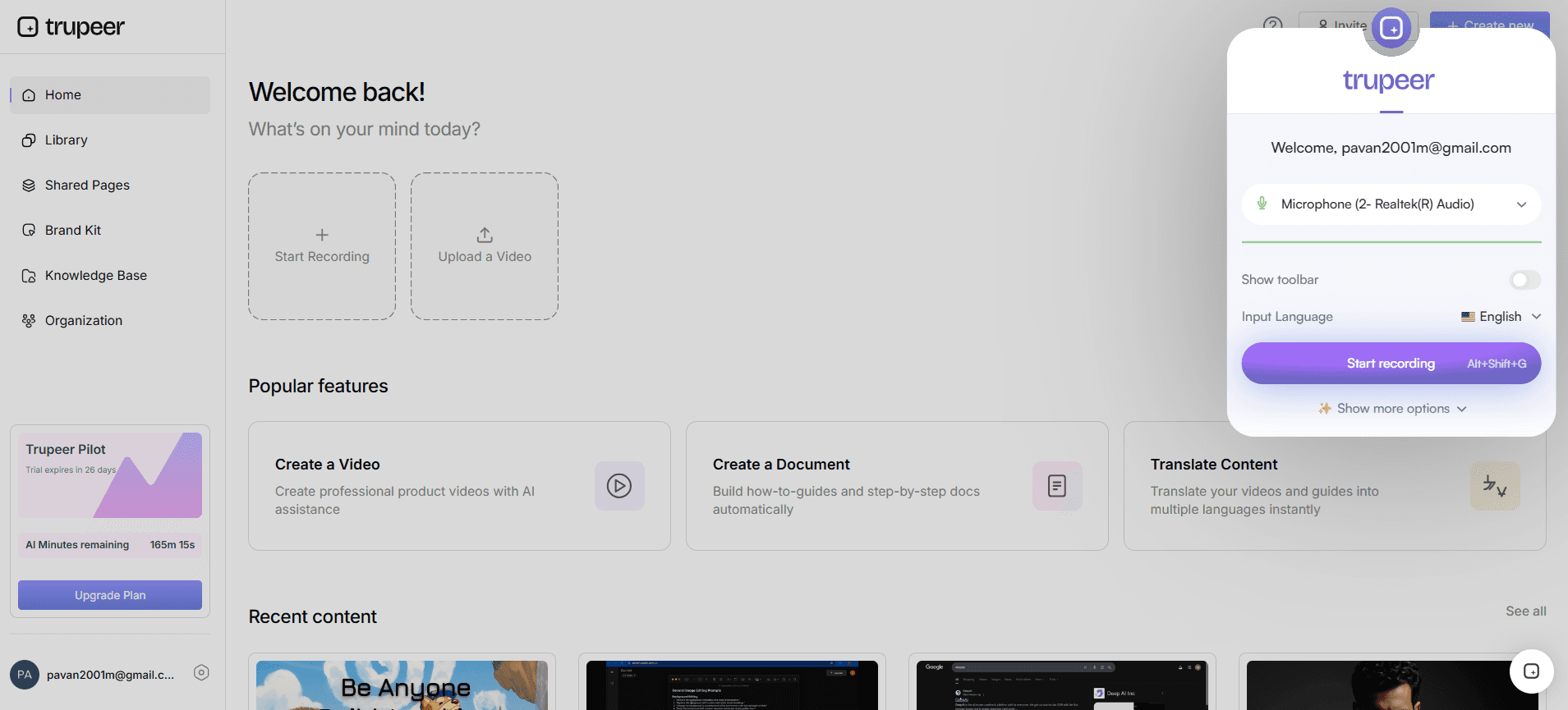
Start by using Trupeer’s AI screen recording with auto-zoom and click detection. Open your Workday HCM application and initiate the recording through Trupeer’s browser-based recorder, requiring no installation. As you navigate through the application, Trupeer automatically highlights essential areas with its auto-zoom feature, ensuring that each click and action is captured clearly. This process ensures that viewers can see every detail necessary for understanding complex functions. The recording captures in real-time, and the output is ready as soon as you finish the session, minimizing downtime.
Step 2: Add Narration
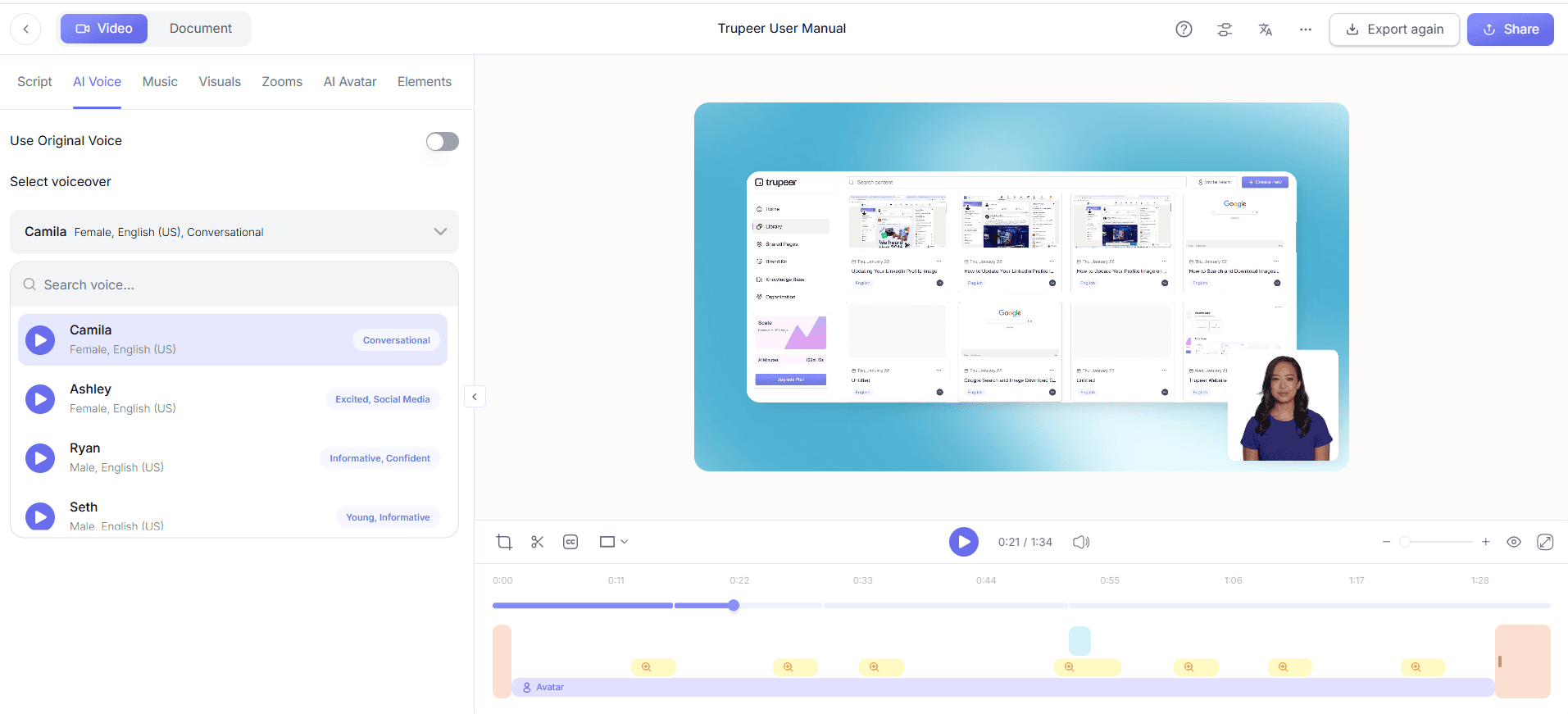
Next, use Trupeer’s silent screen recording with automatic AI narration. Once your screen recording is complete, you can easily add a professional voiceover without re-recording your screen actions. Trupeer’s AI-generated narration can be customized for pace and tone, ensuring that the audio matches your instructional style. This feature is particularly useful if you need to produce content in a quiet setting or wish to edit your narration thoroughly before adding it to the video.
Step 3: Clean Up Audio
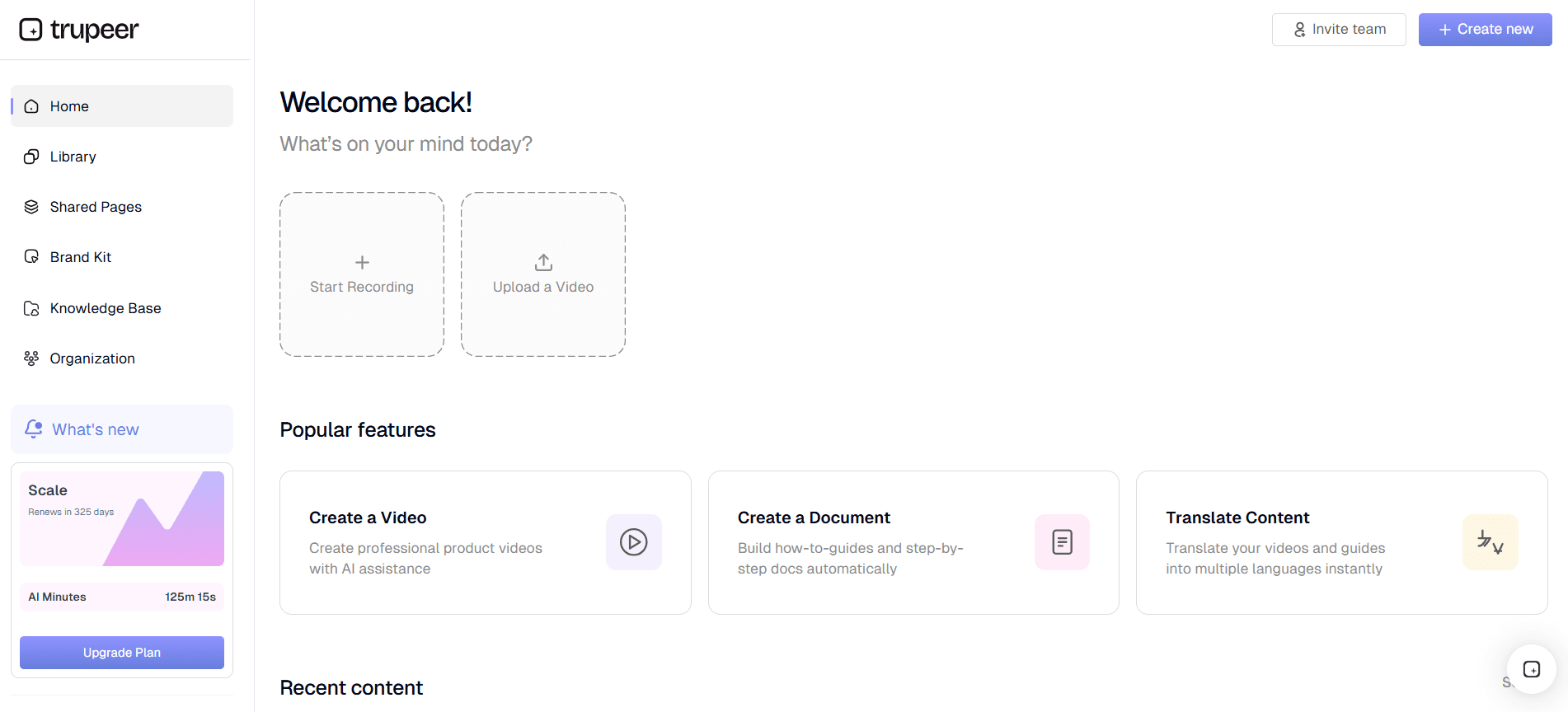
After adding your narration, use Trupeer’s automatic filler-word removal to refine the audio. This feature identifies and removes unnecessary fillers such as "um" and "ah," creating a polished and professional presentation. This step is crucial for maintaining viewer engagement and ensuring that your message is delivered clearly and concisely. The process is automated and typically takes only a few minutes, depending on the length of your recording.
Step 4: Customize with AI Voiceover
Enhance your video further with Trupeer’s AI voiceover in 65+ natural voices. Choose a voice that aligns with your brand’s personality, and adjust the tone and pace to suit your audience’s preferences. This flexibility allows you to reach a wider audience, accommodating different language requirements and regional accents. The AI voiceover is integrated smoothly into your video, ensuring a smooth and professional finish.
Step 5: Generate SOPs
Transform your training video into comprehensive documentation by using Trupeer’s automatic SOP generation feature. Once your video is finalized, Trupeer’s system can create edit-ready SOPs based on the content. This documentation is exportable in multiple formats, such as PDF and HTML, and provides a valuable reference that team members can consult independently. This step enhances the longevity of your training materials and improves the overall learning experience. Teams weighing tools often start with a Loom alternatives comparison before standardizing on a workflow.
Step 6: Distribute via Knowledge Base
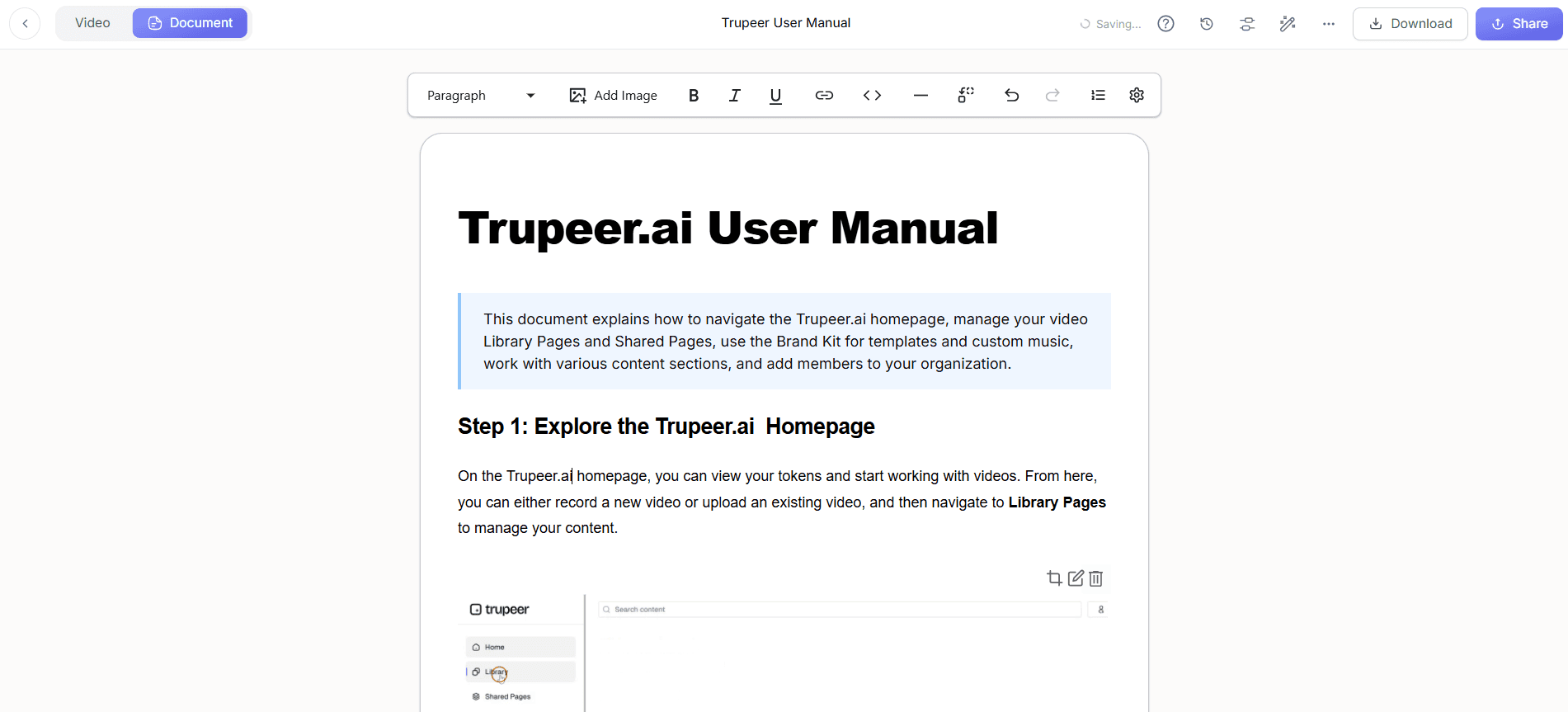
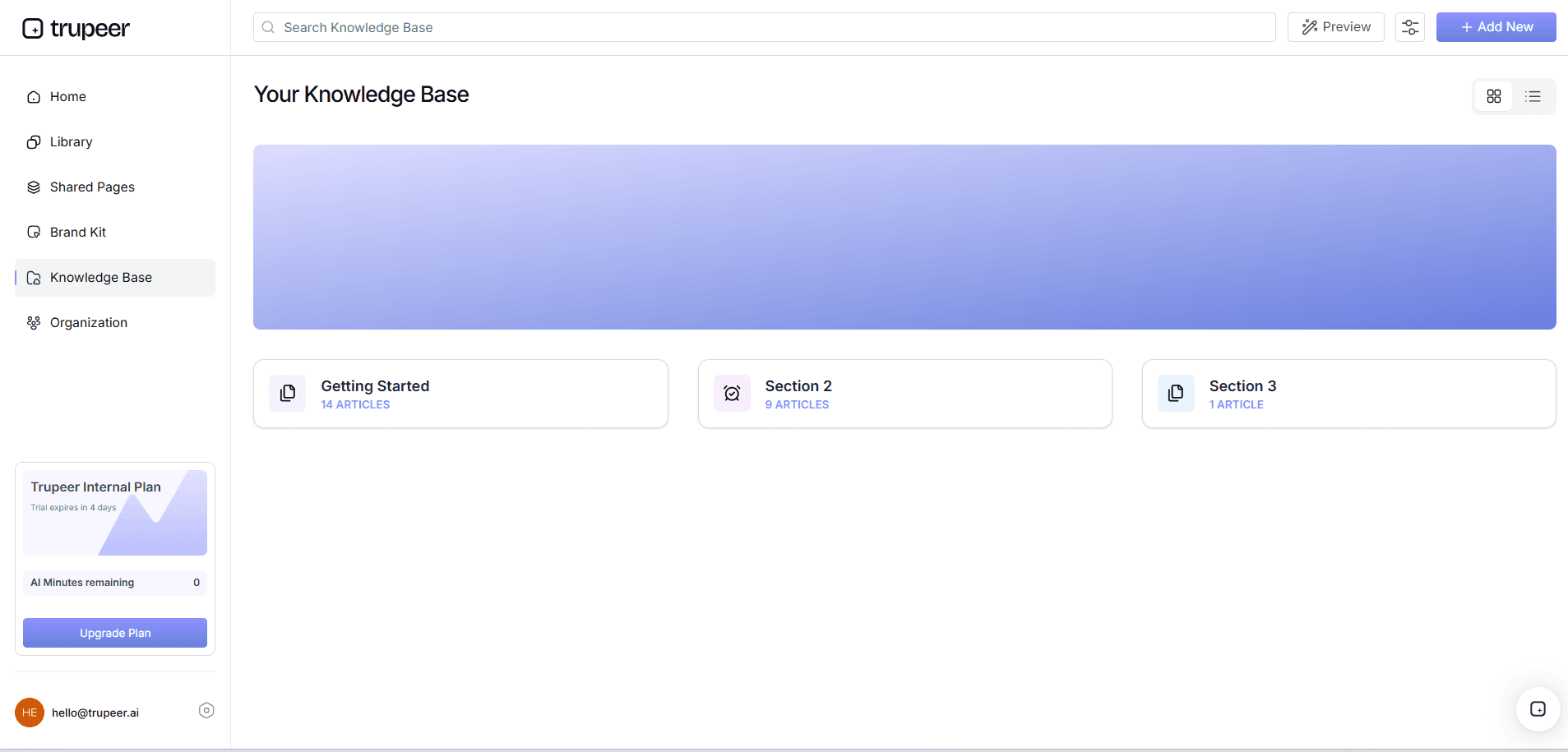
Finally, distribute your completed training video using Trupeer’s AI-searchable knowledge base. Upload your video to the platform, where it becomes indexed with timestamp-level deep links. This ensures that your team can easily find and access specific sections of the training video when needed. The knowledge base supports collaborative review and approval workflows, allowing you to maintain high standards of quality and consistency across all training materials.
What tips help you create Workday HCM training videos?
Creating effective training videos for Workday HCM requires careful planning and execution. Here are some tips to ensure your videos are both educational and engaging.
Plan Your Content. Outline the key points you want to cover before recording to ensure your video is structured and comprehensive.
Keep It Concise. Aim for videos that are 5-10 minutes long to maintain viewer attention and engagement throughout the session.
Use High-Quality Audio. Clear audio is crucial. ai/competitors/scribe-vs-trupeer">AI voiceover features for a professional touch.
Engage with Visuals. Incorporate visuals such as infographics or animations to illustrate complex ideas and keep the content dynamic.
Include Quizzes. Integrate short quizzes at the end of each module to reinforce learning and assess understanding.
Standardize Your Format. Use consistent branding and templates to ensure all videos have a unified look and feel.
Gather Feedback. After distribution, collect feedback from viewers to identify areas for improvement and enhance future videos.
Frequently asked questions
How do I start creating a Workday HCM training video?
Begin by identifying the specific Workday HCM features you want to cover. Use Trupeer’s AI screen recording to capture these features in action. Plan your script and ensure you have a clear narrative before recording. Once the recording is complete, enhance it with Trupeer’s AI voiceover and filler-word removal for a polished finish. This systematic approach helps ensure your training video is both informative and engaging.
What equipment do I need to record a training video?
The beauty of using Trupeer is that you don’t need extensive equipment. A computer with Internet access and Trupeer’s browser-based recorder are sufficient. For high-quality audio, a good microphone is recommended, though Trupeer’s AI narration can substitute if recording live audio isn’t feasible. This setup allows you to produce professional-grade training content without significant investment in hardware. Trupeer also ships a beginner friendly video editor for training videos that handles this step without extra setup.
Can I edit my Workday HCM training video after recording?
Absolutely. Trupeer provides tools like AI easy video editing software for training videos to refine your content post-recording. You can adjust the pacing, add or remove sections, and incorporate additional visual elements. These editing capabilities ensure that your final product meets your quality standards and effectively communicates the intended message to your audience. This is exactly where Oracle HCM training content becomes useful and it's the kind of content Trupeer can generate directly from a simple screen recording.
Why is AI voiceover beneficial for training videos?
AI voiceovers offer consistency and professionalism. With Trupeer’s AI voiceover, you can choose from over 65+ natural voices, ensuring your content resonates across diverse audiences. This feature also allows for adjustments in tone and pace, making it easier to tailor the video to specific learning needs. In addition, it eliminates the need for live narration, reducing the complexity and time required to produce the video.
Does Trupeer support video localization?
Yes, Trupeer supports video localization through its AI video translation capabilities. This feature allows you to translate your training videos into over 40 languages, complete with lip-sync dubbing for non-English audiences. This capability ensures your training materials are accessible to a global workforce, promoting inclusivity and enhancing learning effectiveness across different regions. For detailed insights, explore Trupeer's video localization tool.
Related Blogs



