Trupeer Blog
Summarise

Imagine you've just finished recording a detailed product demo for your company's latest software release. You hit play to review it, only to find the resolution is off, the audio crackles, and half the screen is cut off. It's not just frustrating; it jeopardizes the professional image you've worked hard to build. A screen recording quality checklist can save you from these pitfalls, ensuring every video maintains a consistent, high-quality standard. According to a recent survey,
78% of marketers believe poorly produced video content can negatively impact brand perception
. This checklist is essential for marketers, trainers, and anyone relying on video content to communicate effectively. Whether you're using the best screen recording software or just starting, these guidelines will help maintain professionalism in every recording.
Why does a screen recording quality checklist matter?
In the area of digital communication, video content has become a staple. But when the quality falters, so does your message. For businesses, particularly in product marketing, the stakes are high. A single glitch can misrepresent a product's capabilities, leading to misunderstandings and lost sales. Poor quality recordings can also frustrate clients and prospects, who expect clear, professional presentations.
Beyond customer-facing content, internal communications suffer without a quality checklist. Training videos, SOPs, and documentation must be clear and precise. Imagine a new employee trying to learn a complex process through a blurry, inaudible video. The result? Longer training times, increased error rates, and decreased productivity. A dedicated screen recording quality checklist mitigates these risks by ensuring every video is up to standard before it's shared. By establishing a reliable workflow, teams can focus on content rather than technical issues, which can simplify operations and improve overall efficiency.
What are the benefits of a screen recording quality checklist?
Implementing a screen recording quality checklist provides numerous benefits for your organization. Here are some of the key advantages:
Consistency Across Content. A checklist ensures that every video adheres to the same quality standards, creating a uniform professional appearance across all content. This consistency is crucial for maintaining brand integrity.
Improved Viewer Engagement. High-quality videos keep viewers engaged longer. With clear visuals and crisp audio, audiences are more likely to watch the entire video, leading to better retention of information.
Reduced Editing Time. By addressing quality issues during the recording process, you minimize the need for post-production edits. This can significantly speed up the production timeline, allowing for faster content deployment.
Enhanced Brand Perception. Professional-quality videos reflect positively on your brand, conveying a sense of reliability and expertise. This can influence customer perceptions and drive increased trust and loyalty.
Efficient Resource Utilization. By standardizing quality checks, resources are used more efficiently. Teams spend less time troubleshooting issues and more time creating valuable content. Explore how a best screen recording softwares can aid this process.
Facilitated Training and Support. Clear, high-quality training videos enhance learning experiences and reduce the need for additional support. An AI video platform can help generate content that meets high standards effortlessly.
Which Trupeer features help you create a screen recording quality checklist?
Trupeer offers a range of features that ensure your screen recordings meet high-quality standards. Here’s how specific capabilities can enhance your video production:
AI screen recording with auto-zoom and click detection
This feature is essential for producing visually engaging content. The AI-driven auto-zoom focuses on areas of interest, ensuring viewers don't miss critical information. Click detection highlights user interactions, providing clarity and context. This automated process reduces manual input and enhances the viewer's understanding of the recorded material. For users looking to simplify recording workflows, Trupeer's browser screen recorder is a no-install solution that simplifies the recording process, making it accessible and efficient.
Silent screen recording with automatic AI narration
Silent screen recording allows you to capture content without background noise. Trupeer's automatic AI narration then adds a professional voiceover, which can be customized in over 65+ natural voices. This feature ensures that audio quality matches the clarity of your visuals. By integrating AI narration, you eliminate the need for additional audio recording equipment, saving both time and resources while improving the overall production quality.
Brand kits and branded templates for consistent visual style
Maintaining a consistent visual style across all videos is crucial for brand recognition. Trupeer's brand kits and templates ensure that your recordings feature consistent colors, fonts, and layouts. This feature helps establish a professional look and feel, enhancing the viewer's experience and reinforcing your brand identity. By using these tools, you can quickly apply your branding elements across multiple videos, ensuring uniformity and professionalism.
Automatic SOP generation from any recording
Trupeer offers an AI documentation platform that transforms your recordings into detailed Standard Operating Procedures (SOPs). This feature is invaluable for training and compliance purposes. By automatically generating SOPs, you save time on documentation and ensure that all procedures are accurately captured. The edit-ready format allows for quick adjustments, making it an efficient tool for maintaining up-to-date records.
AI-searchable knowledge base with timestamp deep-links
Trupeer's video knowledge base indexes your recordings, making them easily searchable by content or timestamp. This feature is particularly useful for training and support teams, who can quickly locate specific information within a video. Timestamp deep-links allow users to jump directly to relevant sections, saving time and enhancing the user experience. This capability ensures that your video content remains accessible and actionable for all stakeholders.
How do you create a screen recording quality checklist step by step with Trupeer?
Step 1: Initiate Screen Recording
Start by using Trupeer's browser-based recorder, which requires no installation. Open your dashboard and click on "Start Recording." This tool is ideal for capturing on-the-fly content without setup delays. It automatically detects screen resolutions and adjusts to ensure clarity. The auto-zoom feature focuses on active areas, reducing the need for manual adjustments. Expect the initial setup to take only a few seconds, providing a smooth recording experience. If you encounter any browser permission issues, ensure that pop-ups and screen sharing settings are enabled for best functionality.

Step 2: Optimize Audio Settings
Before recording, navigate to the audio settings within the Trupeer interface. Here, you can select "AI narration" for a professional voiceover. Choose from over 65+ natural voices and adjust the pace and tone to match your content style. This feature ensures consistent audio quality across all recordings. If background noise is a concern, opt for silent screen recording with AI narration, which overlays clear audio post-capture. Most users find the setup intuitive, with changes reflected immediately, ensuring you’re ready with the best sound quality.
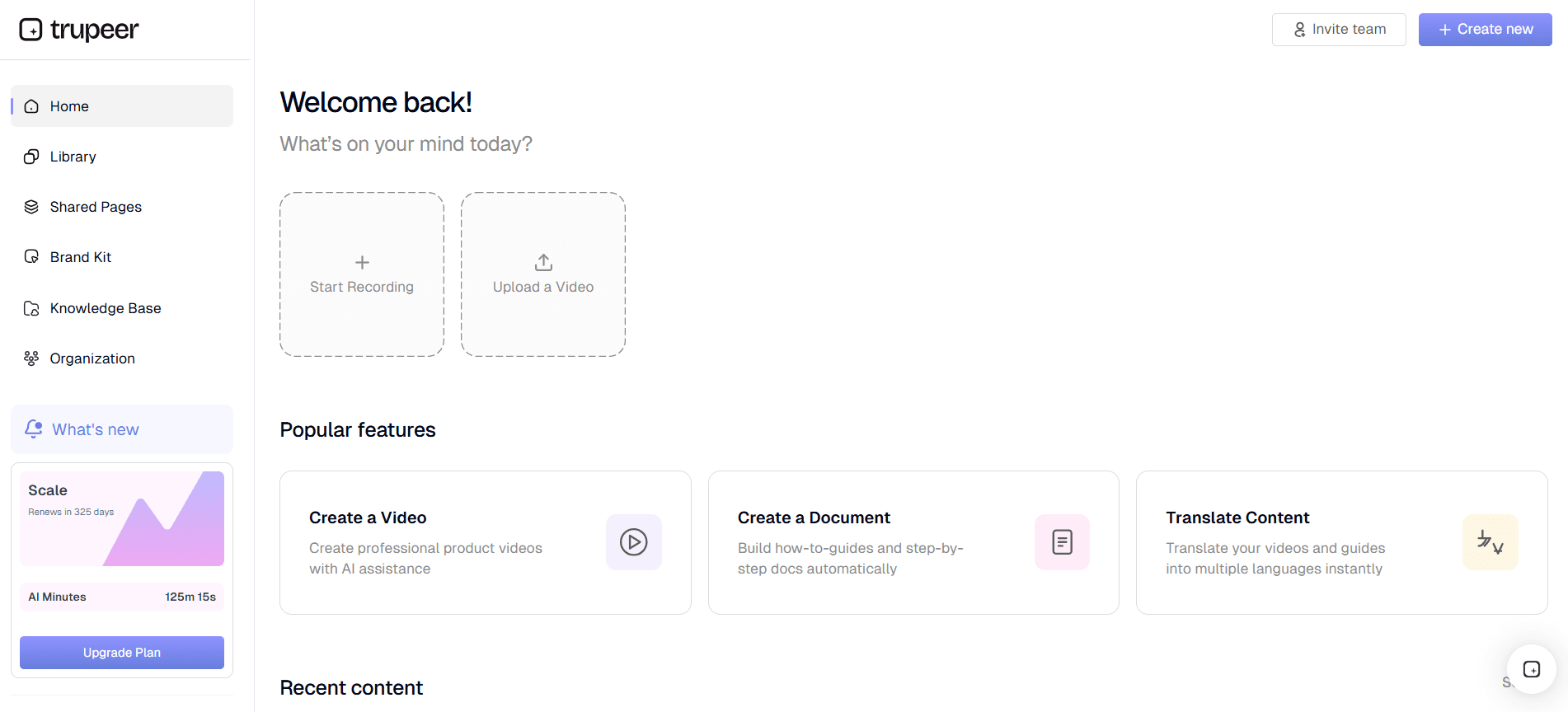
Step 3: use Brand Kits
Consistency is key for professional recordings. Access Trupeer's brand kits from the settings menu to apply your company’s colors, fonts, and logos automatically to each video. Select your template from the pre-set options or customize your own. This ensures every recording is on-brand, contributing to a cohesive visual identity. The templates are easy to apply and can be adjusted in real-time, allowing you to see changes as you make them. This step takes about five minutes and saves hours in post-production adjustments. Teams weighing tools often start with a Loom alternatives comparison before standardizing on a workflow.
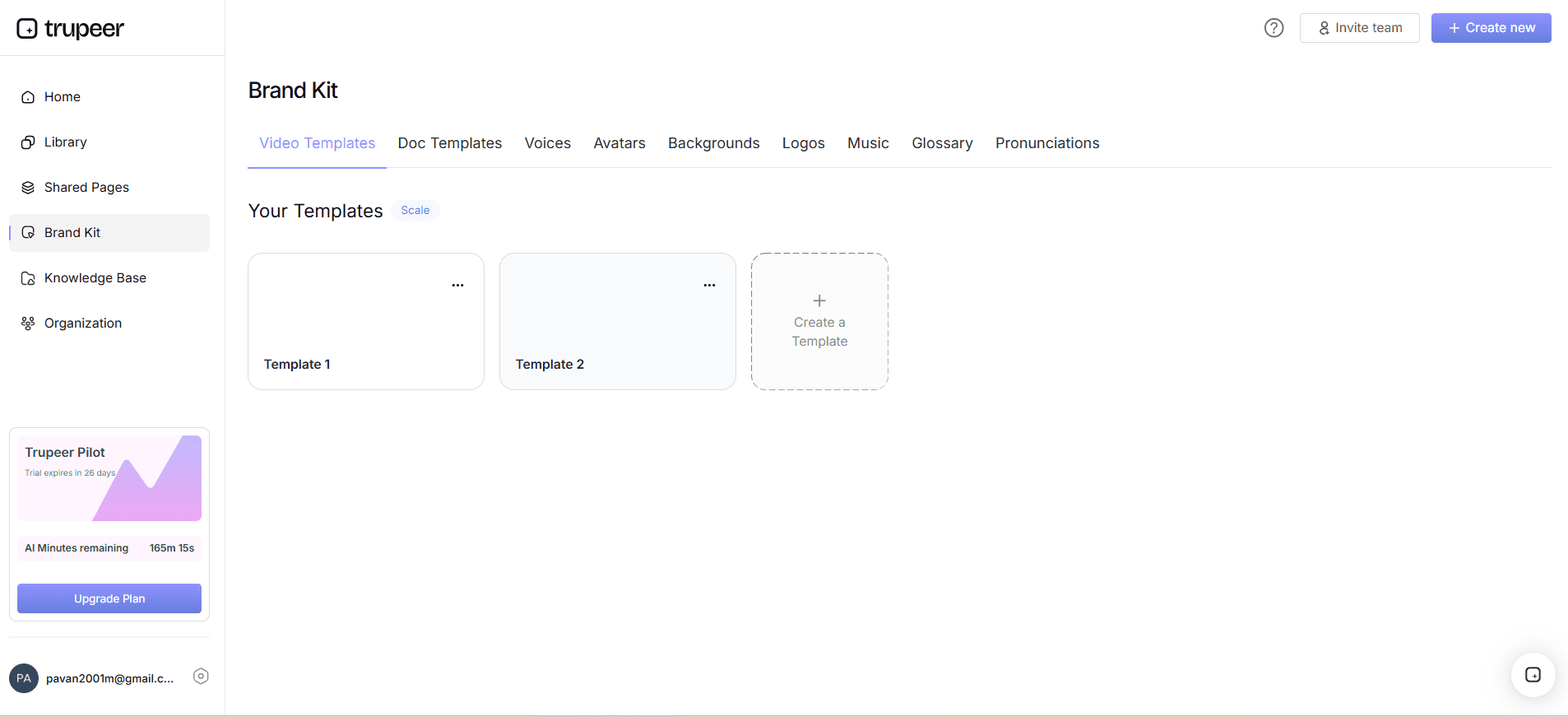
Step 4: Implement AI Auto-zoom and Click Detection
Once your recording begins, Trupeer's AI auto-zoom and click detection come into play. These features automatically focus on active elements and highlight user interactions, enhancing viewer comprehension. You don’t need to worry about manually tracking cursor movements or zooming in on specific areas; the AI handles these tasks efficiently. This functionality is particularly beneficial for detailed software demonstrations or tutorials, ensuring nothing is missed. Adjustments can be made instantly if needed, with options to toggle features on or off during recording.
Step 5: Generate SOPs Automatically
After recording, select "Generate SOP" from your dashboard. Trupeer transforms your video into a detailed, edit-ready Standard Operating Procedure. This feature is excellent for training and compliance, capturing both visuals and instructions in a structured format. The SOPs are exportable in multiple formats, including PDF and HTML, allowing easy sharing and integration into existing documentation systems. This process typically takes only a few minutes, providing a quick turnaround from recording to distribution. Ensure your recording is free of any superfluous content to simplify SOP generation.
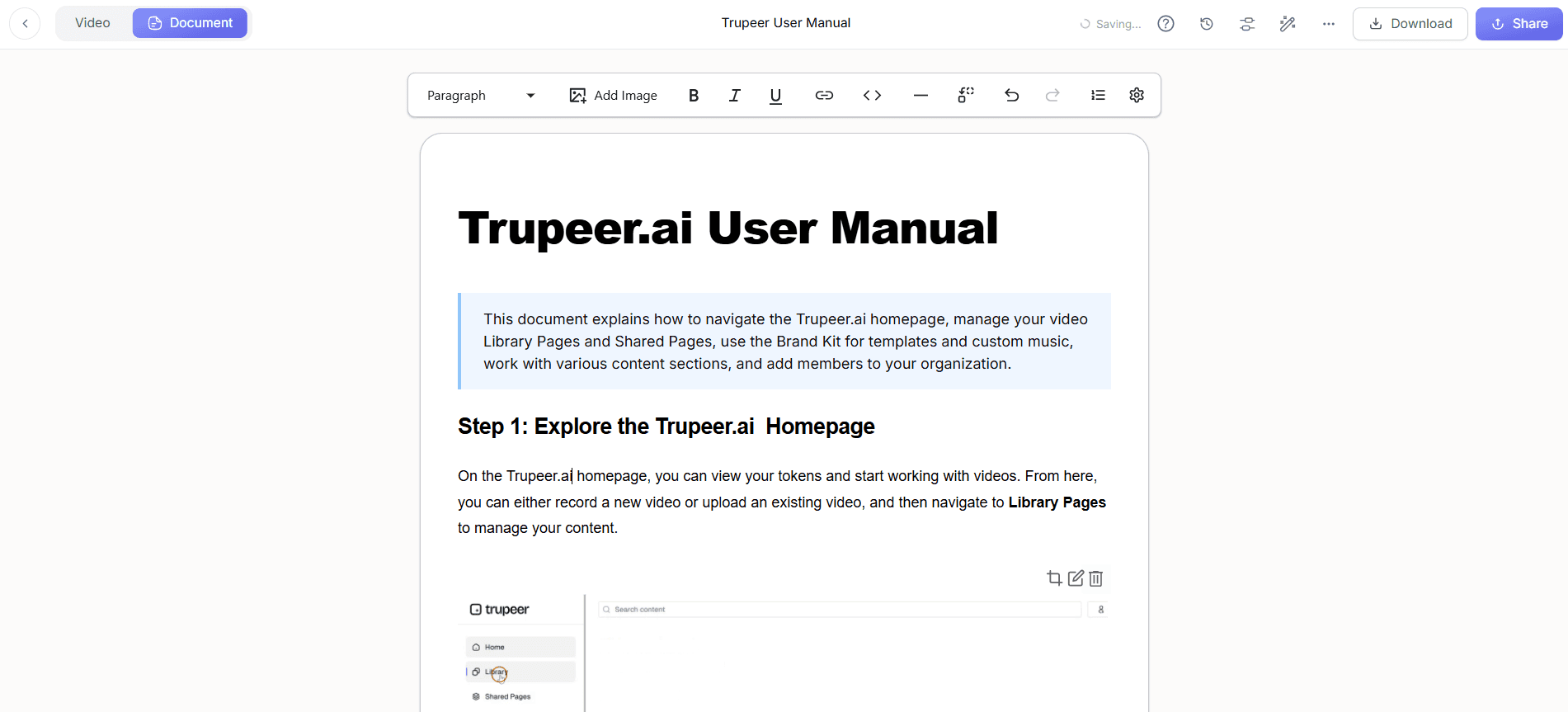
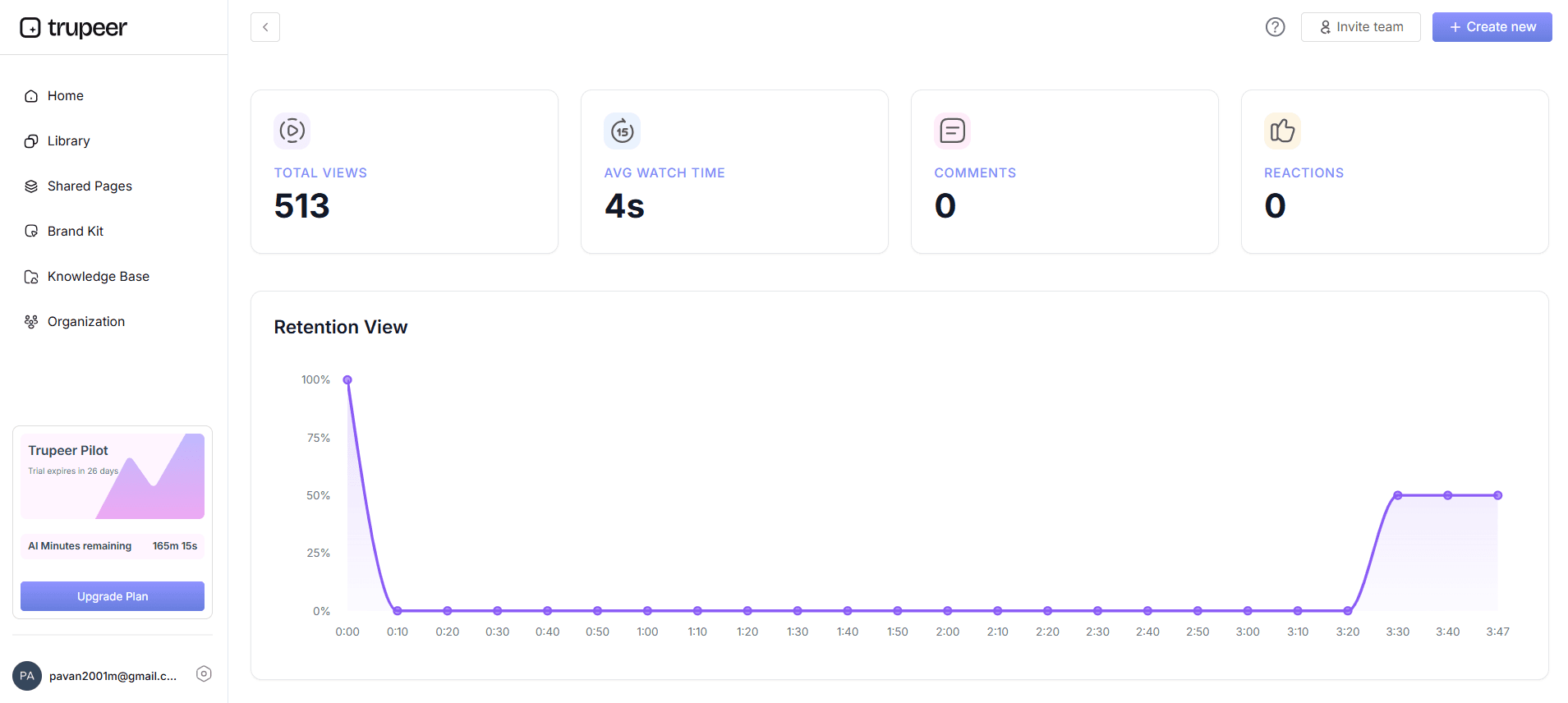
Step 6: Analyze Viewer Engagement
Once your content is live, use Trupeer's analytics to assess viewer engagement. Access the "Analytics" tab to view metrics such as drop-off rates and heatmaps, which indicate where viewers are most engaged or lose interest. These insights help refine future content, ensuring it meets audience needs. Regular analysis allows you to adjust your strategy and improve communication effectiveness over time. The dashboard offers a user-friendly interface, making it easy to interpret data and implement changes. This proactive approach ensures your recordings remain impactful and engaging.
What tips help you maintain high screen recording quality?
Creating high-quality screen recordings consistently requires a mix of strategy and tools. Here are some practical tips to ensure your recordings meet professional standards:
Check System Compatibility. Ensure your hardware and software are compatible with Trupeer’s requirements to avoid technical glitches.
Use Proper Lighting. Even for screen recordings, good ambient lighting can reduce glare and improve overall video clarity.
Test Audio Levels. Conduct a quick audio test before recording to avoid common issues like background noise or uneven volume levels.
Review Browser Settings. Make sure your browser is updated and browser settings are optimized for screen sharing, especially when using screen recording for employee training.
Standardize Recording Procedures. Develop a standard operating procedure for recordings to maintain consistency across different sessions.
use AI Tools. use AI features for auto-zoom and narration, reducing manual workload and enhancing video professionalism.
Maintain Backup Copies. Always save backup copies of your recordings in multiple formats to prevent data loss and ensure easy accessibility.
When SOPs come into the same conversation, a Scribe alternatives comparison helps clarify the scope.
Frequently asked questions
How can I improve audio quality in screen recordings?
Improving audio quality involves using Trupeer’s AI narration to replace or enhance your original audio. Choose from 65+ natural voice options and adjust settings like tone and pace for clarity. Also, recording in a quiet environment minimizes background noise. also, checking and adjusting your microphone settings before starting your recording can prevent common audio issues such as static or low volume.
What resolution is best for screen recordings?
For most applications, recording in 1080p offers a clear and professional appearance without consuming excessive storage. Trupeer automatically adjusts video resolution settings based on the device's capabilities, ensuring best clarity. Recording at a lower resolution, like 720p, may suffice for less detailed content or when bandwidth is limited. However, higher resolutions such as 4K are suitable for detailed demonstrations where fine detail is crucial.
Why is my screen recording blurry?
Blurriness often results from recording at a low resolution or insufficient bandwidth. Ensure your settings are configured for at least 1080p and that your internet connection is stable. Trupeer’s auto-zoom feature can help by focusing on key areas, but starting with the right settings is essential. also, monitor your system’s performance to avoid lag, which can impact video clarity.
Can Trupeer handle multilingual screen recordings?
Yes, Trupeer supports multilingual screen recordings with its translation and dubbing features. You can translate content into over 40 languages, complete with lip-syncing for dubbed audio. This ensures your content is accessible to a global audience. Using the AI video translation tool simplifies this process, making your recordings versatile and universally applicable.
Does Trupeer offer video editing features post-recording?
Trupeer provides limited post-recording editing features focused on enhancing professional quality. It includes automatic filler-word removal and AI-driven enhancements like voiceovers and avatars. For detailed editing, you might need specialized software. However, the built-in features are effective for creating polished, ready-to-share content swiftly without requiring extensive edits.
Related Blogs


