Trupeer Blog

Summarise with:
Claude
ChatGPT
Gemini
Perplexity
Grok
Imagine you're the product manager for an enterprise software company. Your team has just launched a new application designed to simplify project management for large organizations. The software is innovative, but users are struggling. Support requests are flooding in, and customer satisfaction is dipping. Why? The problem isn't the software itself; it's the documentation. Poorly structured, unclear PDF manuals are leaving users frustrated. According to a recent survey,
80% of users abandon software with inadequate documentation after just one month.
This is where understanding and implementing PDF documentation best practices becomes crucial. Creating a well-structured, clear, and comprehensive PDF manual isn't just about providing information; it's about enabling your users to get the most out of your software. This guide will help you understand the essential elements of effective PDF documentation, ensuring that your manuals become a valuable resource for users, rather than a source of confusion. Teams weighing tools often start with a Loom alternatives comparison before standardizing on a workflow.
Why does creating effective PDF documentation for enterprise software products matter?
Creating effective PDF documentation for enterprise software products is vital for several reasons. First, it directly influences user satisfaction and product adoption. When users can't find the information they need, they're more likely to abandon the software altogether. This leads to increased support requests, which can overwhelm your customer support team and increase operational costs. An operations use case highlights how simplified documentation helps reduce support ticket volumes, allowing teams to focus on more strategic initiatives.
Also, well-crafted documentation can enhance your company's reputation. In the enterprise software market, where competition is fierce, providing clear and comprehensive manuals can set your product apart. It demonstrates a commitment to customer success and can become a key differentiator in purchasing decisions. Effective documentation also facilitates training and onboarding, reducing the time it takes for new users to become proficient with the software. This means faster time to value for your customers, which is a critical factor in retaining them long-term. Ultimately, investing in high-quality PDF documentation isn't just about reducing friction for users; it's about building a sustainable business.
What are the benefits of implementing PDF documentation best practices?
Implementing PDF documentation best practices brings several tangible benefits to your enterprise software product.
Enhanced User Experience. Clear and concise documentation helps users understand and use your software effectively, leading to increased satisfaction and fewer support requests.
Reduced Support Costs. By following sop best practices, you can minimize the volume of support inquiries, allowing your team to focus on high-impact areas instead of repetitive questions.
Improved Product Adoption. Comprehensive manuals that are easy to navigate and understand can boost user confidence, leading to higher adoption rates and customer retention.
Faster Onboarding. Effective documentation accelerates the onboarding process, enabling new users to quickly become proficient with your software, thus shortening the time to productivity.
Competitive Advantage. A single AI video platform allows for the creation of engaging, informative documentation that differentiates your product in a crowded market.
Consistent Branding. High-quality documentation reinforces your brand identity, ensuring that your product messaging is consistent across all user touchpoints.
Which Trupeer features help you create effective PDF documentation?
Trupeer offers several features that can significantly enhance the creation of PDF documentation for enterprise software products. These capabilities simplify the documentation process, ensuring consistency, clarity, and ease of access.
Automatic SOP Generation from Any Recording
Trupeer's documentation generator automatically creates standard operating procedures from any screen recording. This feature is invaluable for enterprise software products, where processes can be complex and multifaceted. By generating SOPs from real-time interactions, it ensures that documentation is accurate and reflects actual usage. You can edit and export these SOPs, making them flexible for various needs. This reduces the time spent on manual documentation, allowing teams to focus on refining content rather than starting from scratch.
Multi-format Export: MP4, HTML, PDF, SCORM
With Trupeer's multi-format export capabilities, you can cater to diverse user preferences and requirements. Whether users prefer video, text, or interactive formats, Trupeer provides options. The ability to export to video knowledge base or PDF ensures that your documentation is accessible and versatile. This flexibility means you can meet the needs of different learning styles, enhancing the overall user experience. By offering documentation in multiple formats, you ensure that every user can access the information in the format that suits them best.
AI Voiceover in 65+ Natural Voices
Trupeer's AI voiceover feature allows you to add professional narration to your documentation, making it more engaging and accessible. This is particularly useful for users with visual impairments or those who prefer auditory learning. With over 65+ natural voices available, you can customize the pace and tone to match your brand's voice. This feature not only enhances the user experience but also ensures that your documentation is inclusive and reaches a broader audience. By integrating voiceovers, you can transform static documents into interactive learning tools, increasing user engagement.
Auto-updating Documentation Tied to the Underlying Recording
One of Trupeer's standout features is its ability to create auto-updating documentation. This means that any changes to the software are automatically reflected in the documentation. This enterprise documentation software tool ensures that users always have access to the most current information, reducing confusion and errors. By eliminating the lag between software updates and documentation revisions, you maintain consistency and reliability in user resources. This proactive approach to documentation management is crucial for enterprises that frequently update their products.
AI-searchable Knowledge Base with Timestamp Deep-links
Trupeer's AI-searchable knowledge base indexes every recording with timestamp-level deep links. This feature transforms your documentation into a dynamic resource that users can search through effortlessly. By providing direct access to the specific information users need, you reduce the time they spend searching for answers and increase their productivity. This capability is particularly beneficial in enterprise environments where time is a critical factor, and users require immediate access to relevant information. It also enhances the self-service aspect of your documentation, enabling users to find solutions independently.
How do you create effective PDF documentation step by step with Trupeer?
Step 1: Capture the Initial Workflow
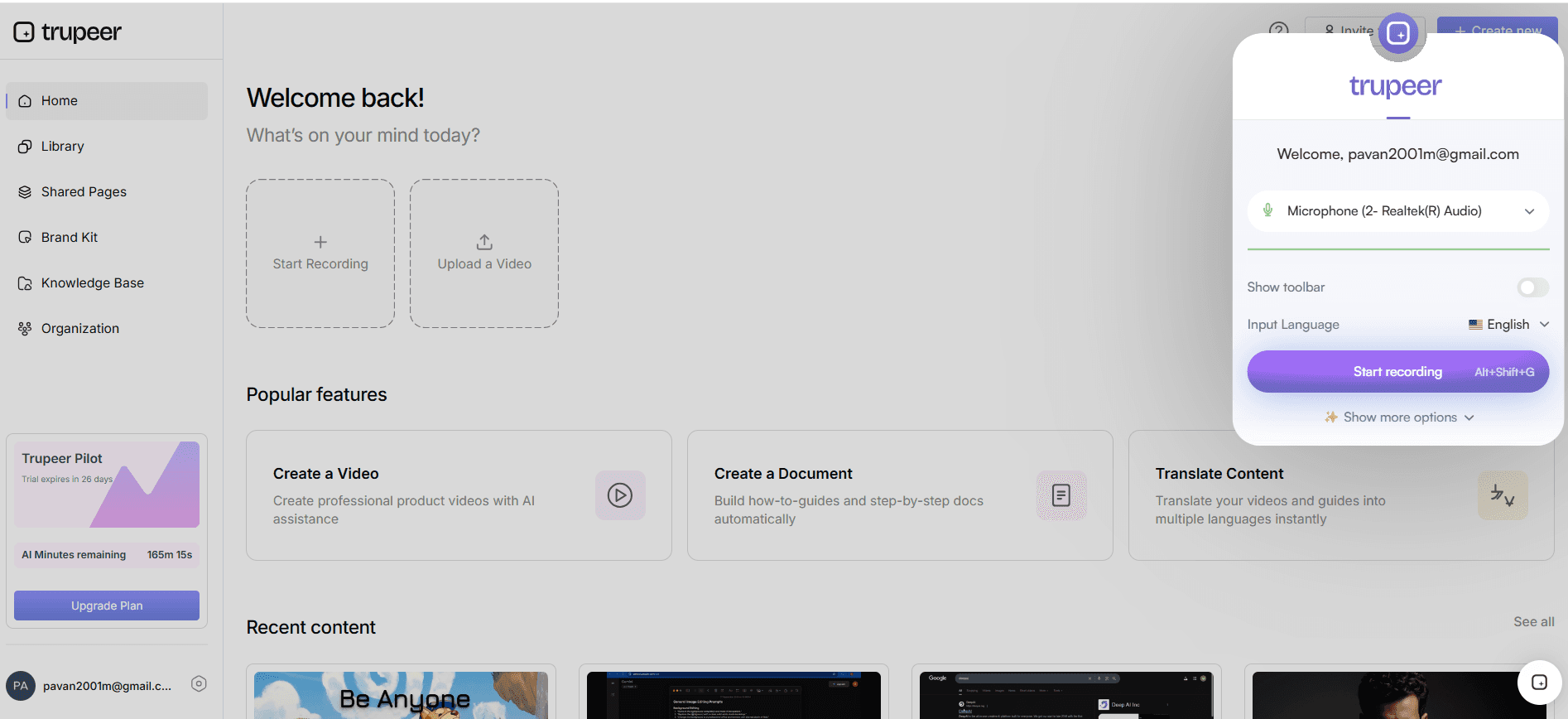
Begin by using Trupeer's AI screen recording with auto-zoom and click detection to capture your software's workflow. This feature allows you to record the screen without any installation, using either the browser-based recorder or the desktop app. Auto-zoom and click detection ensure that important actions are highlighted, making the recording clear and easy to follow. Once you've captured the workflow, Trupeer processes the recording, which usually takes just a few minutes, and prepares it for the next steps. This initial capture provides a strong foundation for creating detailed documentation.
Step 2: Edit and Enhance the Recording
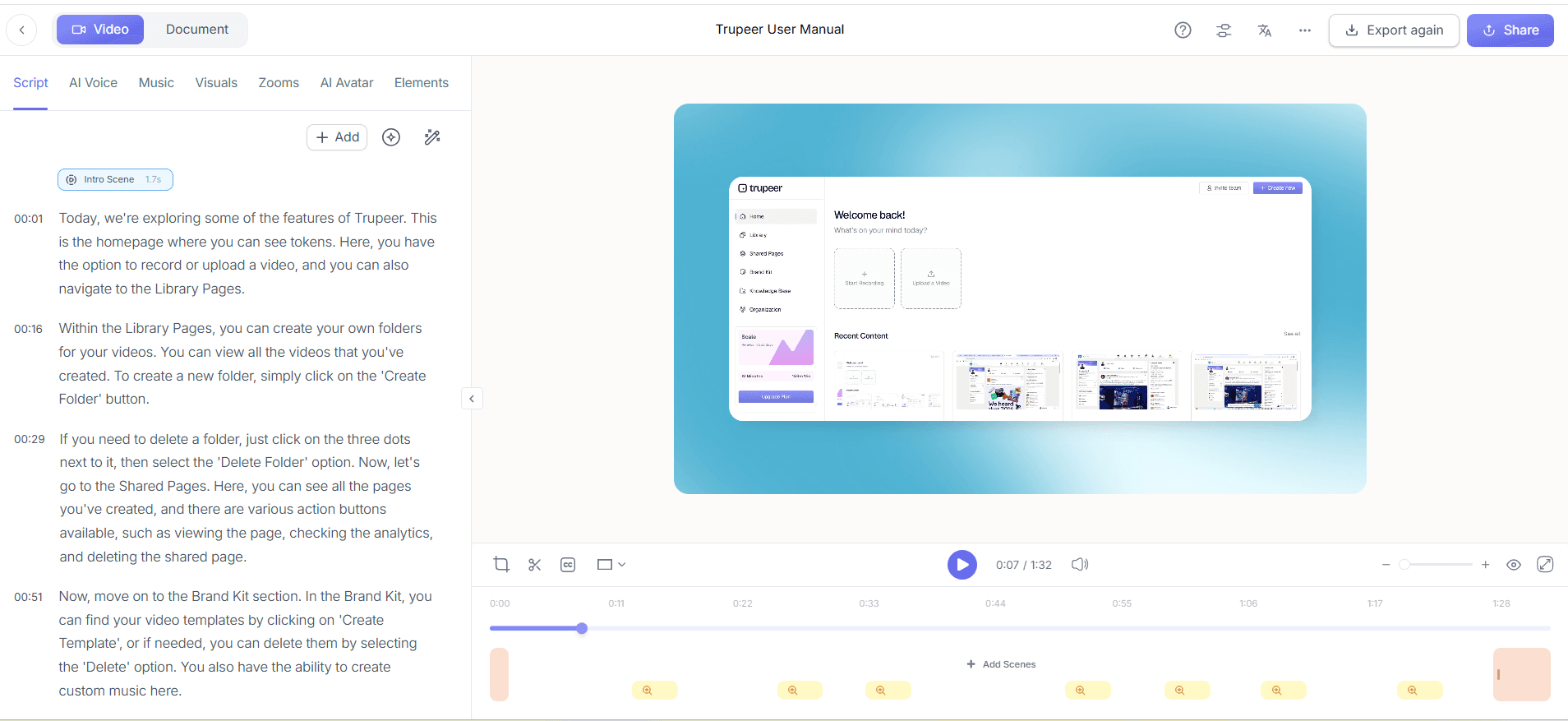
Next, move to the editing phase using Trupeer's automatic filler-word removal feature. This capability cleans up the recording by eliminating unnecessary pauses and filler words like "um" and "ah." also, You can adjust the pace and tone to match your brand's style. This step ensures that the content is polished and professional, setting the stage for creating engaging and informative documentation.
Step 3: Generate Automatic SOPs
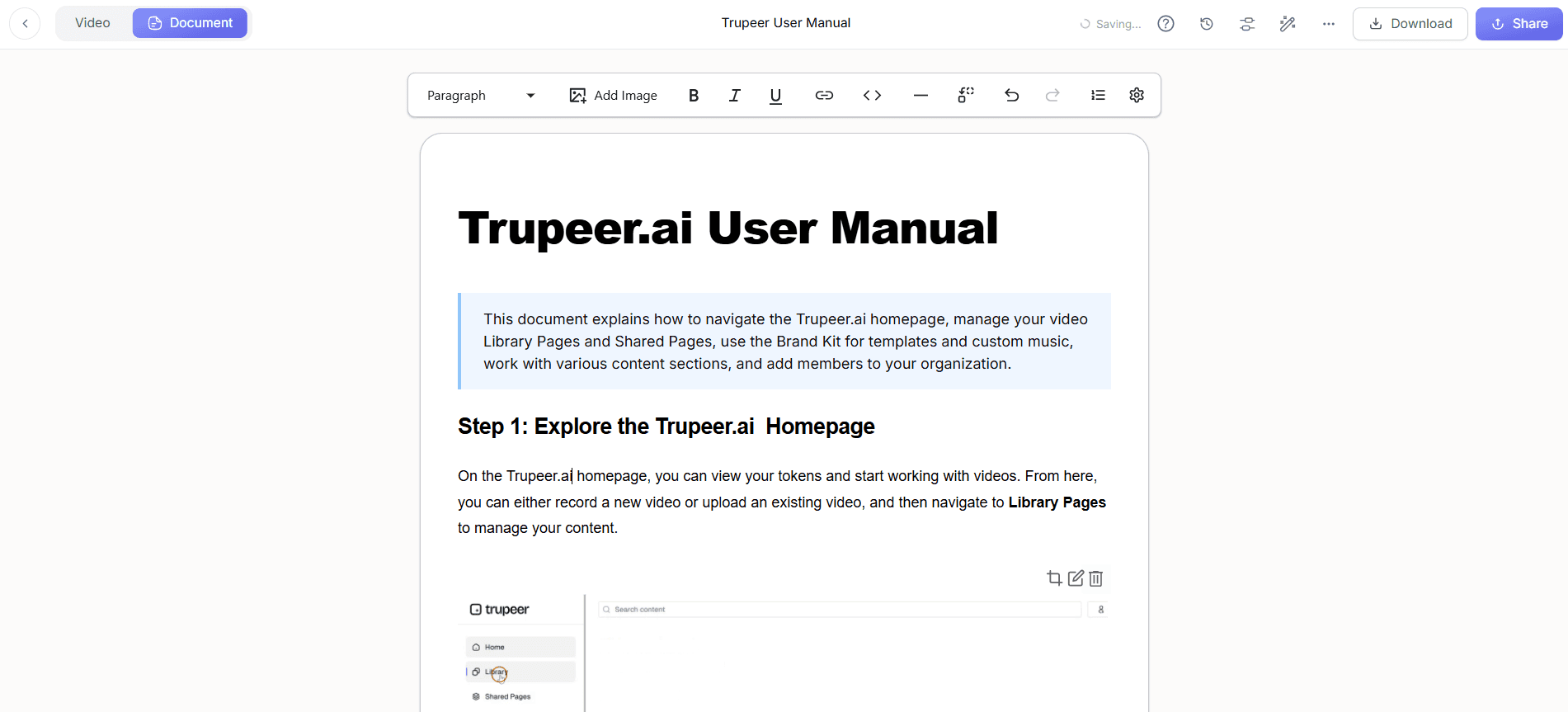
Use Trupeer's automatic SOP generation feature to convert the edited recording into a structured document. This tool analyzes the video and extracts key steps, creating an edit-ready SOP that can be exported in various formats, including PDF. This process typically takes less than five minutes, providing a quick and efficient way to produce high-quality documentation. Trupeer's AI engine ensures accuracy and consistency, making this step crucial for maintaining documentation quality.
Step 4: Export the Document in Multiple Formats
With the SOPs generated, use Trupeer's multi-format export capability to produce the final document. You can choose to export as PDF for traditional documentation or as MP4 for video guides. This flexibility means you can cater to various user preferences. The export process is straightforward, simply select your desired format and click "Export." Trupeer handles the rest, ensuring that your documentation is ready for distribution in just a few clicks. For a deeper look, our guide on best documentation software covers the adjacent playbook.
Step 5: Localize for Global Audiences
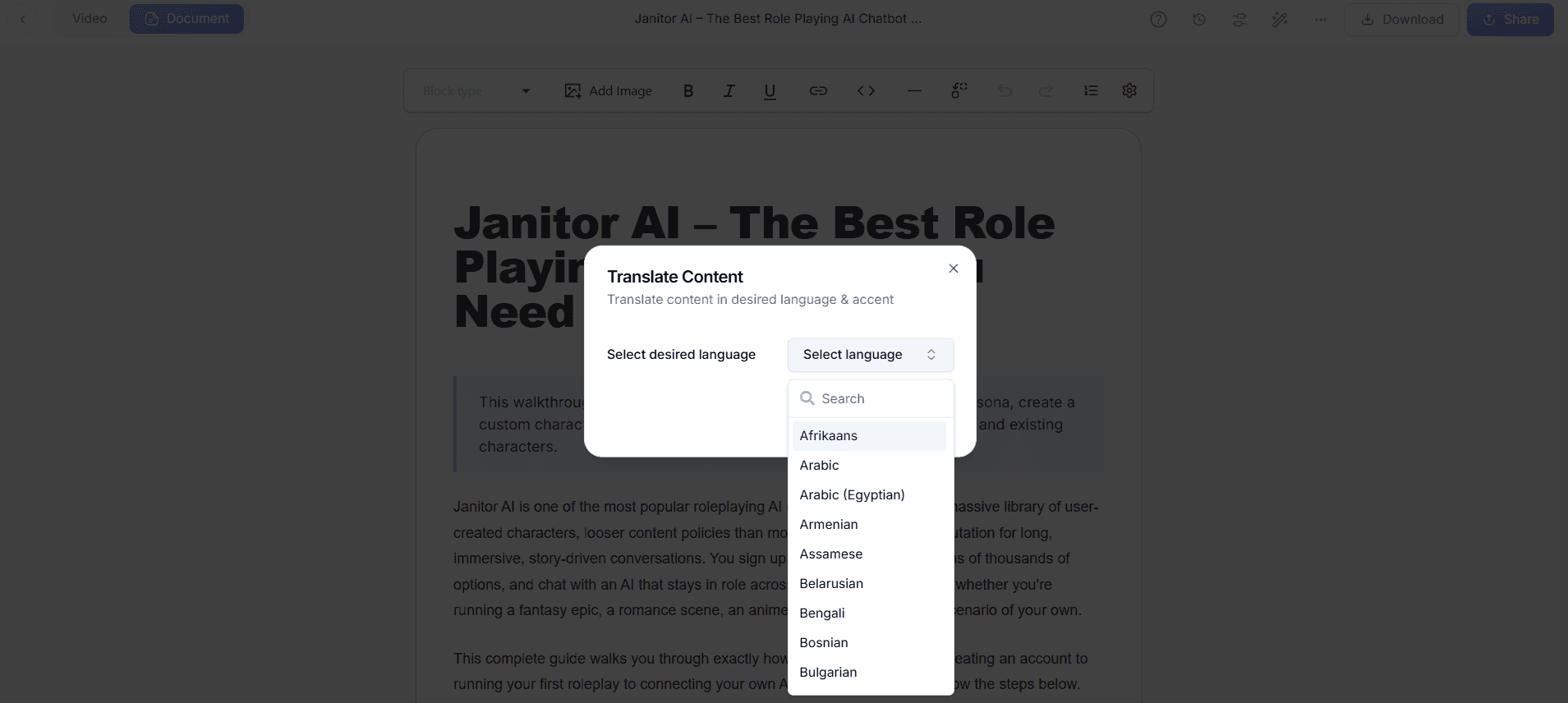
If your software serves an international audience, Trupeer's AI translation into 40+ languages is invaluable. This feature automatically translates the documentation while maintaining the original formatting. also, AI dubbing can be used to create voiceovers in different languages, complete with lip-sync. This ensures that your documentation is accessible to non-English speaking users, broadening your product's reach and enhancing user experience globally.
Step 6: Distribute and Monitor Engagement
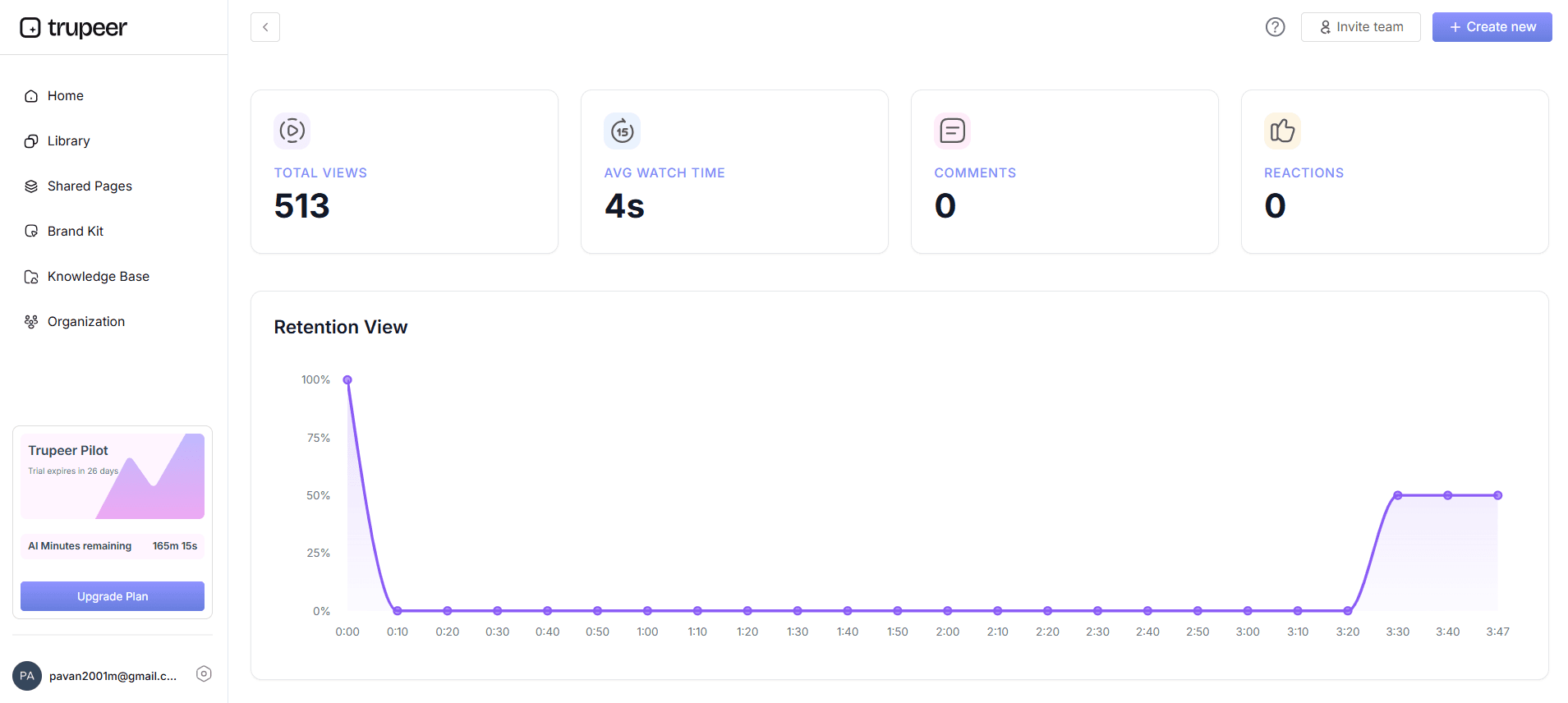
Finally, distribute your documentation using Trupeer's AI-searchable knowledge base. This feature allows users to find answers quickly through timestamp deep-links, significantly enhancing the accessibility of your documentation. Monitor viewer engagement analytics to understand how users interact with your content. Trupeer provides detailed insights, helping you identify areas for improvement and ensuring that your documentation remains effective and relevant. This ongoing analysis is crucial for maintaining high standards in user support and satisfaction.
What tips help you create effective PDF documentation?
Creating effective PDF documentation involves more than just capturing and exporting information. Here are some tips to ensure your documentation is comprehensive and user-friendly.
Use Consistent Templates. Establish a standard template for all documents to maintain consistency and enhance readability.
Incorporate Visuals. Use screenshots and diagrams to break up text and illustrate complex processes, making the information easier to digest.
Keep Language Simple. Use clear, concise language to ensure that your documentation is understood by all users, regardless of their technical expertise.
Test for Clarity. Have someone unfamiliar with the software read the documentation to identify any confusing sections or missing information.
Update Regularly. Regularly review and update documentation to reflect software changes, ensuring users always have access to the most current information.
Seek User Feedback. Encourage users to provide feedback on the documentation and use this input to make continuous improvements.
use AI Tools. Implement AI tools like Trupeer's Scribe alternative comparison to automate routine documentation tasks, saving time and reducing errors.
Trupeer also ships a system documentation software that handles this step without extra setup.
Frequently asked questions
How can I ensure my PDF documentation is user-friendly?
To ensure your PDF documentation is user-friendly, focus on clarity and organization. Use a clear hierarchy of headings and subheadings to make navigation intuitive. Incorporate visuals such as screenshots and diagrams to break up the text and illustrate key points. also, employ simple, concise language to cater to users of all technical levels. Regularly update the documentation to reflect any changes in the software, ensuring users always have the most current information. Finally, gather feedback from users to identify areas for improvement.
What tools can help automate the documentation process?
Tools like Trupeer offer several capabilities for automating the documentation process. Features such as automatic SOP generation and AI voiceover can significantly reduce the time and effort required to produce comprehensive documentation. Trupeer's multi-format export options allow you to create documentation in various formats, accommodating different user preferences. also, the video localization tool can handle translations, making your documentation accessible to a global audience. These automation tools simplify the documentation process, ensuring consistency and accuracy.
Why is it important to update PDF documentation regularly?
Regularly updating PDF documentation is crucial to ensure users have access to the most current and accurate information. As software evolves, new features and changes can render existing documentation obsolete, leading to user confusion and increased support requests. By keeping documentation up-to-date, you enhance user experience, reduce frustration, and maintain trust in your product. Updated documentation also reflects a commitment to customer success, which can positively impact your brand reputation and customer retention.
Can I integrate interactive elements into PDF documentation?
Yes, integrating interactive elements into PDF documentation can enhance user engagement and understanding. Interactive PDFs can include clickable links, embedded videos, and dynamic forms that allow users to interact with the content. Trupeer's capabilities, such as embeddable video widgets, enable you to incorporate multimedia elements smoothly. These features help transform traditional documentation into a more engaging and informative resource, catering to different learning preferences and improving the overall user experience.
Does Trupeer support collaboration on documentation projects?
Trupeer supports collaboration through features like collaborative review and approval workflows. These capabilities allow multiple team members to contribute to the documentation process simultaneously, ensuring diverse insights and expertise are captured. Team members can comment and suggest edits, facilitating a simplified process that enhances the quality of the final document. This collaborative approach is essential for large-scale projects where input from different departments is necessary to create comprehensive and accurate documentation.


