Trupeer Blog
Summarise

Imagine this: you've invested hundreds of hours into creating a comprehensive library of CRM training videos. Your team relies on these resources for onboarding, ongoing training, and even client education. Then, a major system migration occurs. Overnight, every video is out of date. The stakes are high. If your training videos don't align with the new CRM system, productivity can plummet, and confusion reigns. According to a survey,
over 60% of companies experience a decrease in employee efficiency immediately following a CRM migration.
This scenario is all too common. But there's a way to update your training resources without starting from scratch. This guide is for L&D managers, training coordinators, and anyone responsible for maintaining training materials in dynamic environments. Teams weighing tools often start with a Loom alternatives comparison before standardizing on a workflow.
Why does updating CRM training videos after a major system migration matter?
Training videos are vital for effective learning and development. When a CRM undergoes a major migration, the entire interface, workflow, and features may change. This renders your existing videos obsolete. Employees and clients might find themselves looking at outdated screens, leading to confusion and errors. For instance, if a new CRM system introduces a different navigation structure, your old videos could guide users down the wrong paths. This not only causes frustration but also slows down the adoption of the new system.
Also, maintaining updated training videos use case ensures consistency and accuracy in information dissemination. Stakeholders such as team leaders, HR departments, and IT managers rely on these resources to train new employees efficiently. Outdated videos can lead to inconsistent learning experiences, creating knowledge gaps across teams. By updating your training videos promptly, you ensure that everyone receives the same accurate information, reducing the risk of operational hiccups and improving overall employee satisfaction.
What are the benefits of updating CRM training videos after a major system migration?
Updating training videos post-migration offers several benefits that can significantly impact your organization’s efficiency and effectiveness.
Improved Accuracy. Ensures that all training materials reflect the most current CRM features and workflows, minimizing confusion and errors.
Enhanced Learning Experience. Up-to-date videos provide a smoother learning curve for new employees, leading to quicker onboarding and higher productivity.
Increased Engagement. Employees are more likely to engage with content that is relevant and accurate. An training video production that is current keeps the audience interested and focused.
Consistent Training Across Teams. Updated materials ensure that all teams receive the same level of training, reducing discrepancies in knowledge and practice.
Cost Efficiency. Updating existing videos is more cost-effective than creating new ones from scratch. This approach maximizes the return on investment in training resources.
Future-Proofing. A video generation platform that allows for easy updates ensures your training library can quickly adapt to future changes, minimizing downtime.
Which Trupeer features help you update CRM training videos after a major system migration?
Trupeer offers several features specifically designed to simplify the process of updating training videos, making it easier to adapt your library post-migration.
AI Screen Recording with Auto-Zoom and Click Detection
This feature allows you to capture new CRM workflows efficiently. The AI automatically adjusts the zoom to focus on essential actions and detects clicks, eliminating the need for manual editing. This capability is crucial when updating training videos, as it ensures that viewers can clearly see and understand new navigation paths and functionalities. The auto-zoom feature helps maintain a professional look and feel, while click detection highlights critical interactions within the CRM system.
Automatic Filler-Word Removal
Updating video content can be time-consuming. Trupeer's automatic filler-word removal simplifies this process by eliminating unnecessary "um," "ah," and long pauses. This feature not only saves editing time but also enhances the video's clarity and professionalism. As you update your CRM training videos, this tool will help you produce polished, concise content that keeps your audience engaged. Easy video editing software for training videos ensures that your updates are efficient and effective.
AI Voiceover in 65+ Natural Voices
With the AI voiceover feature, you can update the audio of your training videos to match new content effortlessly. Choose from over 65+ natural voices, and adjust the pace and tone to suit your audience's needs. This capability is essential when textual content changes post-migration, as it allows you to maintain consistency in voice quality and style throughout your video library. By updating the voiceover, you ensure that all information is delivered clearly and professionally.
Automatic SOP Generation from Any Recording
Trupeer's auto-generated documentation feature allows you to create Standard Operating Procedures (SOPs) directly from your video recordings. This tool is invaluable during a CRM migration, where new processes must be documented and distributed quickly. By generating SOPs from updated videos, you provide your team with consistent, accessible documentation that aligns with the latest system changes. This ensures everyone has the resources they need to adapt quickly and efficiently.
AI-Searchable Knowledge Base
Integrating updated training videos into a video knowledge base enhances accessibility and usability. Trupeer's AI-searchable feature allows users to find specific video segments quickly, thanks to timestamp-level deep links. This capability is crucial for CRM training, where users may need to revisit specific topics as they familiarize themselves with the new system. By providing an easily navigable knowledge base, you enable your team to access the information they need, exactly when they need it.
How do you update CRM training videos after a major system migration step by step with Trupeer?
Step 1: Capture the New Workflow
Begin by using Trupeer's AI screen recording with auto-zoom and click detection to capture the new CRM interface. Open the Trupeer browser-based recorder, which requires no installation, and start recording the CRM workflow. The AI automatically adjusts the zoom to focus on crucial actions, ensuring clarity for viewers. Click detection highlights essential interactions, making post-production editing straightforward. This process typically takes the duration of the workflow, plus a few extra minutes for setup and review. By capturing the new interface accurately, you lay a solid foundation for the updated training videos.

Step 2: Remove Unnecessary Elements
Once your recording is complete, proceed to edit the content using Trupeer’s automatic filler-word removal. This tool excises any "um," "ah," and long pauses, simplifying your video's flow. Access the editing panel directly from the Trupeer dashboard, and activate filler-word removal with a single click. This feature reduces the need for manual cleanup, saving you significant time. Depending on the video's length, this process may take just a few minutes, significantly enhancing the video's professionalism without extensive effort.
Step 3: Update the Voiceover
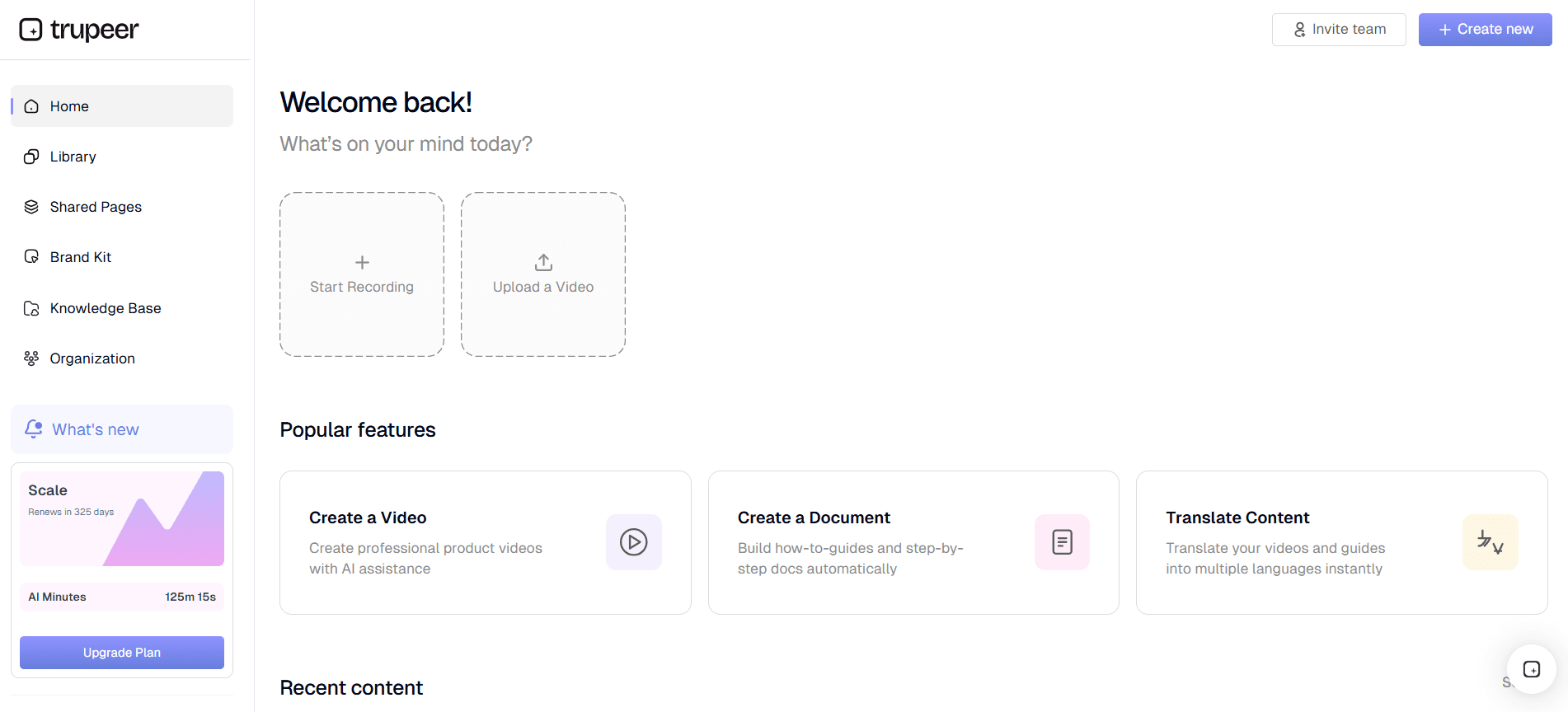
With the visuals ready, focus on updating the audio using Trupeer's AI voiceover in 65+ natural voices. Navigate to the voiceover section in the editor, select your preferred voice, and adjust the pace and tone to match your training style. Input the updated script, and the AI generates the voiceover in minutes. This feature ensures that your audio content is as current as your video, maintaining a consistent learning experience. If you encounter discrepancies in tone or pace, you can easily adjust settings to better fit your training needs.

Step 4: Generate and Update SOPs
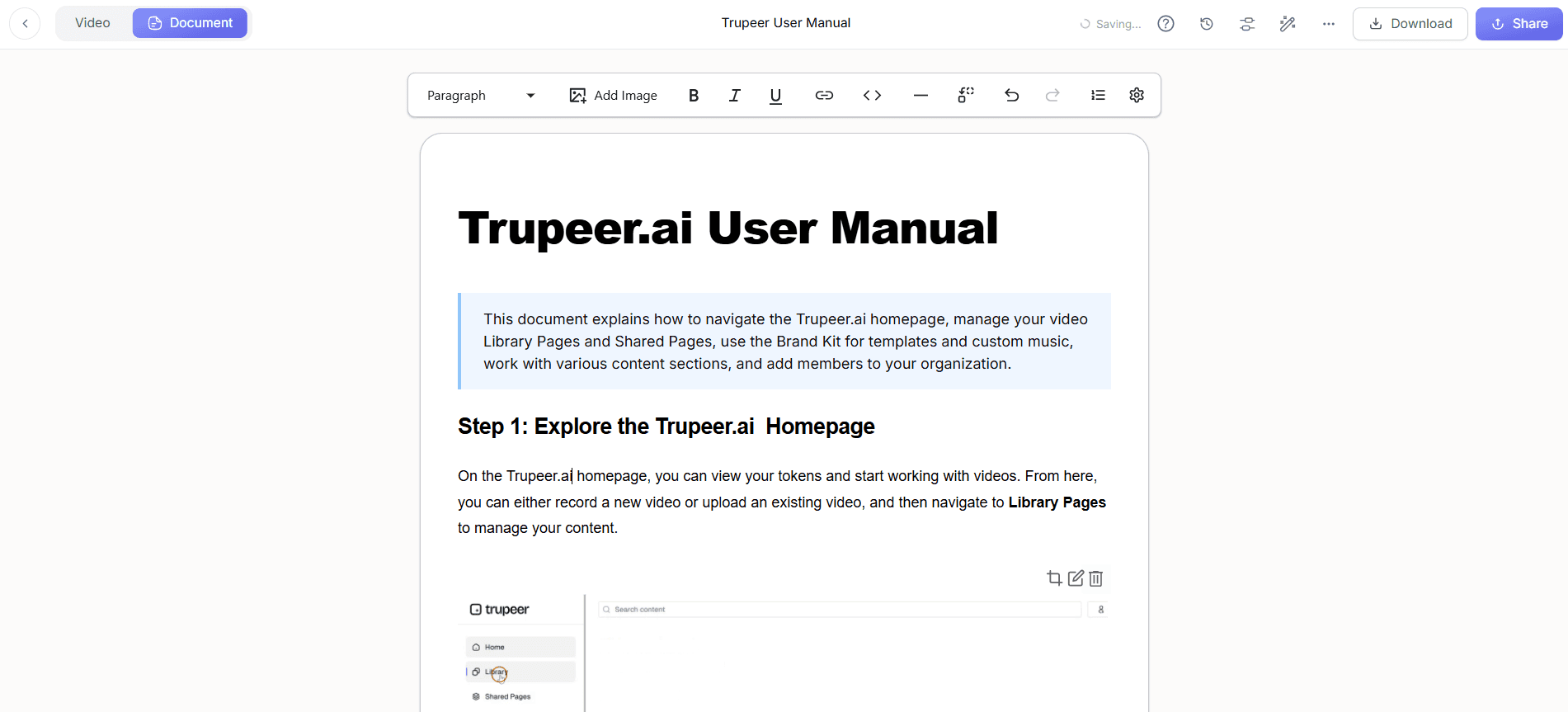
Next, use Trupeer's automatic SOP generation to create updated documentation alongside your video. From the recording, generate a Standard Operating Procedure with a few clicks. This document will be edit-ready and exportable in multiple formats, such as PDF or HTML. This step ensures that textual resources are aligned with the video content, providing a comprehensive training package. The SOP is produced almost instantly, allowing you to efficiently update documentation for team distribution.
Step 5: Localize Content for Global Teams
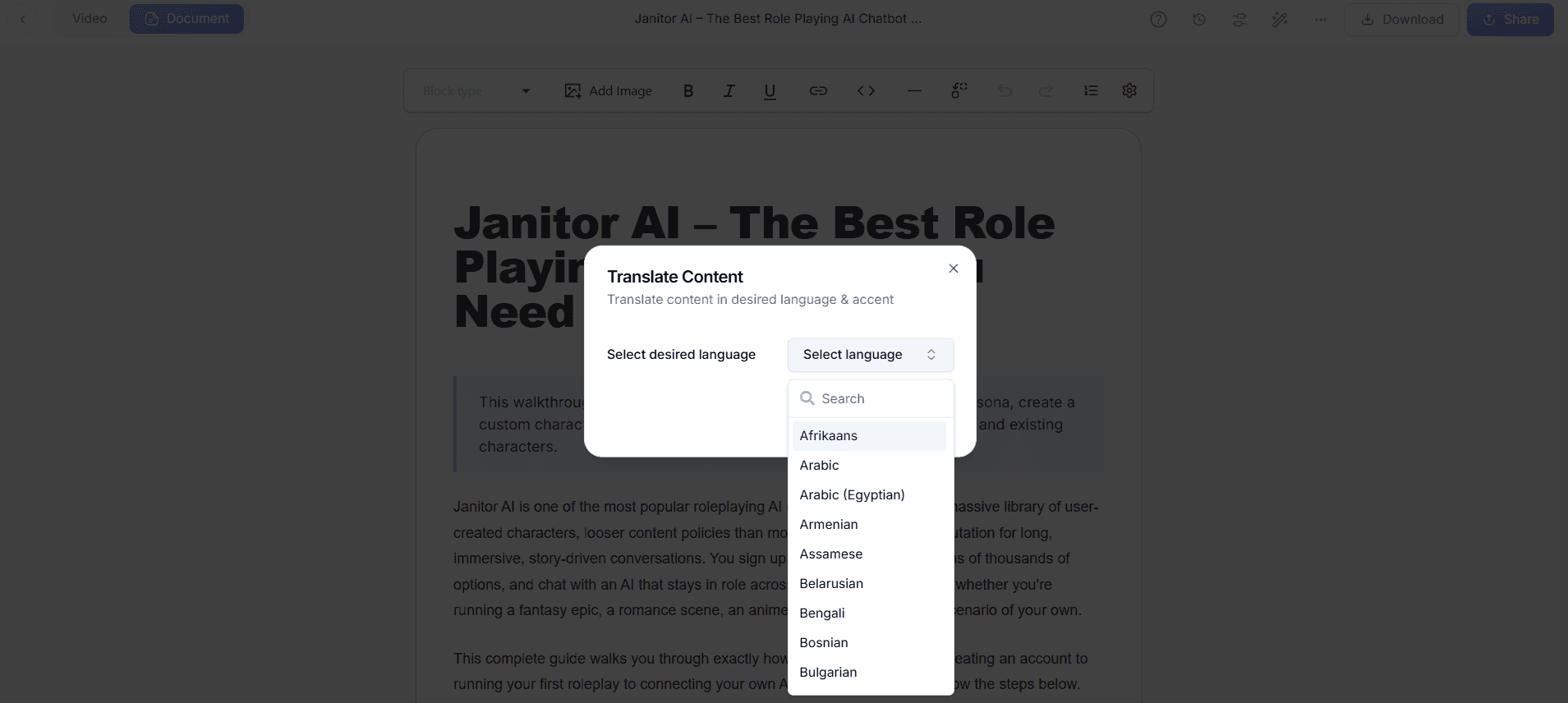
To make your training videos accessible to a global audience, use Trupeer's AI translation into 40+ languages with lip-sync. Access the localization settings, choose the target languages, and initiate the translation. The AI performs lip-sync adjustments to ensure that the translated voice matches the video smoothly. This step can be crucial if your organization has international branches or clients, as it broadens the reach and effectiveness of your training materials. Depending on the languages selected, translations can be ready within minutes.
Step 6: Distribute Updated Training Resources
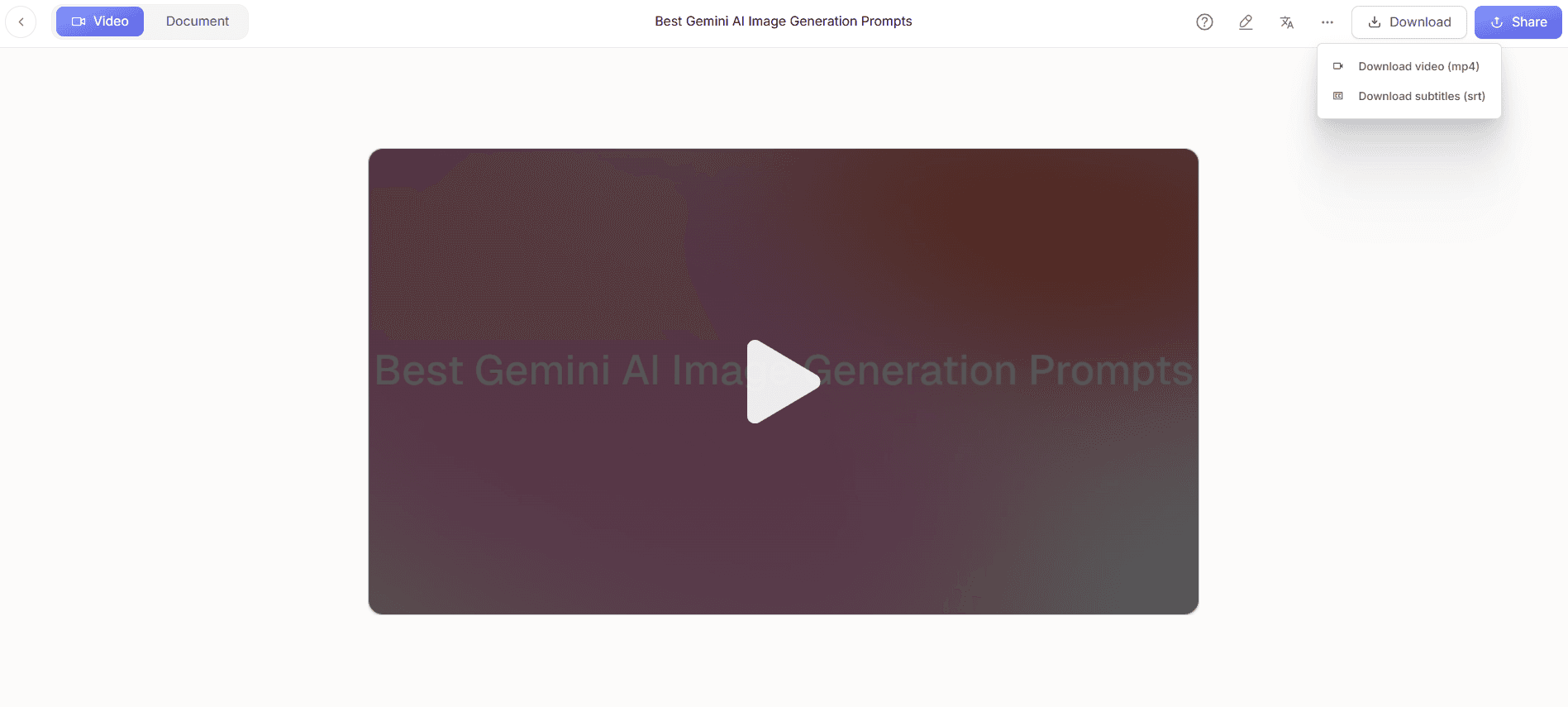
Finally, integrate your updated videos into Trupeer's AI-searchable knowledge base for easy access. Upload the final video to the knowledge base, where it will be indexed with timestamp-level deep links. This ensures that users can quickly locate specific sections of the video relevant to their needs. also, use the custom-domain hosting feature to provide a smooth access point for your team. This step might take a few minutes for the video to process and index, but it significantly enhances the usability of your training resources.
What tips help you update CRM training videos after a major system migration?
Updating CRM training videos effectively requires strategic planning and execution. Here are some tips that can help you simplify the process and ensure your training materials remain effective and engaging.
Plan Ahead. Anticipate changes before the migration and prepare scripts and resources in advance to minimize downtime.
Engage Stakeholders Early. Involve key team members in the planning phase to gather insights and ensure the updated content meets everyone’s needs.
Test the New System. Fully explore the CRM post-migration to identify any unexpected changes that need to be addressed in the training content.
Use a Scribe alternative comparison. Compare different tools for SOP generation to find the best fit for your documentation needs.
Standardize Video Quality. Maintain a consistent visual and audio standard across all videos to enhance professional appearance and learner engagement.
use AI Tools. Implement an AI training video platform to automate tedious editing tasks, allowing you to focus on content quality.
Gather Feedback. After releasing updated videos, solicit feedback from users to identify areas for further improvement and ensure training effectiveness.
Frequently asked questions
How do I ensure my training videos are effective post-migration?
To ensure effectiveness, your training videos must accurately reflect the new CRM system. Start by capturing updated workflows using Trupeer's screen recording features. Next, remove filler content and update the voiceover to maintain engagement. Finally, integrate these videos into a searchable knowledge base, allowing users to access specific content easily. Regularly solicit feedback from users to identify any gaps or areas for improvement. This iterative process helps maintain the relevance and effectiveness of your training materials over time.
What tools can help automate the update process for training videos?
Trupeer offers several tools that automate various aspects of video updating. Its AI screen recording captures complex workflows with auto-zoom and click detection, reducing manual editing. Automatic filler-word removal and AI voiceover features simplify the editing process. The ability to generate SOPs directly from recordings further automates documentation creation. Finally, Trupeer's video translation platform ensures your content is globally accessible, completing the automation suite for training video updates.
Why is it important to localize training videos?
Localizing training videos ensures that all employees, regardless of language, can access and comprehend essential training materials. Trupeer's AI translation into 40+ languages with lip-sync helps deliver consistent training experiences across diverse teams. This not only enhances learning but also demonstrates a commitment to inclusive communication, which can improve morale and productivity. Localization also facilitates compliance with local regulations and standards, which may require training in specific languages.
Can I update my training videos without professional editing skills?
Yes, you can update training videos without professional editing skills using Trupeer’s beginner-friendly tools. Its automatic features, like filler-word removal and AI voiceover, simplify the editing process. The intuitive interface allows users to make necessary updates quickly and efficiently. also, Trupeer’s SOP generation and localization features further simplify the process, enabling you to produce professional-quality content without extensive editing knowledge. These tools are designed to be accessible to users with varying levels of technical expertise.
Does Trupeer support video analytics to measure training effectiveness?
Yes, Trupeer provides comprehensive viewer engagement analytics, including drop-off rates and heatmaps. These tools help you understand how users interact with your training videos, highlighting which sections are most engaging or where viewers lose interest. By analyzing this data, you can identify areas for improvement and adjust content to better meet your audience's needs. This feature is essential for continuously refining your training strategy and ensuring your videos effectively support learning objectives.
Related Blogs


