Trupeer Blog
Summarise

Imagine you're the COO of a fast-growing tech company. The board expects weekly updates encapsulating key metrics, project statuses, and strategic pivots. Writing lengthy reports is time-consuming, and they often go unread. Instead, imagine delivering concise executive briefing videos that stakeholders can watch during their morning coffee. The stakes are high. Effective communication can drive strategic alignment and accelerate decision-making. But there's a catch, each video's production must take less than 15 minutes. If you're seeking to create instructional video content that fits this bill, you're in the right place.
, we'll explore how you can use tools like Trupeer to generate high-quality executive briefing videos quickly. With features that automate the recording, editing, and distribution processes, these tools can save you hours each week. Whether you're a seasoned executive looking to refine your communication strategy or a team member tasked with creating these videos, you'll find actionable insights that can transform your workflow. By the end, you'll be equipped to produce engaging, informative videos that keep everyone in the loop without monopolizing your calendar.
Why does creating weekly executive briefing videos matter?
Weekly executive briefing videos are vital for companies handling the complexities of modern business landscapes. In a typical organization, stakeholders from different departments await updates to align their strategies and operations. The need for timely, accurate information is paramount. Written reports, while thorough, often take too long to produce and digest. They're static snapshots in a dynamic world. Videos, on the other hand, offer more immediacy and engagement, allowing for a richer communication experience. Many teams pair this with a documentation platform that generates written guides from the same recording, so the pitch and the how-to stay in sync.
The importance of these videos extends beyond just delivering data. They play a crucial role in building a sense of unity across the organization. When executives share their insights and strategies visually, it humanizes leadership and builds trust. In large organizations, employees are often dispersed across multiple locations or working remotely. This can lead to silos and disconnects. Weekly executive videos serve as a unifying tool, bridging these gaps. A training videos workflow can be adapted to ensure these briefings are both informative and engaging, aligning everyone with the company's strategic objectives.
What are the benefits of creating weekly executive briefing videos?
Creating weekly executive briefing videos offers numerous advantages for organizations striving to enhance communication and operational efficiency. These benefits extend across various levels of the organization, providing both immediate and long-term value.
Enhanced Engagement. Visual content is more engaging than text, as people are naturally drawn to videos. This can lead to higher retention rates and better comprehension among stakeholders.
Time Efficiency. With tools like Trupeer, you can significantly reduce production time. A create effective video sops guide can help simplify this process, allowing you to produce quality content in under 15 minutes.
Improved Accessibility. Videos can be watched at any time and from anywhere, offering flexibility for stakeholders who may have different schedules. This ensures that everyone stays informed regardless of their location.
Consistent Messaging. Videos help maintain a consistent tone and message across all communications. This reduces misunderstandings and ensures that everyone is aligned with the company's objectives.
Data-Driven Insights. Most video platforms provide analytics on viewer engagement. This data can be invaluable for understanding which parts of your message resonate most with your audience.
Scalability. Once a template is established, it's easy to scale your efforts. An AI video platform allows you to quickly adapt your content for different teams or projects, making it easier to maintain regular communications.
Which Trupeer features help you create weekly executive briefing videos?
Trupeer offers a solid suite of features specifically designed to expedite the video creation process. These tools not only enhance the production quality but also ensure that your videos are tailored to meet diverse organizational needs.
AI screen recording with auto-zoom and click detection
This feature simplifies the initial capture process by automatically highlighting the most important screen elements. As you navigate through dashboards and reports, Trupeer intelligently zooms in and detects clicks. This ensures that viewers focus on key data points without any manual intervention. You can produce a polished video capture that feels professionally edited, saving valuable time and effort. The auto-zoom functionality ensures that even complex data sets or analytics dashboards are easily understood, enhancing the overall viewer experience.
Silent screen recording with automatic AI narration
Trupeer's silent screen recording feature allows you to capture video without distractions. Once recorded, the automatic AI narration capability kicks in, transforming your silent video into an engaging, narrated briefing. With over 65+ natural voices to choose from, you can customize the pace and tone to suit your audience. This is particularly useful for ensuring that all stakeholders receive the same clear, consistent message. The AI-generated narration offers a smooth way to add depth to your videos without requiring additional voiceover work.
Automatic filler-word removal
Filler words like "um" and "ah" can detract from the professionalism of your video presentations. Trupeer's automatic filler-word removal feature eliminates these distractions with precision. This ensures that your videos maintain a refined and polished tone, enhancing the overall delivery. The result is a concise and focused presentation that keeps the audience engaged from start to finish. By automating this process, Trupeer allows you to maintain high standards of communication without spending additional time in post-production editing.
AI avatars / talking-head video
For those who prefer a more personal touch, Trupeer offers AI avatars and talking-head videos. You can choose from a stock library or create custom avatars using the HeyGen integration. This feature adds a human element to your briefings, making them more relatable and engaging. It's particularly effective for maintaining a personal connection with remote teams or international stakeholders. By using avatars, you can convey complex messages in a simplified manner, bridging cultural and linguistic gaps. This makes your communications more inclusive and effective.
AI-searchable knowledge base
Trupeer's AI-searchable knowledge base is a big shift for organizations that need to manage and distribute video content efficiently. This feature indexes every recording with timestamp-level deep links, making it easy for viewers to find specific information quickly. Whether you're looking to review past briefings or reference key points, this searchable database ensures that information is always at your fingertips. It transforms your video library into a dynamic resource, facilitating better knowledge sharing and collaboration across teams.
How do you create weekly executive briefing videos step by step with Trupeer?
Step 1: Initiate Screen Recording
Start by launching Trupeer's browser-based recorder. No installation is needed, making it extremely convenient. Navigate to the dashboard or report you need to share. Click the "Record Screen" button to begin capturing your screen. Trupeer's AI screen recording with auto-zoom and click detection will automatically highlight key areas as you navigate. This ensures that the viewers' attention is directed exactly where you want it. The recording process is smooth, taking mere minutes to complete. If you encounter any interruptions, you can easily pause and resume recording without starting over.

Step 2: Apply Automatic AI Narration
Once your screen recording is complete, apply Trupeer's silent screen recording with automatic AI narration to convert the captured content into an engaging video. Choose from over 50 natural AI voices that can be adjusted in pace and tone to fit your audience. The narration will be generated automatically, providing clear and professional commentary without the need for manual voiceover work. This step typically takes just a few minutes, and the result is a polished narrative that enhances the video's clarity and impact.

Step 3: Edit with Filler-word Removal
Next, refine your video using Trupeer's automatic filler-word removal feature. This tool eliminates distracting filler words like "um" and "ah," ensuring your video maintains a professional tone. Simply click on the "Edit" option and enable filler-word removal. Trupeer will automatically scan and clean your recording, providing a concise and engaging final product. This process is quick and doesn’t require manual editing, saving you valuable time while ensuring your message is delivered effectively.
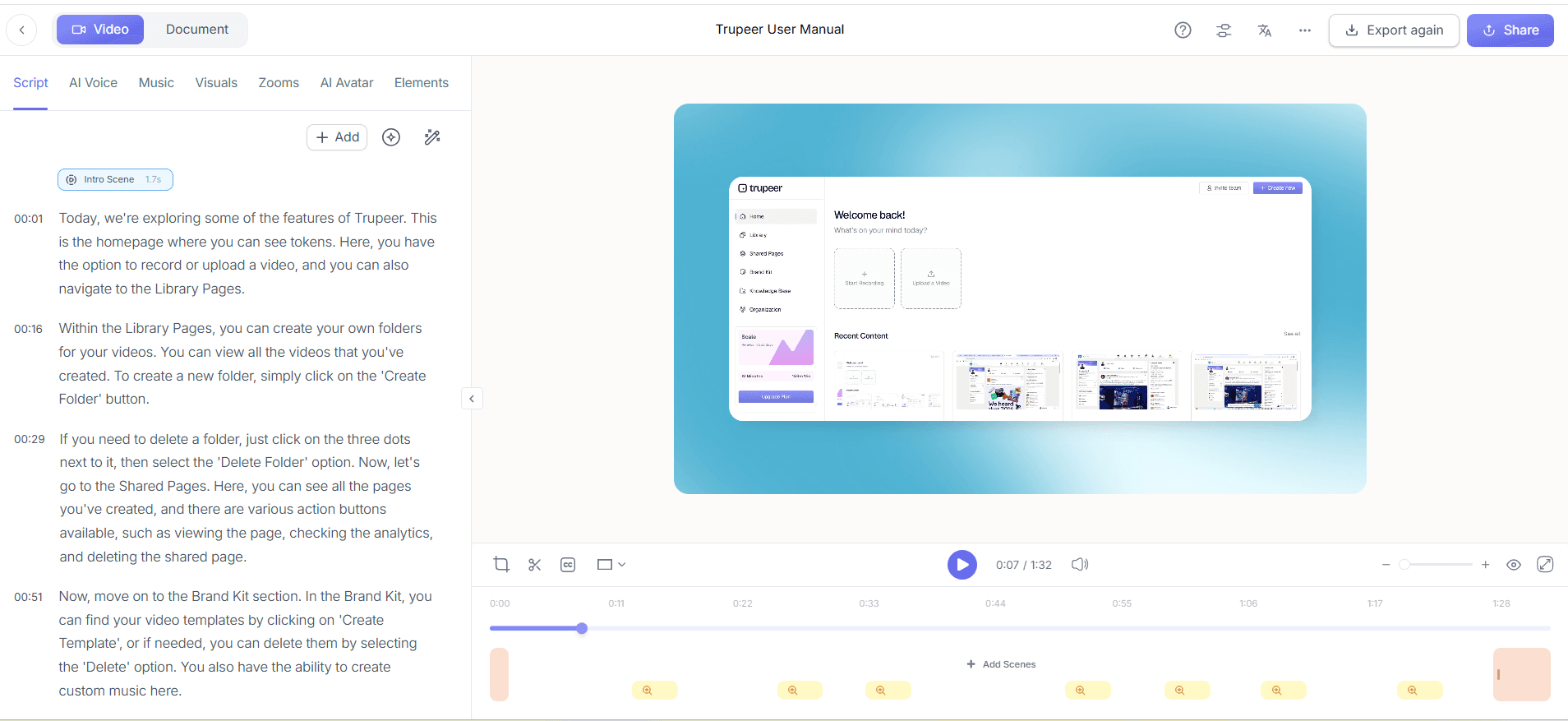
Step 4: Add AI Avatars for Personal Touch
Enhance the engagement of your video by adding an AI avatar or talking-head video. Use Trupeer’s stock library or create a custom avatar with the HeyGen integration. Navigate to the "Avatars" tab and select your preferred option. This feature allows you to personalize your video, making it more relatable and engaging for the audience. It’s especially beneficial for remote teams, as it adds a human element to digital communications. The entire process is straightforward, taking just a few clicks to implement.
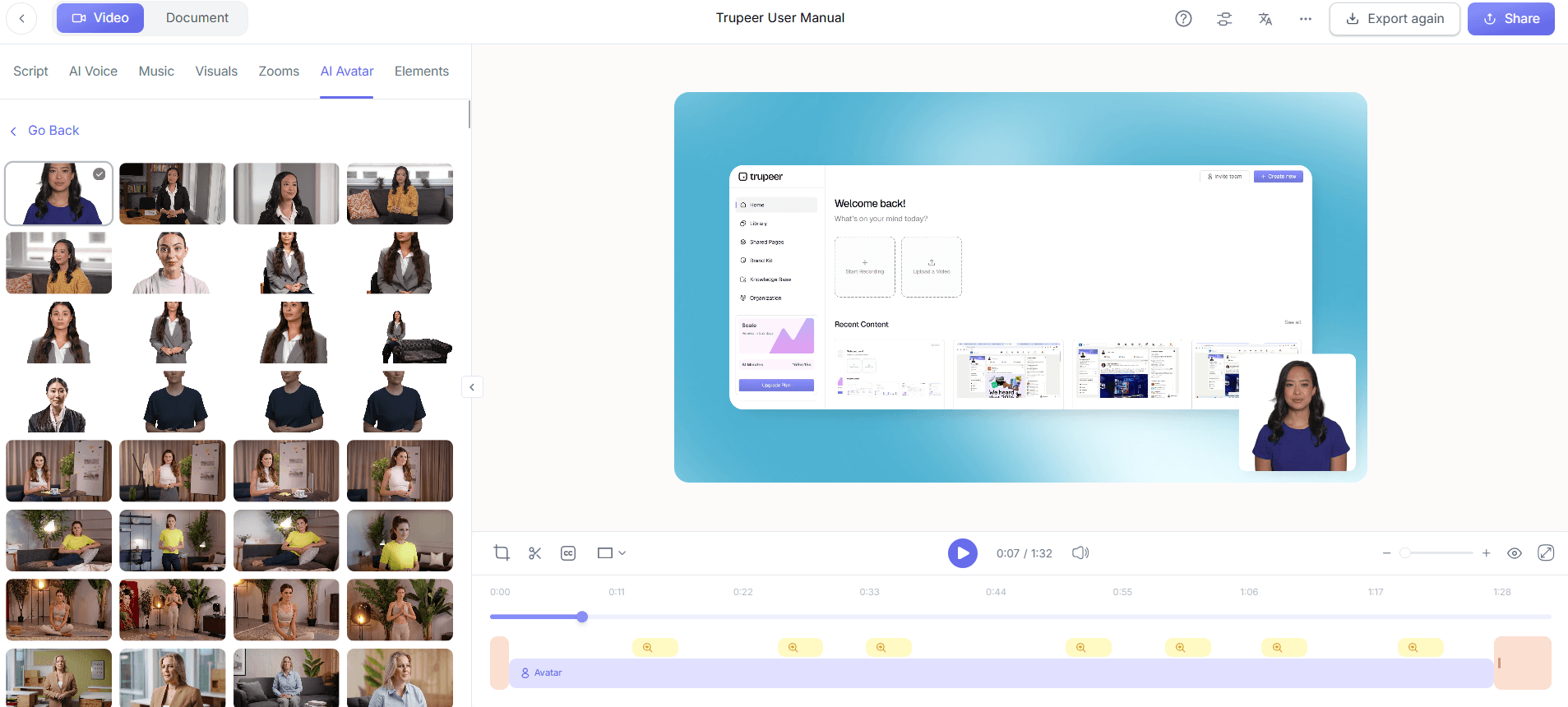
Step 5: Organize with Auto Chapters
Structure your video content using Trupeer's auto chapters and segment detection feature. After finalizing your video, go to the "Organize" section and enable this feature. Trupeer will automatically detect and label different segments of your video, making it easier for viewers to navigate. This is particularly useful for longer videos, as it allows stakeholders to quickly access the sections most relevant to them. The feature is applied in seconds and significantly enhances the viewer experience by providing clear, organized content. When SOPs come into the same conversation, a Scribe alternatives comparison helps clarify the scope.
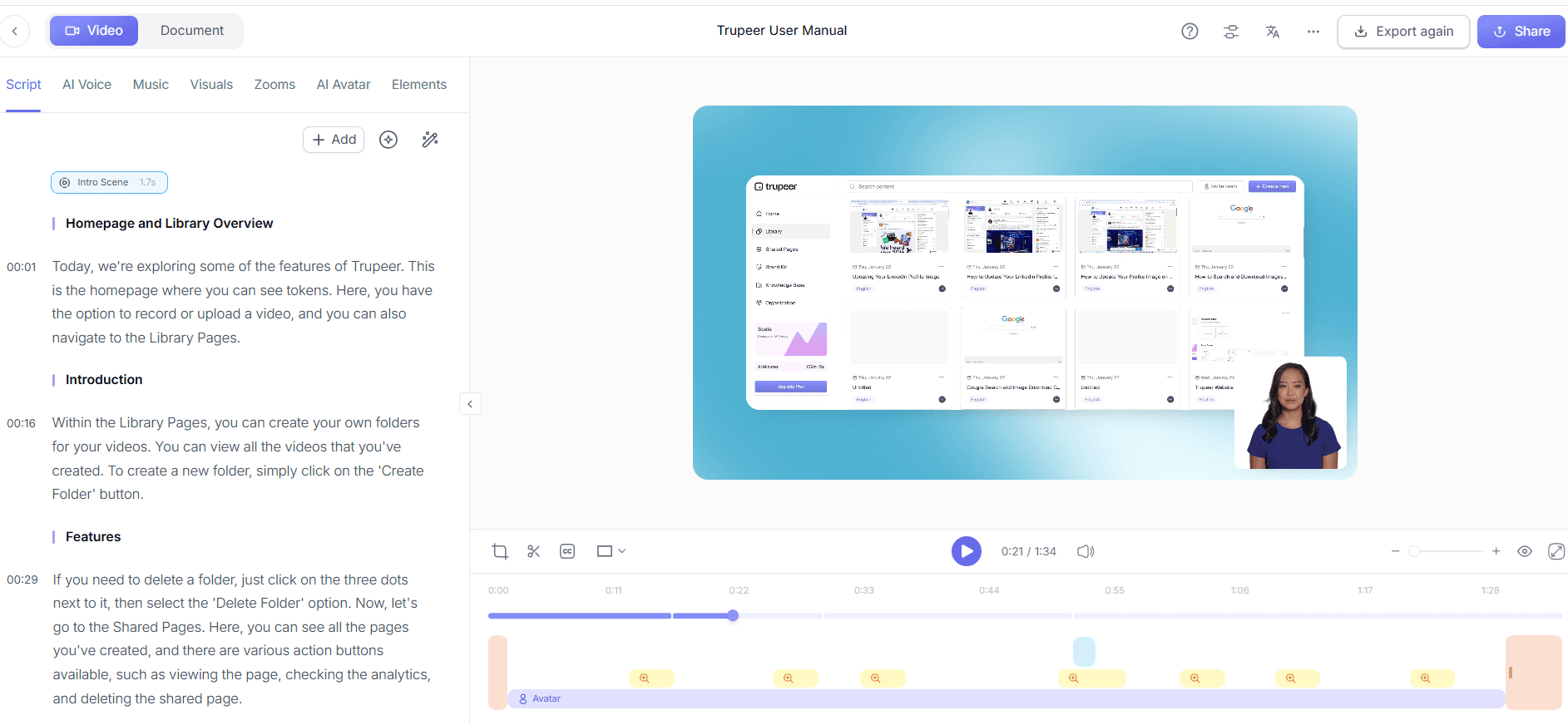
Step 6: Deploy Via AI-Searchable Knowledge Base
Finally, distribute your video using Trupeer's AI-searchable knowledge base. After exporting your video, upload it to the knowledge base to make it accessible to your team. Trupeer indexes every video with timestamp-level deep links, allowing users to search and find specific information quickly. This makes your video an ongoing resource for team members, ensuring the information remains accessible and useful long after the initial briefing. The upload and indexing process is quick, completing the distribution phase in just a few minutes.
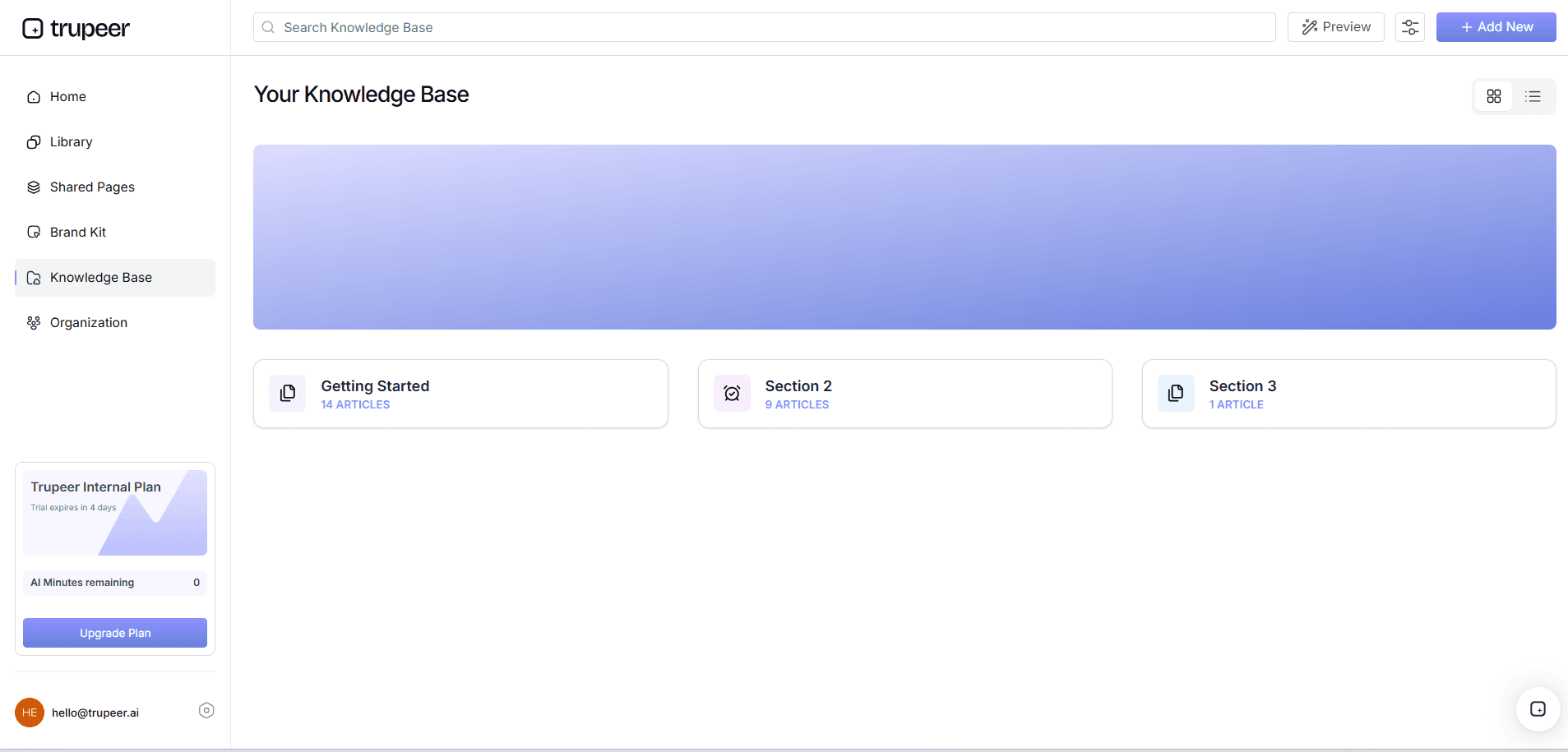
What tips help you create weekly executive briefing videos?
Producing effective executive briefing videos requires more than just technical execution. Tactical strategies can enhance both the creation process and the final product. Here are some actionable tips to ensure your videos are both efficient and impactful.
Plan Your Content. Outline your video's key points before recording to maintain focus and clarity throughout the presentation.
Use Consistent Branding. use Trupeer's brand kits to ensure your videos maintain a consistent visual style, enhancing brand recognition.
Keep It Short. Aim for videos under five minutes to maintain viewer engagement. Concise content is more easily digestible.
Engage with Avatars. Incorporate avatars to add a personal touch. A create your own custom AI avatar video can enhance viewer connection.
Test Audio Levels. Ensure your audio is clear and well-balanced. Poor audio can detract from your video's professionalism.
Analyze Viewer Data. use viewer engagement analytics to understand which segments of your video resonate most and adjust future content accordingly.
Choose the Right Format. Consider different formats such as MP4, HTML, or PDF for distribution, depending on your audience's preferences and needs.
Teams weighing tools often start with a Loom alternatives comparison before standardizing on a workflow.
Frequently asked questions
How can I ensure my executive briefing video is engaging?
To make your executive briefing video engaging, focus on concise content, consistent branding, and clear audio. Use Trupeer's AI avatars for a personal touch and ensure your video is under five minutes to maintain viewer attention. Analyze viewer engagement analytics to understand which parts resonate most. This data helps refine future videos, ensuring they meet audience expectations and keep stakeholders interested throughout the session.
What is the best way to distribute executive briefing videos?
Distributing your executive briefing videos effectively involves using Trupeer's AI-searchable knowledge base. This tool indexes videos with deep links, allowing stakeholders to quickly find relevant sections. Custom-domain hosting and shared pages also make your videos accessible to all team members, even those with different schedules or locations. This ensures everyone stays informed and aligned with company objectives, maximizing the video's impact.
Why is automatic filler-word removal important?
Automatic filler-word removal enhances the professionalism of your videos. By eliminating distractions like "um" and "ah," Trupeer ensures your message is clear and concise. This not only improves viewer retention but also reflects well on your leadership capabilities. A polished video presentation enhances stakeholder trust and conveys your message more effectively, crucial for maintaining strategic alignment across the organization.
Can Trupeer handle video localization effectively?
Yes, Trupeer excels in video localization. Its video localization tool translates videos into over 40 languages with lip-sync accuracy. This capability is vital for global organizations, ensuring all stakeholders, regardless of language, receive the same high-quality content. Localization expands your video's reach and inclusivity, building better communication and understanding across diverse teams.
Does Trupeer support collaborative video editing?
Trupeer supports collaborative video editing through its viewer engagement analytics and collaborative review workflows. Teams can provide feedback and make necessary adjustments before finalizing the video. This collaboration ensures the content meets organizational standards and stakeholder expectations. It simplifies the editing process, reducing the time needed to produce high-quality videos and enhancing team synergy in content creation.
Related Blogs


