Trupeer Blog
Summarise

Imagine your company just rolled out a new AI tool. Excitement is high, but confusion soon follows. Employees are eager to use the tool, but many are unsure where to start. This is where internal AI enablement training videos can make a significant difference. By creating tailored training videos, you transform AI tools from abstract concepts into practical everyday applications. According to a recent study,
companies that implement training videos see a 40% increase in employee adoption rates.
Effective training videos are not just about teaching employees how to use a tool; they're about enabling them to integrate AI into their daily work. These videos can bridge the gap between AI potential and real-world application, ensuring that your workforce is not only aware of AI capabilities but also ready to use them for enhanced productivity. If you're responsible for training and development, or you're a team leader looking to boost AI adoption, this guide on creating impactful training videos will provide you with the steps and tools needed to succeed. You can explore more about training videos and how they can benefit your organization.
Why does creating internal AI enablement training videos matter?
The importance of creating internal AI enablement training videos is underscored by the increasing reliance on AI across various business sectors. Organizations worldwide are integrating AI to automate tasks, enhance decision-making, and drive innovation. However, without proper training, employees may struggle to use these benefits effectively. This struggle can lead to underutilization of AI tools, ultimately hindering productivity and stifling innovation. By creating comprehensive training videos, you provide employees with the knowledge and confidence to use AI tools autonomously, which can significantly improve their performance and output.
Also, training videos build a culture of continuous learning and adaptation. In a dynamic work environment, employees must be agile and willing to learn new skills. Training videos serve as a valuable resource that employees can refer to at their convenience, allowing them to learn at their own pace. This flexibility not only enhances learning retention but also encourages a proactive approach to skill development. also, training videos use case can be particularly beneficial for remote or distributed teams, providing a standardized training experience that ensures all team members are on the same page, regardless of their location.
What are the benefits of creating internal AI enablement training videos?
Creating internal AI enablement training videos offers multiple advantages that can transform your organization. Here are some key benefits:
Accelerated Learning. Training videos allow employees to learn at their own pace, revisiting complex topics as needed. This personalized approach can lead to a 60% increase in knowledge retention.
Scalability. Videos can be distributed to a large audience with minimal effort, making them an ideal solution for scaling training across an organization. This is crucial for companies with global teams.
Consistency. A single set of training videos ensures uniformity in the information delivered, reducing the risk of miscommunication and ensuring all employees receive the same high-quality instruction.
Cost-Effectiveness. Once created, training videos require minimal additional resources to share and maintain. Compared to in-person sessions, this method can reduce training costs by up to 50%.
On-Demand Access. Employees can access training materials anytime and anywhere, offering flexibility that traditional training methods can't match. This accessibility supports continuous learning.
Enhanced Engagement. Interactive elements in videos, such as quizzes or reflections, can boost engagement and comprehension. According to studies, interactive content can increase engagement rates by 44%.
For global audiences, adding AI video translation extends the same workflow across 40+ languages with lip-sync.
The use of an AI-powered video tool not only simplifies the process of creating these training materials but also ensures high-quality production that can significantly enhance the learning experience.
Which Trupeer features help you create internal AI enablement training videos?
Trupeer offers a suite of features designed to simplify the creation of internal AI enablement training videos. These tools enhance the production process, from recording to distribution, ensuring that your content is both effective and engaging.
AI screen recording with auto-zoom and click detection
This feature simplifies the recording process by automatically highlighting key actions and areas of interest. As you demonstrate an AI tool, Trupeer's AI screen recording captures every movement, zooming in on clicks and interactions for clarity. This capability ensures that viewers can easily follow along, understanding exactly where and how interactions occur within the tool. The auto-zoom feature is particularly useful for tutorials, as it eliminates the need for manual editing to emphasize critical content. By using this feature, you can create training videos in minutes tool, allowing you to focus more on content quality.
AI voiceover in 65+ natural voices, adjustable pace and tone
With Trupeer's AI voiceover capabilities, you can enhance your videos with professional-grade narration. Choose from over 65+ natural voices, each with adjustable pace and tone, to find the perfect match for your training content. This feature allows you to create a more engaging and accessible experience, especially for employees who benefit from auditory learning. The flexibility to adjust pace and tone ensures that the narration complements the visual content, providing a smooth learning experience. This is particularly useful in multilingual environments where consistent quality across different languages is essential. ai/knowledge-base">video knowledge base.
Automatic SOP generation from any recording
Trupeer's ability to generate standard operating procedures (SOPs) from any recording is a big shift for training documentation. Once a training session is recorded, the platform automatically generates a detailed SOP that captures all the essential steps and information. This feature not only saves time but also ensures accuracy and consistency in training materials. The auto-generated SOPs are edit-ready and exportable, allowing you to customize them to fit your organization's needs. This capability is particularly valuable for creating comprehensive training resources that employees can reference long after the initial training session. ai/documentation">documentation generator to enhance your training materials.
AI translation into 40+ languages with lip-sync
Trupeer's AI translation feature offers a powerful solution for organizations with a diverse workforce. By translating training videos into over 40 languages, you can ensure that all employees, regardless of their native language, have access to the same high-quality training. The lip-sync capability adds an extra layer of professionalism, ensuring that translated videos look and sound natural. This feature is invaluable for global companies seeking to standardize training while respecting cultural and linguistic diversity. The ability to provide multilingual training materials can significantly enhance employee engagement and comprehension. Trupeer's create training videos in minutes makes this process efficient and effective.
Viewer engagement analytics, drop-off, and heatmaps
Understanding how employees interact with training videos is crucial for optimizing content. Trupeer's viewer engagement analytics provide insights into how videos are consumed, highlighting areas where viewers are most and least engaged. Drop-off rates and heatmaps offer a clear picture of where viewers lose interest, allowing you to refine your content to better meet your audience's needs. This data-driven approach ensures that your training videos are both effective and engaging, ultimately leading to higher adoption rates of AI tools. By using these insights, you can continuously improve your training strategy, ensuring that it remains relevant and impactful.
How do you create internal AI enablement training videos step by step with Trupeer?
Step 1: Recording the Screen
Start by opening Trupeer and selecting the AI screen recording feature. This tool provides an intuitive interface for capturing your screen activities. Click on "Start Recording" and choose whether you want to record silently or with AI narration. The auto-zoom and click detection capabilities highlight essential interactions. This ensures that critical actions are clearly visible to your audience. Once you're done recording, click "Stop" to save the video. The recording is automatically processed, and you can preview it instantly. This step usually takes about 5-10 minutes, depending on the length of your demonstration, making it an efficient way to capture detailed tutorials.

Step 2: Enhancing the Video
After recording, proceed to the editing and enhancement phase. Trupeer offers automatic filler-word removal, which eliminates unnecessary "um" and "ah" sounds, resulting in a polished video. Click on "Edit Video" to access these features. You can also adjust the pacing and tone of AI voiceovers, choosing from over 65+ natural voices. This allows for a more engaging and professional presentation. Editing typically takes 10-15 minutes, depending on the complexity of your video. If you need to create a talking-head segment, select an AI avatar from the stock library or upload a custom one using the HeyGen integration.
Step 3: Generating Documentation
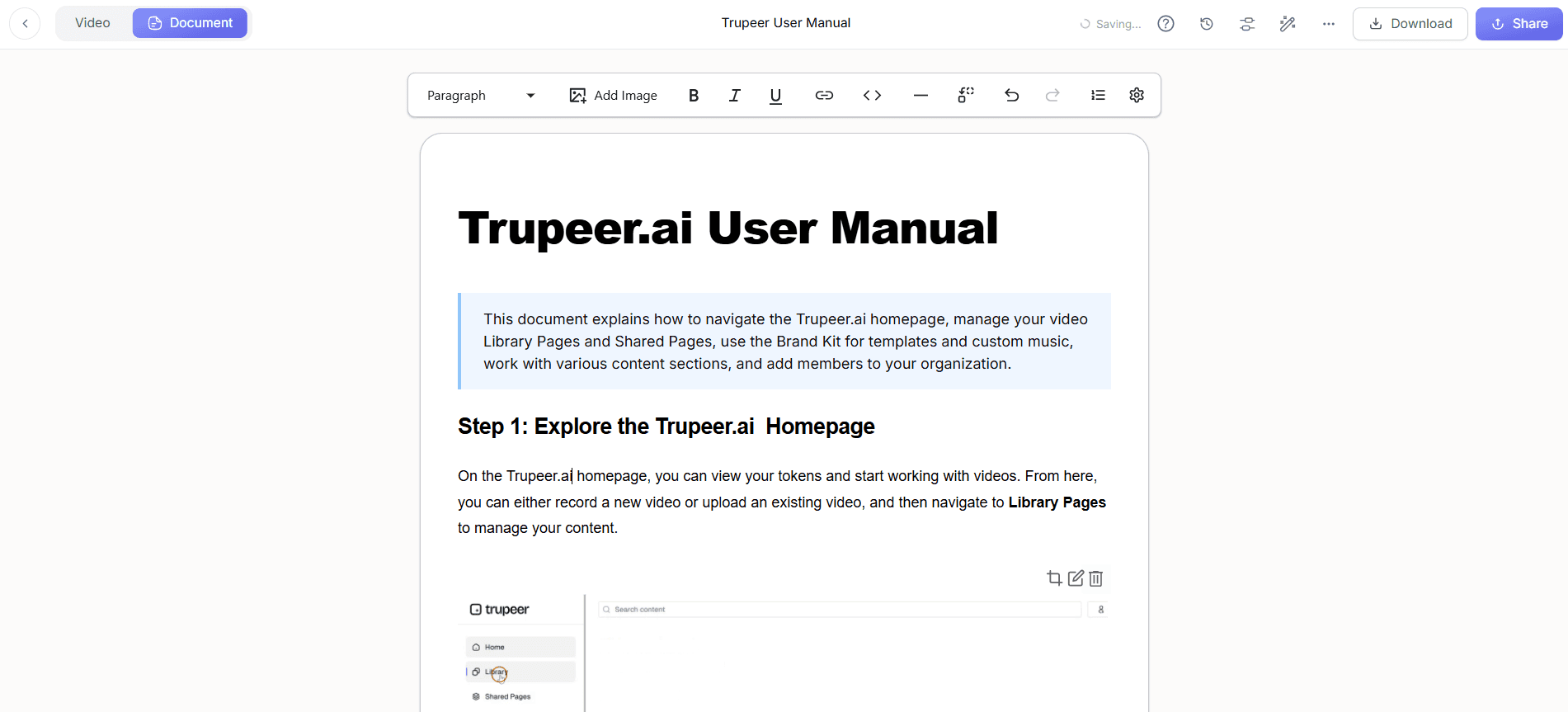
With Trupeer, you can automatically generate SOPs from your recordings. Click on the "Create SOP" button after finalizing your video. The platform will analyze the recording and produce a detailed step-by-step document that mirrors the content of the video. This document is exportable in various formats such as PDF, HTML, and SCORM, making it versatile for different training needs. The entire process is quick, taking around 5 minutes to generate and review the document. This feature is especially useful for teams that require documented procedures alongside video tutorials.
Step 4: Translating and Localizing Content
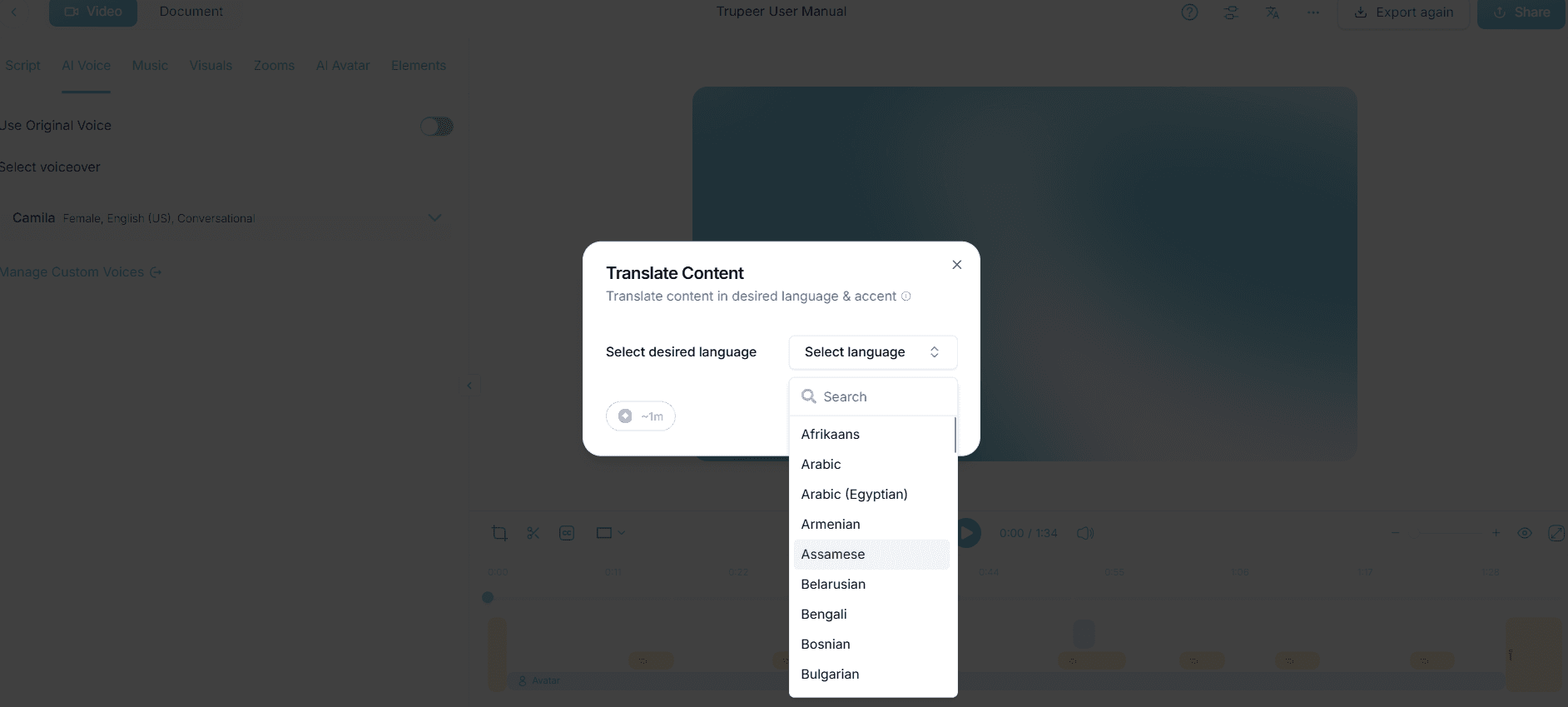
Once your video and documentation are ready, use Trupeer's AI translation feature to make your training accessible to a global audience. Click on "Translate Video" and select the desired languages from the 40+ options available. Trupeer provides AI dubbing and lip-sync, ensuring that translations are accurate and natural. This step usually takes 15-20 minutes per language, depending on video length. It's an effective way to ensure inclusivity and comprehension for non-English speaking employees, enhancing the reach and effectiveness of your training program.
Step 5: Distributing the Training Video
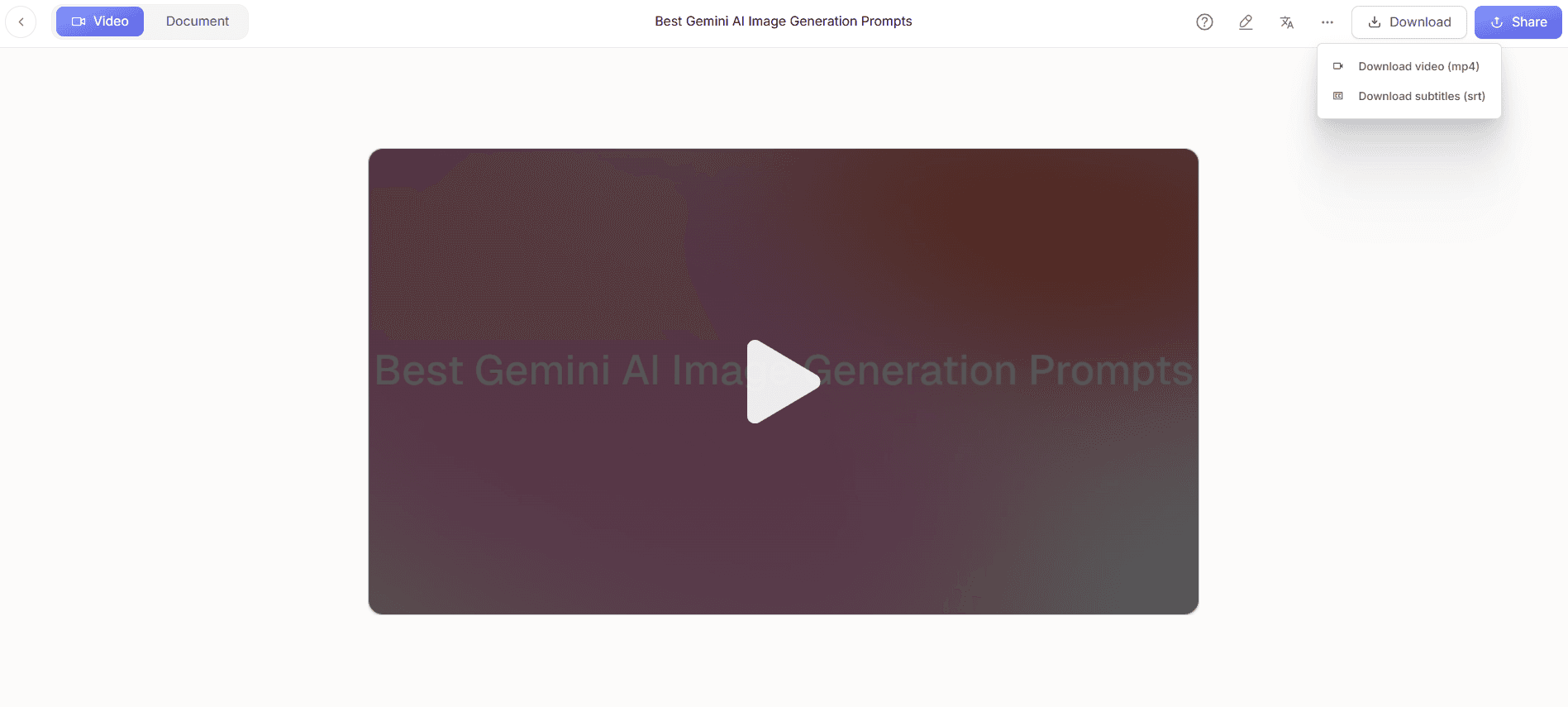
After finalizing your video, it's time to distribute it to your team. Use Trupeer's AI-searchable knowledge base to upload the video. Click "Upload to Knowledge Base" and enter relevant metadata to facilitate easy searching. You can also host the video on a custom domain with SSO for secure access. This step allows employees to access the training video at their convenience. Implementing this distribution method ensures that everyone can find and use the training materials effectively, contributing to increased engagement and adoption rates. When SOPs come into the same conversation, a Scribe alternatives comparison helps clarify the scope.
Step 6: Analyzing Viewer Engagement
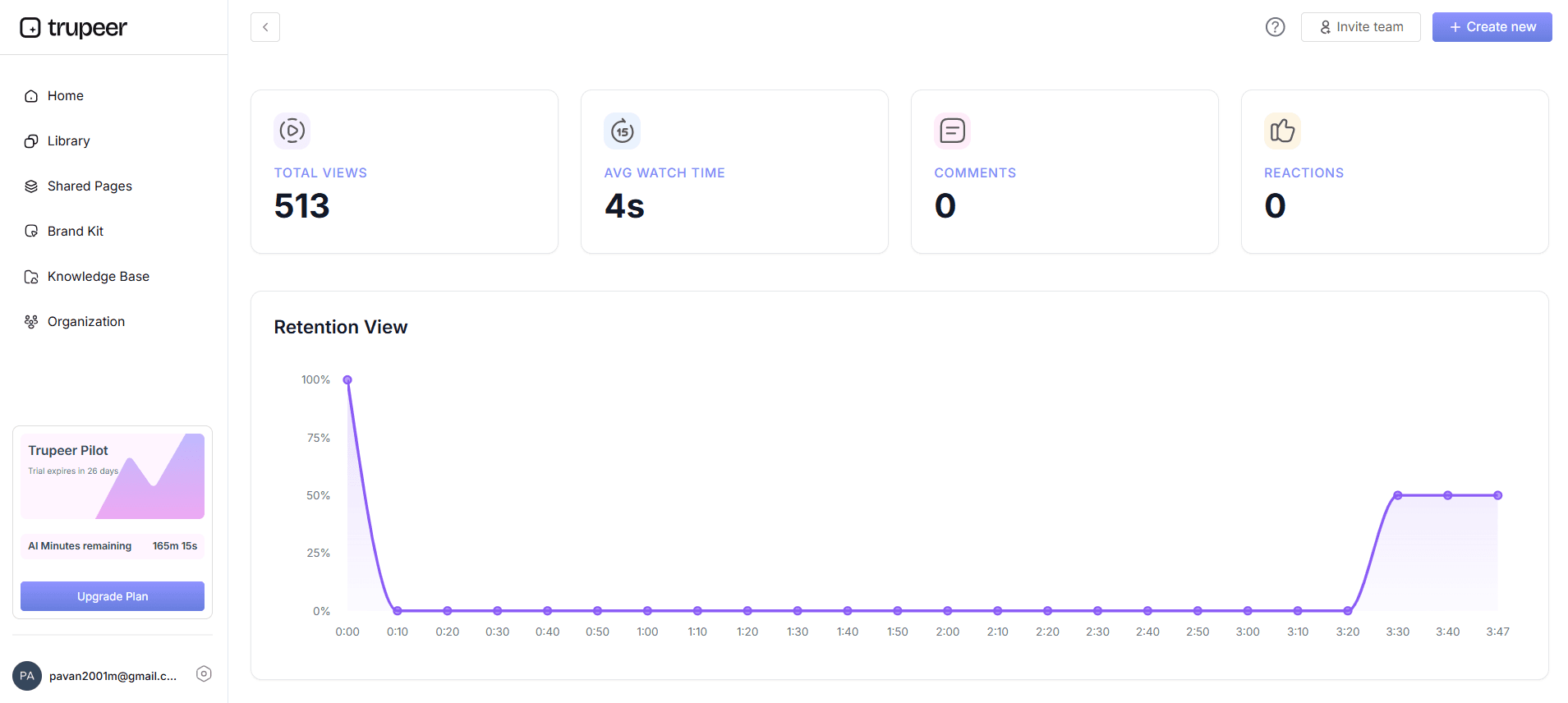
Finally, assess how your team interacts with the video using Trupeer's analytics. Navigate to the "Analytics" section to review viewer engagement metrics, including drop-off rates and heatmaps. These insights help you understand which parts of the video resonate with your audience and which need improvement. This feedback loop is crucial for refining future training sessions. Analyzing these metrics takes about 10 minutes, providing valuable data that can inform your training strategy and enhance overall effectiveness.
What tips help you create internal AI enablement training videos?
Creating effective internal AI enablement training videos requires practical strategies. Here are some tips to help you maximize the impact of your videos:
Know Your Audience. Tailor the content to the skill level and role of your audience. Understanding their needs ensures the training is relevant and engaging.
Keep It Concise. Aim for videos that are 5-10 minutes long to maintain attention. Shorter videos are more digestible and allow employees to learn without overwhelming them.
Use Visual Aids. Incorporate graphics and annotations to highlight key points. This helps reinforce the material and aids in comprehension.
Incorporate Interactivity. Add quizzes or reflection questions to engage viewers actively. This enhances retention and allows for immediate application of knowledge.
Standardize Format. Use consistent templates for all videos to create a cohesive learning experience. This makes it easier for employees to follow along and reduces confusion.
Solicit Feedback. After distribution, gather feedback to understand what works and what doesn’t. Use this input to refine future training videos for better results.
use Analytics. Regularly review engagement metrics to identify areas for improvement. Data-driven insights can guide your content strategy for best impact.
Teams weighing tools often start with a Loom alternatives comparison before standardizing on a workflow.
Frequently asked questions
How long does it take to create a training video with Trupeer?
Creating a training video with Trupeer can take as little as 30 minutes to a few hours, depending on the complexity and length of the content. The AI screen recording feature allows for quick capture of demonstrations, and the automatic editing tools simplify the enhancement process. If you include additional elements like translations or custom avatars, it might extend the timeline slightly. However, the platform's efficiency ensures that even detailed training videos are produced promptly, saving time compared to traditional methods. This rapid production capability supports timely updates and training rollouts.
What equipment do I need to use Trupeer for video creation?
Trupeer is designed to work with minimal equipment, making it accessible for most users. You'll need a computer with internet access to use the browser-based recorder or desktop app. A good quality microphone is beneficial if you're adding custom voiceovers, though Trupeer's AI voiceover feature can handle this as well. For screen recordings, ensure your computer's screen resolution is adequate for clear captures. No additional hardware is required, which simplifies the process and reduces setup time, allowing you to focus on content creation. Teams ship this workflow end-to-end using Trupeer's AI video platform, which turns raw recordings into polished output without an editor.
Can Trupeer handle multiple language translations within one project?
Yes, Trupeer can manage multiple language translations smoothly. By selecting the "Translate Video" option, you can choose from over 40 languages for dubbing and subtitles. The AI ensures that translations are synchronized with the original video, providing a consistent viewing experience. This feature is particularly useful for global teams, ensuring that all employees receive the same high-quality training, regardless of their language preference. The capability to handle multiple languages in a single project enhances the accessibility and reach of your training materials.
Does Trupeer support interactive elements in training videos?
Currently, Trupeer focuses on high-quality video creation and distribution but does not support interactive elements like quizzes within the videos themselves. However, you can incorporate interactivity by linking external quizzes or assessments in the video description or accompanying documentation. This approach allows you to maintain interactivity without complicating the video production process. While direct interactivity isn't available, the platform's analytics can guide how to structure and improve these external elements effectively.
Is it possible to update a video after it's been uploaded to Trupeer?
Yes, you can update videos after they've been uploaded to Trupeer. By accessing your library, you can upload a revised version of the video or edit the existing one. This flexibility is crucial for keeping your training content current and relevant. If a process changes or new features are added, updating your video ensures that employees always have access to the most accurate information. This capability helps maintain the quality and reliability of your training materials, supporting ongoing education and development initiatives.
Related Blogs


