Trupeer Blog
Summarise

Public sector teams face unique challenges training. Unlike their private sector counterparts, public sector training programs must adhere to stringent accessibility standards, such as Section 508 and WCAG, right from the start. This is not just about ticking a box; it's about ensuring that all employees, regardless of ability, can access and benefit from training content. Failing to meet these standards can lead to legal consequences and alienate a significant portion of the workforce.
According to the World Bank, around 15% of the world’s population lives with some form of disability.
This means that training videos not only need to be informative but also accessible in multiple formats. Creating such videos involves a careful balance of content creation, adherence to guidelines, and the use of the right tools. For those committed to inclusivity, Trupeer offers a range of features specifically designed to make the process straightforward and compliant. When SOPs come into the same conversation, a Scribe alternatives comparison helps clarify the scope. This is exactly where SCORM compliant training videos becomes useful — and it's the kind of content Trupeer can generate directly from a simple screen recording.
Why does creating accessibility-compliant training videos matter?
Training videos are a cornerstone of employee education in the public sector. They offer a scalable way to deliver information, but they must be accessible to comply with legal standards such as Section 508 of the Rehabilitation Act and the Web Content Accessibility Guidelines (WCAG). These regulations ensure that digital content is accessible to all users, including those with disabilities. For public sector organizations, non-compliance isn't an option. It can lead to significant legal repercussions and damage public trust. also, accessible training videos contribute to a more inclusive workplace culture, building a sense of equality and respect among employees. This is exactly where accessibility compliant training videos becomes useful — and it's the kind of content Trupeer can generate directly from a simple screen recording.
The stakes are high. Employees who can't access training materials are at a disadvantage, which can lead to lower productivity and morale. For example, a visually impaired employee might struggle with a training video that lacks audio descriptions, or a hearing-impaired employee might be unable to follow along without accurate captions. These gaps can result in incomplete understanding of policies or procedures, ultimately affecting the quality of public service delivery. Creating accessible training videos ensures that all employees receive the same quality of information, enabling them to perform their duties effectively. This is why understanding the training videos use case within the public sector is crucial for any organization.
What are the benefits of creating accessibility-compliant training videos?
Accessibility-compliant training videos aren't just a regulatory requirement; they offer several organizational benefits that enhance training effectiveness and inclusivity.
Increased Training Reach. Accessible videos ensure that all employees, including those with disabilities, can participate in training programs, widening the audience and maximizing the impact.
Legal Compliance. Adhering to Section 508 and WCAG guidelines helps avoid legal penalties and demonstrates a commitment to inclusivity, which is crucial in public sector functions.
Enhanced Employee Engagement. Accessible training video production leads to higher engagement, as employees feel valued and included when content caters to diverse needs.
Improved Knowledge Retention. Features like captions and transcripts aid in understanding and retaining information, benefiting all employees, especially auditory and visual learners.
Increased Flexibility. An AI video platform allows employees to engage with training materials at their own pace, accommodating different learning speeds and styles.
Cost-Effective Training. By using accessible video formats, organizations reduce the need for multiple training formats, saving time and resources while reaching a broader audience.
Which Trupeer features help you create accessibility-compliant training videos?
Trupeer offers a variety of features that simplify the creation of accessible training videos, ensuring compliance and effectiveness.
AI Screen Recording with Auto-Zoom and Click Detection
This feature captures detailed screen content automatically, making it easier to follow along. Auto-zoom ensures that viewers with visual impairments can see small on-screen elements clearly. Click detection highlights interactions, which is crucial for understanding navigation patterns. This level of detail enhances the accessibility of training videos created in minutes, ensuring they are comprehensive and easy to follow for all users.
AI Voiceover in 65+ Natural Voices
Trupeer's AI voiceover capabilities allow for the creation of multilingual videos with clear and natural-sounding narration. This feature supports over 50 languages, enabling you to cater to diverse audiences. Adjustable pace and tone make it easier for viewers to process information at a comfortable speed. By using Trupeer’s AI-searchable knowledge base, you can ensure your training material is accessible across various linguistic and auditory needs.
Automatic SOP Generation from Any Recording
This capability turns video content into standard operating procedures (SOPs) automatically. It's particularly useful for public sector teams that require detailed documentation for compliance purposes. The edit-ready SOPs can be exported in multiple formats, such as HTML and PDF, making them accessible to all employees. This integration with Trupeer's AI documentation platform ensures that your training videos are not only easily understandable but also accompanied by comprehensive documentation.
AI Translation into 40+ Languages with Lip-Sync
For public sector teams operating in multilingual environments, Trupeer provides AI translation services that ensure all training content is accessible in multiple languages. The lip-sync feature aligns translated audio with on-screen speakers, creating a smooth viewing experience. This enhances the accessibility and effectiveness of your video knowledge base, allowing you to serve a broader audience without compromising on the quality of information delivered.
Viewer Engagement Analytics, Drop-off, and Heatmaps
Understanding how your audience interacts with training videos is crucial for continuous improvement. Trupeer provides detailed analytics that show how viewers engage with content, where they drop off, and which sections attract the most attention. This data can be invaluable for refining your create training videos in minutes tool strategy, ensuring your content remains engaging and accessible to all users.
How do you create accessibility-compliant training videos step by step with Trupeer?
Step 1: Start with AI Screen Recording
Begin by opening Trupeer's browser-based recorder, which requires no installation. Select the screen area you want to capture. Trupeer’s AI screen recording with auto-zoom and click detection will automatically enhance the visibility of on-screen actions, making it easier for viewers to follow along. This step typically takes a few minutes, depending on the length of your content. Once recording is complete, review the captured video to ensure that all key interactions are highlighted and visible. This ensures that the final product is accessible to viewers with visual impairments.

Step 2: Enhance with AI Voiceover
Next, use Trupeer's AI voiceover feature to add narration to your video. Choose from over 65+ natural voices, adjusting pace and tone as needed. This step is crucial for viewers who rely on auditory input. To apply the voiceover, click on the 'Voiceover' option in the editing menu and select your preferred settings. Trupeer will process the video, adding the voiceover in real-time. This typically takes a few minutes depending on the length and complexity of the video.

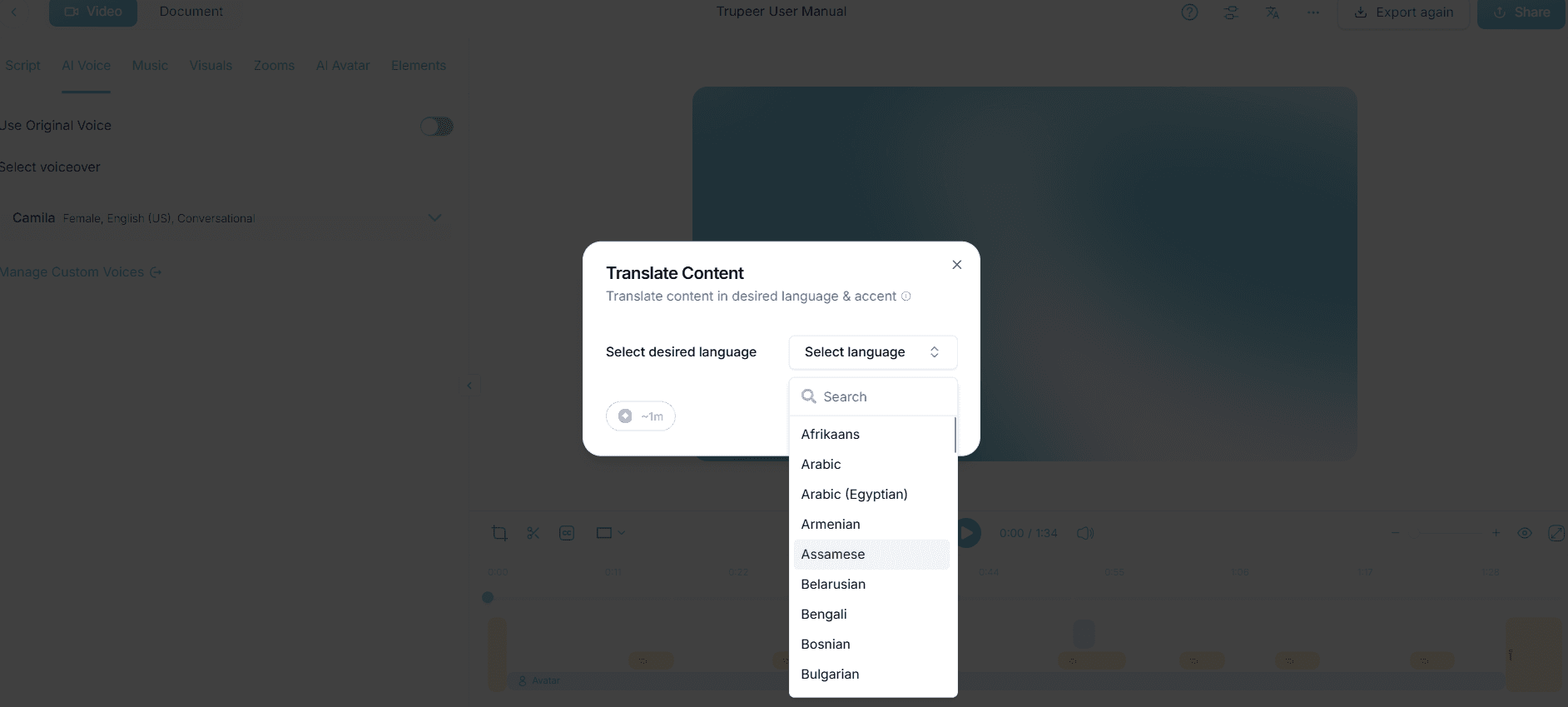
Step 3: Translate Content with AI Translation
For multilingual accessibility, use Trupeer's AI translation tool. Select the 'Translation' option and choose from over 40 languages. The AI will not only translate the content but also sync the lip movements to ensure a smooth viewing experience. This step may take longer, especially for longer videos, but ensures that your training material is accessible to a global audience. It's particularly useful for public sector teams working in diverse linguistic environments. Teams weighing tools often start with a Loom alternatives comparison before standardizing on a workflow.
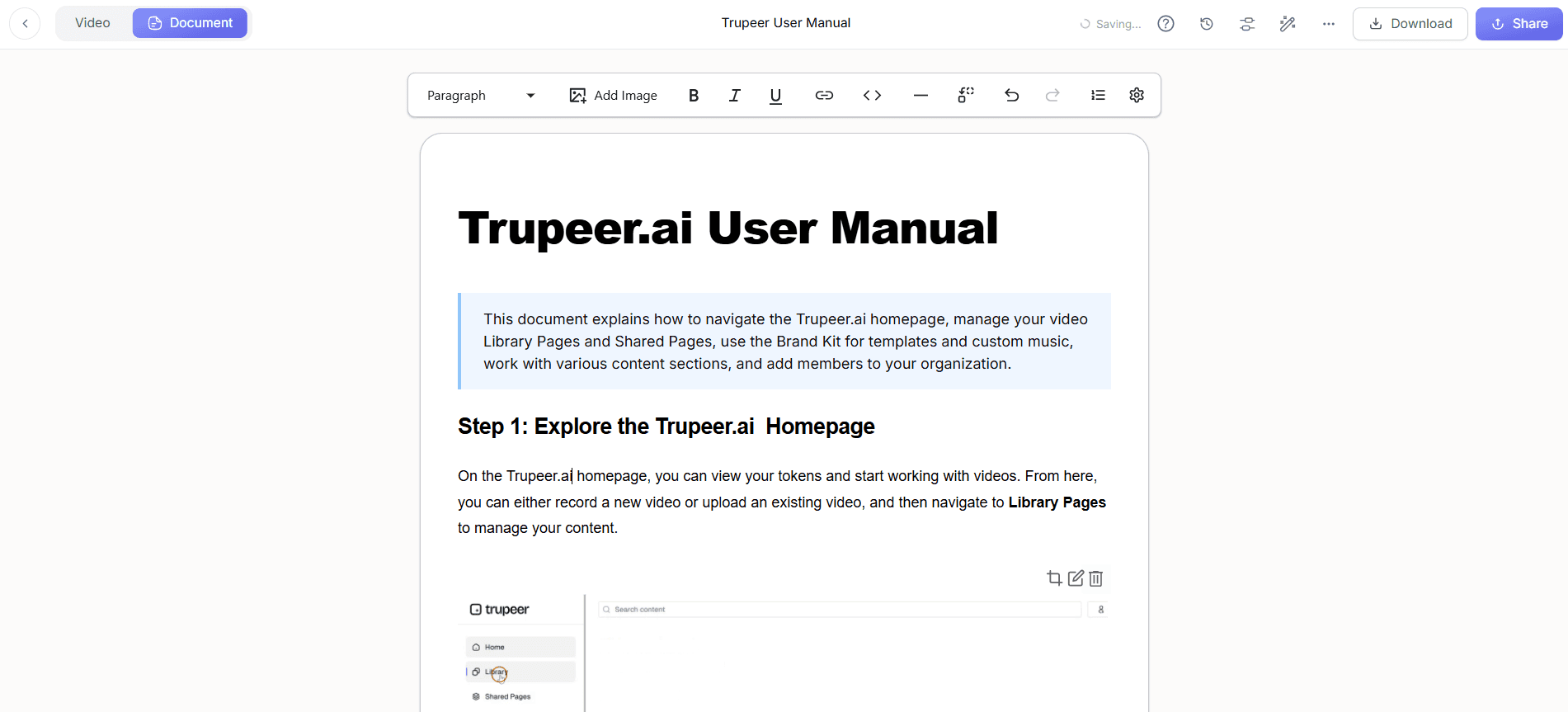
Step 4: Generate Documentation with Automatic SOP
After finalizing your video, use Trupeer's automatic SOP generation feature. This tool will convert your video content into a detailed standard operating procedure document. Access this feature by clicking 'Generate SOP' under the documentation section. Trupeer creates an editable document that can be exported in formats like HTML or PDF. This process usually takes a few minutes, providing a comprehensive text-based resource that complements the video.
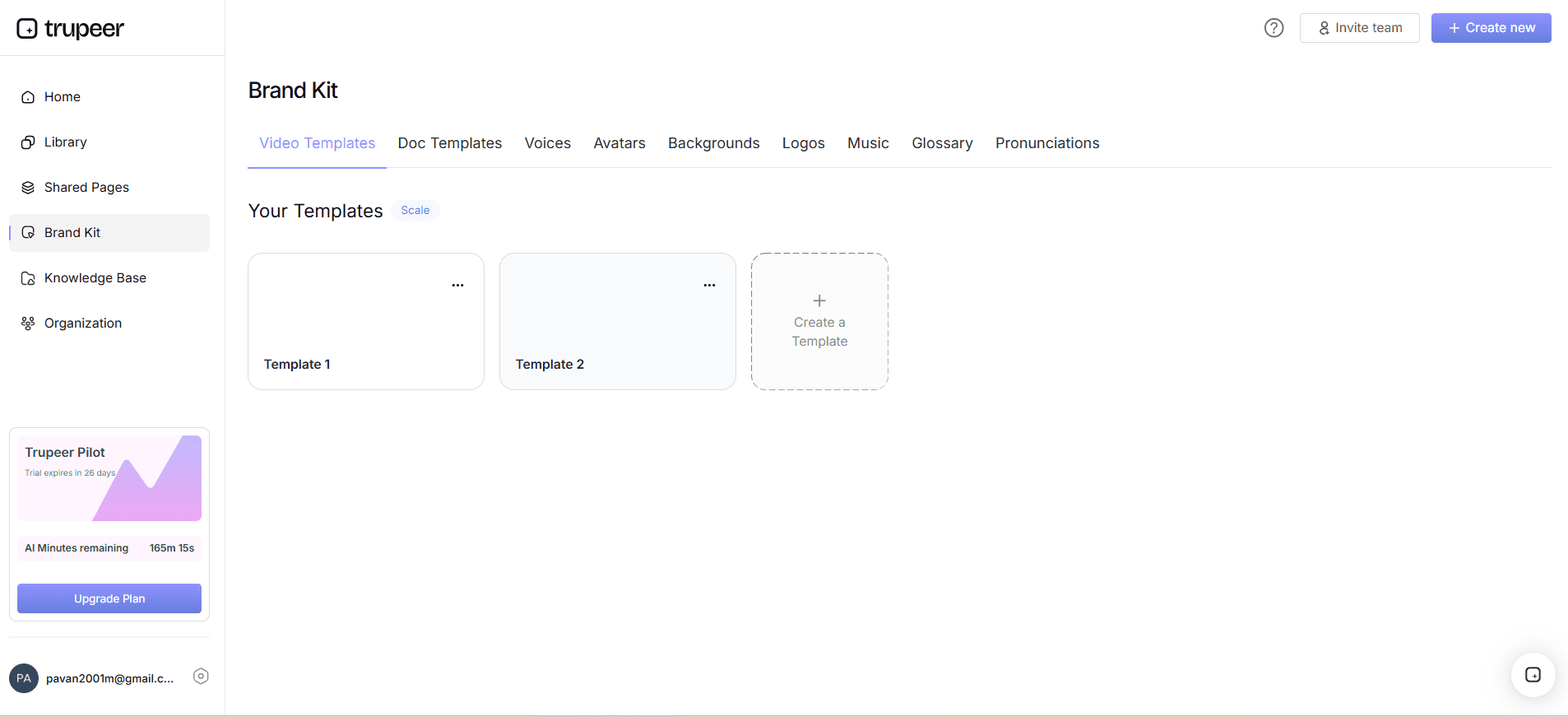
Step 5: Host on Custom Domain
Once your video is ready, use Trupeer's custom-domain hosting feature to make it easily accessible. Upload your video to the Trupeer platform and configure the domain settings to align with your organization's web presence. This feature supports SSO, ensuring secure access for your team. Hosting on a custom domain takes just a few clicks and ensures that your training videos are easily accessible within your organization’s digital ecosystem.
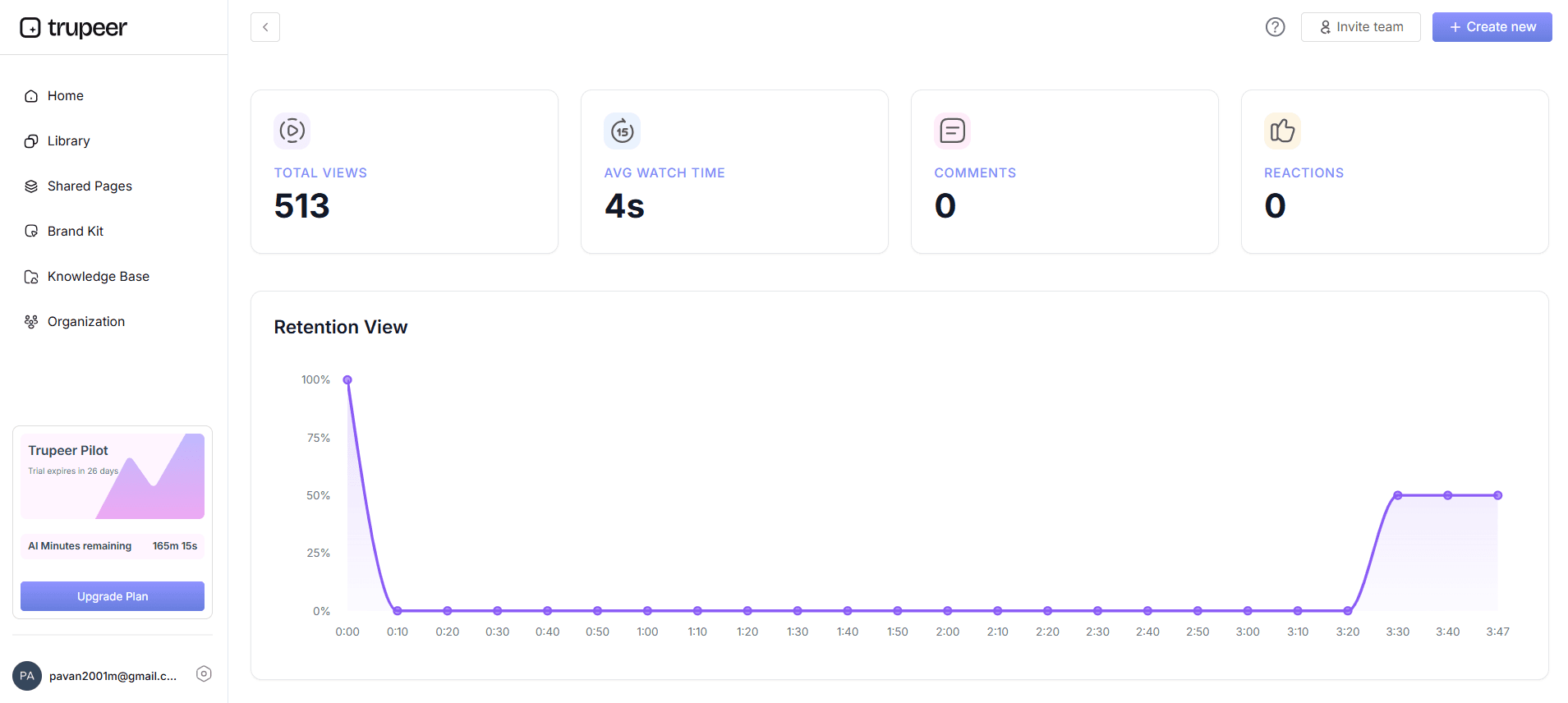
Step 6: Measure Engagement with Analytics
Finally, evaluate the effectiveness of your training video using Trupeer's viewer engagement analytics. Navigate to the 'Analytics' tab to view detailed reports on viewer interactions, drop-off points, and heatmaps. This feedback allows you to refine your content and ensure it meets accessibility standards. Regularly reviewing these analytics helps maintain high engagement levels and ensures that all employees benefit equally from the training materials.
What tips help you create accessibility-compliant training videos?
Creating accessibility-compliant training videos involves more than following basic guidelines. Here are some practical tips to ensure your videos are effective and inclusive, benefiting all users.
Use High Contrast Visuals. Ensure text and background colors contrast well to aid visibility for those with visual impairments.
Incorporate Closed Captions. Include accurate captions to assist hearing-impaired users and improve comprehension for all viewers.
Maintain Simplicity. Avoid cluttered slides and excessive animations that may distract or confuse viewers with cognitive disabilities.
Standardize Narration Pace. Keep the voiceover pace consistent and clear to help viewers follow along without frustration.
Test with Diverse Audiences. Before finalizing, test your video with diverse audiences to identify and address potential accessibility barriers.
Provide Multiple Formats. Offer your content in various formats, such as video, text, and audio, to cater to different accessibility needs.
use Feedback Loops. Regularly collect feedback from viewers to identify areas for improvement and ensure ongoing accessibility compliance.
Trupeer also ships a beginner friendly video editor for training videos that handles this step without extra setup.
Frequently asked questions
How can I ensure my training videos comply with accessibility standards?
To ensure compliance with accessibility standards like Section 508 and WCAG, incorporate features such as closed captions, audio descriptions, and transcripts into your training videos. Use tools like Trupeer that offer automatic captioning and translation services. Regularly review the content with accessibility guidelines in mind. Testing the videos with diverse users, including those with disabilities, can provide insights into potential accessibility issues, ensuring your videos meet all required standards.
What is the best way to add captions to my training videos?
The most effective way to add captions is by using a tool like Trupeer that offers automatic captioning features. After uploading your video, navigate to the 'Captioning' option to generate captions. Trupeer’s AI ensures accuracy and synchronization with the video content. Manual review and editing are recommended to correct any inaccuracies. This approach ensures that your training videos are accessible to hearing-impaired viewers and comply with accessibility standards.
Why is multilingual support important in training videos?
Multilingual support is crucial in training videos to accommodate a diverse workforce, especially in the public sector. It ensures that all employees, regardless of their primary language, can access and understand the training material. Using Trupeer’s AI translation capabilities, you can provide content in over 40 languages, enhancing inclusivity. This not only improves comprehension and engagement but also aligns with legal requirements for language accessibility in many regions.
Can I use AI tools to create training videos quickly?
Yes, AI tools like Trupeer enable rapid creation of training videos. Features such as AI screen recording, voiceover, and automatic translation reduce the time and effort required. You can create comprehensive videos within minutes by using these technologies. The AI-driven process ensures that the videos are not only quick to produce but also adhere to accessibility standards, making them suitable for public sector training needs.
Does Trupeer support AI video translation?
Yes, Trupeer offers solid AI video translation capabilities. You can translate training videos into over 40 languages, complete with accurate lip-syncing, to ensure smooth delivery in different languages. This feature is ideal for public sector teams that operate in multilingual environments, ensuring all employees can access the content in their preferred language. ai/translation">AI video translation capabilities to enhance your training video accessibility.


