Trupeer Blog
Summarise

Engineering teams are increasingly adopting the docs-as-code methodology for their documentation processes. This approach treats documentation just like code, stored in version control systems, and often written in markup languages like Markdown. But as video becomes a more critical part of documentation, integrating it with the same rigor can be challenging. Imagine a scenario where you have a complex system to document, and static text simply doesn't cut it. Embedded videos can offer rich, dynamic content that enhances understanding and retention.
However, managing these videos requires careful attention to ensure consistency and updateability, much like the code itself. Engineering teams need a smooth way to integrate video into their documentation workflows, treating it as a first-class citizen. According to a study,
companies that incorporate video into their documentation see a 41% reduction in support tickets
because videos help users understand complex topics more quickly and clearly. This isn't just a nice-to-have feature; it's becoming a necessity for teams striving for efficiency and clarity in their technical documentation.
Why does docs-as-code with embedded video matter?
Docs-as-code with embedded video matters because it addresses the critical need for clarity and engagement in technical documentation. In many engineering teams, documentation is often an afterthought, leading to outdated or incomplete information that frustrates users and increases support costs. By treating documentation like code, teams can ensure it is version-controlled, reviewable, and always up-to-date. But incorporating video adds another dimension. It helps in delivering complex information in a format that's easier to digest, reducing the learning curve for new users and team members.
For stakeholders such as product managers, developers, and customer support teams, having solid documentation can significantly impact productivity and customer satisfaction. Product managers gain confidence that their teams have the guidance needed to implement features correctly. Developers benefit from clear, concise explanations that reduce time spent digging through text-based documentation. Customer support teams see fewer tickets as users find answers through engaging video content. The customer education workflow becomes more efficient, allowing users to self-serve and resolve their issues faster. This comprehensive approach to documentation, integrating both text and video, ensures that all stakeholders have access to the resources they need to succeed.
What are the benefits of docs-as-code with embedded video?
Integrating video into a docs-as-code approach offers several distinct benefits that enhance the overall effectiveness of engineering documentation.
Enhanced Understanding. Videos provide visual and auditory learning, helping users grasp complex concepts faster. This method can lead to a 30% increase in comprehension when compared to text alone.
Reduced Support Costs. By integrating video, documentation can address common user questions, cutting down support tickets by 41%, as mentioned earlier. This decrease in support demand allows teams to allocate resources elsewhere.
Increased Engagement. Videos are inherently more engaging than text. A single video prospecting element can keep users on the page longer, increasing retention by up to 60%.
Version Control Integration. Treating videos as code allows them to be version-controlled, ensuring that users always access the most current information. This integration supports smooth updates and collaborations.
Consistent Branding. By using tools that offer brand kits and templates, teams maintain a consistent visual style across all documentation. This consistency helps reinforce brand identity and professionalism.
Scalable Localization. Videos can be easily localized with AI translation, reaching a broader audience. This approach allows for documentation in 65+ languages, ensuring accessibility for diverse user groups. This is exactly where code of conduct training localization becomes useful and it's the kind of content Trupeer can generate directly from a simple screen recording.
Teams weighing tools often start with a Loom alternatives comparison before standardizing on a workflow.
Which Trupeer features help you manage docs-as-code with embedded video?
Trupeer offers a range of features that facilitate the integration of video into the docs-as-code approach, making it a powerful tool for engineering teams looking to enhance their documentation.
AI screen recording with auto-zoom and click detection
Trupeer's AI screen recording feature captures detailed video recordings of your screen with automatic zooming and click detection. This is crucial for creating documentation videos that highlight key interactions within your software. Auto-zoom ensures that viewers focus on the important parts of the screen, while click detection provides clarity on user actions. All recordings are stored for version control, ensuring that your documentation remains up-to-date with every software update. By using this feature, you can create comprehensive visual guides quickly and efficiently.
Silent screen recording with automatic AI narration
With Trupeer's silent screen recording, you can record actions on your screen without capturing background noise. The automatic AI narration feature then adds voiceover to your videos in 65+ natural voices. This allows you to maintain a consistent narrative style across all documentation videos. Narration can be adjusted for pace and tone, ensuring it matches your brand's voice. This feature is particularly useful for teams that need to produce video content quickly without sacrificing quality or consistency.
Automatic SOP generation from any recording
Trupeer's ability to automatically generate Standard Operating Procedures (SOPs) from any video recording is a big shift for engineering teams. This feature extracts key steps from your videos and formats them into editable SOPs. It supports multi-format export options, including MP4, HTML, and PDF, allowing you to share and integrate them into various systems. This capability significantly reduces the time spent on manual documentation creation, ensuring your SOPs are always aligned with the latest processes.
AI translation into 40+ languages with lip-sync
The AI translation feature in Trupeer enables you to localize your videos into over 40 languages, complete with lip-sync. This ensures that your documentation is accessible to a global audience, breaking down language barriers and expanding your reach. Whether you're targeting non-English speaking users or international teams, this feature provides a smooth way to adapt your content without losing the original's intent and quality.
AI-searchable knowledge base with timestamp deep-links
Trupeer supports an AI-searchable knowledge base that indexes every recording with timestamp-level deep links. This feature allows users to search for specific content within videos, making it easy to find the exact information they need. By integrating this searchable knowledge base into your documentation strategy, you enable users to self-serve and access information faster, reducing dependency on support teams. This capability is particularly valuable for large organizations with extensive documentation libraries.
How do you manage docs-as-code with embedded video step by step with Trupeer?
Step 1: Start a Screen Recording
Begin by using Trupeer's browser-based recorder or desktop app to capture your screen. Click on the recording button to initiate a session. The AI screen recording with auto-zoom and click detection ensures that key interactions are highlighted, making the video intuitive for viewers. This process not only records your actions but also detects clicks and zooms automatically. Typically, setting up and starting the recording takes just a few minutes, and the resulting video is stored directly in your version control system for easy access and updates.

Step 2: Edit and Enhance Your Video
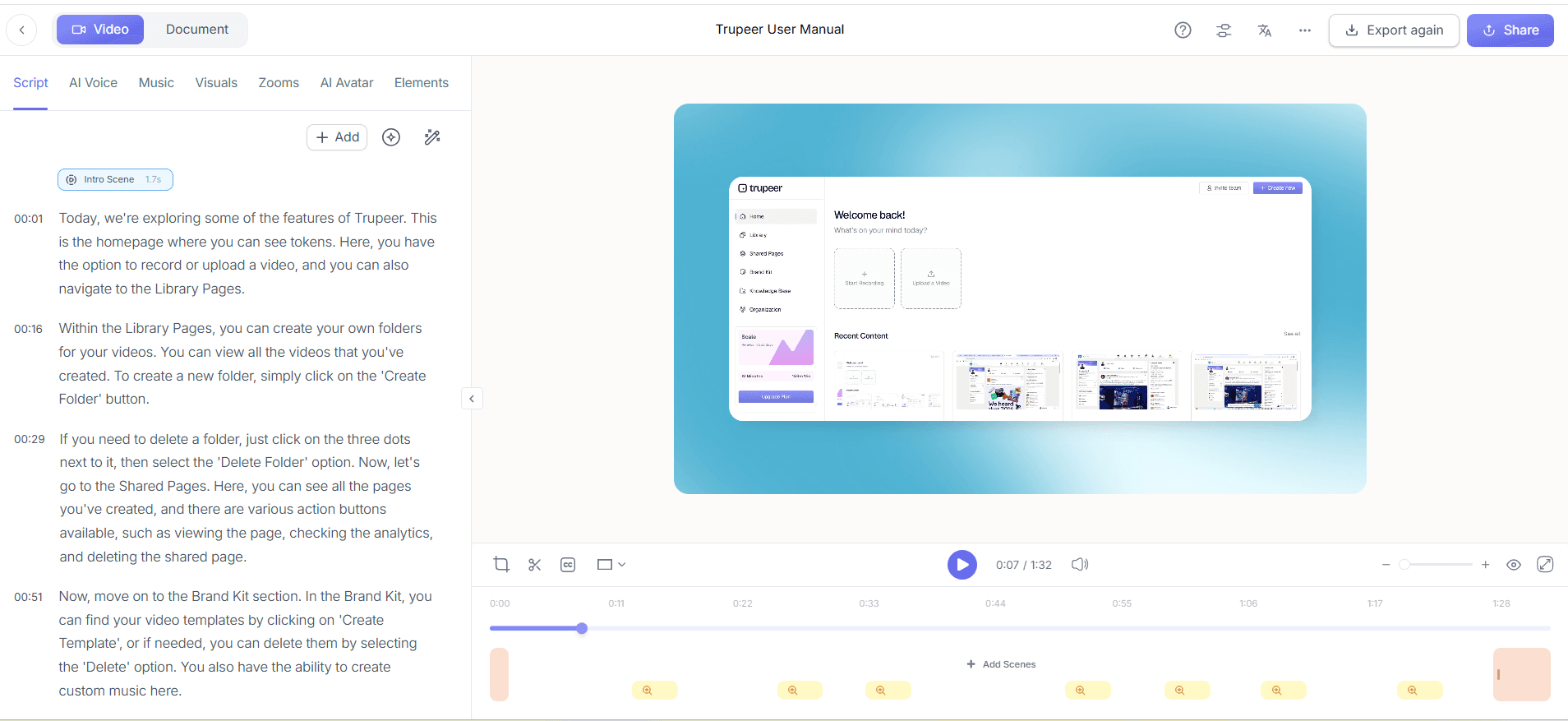
Once your recording is complete, enhance it using Trupeer's AI-driven editing tools. Remove filler words like "um" and "ah" effortlessly, and adjust the pace and tone of the AI voiceover to suit your brand voice. These edits are crucial for maintaining viewer engagement and ensuring clarity. With AI voice cloning, you can also add a personalized touch by using a short sample of your voice. Editing typically takes less than 15 minutes, depending on the length of your video, ensuring a polished final product ready for integration.
Step 3: Generate SOPs Automatically
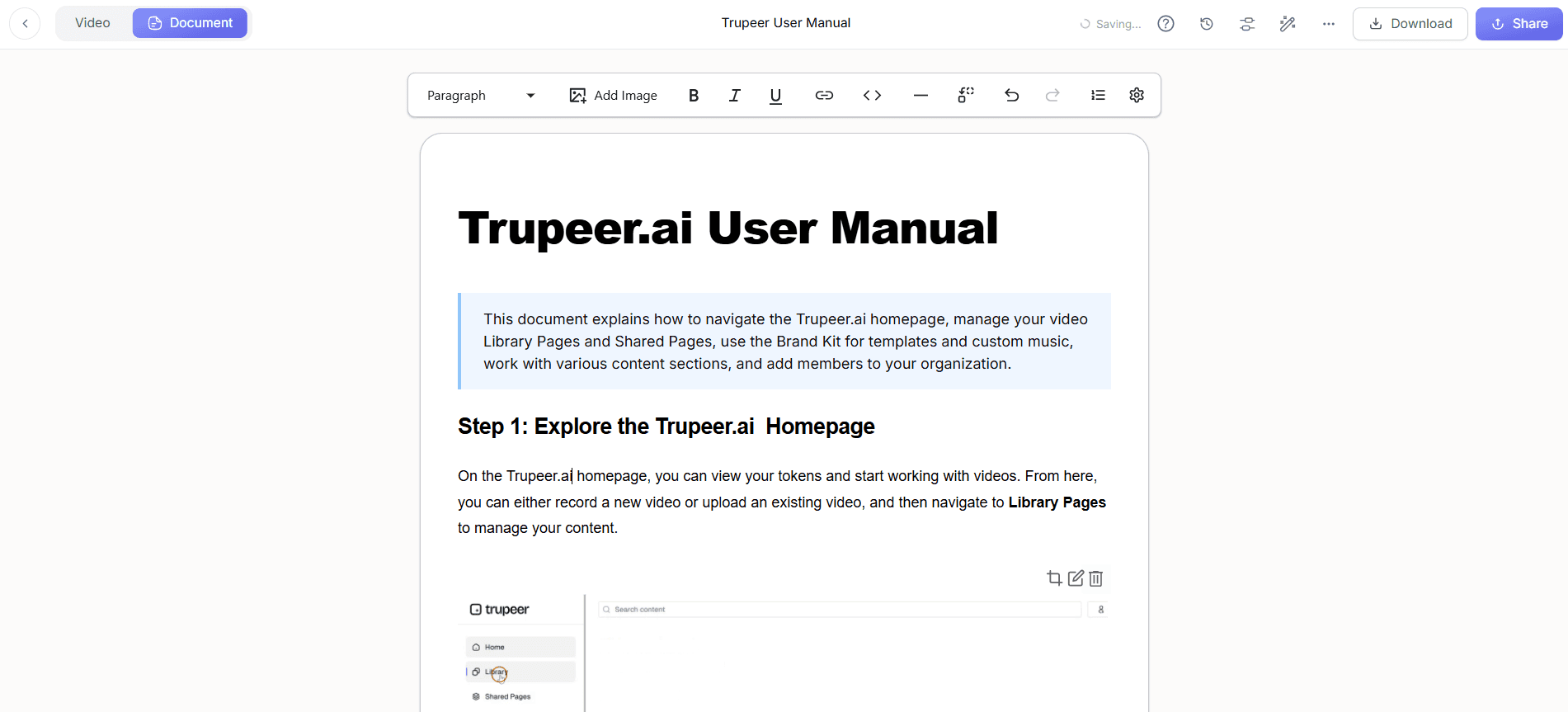
After editing, use Trupeer's automatic SOP generation feature. Click on the "Generate SOP" button, and the tool will transform your video into a detailed, edit-ready Standard Operating Procedure. This feature saves hours of manual documentation work, providing export options in MP4, HTML, and PDF formats. The SOPs reflect all recent updates, ensuring your documentation remains accurate and consistent with the latest processes and software changes.
Step 4: Translate and Localize Your Video
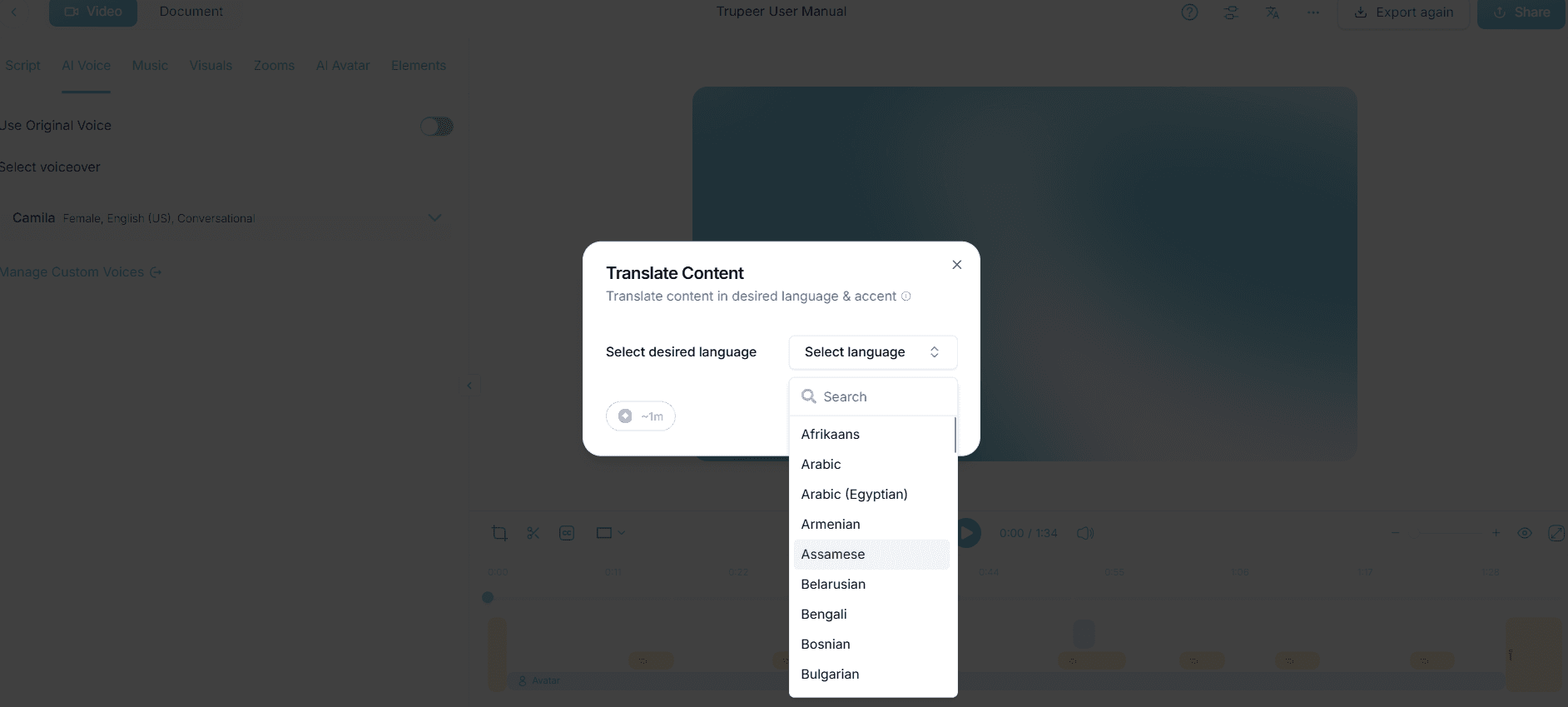
To reach a global audience, use Trupeer's AI translation feature to convert your video into over 40 languages. Click on "Translate," select the desired languages, and let the AI handle the rest, including lip-sync adjustments. This feature is particularly beneficial for organizations with international teams or customers, as it ensures that language barriers do not hinder understanding. The translation process is swift, usually taking just a few minutes per language, making it an efficient way to expand your documentation's reach. Teams ship this workflow end-to-end using Trupeer's AI video platform, which turns raw recordings into polished output without an editor.
Step 5: Create a Searchable Knowledge Base
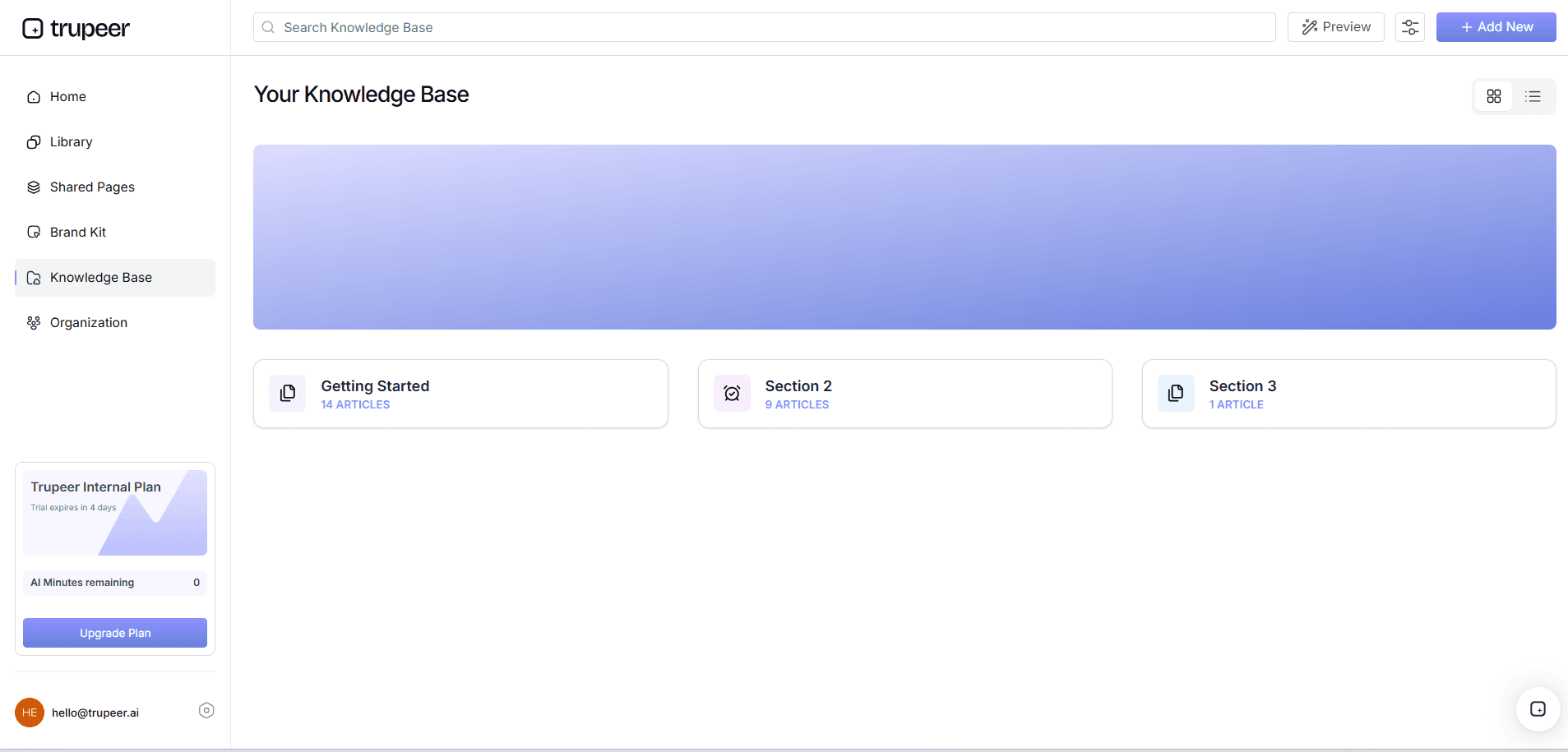
Integrate your videos into an AI-searchable knowledge base using Trupeer. Upload your videos to the knowledge base platform, which automatically indexes them with timestamp deep-links. Users can search for specific content within videos, making it easy to find precise information. This capability is invaluable for reducing time spent searching for answers, enabling users to self-serve their information needs, and dramatically lowering support inquiries.
Step 6: Distribute and Host Videos
Finally, distribute your videos through Trupeer's custom-domain hosting with SSO. This feature allows you to host videos on a platform that matches your brand's aesthetic while ensuring secure access for your users. You can also create shared pages or client-facing portals to make your documentation easily accessible. Embedding video widgets for in-app guidance further enhances the user experience by providing immediate, contextual help. Setting up hosting and distribution typically takes under 30 minutes, providing a smooth way to share your content.
What tips help you manage docs-as-code with embedded video?
Creating and managing documentation as code with embedded video requires a strategic approach. Here are some tips to simplify the process and maximize the effectiveness of your documentation efforts.
Standardize Video Formats. Consistency is key, so use the same format and resolution across all videos. This approach ensures a uniform experience for viewers and simplifies editing.
use AI Tools. use AI features for editing and translation to save time and reduce manual errors. Tools like Scribe alternatives for SOPs enhance efficiency.
Embed Videos Thoughtfully. Place videos strategically within your documentation where they add the most value. For example, a complex process may benefit from a visual walkthrough.
Update Regularly. Regularly review and update your videos to ensure they reflect the latest product features and processes. This maintenance prevents outdated information from misleading users.
Track Engagement Metrics. use analytics to monitor which videos are most viewed and where users drop off. Insights from interactive video platforms with analytics can inform future content.
Encourage Stakeholder Feedback. Collect feedback from team members and users to identify areas for improvement in your documentation. This collaborative approach ensures that content meets user needs.
Incorporate User Scenarios. Tailor your videos to address specific user scenarios or pain points. This strategy makes your documentation more practical and relevant, enhancing user satisfaction.
Frequently asked questions
How do I start using docs-as-code with embedded video?
To start using docs-as-code with embedded video, you need to integrate video recording and editing tools into your documentation workflow. Begin by selecting a platform like Trupeer that offers AI screen recording and editing capabilities. Record your video content, enhance it with AI-driven tools, and then embed these videos into your documentation stored in a version control system. This setup helps maintain consistency and updateability, ensuring that your documentation is always current and engaging for users. Regular updates and stakeholder feedback are also crucial for long-term success.
What are the best practices for updating video documentation?
The best practices for updating video documentation include regularly reviewing content to ensure accuracy and relevance. Use version control to manage changes and keep track of updates. Incorporate feedback from users and stakeholders to identify areas for improvement. Make use of AI tools for quick editing and translation to save time. Also, ensure that videos are consistently formatted to maintain a professional appearance. By following these practices, you can keep your documentation fresh and effective, reducing the risk of user confusion and support queries.
Can video documentation improve user engagement?
Yes, video documentation can significantly improve user engagement. Videos provide a dynamic and interactive way to convey information, making it easier for users to digest complex topics. They can increase retention rates by up to 60% compared to text alone. By offering visual and auditory learning modes, videos cater to different learning preferences, enhancing user satisfaction. Embedding videos strategically in your documentation ensures that users receive the information they need in the most accessible format, ultimately improving their overall experience and reducing the need for additional support.
Is AI translation effective for video documentation?
AI translation is highly effective for video documentation, especially when reaching a global audience. Platforms like Trupeer offer AI video translation capabilities that convert videos into over 40 languages with lip-sync. This ensures that your content is accessible to non-English speaking users without losing quality. AI translation is fast and accurate, allowing for quick localization of your documentation. By using this technology, you can expand your reach and ensure that all users, regardless of their language, have access to your comprehensive documentation.
Does Trupeer support collaborative video editing?
Trupeer supports collaborative video editing through workflows that allow multiple team members to review and approve videos. This collaborative approach ensures that content is polished and meets team standards before publication. You can invite stakeholders to provide feedback and make necessary changes, simplifying the editing process. This feature is particularly beneficial for remote teams that need to work together efficiently. By integrating collaborative editing into your workflow, you maintain high-quality standards and produce content that aligns with your organization's objectives.
Related Blogs


