
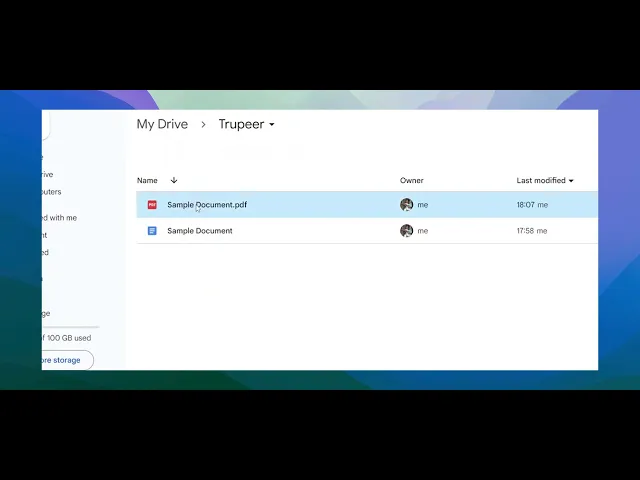
PDF를 Google 문서로 변환하는 방법
Google Drive를 사용해 몇 초 만에 PDF를 편집 가능한 Google 문서로 변환하는 방법을 알아보세요. 소프트웨어나 확장 프로그램이 필요하지 않습니다.
This guide provides a clear and concise process for how to turn PDF into Google Docs using Google Drive. Follow these steps to easily transform your PDF documents for editing and sharing.
You can convert a PDF to a Google Doc in two main ways—either directly through Google Drive or by first converting the PDF to a Word document for better formatting retention.
Method 1: Direct Conversion (Quick, but May Lose Formatting)
1. Upload the PDF to Google Drive
Go to Google Drive
Click "New" > "File Upload", and select the PDF file.
2. Open the PDF with Google Docs
Once uploaded, right-click the file.
Select "Open with" > "Google Docs".
3. Edit as Needed
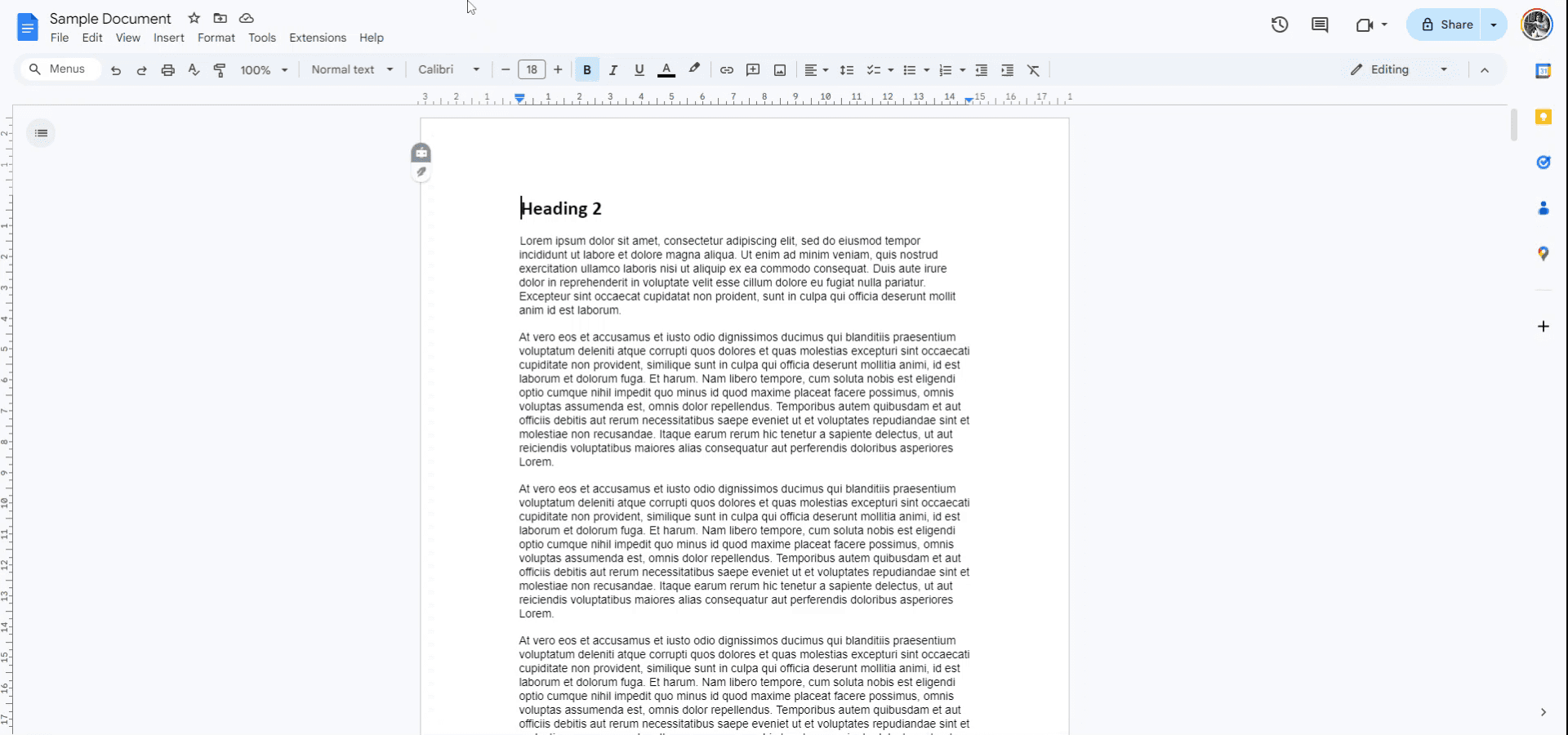
Google Docs will convert the PDF into an editable document.
Review and adjust formatting, as complex elements like tables or columns may not transfer perfectly.
Method 2: Convert to Word First (Better Formatting Preservation)
1. Convert the PDF to Word Format
Use tools like Adobe Acrobat, iLovePDF, or other trusted converters.
2. Upload the Word File to Google Drive
Go to Google Drive and upload the
.docxfile.
3. Open with Google Docs
Right-click the uploaded Word file.
Choose "Open with" > "Google Docs".
4. Edit the Converted Document
This method often preserves layout and formatting better than direct PDF import.
Step-by-Step Guide: How to convert PDF to google doc?
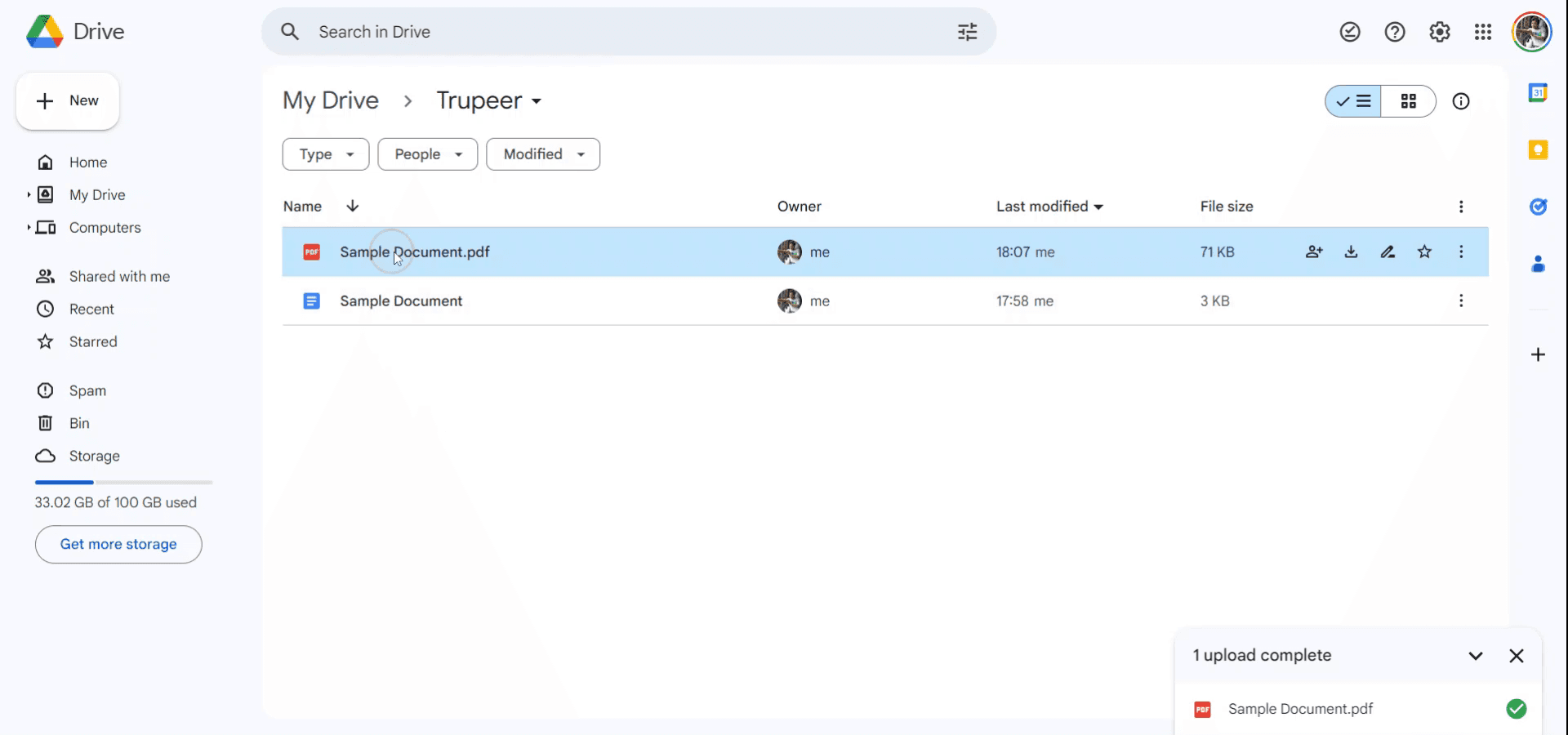
Step 1
To begin the conversion of a PDF file to a Google Doc, first open Google Drive. Upload the PDF file that you intend to convert.
Step 2
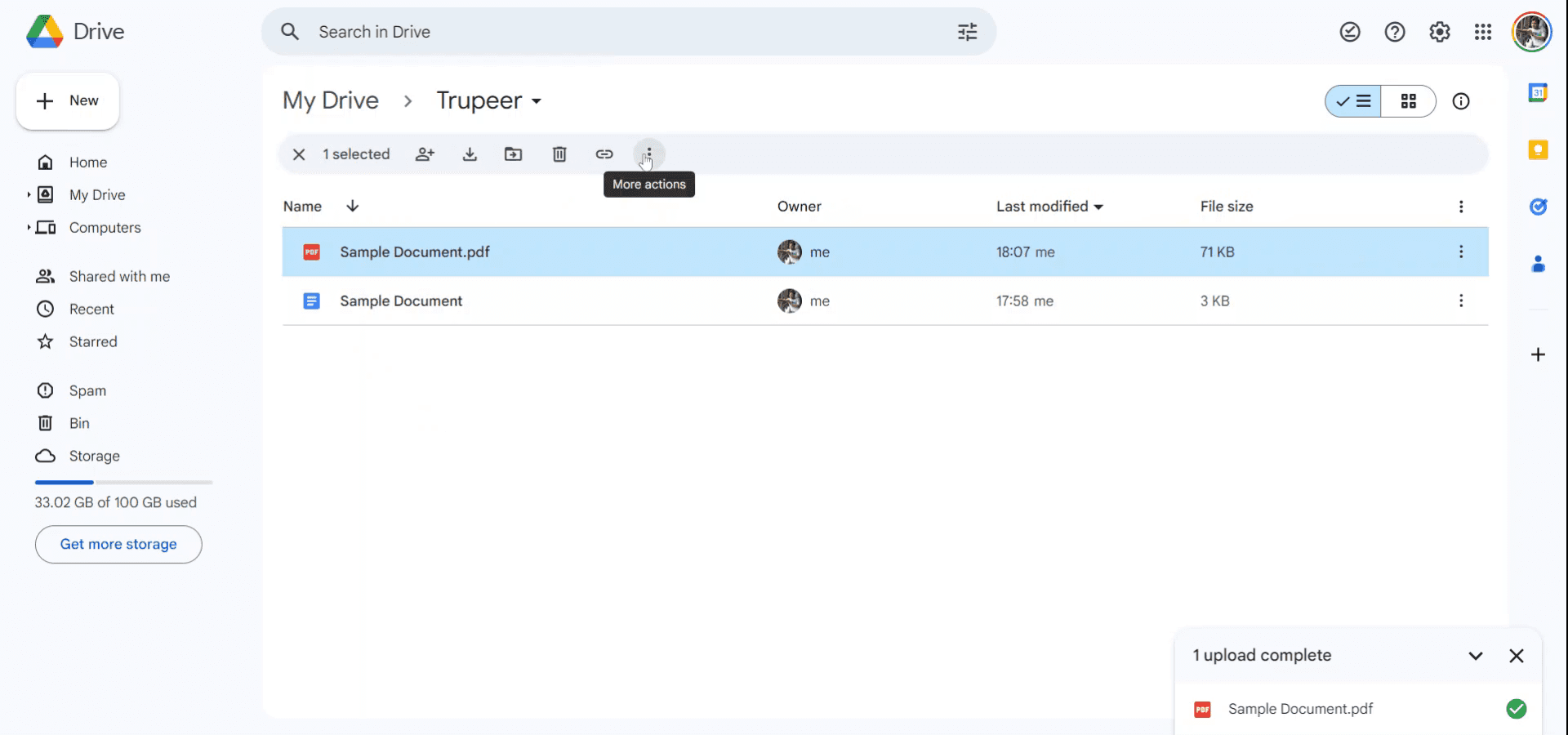
Once the file is uploaded, access the "More actions" menu by clicking on it. This will reveal additional options for the file.
Step 3
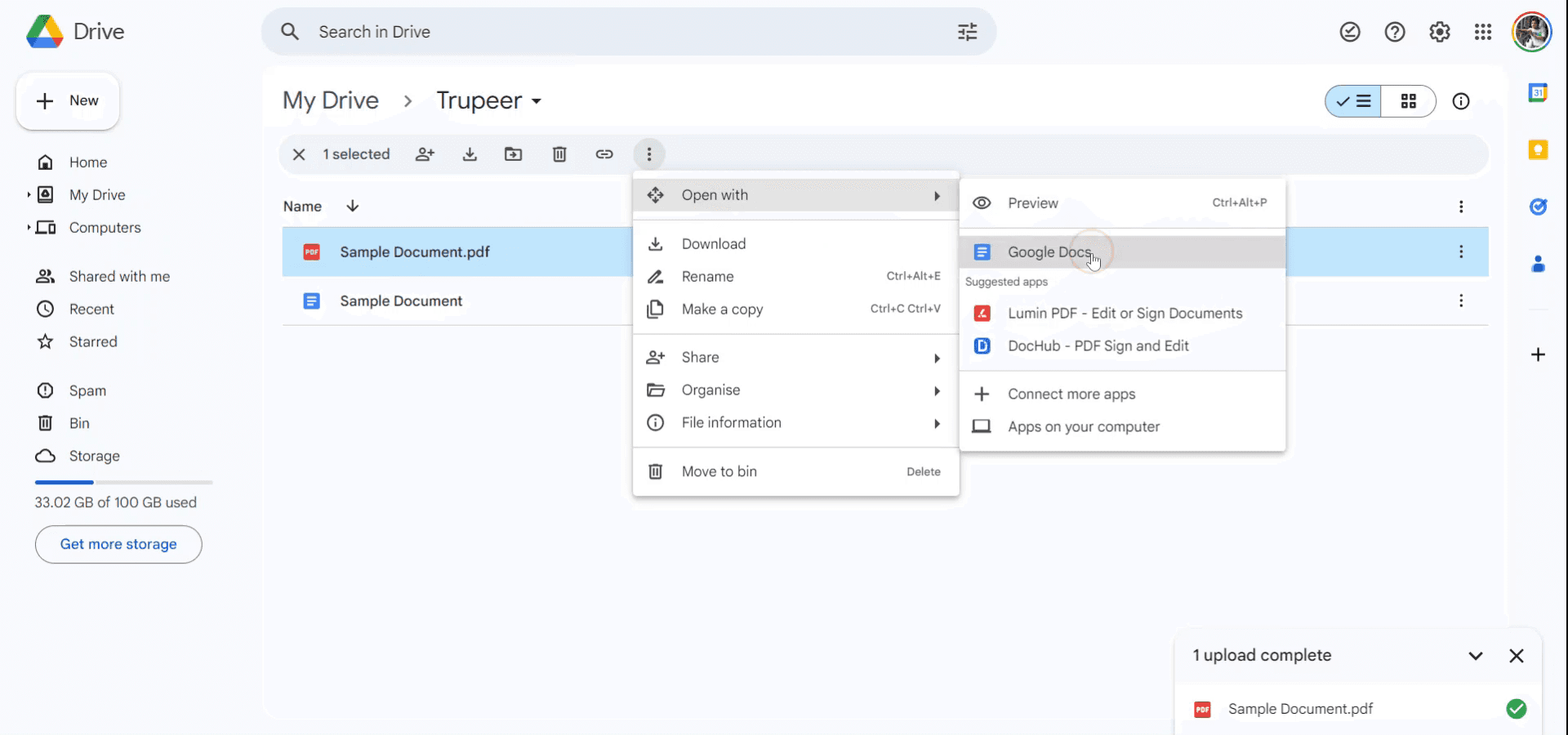
Within the drop-down menu, navigate to "Open with" and select "Google Docs."
Step 4
The PDF file will now be opened as a Google Doc, allowing you to edit and share the content easily. Thank you.
Common FAQ'S
1. How to screen record on mac?
To screen record on a Mac, you can use Trupeer AI. It allows you to capture the entire screen and provides AI capabilities such as adding AI avatars, add voiceover, add zoom in and out in the video. With trupeer’s AI video translation feature, you can translate the video into 30+ languages.
2. How to add an AI avatar to screen recording?
To add an AI avatar to a screen recording, you'll need to use an AI screen recording tool. Trupeer AI is an AI screen recording tool, which helps you create videos with multiple avatars, also helps you in creating your own avatar for the video.
3. How to screen record on windows?
To screen record on Windows, you can use the built-in Game Bar (Windows + G) or advanced AI tool like Trupeer AI for more advanced features such as AI avatars, voiceover, translation etc.
4. How to add voiceover to video?
To add voiceover to videos, download trupeer ai chrome extension. Once signed up, upload your video with voice, choose the desired voiceover from trupeer and export your edited video.
5. How do I Zoom in on a screen recording?
To zoom in during a screen recording, use the zoom effects in Trupeer AI which allows you to zoom in and out at specific moments, enhancing the visual impact of your video content.
관련 튜토리얼


