
이 템플릿 사용
Before you can improve, automate, outsource or replace a process, you need to know how it actually runs today. Not how the policy says it should run, or how people describe it in a workshop, but the real steps, the systems, the spreadsheets on the side and the exceptions that only experienced people know about. An as-is process documentation template gives you a consistent way to capture all of that, so every later decision starts from the same accurate picture.
This free as-is process documentation template covers process scope, roles, systems, step-by-step activities, inputs and outputs, controls, exceptions, volumes, timings and pain points, with a filled-in example. It's designed to be completed from a recording of the real work: record the person who does the process, and turn the recording into the as-is document. Copy the structure below, or open it in Trupeer and customize it.
What is an as-is process documentation template?
An as-is process documentation template is a structured document for recording how a business process currently works. It captures who does what, in what order, in which systems, with which inputs, outputs and controls, plus the exceptions, workarounds, volumes and pain points that affect performance. The result is a baseline for improvement, automation, system implementation, outsourcing or training.
The as-is describes the current state; the to-be describes the future design. For the difference between them, see as-is vs to-be process.
Why document the as-is process?
It reveals what's really happening, including workarounds and manual steps that policies don't show.
It grounds improvement in evidence, so changes fix real problems.
It's the starting point for system projects, from requirements to fit-gap analysis.
It protects knowledge held by a few experienced people.
It supports transitions and outsourcing, where work moves between teams.
It provides a baseline to measure improvement against.
Who uses an as-is process documentation template?
Business analysts and process excellence teams mapping current processes.
ERP and system implementation teams preparing requirements and fit-gap analysis.
Shared services, GBS and BPO teams documenting work before a transition.
Operations managers looking for improvement and automation opportunities.
Auditors and risk teams checking how controls operate in practice.
Training teams who need to explain what changes from today.
Preview the as-is process documentation template
The template opens with a process summary: name, owner, scope, trigger, outcome and the recording it was captured from. Roles and systems follow. The core is a step-by-step activity table with the role, system, action, inputs, outputs and time for each step. Separate sections cover controls, exceptions and workarounds, volumes and timings, pain points and improvement ideas. Every section is editable, so you can add columns for your own analysis.
How to customize this template in Trupeer
Step 1: Open the Templates Section
Go to the Templates section from the main navigation.

Step 2: Select and Open a Template
Click on any template you want to work with to open it.
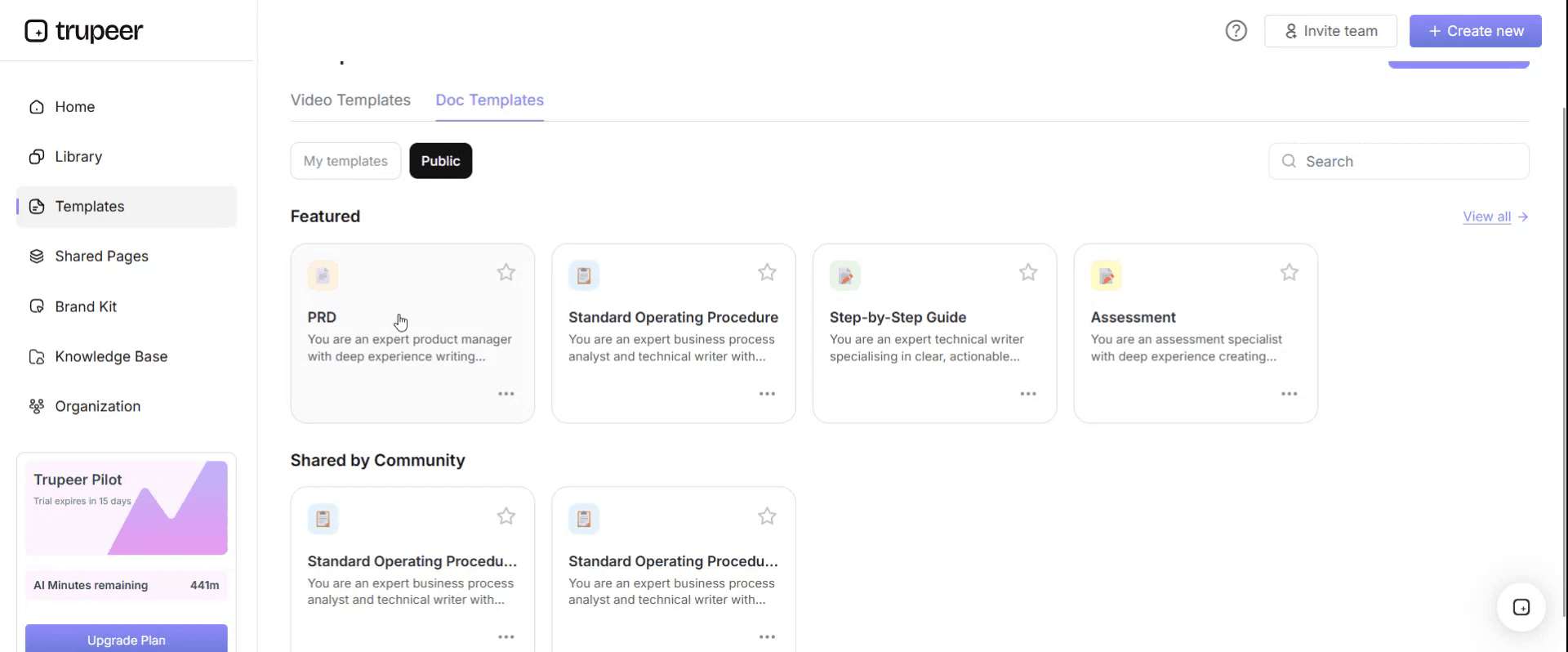
Step 3: Expand the Template View
If needed, expand the template view to see the full layout and details clearly.

Step 4: Edit the Template
Click on Edit to start modifying the selected template.

Within the editor, you can:
Add new sections
Define or update formatting rules
Add a logo and adjust its position and related settings
Step 5: Save Your Customized Template
After making all necessary changes, click Save to store the updated template as your own.
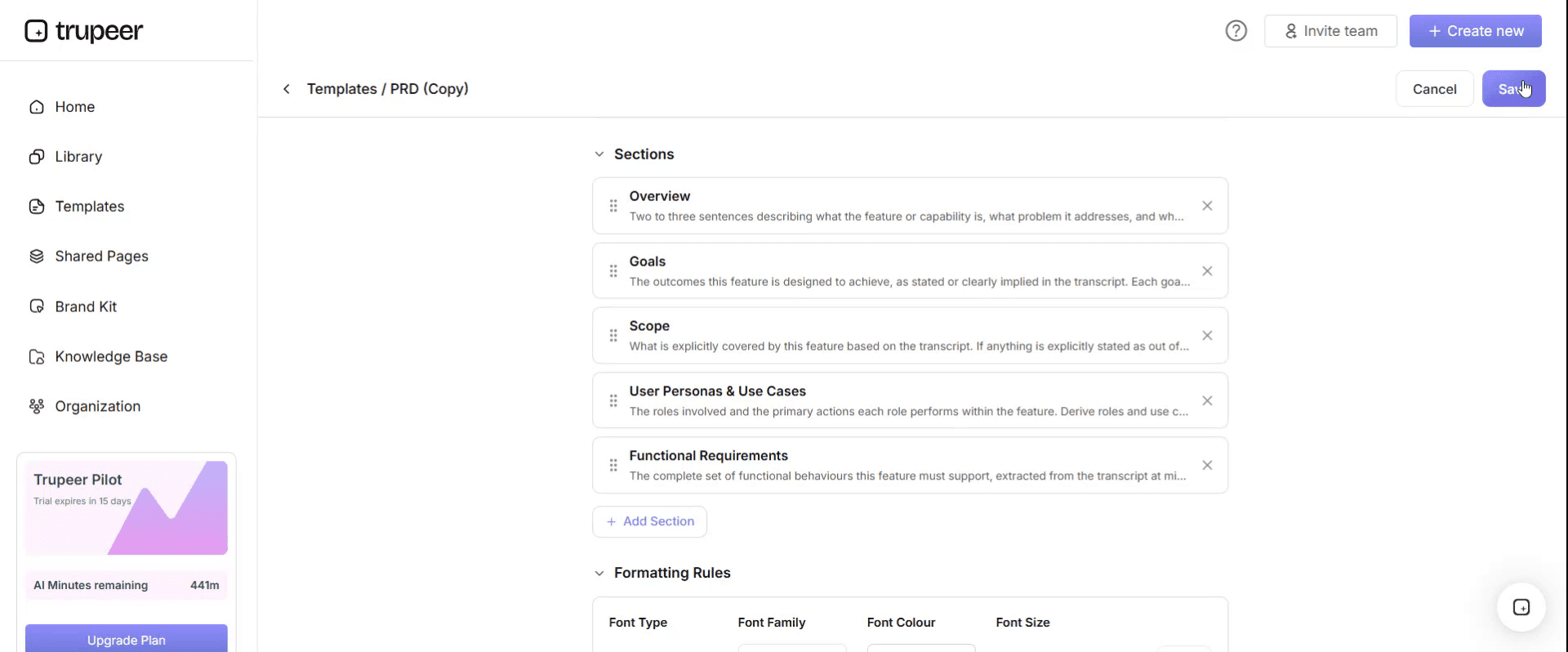
Step 6: Preview and Fine-Tune the Template
When you want to see how your customized template looks, open the Preview.

From the preview screen, you can continue to make adjustments directly if needed, ensuring the template appears exactly as you want.
With an as-is process documentation template you can:
Capture the real process, not the idealised one.
Document every process the same way, so you can compare them.
Make exceptions and workarounds visible.
Start improvement, automation and system projects from evidence.
Keep expert knowledge when people move on.
What an as-is process documentation template must contain
Section | What it covers |
|---|---|
Process summary | Name, ID, owner, scope, trigger and outcome |
Source | The recording, interview or observation the document is based on, with date |
Roles | Who performs, approves and is consulted at each step |
Systems and tools | ERP, CRM, spreadsheets, email and other tools used |
Activity steps | Each step with role, system, action, inputs, outputs and time |
Decision points | Where the process branches and on what rule |
Controls | Approvals, checks and reconciliations |
Exceptions and workarounds | What happens when the standard path doesn't apply |
Volumes and timings | How often, how many and how long |
Pain points | What's slow, error-prone or frustrating |
Improvement ideas | Opportunities noted during capture |
Validation | Who confirmed the document reflects reality, and when |
Free as-is process documentation template: the structure to copy
Copy the structure below into your own document, or open it in Trupeer and customize it.
1. Process summary. Process name: [name]. Process ID: [ID]. Owner: [role]. Scope: [starts when … ends when …]. Trigger: [event]. Outcome: [result].
2. Source. Captured from: [recording link, interview or observation]. Performer: [role]. Date: [date].
3. Roles.
Role | Responsibilities in this process |
|---|---|
[Role] | [What they do] |
4. Systems and tools. [ERP, spreadsheets, email, shared drives, other tools.]
5. Activity steps.
Step | Role | System | Action | Inputs | Outputs | Time |
|---|---|---|---|---|---|---|
1 | [Role] | [System] | [Action] | [Input] | [Output] | [minutes] |
2 | [Role] | [System] | [Action] | [Input] | [Output] | [minutes] |
6. Decision points. [At step X, if condition A then …, otherwise …]
7. Controls. [Approvals, checks, reconciliations and who performs them.]
8. Exceptions and workarounds.
Exception or workaround | When it happens | What people do | How often |
|---|---|---|---|
[Exception] | [Trigger] | [Workaround] | [Frequency] |
9. Volumes and timings. Volume: [per day, week or month]. Cycle time: [start to end]. Peaks: [period-end, seasonal].
10. Pain points. [What's slow, manual, error-prone or frustrating.]
11. Improvement ideas. [Opportunities noted, such as removing steps, automating or standardising.]
12. Validation. Reviewed by: [process owner]. Date: [date].
As-is process documentation example: supplier invoice processing
Here's how part of an as-is document might look for supplier invoice processing. The details are illustrative.
Process summary. Supplier invoice processing. Owner: AP manager. Starts when an invoice arrives; ends when it's posted or rejected. Captured from a recording of an AP clerk processing a day's invoices.
Step | Role | System | Action | Time |
|---|---|---|---|---|
1 | AP clerk | Download invoices from the shared mailbox and save to a folder | 2 min | |
2 | AP clerk | Spreadsheet | Log each invoice in the tracking spreadsheet | 1 min |
3 | AP clerk | ERP | Enter invoice details manually | 4 min |
4 | AP clerk | ERP | Match to PO and goods receipt | 2 min |
5 | AP clerk | If there's a price difference, email the buyer and wait for a reply | Varies | |
6 | AP clerk | ERP | Post the invoice once the buyer confirms | 1 min |
Exceptions and workarounds. Invoices without a PO are forwarded to the requester by email. Price differences are tracked in a separate spreadsheet column. Some suppliers send invoices to individual buyers, who forward them days later.
Pain points. Manual data entry, email chasing for approvals, no visibility of invoices waiting on buyers.
Improvement ideas. Capture invoice data automatically, route variances through the ERP workflow, publish one invoice mailbox to all suppliers.
How to capture the as-is by recording
Interviews and workshops rely on memory, and people forget exceptions, side spreadsheets and the steps they do on autopilot. Recording the real work is faster and more accurate:
Choose the person who does the process most often, not the manager who oversees it.
Record them doing the real task, in the real systems, narrating what they're doing and why.
Ask them to show the exceptions and the spreadsheets or emails they use outside the system.
Turn the recording into a step-by-step document with Trupeer's AI screen recorder, then fill in the remaining sections of the template.
Add volumes, timings and pain points from system reports and a short conversation.
Validate the document with the process owner and a second person who does the work.
For the questions to ask alongside the recording, use the process discovery checklist.
How much detail should as-is documentation have?
Level | What it describes | When to use it |
|---|---|---|
End-to-end process | The whole process from trigger to outcome, in a few stages | Scoping and prioritising |
Process | The main steps and roles | Most improvement and system projects |
Task and screen level | Every click, field and decision | High-volume, high-risk or exception-heavy tasks, automation and training |
Go to task level only where it matters. For most processes, the process level with exceptions noted is enough.
How as-is documentation is used
Use | How the as-is helps |
|---|---|
ERP and system implementations | Baseline for requirements and fit-gap analysis; use the fit-gap analysis template |
Process improvement | Shows where time, errors and rework come from |
Automation | Reveals manual, rule-based steps that can be automated |
Transitions and outsourcing | Gives the receiving team a complete picture of the work |
Audit and controls | Shows how controls operate in practice |
Training | Explains what changes from today in the new process |
For automation specifically, see how to identify automation opportunities in documented processes.
How to analyse an as-is process
Once the as-is is documented, look for the patterns that point to improvement:
What to look for | What it usually means |
|---|---|
Steps done outside the main system | Gaps in the system or its configuration |
Data entered more than once | Candidates for integration or automation |
Waiting time between steps | Handoff or approval bottlenecks |
Frequent exceptions | Unclear rules, poor upstream data or a process that doesn't fit reality |
Steps only one person can do | Knowledge risk and a training need |
Checks that catch the same error repeatedly | A problem to fix at the source |
Record what you find in the pain points and improvement ideas sections, with the evidence from the recording.
As-is documentation for transitions and outsourcing
When work moves between teams, sites or providers, the as-is document becomes the core of knowledge transfer. The receiving team needs every step, exception, contact and system access, not a summary. Record the current team doing each process, including month-end and rare tasks, and use the documents as the reference during shadowing and reverse shadowing. A knowledge transfer gap analysis helps confirm nothing is missing before the receiving team takes over.
As-is documentation for ERP projects
In an ERP implementation, the as-is is captured early, before design workshops, and becomes the evidence behind every requirement. It shows which current steps, reports and workarounds the new system must handle, and how much each role's work will change. For a full method, see SAP S/4HANA transformation: document as-is processes first.
Formats for as-is process documentation
Document with step tables suits most processes and is what this template uses.
Process map or flowchart suits the end-to-end view, especially with several roles and handoffs.
Spreadsheet suits large process inventories, with volumes, timings and owners.
Recording and video suits capturing the real work and showing it to others.
Best practices for as-is process documentation
Record the real work, not a description of it.
Capture exceptions and workarounds, where most problems hide.
Note the tools outside the main system, such as spreadsheets and email.
Measure, don't guess, volumes and timings wherever you can.
Validate with the people who do the work.
Don't fix the process while documenting it. Record it as it is, then improve it.
Common mistakes to avoid
Documenting the policy instead of the practice.
Interviewing managers rather than the people who do the work.
Leaving out exceptions and workarounds.
Going to screen level everywhere, so the documentation never finishes.
Letting the as-is sit unused instead of feeding improvement, design and training.
As-is process documentation checklist
Scope, trigger, outcome and owner are defined.
The document is based on a recording or observation, with the source noted.
Roles and systems, including side tools, are listed.
Every step has a role, system, action, inputs, outputs and time.
Decision points and controls are documented.
Exceptions and workarounds are captured with frequency.
Volumes, timings and pain points are recorded.
The process owner has validated the document.
How Trupeer helps you capture the as-is by recording
As-is challenge | How Trupeer helps |
|---|---|
Interviews miss steps and exceptions | Record the real work, and Trupeer turns it into a step-by-step document with screenshots and a video |
Documenting takes weeks of analyst time | One recording becomes a draft as-is document in minutes |
Knowledge sits with a few experts | Recordings keep their knowledge when they move on |
Teams in several countries do the same process differently | Record each site and compare the documents side by side |
As-is and training are separate projects | The same recording approach produces training for the new process |
Genpact used this recording-first approach for a company-wide Workday rollout, turning recorded process sessions and SME walkthroughs into more than 500 training collaterals across 20 workstreams in five languages, for 140,000 employees in 40 countries, in 3 months instead of 12. Read the Genpact customer story.
For a general process documentation format beyond the as-is, see the process documentation template.
Download the free as-is process documentation template
Open the template in Trupeer, record your first process and turn it into an as-is document you can share and validate. Get the free as-is process documentation template.
Related templates
Requirements traceability matrix template
Frequently Asked Questions
What is an as-is process documentation template?
It's a structured document for recording how a process works today, covering scope, roles, systems, steps, inputs and outputs, decision points, controls, exceptions, volumes, timings, pain points and validation.
What's the difference between as-is and to-be process documentation?
As-is documentation records how the process works today. To-be documentation describes how it will work after the change. The as-is is the baseline the to-be is designed from.
How do you document an as-is process?
Define the scope, record the person who does the process doing the real work, turn the recording into step-by-step documentation, add controls, exceptions, volumes and pain points, and validate it with the process owner.
Why record the as-is instead of interviewing?
Recordings show what people actually do, including exceptions, workarounds and side tools that are often forgotten in interviews. Interviews are still useful for context and volumes.
How detailed should as-is documentation be?
Usually at process level with exceptions noted. Go to task and screen level only for high-volume, high-risk or exception-heavy tasks, or where you plan to automate or train.
Who should document the as-is process?
Business analysts or process excellence teams, working with the people who do the process and validated by the process owner.
Is there an as-is process documentation template in Word?
Yes. Word suits the step tables and narrative sections. Open the template in Trupeer, customize it and export it in the format you need.
Is there an as-is process documentation template in Excel?
Yes. Excel suits process inventories and step tables with volumes and timings. Customize the template in Trupeer and export it, or copy the structure into Excel.
Is there an as-is process documentation template PDF?
Yes. Export the validated document as a PDF for sign-off and sharing, and keep the editable version as the master.
Is the as-is process documentation template free?
Yes. Sign up free to open the template in Trupeer, customize it and export it.
What should you do after documenting the as-is?
Analyse it for pain points and opportunities, design the to-be process, and use it as the baseline for requirements, automation, training and measuring improvement.
Can I create as-is documentation from a screen recording?
Yes. Record the person doing the process, and Trupeer turns the recording into a step-by-step as-is document with screenshots and a video.


