チュートリアル

MS Excelで成績表を作成する方法

Microsoft Excelで専門的な成績表を作成する方法を学びましょう。学生の結果を簡単に計算するための数式、書式設定、および自動化をカバーするステップバイステップのチュートリアルです。

ステップ・バイ・ステップのガイドがあります:

1. 基本的な構造を設定します:
新しいExcelシートを開きます。 
ロール番号、名前、科目など、合計、パーセンテージ、成績、結果(合格/不合格)の列を作成します。 
各学生の詳細と得点をそれぞれの列に入力します。 
2. 総得点を計算します:「合計」列で、SUM関数を使って各学生の得点を合計します。
たとえば、3科目の得点がC2、D2、E2にある場合、数式は=SUM(C2:E2)になります。 
この数式をコピーして、すべての学生の合計を計算します。 
3. パーセンテージを計算します:「パーセンテージ」列で、「合計」を最大可能得点で割り、100をかけます。 
最大可能得点が300の場合、数式は=(F2/300)*100になります(合計がF2にあると仮定)。 
この数式をコピーします。 
4. 成績を割り当てます:IFSまたはネストされたIF関数を使用して、パーセンテージに基づいて成績を割り当てます。 
例えば:=IFS(G2>=90,"A+",G2>=75,"A",G2>=60,"B",G2>=50,"C",G2>=35,"D",G2<35,"F")(パーセンテージがG2にあると仮定)。 
これにより、パーセンテージの範囲に基づいて成績が割り当てられます。
5. 合格/不合格のステータスを判断します: IF関数を使用して、パーセンテージが合格の閾値(例:35%)を超えているかを確認します。 
例えば:=IF(G2>=35,"合格","不合格")(パーセンテージがG2にあると仮定)。 
6. 条件付き書式を適用します:「結果」列のセルを選択します。 
ホーム > 条件付き書式 > セルルールの強調表示 > 含むテキストを選択します。 
「不合格」と入力し、不合格の結果のために赤の塗りつぶし色を選択します。 
同様にして、合格の結果を緑で強調表示できます。 
7. オプションの改善:RANK関数を使用して総得点に基づいて学生のランキング列を追加できます。 
別のシートまたはテーブルからの追加の学生情報を表示するためにVLOOKUP関数を使用します。 
AVERAGE関数を使用して学生の平均得点を計算します。 

ステップ・バイ・ステップガイド:MS Excelで成績表を作成する方法

ステップ 1

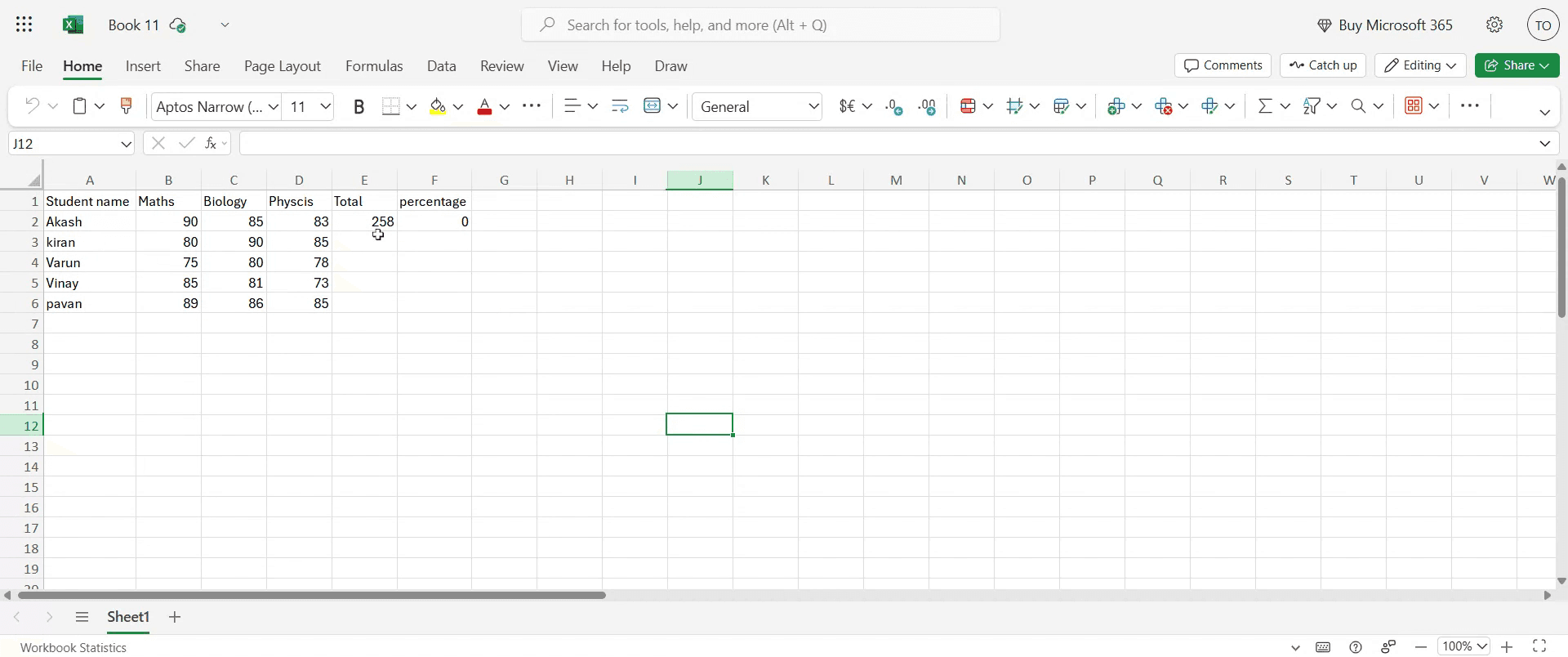
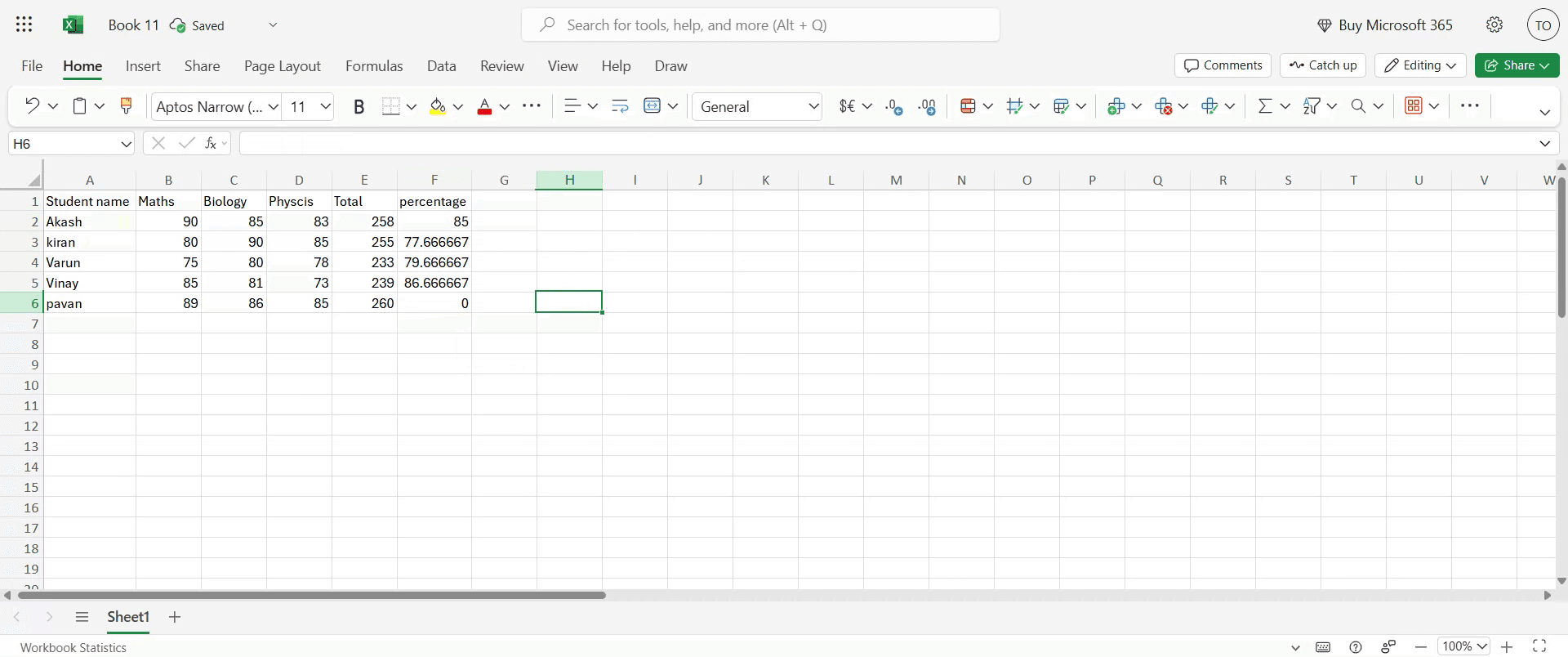
詳細がシートに入力されたら、次の作業は総得点を計算することです。

Once the details have been entered into the sheet, our next task is to calculate the total marks.

ステップ 2

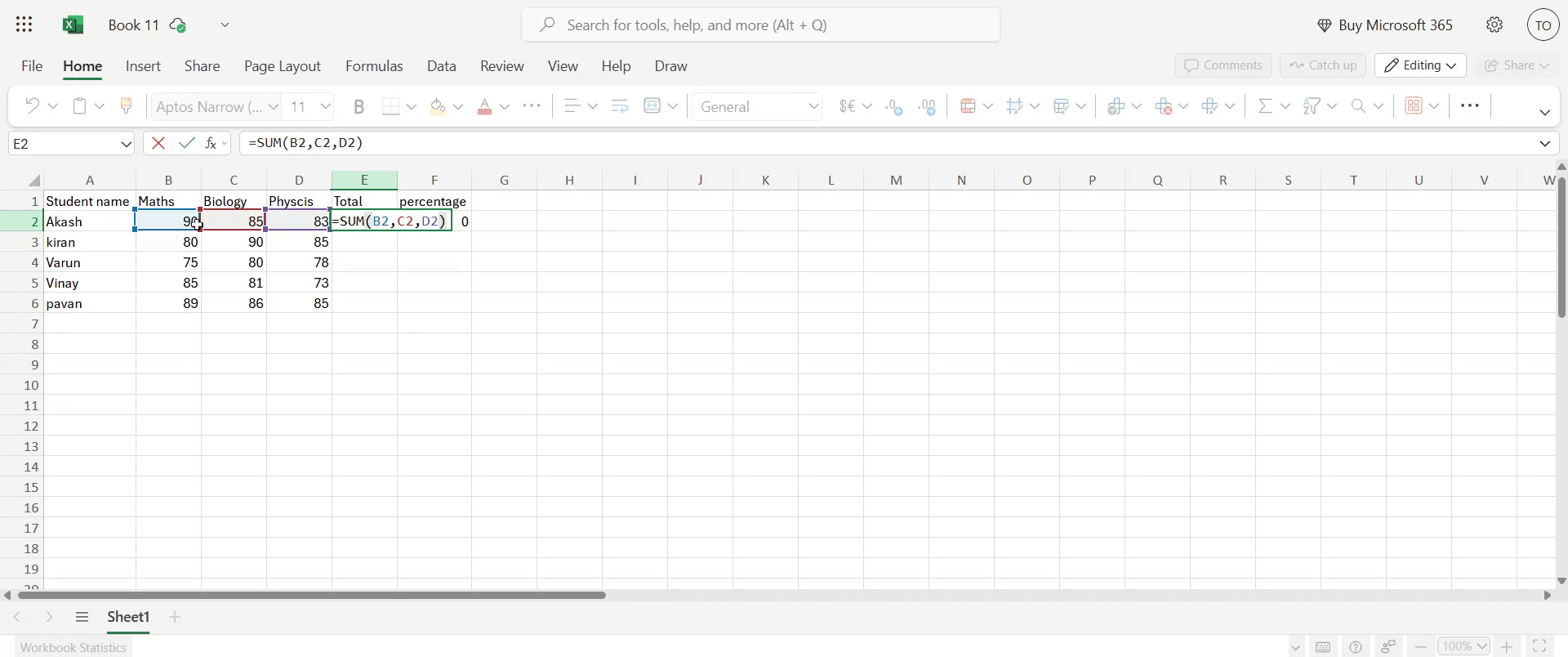
合計を表示したい目的のセルを選択します。この形式で数式を入力します:=SUM(cell2, cell3, cell4)。数式を入力したら、Enterを押します。計算された合計が表示されます。

Select the desired cell where you want the total to appear. Enter the formula in this format: =SUM(cell2, cell3, cell4). After inputting the formula, press Enter. You will now see the calculated total marks displayed.

ステップ 3

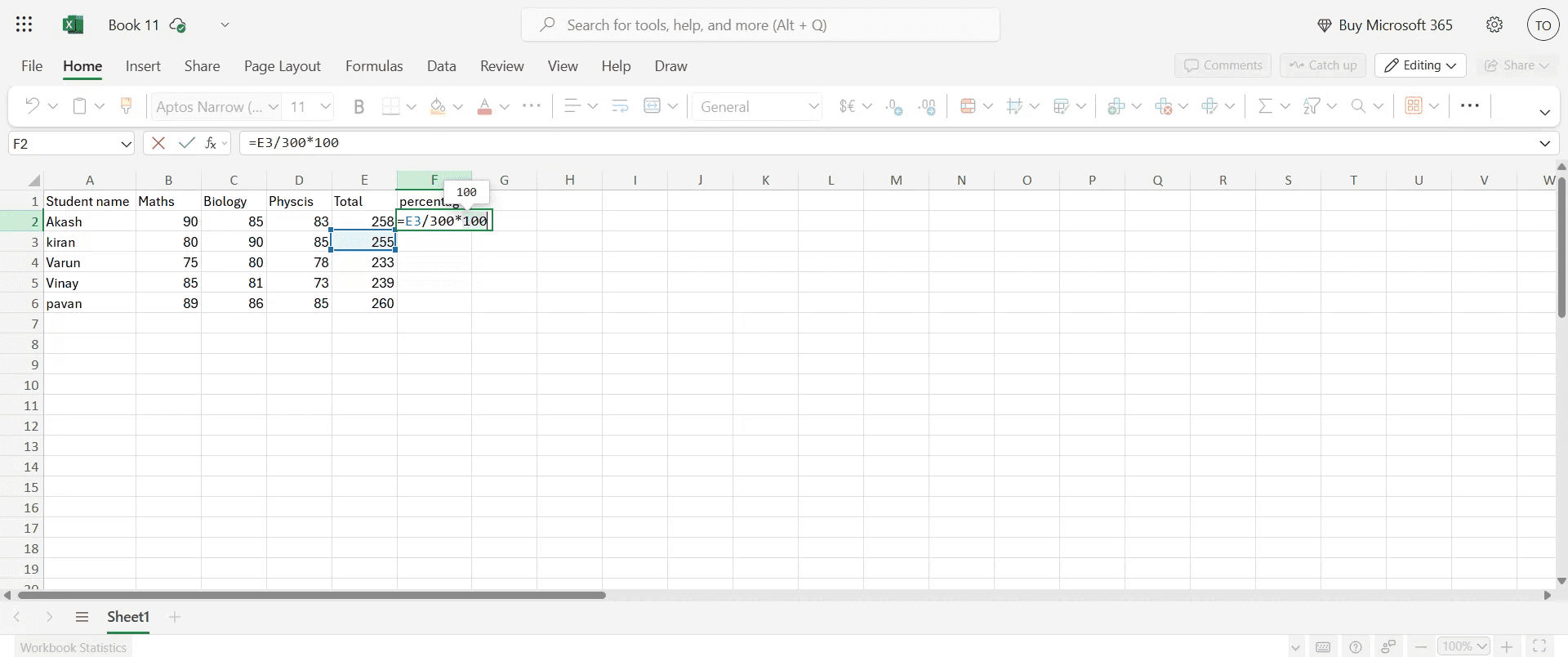
パーセンテージ計算のため、パーセンテージセルを選択し、以下の数式を入力します:=(E3/TotalNumberOfSubjects)*100

For percentage calculation, select the percentage cell and input the formula: =(E3/TotalNumberOfSubjects)*100

ステップ 4

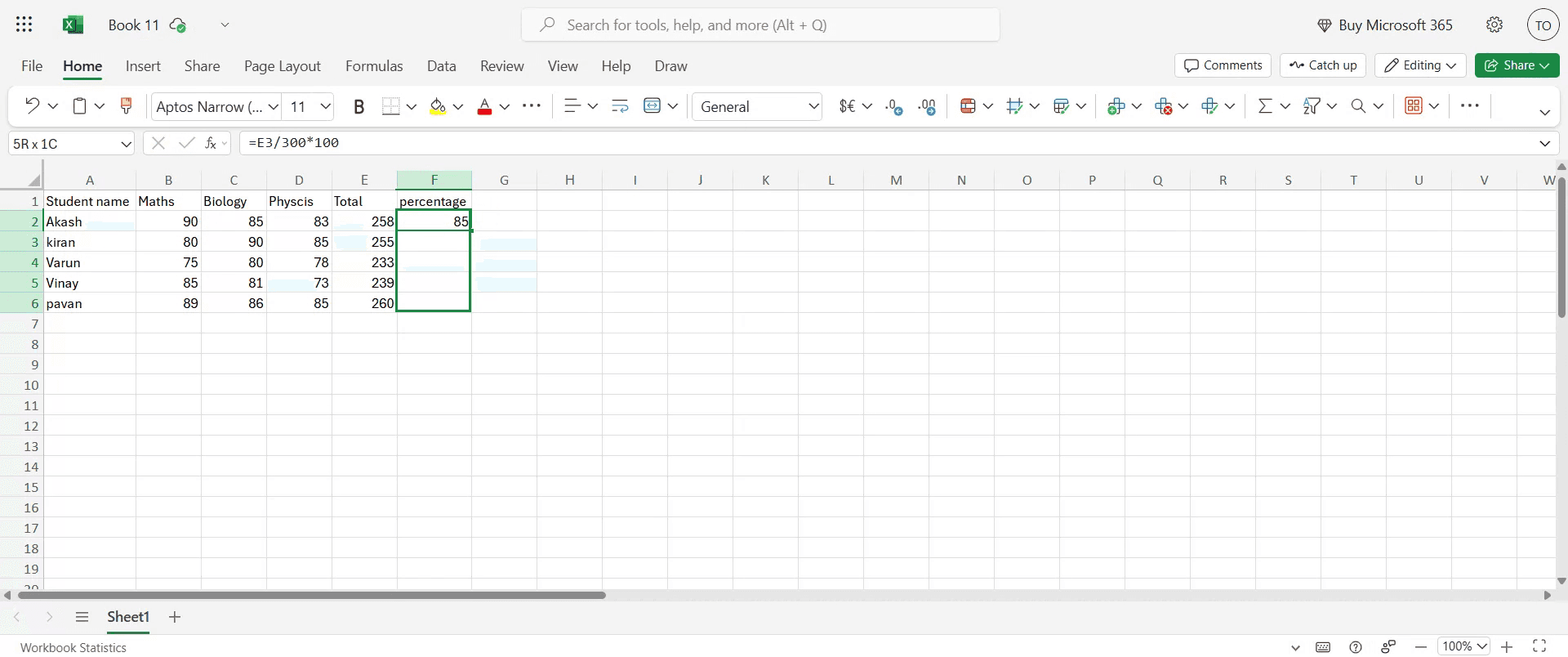
すべての科目にパーセンテージ計算を適用するために、ドラッグアンドドロップの方法を使用して、残りのセルに数式を拡張します。

To apply the percentage calculation across all subjects, use the drag and drop method to extend the formula to the remaining cells.

ステップ 5

このアクションは、各科目のパーセンテージを表示します。

This action will display the percentage for each subject.

Excelで成績表を作成するためのプロのヒント

  1. Microsoft Excelを開く
    Microsoft Excelを起動し、成績表を設計するための新しい空白のワークブックを開きます。

  2. 列ヘッダーを設定する
    最初の行に、ロール番号、学生名、科目1、科目2、科目3、合計、平均、および成績のようなヘッダーを入力します。

  3. サンプルデータを入力する
    各科目の下に学生の詳細と得点を入力します。合計や平均を計算しやすいようにデータを整理してください。

  4. 総得点を計算する
    合計列では、科目の得点がC、D、E列にある場合、数式のように=SUM(C2:E2)を使用します。数式を下にドラッグして、すべての行に適用します。

  5. 平均得点を計算する
    平均列では、各学生の得点の平均を計算するために、数式のように=AVERAGE(C2:E2)を使用します。

  6. 成績システムを追加する
    成績欄では、次のようなネストされたIF数式を使用します:
    =IF(F2>=90, "A+", IF(F2>=75, "A", IF(F2>=60, "B", IF(F2>=40, "C", "F"))))
    これにより、平均または総得点に基づいて成績が割り当てられます。

一般的な落とし穴とその回避方法

  1. 不正確な数式範囲
    SUMやAVERAGEなどの数式に正しいセルを含めていることを確認してください。セル参照の間違いが不正確な合計や平均につながることがあります。

  2. 数式を下にコピーしないこと
    1行に数式を挿入した後、それを下にドラッグしてすべての学生に適用します。さもなければ、計算されたのは1行だけです。

  3. 数式セルの上書き
    データを入力するユーザーによる誤って上書きしないように、数式列をロックするか、セル保護を使用します。

  4. 成績ロジックを標準化しない
    成績システムが一貫しており、あなたの機関の方針を反映していることを確認してください。IF文で使用されるロジックをよく確認してください。

  5. フォーマットを無視する
    単調なシートは読みづらくなる場合があります。罫線、太字のヘッダー、色分けを使用して、成績表を視覚的に整理してください。

Excelで成績表を作成することに関する一般的なFAQ

  1. Excelで総得点を計算するにはどうすればよいですか?
    複数の科目の得点を合計するには、=SUM(cell1:cellN)を使用します。たとえば、=SUM(C2:E2)は3つの科目の得点を合計します。

  2. Excelは自動的に成績を割り当てることができますか?
    はい、IFやネストされたIF数式を使用することで、得点や平均に基づいて成績を割り当てることができます。

  3. 数式が削除されないようにするにはどうすればよいですか?
    レビュー → シートを保護するに移動し、数式を含むセルをロックしてシートを保護します。

  4. 不合格をハイライトする方法はありますか?
    はい、成績が「F」である行や、平均が特定の閾値を下回る行をハイライトするために条件付き書式を使用します。

  5. 成績表のデザインを再利用できますか?
    はい、最初の成績表を設定したら、それをExcelテンプレート(*.xltx)として保存し、新しいデータでその構造を再利用できます。

  6. Macで画面を録画するにはどうすればよいですか? 
    Macで画面を録画するためには、Trupeer AIを使用できます。これにより、全画面をキャプチャし、AIアバターを追加したり、音声オーバーを加えたり、動画でズームイン・アウトを行うことができます。trupeerのAI動画翻訳機能を使用すると、30以上の言語に動画を翻訳できます。 

  7. 画面録画にAIアバターを追加するにはどうすればよいですか?
    画面録画にAIアバターを追加するには、AI画面録画ツールを使用する必要があります。Trupeer AIは、複数のアバターで動画を作成するのを助け、自分のアバターを動画用に作成するのにも役立つAI画面録画ツールです。

  8. Windowsで画面を録画するにはどうすればよいですか?
    Windowsで画面を録画するには、内蔵のゲームバー(Windows + G)またはTrupeer AIのような高度なAIツールを使用して、AIアバター、音声オーバー、翻訳などのより高度な機能を使用できます。

  9. 動画に音声オーバーを追加するにはどうすればよいですか?
    動画に音声オーバーを追加するには、trupeer ai Chrome拡張機能をダウンロードします。サインアップした後、音声のある動画をアップロードし、trupeerから希望する音声オーバーを選択して、編集した動画をエクスポートします。 

  10. 画面録画でズームインするにはどうすればよいですか?
    画面録画中にズームインするには、Trupeer AIのズーム効果を使用し、特定の瞬間にズームインおよびズームアウトして、動画コンテンツの視覚的インパクトを高めます。

ステップ・バイ・ステップのガイドがあります:

1. 基本的な構造を設定します:
新しいExcelシートを開きます。 
ロール番号、名前、科目など、合計、パーセンテージ、成績、結果(合格/不合格)の列を作成します。 
各学生の詳細と得点をそれぞれの列に入力します。 
2. 総得点を計算します:「合計」列で、SUM関数を使って各学生の得点を合計します。
たとえば、3科目の得点がC2、D2、E2にある場合、数式は=SUM(C2:E2)になります。 
この数式をコピーして、すべての学生の合計を計算します。 
3. パーセンテージを計算します:「パーセンテージ」列で、「合計」を最大可能得点で割り、100をかけます。 
最大可能得点が300の場合、数式は=(F2/300)*100になります(合計がF2にあると仮定)。 
この数式をコピーします。 
4. 成績を割り当てます:IFSまたはネストされたIF関数を使用して、パーセンテージに基づいて成績を割り当てます。 
例えば:=IFS(G2>=90,"A+",G2>=75,"A",G2>=60,"B",G2>=50,"C",G2>=35,"D",G2<35,"F")(パーセンテージがG2にあると仮定)。 
これにより、パーセンテージの範囲に基づいて成績が割り当てられます。
5. 合格/不合格のステータスを判断します: IF関数を使用して、パーセンテージが合格の閾値(例:35%)を超えているかを確認します。 
例えば:=IF(G2>=35,"合格","不合格")(パーセンテージがG2にあると仮定)。 
6. 条件付き書式を適用します:「結果」列のセルを選択します。 
ホーム > 条件付き書式 > セルルールの強調表示 > 含むテキストを選択します。 
「不合格」と入力し、不合格の結果のために赤の塗りつぶし色を選択します。 
同様にして、合格の結果を緑で強調表示できます。 
7. オプションの改善:RANK関数を使用して総得点に基づいて学生のランキング列を追加できます。 
別のシートまたはテーブルからの追加の学生情報を表示するためにVLOOKUP関数を使用します。 
AVERAGE関数を使用して学生の平均得点を計算します。 

ステップ・バイ・ステップガイド:MS Excelで成績表を作成する方法

ステップ 1

詳細がシートに入力されたら、次の作業は総得点を計算することです。

Once the details have been entered into the sheet, our next task is to calculate the total marks.

ステップ 2

合計を表示したい目的のセルを選択します。この形式で数式を入力します:=SUM(cell2, cell3, cell4)。数式を入力したら、Enterを押します。計算された合計が表示されます。

Select the desired cell where you want the total to appear. Enter the formula in this format: =SUM(cell2, cell3, cell4). After inputting the formula, press Enter. You will now see the calculated total marks displayed.

ステップ 3

パーセンテージ計算のため、パーセンテージセルを選択し、以下の数式を入力します:=(E3/TotalNumberOfSubjects)*100

For percentage calculation, select the percentage cell and input the formula: =(E3/TotalNumberOfSubjects)*100

ステップ 4

すべての科目にパーセンテージ計算を適用するために、ドラッグアンドドロップの方法を使用して、残りのセルに数式を拡張します。

To apply the percentage calculation across all subjects, use the drag and drop method to extend the formula to the remaining cells.

ステップ 5

このアクションは、各科目のパーセンテージを表示します。

This action will display the percentage for each subject.

Excelで成績表を作成するためのプロのヒント

  1. Microsoft Excelを開く
    Microsoft Excelを起動し、成績表を設計するための新しい空白のワークブックを開きます。

  2. 列ヘッダーを設定する
    最初の行に、ロール番号、学生名、科目1、科目2、科目3、合計、平均、および成績のようなヘッダーを入力します。

  3. サンプルデータを入力する
    各科目の下に学生の詳細と得点を入力します。合計や平均を計算しやすいようにデータを整理してください。

  4. 総得点を計算する
    合計列では、科目の得点がC、D、E列にある場合、数式のように=SUM(C2:E2)を使用します。数式を下にドラッグして、すべての行に適用します。

  5. 平均得点を計算する
    平均列では、各学生の得点の平均を計算するために、数式のように=AVERAGE(C2:E2)を使用します。

  6. 成績システムを追加する
    成績欄では、次のようなネストされたIF数式を使用します:
    =IF(F2>=90, "A+", IF(F2>=75, "A", IF(F2>=60, "B", IF(F2>=40, "C", "F"))))
    これにより、平均または総得点に基づいて成績が割り当てられます。

一般的な落とし穴とその回避方法

  1. 不正確な数式範囲
    SUMやAVERAGEなどの数式に正しいセルを含めていることを確認してください。セル参照の間違いが不正確な合計や平均につながることがあります。

  2. 数式を下にコピーしないこと
    1行に数式を挿入した後、それを下にドラッグしてすべての学生に適用します。さもなければ、計算されたのは1行だけです。

  3. 数式セルの上書き
    データを入力するユーザーによる誤って上書きしないように、数式列をロックするか、セル保護を使用します。

  4. 成績ロジックを標準化しない
    成績システムが一貫しており、あなたの機関の方針を反映していることを確認してください。IF文で使用されるロジックをよく確認してください。

  5. フォーマットを無視する
    単調なシートは読みづらくなる場合があります。罫線、太字のヘッダー、色分けを使用して、成績表を視覚的に整理してください。

Excelで成績表を作成することに関する一般的なFAQ

  1. Excelで総得点を計算するにはどうすればよいですか?
    複数の科目の得点を合計するには、=SUM(cell1:cellN)を使用します。たとえば、=SUM(C2:E2)は3つの科目の得点を合計します。

  2. Excelは自動的に成績を割り当てることができますか?
    はい、IFやネストされたIF数式を使用することで、得点や平均に基づいて成績を割り当てることができます。

  3. 数式が削除されないようにするにはどうすればよいですか?
    レビュー → シートを保護するに移動し、数式を含むセルをロックしてシートを保護します。

  4. 不合格をハイライトする方法はありますか?
    はい、成績が「F」である行や、平均が特定の閾値を下回る行をハイライトするために条件付き書式を使用します。

  5. 成績表のデザインを再利用できますか?
    はい、最初の成績表を設定したら、それをExcelテンプレート(*.xltx)として保存し、新しいデータでその構造を再利用できます。

  6. Macで画面を録画するにはどうすればよいですか? 
    Macで画面を録画するためには、Trupeer AIを使用できます。これにより、全画面をキャプチャし、AIアバターを追加したり、音声オーバーを加えたり、動画でズームイン・アウトを行うことができます。trupeerのAI動画翻訳機能を使用すると、30以上の言語に動画を翻訳できます。 

  7. 画面録画にAIアバターを追加するにはどうすればよいですか?
    画面録画にAIアバターを追加するには、AI画面録画ツールを使用する必要があります。Trupeer AIは、複数のアバターで動画を作成するのを助け、自分のアバターを動画用に作成するのにも役立つAI画面録画ツールです。

  8. Windowsで画面を録画するにはどうすればよいですか?
    Windowsで画面を録画するには、内蔵のゲームバー(Windows + G)またはTrupeer AIのような高度なAIツールを使用して、AIアバター、音声オーバー、翻訳などのより高度な機能を使用できます。

  9. 動画に音声オーバーを追加するにはどうすればよいですか?
    動画に音声オーバーを追加するには、trupeer ai Chrome拡張機能をダウンロードします。サインアップした後、音声のある動画をアップロードし、trupeerから希望する音声オーバーを選択して、編集した動画をエクスポートします。 

  10. 画面録画でズームインするにはどうすればよいですか?
    画面録画中にズームインするには、Trupeer AIのズーム効果を使用し、特定の瞬間にズームインおよびズームアウトして、動画コンテンツの視覚的インパクトを高めます。

Start creating videos with our AI Video + Doc generator

Start creating videos with our AI Video + Doc generator

Start creating videos with our AI Video + Doc generator

Start creating videos with our AI Video + Doc generator for free

Start creating videos with our AI Video + Doc generator for free

Start creating videos with our AI Video + Doc generator for free

Pro Tips for Creating a Marksheet in Excel

  1. Open Microsoft Excel
    Launch Microsoft Excel and open a new blank workbook where you’ll design your marksheet.

  2. Set up column headers
    In the first row, enter headers such as Roll No, Student Name, Subject 1, Subject 2, Subject 3, Total, Average, and Grade.

  3. Enter sample data
    Fill in student details and marks under each subject. Keep the data organized so it’s easy to calculate totals and averages.

  4. Calculate total marks
    In the Total column, use a formula like =SUM(C2:E2) if your subject marks are in columns C, D, and E. Drag the formula down to apply it to all rows.

  5. Calculate average marks
    In the Average column, use a formula like =AVERAGE(C2:E2) to calculate the mean of the marks for each student.

  6. Add a grading system
    In the Grade column, use a nested IF formula like:
    =IF(F2>=90, "A+", IF(F2>=75, "A", IF(F2>=60, "B", IF(F2>=40, "C", "F"))))
    This assigns grades based on average or total marks.

Common Pitfalls and How to Avoid Them

  1. Incorrect formula ranges
    Make sure your formulas (like SUM or AVERAGE) include the correct cells. Mistakes in cell references can result in wrong totals or averages.

  2. Forgetting to copy formulas down
    After inserting formulas in one row, drag them down to apply to all students. Otherwise, only one row will be calculated.

  3. Overwriting formula cells
    Lock formula columns or use cell protection to avoid accidental overwriting by users entering data.

  4. Not standardizing grade logic
    Ensure your grading system is consistent and reflects your institution’s policy. Review the logic used in IF statements carefully.

  5. Ignoring formatting
    A plain sheet can be hard to read. Use borders, bold headers, and color coding to make the marksheet visually organized.

Pro Tips for Creating a Marksheet in Excel

  1. Open Microsoft Excel
    Launch Microsoft Excel and open a new blank workbook where you’ll design your marksheet.

  2. Set up column headers
    In the first row, enter headers such as Roll No, Student Name, Subject 1, Subject 2, Subject 3, Total, Average, and Grade.

  3. Enter sample data
    Fill in student details and marks under each subject. Keep the data organized so it’s easy to calculate totals and averages.

  4. Calculate total marks
    In the Total column, use a formula like =SUM(C2:E2) if your subject marks are in columns C, D, and E. Drag the formula down to apply it to all rows.

  5. Calculate average marks
    In the Average column, use a formula like =AVERAGE(C2:E2) to calculate the mean of the marks for each student.

  6. Add a grading system
    In the Grade column, use a nested IF formula like:
    =IF(F2>=90, "A+", IF(F2>=75, "A", IF(F2>=60, "B", IF(F2>=40, "C", "F"))))
    This assigns grades based on average or total marks.

Common Pitfalls and How to Avoid Them

  1. Incorrect formula ranges
    Make sure your formulas (like SUM or AVERAGE) include the correct cells. Mistakes in cell references can result in wrong totals or averages.

  2. Forgetting to copy formulas down
    After inserting formulas in one row, drag them down to apply to all students. Otherwise, only one row will be calculated.

  3. Overwriting formula cells
    Lock formula columns or use cell protection to avoid accidental overwriting by users entering data.

  4. Not standardizing grade logic
    Ensure your grading system is consistent and reflects your institution’s policy. Review the logic used in IF statements carefully.

  5. Ignoring formatting
    A plain sheet can be hard to read. Use borders, bold headers, and color coding to make the marksheet visually organized.

Common FAQs About Creating a Marksheet in Excel

  1. How do I calculate total marks in Excel?
    Use =SUM(cell1:cellN) to add up marks across multiple subjects. For example, =SUM(C2:E2) adds three subject marks.

  2. Can Excel assign grades automatically?
    Yes, using IF or nested IF formulas, you can assign grades based on marks or averages.

  3. How do I make sure my formulas don’t get deleted?
    Protect the sheet by going to Review → Protect Sheet and lock cells that contain formulas.

  4. Is there a way to highlight students who failed?
    Yes, use Conditional Formatting to highlight rows where the grade is "F" or where average is below a certain threshold.

  5. Can I reuse my marksheet design?
    Yes, after setting up your first marksheet, save it as an Excel Template (*.xltx) so you can reuse the structure with new data.

  6. How to screen record on mac? 
    To screen record on a Mac, you can use Trupeer AI. It allows you to capture the entire screen and provides AI capabilities such as adding AI avatars, add voiceover, add zoom in and out in the video. With trupeer’s AI video translation feature, you can translate the video into 30+ languages. 

  7. How to add an AI avatar to screen recording?
    To add an AI avatar to a screen recording, you'll need to use an AI screen recording tool. Trupeer AI is an AI screen recording tool, which helps you create videos with multiple avatars, also helps you in creating your own avatar for the video.

  8. How to screen record on windows?
    To screen record on Windows, you can use the built-in Game Bar (Windows + G) or advanced AI tool like Trupeer AI for more advanced features such as AI avatars, voiceover, translation etc.

  9. How to add voiceover to video?
    To add voiceover to videos, download trupeer ai chrome extension. Once signed up, upload your video with voice, choose the desired voiceover from trupeer and export your edited video. 

  10. How do I Zoom in on a screen recording?
    To zoom in during a screen recording, use the zoom effects in Trupeer AI which allows you to zoom in and out at specific moments, enhancing the visual impact of your video content.

People also ask

How to Enable the Ruler in Microsoft Excel

How to Keep Top Row Visible Microsoft Excel

How to Insert a New Worksheet in Microsoft Excel

How to Add a Date Picker Calendar to Cells in MS Excel

How to Reference a Cell From Another Sheet in Microsoft Exce

Common FAQs About Creating a Marksheet in Excel

  1. How do I calculate total marks in Excel?
    Use =SUM(cell1:cellN) to add up marks across multiple subjects. For example, =SUM(C2:E2) adds three subject marks.

  2. Can Excel assign grades automatically?
    Yes, using IF or nested IF formulas, you can assign grades based on marks or averages.

  3. How do I make sure my formulas don’t get deleted?
    Protect the sheet by going to Review → Protect Sheet and lock cells that contain formulas.

  4. Is there a way to highlight students who failed?
    Yes, use Conditional Formatting to highlight rows where the grade is "F" or where average is below a certain threshold.

  5. Can I reuse my marksheet design?
    Yes, after setting up your first marksheet, save it as an Excel Template (*.xltx) so you can reuse the structure with new data.

  6. How to screen record on mac? 
    To screen record on a Mac, you can use Trupeer AI. It allows you to capture the entire screen and provides AI capabilities such as adding AI avatars, add voiceover, add zoom in and out in the video. With trupeer’s AI video translation feature, you can translate the video into 30+ languages. 

  7. How to add an AI avatar to screen recording?
    To add an AI avatar to a screen recording, you'll need to use an AI screen recording tool. Trupeer AI is an AI screen recording tool, which helps you create videos with multiple avatars, also helps you in creating your own avatar for the video.

  8. How to screen record on windows?
    To screen record on Windows, you can use the built-in Game Bar (Windows + G) or advanced AI tool like Trupeer AI for more advanced features such as AI avatars, voiceover, translation etc.

  9. How to add voiceover to video?
    To add voiceover to videos, download trupeer ai chrome extension. Once signed up, upload your video with voice, choose the desired voiceover from trupeer and export your edited video. 

  10. How do I Zoom in on a screen recording?
    To zoom in during a screen recording, use the zoom effects in Trupeer AI which allows you to zoom in and out at specific moments, enhancing the visual impact of your video content.

People also ask

How to Enable the Ruler in Microsoft Excel

How to Keep Top Row Visible Microsoft Excel

How to Insert a New Worksheet in Microsoft Excel

How to Add a Date Picker Calendar to Cells in MS Excel

How to Reference a Cell From Another Sheet in Microsoft Exce

Start creating videos with our AI Video + Doc generator

Start creating videos with our AI Video + Doc generator

Start creating videos with our AI Video + Doc generator

Start creating videos with our AI Video + Doc generator

Instant AI Product Videos & Docs from Rough Screen Recordings

Experience the new & faster way of creating product videos.

Instant AI Product Videos and Docs from Rough Screen Recordings.

Experience the new & faster way of creating product videos.

Instant AI Product Videos and Docs from Rough Screen Recordings.

Experience the new & faster way of creating product videos.

Instant AI Product Videos and Docs from Rough Screen Recordings.