Trupeer Blog
Summarise

Buyer's Overview
Creating user manuals can be a time-consuming ordeal. Many teams spend up to 12 hours crafting a single guide, only to find it outdated with the next product update. These manuals often become obsolete almost immediately, posing challenges for businesses aiming to provide accurate information to their users. In fact, a report highlights that nearly 60% of companies frequently struggle to keep their documentation current, leading to increased support requests and user dissatisfaction.
60% of companies struggle to maintain up-to-date user manuals, resulting in increased support requests.
Source: User Documentation Report by TechInsights, 2025
This guide is designed for product managers, content strategists, and tech writers seeking to optimize their manual creation process. We'll explore a variety of tools that offer features like auto-capturing steps, AI-driven writing, and seamless collaboration. Whether you're crafting internal documentation or customer-facing guides, these tools promise efficiency and up-to-date accuracy.
Best User Manual Creation Tools: Head-to-Head Comparison
Feature | Trupeer | Scribe | Document360 | Tango | Notion | Confluence | GitBook | Archbee |
|---|---|---|---|---|---|---|---|---|
Auto-Capture Steps | Yes | Yes | No | Yes | No | No | Limited | Yes |
AI Writing | Yes | Limited | No | No | No | No | Yes | Limited |
Video Support | Yes | No | No | Yes | Limited | No | Limited | Yes |
PDF Export | Yes | Yes | Yes | No | Yes | Yes | Yes | Yes |
Web Knowledge Base | Yes | No | Yes | Limited | Yes | Yes | Yes | Yes |
Version Control | Yes | No | Yes | Yes | Limited | Yes | Yes | No |
Team Collaboration | Yes | No | Yes | Yes | Yes | Yes | Yes | Yes |
Search | Yes | Yes | Yes | Limited | Yes | Yes | Yes | Yes |
Templates | Yes | Yes | Yes | No | Yes | Yes | Yes | No |
Free Tier | Yes | No | No | Yes | Yes | No | Yes | Limited |
Trupeer
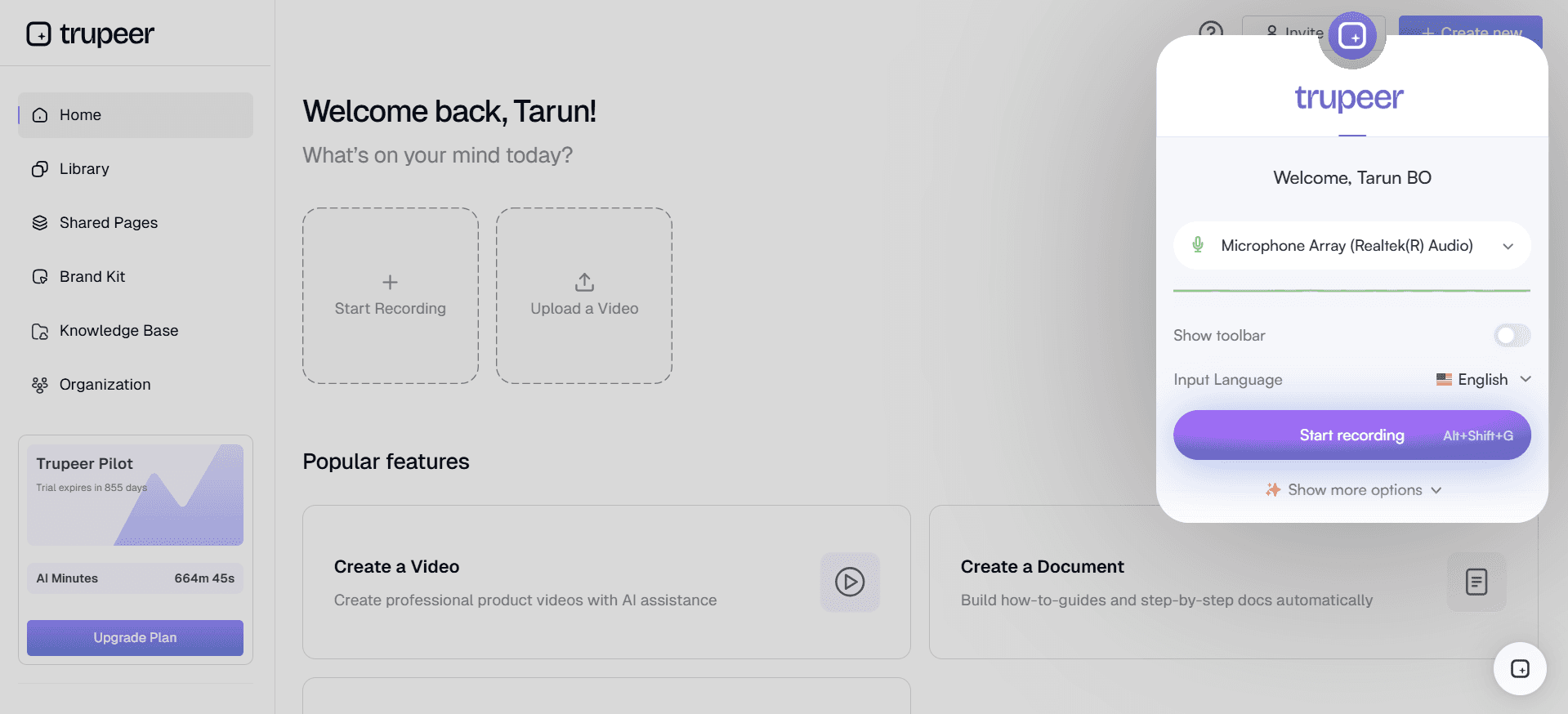
Trupeer stands out as a comprehensive solution for creating user manuals with its advanced AI capabilities. Designed for tech-savvy teams and product managers, Trupeer excels in auto-generating detailed guides directly from screen recordings. This tool is perfect for those looking to minimize manual input while maintaining high accuracy.
Unique among its competitors, Trupeer offers a seamless blend of video support and AI-driven text editing, making it suitable for both video-based guides and traditional documents. It also integrates smoothly with various platforms, ensuring your documentation stays cohesive and accessible.
Key Features
Auto-capture steps from screen activity
AI-written step instructions
Video embedding alongside text
Multi-format export (PDF, web, HTML)
Version control and quick update workflows
Comprehensive search functionality
Collaborative editing and review process
Customizable templates for different use cases
"Trupeer has revolutionized our documentation process, significantly reducing time spent on manual updates."
Pros | Cons |
|---|---|
Supports 40+ languages, ensuring global accessibility. | Initial setup can be complex for new users. |
Real-time collaboration features enhance team productivity. | Pricing may be high for small startups. |
AI-driven suggestions improve content quality. | Limited integration with older software systems. |
Pricing
Trupeer offers a free tier with basic features. Paid plans start at $49/month for advanced capabilities.
Scribe
Scribe is tailored for teams prioritizing simplicity and ease of use in their documentation process. Known for its intuitive interface, Scribe is a go-to for small businesses and freelancers who need to create straightforward user guides without the fuss.
The tool's primary strength lies in its step-by-step guide creation, which simplifies complex processes into digestible content. However, its lack of AI-driven features might be a limitation for those seeking automation.
Key Features
Simple step-by-step guide creation
Customizable templates
Easy-to-use editing interface
PDF export capabilities
Basic search functionality
Responsive customer support
Limited collaboration tools
Integration with Google Workspace
Pros | Cons |
|---|---|
User-friendly interface makes it accessible for all skill levels. | Lacks advanced AI features for automation. |
Quick setup and minimal learning curve. | Limited collaboration features restrict team use. |
Affordable pricing for small teams and individuals. | No video support for multimedia guides. |
Pricing
Scribe starts at $10/month per user, with no free tier available.
Document360
Document360 is a robust tool aimed at enterprises and large organizations that require a comprehensive knowledge base system. It's particularly effective for companies managing extensive documentation and needing advanced search capabilities.
While Document360 excels in managing large volumes of content and offers extensive customization options, it may not be the best fit for smaller teams due to its complexity and cost.
Key Features
Comprehensive knowledge base management
Advanced search with AI enhancements
Customizable themes and layouts
Detailed analytics and reporting
Enterprise-level security features
Version history and rollback
Integration with popular CRM tools
Extensive API access for developers
Pros | Cons |
|---|---|
Excellent for managing large-scale documentation projects. | Can be overwhelming for small teams. |
Highly customizable to fit enterprise needs. | Higher cost compared to other tools. |
Advanced search ensures quick access to information. | No free tier available, limiting access for smaller businesses. |
Pricing
Document360 offers plans starting at $99/month, with no free tier.
Tango
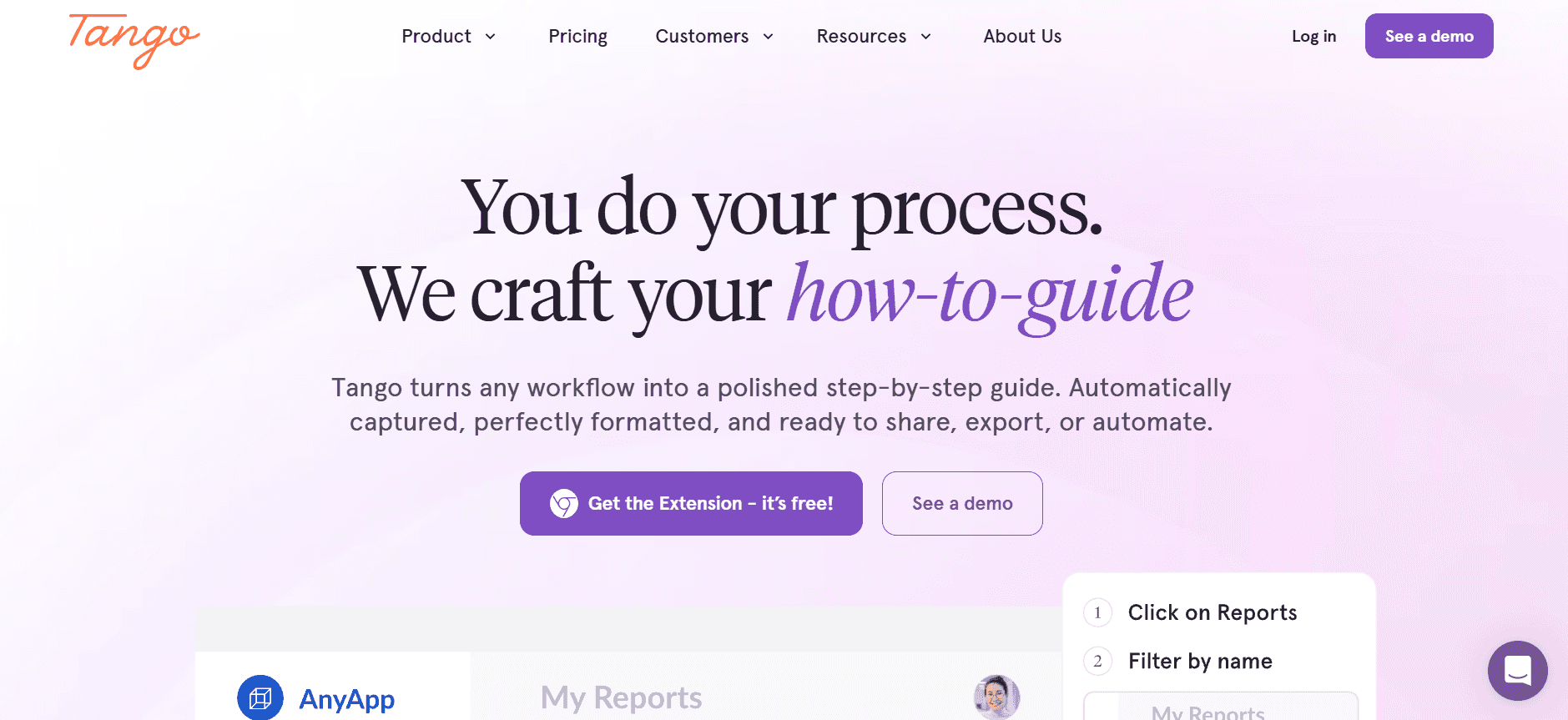
Tango is designed for teams that favor visual and interactive guides. It captures workflows in real-time, converting them into detailed step-by-step instructions, making it ideal for training and onboarding processes.
However, Tango's primary focus on visual content might not suit all documentation needs, especially those requiring in-depth textual information.
Key Features
Real-time workflow capture
Interactive and visual guides
Video embedding capabilities
Collaborative editing and sharing
Basic search functions
Integration with Slack and Teams
Easy export to PDF and HTML
Custom branding options
Pros | Cons |
|---|---|
Perfect for creating visual-rich training materials. | Limited text-based documentation support. |
Facilitates interactive learning experiences. | Basic search features may hinder large document navigation. |
Supports team collaboration and feedback. | No AI-driven writing features included. |
Pricing
Tango provides a free basic plan with paid options starting at $15/month per user.
Notion
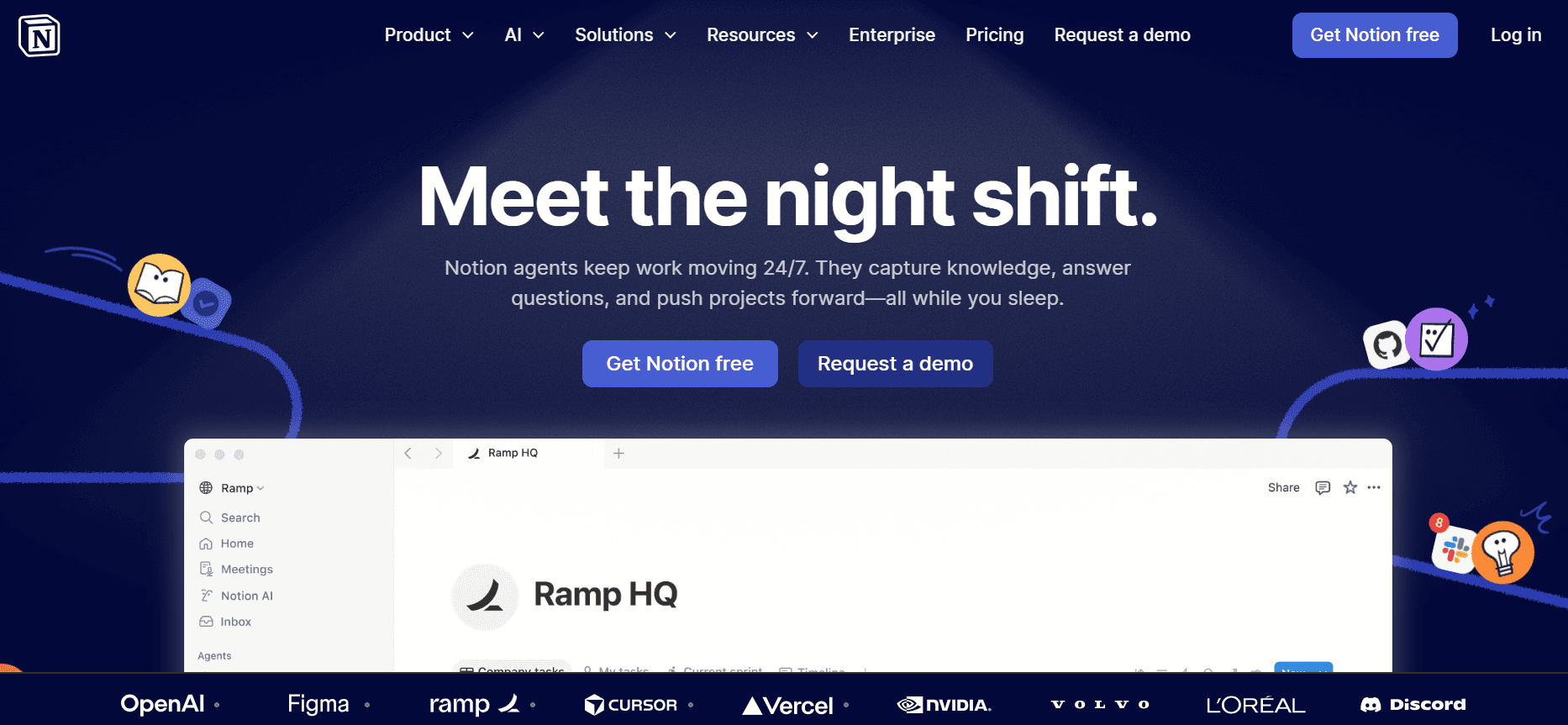
Notion is a versatile tool favored by startups and creative teams for its all-in-one workspace capabilities. It allows users to create, organize, and share various types of documents within a single platform.
While Notion's flexibility is a major advantage, its lack of specific user manual features means it requires more manual input to maintain structured documentation.
Key Features
All-in-one workspace for notes and documents
Customizable templates for different projects
Collaborative editing and sharing
Database and task management integration
Basic export options
Integration with external apps like Trello and Asana
Simple search and navigation
Markdown support for text formatting
Pros | Cons |
|---|---|
Highly customizable for diverse documentation needs. | Lacks specialized user manual features. |
Integrates well with multiple productivity tools. | Requires manual setup for complex projects. |
Cost-effective for small teams and startups. | No advanced AI or auto-capture functionalities. |
Pricing
Notion offers a free plan with premium features starting at $8/month per user.
Confluence
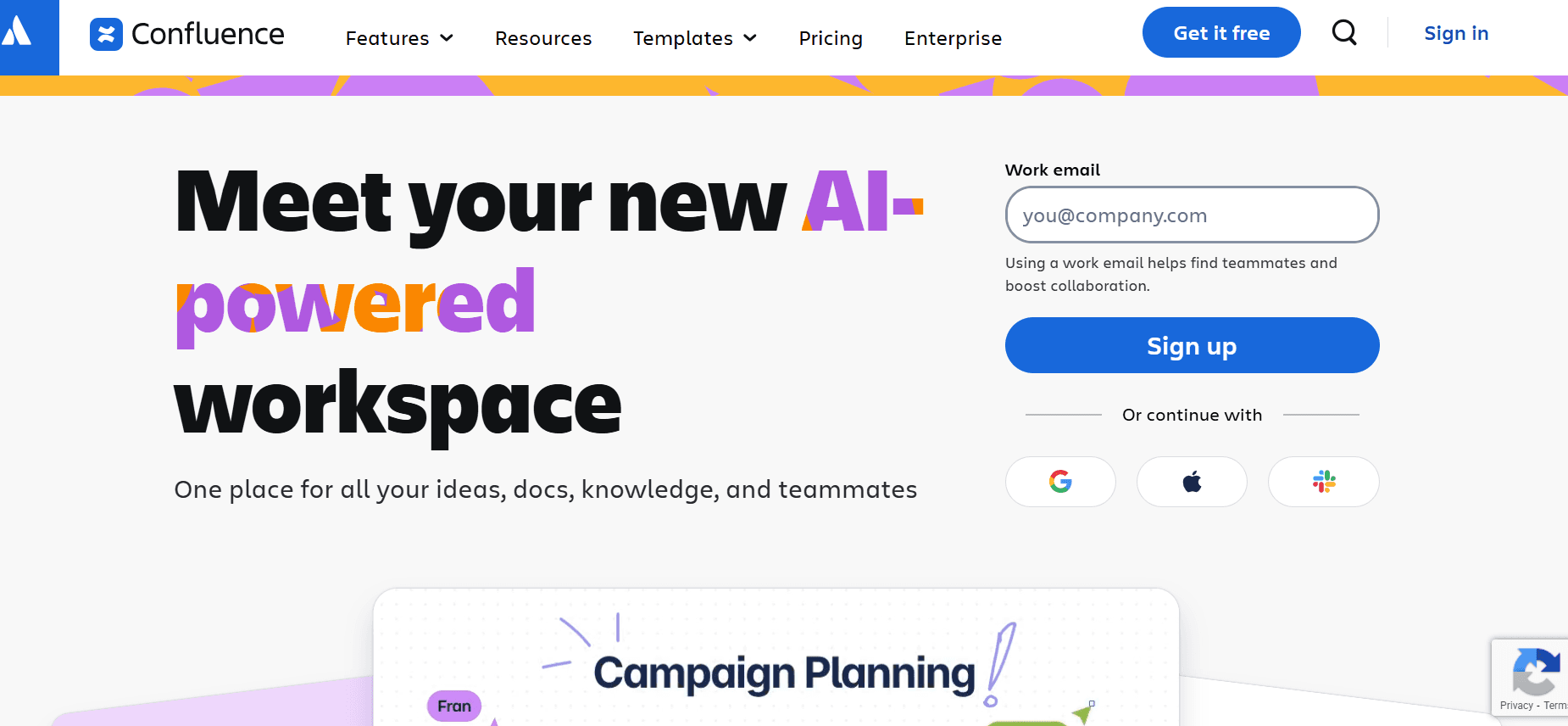
Confluence is a preferred tool for large teams needing a centralized platform for documentation and collaboration. It's particularly beneficial for organizations using the Atlassian suite, providing seamless integration with tools like Jira.
While Confluence is feature-rich and supports extensive collaboration, its user interface can be daunting for new users, and it lacks some of the automation features found in other tools.
Key Features
Centralized documentation platform
Integration with Atlassian tools
Collaborative editing and feedback
Version control and history tracking
Extensive plugin marketplace
Customizable templates
Advanced search capabilities
Enterprise-grade security features
Pros | Cons |
|---|---|
Seamless integration with Jira and other Atlassian tools. | User interface can be complex for beginners. |
Robust collaboration features for large teams. | Limited AI and automation capabilities. |
Strong security and compliance options. | No free tier available for smaller teams. |
Pricing
Confluence pricing starts at $5/month per user, with no free tier.
GitBook
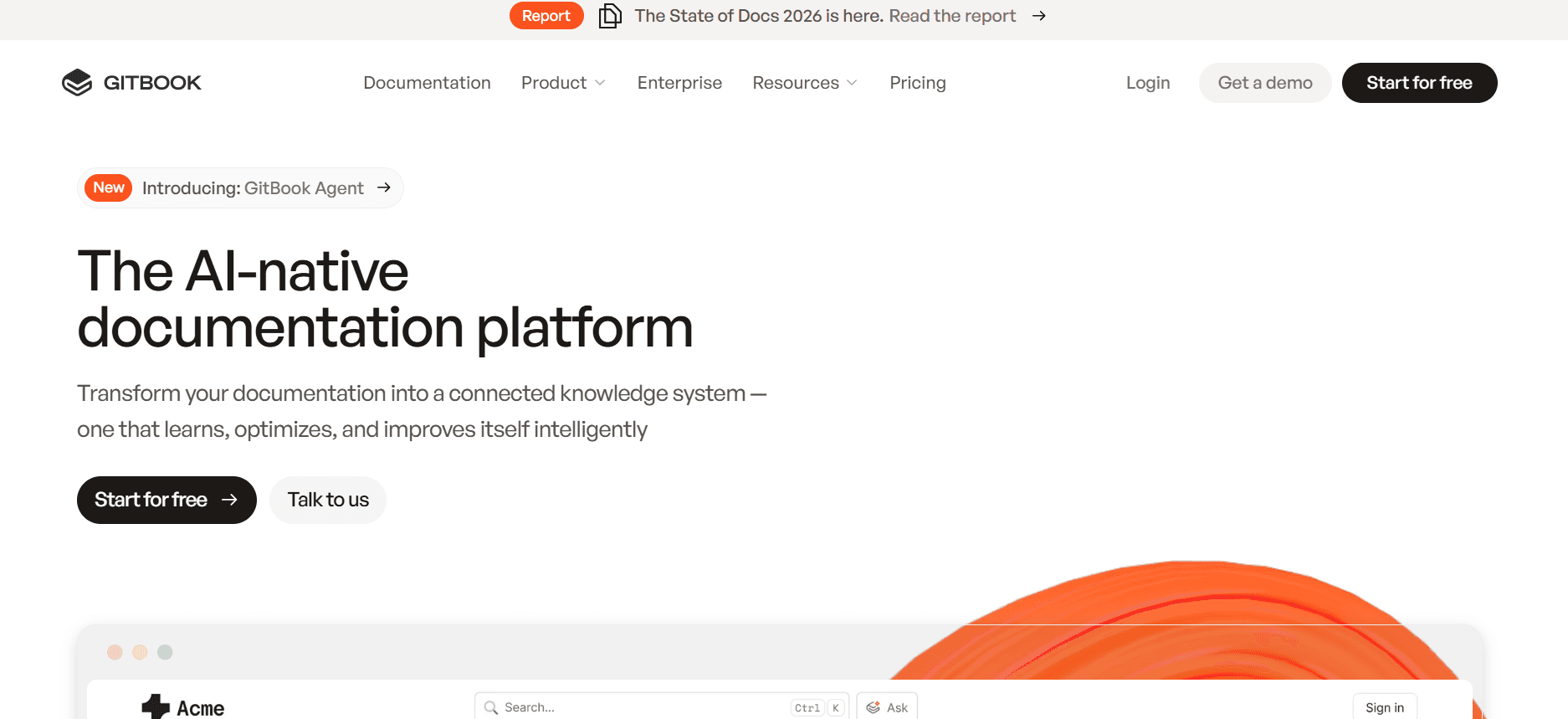
GitBook is designed for developers and technical teams who need a streamlined platform for writing and hosting documentation. Its focus on simplicity and collaboration makes it a popular choice for API documentation and developer guides.
Although GitBook excels in creating clean, structured documents, its limited multimedia support may not suit teams needing comprehensive user guides with video content.
Key Features
Markdown-based content creation
Real-time collaboration and editing
Custom domain and branding options
Integration with GitHub and GitLab
Version control and rollback features
Public and private documentation hosting
Fast search and navigation
Basic analytics dashboard
Pros | Cons |
|---|---|
Ideal for developer-centric documentation projects. | Limited multimedia and video support. |
Easy integration with version control systems. | Requires knowledge of Markdown for effective use. |
Supports both public and private documentation needs. | No advanced AI features for content creation. |
Pricing
GitBook offers a free version with paid plans starting at $6.40/month per user.
Archbee
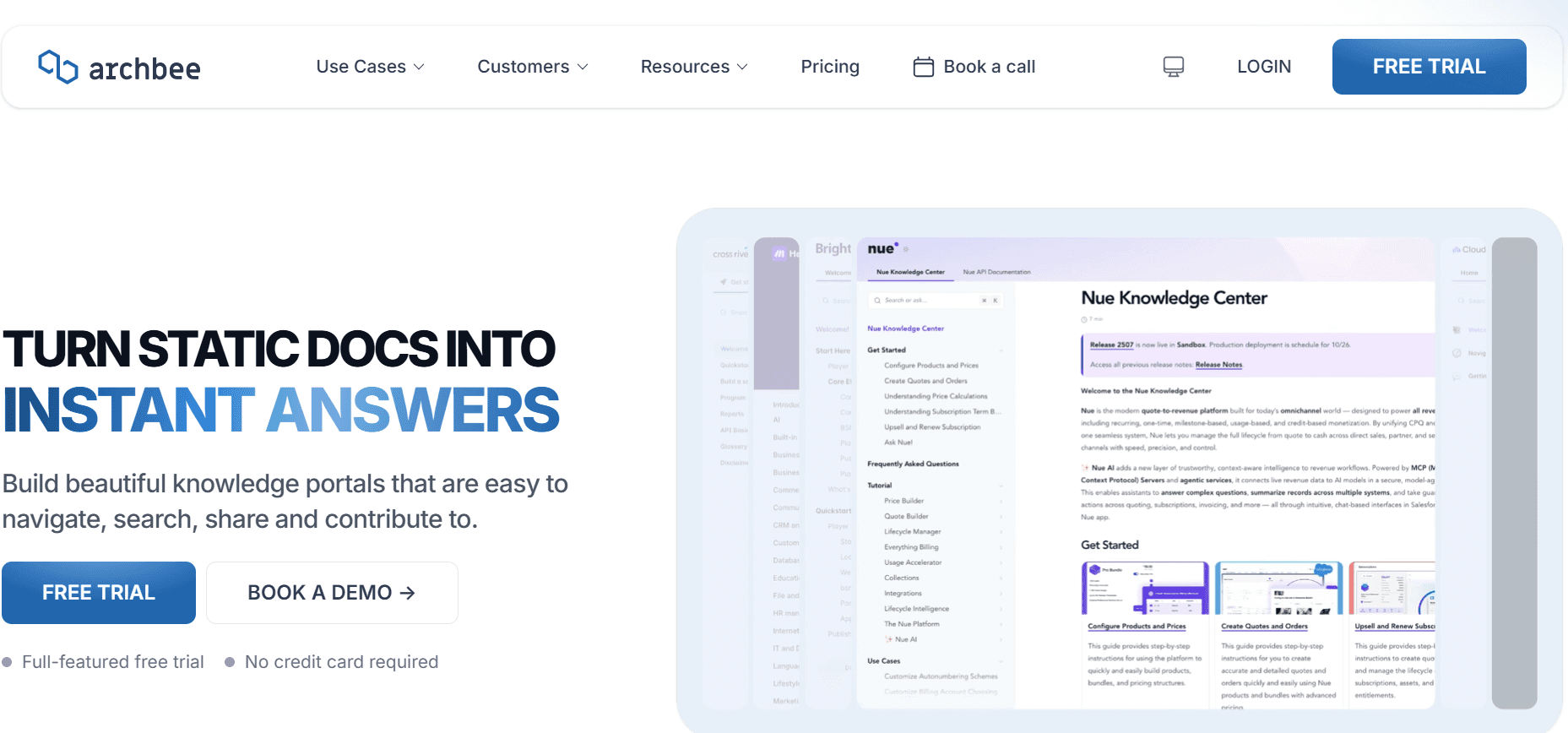
Archbee is a versatile documentation tool that caters to tech startups and agile teams. It's designed to combine the ease of use with powerful features such as embedding code and diagrams, making it ideal for teams that work with complex technical content.
While Archbee offers a good range of features for technical documentation, its limited focus on non-technical use cases might not suit every team.
Key Features
Real-time collaboration and editing
Embed diagrams, code snippets, and more
Custom domain support
Integration with Slack and other tools
Advanced search and navigation
Version history and rollback
Markdown support
API documentation features
Pros | Cons |
|---|---|
Excellent for technical and developer documentation. | Limited focus on non-technical documentation. |
Supports integration with multiple tools and platforms. | Can be complex for users unfamiliar with technical content. |
User-friendly interface for agile teams. | Limited AI and automation features. |
Pricing
Archbee offers a limited free plan, with premium features starting at $25/month.
The above comprehensive analysis provides a clear overview of how each tool stands in relation to key features essential for creating effective user manuals. This should assist in making an informed decision based on specific needs and team dynamics. Now each tool in detail to understand their unique benefits and potential limitations.
User Manual Creation Challenges: What Teams Struggle With
1. Manual Documentation is Slow
Teams spend countless hours capturing screenshots and writing descriptive text.
Formatting and proofreading can add significant delays to the documentation process.
Manual updates after each software release increase workload exponentially.
Increased time spent on documentation reduces team availability for other critical tasks.
2. Content Becomes Outdated Quickly
Frequent software updates render existing manuals obsolete, leading to inaccuracies.
Revising outdated content is often prioritized over new content creation.
Users encounter errors or outdated steps, leading to frustration and increased support calls.
Maintaining accuracy in documentation becomes more difficult over time.
3. Poor Search and Findability for End Users
Users struggle to locate specific information within lengthy manuals.
Lack of effective search functionality leads to repetitive user queries.
Time spent searching for answers detracts from user productivity.
Inadequate search tools can negatively impact user satisfaction and retention.
4. Documentation Siloed Across Different Tools
Documentation is scattered across platforms like Notion, Word, and Google Docs.
Lack of a centralized repository complicates access and updates.
Inconsistencies in documentation style and format may arise.
Collaboration becomes challenging, slowing down the update process.
5. No Consistency in Format or Style Across Team Members
Different writing styles and templates lead to a disjointed user experience.
Inconsistent formatting makes documents appear unprofessional.
Standardizing style across teams requires additional time and resources.
Lack of uniformity can confuse users and reduce trust in the documentation.
Challenge | Traditional Process | Business Impact | Time Cost |
|---|---|---|---|
Manual Documentation | Capture, write, format, proofread | Delayed releases, reduced team efficiency | 8-12 hours per guide |
Content Outdated | Frequent manual updates | Increased errors, user frustration | 2-4 hours per update |
Poor Search | Manual navigation | User dissatisfaction, decreased retention | 30-60 minutes per query |
Documentation Siloed | Multiple tool usage | Inconsistent information, collaboration issues | 3-5 hours to consolidate |
No Consistency | Varied writing styles | Unprofessional appearance, user confusion | 2-3 hours for reformatting |
Must-Have Features in User Manual Creation Tools
Auto Step Capture from Screen Activity
One of the most crucial features in modern user manual tools is the ability to automatically capture steps from screen activity. This feature allows teams to generate documentation directly from live interactions with software, saving time and ensuring accuracy. Instead of manually taking screenshots and writing descriptions, tools like Trupeer and Tango enable users to record their screen activities, automatically creating step-by-step instructions.
This automated process not only speeds up documentation creation but also ensures that every step is captured exactly as it happens, reducing the possibility of human error. With this feature, teams can focus more on refining content rather than spending hours on manual data entry.
AI-Written Step Instructions
AI-driven writing capabilities are transforming the way user manuals are created. By leveraging AI, tools such as Trupeer can generate concise and clear step instructions based on recorded screen activity. This feature minimizes the need for extensive manual writing, allowing teams to produce guides faster and with consistent quality.
AI not only enhances the speed of content creation but also aids in maintaining a uniform tone and style across documents. This is particularly beneficial for larger teams where maintaining consistency can be a challenge. AI tools can adapt to specific writing guidelines, ensuring that all documentation aligns with company standards.
Video Embedding Alongside Text
Video content is becoming increasingly important in user manuals, as it provides a visual element that can significantly enhance user understanding. Tools like Tango and Archbee offer video embedding capabilities, allowing teams to integrate video demonstrations directly into their guides. This multimedia approach caters to different learning preferences and can improve user engagement.
Embedding videos alongside text provides a dynamic way to illustrate complex processes that might be difficult to convey through text alone. This feature is especially useful for training and onboarding materials, where visual demonstrations can clarify intricate steps.
Multi-Format Export (PDF, Web, HTML)
Flexibility in exporting documentation is essential for reaching a wide audience. Many user manual tools, including Document360 and GitBook, provide options to export content in various formats such as PDF, web, and HTML. This ensures that documentation is accessible in different contexts, whether online or offline.
Multi-format export capabilities are crucial for teams that need to distribute guides across multiple channels. Whether users prefer printed manuals or digital access, these options cater to diverse needs, enhancing the user experience. This feature also simplifies the process of updating and distributing the latest versions of the documentation.
Version Control and Quick Update Workflows
Version control is a critical feature for maintaining accurate and up-to-date documentation. Tools like Confluence and Trupeer offer version history and rollback options, enabling teams to track changes and revert to previous versions if necessary. This is invaluable for teams dealing with frequent software updates.
Quick update workflows complement version control by streamlining the process of making changes and publishing new versions. This ensures that users always have access to the most current information, reducing confusion and support queries. Efficient update workflows allow teams to implement changes swiftly, maintaining the relevance of their documentation.
Incorporating these must-have features into your user manual creation process can significantly improve efficiency, accuracy, and user satisfaction. Each feature addresses specific challenges faced by documentation teams, ensuring that manuals are not only comprehensive but also easy to create and maintain. These tools offer the flexibility and power needed to keep pace with rapid software development cycles, ensuring that your documentation remains a valuable resource for users.
How to Choose User Manual Creation Tools Based on Your Use Case
Product User Manuals and Help Center Articles
Product user manuals and help center articles are essential for guiding customers through product features and troubleshooting common issues. This use case requires tools that offer robust search functionality and easy-to-update content management.
Creating detailed, user-friendly guides.
Keeping information up-to-date with frequent product updates.
Ensuring content is easily searchable by end users.
Tools with strong search and findability features.
Version control for quick updates post-release.
Integration with customer support platforms.
Tool | Search | Version Control | Support Integration |
|---|---|---|---|
Document360 | Yes | Yes | Limited |
Trupeer | Yes | Yes | Yes |
Internal SOP Documentation
Internal standard operating procedures (SOPs) require precise documentation to maintain consistency and efficiency. Tools that facilitate seamless collaboration and easy access are ideal for this use case.
Ensuring all team members follow standardized procedures.
Providing easy access to internal documents.
Facilitating collaboration for updates and revisions.
Collaborative editing and shared access features.
Integration with internal communication tools.
Templates for consistent document format.
Tool | Collaboration | Internal Access | Templates |
|---|---|---|---|
Confluence | Yes | Yes | Yes |
Notion | Yes | Yes | Yes |
IT System and Admin Guides
IT system and admin guides are crucial for maintaining and troubleshooting IT infrastructure. These guides require detailed technical instructions often supported by diagrams or code snippets.
Detailing complex technical processes.
Including visual aids like diagrams and code snippets.
Ensuring guides are up-to-date with latest IT practices.
Tools supporting code and diagram embedding.
Version control for iterative updates.
Advanced search for finding specific technical details.
Tool | Code Support | Diagram Embedding | Advanced Search |
|---|---|---|---|
Archbee | Yes | Yes | Yes |
GitBook | Yes | No | Yes |
Customer-Facing Knowledge Base
A comprehensive customer-facing knowledge base is vital for reducing support requests and enhancing user satisfaction. This use case demands tools with excellent search capabilities and user-friendly interfaces.
Providing easy-to-navigate knowledge resources.
Reducing the need for direct customer support.
Ensuring content is easily accessible and understandable.
Intuitive user interface for easy navigation.
Strong search and indexing functionalities.
Integration with customer feedback tools.
Tool | User Interface | Search | Feedback Integration |
|---|---|---|---|
Trupeer | Yes | Yes | Yes |
Document360 | Yes | Yes | Limited |
Best Practices for Creating User Manuals
Before Starting
Identify the target audience and tailor content to their needs.
Gather all necessary resources and tools before you begin.
Create a clear outline and structure for the documentation.
Establish style guides and templates for consistency.
Set realistic timelines and deadlines for the project.
During Creation
Use auto-capture tools to streamline the documentation of processes.
Incorporate feedback from potential users to enhance clarity.
Maintain a consistent tone and style as per the established guidelines.
Embed multimedia elements like videos and diagrams where beneficial.
Regularly save work and use version control to track changes.
After Completion
Conduct a thorough review and proofreading of the documentation.
Test the guide with end users to ensure usability and comprehensiveness.
Publish the guide in multiple formats for accessibility.
Regularly update the documentation to reflect product changes.
Gather ongoing feedback and make iterative improvements.
Frequently Asked Questions
What is the best tool for creating user manuals?
It depends on your specific needs. Trupeer is ideal for comprehensive features and AI capabilities, while Notion is great for teams seeking flexibility and collaboration.Can user manuals be auto-generated?
Yes, modern tools like Trupeer offer auto-capture and AI writing features that significantly reduce the manual effort required in creating user manuals.How do I ensure my user manual is up-to-date?
Use tools with version control and quick update workflows. Regularly review and revise your documentation to keep it current with product updates.What format should I export my user manual in?
It's best to offer multiple formats like PDF, web, and HTML to cater to different user preferences and access needs.Are there free tools available for creating user manuals?
Yes, tools like Notion and GitBook offer free plans with basic features, though advanced functionalities may require a paid subscription.How much does Trupeer cost?
Trupeer offers a free tier with fundamental features, with paid plans starting at $49/month for more advanced capabilities.How can I integrate user manual tools with existing systems?
Choose tools with strong integration capabilities. For instance, Confluence integrates well with Jira, and Archbee connects with Slack.What should I consider before implementing a new tool?
Evaluate your team's needs, the tool's features, integration options, and cost. Ensure it aligns with your workflow and enhances productivity.
Closing
Whether you're crafting product manuals, internal SOPs, or IT guides, choosing the right tool can transform your documentation process. With the right features, you can ensure your manuals are accurate, up-to-date, and easy to use, reducing the burden on your support teams and enhancing user satisfaction.
Explore Trupeer's advanced capabilities in user manual creation and take your documentation to the next level. Visit Trupeer.ai to learn more and start your journey towards more efficient and effective user manuals.


