Trupeer Blog

Every week, teams across the globe participate in countless Zoom and Microsoft Teams meetings. These sessions often hold crucial insights and information, yet they frequently end up as forgotten recordings piled up in digital archives. The challenge is transforming these raw recordings into structured, engaging training content that people will actually watch and learn from. According to a survey, only
30% of employees engage with traditional meeting recordings
. This disconnect can be a significant barrier to effective learning and development. For Learning & Development professionals, the task is daunting, but it can be simplified with the right approach and tools. If you're responsible for training content creation, this guide is for you. It will help you transform unstructured meeting data into polished, searchable training videos at scale, maximizing the value of every recorded meeting. Teams weighing tools often start with a Loom alternatives comparison before standardizing on a workflow.
Why does converting Zoom and Teams recordings into training content matter?
The value of meetings often lies in the exchange of ideas and knowledge that occurs. However, without a system to capture and refine that information, much of it is lost or inaccessible. When meeting recordings remain untouched or poorly organized, companies miss out on the opportunity to use these assets for training and development. This is where the conversion of these recordings into structured training content becomes crucial. For instance, think about a company that conducts weekly strategy sessions. If these recordings are just stored away, new team members miss out on insights that could enhance their understanding of company direction and decision-making processes.
Also, having a simplified training videos workflow can significantly improve onboarding processes. New hires can access a library of polished training videos that provide context and clarity about their roles. This not only boosts their confidence but also accelerates their productivity. also, standardized training content ensures consistency in messaging and learning outcomes across the organization. High-quality training videos can break down complex topics into digestible segments, making it easier for employees to grasp and retain information. This is especially important in industries with intricate compliance requirements or fast-paced product updates. Thus, investing in converting meeting recordings into structured training content is not just a nice-to-have, but a necessity for businesses aiming to scale their knowledge management and employee development efforts.
What are the benefits of converting meeting recordings into training content?
Transforming meeting recordings into training content offers numerous advantages that can enhance organizational learning and efficiency.
Improved Information Retention. Training videos allow for the repeated viewing of content, which enhances retention compared to a single live discussion. Employees can revisit crucial parts, increasing their understanding and application of the material.
Consistent Training Experience. By converting recordings into standardized best training video software, you ensure that every employee receives the same information, reducing discrepancies and misunderstandings.
Accessibility and Flexibility. Employees can access training videos anytime and anywhere, catering to different learning paces and schedules, which enhances overall engagement.
Time and Cost Efficiency. By repurposing existing content from meetings, organizations can save on the costs and time associated with creating training materials from scratch.
Scalable Knowledge Sharing. A video generation platform enables the dissemination of knowledge across global teams, ensuring that all members are aligned with the same goals and strategies.
Enhanced Employee Onboarding. New hires can quickly get up to speed by accessing a curated library of training content, reducing the time-to-productivity and easing the onboarding process.
Which Trupeer features help you convert meeting recordings into training content?
Trupeer offers a suite of features designed to smoothly transform your Zoom and Teams recordings into comprehensive training content, ensuring that valuable insights are not lost.
AI screen recording with auto-zoom and click detection
This feature allows you to capture meetings with precision. The auto-zoom function focuses on the area of the screen where action is taking place, ensuring that viewers can see details clearly. Click detection highlights interactions, making it easier to follow along with the meeting's flow. This capability is particularly useful for training purposes, as it ensures that no significant detail is missed, and viewers get a clear understanding of the presented material.
Silent screen recording with automatic AI narration
With Trupeer's silent screen recording, you can capture meetings without audio distractions. The automatic AI narration feature then adds voice narration to the video, providing context and explanations where needed. This feature is invaluable for creating training videos as it allows you to maintain focus on the content while still delivering comprehensive explanations, ensuring viewers understand the material fully.
Automatic filler-word removal
Trupeer automatically edits your recordings to remove filler words like "um" and "ah," as well as any long pauses. This ensures that the final training video is concise and professional. By eliminating these distractions, the content remains engaging and to the point, helping viewers stay focused on the key messages. This is crucial for maintaining the audience's attention and enhancing the overall quality of the training material.
AI avatars / talking-head video
Trupeer's AI avatars add a personal touch to your training videos. With a stock library and custom options, you can insert a virtual presenter into your recordings. This feature helps keep viewers engaged and adds a human element to the training content. The avatars can be tailored to match your brand's tone and style, ensuring consistency across all training materials. This capability is particularly useful for maintaining viewer interest in longer videos.
Automatic SOP generation from any recording
Trupeer can generate detailed Standard Operating Procedures (SOPs) from your meeting recordings. This feature saves time by creating auto-generated documentation that's ready for review and export. It's an efficient way to capture and standardize processes discussed in meetings, ensuring that all team members have access to accurate and up-to-date procedures. This not only improves operational efficiency but also enhances training by providing clear guidelines and instructions.
How do you convert Zoom and Teams recordings into training content step by step with Trupeer?
Step 1: Capture Your Meeting
Start by using Trupeer's AI screen recording with auto-zoom and click detection. Launch the Trupeer desktop app or use the browser-based recorder for a hassle-free capture. As you record your Zoom or Teams meeting, Trupeer automatically focuses on active windows and highlights mouse clicks, ensuring that no critical detail is missed. This feature captures the essence of the meeting effectively, setting a solid foundation for your final training content. The recording starts instantly, and the auto-zoom ensures viewers will have a clear, focused view of essential interactions throughout the meeting.

Step 2: Edit the Recording
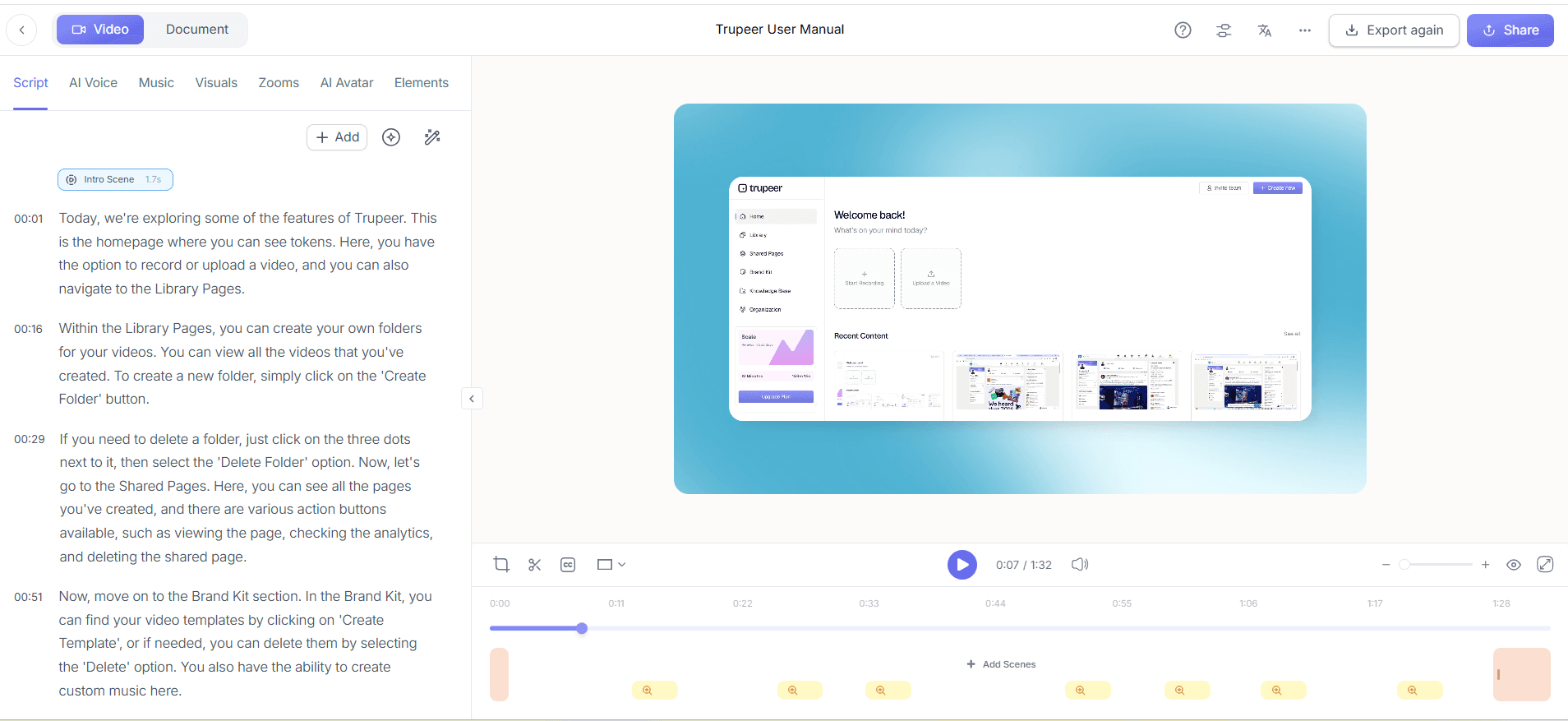
Once your meeting is recorded, it's time to refine the content. Trupeer's automatic filler-word removal capability helps clean up the audio by eliminating "ums," "ahs," and unnecessary pauses. Simply upload your recording into the Trupeer platform, and the AI will automatically scan and edit the audio, making it concise and professional. This process reduces the length and enhances the quality of the video without manual intervention, typically completing the edit within minutes, depending on the recording length.
Step 3: Add AI Narration
Enhance your training video with Trupeer's automatic AI narration. This feature allows you to add narration in 65+ natural voices, providing clarity and context to your content. Choose your desired pace and tone, then let Trupeer generate the voiceover. This is particularly useful for reinforcing key information or explaining complex concepts that may not have been fully addressed during the meeting. The AI handles this quickly, generating a polished voiceover that syncs smoothly with your video. For a deeper look, our guide on training video production covers the adjacent playbook.

Step 4: Incorporate AI Avatars
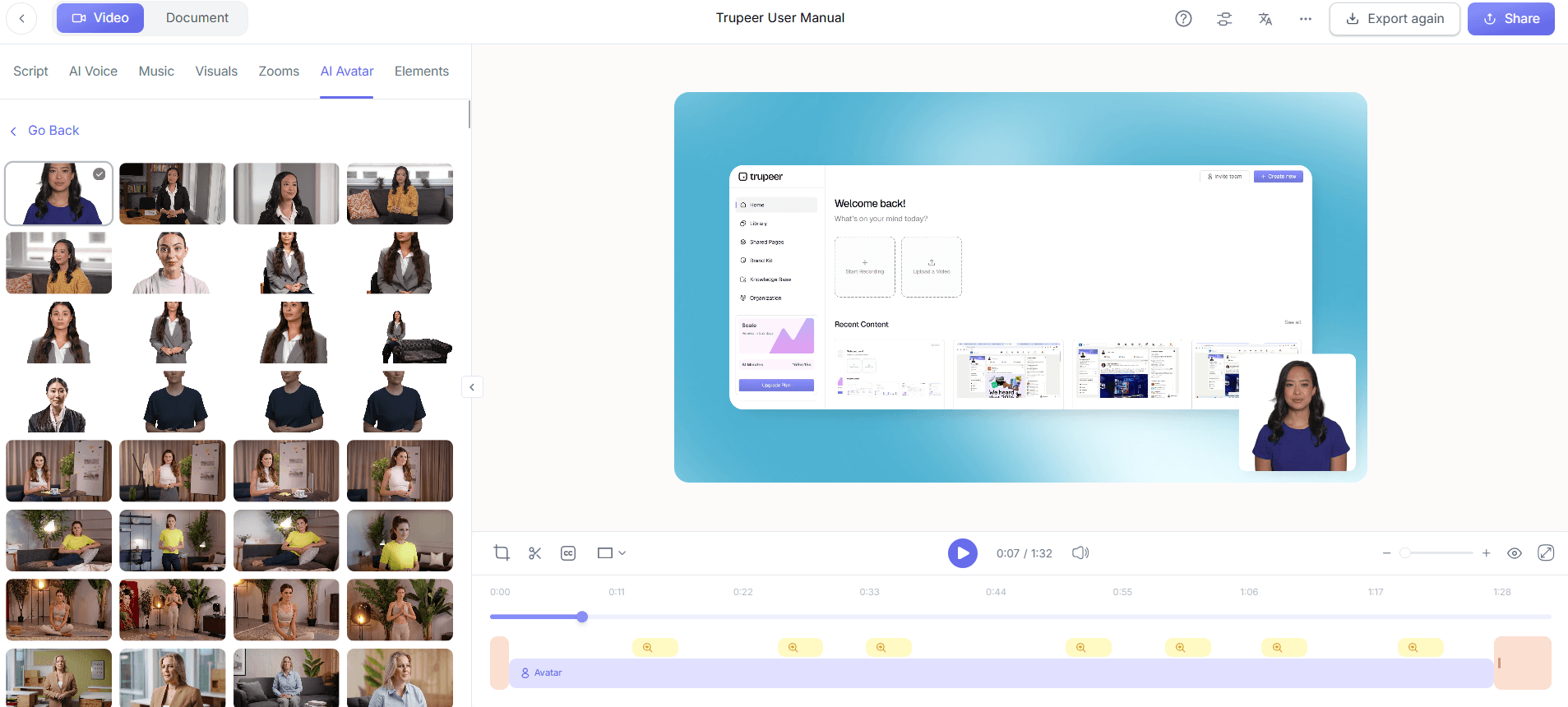
To keep your audience engaged, incorporate Trupeer's AI avatars into your training video. Select from the stock library or customize an avatar to match your brand's style. This adds a unique visual element that can make the content more relatable and less monotonous. Use the HeyGen integration for a more personalized avatar experience. Adding avatars is straightforward and can be done directly within the Trupeer platform, making the video more dynamic and visually appealing.
Step 5: Generate SOPs
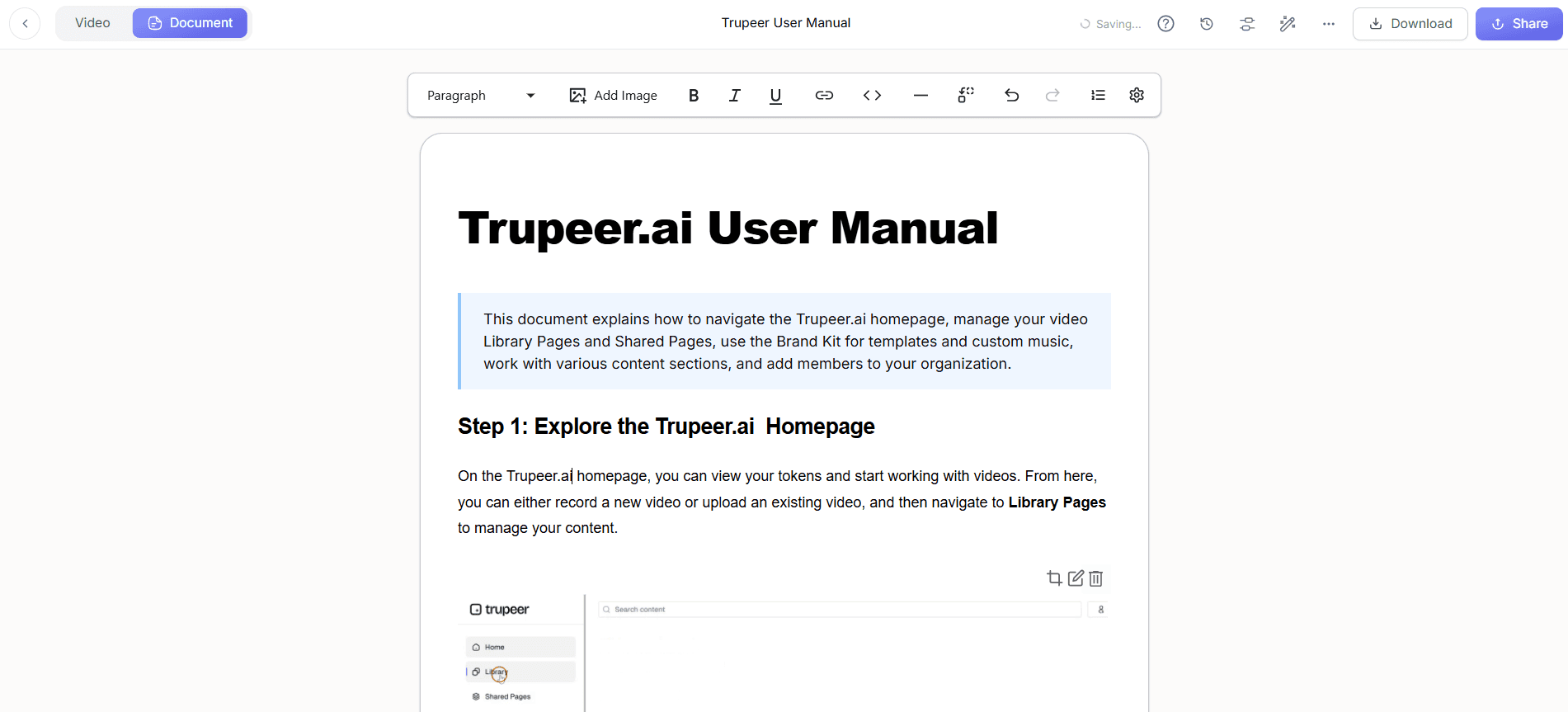
Transform your edited recording into a Standard Operating Procedure (SOP) using Trupeer's automatic SOP generation. This feature creates a detailed, export-ready document that outlines the meeting's key points and processes. You can edit this document as needed before exporting it in formats like PDF or HTML. This step is crucial for converting the raw insights from your meeting into structured, actionable content that can be easily shared and referenced, enhancing both training and operational consistency.
Step 6: Distribute and Measure Engagement
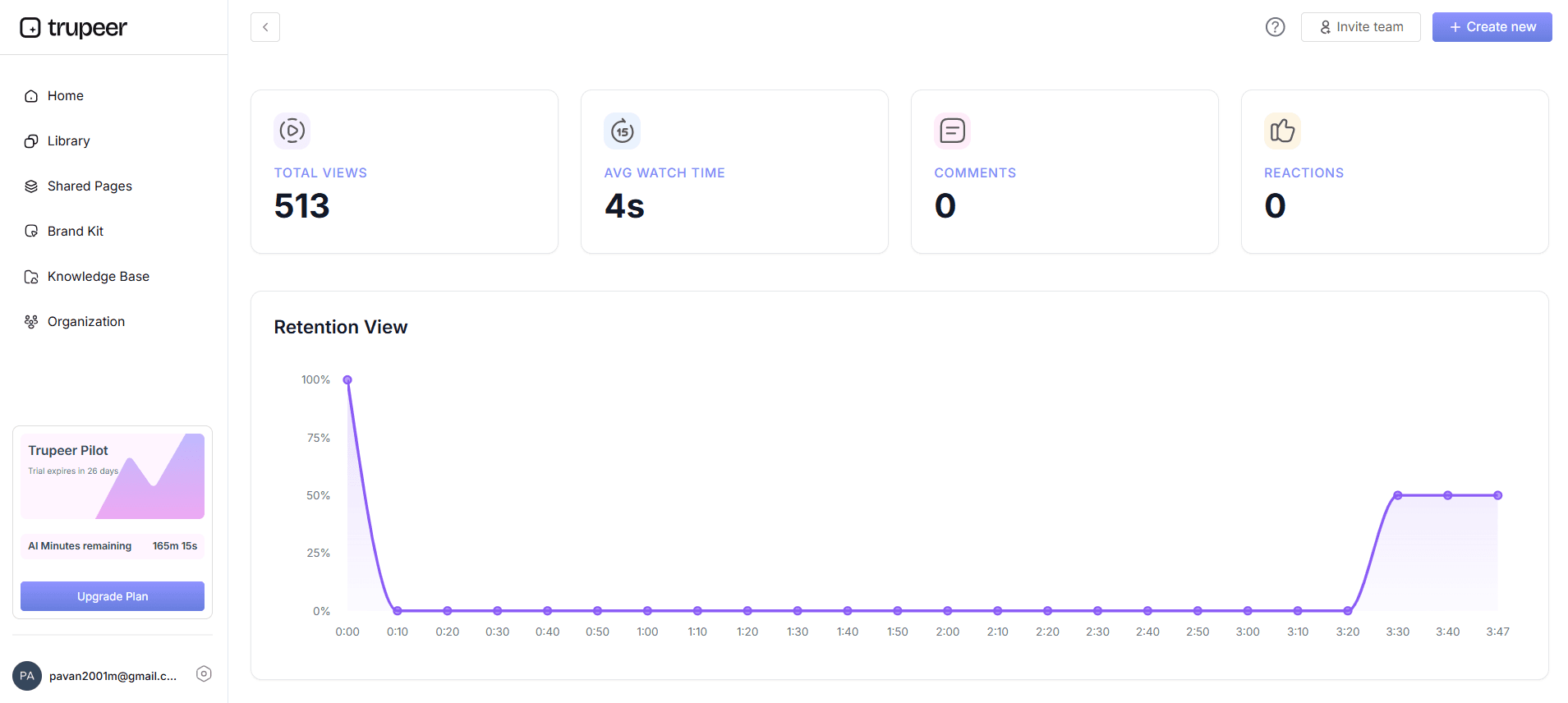
Finally, upload your training video to Trupeer's AI-searchable knowledge base. This makes the content easily accessible and allows users to search by keywords or specific timestamps. As the video is viewed, use Trupeer's viewer engagement analytics to track how your audience interacts with the content. This data, including drop-off points and heatmaps, provides valuable insights into the effectiveness of your training video, enabling you to refine future content and improve learning outcomes.
What tips help you convert Zoom and Teams recordings into training content?
Transforming raw meeting recordings into effective training content requires careful planning and execution. Here are some practical tips to enhance your workflow:
Optimize Recording Settings. Before starting, ensure that your recording settings are configured for high quality. This includes proper microphone adjustments and screen resolution settings.
Plan for Post-Production. Anticipate the need for editing by structuring meetings with clear segments and pauses, making it easier to add AI narration or avatars later.
Use Consistent Branding. Apply brand kits and templates across all videos to maintain a uniform look and feel, enhancing brand recognition and professionalism.
Engage with AI Tools. use Trupeer's training video editing software tool for smooth integration of advanced features like AI avatars and voiceovers.
Test with a Small Audience. Before full deployment, share the training video with a select group to gather feedback and make necessary adjustments.
Standardize SOP Creation. Use a Scribe alternative comparison to ensure your SOPs are comprehensive and easy to follow.
Continuously Improve. Review engagement analytics regularly to identify areas for improvement and update content based on viewer feedback and performance metrics.
Frequently asked questions
How long does it take to convert a meeting recording into a training video?
The time required depends on the recording length and the complexity of the content. With Trupeer, the initial capture and editing processes are quick, often taking just a few minutes for the AI to clean up filler words and sync narration. Adding features like AI avatars or generating SOPs might add another few minutes. Overall, you can expect the entire process to take approximately 30 to 60 minutes per video, significantly less than manual editing methods.
What file formats can Trupeer export the final training video in?
Trupeer supports multiple export formats to suit different needs, including MP4, HTML, PDF, and SCORM. This versatility ensures compatibility with various learning management systems and platforms, facilitating easy distribution and access. Exporting in SCORM format, for instance, allows for smooth integration into e-learning systems, making it easier to track learner progress and engagement. This flexibility in export options supports diverse organizational requirements and training environments.
Can Trupeer's AI voiceover support multiple languages?
Yes, Trupeer's AI voiceover can support over 50 languages. This feature is beneficial for organizations with a global presence or a diverse workforce, as it ensures that training materials are accessible to non-English speaking employees. also, Trupeer offers an AI video translation tool that can translate and dub videos, further enhancing the reach and effectiveness of your training content across different linguistic and cultural contexts.
Does Trupeer provide analytics for training videos?
Trupeer offers comprehensive analytics to measure training video engagement. You can track metrics such as viewer drop-off points, heatmaps, and overall engagement. These insights help in understanding how viewers interact with the content, allowing you to make data-driven decisions to improve future training materials. By analyzing these metrics, you can identify which sections of the video are most effective and which might need refinement, ensuring continuous improvement in training delivery.
What is the best practice for integrating AI avatars in training videos?
When integrating AI avatars, it's best to align them with your brand's style and tone. Start by choosing avatars that resonate with your audience and context. Customize their appearance using Trupeer's tools to ensure they match your corporate identity. Consistency in avatar use across videos helps in maintaining a professional look and reinforces brand identity. also, consider the avatar's role in the video narrative; they can guide viewers, highlight key points, or offer summaries, so enhancing viewer engagement and comprehension.
Related Blogs


