Trupeer Blog
تلخيص

اختيار أفضل برنامج لعمل دروس الفيديو في 2026 ليس متعلقًا بقائمة الميزات الأطول. بعد مشاهدة كيف تقوم فرق SaaS والمعلمون وفرق الدعم فعلًا بإنتاج مقاطع تعليمية، يتضح نمط واحد: الأداة المناسبة هي التي تناسب سير عمل الإنتاج لديك وتزيل وقت التحرير، وليس تلك التي تحتوي على محرر أكثر بريقًا.
قد تحتاج بعض الفرق إلى تسجيل شرح سريع وإرساله خلال دقيقتين. وقد تحتاج فرق أخرى إلى دروس برمجيات مصقولة مع تكبير/تصغير واضح، وترجمات، وبنية خطوة بخطوة. وبشكل متزايد، تحتاج فرق إلى إنتاج عشرات مقاطع الفيديو الخاصة بالتأهيل والتدريب والمنتج، ثم الاستمرار في تحديثها مع تغيّر المنتج. الأداة التي تبدو رائعة لفيديو واحد قد تتحول بهدوء إلى سير عمل سيئ بمجرد أن يتراكم وقت ما بعد الإنتاج.
لذلك يقارن هذا الدليل أفضل برامج دروس الفيديو في 2026 من خلال العدسة التي تهم فعليًا في الواقع: مدى سرعة تسجيلك، وكم من وقت التحرير الذي تنشئه الأداة أو تختصره، ومدى تعاملها مع الدروس مقارنةً بالتدريب أو الشروحات الخاصة بالمنتج، ومدى سلاستها عند التوسع من 2 فيديو إلى 200. وإذا كنت تفضل تخطي البحث وبناء درس فيديو منظم اعتمادًا على تسجيل شاشة، يمكنك إنشاء فيديو درس باستخدام Trupeer AI خلال دقائق.
ما هو برنامج دروس الفيديو؟
برنامج دروس الفيديو هو أي أداة مصممة لمساعدتك على إنشاء مقاطع تعليمية تشرح مهمة أو سير عمل أو ميزة بطريقة واضحة ومنظمة وسهلة المتابعة. وعلى عكس محرر الفيديو العام، فإن برنامج الدروس مُحسّن للتعليم وليس للإنتاج السينمائي.
الميزات التي تميّز أدوات الدروس الحقيقية عن المحررات العامة هي تلك التي تقلل العبء المعرفي على المشاهد:
تسجيل الشاشة والكاميرا لالتقاط حالات الواجهة والتفاعلات الفعلية
إبراز المؤشر مع تكبير تلقائي لضمان أن المشاهد يعرف دائمًا أين ينظر
تعليقات توضيحية وإشعارات وتغبيش لإبراز الخطوات وإخفاء البيانات الحساسة
ترجمات/تعليقات مكتوبة ونصوص مترجمة وتسلسل الخطوات للوضوح وإمكانية الوصول
مشاركة سهلة وإدراج وترجمة لضمان وصول الدروس إلى كل مستخدم
أفضل برنامج لدروس الفيديو يفعل أكثر من مجرد تسجيل الشاشة. فهو يساعد المشاهد على فهم ما يحدث، وبأي ترتيب، ولماذا هذا مهم.
كيف اختبرنا وقارنّا هذه الأدوات
لاختيار أفضل 10 أدوات لبرامج دروس الفيديو، قيّمنا كل أداة وفق خمسة معايير تتنبأ بالنجاح في الواقع بشكل أفضل بكثير من مجرد قائمة ميزات:
ميزات موجهة للدروس: تسجيل الشاشة، تسلسل الخطوات، التكبير، التعليقات التوضيحية
وقت التحرير: مقدار التنظيف اليدوي الذي تضيفه الأداة أو تختصره بعد التسجيل
جودة المخرجات: الدقة، الترجمة/التعليقات، واللمسات الاحترافية الجاهزة
ملاءمة الاستخدام: شروحات المنتج، التأهيل، إجراءات التشغيل القياسية SOPs، تعليم العملاء، التدريب الداخلي
التوسع والتسعير: الخطط المجانية، وخطط الفرق، ومدى ثبات الأداء عند زيادة الحجم
العائق الحقيقي ليس التسجيل. بل وقت التحرير
يفترض معظم الناس أن التسجيل هو الجزء الأصعب. لكن في الواقع، غالبًا ما يبدو التسجيل قابلاً للإدارة، ثم تتوسع مرحلة التنظيف بسرعة. بمجرد أن تبدأ بإزالة التوقفات غير الضرورية، وضبط الإيقاع، وإضافة الترجمة، وتنعيم حركة المؤشر، وتصحيح الأخطاء، وإدراج التكبيرات، وتوضيح الخطوات، يرتفع كلفة "الدرس البسيط" بشكل حاد.
لهذا السبب تظهر أدوات مدعومة بالذكاء الاصطناعي باستمرار في سير عمل الدروس الجاد. ليست قيمتها فقط أنها تحرر الفيديو، بل أنها تزيل التنظيف المتكرر الذي يحدث بعد أن تتوقف عن التسجيل. عند تقييم أي خيار أدناه، يكون السؤال الأكثر فائدة بسيطًا:
هل تقلل هذه الأداة وقت التحرير، أم أنها تخلق المزيد من التحرير لاحقًا بهدوء؟
هذا السؤال وحده يتنبأ بالرضا طويل الأمد بشكل أفضل من أي ميزة رئيسية. الأداة التي تسجل بشكل جميل لكنها تجبرك على ساعة من التلميع اليدوي لكل فيديو ستخسر أمام أداة توصلك إلى "جاهز" خلال عشر دقائق.
كيفية الاختيار بناءً على سير عملك، لا على الميزات فقط
أوضح نمط في إنتاج الدروس الفعلي هو أن الناس يتجاوزون الأداة غير المناسبة، وليس الأداة الضعيفة. قد يحب منشئ المحتوى الذي يحتاج شروحات سريعة غير متزامنة Loom؛ لكن فريقًا ينتج دروس برمجيات مصقولة سيصل بسرعة إلى حدودها. يقع معظم المشترين ضمن واحد من أربعة سير عمل:
1. سير عمل الشرح السريع غير المتزامن. تسجل شاشتك، وتتحدث بشكل طبيعي، ثم تشارك فورًا. السرعة أهم من التلميع. الأفضل: Loom، ScreenPal.
2. سير عمل درس برمجيات مصقول. تحتاج إلى تكبير/تصغير، وإشعارات، وإبراز المؤشر، والتحكم في الإيقاع، والترجمات. الأفضل: Trupeer AI، Screen Studio، Camtasia.
3. سير عمل التدريب والتأهيل. تحتاج إلى الاتساق وقابلية التكرار، وطريقة لإنتاج العديد من الأصول دون إعادة بناء كل واحد منها. الأفضل: Trupeer AI، Synthesia، Colossyan.
4. سير عمل درس مدعوم بالذكاء الاصطناعي. تريد تقليل وقت التحرير عبر جعل الأداة تولد البنية والسكربتات والترجمات والتخطيطات النظيفة تلقائيًا. الأفضل: Trupeer AI، Descript.
إذا لم تكن متأكدًا من أي فئة تنتمي إليها، فإن دليلنا حول كيفية إعداد فيديو تدريب بخطوتين سهلتين يشرح ذلك بالتفصيل.
مقارنة سريعة: أفضل 10 برامج دروس فيديو في 2026
الأداة | الأفضل لـ | جهد التحرير | الخطة المجانية |
|---|---|---|---|
Trupeer AI | دروس بجودة الاستوديو، شروحات المنتج، SOPs + وثائق | منخفض جدًا (تحرير تلقائي بالذكاء الاصطناعي) | نعم |
Loom | شروحات شاشة سريعة غير متزامنة | منخفض | نعم |
Camtasia | دروس برمجيات يدوية متقدمة | مرتفع | فقط تجربة |
Screen Studio | دروس شاشة على Mac بمظهر فاخر | متوسط | فقط تجربة |
Descript | تحرير وتنظيف بناءً على النص | متوسط | نعم |
Synthesia | فيديوهات تدريب بسرد عبر أفاتار بالذكاء الاصطناعي | منخفض | محدود |
Colossyan | تدريب نص-إلى-فيديو بعدة لغات | منخفض | محدود |
OBS Studio | التقاط شاشة خام مجاني ومرن | مرتفع | مجاني (مفتوح المصدر) |
ScreenPal | دروس للمبتدئين وبميزانية محدودة | منخفض-متوسط | نعم |
Guidde | أدلة إرشادية خطوة بخطوة تلقائية | منخفض | نعم |
أفضل 10 برامج دروس فيديو، مراجعة
01. Trupeer AI (الأفضل بشكل عام للدروس خطوة بخطوة)
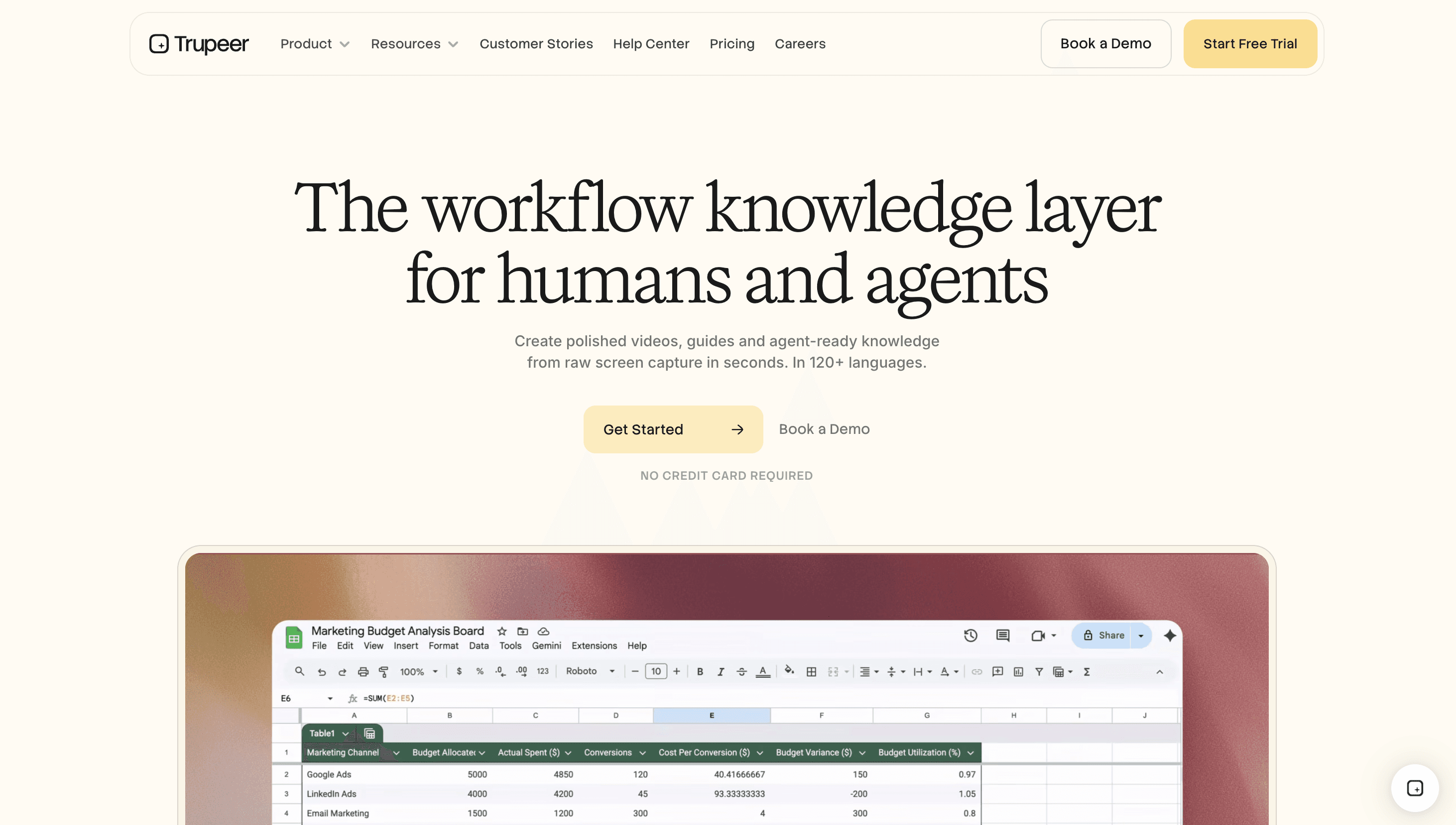
الأفضل لـ: شروحات المنتج، التأهيل، دروس SOP، وفيديو مع وثائق مكتوبة من تسجيل واحد.
تم بناء Trupeer AI أولًا على أساس الدروس. بدلًا من تزويدك بخط زمني فارغ، يأخذ تسجيل شاشة بسيط ويقوم بعمل الإنتاج الشاق نيابةً عنك: يكتب سكربتًا ونصًا مترجمًا نظيفين، ويطبق تكبيرات تلقائية سلسة مع إبراز المؤشر، ويزيل الحشو والتوقفات، وينتج فيديو بجودة الاستوديو دون أن تلمس أي إطار رئيسي.
ما يجعله مختلفًا عن أدوات الفيديو بالذكاء الاصطناعي العامة هو أن نفس التسجيل يتحول أيضًا إلى دليل مكتوب خطوة بخطوة أو SOP مُنسق بالكامل، مع لقطات شاشة مُعلّمة تلقائيًا. تنتج الفيديو والوثائق في خطوة واحدة، ثم تترجم الاثنين إلى أكثر من 30 لغة بنقرة واحدة. بالنسبة للفرق التي تبني مكتبات التأهيل أو تحاول تقليل تذاكر الدعم، فإن سير العمل من مصدر واحد هو اللعبة كاملة.
لماذا يبرز:
يحوّل تسجيلًا خامًا إلى درس مصقول تلقائيًا، مع أقل وقت تحرير ضمن هذه القائمة
تسجيل واحد ينتج فيديو ودليلًا مكتوبًا، مع الحفاظ على التزامن
أفاتارات ذكاء اصطناعي مخصصة، وتعليقات صوتية، وحزمة هوية للعلامة التجارية لإخراج متسق عند التوسع
مبني للدروس والتأهيل، وليس لإعادة توظيف فيديو تسويقي
ضع في اعتبارك: مُحسّن لدروس البرمجيات والشاشة بدلًا من لقطات سينمائية حية، وأحدث من المحررات القديمة (مع إطلاق ميزات بسرعة).
02. Loom (الأفضل للشروحات السريعة غير المتزامنة)
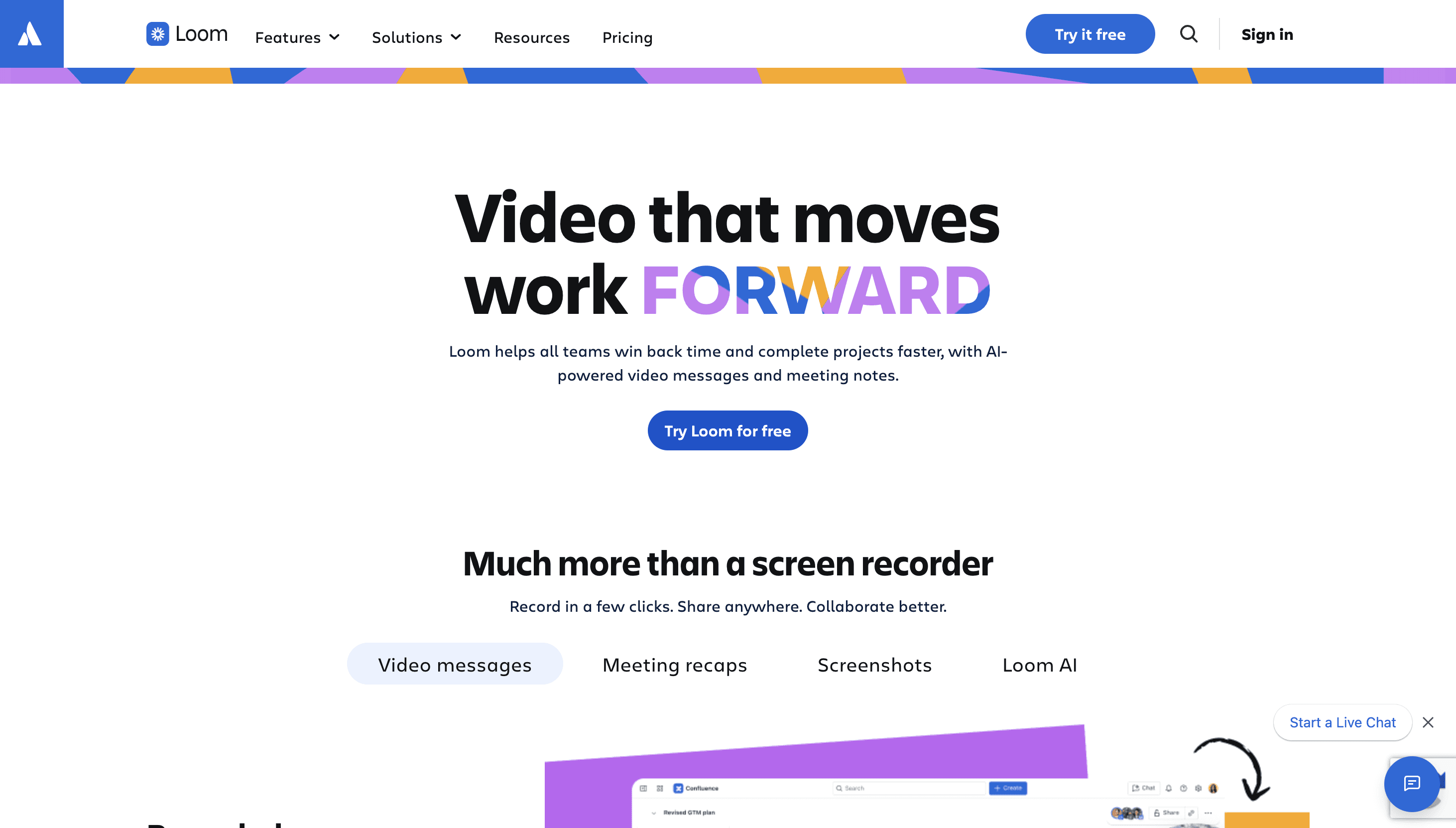
الأفضل لـ: دروس سريعة للشاشة مع صوت تُشارك فورًا.
Loom هو معيار السرعة. سجّل شاشتك والكاميرا، ثم أوقف التسجيل لتحصل على رابط قابل للمشاركة. إنه مثالي لردود الدعم السريعة، وكيف-تعمل داخلية سريعة، وتحديثات غير متزامنة حيث تتفوق الوضوح على التلميع. المقابل هو العمق: يقدم Loom القليل فيما يتعلق بالتكبيرات، أو الخطوات المنظمة، أو التحرير الجاد، لذلك غالبًا ما تتجاوز دروس البرمجيات المصقولة حدوده بسرعة. شاهد كيف تتم المقارنة في دليل بدائل Loom.
03. Camtasia (الأفضل للتحرير اليدوي المتقدم)
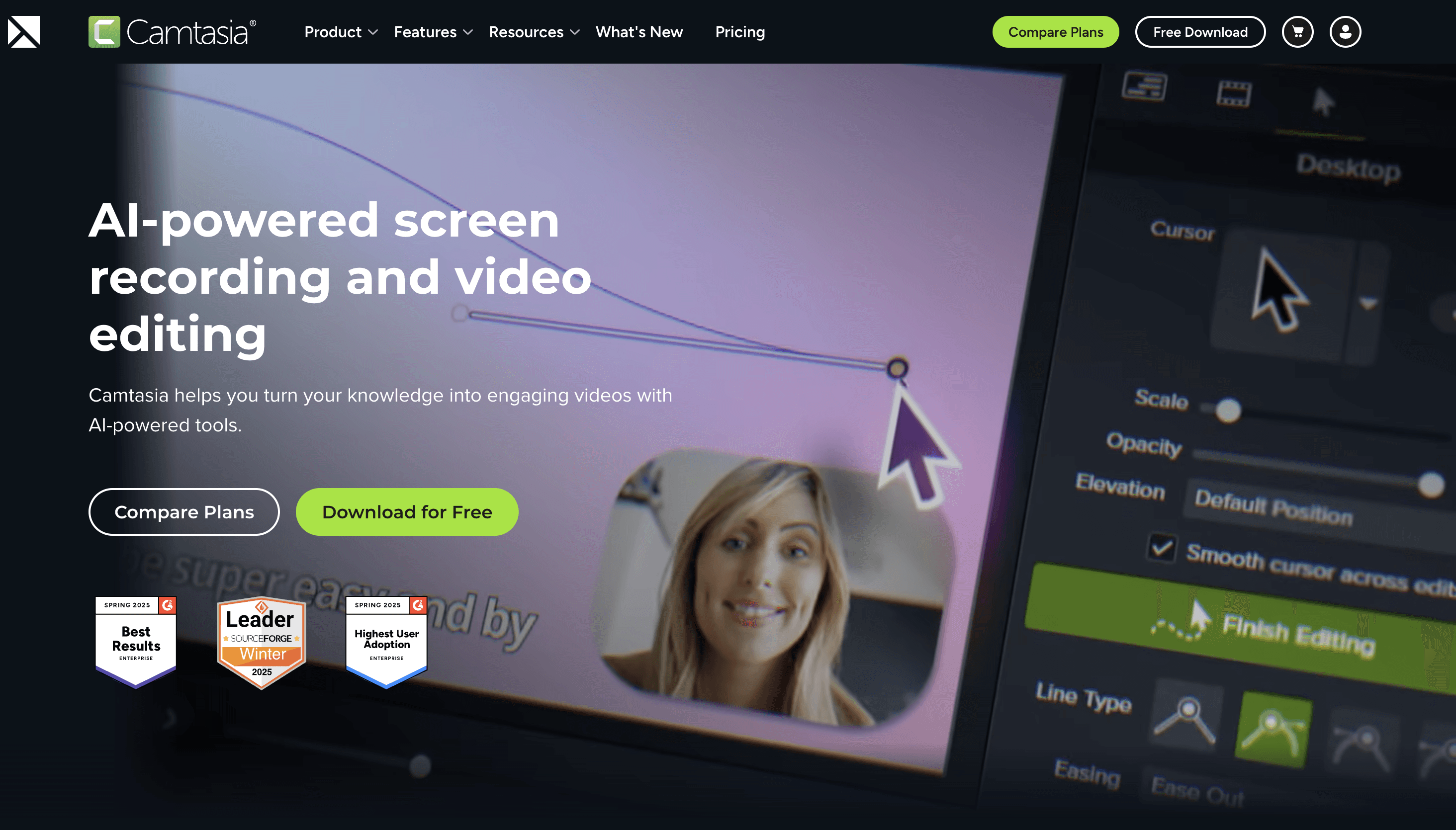
الأفضل لـ: دروس برمجيات مفصلة ومصنوعة يدويًا.
تجمع Camtasia بين تسجيل الشاشة ومحرر خط زمني كامل، ما يجعلها خيارًا مفضلًا منذ فترة طويلة لدى مصممي التعليم الذين يريدون تحكمًا دقيقًا في تأثيرات المؤشر، والإشعارات، والتكبيرات. تأتي القوة بتكلفة: لديها منحنى تعلم حقيقي وأعلى وقت تحرير هنا، لذا تكافئ الأشخاص الذين يصنعون دروسًا بشكل كافٍ لتبرير الجهد.
04. Screen Studio (الأفضل لمظهر فاخر على Mac)
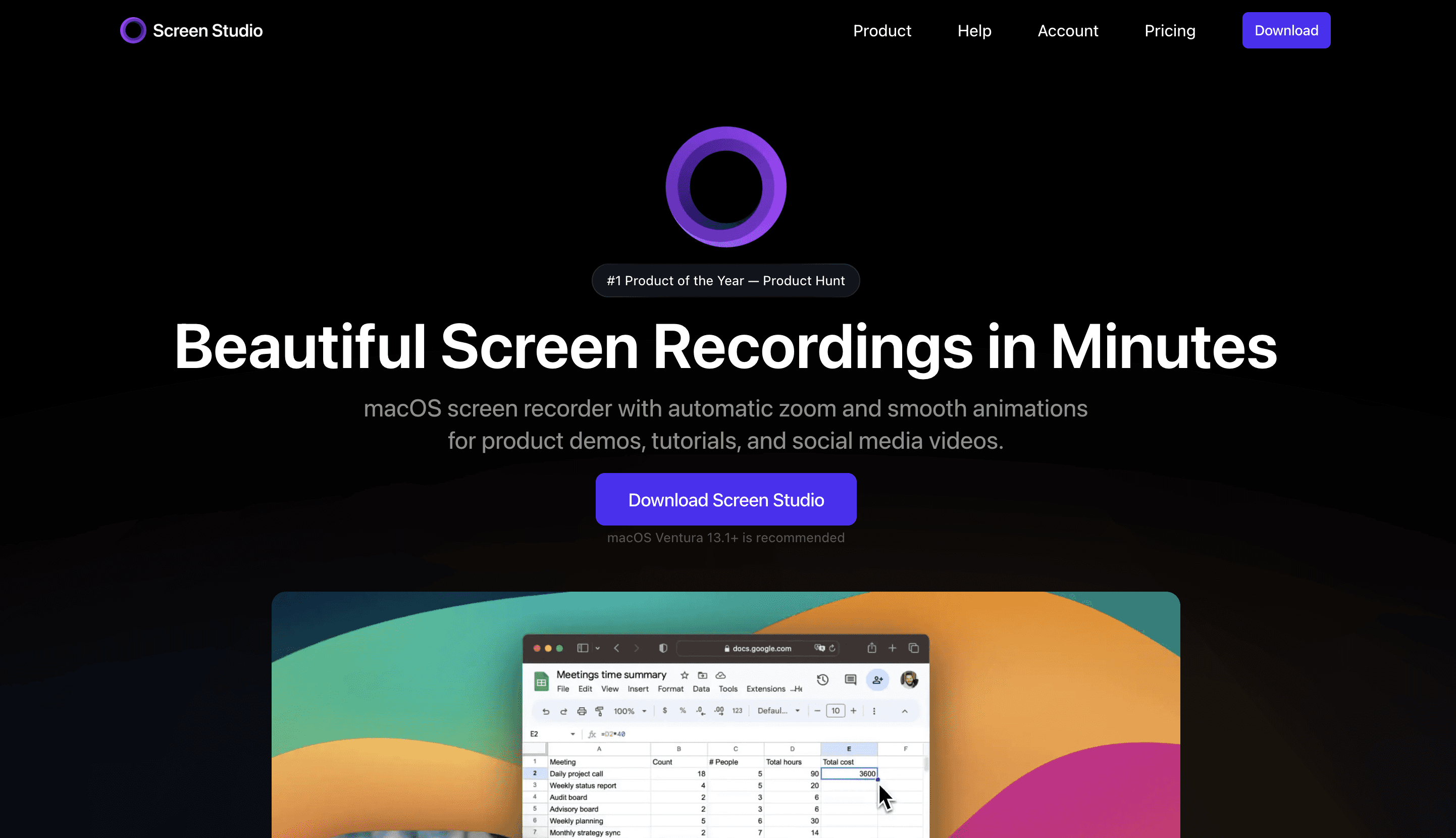
الأفضل لـ: تسجيلات شاشة على Mac بسلاسة وبإحساس فاخر.
تضيف Screen Studio تلقائيًا تكبيرات وتأثيرات حركة مُرضية تجعل دروس الشاشة تبدو مكلفة بأقل جهد. إنها حل وسط رائع بين سرعة Loom وتحكم Camtasia، لكنها تعمل على Mac فقط، ويركز المنتج على خطوة التسجيل إلى التلميع بدلًا من بنية الدروس من البداية إلى النهاية، أو السكربتات، أو الوثائق. قارن الخيارات في ملخص بدائل Screen Studio.
05. Descript (الأفضل للتحرير بناءً على النص)
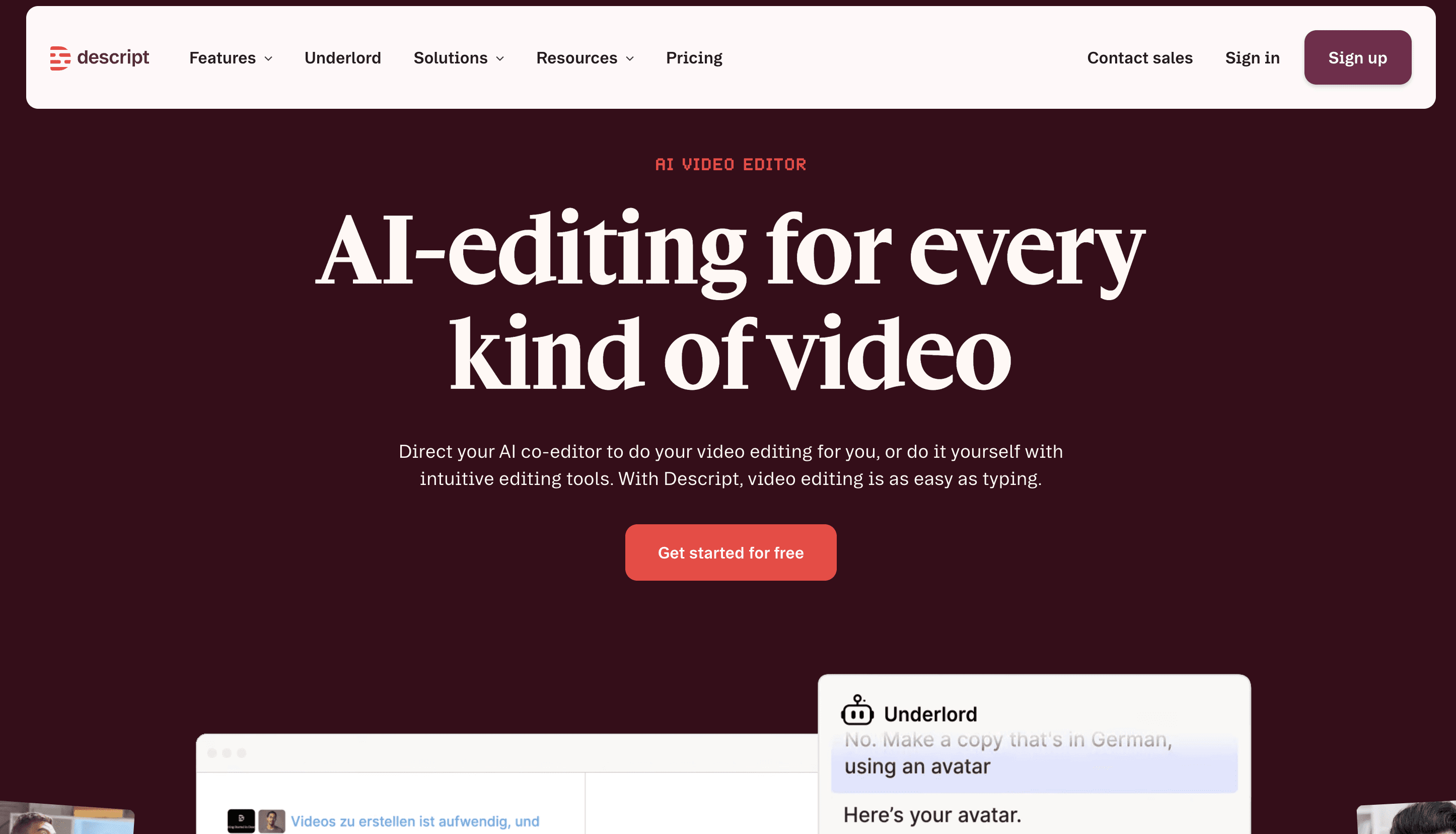
الأفضل لـ: تحرير دروس الفيديو عبر تحرير النص.
يتيح لك Descript تحرير الفيديو كأنه مستند نصي: احذف كلمة من النص وستختفي من الفيديو. ومع إزالة الكلمات الحشوية والترجمات، يمكنه تسريع التنظيف بشكل كبير. قوته الأساسية كطبقة تحرير؛ أما بالنسبة لبنية الدرس الكاملة وسير عمل يبدأ من الشاشة، فغالبًا ستحتاج إلى دمجه مع مسجل مخصص.
06. Synthesia (الأفضل لفيديوهات تدريب بأفاتار ذكاء اصطناعي)
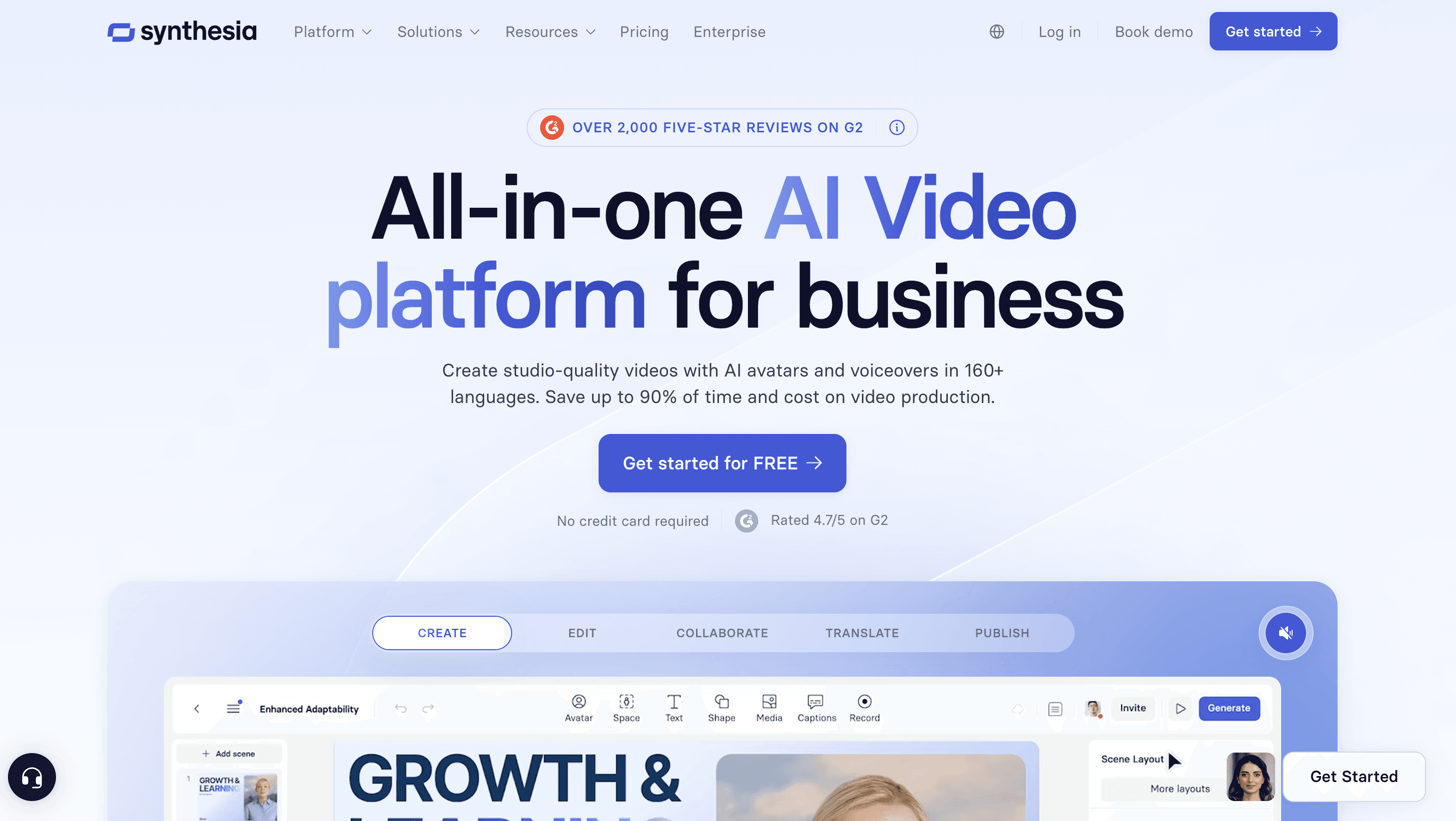
الأفضل لـ: فيديوهات تدريب مع سرد بدون كاميرا.
تحول Synthesia سكربتًا إلى فيديو يقدمه أفاتار واقعي بالذكاء الاصطناعي عبر 140+ لغة، دون الحاجة إلى استوديو. وهي مناسبة جيدًا للتدريب المؤسسي الداخلي وتعليم المنتجات عالميًا. أما القيود الخاصة بالدروس فهي أنها تركز على مقدم يتحدث بدلًا من عرض تفصيلي للبرمجيات على الشاشة، لذلك تكمل أدوات التقاط الشاشة أكثر مما تستبدلها. شاهد مقارنة بدائل Synthesia.
07. Colossyan (الأفضل لنص متعدد اللغات إلى فيديو)
الأفضل لـ: تدريب يقوده السكربت عبر لغات كثيرة.
تحتل Colossyan نفس مساحة الأفاتار بالذكاء الاصطناعي وتحويل السكربت إلى فيديو مثل Synthesia، مع تركيز قوي على الشخصيات المرنة والهوية المتسقة عبر اختلافات اللغة. إنها خيار قوي عندما تحتاج إلى نفس محتوى التدريب في مواقع متعددة لكنك لا تتطلب التقاط شاشة حرفي.
08. OBS Studio (الأفضل كمُسجل شاشة مجاني)
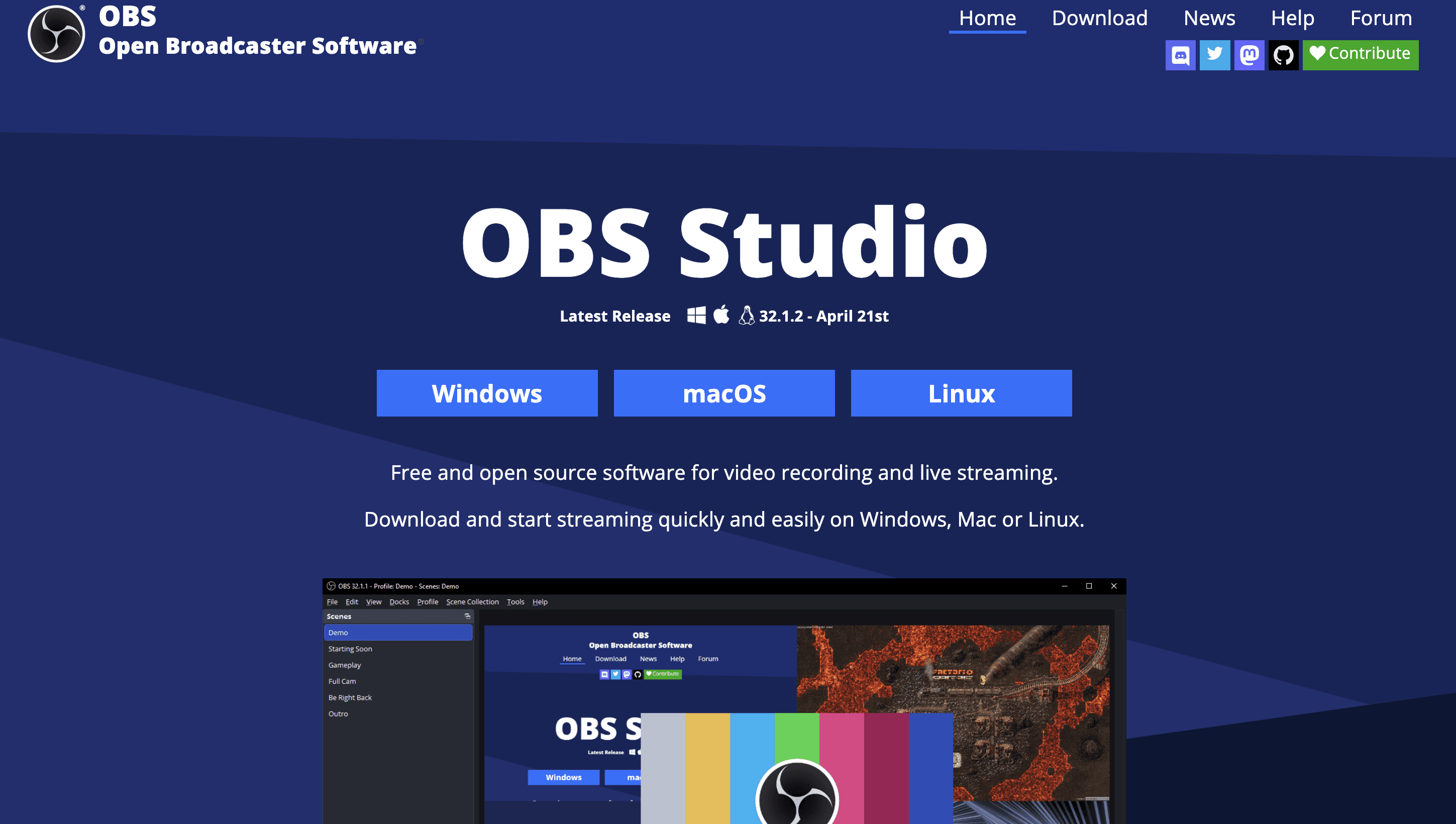
الأفضل لـ: التقاط خام مجاني ومرن للغاية.
OBS مفتوح المصدر ومجاني وقابل للتخصيص بلا نهاية، ما يجعله أقوى نقطة انطلاق مجانية لالتقاط لقطات دروس. لكن المفاجأة أن التسجيل هو الجزء السهل: OBS لا يقوم بتحرير ذي معنى، لذلك ستحتاج إلى محرر منفصل وأداة للترجمات وسير عمل للتنظيف، وهذا بالضبط المكان الذي تبدأ فيه احتكاكات تعدد الأدوات.
09. ScreenPal (الأفضل كأداة مبتدئين بميزانية)

الأفضل لـ: دروس بسيطة وميسورة للمبتدئين.
تقدم ScreenPal (المعروفة سابقًا باسم Screencast-O-Matic) تسجيل شاشة سهل، وتحريرًا أساسيًا، وترجمات على خطة مجانية ودودة. إنها بوابة مريحة لمنشئي المحتوى الجدد على فيديوهات الدروس الذين يريدون شيئًا بسيطًا قبل الانتقال إلى أدوات أكثر قدرة. استكشف بدائل ScreenPal.
10. Guidde (الأفضل لأدلة كيف-تعمل مُولدة تلقائيًا)

الأفضل لـ: التقاط عملية وتحويلها إلى دليل خطوة بخطوة فوري.
تسجل Guidde نقراتك وتجمع تلقائيًا دليل كيف-تعمل مُسردًا خطوة بخطوة مع لقطات شاشة ملتقطة. إنها مفيدة لتوثيق الدعم السريع ودروس المنتج الخفيفة، خصوصًا عندما تريد توليد دليل بأقل جهد يدوي.
أي برنامج دروس فيديو يجب أن تختاره؟
يعتمد خيار "الأفضل" بالكامل على تجربة الدروس التي تحاول إنشاءها:
للدروس السريعة دون تعقيد: Loom أو ScreenPal
للدروس المصقولة التي تم تحريرها يدويًا: Camtasia أو Screen Studio
لفيديوهات تدريب بسرد عبر الذكاء الاصطناعي: Synthesia أو Colossyan
للتسجيل المجاني والمرن: OBS Studio
لسير عمل منظم يبدأ بالدروس وينتج فيديو ووثائق على نطاق واسع: Trupeer AI
بعد مقارنة الأدوات وسير العمل، تميل أفضل برامج دروس الفيديو في 2026 إلى القيام بخمس أشياء بشكل جيد: تسجيل واضح، وتقليل وقت التحرير، ودعم بنية تعليمية، والتوسع بعد عدد قليل من الفيديوهات، ومطابقة حالة الاستخدام الخاصة بك. المعيار الحقيقي ليس عدد الميزات التي تقدمها الأداة، بل مقدار الاحتكاك الذي تزيله عبر سير عمل الدروس بالكامل.
إذا كان ما بعد الإنتاج هو أكبر مصدر إزعاج لديك، فهذا هو الاحتكاك الذي تم بناء Trupeer AI لإزالته بالضبط. سجّل شاشتك مرة واحدة واحصل على درس مصقول مع دليل مكتوب، بأي لغة، خلال دقائق.
الأسئلة الشائعة
ما هو أفضل برنامج دروس فيديو للمبتدئين؟
للمبتدئين، أفضل أداة هي التي تحتوي على أقل احتكاك في الإعداد. يعد Loom وScreenPal بوابتين أسهل من OBS أو Camtasia لأنهما يتيح لك البدء في التسجيل خلال ثوانٍ. إذا كنت تريد مخرجات مناسبة للمبتدئين وبمظهر احترافي دون تعلم محرر، فإن Trupeer AI خيار قوي لأن التلميع يتم تلقائيًا.
ما هو أفضل برنامج لفيديوهات الدروس خطوة بخطوة؟
بالنسبة للدروس المنظمة خطوة بخطوة مثل شروحات المنتج وSOPs والتأهيل، فإن Trupeer AI مُصمم خصيصًا لذلك، حيث يحول تسجيل شاشة واحدًا إلى فيديو مُرتب بالتسلسل ودليل مكتوب. تعد Camtasia أقوى بديل يدوي إذا كنت تفضل التحكم الكامل في الخط الزمني.
هل OBS كافٍ لفيديوهات الدروس الاحترافية؟
يلتقط OBS لقطات بجودة احترافية، لكنه لا يقوم بالتحرير. غالبًا ما يحتاج معظم منشئي المحتوى الذين يسجلون باستخدام OBS إلى أدوات منفصلة لقص المقاطع وإضافة الترجمات والتكبيرات والتنظيف. إذا كنت تريد التسجيل والتلميع في مكان واحد، فإن أداة تبدأ بالدروس أو مدعومة بالذكاء الاصطناعي ستوفر وقتًا كبيرًا.
لماذا تبدو فيديوهات الدروس الخاصة بي غير احترافية؟
غالبًا السبب هو الوضوح وليس جودة الكاميرا. يجعل الإيقاع غير المتوازن، وحركة المؤشر الفوضوية، وعدم وجود إبراز للتكبير، وبنية الخطوات الضعيفة الدروس تبدو غير مُصقولة حتى عندما تكون اللقطات جيدة. الأدوات التي تطبق التكبير تلقائيًا وتنظف التعليق الصوتي وتفرض بنية الخطوات تصلح معظم ذلك دون تحرير يدوي.
هل يمكن لأدوات الذكاء الاصطناعي استبدال برامج الدروس التقليدية؟
في تزايد، نعم، للأجزاء التي تتطلب تحريرًا كثيفًا. تتفوق أدوات الذكاء الاصطناعي في إزالة التنظيف المتكرر: الترجمات، إزالة الكلمات الحشوية، التكبيرات، توليد السكربت، وتنظيم التخطيط. ما زالت مسجلات الشاشة التقليدية قيمة عندما تحتاج إلى عروض توضيحية دقيقة في الوقت الحقيقي، لذلك تقوم العديد من الفرق بدمج مسجل مع طبقة ذكاء اصطناعي، أو تستخدم أداة درس شاملة بالذكاء الاصطناعي تقوم بالأمرين معًا.
كيف يمكنني تقليل وقت التحرير عند إعداد فيديوهات الدروس؟
اختر أدوات تُؤتمت أكثر الأعمال تكرارًا: الترجمات، تحرير النص، تنعيم حركة المؤشر، التكبيرات التلقائية، وتنظيف التخطيط. هنا تخلق منصات مدعومة بالذكاء الاصطناعي ومنصات تبدأ بالدروس أكبر توفير للوقت، وغالبًا ما تحول ساعة من التحرير إلى بضع دقائق من المراجعة.
ما هو أفضل برنامج دروس للتدريب؟
يعتمد ذلك على ما إذا كنت تحتاج إلى التقاط شاشة حقيقي، أو سرد بالذكاء الاصطناعي، أو تسلسل خطوة بخطوة قابل للتوسع. تناسب Camtasia وSynthesia وColossyan وTrupeer AI سير عمل تدريب مختلفة، ويبرز Trupeer AI ببنية تبدأ بالدروس مع توثيق مكتوب مُزامن.
المدونات ذات الصلة


