Tutorials

Hoe objecten te spiegelen in Figma

Leer hoe je objecten in Figma kunt spiegelen met behulp van flip-tools, slimme hulplijnen en sneltoetsen. Een korte gids om ontwerpen nauwkeurig horizontaal of verticaal te weerspiegelen.

Gedetailleerde Stappen:

Downloaden en Installeren: Download de Figma Mirror app uit de app store van je apparaat (Google Play Store of Apple App Store) of bezoek figma.com/mirror in je mobiele browser. 
Inloggen: Open de Figma Mirror app en log in met hetzelfde Figma-account als je desktop-app of browser. 
Open het Ontwerp: Open het gewenste Figma-bestand in de desktop-app of browser. 
Kies een Frame: Kies het bovenste frame dat je op je mobiele apparaat wilt spiegelen. 
Begin met Spiegelen: Tik in de Figma Mirror app op de knop "Begin met Spiegelen" (of iets vergelijkbaars, afhankelijk van de app-versie). 
Bekijk en Interactie: Je geselecteerde frame wordt weergegeven op je mobiele apparaat, en je kunt ermee interactie hebben als een prototype. 

Stapsgewijze Gids: Hoe Objecten te Spiegelen in Figma

Stap 1

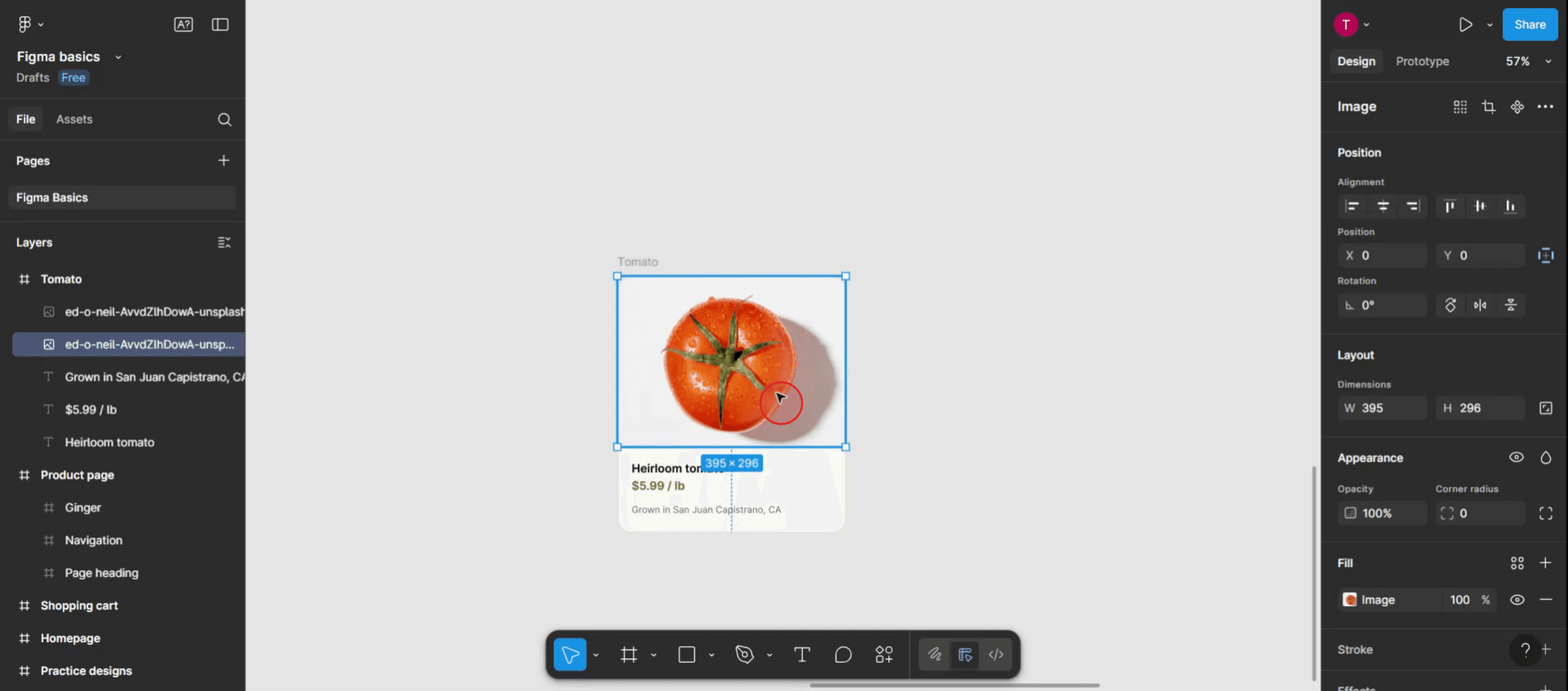
Om te beginnen, zorg ervoor dat je het object geselecteerd hebt dat je wilt spiegelen.

To begin, ensure you have the object selected that you wish to mirror.

Stap 2

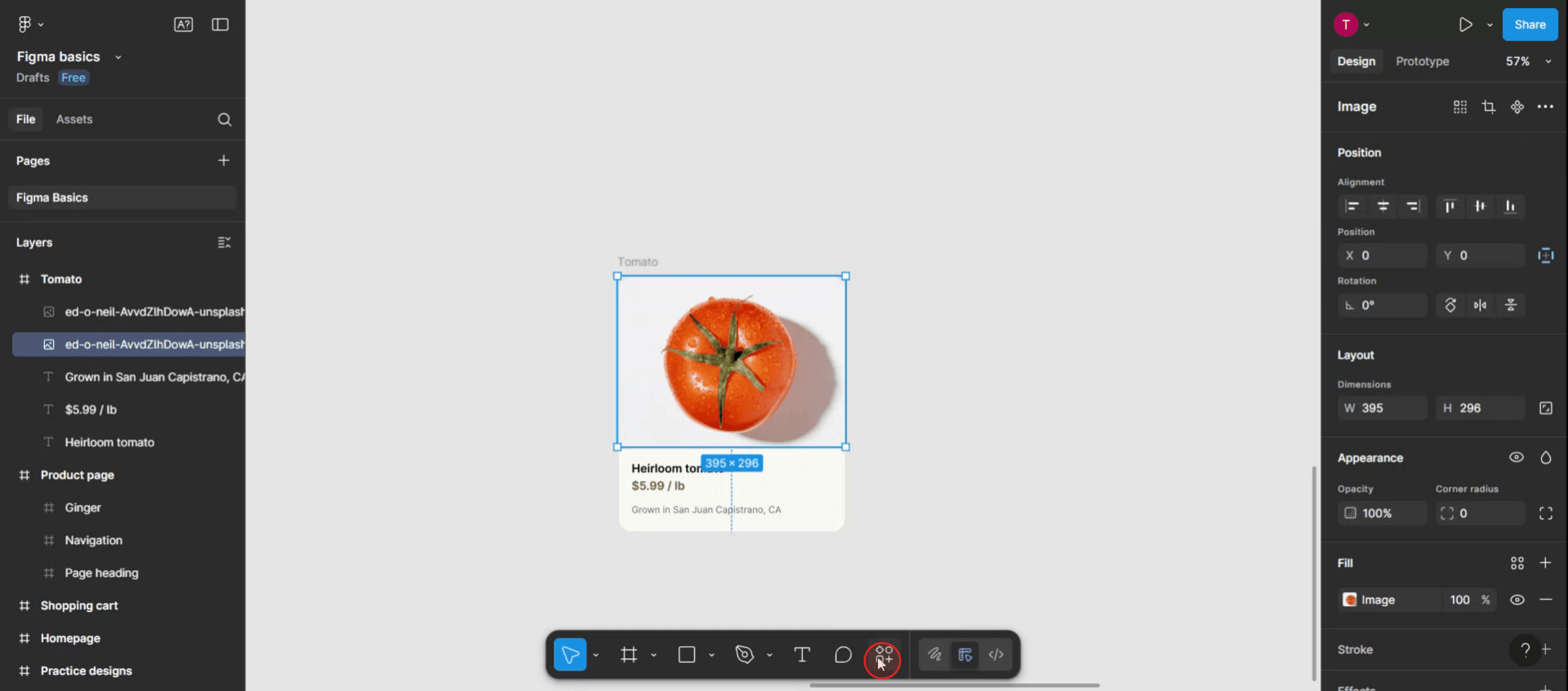
Zoek vervolgens het actiesmenu op je Figma-interface en klik erop.

Next, locate the actions menu on your Figma interface and click on it.

Stap 3

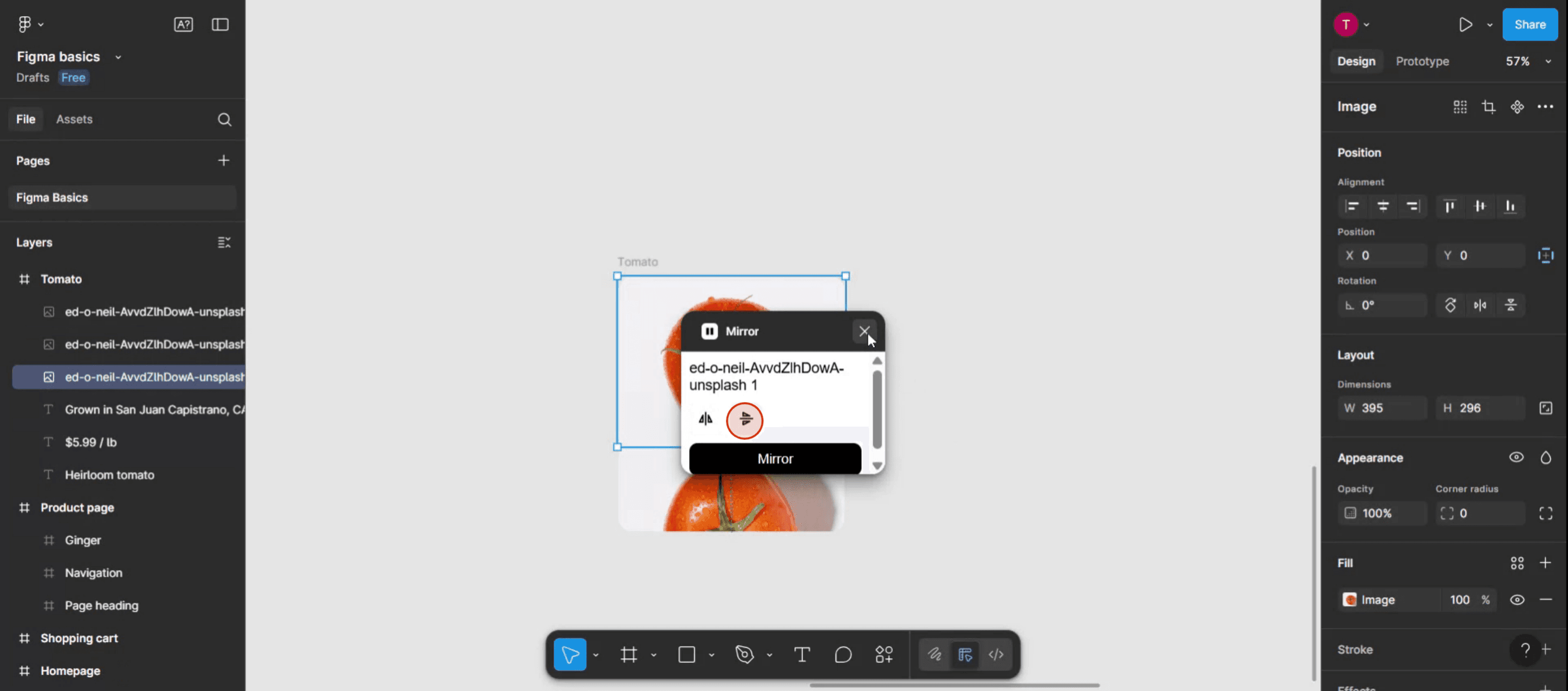
Typ in de zoekconsole 'mirror' om de spiegeloptie te vinden.
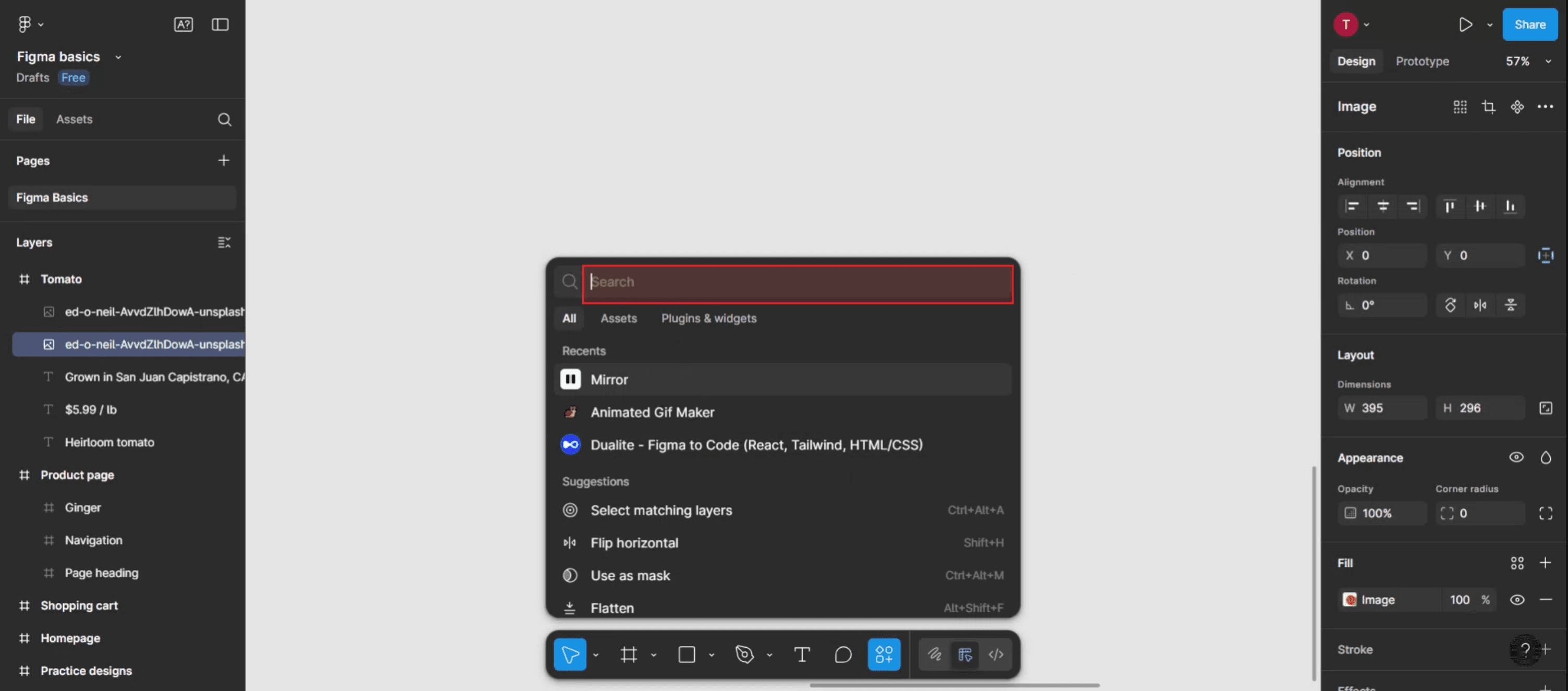
In the search console, type 'mirror' to find the mirroring option.

Stap 4

Na het vinden van de 'mirror' optie, klik erop.

After locating the 'mirror' option, click on it.

Stap 5

Kies in de popup de richting waarin je wilt spiegelen: ofwel horizontaal of verticaal.

Within the popup, choose the direction you prefer to mirror: either horizontal or vertical.

Stap 6

Bedankt voor het voltooien van het proces.

Thank you for completing the process.

Pro Tips voor het Spiegelen van Objecten in Figma

  1. Selecteer het object
    Klik op de vorm, het pictogram of de groep die je wilt spiegelen. Zorg ervoor dat het hele element is geselecteerd voordat je enige transformatie toepast.

  2. Open de schaaltool
    Gebruik de snelkoppeling “K” op je toetsenbord om de schaaltool te activeren, of selecteer het uit de bovenste werkbalk.

  3. Spiegel horizontaal met negatieve breedte
    Met de schaaltool actief, sleep je de linker- of rechterrand van het object terwijl je de Shift-toets ingedrukt houdt. Voer een negatieve waarde voor de breedte in het eigenschappenpaneel in (bijv. -100%) om het horizontaal om te flippen.

  4. Spiegel verticaal met negatieve hoogte
    Om verticaal te spiegelen, sleep je de boven- of onderrand van het object terwijl je de schaaltool gebruikt. Voer een negatieve waarde voor de hoogte in (bijv. -100%) in het eigenschappenpaneel.

  5. Gebruik sneltoetsen voor snel omdraaien
    Je kunt ook spiegelen met sneltoetsen:

  • Draaien Horizontaal: Rechtsklik → Draaien Horizontaal

  • Draaien Verticaal: Rechtsklik → Draaien Verticaal

Veelvoorkomende Fouten en Hoe ze te Vermijden

  1. Omgekeerd draaien in plaats van spiegelen
    Spiegelen en draaien zijn niet hetzelfde. Zorg ervoor dat je het object correct spiegelt, en niet draait met 180 graden.

  2. Verlies van objectuitlijning
    Spiegelen kan de positie van een object veranderen. Gebruik uitlijningshulpmiddelen of repositioneer het object handmatig na het spiegelen.

  3. Groepproblemen
    Als je een gegroepeerd object spiegelt, zorg ervoor dat alle interne elementen als bedoeld spiegelen. Groepeer opnieuw en test indien nodig.

  4. Tekst verkeerd spiegelen
    Wanneer je een tekstlaag spiegelt, kan deze onscherp worden. Overweeg om het om te zetten naar contouren als je een spiegelaspect nodig hebt.

  5. Componenten breken
    Spiegelen van een component kan de werking ervan veranderen. Test spiegeldcomponenten grondig voordat je ze in een groter ontwerp gebruikt.

Veelgestelde Vragen over het Spiegelen van Objecten in Figma

  1. Hoe spiegel ik een object in Figma?
    Selecteer het object, gebruik de schaaltool (K), en voer een negatieve breedte of hoogte in om het horizontaal of verticaal te flippen.

  2. Kan ik meerdere objecten tegelijk spiegelen?
    Ja, groepeer eerst de objecten en spiegel ze daarna samen met de Draaien-opties of de schaaltool.

  3. Is er een sneltoets voor draaien in Figma?
    Ja, rechtsklik op het object en kies “Draaien Horizontaal” of “Draaien Verticaal” uit het menu.

  4. Heeft spiegelen invloed op de leesbaarheid van tekst?
    Ja, het spiegelen van tekst kan het onleesbaar maken. Zet tekst om naar contouren als dat nodig is voor visuele alleen spiegelen.

  5. Kan ik objecten binnen een component spiegelen?
    Ja, maar zorg ervoor dat het spiegelen geen invloed heeft op de bedoelde werking of de auto-layout structuur van de component.

  6. Hoe maak ik een schermopname op een Mac? 
    Om een schermopname te maken op een Mac, kun je Trupeer AI gebruiken. Het stelt je in staat om het hele scherm vast te leggen en biedt AI-capaciteiten zoals het toevoegen van AI-avatar, voice-over, in- en uitzoomen in de video. Met de AI-videotranslatie-functie van trupeer kun je de video naar 30+ talen vertalen. 

  7. Hoe voeg ik een AI-avatar toe aan een schermopname?
    Om een AI-avatar toe te voegen aan een schermopname, moet je een AI schermopname tool. Trupeer AI is een AI schermopname tool, waarmee je video’s kunt maken met meerdere avatars, ook helpt het je bij het creëren van je eigen avatar voor de video.

  8. Hoe maak ik een schermopname op Windows?
    Om een schermopname te maken op Windows, kun je de ingebouwde Game Bar (Windows + G) gebruiken of een geavanceerde AI-tool zoals Trupeer AI voor meer geavanceerde functies zoals AI-avatar, voice-over, vertaling, enz.

  9. Hoe voeg ik een voice-over toe aan een video?
    Om voice-over toe te voegen aan video's, download de trupeer ai chrome extensie. Zodra je je hebt aangemeld, upload je je video met stem, kies je de gewenste voice-over van trupeer en exporteer je je bewerkte video. 

  10. Hoe kan ik inzoomen tijdens een schermopname?
    Om in te zoomen tijdens een schermopname, gebruik de zoom effecten in Trupeer AI die je in staat stelt om in en uit te zoomen op specifieke momenten, wat de visuele impact van je videocontent vergroot.

Gedetailleerde Stappen:

Downloaden en Installeren: Download de Figma Mirror app uit de app store van je apparaat (Google Play Store of Apple App Store) of bezoek figma.com/mirror in je mobiele browser. 
Inloggen: Open de Figma Mirror app en log in met hetzelfde Figma-account als je desktop-app of browser. 
Open het Ontwerp: Open het gewenste Figma-bestand in de desktop-app of browser. 
Kies een Frame: Kies het bovenste frame dat je op je mobiele apparaat wilt spiegelen. 
Begin met Spiegelen: Tik in de Figma Mirror app op de knop "Begin met Spiegelen" (of iets vergelijkbaars, afhankelijk van de app-versie). 
Bekijk en Interactie: Je geselecteerde frame wordt weergegeven op je mobiele apparaat, en je kunt ermee interactie hebben als een prototype. 

Stapsgewijze Gids: Hoe Objecten te Spiegelen in Figma

Stap 1

Om te beginnen, zorg ervoor dat je het object geselecteerd hebt dat je wilt spiegelen.

To begin, ensure you have the object selected that you wish to mirror.

Stap 2

Zoek vervolgens het actiesmenu op je Figma-interface en klik erop.

Next, locate the actions menu on your Figma interface and click on it.

Stap 3

Typ in de zoekconsole 'mirror' om de spiegeloptie te vinden.

In the search console, type 'mirror' to find the mirroring option.

Stap 4

Na het vinden van de 'mirror' optie, klik erop.

After locating the 'mirror' option, click on it.

Stap 5

Kies in de popup de richting waarin je wilt spiegelen: ofwel horizontaal of verticaal.

Within the popup, choose the direction you prefer to mirror: either horizontal or vertical.

Stap 6

Bedankt voor het voltooien van het proces.

Thank you for completing the process.

Pro Tips voor het Spiegelen van Objecten in Figma

  1. Selecteer het object
    Klik op de vorm, het pictogram of de groep die je wilt spiegelen. Zorg ervoor dat het hele element is geselecteerd voordat je enige transformatie toepast.

  2. Open de schaaltool
    Gebruik de snelkoppeling “K” op je toetsenbord om de schaaltool te activeren, of selecteer het uit de bovenste werkbalk.

  3. Spiegel horizontaal met negatieve breedte
    Met de schaaltool actief, sleep je de linker- of rechterrand van het object terwijl je de Shift-toets ingedrukt houdt. Voer een negatieve waarde voor de breedte in het eigenschappenpaneel in (bijv. -100%) om het horizontaal om te flippen.

  4. Spiegel verticaal met negatieve hoogte
    Om verticaal te spiegelen, sleep je de boven- of onderrand van het object terwijl je de schaaltool gebruikt. Voer een negatieve waarde voor de hoogte in (bijv. -100%) in het eigenschappenpaneel.

  5. Gebruik sneltoetsen voor snel omdraaien
    Je kunt ook spiegelen met sneltoetsen:

  • Draaien Horizontaal: Rechtsklik → Draaien Horizontaal

  • Draaien Verticaal: Rechtsklik → Draaien Verticaal

Veelvoorkomende Fouten en Hoe ze te Vermijden

  1. Omgekeerd draaien in plaats van spiegelen
    Spiegelen en draaien zijn niet hetzelfde. Zorg ervoor dat je het object correct spiegelt, en niet draait met 180 graden.

  2. Verlies van objectuitlijning
    Spiegelen kan de positie van een object veranderen. Gebruik uitlijningshulpmiddelen of repositioneer het object handmatig na het spiegelen.

  3. Groepproblemen
    Als je een gegroepeerd object spiegelt, zorg ervoor dat alle interne elementen als bedoeld spiegelen. Groepeer opnieuw en test indien nodig.

  4. Tekst verkeerd spiegelen
    Wanneer je een tekstlaag spiegelt, kan deze onscherp worden. Overweeg om het om te zetten naar contouren als je een spiegelaspect nodig hebt.

  5. Componenten breken
    Spiegelen van een component kan de werking ervan veranderen. Test spiegeldcomponenten grondig voordat je ze in een groter ontwerp gebruikt.

Veelgestelde Vragen over het Spiegelen van Objecten in Figma

  1. Hoe spiegel ik een object in Figma?
    Selecteer het object, gebruik de schaaltool (K), en voer een negatieve breedte of hoogte in om het horizontaal of verticaal te flippen.

  2. Kan ik meerdere objecten tegelijk spiegelen?
    Ja, groepeer eerst de objecten en spiegel ze daarna samen met de Draaien-opties of de schaaltool.

  3. Is er een sneltoets voor draaien in Figma?
    Ja, rechtsklik op het object en kies “Draaien Horizontaal” of “Draaien Verticaal” uit het menu.

  4. Heeft spiegelen invloed op de leesbaarheid van tekst?
    Ja, het spiegelen van tekst kan het onleesbaar maken. Zet tekst om naar contouren als dat nodig is voor visuele alleen spiegelen.

  5. Kan ik objecten binnen een component spiegelen?
    Ja, maar zorg ervoor dat het spiegelen geen invloed heeft op de bedoelde werking of de auto-layout structuur van de component.

  6. Hoe maak ik een schermopname op een Mac? 
    Om een schermopname te maken op een Mac, kun je Trupeer AI gebruiken. Het stelt je in staat om het hele scherm vast te leggen en biedt AI-capaciteiten zoals het toevoegen van AI-avatar, voice-over, in- en uitzoomen in de video. Met de AI-videotranslatie-functie van trupeer kun je de video naar 30+ talen vertalen. 

  7. Hoe voeg ik een AI-avatar toe aan een schermopname?
    Om een AI-avatar toe te voegen aan een schermopname, moet je een AI schermopname tool. Trupeer AI is een AI schermopname tool, waarmee je video’s kunt maken met meerdere avatars, ook helpt het je bij het creëren van je eigen avatar voor de video.

  8. Hoe maak ik een schermopname op Windows?
    Om een schermopname te maken op Windows, kun je de ingebouwde Game Bar (Windows + G) gebruiken of een geavanceerde AI-tool zoals Trupeer AI voor meer geavanceerde functies zoals AI-avatar, voice-over, vertaling, enz.

  9. Hoe voeg ik een voice-over toe aan een video?
    Om voice-over toe te voegen aan video's, download de trupeer ai chrome extensie. Zodra je je hebt aangemeld, upload je je video met stem, kies je de gewenste voice-over van trupeer en exporteer je je bewerkte video. 

  10. Hoe kan ik inzoomen tijdens een schermopname?
    Om in te zoomen tijdens een schermopname, gebruik de zoom effecten in Trupeer AI die je in staat stelt om in en uit te zoomen op specifieke momenten, wat de visuele impact van je videocontent vergroot.

Start creating videos with our AI Video + Doc generator

Start creating videos with our AI Video + Doc generator

Start creating videos with our AI Video + Doc generator

Detailed Steps:

Download and Install: Download the Figma Mirror app from your device's app store (Google Play Store or Apple App Store) or visit figma.com/mirror in your mobile browser. 
Log In: Open the Figma Mirror app and log in using the same Figma account as your desktop app or browser. 
Open the Design: Open the desired Figma file in the desktop app or browser. 
Select a Frame: Choose the top-level frame you want to mirror on your mobile device. 
Begin Mirroring: In the Figma Mirror app, tap on the "Begin Mirroring" button (or similar, depending on the app version). 
View and Interact: Your selected frame will be displayed on your mobile device, and you can interact with it as a prototype. 

Step-by-Step-Guide: How to Mirror Objects in Figma

Step 1

To begin, ensure you have the object selected that you wish to mirror.

To begin, ensure you have the object selected that you wish to mirror.

Step 2

Next, locate the actions menu on your Figma interface and click on it.

Next, locate the actions menu on your Figma interface and click on it.

Step 3

In the search console, type 'mirror' to find the mirroring option.

In the search console, type 'mirror' to find the mirroring option.

Step 4

After locating the 'mirror' option, click on it.

After locating the 'mirror' option, click on it.

Step 5

Within the popup, choose the direction you prefer to mirror: either horizontal or vertical.

Within the popup, choose the direction you prefer to mirror: either horizontal or vertical.

Step 6

Thank you for completing the process.

Thank you for completing the process.

Detailed Steps:

Download and Install: Download the Figma Mirror app from your device's app store (Google Play Store or Apple App Store) or visit figma.com/mirror in your mobile browser. 
Log In: Open the Figma Mirror app and log in using the same Figma account as your desktop app or browser. 
Open the Design: Open the desired Figma file in the desktop app or browser. 
Select a Frame: Choose the top-level frame you want to mirror on your mobile device. 
Begin Mirroring: In the Figma Mirror app, tap on the "Begin Mirroring" button (or similar, depending on the app version). 
View and Interact: Your selected frame will be displayed on your mobile device, and you can interact with it as a prototype. 

Step-by-Step-Guide: How to Mirror Objects in Figma

Step 1

To begin, ensure you have the object selected that you wish to mirror.

To begin, ensure you have the object selected that you wish to mirror.

Step 2

Next, locate the actions menu on your Figma interface and click on it.

Next, locate the actions menu on your Figma interface and click on it.

Step 3

In the search console, type 'mirror' to find the mirroring option.

In the search console, type 'mirror' to find the mirroring option.

Step 4

After locating the 'mirror' option, click on it.

After locating the 'mirror' option, click on it.

Step 5

Within the popup, choose the direction you prefer to mirror: either horizontal or vertical.

Within the popup, choose the direction you prefer to mirror: either horizontal or vertical.

Step 6

Thank you for completing the process.

Thank you for completing the process.

Start creating videos with our AI Video + Doc generator for free

Start creating videos with our AI Video + Doc generator for free

Start creating videos with our AI Video + Doc generator for free

Pro Tips for Mirroring Objects in Figma

  1. Select the object
    Click on the shape, icon, or group that you want to mirror. Make sure the entire element is selected before applying any transformation.

  2. Open the scale tool
    Use the shortcut “K” on your keyboard to activate the Scale tool, or select it from the top toolbar.

  3. Mirror horizontally using negative width
    With the Scale tool active, drag the left or right edge of the object while holding down the Shift key. Enter a negative value for the width in the property panel (e.g., -100%) to flip it horizontally.

  4. Mirror vertically using negative height
    To mirror vertically, drag the top or bottom edge of the object while using the Scale tool. Enter a negative value for the height (e.g., -100%) in the property panel.

  5. Use keyboard shortcuts for quick flipping
    You can also mirror using keyboard shortcuts:

  • Flip Horizontal: Right-click → Flip Horizontal

  • Flip Vertical: Right-click → Flip Vertical

Common Pitfalls and How to Avoid Them

  1. Flipping instead of rotating
    Mirroring and rotating are not the same. Make sure you’re flipping the object using the correct method, not rotating it by 180 degrees.

  2. Losing object alignment
    Mirroring may change an object’s position. Use alignment tools or reposition the object manually after flipping.

  3. Grouping issues
    If you’re mirroring a grouped object, ensure all internal elements mirror as intended. Ungroup and test if needed.

  4. Text flipping incorrectly
    When you flip a text layer, it might become unreadable. Consider converting it to outlines if you need a mirrored appearance.

  5. Breaking components
    Flipping a component may change its behavior. Test mirrored components thoroughly before using them in a larger design.

Pro Tips for Mirroring Objects in Figma

  1. Select the object
    Click on the shape, icon, or group that you want to mirror. Make sure the entire element is selected before applying any transformation.

  2. Open the scale tool
    Use the shortcut “K” on your keyboard to activate the Scale tool, or select it from the top toolbar.

  3. Mirror horizontally using negative width
    With the Scale tool active, drag the left or right edge of the object while holding down the Shift key. Enter a negative value for the width in the property panel (e.g., -100%) to flip it horizontally.

  4. Mirror vertically using negative height
    To mirror vertically, drag the top or bottom edge of the object while using the Scale tool. Enter a negative value for the height (e.g., -100%) in the property panel.

  5. Use keyboard shortcuts for quick flipping
    You can also mirror using keyboard shortcuts:

  • Flip Horizontal: Right-click → Flip Horizontal

  • Flip Vertical: Right-click → Flip Vertical

Common Pitfalls and How to Avoid Them

  1. Flipping instead of rotating
    Mirroring and rotating are not the same. Make sure you’re flipping the object using the correct method, not rotating it by 180 degrees.

  2. Losing object alignment
    Mirroring may change an object’s position. Use alignment tools or reposition the object manually after flipping.

  3. Grouping issues
    If you’re mirroring a grouped object, ensure all internal elements mirror as intended. Ungroup and test if needed.

  4. Text flipping incorrectly
    When you flip a text layer, it might become unreadable. Consider converting it to outlines if you need a mirrored appearance.

  5. Breaking components
    Flipping a component may change its behavior. Test mirrored components thoroughly before using them in a larger design.

Common FAQs About Mirroring Objects in Figma

  1. How do I mirror an object in Figma?
    Select the object, use the Scale tool (K), and enter a negative width or height to flip it horizontally or vertically.

  2. Can I mirror multiple objects at once?
    Yes, group the objects first, then mirror them together using the Flip options or Scale tool.

  3. Is there a shortcut for flipping in Figma?
    Yes, right-click on the object and choose “Flip Horizontal” or “Flip Vertical” from the menu.

  4. Will mirroring affect text readability?
    Yes, flipping text can make it unreadable. Convert text to outlines if needed for visual-only mirroring.

  5. Can I mirror objects inside a component?
    Yes, but make sure the mirroring doesn’t interfere with the component’s intended behavior or auto layout structure.

  6. How to screen record on mac? 
    To screen record on a Mac, you can use Trupeer AI. It allows you to capture the entire screen and provides AI capabilities such as adding AI avatars, add voiceover, add zoom in and out in the video. With trupeer’s AI video translation feature, you can translate the video into 30+ languages. 

  7. How to add an AI avatar to screen recording?
    To add an AI avatar to a screen recording, you'll need to use an AI screen recording tool. Trupeer AI is an AI screen recording tool, which helps you create videos with multiple avatars, also helps you in creating your own avatar for the video.

  8. How to screen record on windows?
    To screen record on Windows, you can use the built-in Game Bar (Windows + G) or advanced AI tool like Trupeer AI for more advanced features such as AI avatars, voiceover, translation etc.

  9. How to add voiceover to video?
    To add voiceover to videos, download trupeer ai chrome extension. Once signed up, upload your video with voice, choose the desired voiceover from trupeer and export your edited video. 

  10. How do I Zoom in on a screen recording?
    To zoom in during a screen recording, use the zoom effects in Trupeer AI which allows you to zoom in and out at specific moments, enhancing the visual impact of your video content.

People also ask

How to Hide Frame Names in Figma

How To Save Figma File

How To Make a Grid in Figma

How to Make a Grid in Figma

How To Blur Background in Figma

Common FAQs About Mirroring Objects in Figma

  1. How do I mirror an object in Figma?
    Select the object, use the Scale tool (K), and enter a negative width or height to flip it horizontally or vertically.

  2. Can I mirror multiple objects at once?
    Yes, group the objects first, then mirror them together using the Flip options or Scale tool.

  3. Is there a shortcut for flipping in Figma?
    Yes, right-click on the object and choose “Flip Horizontal” or “Flip Vertical” from the menu.

  4. Will mirroring affect text readability?
    Yes, flipping text can make it unreadable. Convert text to outlines if needed for visual-only mirroring.

  5. Can I mirror objects inside a component?
    Yes, but make sure the mirroring doesn’t interfere with the component’s intended behavior or auto layout structure.

  6. How to screen record on mac? 
    To screen record on a Mac, you can use Trupeer AI. It allows you to capture the entire screen and provides AI capabilities such as adding AI avatars, add voiceover, add zoom in and out in the video. With trupeer’s AI video translation feature, you can translate the video into 30+ languages. 

  7. How to add an AI avatar to screen recording?
    To add an AI avatar to a screen recording, you'll need to use an AI screen recording tool. Trupeer AI is an AI screen recording tool, which helps you create videos with multiple avatars, also helps you in creating your own avatar for the video.

  8. How to screen record on windows?
    To screen record on Windows, you can use the built-in Game Bar (Windows + G) or advanced AI tool like Trupeer AI for more advanced features such as AI avatars, voiceover, translation etc.

  9. How to add voiceover to video?
    To add voiceover to videos, download trupeer ai chrome extension. Once signed up, upload your video with voice, choose the desired voiceover from trupeer and export your edited video. 

  10. How do I Zoom in on a screen recording?
    To zoom in during a screen recording, use the zoom effects in Trupeer AI which allows you to zoom in and out at specific moments, enhancing the visual impact of your video content.

People also ask

How to Hide Frame Names in Figma

How To Save Figma File

How To Make a Grid in Figma

How to Make a Grid in Figma

How To Blur Background in Figma

Start creating videos with our AI Video + Doc generator

Start creating videos with our AI Video + Doc generator

Start creating videos with our AI Video + Doc generator

Begin met het maken van video's met onze AI Video + Doc-generator

Directe AI-productvideo's en documenten van ruwe screenopnamen

Experience the new & faster way of creating product videos.

Instant AI Product Videos and Docs from Rough Screen Recordings.

Experience the new & faster way of creating product videos.

Instant AI Product Videos and Docs from Rough Screen Recordings.

Experience the new & faster way of creating product videos.

Instant AI Product Videos and Docs from Rough Screen Recordings.