
LinkedIn 프로필을 비공개로 설정하는 방법
몇 단계만으로 LinkedIn 프로필을 비공개로 설정하는 방법을 알아보세요. 쉬운 개인정보 설정으로 프로필, 활동, 연결을 볼 수 있는 사람을 제어할 수 있습니다.
Step-by-Step-Guide: How to Make LinkedIn Profile Private
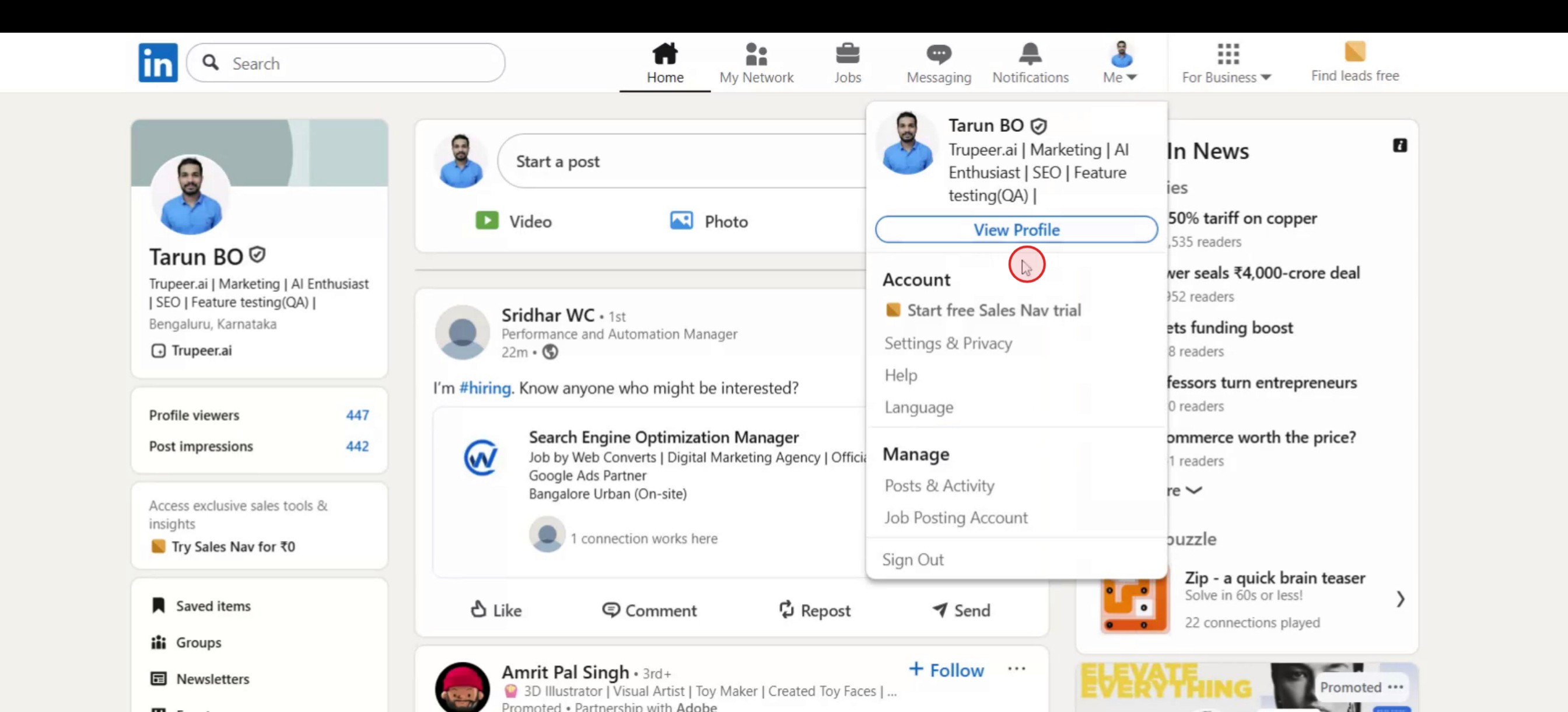
Step 1
Select the 'Profile' option.

Step 2
Then select view profile,
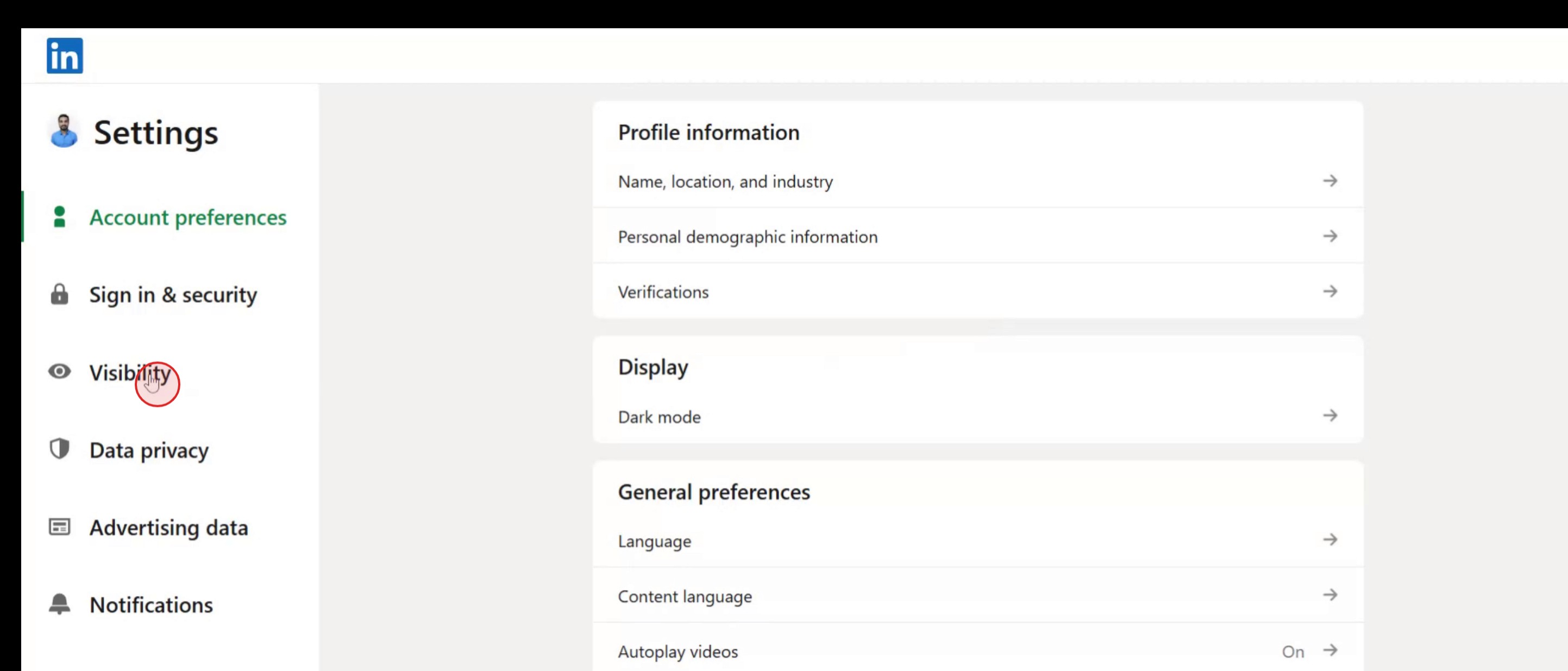
Step 3
Select the 'Visibility' option.
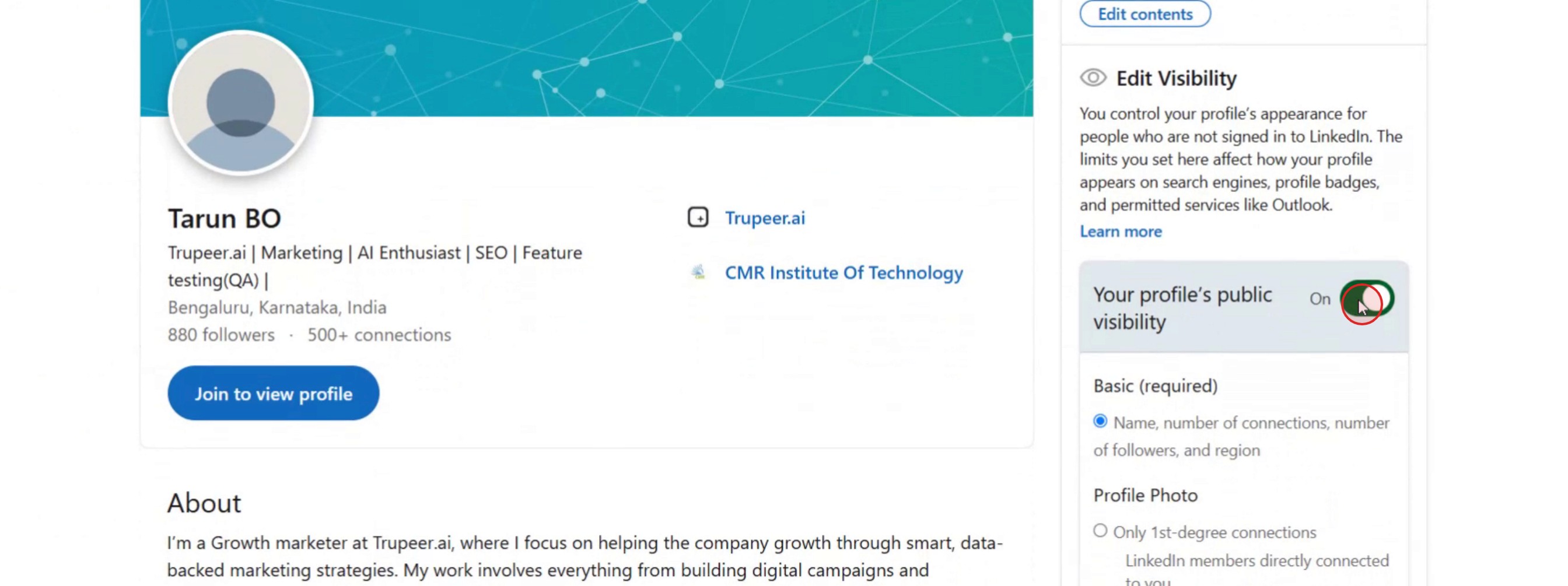
Step 4
Click on 'Edit your public profile' to proceed.

Step 5
Choose the 'Your public profile visibility' option and toggle it off to make your profile private.
Pro Tips for Making Your LinkedIn Profile Private
Log In to Your LinkedIn Account
Visit linkedin.com and log in using your email and password.Click on Your Profile Icon
In the top-right corner of the screen, click your profile photo and select “Settings & Privacy” from the dropdown menu.Go to the Visibility Section
In the left-hand sidebar of the Settings page, click on “Visibility” to access privacy-related controls.Edit 'Profile Viewing Options'
Under “Visibility of your profile & network,” click “Profile viewing options.” Here you can choose to browse in private mode.Enable Private Mode
Select “Private mode” to view other profiles without revealing your name or headline.Control Your Public Profile Settings
Under “Edit your public profile,” you can customize what information is visible to non-logged-in users or search engines.Adjust Who Can See Your Connections
In the same Visibility section, choose whether your connections are visible to others or only to you.
Common Pitfalls and How to Avoid Them
Confusing Private Mode with Profile Privacy
Private mode hides your identity while viewing others' profiles. It doesn’t make your entire profile private. Use public profile settings for that.Not Saving Changes
After editing visibility settings, make sure to save or apply changes to confirm the update.Limited Functionality in Private Mode
When you browse in private mode, you won’t be able to see who viewed your profile either.Changes Not Showing Immediately
Some changes may take a few minutes to reflect. Refresh your profile to verify the update.Public Profile Still Showing in Google Search
If search engines have already indexed your public profile, it may take time to disappear even after you hide it.
Common FAQs About Making a LinkedIn Profile Private
How do I make my LinkedIn profile private?
Go to Settings & Privacy, select Visibility, and adjust your public profile settings and profile viewing mode.What is Private Mode on LinkedIn?
Private mode lets you view other profiles without them knowing who you are.Can I hide my profile from search engines?
Yes, under public profile settings, turn off the visibility toggle for search engines.Will my current connections still see my profile?
Yes, unless you adjust individual visibility settings, your connections can still view your profile details.Can I completely hide my LinkedIn profile?
You cannot completely hide it from logged-in users, but you can significantly limit what others see by adjusting visibility settings.How to screen record on mac?
To screen record on a Mac, you can use Trupeer AI. It allows you to capture the entire screen and provides AI capabilities such as adding AI avatars, add voiceover, add zoom in and out in the video. With trupeer’s AI video translation feature, you can translate the video into 30+ languages.How to add an AI avatar to screen recording?
To add an AI avatar to a screen recording, you'll need to use an AI screen recording tool. Trupeer AI is an AI screen recording tool, which helps you create videos with multiple avatars, also helps you in creating your own avatar for the video.How to screen record on windows?
To screen record on Windows, you can use the built-in Game Bar (Windows + G) or advanced AI tool like Trupeer AI for more advanced features such as AI avatars, voiceover, translation etc.How to add voiceover to video?
To add voiceover to videos, download trupeer ai chrome extension. Once signed up, upload your video with voice, choose the desired voiceover from trupeer and export your edited video.How do I Zoom in on a screen recording?
To zoom in during a screen recording, use the zoom effects in Trupeer AI which allows you to zoom in and out at specific moments, enhancing the visual impact of your video content.
관련 튜토리얼


