
Cara Mengunggah Gambar ke ChatGPT
Pelajari cara mengunggah gambar ke ChatGPT dan mendapatkan wawasan dari visual. Panduan langkah demi langkah untuk mengirim gambar dalam percakapan Anda dan mendapatkan bantuan berbasis gambar.
This document provides a step-by-step guide to uploading an image to ChatGPT.
You will learn how to attach an image from your computer or Google Drive, and how to prompt ChatGPT for further interaction with the uploaded image.
You can upload images to ChatGPT using mobile, web, desktop apps, or even the API. Here's how:
1. Mobile App
Open the ChatGPT app and log in.
Tap the plus (+) icon in the message bar.
Choose to upload a photo or take a new one.
Optionally, annotate or circle parts of the image.
Tap Next, add your text prompt, then tap Send.
2. Web Interface
Open chat.openai.com.
In the message bar, click the paperclip icon.
Select and upload an image from your computer.
Add your prompt and click Send.
3. macOS App
Open the ChatGPT Mac app.
Click the plus (+) icon in the message input area.
Choose Upload file (from your system) or Take photo (using your webcam).
Add your prompt and send.
4. API (Developers)
Use the API to upload an image by:
Providing an image URL,
Sending a base64-encoded image,
Using a file ID from OpenAI storage.
Combine it with a text prompt in your API call.
Step-by-Step Guide: How To Upload Image To ChatGPT
Step 1
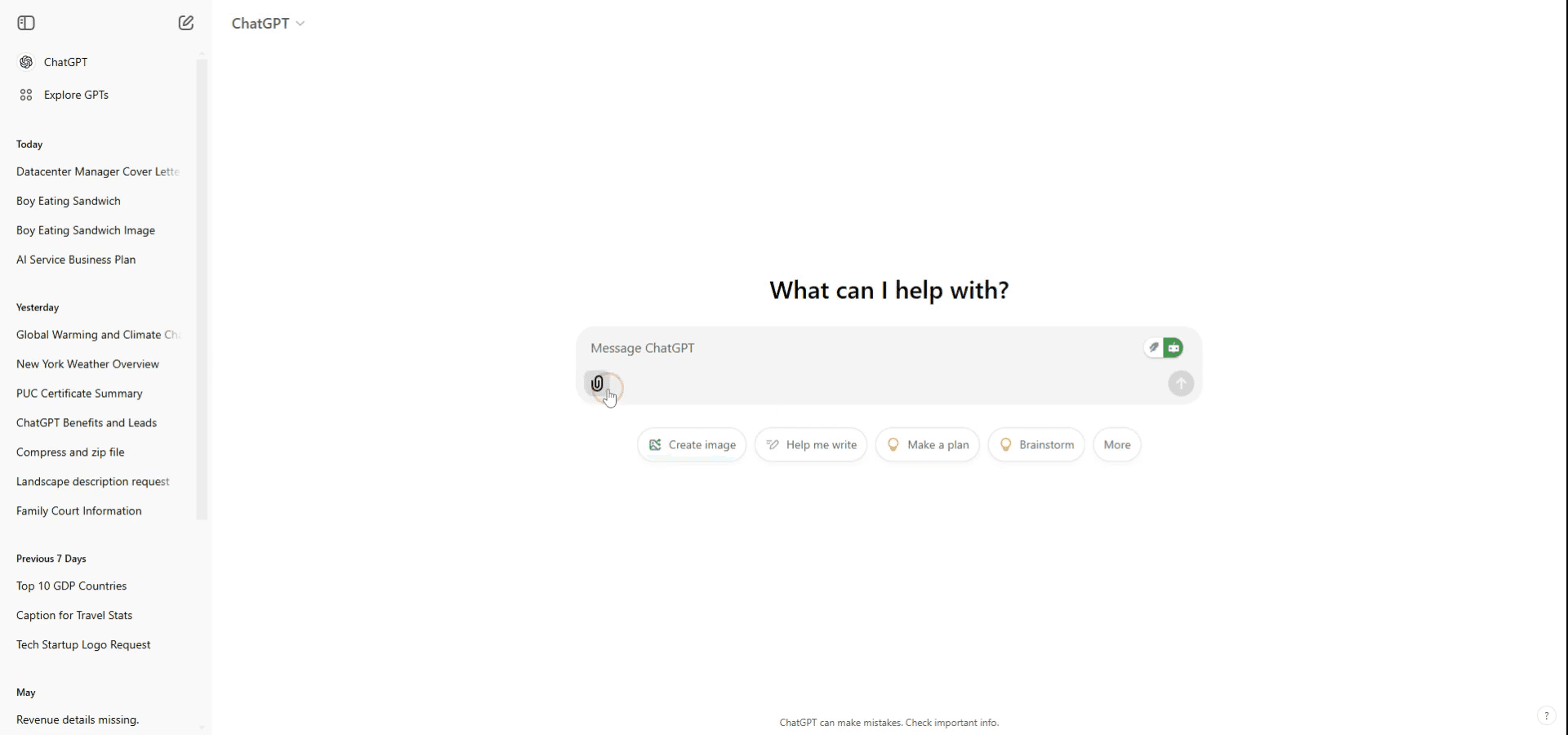
To upload an image to ChatGPT, click on the attach button located on the chat box. From there, you have the option to add your picture from Google Drive or other sources.
Step 2
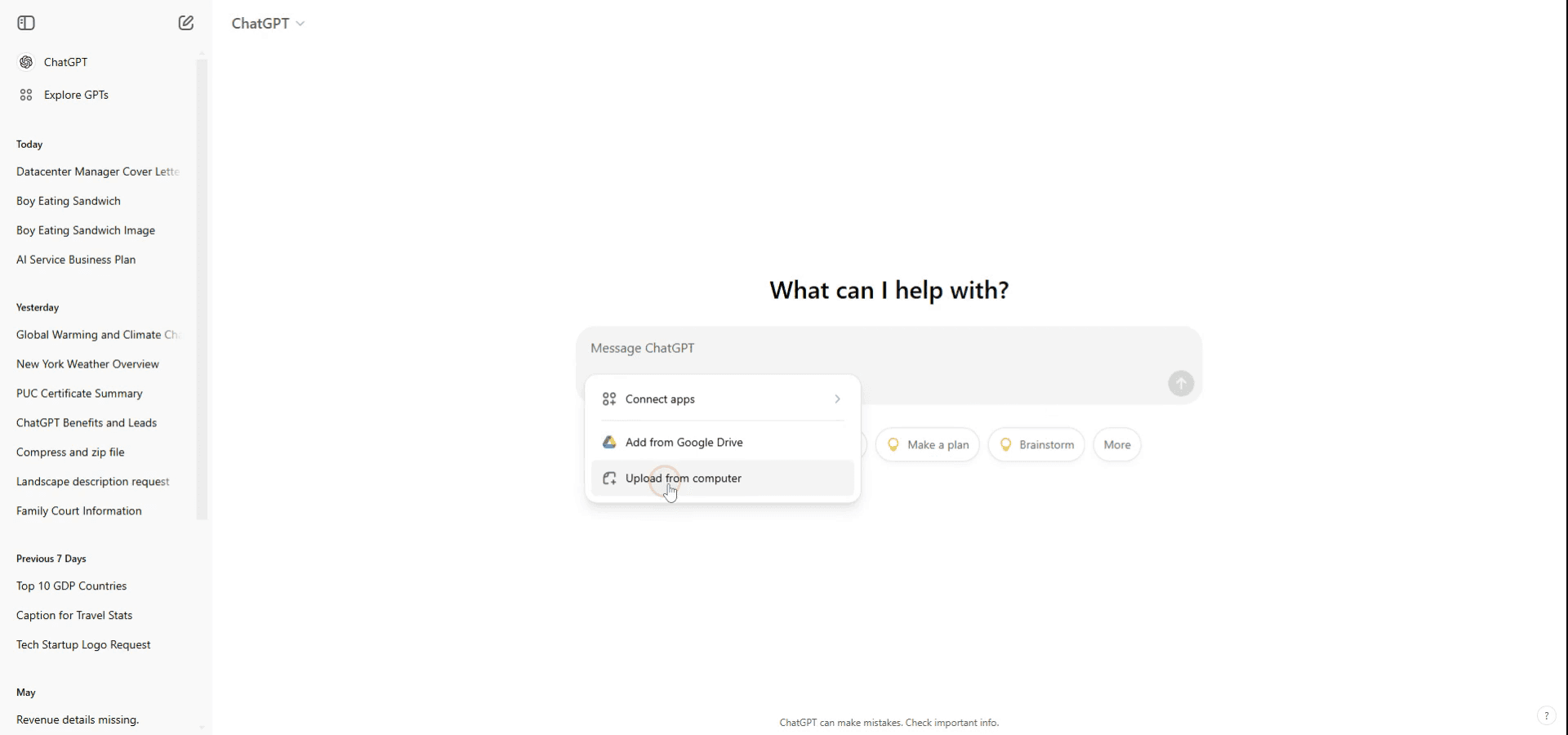
Alternatively, you can upload an image from your computer. In this example, we will upload an image from the computer. Navigate to the image on your device and click on it.
Step 3
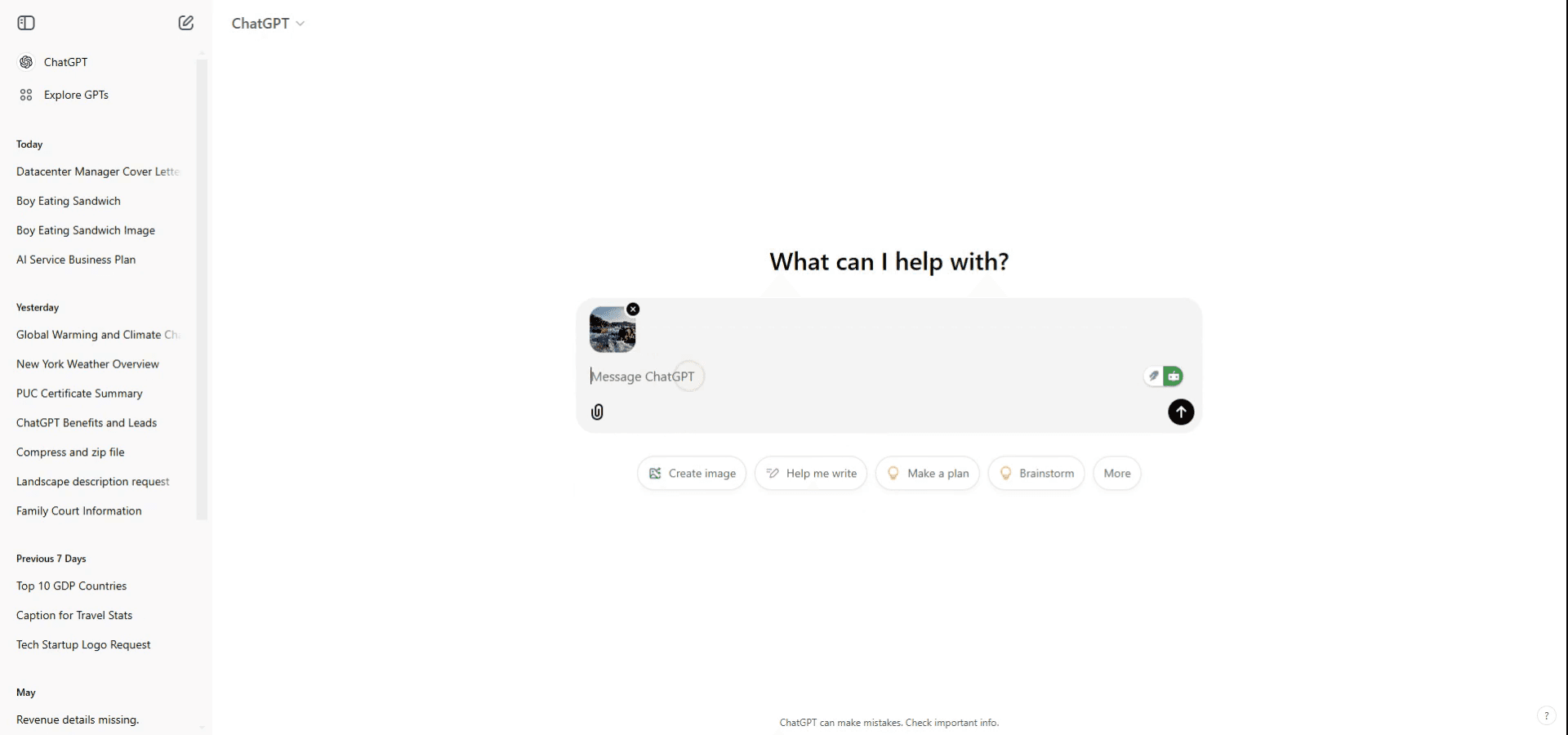
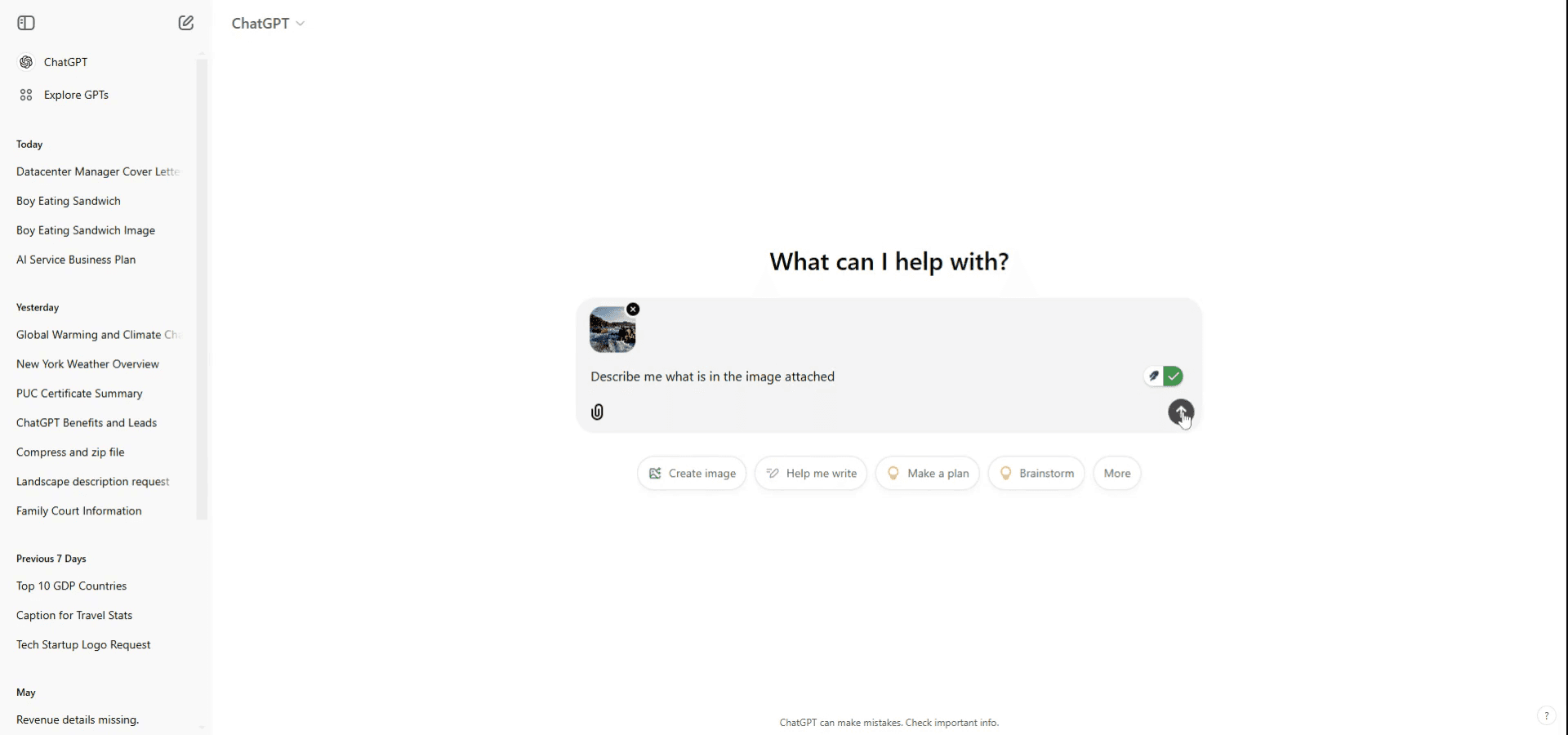
Click on the upload button. The file will now be successfully attached to your ChatGPT conversation.
Step 4
Use a prompt to specify what you wish to do with the image. For example, you might say, "Describe the image attached." ChatGPT will then analyze and describe the image based on your request.
Pro tips untuk mengunggah gambar ke ChatGPT
Pastikan Gambar Dapat Diakses: Sebelum mengunggah, pastikan gambar tersimpan di perangkat Anda atau dapat diakses melalui URL.
Gunakan Platform yang Tepat: Mengunggah gambar ke ChatGPT hanya dapat dilakukan di platform yang mendukung fitur ini, seperti aplikasi tertentu atau situs web yang terintegrasi dengan kemampuan unggah gambar ChatGPT.
Berikan Konteks: Berikan deskripsi singkat atau konteks tentang gambar agar ChatGPT dapat membantu Anda dengan lebih baik untuk gambar yang Anda unggah.
Kesalahan umum dan cara menghindarinya saat mengunggah gambar ke ChatGPT
Keterbatasan Platform: Tidak semua platform atau versi ChatGPT mengizinkan unggah gambar.
Pastikan Anda menggunakan platform atau antarmuka yang mendukung kemampuan input gambar.Masalah Ukuran File: Mengunggah gambar yang terlalu besar dapat menyebabkan error saat unggah.
Ubah ukuran gambar jika perlu untuk mengurangi ukuran file sebelum mengunggah.Kurangnya Konteks: Mengunggah gambar tanpa menjelaskan apa yang Anda cari dapat menghasilkan respons yang umum atau tidak membantu.
Selalu sertakan penjelasan yang jelas tentang bantuan apa yang Anda butuhkan bersama gambar Anda.
FAQ Umum untuk mengunggah gambar ke ChatGPT
Bagaimana cara mengunggah gambar ke ChatGPT?
Bergantung pada platform yang Anda gunakan, Anda dapat mengklik tombol unggah atau menyeret dan menjatuhkan gambar ke kotak obrolan.Bisakah ChatGPT menginterpretasikan gambar?
Ya, ChatGPT dapat membantu menganalisis atau mendeskripsikan gambar saat diunggah ke platform yang didukung.Jenis gambar apa yang bisa saya unggah?
Kebanyakan platform yang mendukung unggah gambar memungkinkan format umum seperti JPEG, PNG, dan GIF.Cara screen record di mac?
Untuk screen record di Mac, Anda dapat menggunakan Trupeer AI. Ini memungkinkan Anda menangkap seluruh layar dan menyediakan kemampuan AI seperti menambahkan avatar AI, menambahkan voiceover, menambahkan zoom in dan out di video. Dengan fitur terjemahan video AI dari trupeer, Anda dapat menerjemahkan video ke 30+ bahasa.Cara menambahkan avatar AI ke screen recording?
Untuk menambahkan avatar AI ke screen recording, Anda perlu menggunakan alat screen recording AI. Trupeer AI adalah alat screen recording berbasis AI yang membantu Anda membuat video dengan beberapa avatar, serta membantu Anda membuat avatar Anda sendiri untuk video tersebut.Cara screen record di windows?
Untuk screen record di Windows, Anda dapat menggunakan Game Bar bawaan (Windows + G) atau alat AI canggih seperti Trupeer AI untuk fitur yang lebih lanjut seperti avatar AI, voiceover, terjemahan, dll.Cara menambahkan voiceover ke video?
Untuk menambahkan voiceover ke video, unduh ekstensi chrome trupeer ai. Setelah mendaftar, unggah video Anda dengan suara, pilih voiceover yang diinginkan dari trupeer, lalu ekspor video Anda yang sudah diedit.Bagaimana cara melakukan Zoom pada screen recording?
Untuk melakukan zoom saat screen recording, gunakan efek zoom di Trupeer AI yang memungkinkan Anda melakukan zoom in dan out pada momen-momen tertentu, sehingga meningkatkan dampak visual konten video Anda.
Bacaan yang Disarankan
Technical Documentation Generator
Cara Mengubah Gambar Menjadi Halaman Mewarnai di Canva
Cara Mencetak Dua Sisi di Canva
Cara Meregangkan Teks di Canva
Tutorial Terkait



