

Jak vytvořit odkaz v Microsoft Teams
Zjistěte, jak vložit odkaz do textu v chatech nebo kanálech Microsoft Teams pomocí nabídky Formát a možnosti Vložit odkaz. Postupujte podle tohoto rychlého návodu a vytvořte si workflow průvodce pomocí Trupeer.
Using the Formatting Menu
Type and Select: In the chat or channel message box, type the text you want to be clickable.
Select Text: Highlight the text you wish to turn into a hyperlink.
Insert Link: Select the "Format" button (an "A" with a pencil) below the message box, then choose "Insert link".
Enter Details: A dialog box will appear. Enter the text you want to display and the URL in the "Address" field.
Insert: Click "Insert" to apply the hyperlink.
Step-by-Step Guide: How to Hyperlink in Teams
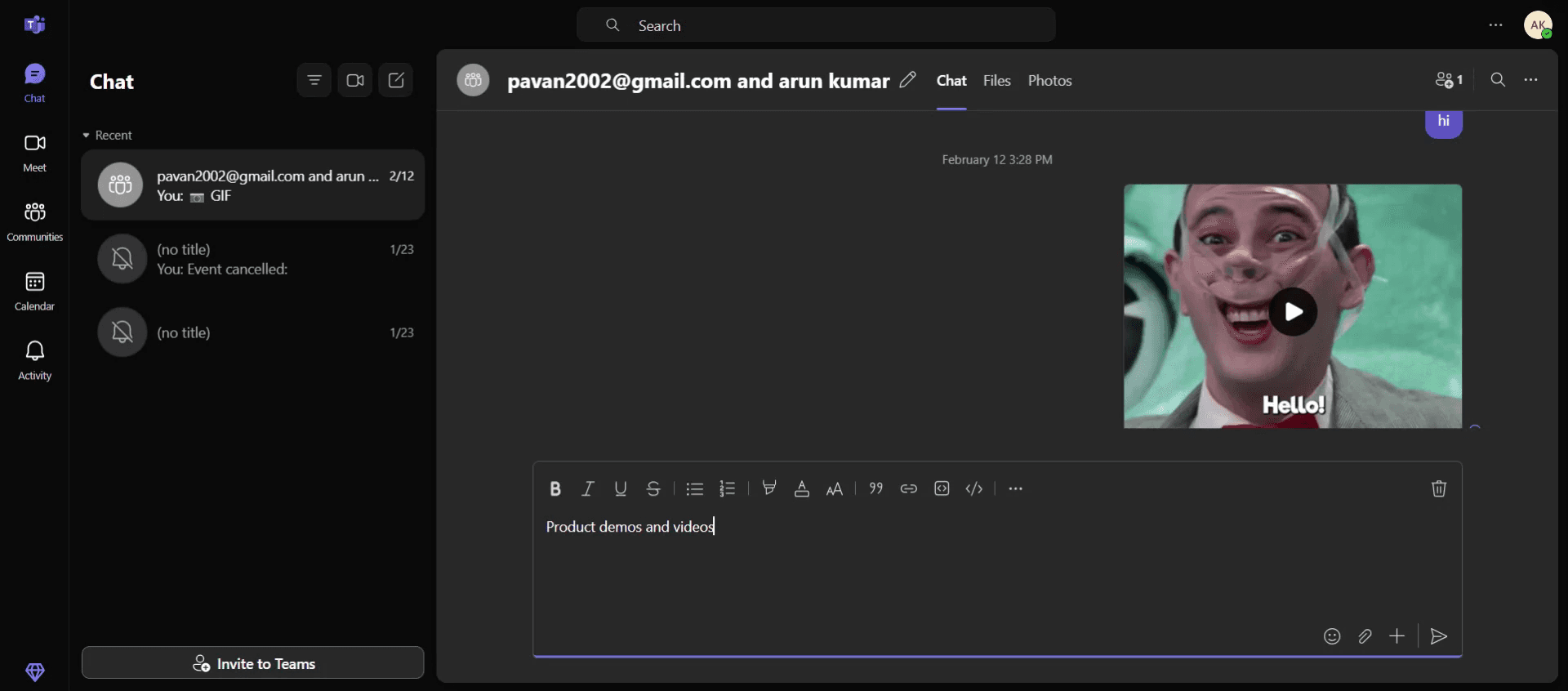
Step 1
Begin by typing or entering the desired text in the message console of Microsoft Teams. Once the text is entered, the formatting menu will appear.
Step 2
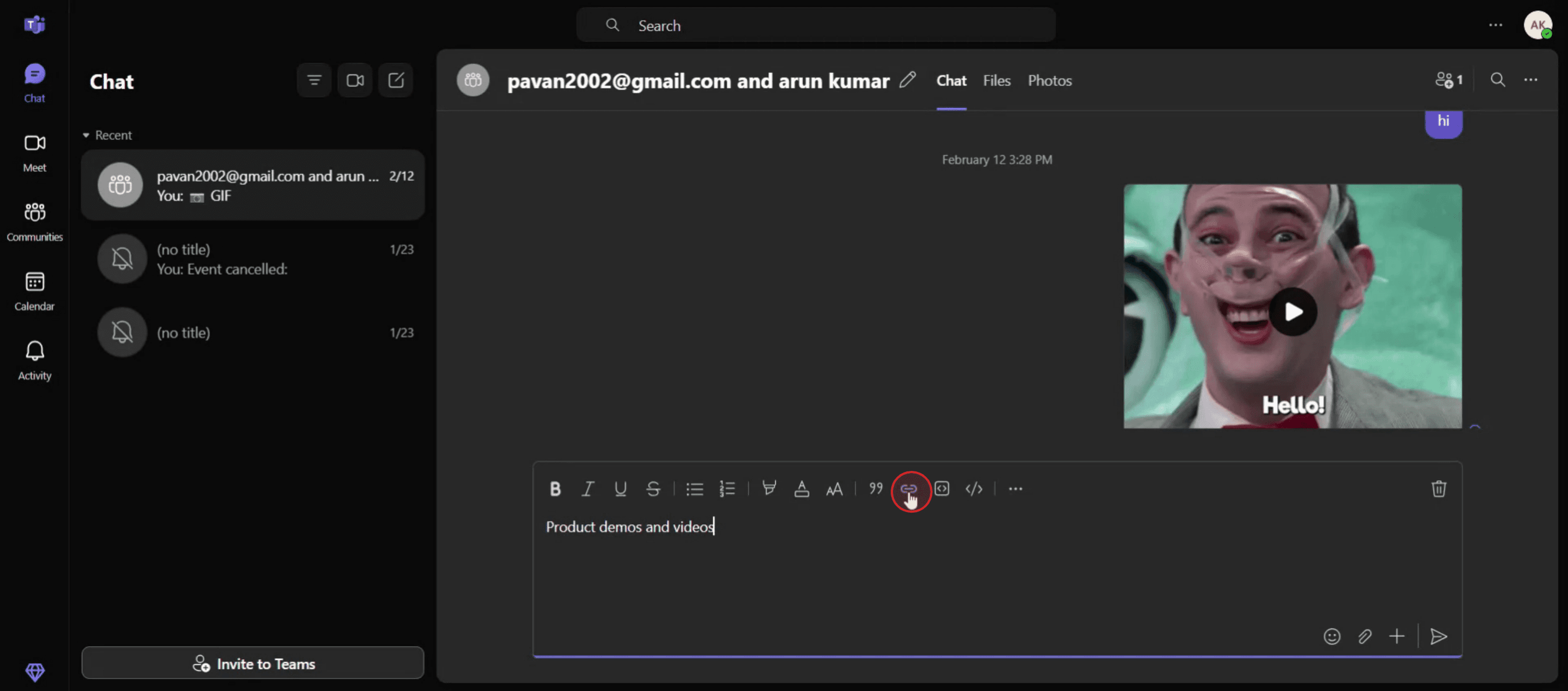
Proceed to click on the "Insert Link" option within the formatting menu.
Step 3
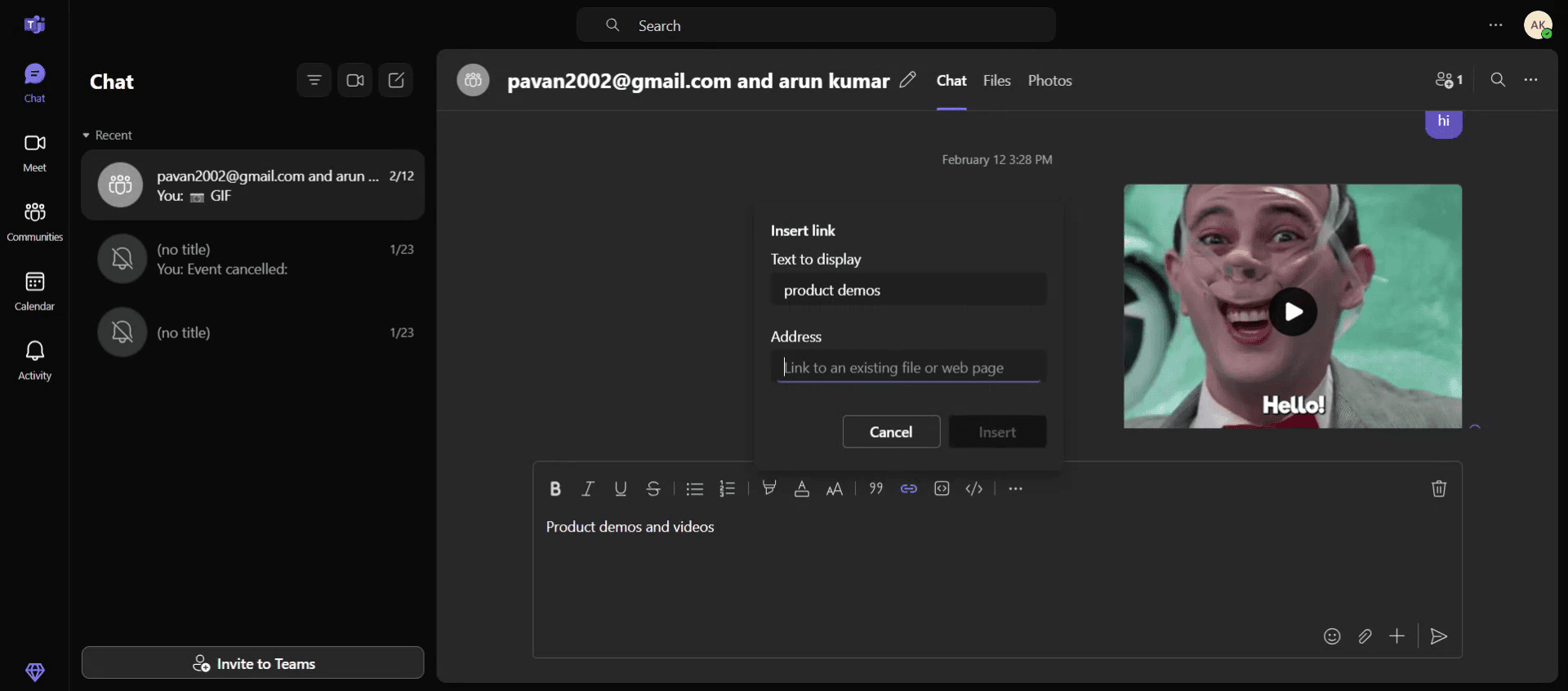
Enter the text you wish to hyperlink in the designated field. In the address bar, copy and paste the desired URL.
Step 4
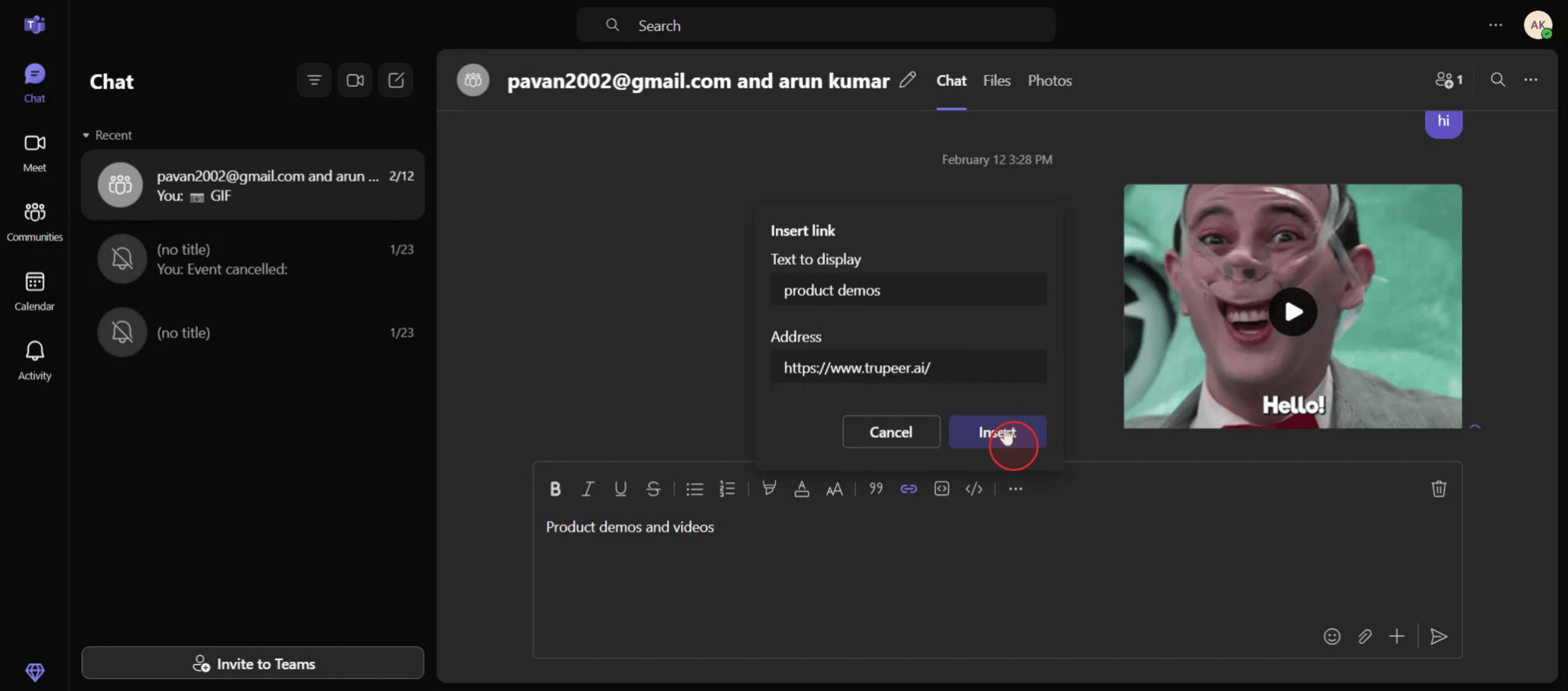
After entering the necessary details, click on the "Insert" button to apply the hyperlink.
Step 5
The text is now successfully hyperlinked to the specified URL.

Pro Tips for Hyperlinking in Microsoft Teams
Open the Teams Chat or Channel
Start by navigating to the chat or channel where you want to share your hyperlink.Type or Paste Your Text
Write the message or text where you’d like to embed the hyperlink. For example, you can type something like "Click here for details."Highlight the Text to Hyperlink
Use your mouse or keyboard to select the portion of text you want to turn into a clickable link.Open the Format Menu
Click on the Format icon (the "A" with a paintbrush below the message box) to open additional formatting options.Click the Link Icon
In the formatting toolbar, click the chain-link (Insert link) icon. This opens a small popup where you can add a hyperlink.
Common Pitfalls and How to Avoid Them
Insert Link Option Not Showing
If you don’t see the link icon, make sure you’ve clicked the Format button first. The option only appears in the expanded editor.Link Not Working After Sending
Double-check that you’ve copied the full URL, including "https://" at the beginning. Without it, the link might not open properly.Hyperlinking Incorrect Text
Be sure to highlight only the portion of the message you want linked. If nothing is selected, Teams may not allow the insert.Formatting Panel Not Available in Mobile
The desktop app offers more hyperlink formatting tools than the mobile version. For complex formatting, use Teams on a computer.Overusing Long URLs
Instead of posting raw URLs, hyperlink clean, descriptive text to keep messages readable and professional.
Nejčastější dotazy k vytváření odkazů v Microsoft Teams
Mohu v zprávách v Teams vložit odkaz do textu?
Ano, můžete použít nabídku Formát a vložit odkaz na vybraný text.Jak vytvořit klikací odkaz bez nástrojů pro formátování?
Vložte celou adresu URL (začínající na https://) přímo do zprávy. Teams ji automaticky učiní klikací.Mohu přidat více odkazů v jedné zprávě?
Ano, použijte nástroj Formát a vložte do jedné zprávy několik odkazů.Proč nejde vložit odkaz na mobilu?
Mobilní aplikace má omezené možnosti formátování. Použijte verzi pro počítač a vložte odkazy založené na textu.Jak upravit odkaz po jeho vložení?
Klikněte znovu na ikonu Formát, vyberte text s odkazem, klikněte na ikonu odkazu a proveďte změny.Jak udělat záznam obrazovky na mac?
Pro záznam obrazovky na Macu můžete použít Trupeer AI. Umožňuje zachytit celou obrazovku a poskytuje funkce AI, jako je přidání AI avatarů, přidání hlasového komentáře, přidání zoomu dovnitř a ven ve videu. Díky funkci AI překladu videa od trupeer můžete video přeložit do 30+ jazyků.Jak přidat AI avatara do záznamu obrazovky?
Chcete-li do záznamu obrazovky přidat AI avatara, budete muset použít nástroj pro záznam obrazovky s AI. Trupeer AI je nástroj pro záznam obrazovky s umělou inteligencí, který vám pomůže vytvářet videa s více avatary a také vám pomůže vytvořit si vlastního avatara pro video.Jak udělat záznam obrazovky ve Windows?
Pro záznam obrazovky ve Windows můžete použít vestavěný panel Hra (Windows + G) nebo pokročilý nástroj s AI, jako je Trupeer AI, pro pokročilejší funkce, jako jsou AI avatary, hlasový komentář, překlad atd.Jak přidat hlasový komentář do videa?
Chcete-li do videí přidat hlasový komentář, stáhněte si rozšíření trupeer ai pro Chrome. Po registraci nahrajte své video s hlasem, vyberte požadovaný hlasový komentář v trupeer a exportujte upravené video.Jak přiblížit záznam obrazovky?
Pro přiblížení během záznamu obrazovky použijte efekty přiblížení v Trupeer AI, které vám umožní přibližovat a oddalovat v konkrétních okamžicích a zvýraznit tak vizuální dopad vašeho videoobsahu.
Lidé se také ptají
Generátor technické dokumentace
Jak sdílet repozitář GitHubu prostřednictvím odkazu
Související tutoriály



