Trupeer Blog
تلخيص

تخيّل أن فريقك يعاني من تباين في تنفيذ العمليات، ما يؤدي إلى أخطاء مكلفة وأوجه قصور في الكفاءة. تدرك أن تعليماتك التقليدية المكتوبة لا تكفي بعد الآن. فهي تستغرق وقتًا طويلًا للقراءة وغالبًا تفتقر إلى الوضوح، ما يسبب ارتباكًا وأخطاء. الآن، تحتاج إلى حل سريع وبديهي. هنا يأتي دور تعليمات العمل المرئية، حيث تحوّل الإجراءات المعقدة إلى محتوى سهل الاستيعاب عبر لقطات شاشة يتم التقاطها تلقائيًا. بالنسبة إلى كيفية التقاط لقطة شاشة، غالبًا يكون من الأسهل تسجيل العملية مرة واحدة بدلًا من كتابتها بالكامل. ووفقًا لدراسة حديثة،
يمكن للتعليمات المرئية تقليل وقت إنجاز المهام بنسبة تصل إلى 50%.
لا يقتصر هذا النهج على تعزيز الفهم فحسب، بل يقلّل أيضًا هامش الخطأ. سيأخذك هذا المقال خطوة بخطوة إلى كيفية إنشاء مثل هذه التعليمات باستخدام تقنية حديثة. غالبًا ما تبدأ الفرق التي تقيّم الأدوات بمقارنة بدائل Loom قبل توحيد سير العمل.
لماذا تهم تعليمات العمل المرئية مع لقطات شاشة يتم التقاطها تلقائيًا؟
في مجال عمليات الأعمال، تُعد الكفاءة والوضوح في التواصل أمرًا بالغ الأهمية. تعالج تعليمات العمل المرئية مع لقطات شاشة يتم التقاطها تلقائيًا عدة نقاط ألم تواجهها العديد من المؤسسات. غالبًا ما تترك التعليمات التقليدية الثقيلة بالنص مساحة كبيرة لسوء الفهم، ما يؤدي إلى أخطاء مكلفة. وفي الصناعات التي تكون فيها الدقة عنصرًا حاسمًا، مثل التصنيع والرعاية الصحية وخدمات تقنية المعلومات، قد تكون عواقب هذه الأخطاء كبيرة. وهنا تصبح تعليمات العمل المرئية ضرورية.
تُبسّط تعليمات العمل المرئية المعلومات المعقدة، ما يجعل من السهل على الموظفين اتباع الإجراءات بدقة. ومن خلال دمج لقطات شاشة يتم التقاطها تلقائيًا، توفر هذه التعليمات سياقًا فوريًا ووضوحًا، ما يقلّل بشكل كبير احتمال حدوث الأخطاء. أفادت بعض الشركات بأن تضمين لقطات الشاشة في تعليماتها زاد دقة إنجاز المهام بأكثر من 30%. وتبرز أهمية هذه التعليمات من خلال قدرتها على ضمان نتائج متسقة عبر فرق ومواقع مختلفة، ما يؤدي إلى عمليات أكثر سلاسة وكفاءة أعلى. وفي الواقع، أصبحت هذه الطريقة الآن عنصرًا أساسيًا ضمن أي سير عمل للعمليات، لضمان فهم العمليات وتنفيذها بدقة وبدون تعثر.
ما فوائد تعليمات العمل المرئية مع لقطات شاشة يتم التقاطها تلقائيًا؟
توفر تعليمات العمل المرئية مجموعة من الفوائد المقنعة التي يمكن أن تحوّل عمليات عملك. إليك بعض المزايا الرئيسية:
تحسين الفهم. تُشرك التعليمات المرئية الدماغ بشكل أكثر فعالية من النص، ما يؤدي إلى فهم أسرع وأفضل. ويمكن أن يقلل ذلك وقت التدريب بنسبة تصل إلى 60%.
تعزيز الدقة. من خلال تقديم مؤشرات بصرية واضحة، تقل احتمالية حدوث الأخطاء، ما يعزز دقة تنفيذ المهام. وفي صناعات مثل التصنيع، قد يؤدي ذلك إلى انخفاض بنسبة 25% في أخطاء الإنتاج.
زيادة الاحتفاظ بالمعلومة. تُظهر الدراسات أن الأشخاص يتذكرون 80% مما يرونه ويفعلونه، مقارنةً بـ 20% فقط مما يقرؤونه. وهذا يعني أن فريقك من المرجح أن يحتفظ بالمعلومات، ما يؤدي إلى أداء أكثر اتساقًا.
توفير الوقت. توفر لقطات الشاشة التي يتم التقاطها تلقائيًا وقتًا عبر إلغاء الحاجة إلى إنشاء وسائل بصرية يدويًا. ويمكن أن يقلل ذلك الوقت المستغرق في إعداد التوثيق بنسبة 40%، ما يحرر الموارد لمهام أخرى.
توحيد العمليات. تساعد تعليمات العمل المرئية على ضمان اتباع الجميع لنفس العملية، ما يقلل التباين ويزيد الكفاءة. ويعد هذا التوحيد أمرًا حاسمًا عندما تُعد دليل مستخدم لموظفين جدد أو لفرق متعددة التخصصات.
تدريب قابل للتوسع. يمكن توسيع هذه التعليمات بسهولة عبر الأقسام، ما يجعل التدريب أكثر كفاءة وأقل استهلاكًا للموارد. ويمكن أن يساعد استخدام أداة فيديو مدعومة بالذكاء الاصطناعي في تعزيز قابلية التوسع عبر تقديم محتوى ديناميكي وجذاب.
ما ميزات Trupeer التي تساعدك على إنشاء تعليمات عمل مرئية مع لقطات شاشة يتم التقاطها تلقائيًا؟
تقدم Trupeer مجموعة من الميزات المصممة لتبسيط إنشاء تعليمات العمل المرئية. إليك كيف يمكن أن تساعدك:
تسجيل شاشة بالذكاء الاصطناعي مع تكبير تلقائي واكتشاف النقر
تلتقط هذه الميزة أنشطة شاشتك بسلاسة، مع إبراز الإجراءات المهمة عبر تكبير تلقائي واكتشاف النقر. يمكنك إنشاء تعليمات بصرية دقيقة دون تدخل يدوي. وتكون هذه الميزة مفيدة بشكل خاص لتدريب البرامج المعقدة حيث يكون لكل نقرة أهمية. يضمن خيار التكبير التلقائي أن يتمكن المستخدمون من التركيز على الأجزاء الحرجة من الشاشة، ما يعزز الوضوح ويقلل الأخطاء. وهي عنصر أساسي ضمن منصة توثيق الذكاء الاصطناعي من Trupeer، ما يبسط عملية إنشاء أدلة شاملة.
إنشاء SOP تلقائيًا من أي تسجيل
باستخدام Trupeer، يمكنك إنشاء إجراءات تشغيل قياسية (SOPs) تلقائيًا من التسجيلات. تحوّل هذه الميزة محتوى الفيديو لديك إلى مستندات جاهزة للتعديل، ما يبسط عملية التوثيق. وهي مثالية للفرق التي تحتاج إلى إبقاء SOPs محدثة بانتظام. لا تكون المستندات المُنشأة دقيقة فحسب، بل قابلة للتعديل أيضًا، ما يتيح لك إجراء التعديلات اللازمة بسرعة. وتعد هذه الإمكانية جزءًا لا يتجزأ من أداة مولد تعليمات العمل، ما يضمن أن تكون SOPs لديك دائمًا حديثة وموثوقة.
تعليق صوتي بالذكاء الاصطناعي بأكثر من 65 صوتًا طبيعيًا
يصبح إنشاء محتوى جذاب وسهل الوصول إليه أسهل مع ميزة التعليق الصوتي بالذكاء الاصطناعي من Trupeer. تتيح لك إضافة سرد إلى تعليمات العمل المرئية، ما يجعلها أكثر تفاعلية وأسهل في المتابعة. يمكنك الاختيار من بين أكثر من 65 صوتًا طبيعيًا، مع ضبط السرعة والنبرة بما يناسب جمهورك. وتكون هذه الميزة مفيدة بشكل خاص للفرق التي تعمل عالميًا، لأنها تدعم لغات متعددة، ما يعزز إمكانية الوصول والشمول. كما تكمل قاعدة المعرفة القابلة للبحث عبر الذكاء الاصطناعي من حيث الوظائف، عبر تقديم محتوى غني ومتعدد اللغات.
توثيق يتم تحديثه تلقائيًا مرتبط بالتسجيل الأساسي
تضمن الإمكانية الفريدة في Trupeer لتحديث التوثيق تلقائيًا أن تعكس تعليمات العمل المرئية لديك دائمًا أحدث العمليات. كلما قمت بتحديث التسجيل، تتكيف الوثائق المرتبطة تلقائيًا. وتعد هذه الميزة ضرورية للحفاظ على الدقة والاتساق عبر جميع موادك التعليمية. فهي تلغي عناء تحديث المستندات يدويًا، ما يوفر الوقت ويقلل احتمالية حدوث أخطاء. وباعتبارها جزءًا من مولد التوثيق لديهم، تضمن هذه الميزة أن يكون لدى فريقك دائمًا أحدث المعلومات.
تحليلات تفاعل المشاهدين، ومعدلات التوقف، وخرائط الحرارة
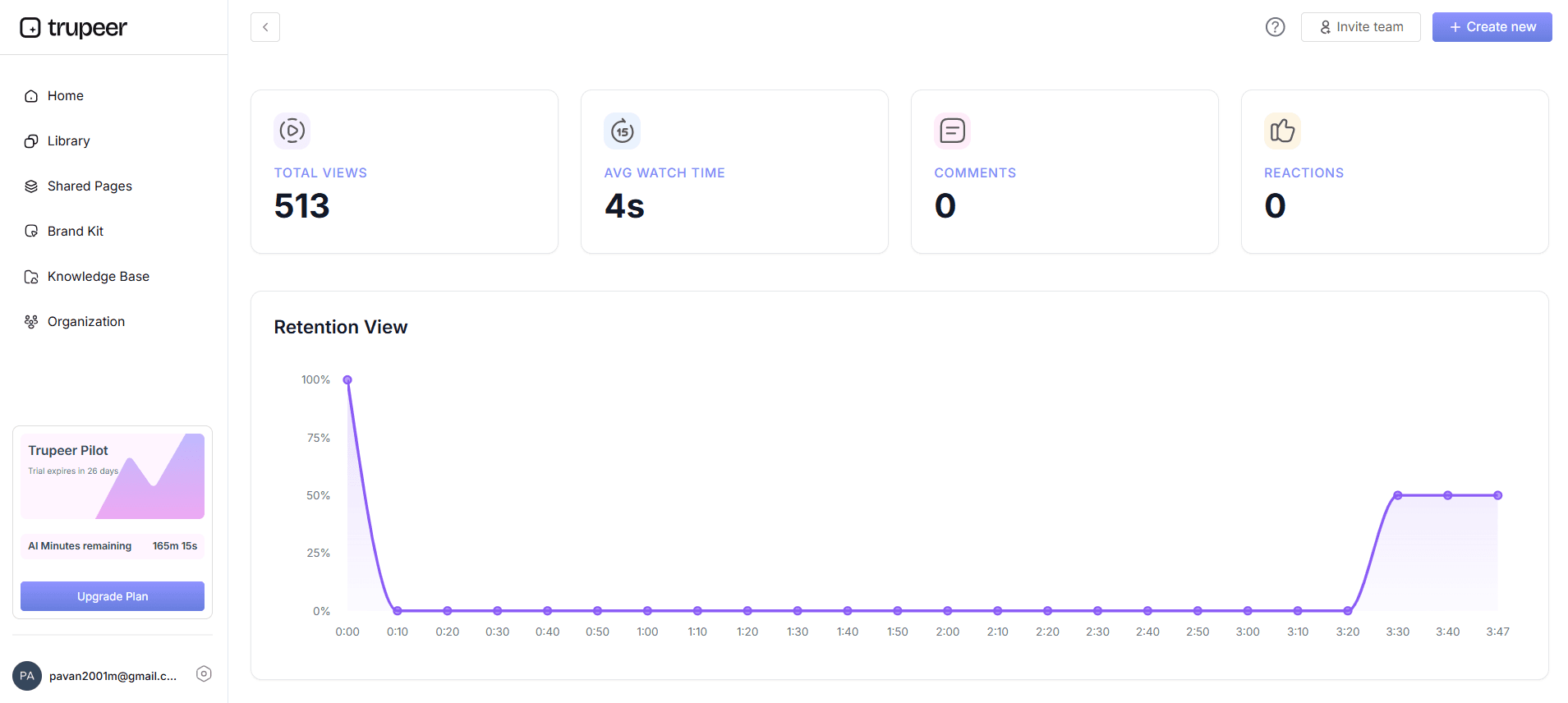
يعد فهم كيفية تفاعل فريقك مع تعليمات العمل المرئية أمرًا بالغ الأهمية للتحسين المستمر. توفر Trupeer تحليلات تفصيلية، بما في ذلك مقاييس تفاعل المشاهدين ومعدلات التوقف وخرائط الحرارة. تساعد هذه البيانات على تحديد الأجزاء الأكثر فعالية من التعليمات، وأين قد يواجه المستخدمون تحديات. ومن خلال تحليل هذه المعلومات، يمكنك تحسين تعليماتك وتطويرها لتحقيق وضوح وفعالية أفضل. وتعد هذه الرؤى ضرورية لأي مولد تعليمات عمل يهدف إلى تعزيز تجربة المستخدم وكفاءة العمليات.
كيف تنشئ تعليمات عمل مرئية مع لقطات شاشة يتم التقاطها تلقائيًا خطوة بخطوة باستخدام Trupeer؟
الخطوة 1: إعداد تسجيل الشاشة
ابدأ بإطلاق مسجل Trupeer المعتمد على المتصفح. لا يتطلب هذا الأداة أي تثبيت، ما يجعل الوصول إليها سهلًا من أي جهاز كمبيوتر متصل بالإنترنت. انقر على زر "Start Recording" لبدء التقاط الشاشة. سيقوم تسجيل الشاشة بالذكاء الاصطناعي من Trupeer مع التكبير التلقائي واكتشاف النقر بإبراز الإجراءات الرئيسية تلقائيًا أثناء الجلسة. يضمن ذلك التقاط جميع الخطوات الحرجة بوضوح دون أي مجهود يدوي. بعد الانتهاء من عرض المهمة، انقر على "Stop Recording". تستغرق العملية بالكامل عادةً نفس مدة المهمة تقريبًا، مع احتياج الإعداد والإنهاء إلى بضع دقائق إضافية فقط. وللاطلاع على نظرة أعمق، يغطي دليلنا حول create guide خطة العمل المرافقة.

الخطوة 2: إنشاء تعليمات عمل مرئية
بعد التسجيل، استخدم ميزة إنشاء SOP تلقائيًا من Trupeer. انتقل إلى لوحة التحكم وحدد الجلسة المسجلة. اختر خيار "Generate SOP". ستقوم Trupeer بتحويل تسجيلك تلقائيًا إلى مجموعة مفصلة من تعليمات العمل المرئية، مع لقطات شاشة ووصف لكل خطوة. تستغرق هذه العملية عادةً من بضع ثوانٍ إلى دقيقة واحدة، حسب طول التسجيل. يقوم النظام بتقسيم الفيديو بشكل ذكي، لضمان التقاط كل خطوة إجرائية ووصفها بشكل واضح.
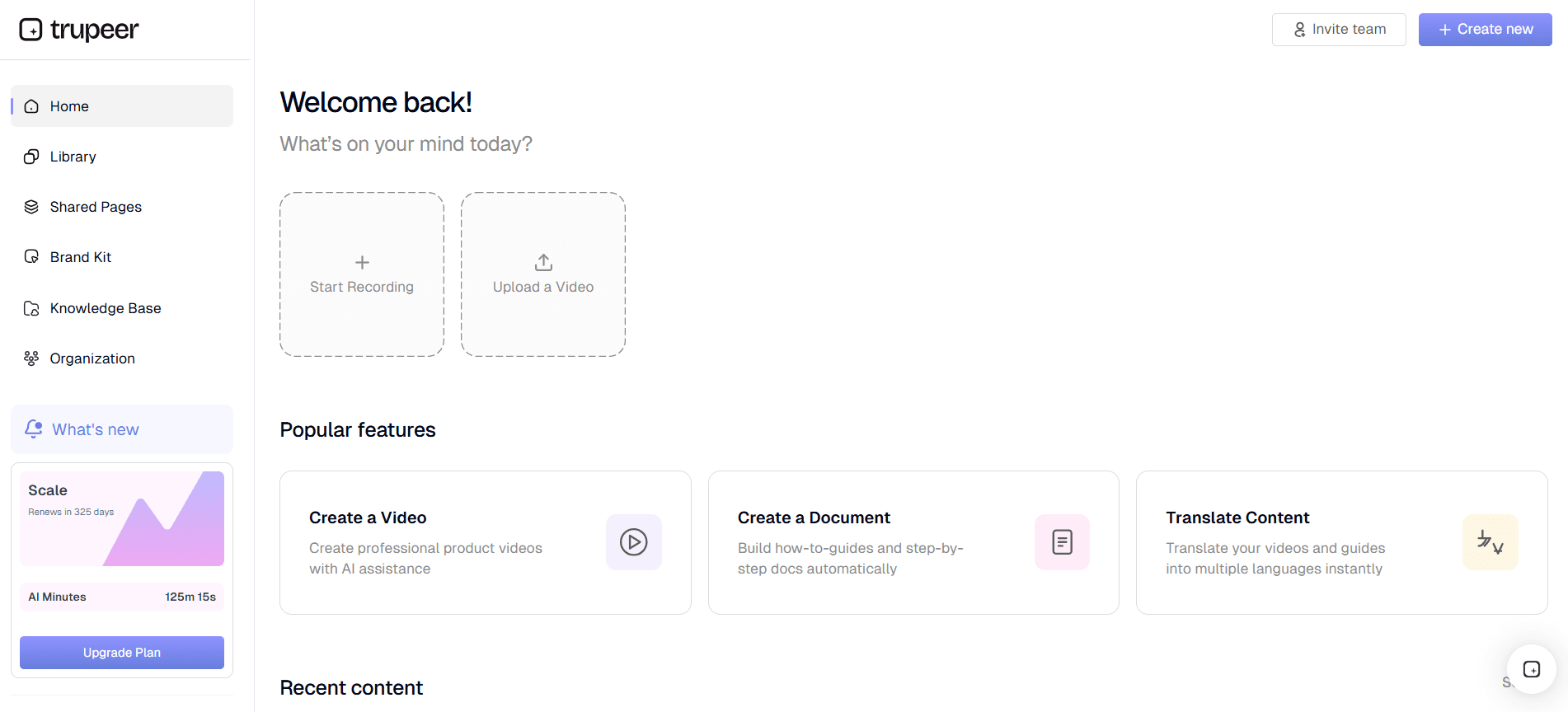
الخطوة 3: تعديل التعليمات وتحسينها
بعد إنشاء SOP، يمكنك تحسينه أكثر باستخدام ميزات التحرير في Trupeer. انقر على "Edit" للوصول إلى أدوات تتيح إزالة الكلمات الحشو أو إضافة تعليقات صوتية يتم توليدها بالذكاء الاصطناعي. تكون هذه الخطوة مفيدة بشكل خاص إذا كنت ترغب في ضبط سرعة أو نبرة التعليمات. يمكن اختيار التعليق الصوتي بالذكاء الاصطناعي من Trupeer بأكثر من 65 صوتًا طبيعيًا هنا، ما يتيح تخصيصًا يناسب شرائح مختلفة. تتيح مرحلة التحرير تخصيص المحتوى وتضمن أن تكون التعليمات واضحة وجذابة.
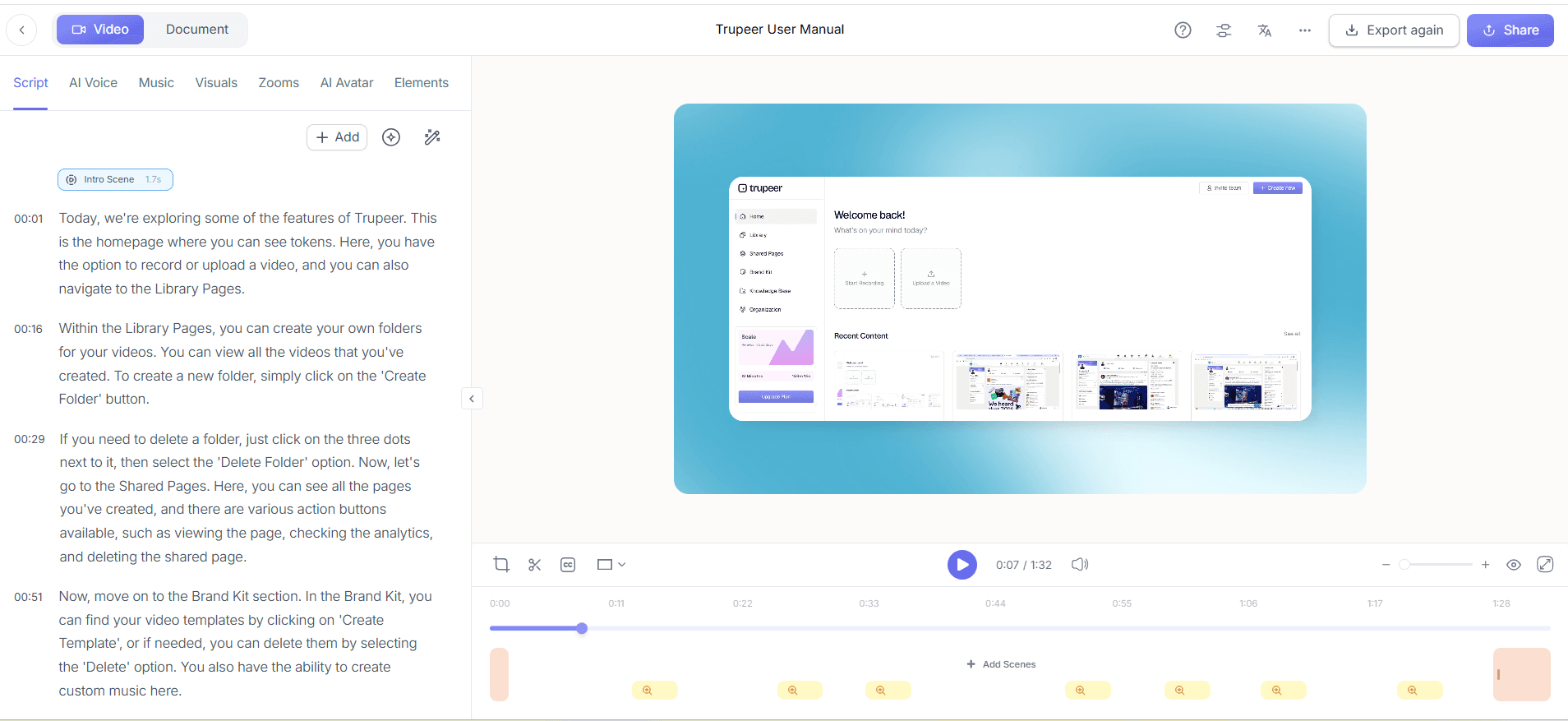
الخطوة 4: تكييف المحتوى للفرق العالمية
بالنسبة للفرق التي تعمل في مناطق متعددة، يُعد تكييف تعليمات العمل أمرًا بالغ الأهمية. استخدم قدرات الترجمة بالذكاء الاصطناعي من Trupeer لترجمة تعليمات العمل المرئية إلى أكثر من 40 لغة. من لوحة التحكم، اختر خيار "Translate" وحدد لغات الهدف. لا توفر Trupeer نصًا مترجمًا فحسب، بل توفر أيضًا مزامنة lip-sync تلقائية لأي محتوى فيديو مرافق. يضمن ذلك حصول الفرق غير الناطقة بالإنجليزية على نفس مستوى الوضوح والدقة في التعليمات، ما يعزز التعاون العالمي.
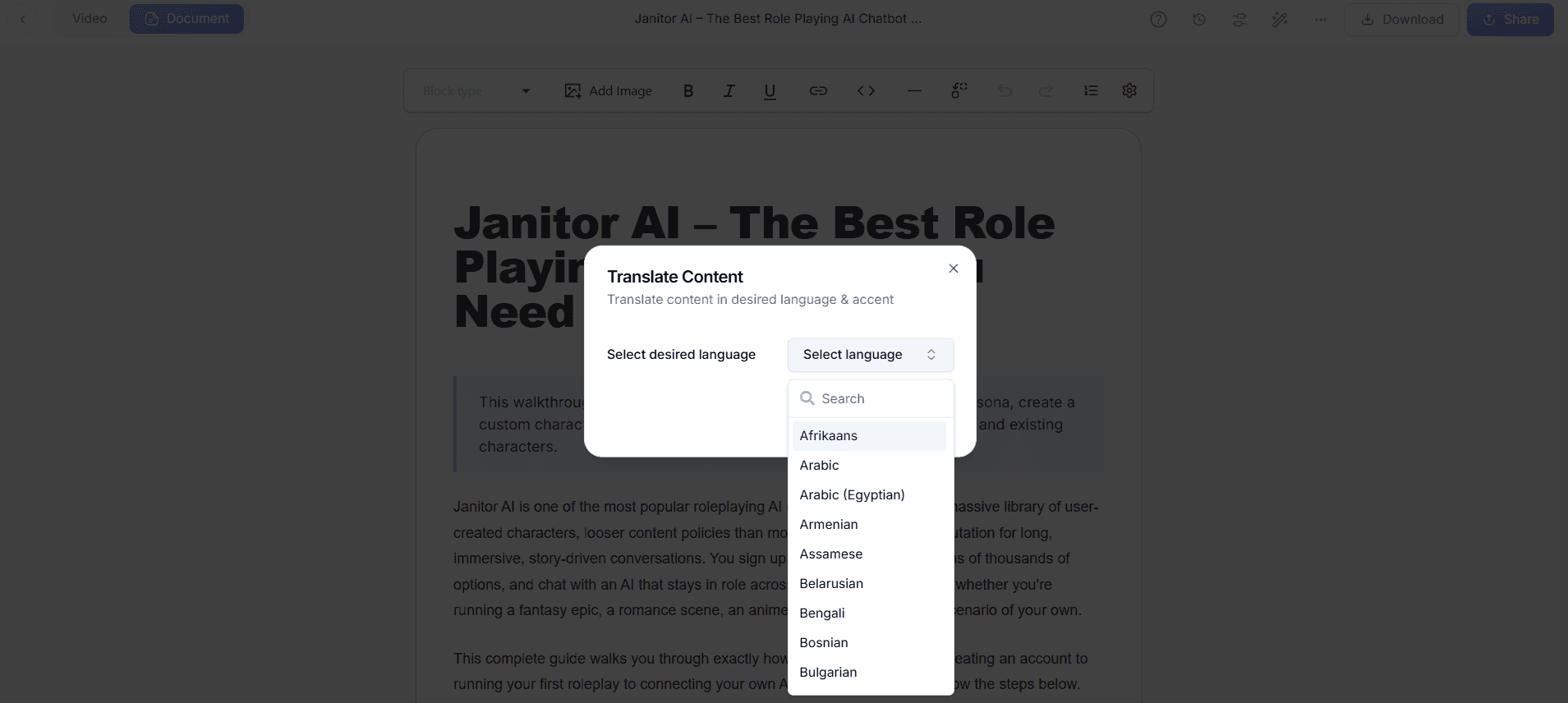
الخطوة 5: توزيع التعليمات بكفاءة
بمجرد أن تصبح تعليماتك جاهزة، حان وقت توزيعها. تتيح لك منصة Trupeer تصدير التعليمات بتنسيقات مختلفة، مثل MP4 وHTML وPDF. وللمشاركة داخل الشركة، يمكنك استضافتها على نطاق مخصص مع حماية SSO. وبدلًا من ذلك، يمكنك create صفحات مشتركة أو بوابات موجهة للعملاء لتوفير وصول سهل للشركاء الخارجيين. تدعم Trupeer أيضًا تضمين عناصر واجهة فيديو مباشرة داخل التطبيقات لتقديم إرشادات داخل التطبيق، ما يجعل التوزيع مرنًا وفعّالًا.
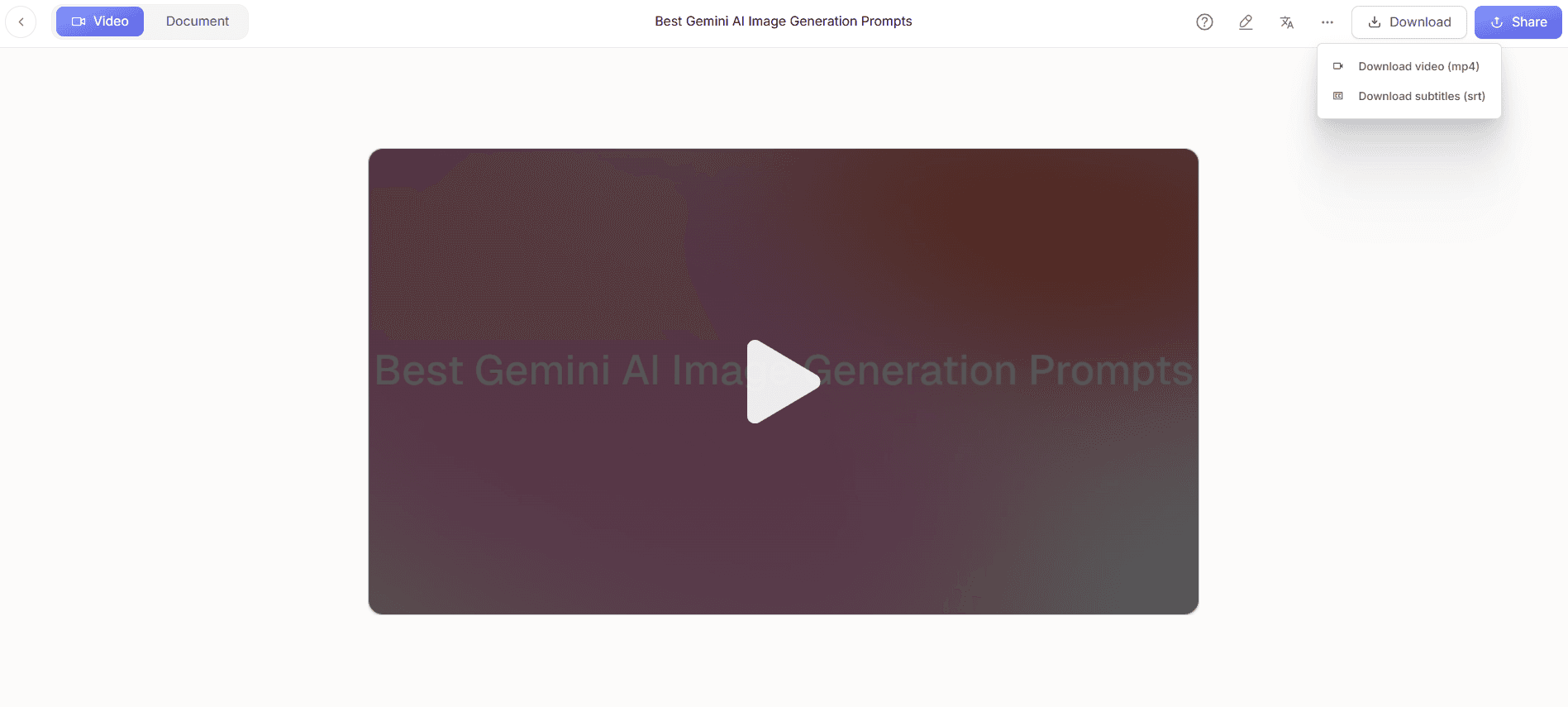
الخطوة 6: تحليل التفاعل
في النهاية، تابع كيفية تفاعل فريقك مع تعليمات العمل باستخدام تحليلات تفاعل المشاهدين في Trupeer. افتح لوحة التحكم لعرض مؤشرات مثل معدلات التوقف وخرائط الحرارة، والتي تُظهر الأجزاء الأكثر جاذبية من التعليمات أو أين قد يواجه المستخدمون صعوبات. وتعد هذه البيانات لا تقدر بثمن لتحسين تعليماتك. راجع هذه التحليلات بانتظام للتأكد من أن تعليمات العمل المرئية لديك تظل فعّالة ومتوافقة مع احتياجات الفريق. وتغلق هذه الخطوة الحلقة، ما يتيح التحسين المستمر بناءً على ملاحظات المستخدمين الفعلية.
ما النصائح التي تساعدك على إنشاء تعليمات عمل مرئية مع لقطات شاشة يتم التقاطها تلقائيًا؟
يتطلب إنشاء تعليمات عمل مرئية فعّالة الاهتمام بالتفاصيل واستخدام التكنولوجيا بشكل استراتيجي. إليك بعض النصائح لتحسين أسلوبك:
ركّز على الإجراءات الرئيسية. ركّز على التقاط الإجراءات الحرجة التي تؤثر على النتيجة. يضمن ذلك الوضوح ويمنع إرباك المستخدمين بمعلومات غير ضرورية.
استخدم تنسيقًا متسقًا. طبّق قالبًا قياسيًا على جميع التعليمات للحفاظ على الاتساق. يمكن أن تساعدك مقارنة Scribe vs Trupeer من Trupeer في اختيار الأدوات المناسبة لـ SOPs.
أدرج مؤشرات بصرية. استخدم الأسهم أو التمييز أو التكبير لإبراز العناصر المهمة. يساعد ذلك على توجيه الانتباه وتحسين الفهم.
اختبر التعليمات. اطلب من عدد قليل من أعضاء الفريق اختبار التعليمات قبل النشر الكامل. يمكن أن تحدد ملاحظاتهم مناطق محتملة للارتباك.
حدّث بانتظام. تأكد من بقاء التعليمات ذات صلة عبر تحديثها مع أي تغييرات في العملية. استخدم ميزة التحديث التلقائي في Trupeer لتبسيط هذه المهمة.
اجعلها بسيطة. تجنب المصطلحات المعقدة وحافظ على اللغة واضحة ومختصرة. يجعل ذلك التعليمات متاحة لجميع المستخدمين، بغض النظر عن خبرتهم التقنية.
استخدم التحليلات. استخدم تحليلات Trupeer لتحديد المجالات التي تحتاج إلى تحسين. يمكن أن تساعد أداة محرر الفيديو التلقائي في إجراء التعديلات اللازمة بكفاءة.
الأسئلة الشائعة
كيف يمكنني التأكد من أن تعليمات العمل واضحة؟
لضمان وضوح تعليمات العمل، ركّز على استخدام لغة بسيطة ومختصرة مع وسائل بصرية توضيحية. استخدم ميزة التكبير التلقائي واكتشاف النقر في Trupeer لإبراز الإجراءات المهمة داخل التسجيلات. يقلل هذا النهج من سوء الفهم عبر تقديم مؤشرات بصرية واضحة ومباشرة تكمل التعليمات المكتوبة. كما يمكن أن يساعد اختبار التعليمات مع مجموعة صغيرة قبل التطبيق الكامل في تحديد المناطق المربكة. وتعمل التحديثات والمراجعات المنتظمة بناءً على ملاحظات المستخدمين على تعزيز الوضوح مع مرور الوقت.
ما التنسيقات التي يمكنني تصدير تعليماتي بها؟
يمكنك تصدير تعليمات العمل المرئية لديك بتنسيقات متعددة باستخدام Trupeer، بما في ذلك MP4 وHTML وPDF. تلبي هذه التنسيقات احتياجات توزيع مختلفة، سواء لجلسات التدريب الداخلية أو العروض التقديمية للعملاء أو التكامل داخل التطبيقات. يكون التصدير بصيغة MP4 مفيدًا بشكل خاص عندما يُفضَّل محتوى الفيديو، بينما توفر HTML وPDF أدلة نصية سهلة الوصول. تضمن هذه المرونة أن تكون تعليماتك متاحة لجميع أصحاب المصلحة، بغض النظر عن التنسيق المفضل لديهم.
لماذا تُعد عملية تكييف المحتوى مهمة لتعليمات العمل؟
يضمن تكييف المحتوى أن تكون تعليمات العمل فعّالة عبر فرق ومناطق متنوعة. وتعد ميزة الترجمة بالذكاء الاصطناعي في Trupeer عنصرًا حاسمًا في ذلك، إذ تتيح توفر التعليمات بأكثر من 40 لغة. وتعد هذه الإتاحة ضرورية للعمليات العالمية، لضمان ألا تعيق حواجز اللغة الفهم. يشمل التكييف الصحيح ليس الترجمة فقط، بل أيضًا تعديل الإشارات الثقافية والمصطلحات التقنية، ما يجعل التعليمات مفهومة عالميًا وملائمة لجميع المستخدمين.
هل يمكن لميزات Trupeer التكامل مع برامج أخرى؟
نعم، يمكن لميزات Trupeer التكامل مع أنظمة برمجية أخرى لتعزيز كفاءة سير العمل. على سبيل المثال، يمكن أن تعمل جنبًا إلى جنب مع قواعد المعرفة الحالية أو منصات LMS لتبسيط عمليات التدريب والتوثيق. يتيح هذا التكامل تحديث المحتوى التعليمي وتوزيعه بسلاسة، ما يضمن وصول جميع أعضاء الفريق إلى أحدث المواد. وتعد هذه التوافقية أمرًا حاسمًا للمؤسسات التي تسعى للحفاظ على منظومة رقمية متكاملة.
هل تدعم Trupeer قدرات متعددة اللغات في مقاطع الفيديو؟
نعم، تدعم Trupeer قدرات متعددة اللغات عبر ميزات الترجمة والدبلجة بالذكاء الاصطناعي. يتيح لك ذلك إنشاء مقاطع فيديو تعليمية يمكن الوصول إليها من قبل جمهور غير ناطق بالإنجليزية. توفر المنصة ترجمة فيديو بالذكاء الاصطناعي والدبلجة، ما يضمن ترجمة عناصر الفيديو والصوت بدقة ومزامنتها. وتعد هذه الإمكانية ضرورية للمؤسسات ذات حضور عالمي، لضمان اتساق التدريب ومعايير التشغيل عبر جميع المناطق.


