Trupeer Blog
Резюмировать

Все делают скриншоты. Почти никто не делает хорошие. Разрыв между «сырой» вставкой PrtSc и аккуратным, аннотированным изображением в фирменном стиле — это ровно то место, где по-настоящему нужен хороший инструмент для скриншотов. И в 2026 их стало больше, чем когда-либо: от бесплатных встроенных утилит до AI-редакторов скриншотов, которые генерируют для вас целые пошаговые руководства.
Это руководство сравнивает 19 лучших инструментов для генерации скриншотов, которые действительно стоят вашего времени в этом году. Мы сгруппировали их по тому, для чего они предназначены: захват и аннотация, оформление для соцсетей, генерация скриншотов для App Store и сайта, а также автоматизация захватов в масштабе — чтобы вы сразу перешли к задаче, которую пытаетесь решить. Если ваши скриншоты обычно оказываются внутри туториалов и справочной документации, инструменты вроде Trupeer AI теперь генерируют скриншоты за вас; а если вам нужен просто быстрый захват, часто достаточно бесплатного нативного инструмента.
Как мы оценивали эти инструменты для скриншотов
Вместо подсчёта функций мы оценивали каждый инструмент по критериям, которые реально важны в повседневной работе: опирались на практическое использование, актуальную продуктовую документацию и отзывы сообществ разработчиков и документации:
Скорость и надёжность захвата: насколько быстро вы переходите от горячей клавиши к готовому изображению и копируется ли оно в буфер обмена мгновенно.
Качество аннотаций: стрелки, рамки, номера шагов, текст и размытие — желательно без отдельного окна редактора.
Прокрутка и захват всей страницы: для длинных страниц, дашбордов и документов.
OCR: извлечение выделяемого текста из изображения.
Оформление: фоны, отступы, тени и рамки устройств.
Автоматизация и AI: возможность генерировать захваты в масштабе, а не кликать по одному за раз.
Обмен и совместная работа: мгновенные ссылки, облачные опции и командные сценарии.
Цена и ценность: бесплатно, разово или по подписке — и что вы реально получаете.
Поддержка платформ: Windows, Mac, Linux и браузер.
Если инструмент силён или слаб по сравнению с этими критериями, мы отмечали это в обзорах ниже.
Лучший AI-инструмент для скриншотов для документации: Trupeer AI
Если ваши скриншоты нужны, чтобы что-то объяснить — функцию продукта, сценарий онбординга или ответ службы поддержки, — вам на самом деле не нужен инструмент для скриншотов. Вам нужен инструмент, который генерирует все скриншоты за вас: аннотированные и в фирменном стиле, как побочный результат выполнения задачи один раз.
Именно это делает Trupeer AI. Вы один раз записываете экран с помощью экранного рекордера Trupeer, а Trupeer автоматически превращает запись в аккуратное пошаговое руководство или документ, извлекая ключевые моменты в виде чистых скриншотов, применяя авто-зум и аннотации, а также позволяя обрезать, выделять и размывать конфиденциальную информацию, не выходя из редактора.
Почему он выделяется как генератор скриншотов:
Скриншоты генерируются автоматически из записи, а не захватываются кадр за кадром.
Авто-зум и аннотации направляют внимание читателя на нужную кнопку или поле.
Результат остаётся единообразным и в фирменном стиле благодаря brand kits — это особенно важно, когда вы создаёте SOP, руководства для пользователей и статьи базы знаний в больших объёмах.
Лучше всего для: продуктовых, саппорт-, маркетинг- и enablement-команд, которые создают туториалы, центры помощи и SOP и хотят, чтобы скриншоты генерировались, аннотировались и оформлялись в бренде автоматически.
Цена: Бесплатно для старта; платные тарифы — на странице с ценами. Также можно записаться на демо.
Если ваша цель — разовые захваты, а не сгенерированная документация, классические инструменты «захватить и аннотировать» ниже — то, что стоит посмотреть.
Лучшие инструменты для скриншотов для Mac
1. Trupeer AI: лучший выбор для Mac
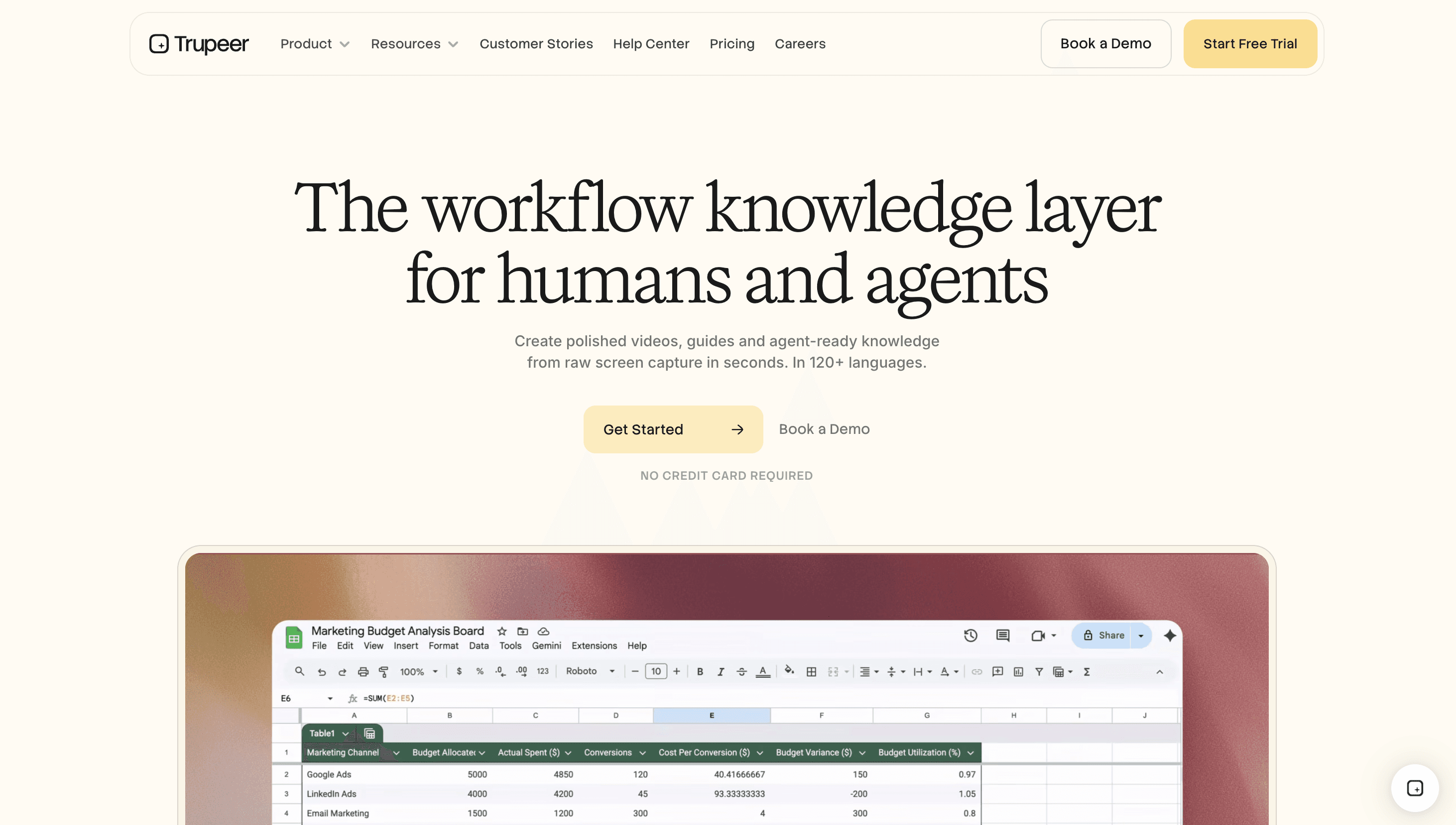
Для пользователей Mac, чьи скриншоты попадают в туториалы, справочную документацию или SOP, Trupeer AI — лучший выбор. Потому что он работает в браузере (с Chrome screen recorder), запускается на любом Mac без установки и генерирует полный набор аннотированных скриншотов в фирменном стиле из одной записи. Если вы хотите документацию из ваших захватов, а не один снимок за раз, начните отсюда. Ниже — нативные приложения для захвата на Mac: они лучше подходят для быстрых разовых скриншотов.
2. CleanShot X: универсальный «полированный» вариант
CleanShot X позиционирует себя как несколько инструментов в одном — и оправдывает это: захват скриншотов, прокрутка, запись экрана и GIF, аннотации и всплывающее наложение «быстрый доступ», которое позволяет действовать с захватом, не сохраняя его. На практике именно это наложение вы чаще всего будете скучать, когда переключитесь на что-то другое — и именно поэтому так много «полированных» скриншотов с градиентным фоном, которые вы видите в интернете, сделаны в CleanShot.
Лучше всего для: пользователей Mac, которым нужен один премиальный инструмент для захвата и обмена, и которые не против заплатить.
Цена: Разовая покупка базового приложения, а также опциональная ежемесячная подписка для облачных функций обмена.
На что обратить внимание: облачные функции — это регулярная стоимость, и нет пиксельной линейки.
3. Shottr: быстро, бесплатно и удобно для разработчиков
Shottr — маленький, невероятно быстрый и любим разработчиками за инструменты для измерений в пикселях, пипетку цветов и OCR. В последних версиях появились шаблоны фонов (тени, градиенты, скруглённые углы), что сильно сократило разрыв в «красивости» по сравнению с более дорогими приложениями — при этом Shottr остаётся бесплатным или почти бесплатным. Компромисс, который вы быстро заметите: инструменты аннотаций здесь скорее функциональные, чем отточенные.
Лучше всего для: разработчиков и дизайнеров, которым нужны скорость, измерения и OCR без подписки.
Цена: Бесплатно, с недорогим разовым апгрейдом Pro для прокрутки.
На что обратить внимание: нет встроенной записи экрана и нет нативного облачного обмена.
4. Xnapper: красивые скриншоты, быстро
Xnapper фокусируется на одном: делать скриншоты, которые отлично выглядят в соцсетях и для маркетинга — с автоматическими фонами, сбалансированными отступами и удобным редактированием. Если вам в первую очередь нужны аккуратные, готовые к публикации изображения, а не глубокий набор функций, это хороший чистый и доступный выбор.
Лучше всего для: создателей контента и маркетологов, которым в основном нужны привлекательные скриншоты для соцсетей.
Цена: Низкая разовая покупка.
5. Встроенное в macOS (Cmd + Shift + 5)
Не упускайте то, что уже есть на вашем Mac. Встроенный инструмент позволяет захватывать весь экран, область или окно, записывать видео и показывает всплывающую миниатюру для быстрых аннотаций Markup (стрелки, текст, фигуры, редактирование). Для базовых захватов он действительно функционален и полностью бесплатен — и настолько улучшился, что многие пользователи больше ничего не устанавливают.
Лучше всего для: быстрых разовых захватов, когда вам не нужен обмен или оформление.
Цена: Бесплатно, встроено.
Лучшие инструменты для скриншотов для Windows
6. ShareX: бесплатный «мощный» инструмент
ShareX — это тяжеловес с открытым исходным кодом для Windows. Он позволяет захватывать всё (область, окно, прокрутку, всю страницу), поддерживает огромное количество действий после захвата, записывает видео и GIF, а теперь включает шаг «beautify image» для фонов. В рабочих процессах документации его автоматизация сложно превзойти по соотношению цена/качество, хотя из-за большого числа опций интерфейс требует времени, чтобы разобраться.
Лучше всего для: продвинутых пользователей Windows, которым нужна максимальная функциональность бесплатно.
Цена: Бесплатно и с открытым исходным кодом.
На что обратить внимание: глубина настроек имеет кривую обучения.
7. Snagit: стандарт для предприятий
Snagit от TechSmith десятилетиями был «по умолчанию» в корпоративной документации. Его сильные стороны — библиотека ассетов с поиском, шаблоны, пошаговый захват, прокрутка и стабильный результат как в Windows, так и в Mac. Для технического писателя, который выпускает документацию каждую неделю, одна только библиотека с поиском часто оправдывает стоимость.
Лучше всего для: технических писателей, саппорт-команд и компаний, которым нужна стабильность и поддержка на разных платформах.
Цена: Платно, по годовой модели.
На что обратить внимание: это избыточно (и дорого) для обычных пользователей.
8. Greenshot: надёжная бесплатная классика
Greenshot — это надёжный бесплатный инструмент для скриншотов в Windows с 2007 года. Он справляется с захватом области, окна и всего экрана, используя простой встроенный редактор для аннотаций и редактирования. За годы он не сильно менялся — и именно в этом его стабильность и привлекательность.
Лучше всего для: пользователей Windows, которым нужен лёгкий, бесплатный и без лишних сложностей инструмент «захватить и аннотировать».
Цена: Бесплатно и с открытым исходным кодом.
9. Инструмент для создания снимков Windows
Встроенный инструмент Windows Snipping Tool (Win + Shift + S) незаметно стал хорошей базовой опцией: захват области и окна, базовые аннотации и даже прокрутка в последних обновлениях. Он бесплатный, всегда доступен и подходит для многих повседневных задач — это лучший стартовый вариант среди альтернатив инструменту для вырезания, прежде чем платить за что-то ещё.
Лучше всего для: быстрых захватов без установки чего-либо.
Цена: Бесплатно, встроено.
Лучшие инструменты для скриншотов для Linux
10. Flameshot
Flameshot — это инструмент для скриншотов с открытым исходным кодом, который чаще всего выбирают в Linux (есть и сборки для Windows и Mac). Он предлагает аннотации прямо на экране сразу после захвата, выбор области и интерфейс командной строки, благодаря которому легко писать скрипты — поэтому пользователи Linux, которым нужна автоматизация, обращаются к нему в первую очередь.
Лучше всего для: пользователей Linux, которым нужен бесплатный инструмент для захвата и аннотаций, который можно запускать через скрипты.
Цена: Бесплатно и с открытым исходным кодом.
Кроссплатформенные инструменты и быстрый обмен скриншотами
11. Lightshot
Lightshot — быстрый и «простой» вариант для Mac и Windows: установите, захватите область, слегка аннотируйте и поделитесь ссылкой за секунды. Он быстрый и популярен для неформального обмена.
Лучше всего для: быстрых разовых захватов и быстрого обмена ссылками.
Цена: Бесплатно.
На что обратить внимание: по умолчанию загружает в сеть, поэтому избегайте его для любых чувствительных материалов.
12. Monosnap
Monosnap — один из самых быстрых вариантов «скриншот → ссылка», плюс понятные аннотации и облачные опции. Это любимый инструмент для команд, которые постоянно общаются в чате и хотят мгновенно отправлять в канал ссылку, которой можно поделиться.
Лучше всего для: удалённых команд, которые постоянно делятся скриншотами и хотят скорость до ссылки.
Цена: Бесплатный тариф с платными апгрейдами.
13. Awesome Screenshot (браузер)
Awesome Screenshot — популярное расширение для браузера, которое помогает захватывать полные веб-страницы, обрезать, аннотировать и делиться, не выходя из вкладки. Это естественный выбор для Chrome, когда большинство ваших захватов приходит из веба.
Лучше всего для: захвата и аннотации веб-страниц прямо в браузере.
Цена: Бесплатный тариф с платными планами.
Лучшие инструменты для улучшения и редактирования скриншотов
Это инструменты, к которым вы обращаетесь, когда «сырой» захват нужно превратить в изображение, готовое для презентации — категория «онлайн-редактор скриншотов» и «beautifier для скриншотов».
14. Screely
Screely мгновенно оборачивает вставленный скриншот в аккуратный фон, отступы и тонкую рамку окна. Никакой установки, без кривой обучения — просто браузерный способ сделать обычный захват выглядящим продуманно.
Лучше всего для: быстрой бесплатной «красивости» одного скриншота прямо в браузере.
15. Pika
Pika даёт больше контроля над фонами, рамками устройств, градиентами и макетами для маркетинговых изображений и постов в соцсетях — с шаблонами, которые помогают сохранять единообразие результата.
Лучше всего для: маркетологов, которые регулярно создают аккуратные визуалы со скриншотами.
16. Screenshot.rocks
Screenshot.rocks — лёгкий браузерный инструмент для вставки скриншотов в макеты устройств и браузеров, полезный для лендингов и заголовков в блогах.
Лучше всего для: быстро «упаковывать» скриншоты в рамки устройств и браузеров.
Лучшие генераторы скриншотов для App Store и сайта
Это группа «app store screenshot generator» и «website screenshot generator»: инструменты, которые генерируют скриншоты программно, а не захватывают ваш живой экран.
17. AppLaunchpad
AppLaunchpad — популярный бесплатный генератор скриншотов приложений для создания изображений для App Store и Google Play: с рамками устройств, подписями и шаблонами, подобранными под требования каждого магазина.
Лучше всего для: инди-разработчиков и маркетологов приложений, которые создают скриншоты для карточек в магазинах.
18. Previewed / AppScreens
Генераторы скриншотов для App Store на основе шаблонов с 3D-макетами устройств и маркетинговыми раскладками — идеальны, когда вы хотите, чтобы изображения выглядели профессионально, как будто их делал дизайнер.
Лучше всего для: аккуратных, в фирменном стиле наборов скриншотов для App Store и Play Store.
19. API для скриншотов сайта (Urlbox и аналоги)
Чтобы генерировать скриншоты веб-сайтов в масштабе (миниатюры, превью, мониторинг или встраивание в ваш продукт), API для скриншотов сайта вроде Urlbox рендерит любой URL в изображение по запросу. Это также путь к полностью автоматизированному инструменту для скриншотов: захват по расписанию или по триггеру, затем автоматическая обработка результата.
Лучше всего для: разработчиков, которым нужны автоматизированные программные скриншоты сайтов.
Сравнение инструментов для скриншотов — кратко
Инструмент | Платформа | OCR | Прокрутка | Запись | Оформление | Облачный обмен | Цена |
|---|---|---|---|---|---|---|---|
Trupeer AI | Веб / Chrome | Авто | Авто (из записи) | Да (видео) | Да (brand kits) | Да | Бесплатно + платно |
CleanShot X | Mac | Да | Да | Да | Да | Подписка | Разово + облачная подписка |
Shottr | Mac | Да | Pro | Нет | Да | Нет | Бесплатно / недорого разово |
Xnapper | Mac | Да | Нет | Нет | Да | Нет | Разово |
ShareX | Windows | Да | Да | Да | Базовое | Да | Бесплатно |
Snagit | Win / Mac | Да | Да | Да | Шаблоны | Через TechSmith | Платно (годовая) |
Greenshot | Windows | Плагин | Нет | Нет | Базовое | Нет | Бесплатно |
Flameshot | Linux / Win / Mac | Нет | Нет | Нет | Базовое | Нет | Бесплатно |
Lightshot | Win / Mac | Нет | Нет | Нет | Базовое | Да | Бесплатно |
Monosnap | Win / Mac | Нет | Нет | Да | Базовое | Да | Бесплатно + платно |
Awesome Screenshot | Браузер | Нет | Да (веб) | Да | Базовое | Да | Бесплатно + платно |
Screely / Pika | Веб | Нет | Нет | Нет | Да | Ссылки | Бесплатно + платно |
AppLaunchpad | Веб | Нет | n/a | Нет | Да | n/a | Бесплатно + платно |
Бесплатные vs платные инструменты для скриншотов
Бесплатные инструменты закрыли большую часть разрыва. В Windows ShareX соответствует или превосходит большинство платных приложений по «сырой» функциональности; на Mac Shottr и встроенный инструмент покрывают большинство повседневных потребностей в Linux, Flameshot — это всё, что устанавливает большинство пользователей. Платить стоит только тогда, когда вы упираетесь в конкретную стену: надёжный захват с прокруткой, встроенная запись экрана, облачный обмен для команды или автоматизация и AI, которые генерируют захваты за вас. Когда вы всё же платите, разовая покупка (Shottr, Xnapper) обычно выигрывает у подписки за несколько лет, если вы действительно не используете облачные и совместные функции.
Расширение для браузера vs настольное ПО
Расширение для браузера вроде Awesome Screenshot — правильный выбор, когда почти все ваши захваты приходятся на веб-страницы: оно может захватить полную прокручиваемую страницу прямо внутри вкладки. Настольное ПО выигрывает в тот момент, когда вам нужно захватывать другие приложения, саму ОС, видео или глобальные горячие клавиши, которые работают везде. Многие команды используют оба варианта: расширение для веб-задач и настольный инструмент для всего остального.
Вопросы безопасности и конфиденциальности
Скриншоты часто содержат больше, чем вы планировали: токены, данные клиентов, внутренние URL. Важны две привычки. Во-первых, редактируйте перед тем, как делиться: размывайте или закрывайте всё чувствительное, а не обрезайте и надеетесь на лучшее. Во-вторых, знайте, куда попадает ваш захват. Некоторые инструменты быстрого обмена загружают данные по умолчанию — это удобно, но неправильно для конфиденциальных материалов, поэтому лучше выбирать инструменты, которые обрабатывают локально, или те, где вы можете указать собственное хранилище. Для регулируемой или ориентированной на клиентов документации инструмент, который последовательно применяет размытие и сохраняет результат в вашей среде, стоит больше, чем чуть более быстрый захват.
Лучший инструмент для скриншотов по сценарию использования
Для разработчиков: Shottr (измерения, OCR, скорость) на Mac, ShareX на Windows, Flameshot на Linux.
Для дизайнеров: CleanShot X или Xnapper для аккуратного, готового к публикации результата с фонами и рамками.
Для удалённых команд: Monosnap или Lightshot для самого быстрого обмена «скриншот → ссылка».
Для документации и SOP: Trupeer AI для генерации аннотированных руководств или Snagit для традиционной библиотеки, которую ведёт автор.
Для OCR: Shottr, Snagit и ShareX извлекают текст из захватов.
Для скриншотов, сгенерированных AI: Trupeer AI превращает одну запись в полностью задокументированное, аннотированное руководство.
Для App Store: AppLaunchpad или Previewed для изображений в карточке.
Частые ошибки при создании скриншотов
Обычно скриншот не получается по одной из причин: захватывается весь экран, хотя более понятной была бы обрезанная область; чувствительные данные остаются видимыми; забываются аннотации, и читателю приходится искать нужный момент; стиль оформления отличается в серии изображений; файлы сохраняются локально, хотя ссылку было бы быстрее отправить. Хороший инструмент отводит вас от всех пяти ошибок, а генератор, ориентированный на документацию, убирает большинство из них по умолчанию.
Часто задаваемые вопросы
Какой лучший бесплатный инструмент для скриншотов?
В Windows ShareX — самый функциональный бесплатный инструмент для скриншотов; за ним идут Greenshot и встроенный Snipping Tool. На Mac Shottr и встроенный инструмент Cmd + Shift + 5 закрывают большинство потребностей без затрат. В Linux стандарт — Flameshot. Для генерации аннотированных скриншотов внутри документации у Trupeer AI есть бесплатный тариф.
В чём разница между инструментом для скриншотов и генератором скриншотов?
Инструмент для скриншотов захватывает то, что прямо сейчас на вашем экране. Генератор скриншотов создаёт изображения программно или автоматически: скриншоты для карточек App Store, превью для сайта или, в случае AI-инструментов вроде Trupeer, полный набор аннотированных скриншотов, сгенерированных из одной экранной записи.
Какой инструмент для скриншотов самый быстрый?
Для скорости «захват → буфер обмена» Shottr на Mac и нативный Snipping Tool на Windows работают почти мгновенно. Для скорости «захват → ссылка для обмена» быстрее всего Monosnap и Lightshot.
Какие инструменты для скриншотов работают офлайн?
Большинство настольных инструментов полностью работают офлайн, включая Greenshot, Flameshot, Shottr, Snagit и встроенные инструменты ОС. Браузерные beautifier’ы и API для скриншотов сайта требуют подключения.
Могут ли инструменты для скриншотов записывать видео?
Некоторые — да. ShareX, Snagit, CleanShot X и Monosnap записывают видео или GIF. Специализированные инструменты захвата вроде Shottr и Greenshot — нет. Trupeer AI построен вокруг записи и превращает её и в видео, и в задокументированный набор скриншотов.
У какого инструмента для скриншотов есть OCR?
Shottr, Snagit и ShareX — все включают OCR, чтобы извлекать выделяемый текст из захвата.
Какой инструмент для скриншотов самый безопасный?
Предпочитайте инструменты, которые обрабатывают данные локально и позволяют редактировать перед тем, как делиться, и избегайте инструментов, которые загружают данные по умолчанию для любых чувствительных материалов. Для командной документации инструмент, который сохраняет результат в вашей среде и последовательно применяет размытие, — более безопасный выбор.
Могу ли я захватить полную веб-страницу или длинный прокручиваемый экран?
Да. Захват с прокруткой доступен в ShareX, Snagit, CleanShot X и Shottr Pro, а также в расширениях для браузера вроде Awesome Screenshot.
Итог
Для разовых захватов лучший инструмент для скриншотов — просто тот, который подходит под вашу платформу и бюджет: ShareX на Windows, CleanShot X или Shottr на Mac, Flameshot на Linux и бесплатные встроенные инструменты, когда вам нужен быстрый захват.
Но если ваши скриншоты нужны, чтобы обучать, продавать или поддерживать, если они попадают в туториалы, центры помощи и SOP, более разумный шаг — перестать делать скриншоты по одному и позволить генерировать их для вас. Посмотрите, как Trupeer AI превращает одну экранную запись в полностью задокументированное, аннотированное руководство в фирменном стиле, или закажите демо, чтобы увидеть процесс.
Frequently Asked Questions
What is the best free screenshot tool?
What's the difference between a screenshot tool and a screenshot generator?
Which screenshot tool is fastest?
Which screenshot tools work offline?
Can screenshot tools record video?
Which screenshot tool has OCR?
What's the safest screenshot tool?
Can I capture a full web page or a long, scrolling screen?
Похожие блоги



