

Jak tworzyć hiperłącza w Teams
Dowiedz się, jak tworzyć hiperłącza w czatach lub kanałach Microsoft Teams, korzystając z menu Format oraz opcji Wstaw link. Postępuj zgodnie z tym krótkim samouczkiem i twórz przewodniki w ramach procesu z Trupeer.
Using the Formatting Menu
Type and Select: In the chat or channel message box, type the text you want to be clickable.
Select Text: Highlight the text you wish to turn into a hyperlink.
Insert Link: Select the "Format" button (an "A" with a pencil) below the message box, then choose "Insert link".
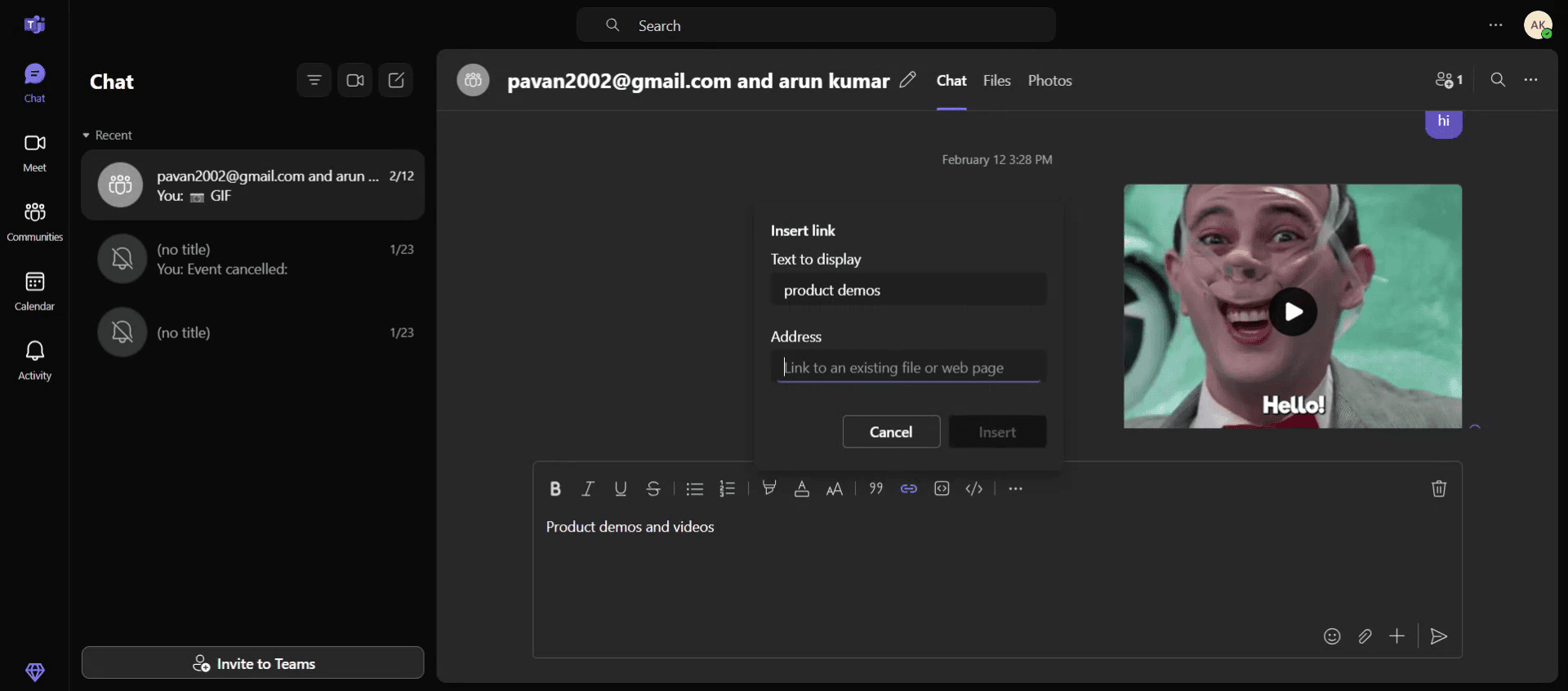
Enter Details: A dialog box will appear. Enter the text you want to display and the URL in the "Address" field.
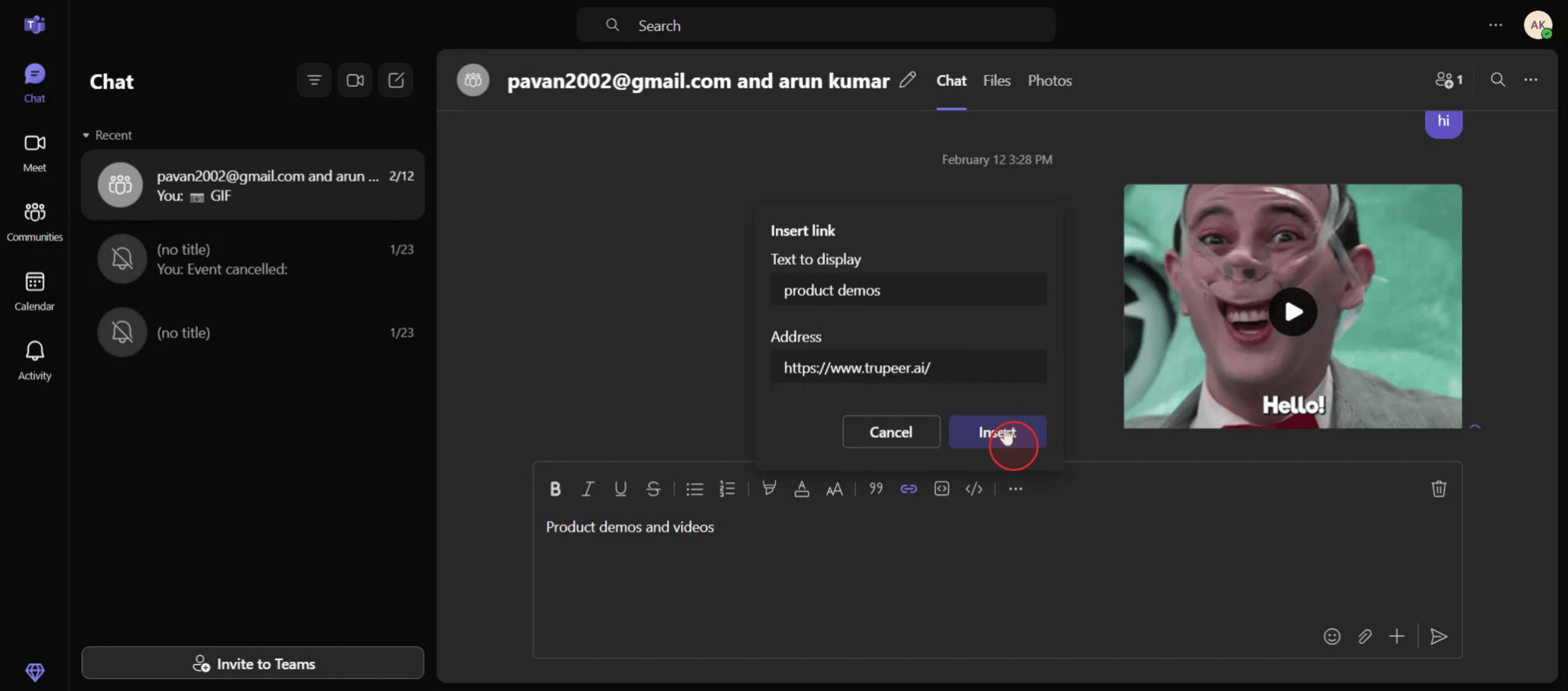
Insert: Click "Insert" to apply the hyperlink.
Step-by-Step Guide: How to Hyperlink in Teams
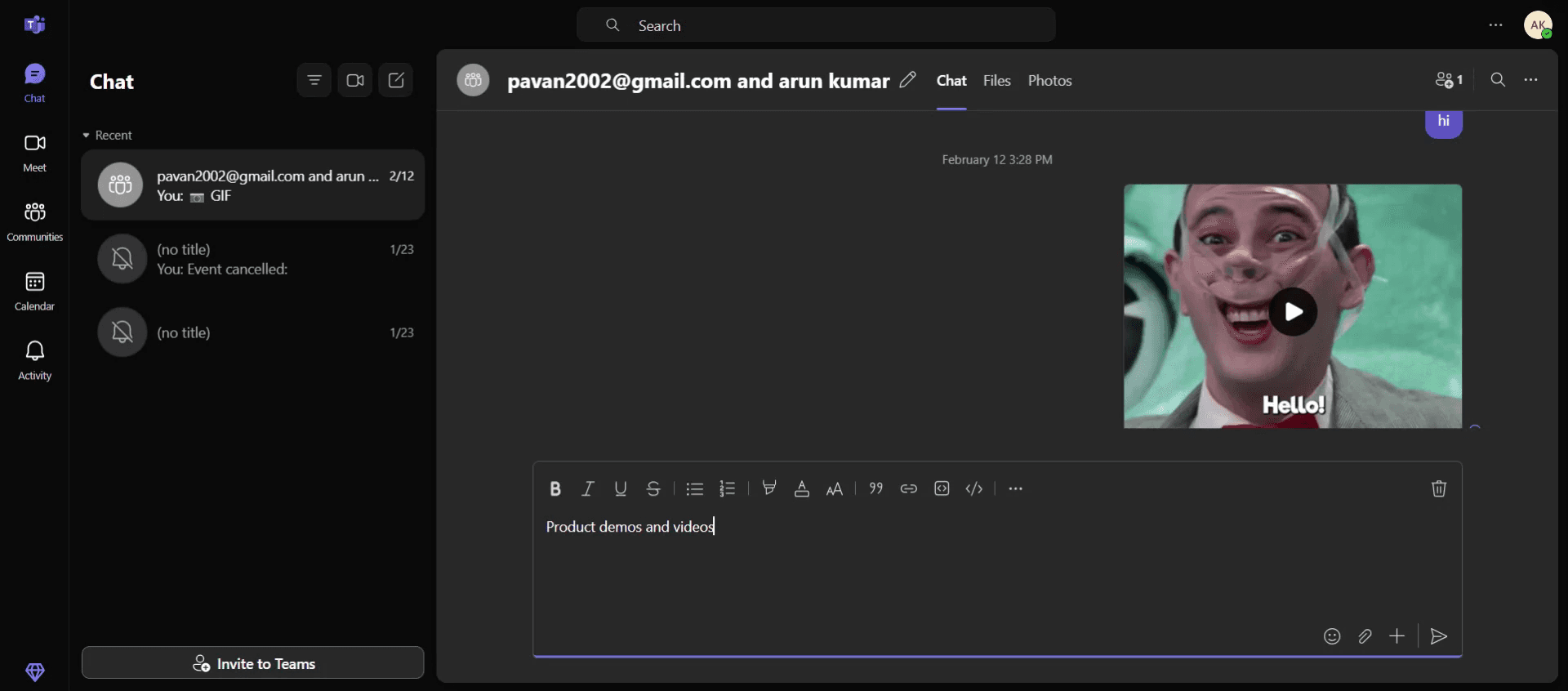
Step 1
Begin by typing or entering the desired text in the message console of Microsoft Teams. Once the text is entered, the formatting menu will appear.
Step 2
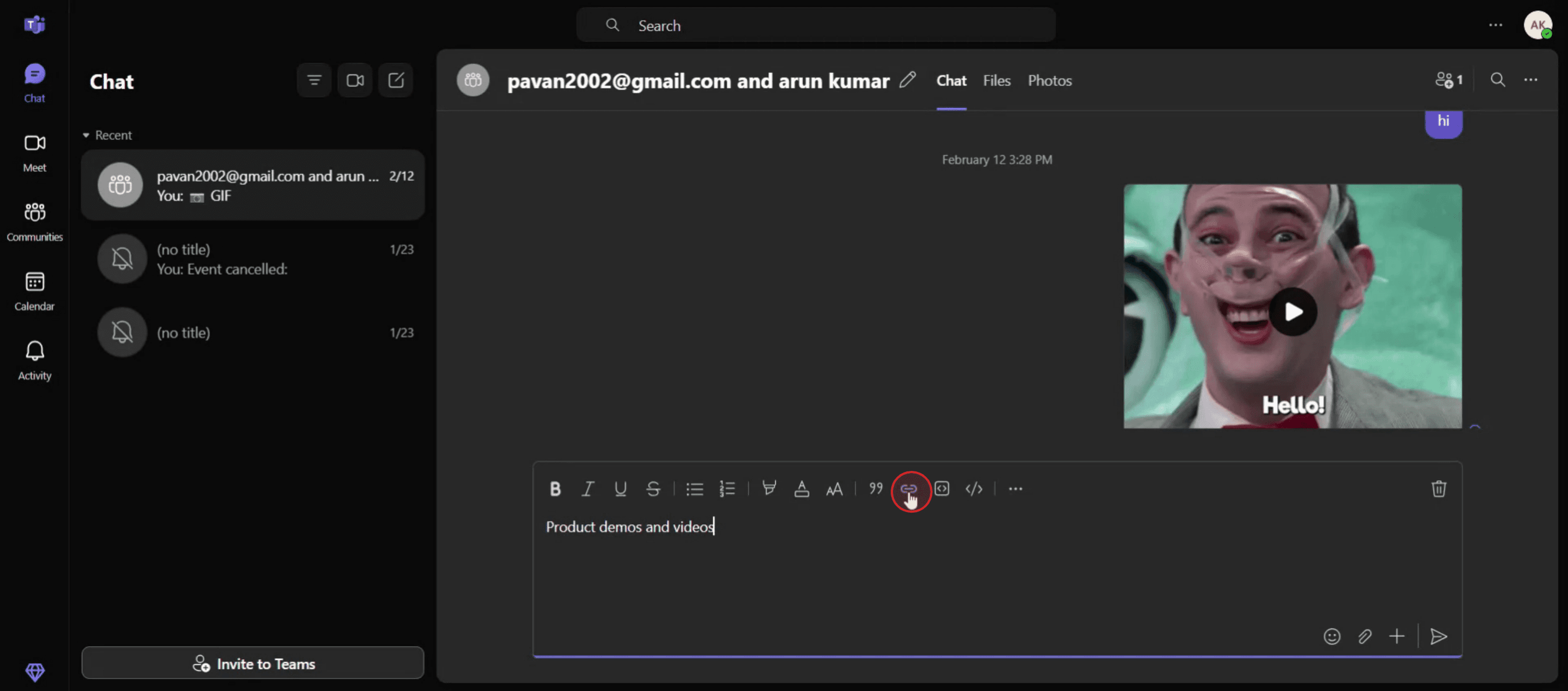
Proceed to click on the "Insert Link" option within the formatting menu.
Step 3
Enter the text you wish to hyperlink in the designated field. In the address bar, copy and paste the desired URL.
Step 4
After entering the necessary details, click on the "Insert" button to apply the hyperlink.
Step 5
The text is now successfully hyperlinked to the specified URL.

Pro Tips for Hyperlinking in Microsoft Teams
Open the Teams Chat or Channel
Start by navigating to the chat or channel where you want to share your hyperlink.Type or Paste Your Text
Write the message or text where you’d like to embed the hyperlink. For example, you can type something like "Click here for details."Highlight the Text to Hyperlink
Use your mouse or keyboard to select the portion of text you want to turn into a clickable link.Open the Format Menu
Click on the Format icon (the "A" with a paintbrush below the message box) to open additional formatting options.Click the Link Icon
In the formatting toolbar, click the chain-link (Insert link) icon. This opens a small popup where you can add a hyperlink.
Common Pitfalls and How to Avoid Them
Insert Link Option Not Showing
If you don’t see the link icon, make sure you’ve clicked the Format button first. The option only appears in the expanded editor.Link Not Working After Sending
Double-check that you’ve copied the full URL, including "https://" at the beginning. Without it, the link might not open properly.Hyperlinking Incorrect Text
Be sure to highlight only the portion of the message you want linked. If nothing is selected, Teams may not allow the insert.Formatting Panel Not Available in Mobile
The desktop app offers more hyperlink formatting tools than the mobile version. For complex formatting, use Teams on a computer.Overusing Long URLs
Instead of posting raw URLs, hyperlink clean, descriptive text to keep messages readable and professional.
Najczęstsze pytania dotyczące tworzenia hiperłączy w Microsoft Teams
Czy mogę tworzyć hiperłącza w wiadomościach w Teams?
Tak, możesz użyć menu Formatu, aby wstawić hiperłącze na zaznaczonym tekście.Jak utworzyć klikalny link bez narzędzi do formatowania?
Wklej pełny adres URL (zaczynający się od https://) bezpośrednio do wiadomości. Teams automatycznie zrobi z niego klikalny link.Czy mogę dodać wiele hiperłączy w jednej wiadomości?
Tak, użyj narzędzia Formatu, aby wstawić kilka hiperłączy w treści jednej wiadomości.Dlaczego nie mogę tworzyć hiperłączy na telefonie?
Aplikacja mobilna ma ograniczone funkcje formatowania. Użyj wersji na komputer, aby wstawiać linki oparte na tekście.Jak edytować hiperłącze po jego dodaniu?
Kliknij ponownie ikonę Formatu, wybierz tekst z hiperłączem, kliknij ikonę linku i wprowadź zmiany.Jak nagrać ekran na mac?
Aby nagrywać ekran na komputerze Mac, możesz użyć Trupeer AI. Umożliwia przechwycenie całego ekranu i oferuje funkcje AI, takie jak dodawanie awatarów AI, dodawanie lektora, dodawanie przybliżenia i oddalenia w filmie. Dzięki funkcji tłumaczenia wideo z wykorzystaniem AI od trupeer możesz przetłumaczyć wideo na 30+ języków.Jak dodać awatara AI do nagrania ekranu?
Aby dodać awatara AI do nagrania ekranu, musisz użyć narzędzia do nagrywania ekranu z AI. Trupeer AI to narzędzie do nagrywania ekranu z wykorzystaniem AI, które pomaga tworzyć filmy z wieloma awatarami, a także umożliwia stworzenie własnego awatara do filmu.Jak nagrać ekran na windows?
Aby nagrywać ekran w systemie Windows, możesz użyć wbudowanego paska gier (Windows + G) lub zaawansowanego narzędzia AI, takiego jak Trupeer AI, aby uzyskać bardziej zaawansowane funkcje, takie jak awatary AI, lektor, tłumaczenie itd.Jak dodać lektora do wideo?
Aby dodać lektora do filmów, pobierz rozszerzenie trupeer ai do Chrome. Po rejestracji prześlij wideo z lektorem, wybierz wybrany lektor w trupeer i wyeksportuj edytowane wideo.Jak przybliżyć obraz w nagraniu ekranu?
Aby przybliżyć obraz podczas nagrywania ekranu, użyj efektów przybliżenia w Trupeer AI, które umożliwiają przybliżanie i oddalanie w określonych momentach, wzmacniając wrażenie wizualne Twoich treści wideo.
Inni też pytają
Generator dokumentacji technicznej
Jak udostępnić repozytorium GitHub za pomocą linku
Powiązane samouczki



