
Jak pobrać Notion na Maca
Dowiedz się, jak pobrać i zainstalować aplikację Notion na komputer stacjonarny na Macu w kilka minut. Zawiera zarówno oficjalny instalator, jak i metodę przez Homebrew.
Here's a more detailed breakdown:
Go to the Notion website: Open your web browser (Safari, Chrome, etc.) and visit notion.so.
Find the download section: Look for a download link or button, often labeled "Download" or "Get Notion".
Select macOS: Choose the macOS option from the available downloads.
Download the installer: Click the download button to begin downloading the Notion installer file.
Install Notion: Once the download is complete, open the installer file (usually a DMG file) and follow the on-screen instructions to install the application.
Launch Notion: After installation, you can find the Notion app in your Applications folder or Launchpad and open it.
Log in: You will be prompted to log in with your Notion account credentials.
Step-by-Step-Guide: How to download Notion on Mac
Step 1
Begin by visiting the Notion website. Once there locate and click on the download button.

Step 2
After clicking the download button, click on Notion section.

Step 3
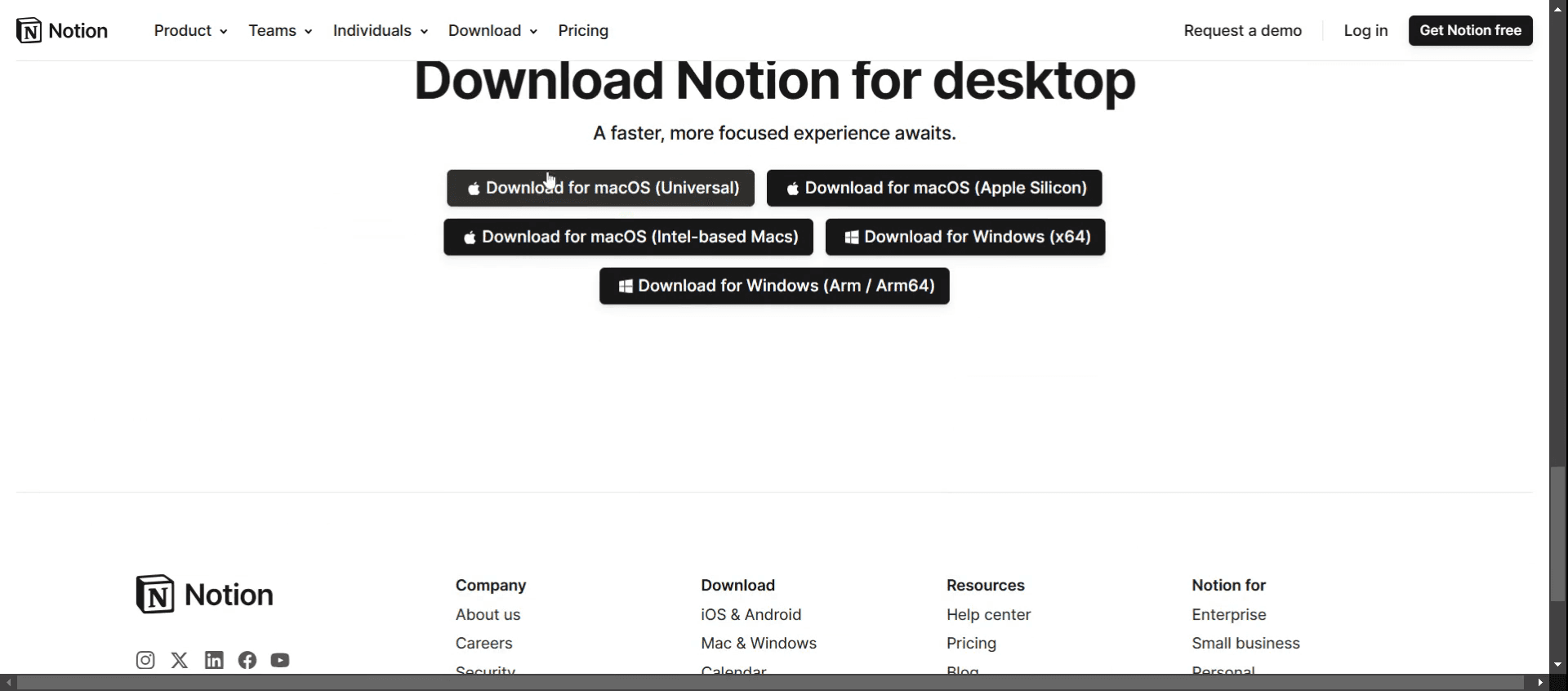
Scroll down until you find the option to download Notion for Mac.
Pro Tips for Downloading Notion on Mac
Open Your Web Browser
Launch Safari, Chrome, or any web browser on your Mac.Go to the Notion Website
Visit https://www.notion.so/desktop to access the official download page for the Notion desktop apps.Click the “Download for Mac” Button
On the page, click the button labeled “Download for Mac.” This will download a .dmg installer file.Open the Downloaded File
Once the .dmg file finishes downloading, locate it in your Downloads folder and double-click to open it.Drag Notion to the Applications Folder
In the window that appears, drag the Notion icon into your Applications folder to install it on your Mac.Launch Notion from Applications
Open your Applications folder and double-click on Notion to launch the app. You can also use Spotlight Search to find it quickly.Sign In or Create an Account
When Notion opens, log in with your existing account or sign up for free using your email or Google account.
Common Pitfalls and How to Avoid Them
Download Link Not Working
If the download doesn’t start, refresh the page or try using a different browser.Can't Open the .dmg File
Make sure your macOS version is supported. If needed, update your system software before trying again.App Not Showing in Launchpad
After installation, check the Applications folder. If you can’t find it, reinstall and ensure it was dragged into the correct folder.Notion Not Opening After Install
Right-click the app and choose “Open” if your Mac blocks it for security reasons. You may also need to allow the app in System Settings > Privacy & Security.Accidentally Downloading the Windows Version
Make sure you click the correct button for macOS. The Windows and Mac installers are listed separately on the Notion website.
Najczęstsze pytania dotyczące pobierania Notion na Mac
Jak zainstalować Notion na moim Macu?
Wejdź na notion.so/desktop, pobierz wersję na Maca i przenieś aplikację do folderu Aplikacje.Czy Notion jest darmowy na Maca?
Tak, Notion oferuje darmowy plan z pełnym dostępem do podstawowych funkcji w systemie macOS.Czy po zainstalowaniu aplikacji muszę korzystać z wersji przeglądarkowej?
Nie, aplikacja komputerowa działa niezależnie i synchronizuje się z Twoim kontem na wszystkich urządzeniach.Czy mogę korzystać z Notion offline na Macu?
Tak, Notion obsługuje ograniczony dostęp offline, ale aby zsynchronizować zmiany, musisz połączyć się z internetem.Czy Notion na Maca obsługuje tryb ciemny?
Tak, Notion obsługuje tryb ciemny i automatycznie dopasowuje się do ustawień wyglądu systemu.Jak nagrać ekran na Macu?
Aby nagrywać ekran na komputerze Mac, możesz użyć Trupeer AI. Umożliwia przechwycenie całego ekranu i oferuje funkcje AI, takie jak dodawanie awatarów AI, dodawanie lektora, dodawanie przybliżenia i oddalenia w filmie. Dzięki funkcji tłumaczenia wideo z użyciem AI w trupeer możesz przetłumaczyć wideo na 30+ języków.Jak dodać awatara AI do nagrania ekranu?
Aby dodać awatara AI do nagrania ekranu, musisz użyć narzędzia do nagrywania ekranu z AI. Trupeer AI to narzędzie do nagrywania ekranu z użyciem AI, które pomaga tworzyć filmy z wieloma awatarami oraz umożliwia stworzenie własnego awatara do wideo.Jak nagrać ekran na Windows?
Aby nagrywać ekran w systemie Windows, możesz użyć wbudowanego paska gier (Windows + G) lub zaawansowanego narzędzia AI, takiego jak Trupeer AI, aby uzyskać bardziej zaawansowane funkcje, np. awatary AI, lektor, tłumaczenie itd.Jak dodać lektora do wideo?
Aby dodać lektora do filmów, pobierz rozszerzenie trupeer ai do Chrome. Po rejestracji prześlij swoje wideo z dźwiękiem, wybierz wybrany lektor w trupeer i wyeksportuj edytowane wideo.Jak przybliżyć obraz w nagraniu ekranu?
Aby przybliżyć obraz podczas nagrywania ekranu, użyj efektów przybliżenia w Trupeer AI, które pozwalają przybliżać i oddalać w określonych momentach, wzmacniając wizualny efekt Twoich treści wideo.
Polecane lektury
Generator dokumentacji technicznej
Jak włączyć tryb ciemny w Notion
Jak wyśrodkować tekst w Notion
Powiązane samouczki


