

Cara Membuat Hyperlink di Slack
Pelajari cara menambahkan hyperlink di pesan Slack menggunakan tips dan pintasan pemformatan. Panduan ini membahas cara menautkan teks di Slack untuk pengguna desktop dan seluler.
Berikut rincian yang lebih lengkap:
Pilih teks: Sorot kata-kata spesifik yang ingin Anda ubah menjadi tautan yang dapat diklik.
Gunakan ikon tautan atau pintasan keyboard: Ikon tautan: Klik ikon tautan pada bilah alat pemformatan di atas kolom input pesan.
Pintasan keyboard: Gunakan Command + Shift + U (Mac) atau Ctrl + Shift + U (Windows/Linux).
Tempel URL: Pada kotak dialog yang muncul, tempel URL yang ingin Anda jadikan tautan.
Panduan Langkah demi Langkah: Cara Membuat Hyperlink di Slack
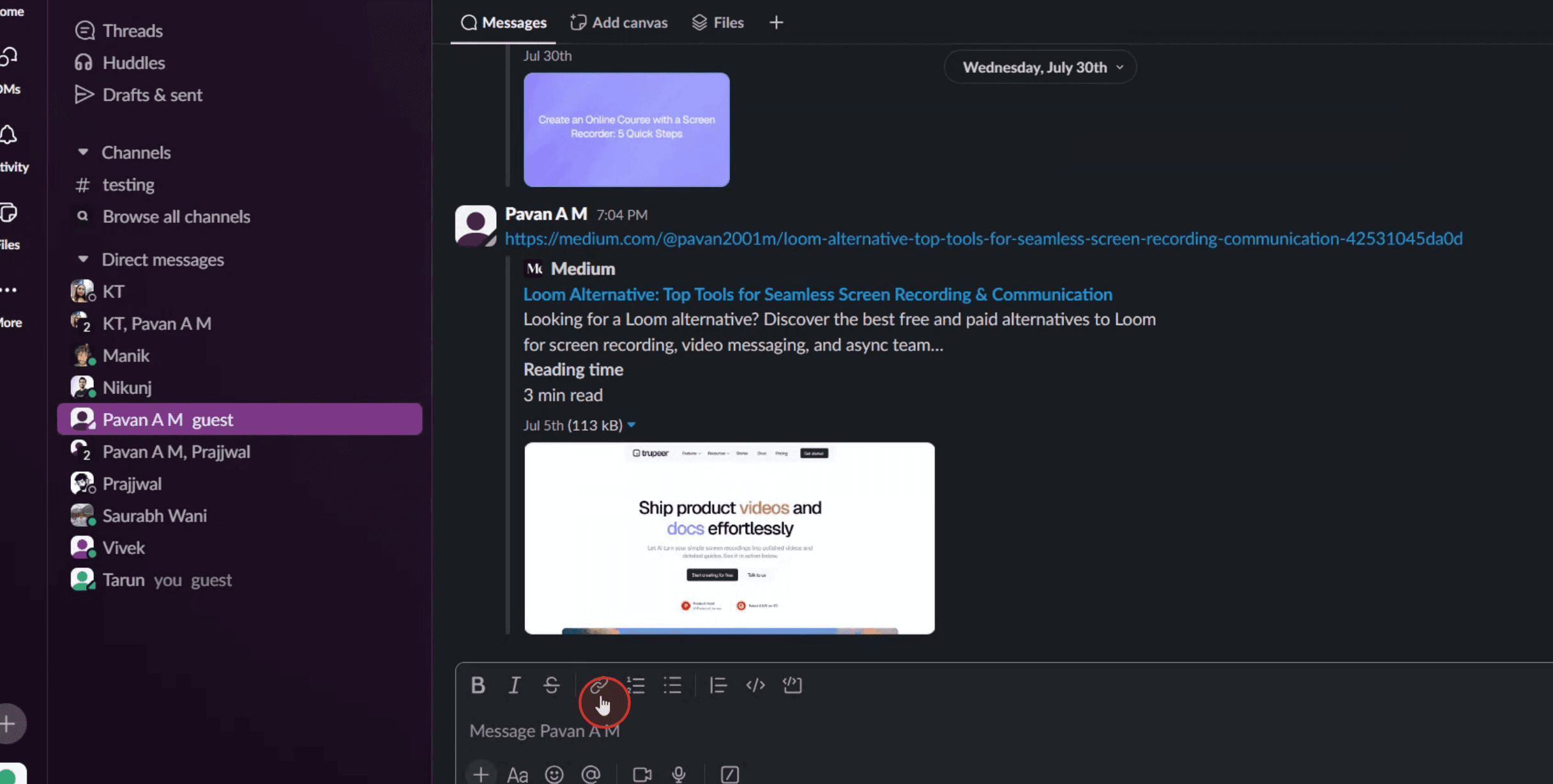
Langkah 1
Temukan lalu klik opsi tautan di menu rapat.
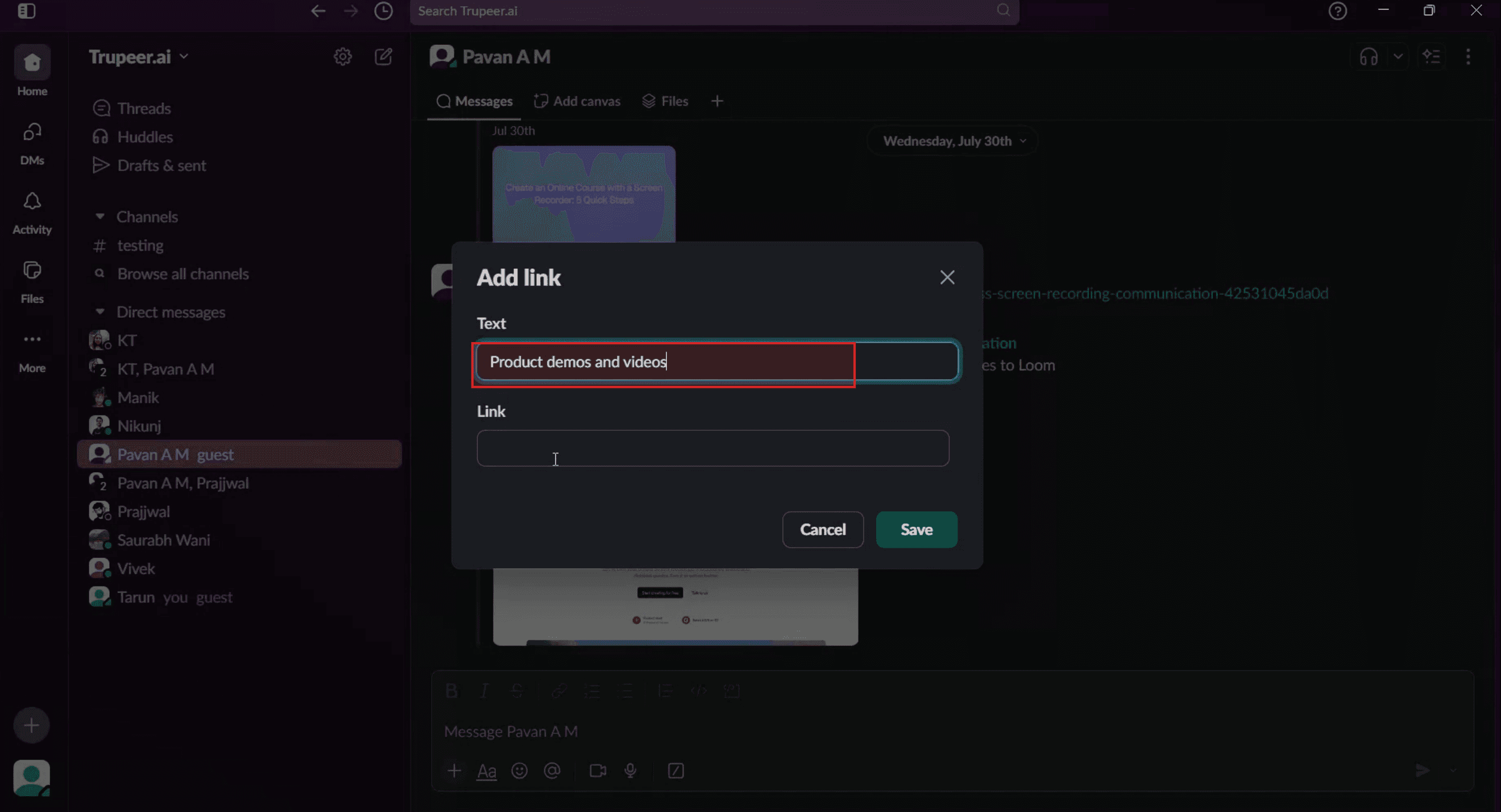
Langkah 2
Jendela pop-up akan muncul. Silakan masukkan teks yang diinginkan pada kolom yang disediakan.
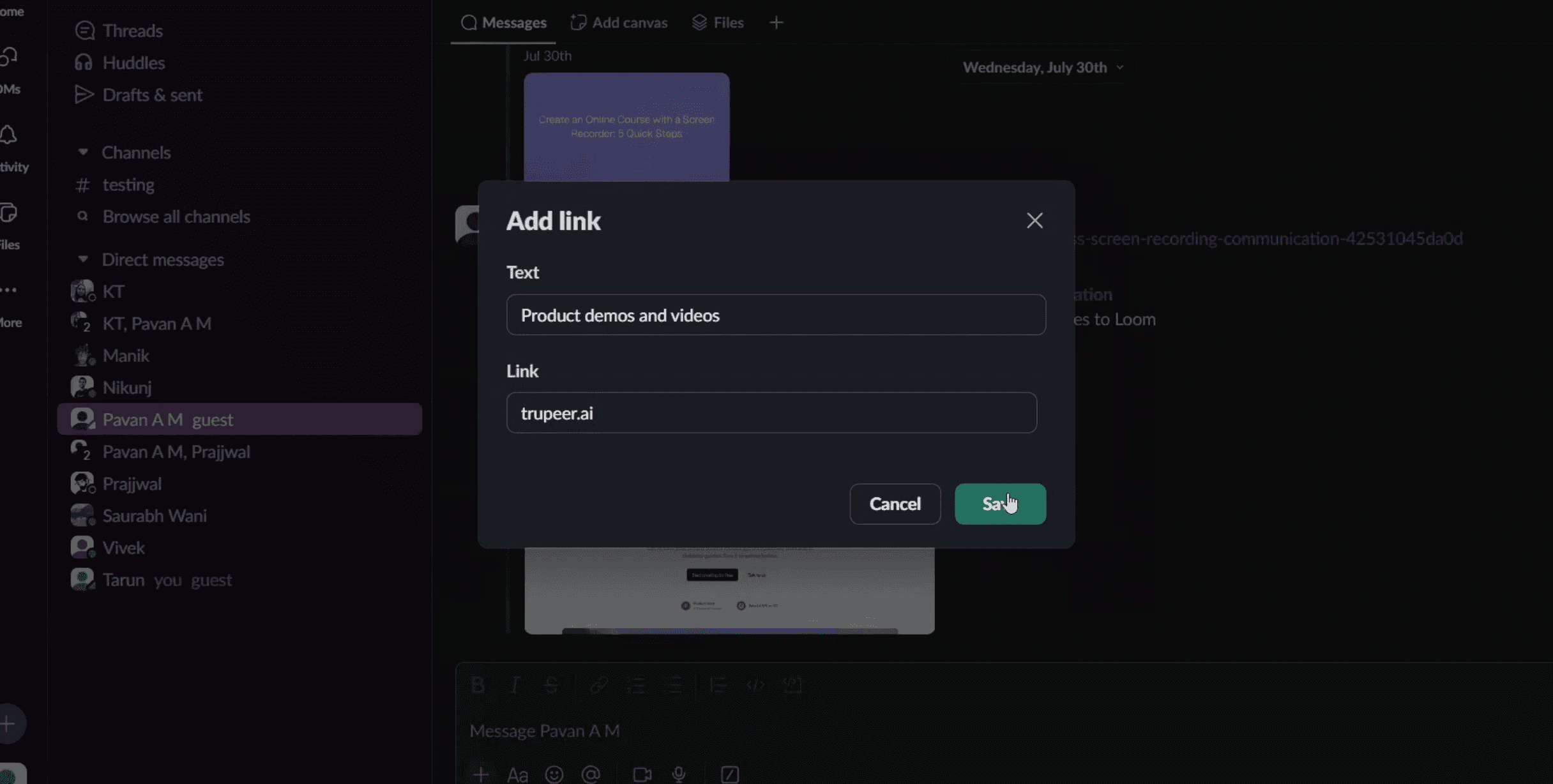
Langkah 3
Selanjutnya, pada kolom tautan, salin dan tempel URL atau masukkan tautan secara manual.

Langkah 4
Klik opsi simpan.
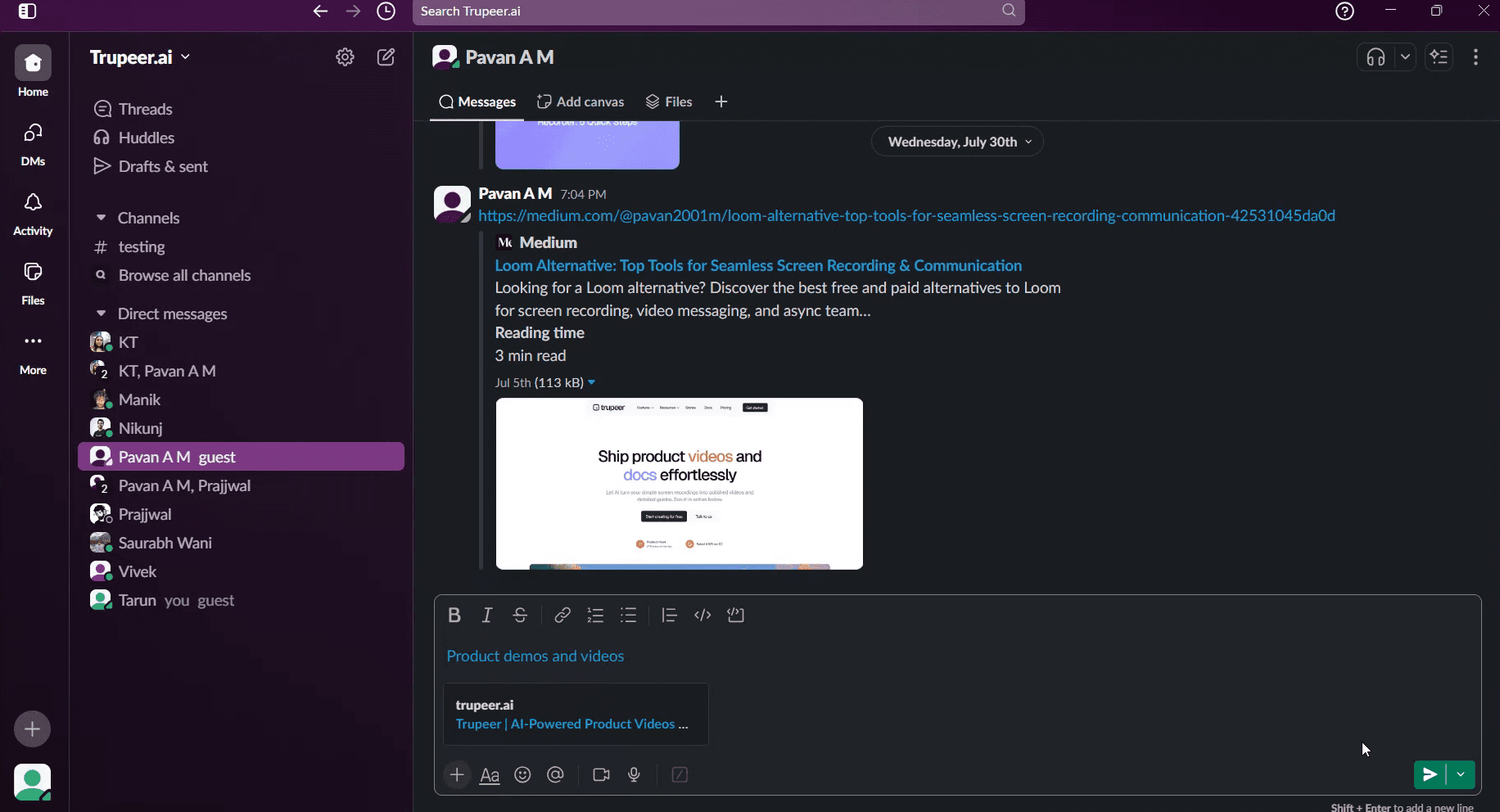
Langkah 5
Teks kini akan ditautkan ke situs web atau URL yang dipilih. he text will now be linked to the chosen website or URL.
Pro Tips for Hyperlinking in Slack
Use Slack’s Built-In Link Formatting
Slack doesn’t support traditional hyperlinking (like embedding a link into text) in regular messages. Instead, paste the full URL directly into your message, and Slack will automatically convert it into a clickable link.Hyperlink Using Formatting in Slack Posts
If you need to embed hyperlinks in text, use Slack Posts. Create a Post by clicking the “+” icon near the message box and selecting “Create a post.” In the editor, highlight text and use the formatting toolbar to insert a hyperlink.Use Angle Brackets to Add Descriptive Text
To format a link with custom text in regular messages, use angle brackets and a pipe symbol like this:
<https://example.com|Click here>
Slack will display it as “Click here” and link it to the URL.Use Code Snippets to Share Long URLs
If you’re sharing technical links or code that includes URLs, use code formatting (backticks) to preserve the full text and make it easier to read.Preview Links Before Sending
When you paste a URL, Slack often generates a preview (if supported). Check the preview to ensure the link is correct and points to the right destination.
Common Pitfalls and How to Avoid Them
Trying to Embed in Plain Text Messages
Slack doesn’t support embedded hyperlinks in plain messages. Use the angle bracket method or Posts if you need formatted text.Link Preview Not Appearing
Some websites don’t support Slack previews. Make sure the link is correct and includes "https://" at the beginning.Formatting Errors
Mistyping the link format (like missing a pipe | or a closing bracket >) can cause the hyperlink to break or display incorrectly.Posts Not Visible to Everyone
Slack Posts are accessible in the current channel or conversation. Make sure you’re sharing it in the right context.Broken Links
Always test your formatted or shortened links to ensure they open the correct page before sharing with others.
Common FAQs About Hyperlinking in Slack
Can I hyperlink text in a regular Slack message?
No, but you can format a clickable link using <URL|text>. For example: <https://example.com|Visit site>.How do I add a hyperlink in a Slack Post?
Open a new Post, highlight the text, click the link icon, and enter the URL to embed the link.Can I preview links in Slack?
Yes, Slack automatically shows a preview for many supported links like YouTube, Google Drive, and others.Do links work in Slack threads and DMs?
Yes, links can be used in any message context in Slack, including threads, channels, and direct messages.Why isn’t my link working?
Double-check for formatting errors, proper URL structure, and access permissions on the destination site.How to screen record on mac?
To screen record on a Mac, you can use Trupeer AI. It allows you to capture the entire screen and provides AI capabilities such as adding AI avatars, add voiceover, add zoom in and out in the video. With trupeer’s AI video translation feature, you can translate the video into 30+ languages.How to add an AI avatar to screen recording?
To add an AI avatar to a screen recording, you'll need to use an AI screen recording tool. Trupeer AI is an AI screen recording tool, which helps you create videos with multiple avatars, also helps you in creating your own avatar for the video.How to screen record on windows?
To screen record on Windows, you can use the built-in Game Bar (Windows + G) or advanced AI tool like Trupeer AI for more advanced features such as AI avatars, voiceover, translation etc.How to add voiceover to video?
To add voiceover to videos, download trupeer ai chrome extension. Once signed up, upload your video with voice, choose the desired voiceover from trupeer and export your edited video.How do I Zoom in on a screen recording?
To zoom in during a screen recording, use the zoom effects in Trupeer AI which allows you to zoom in and out at specific moments, enhancing the visual impact of your video content.
People also ask
Technical Documentation Generator
Tutorial Terkait


