Trupeer Blog
Podsumuj
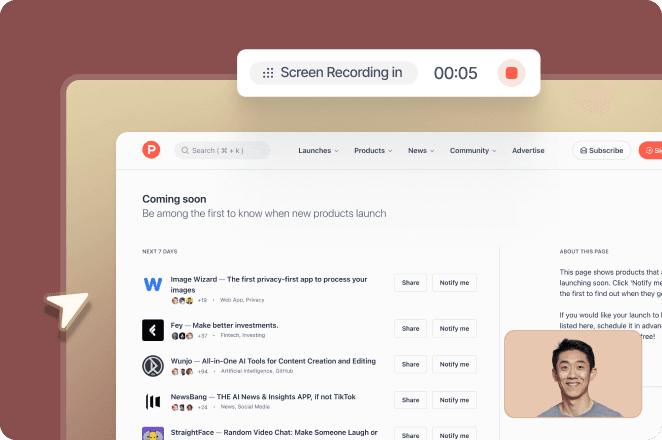
Your sales team has a polished walkthrough of the new CRM workflow. Employees have watched it, the completion dashboard looks healthy, and a rep still gets stuck when a customer record has an exception. Meanwhile, the product interface has changed, and the video no longer matches the screen.
I've seen how tempting it is to treat faster production as the fix. But to create training videos with AI that help people perform, you need more than clean narration and smart editing. You need a repeatable system for planning, review, accessibility, version control, and proof that learners can do the task.
Quick answer: To create training videos with AI, define the one task the learner must perform, record a real screen walkthrough, and let an AI tool such as Trupeer handle the editing: filler removal, zooms, voiceover, captions and translation. Then have a subject-matter expert review every step, publish with an owner and version, and check that learners can actually do the task.
Table of Contents
Why Most AI Training Videos Fail Before Anyone Hits Record
AI can make a training video faster to produce, but it can't decide on its own what employees need to learn or prove that they've learned it. In my experience, the failure usually starts before anyone records: a team hasn't defined the job behavior the video should change.
A common scenario is a sales enablement team racing to update a product walkthrough. The screen recording looks crisp, the voiceover is smooth, and the lesson covers every menu. Yet a rep who needs to handle an unusual customer setup can't decide which steps to follow. The video showed the interface, but it didn't teach the decision.
That distinction matters. A controlled study of AI-enhanced instructional videos reported a mean knowledge score of 76.8%, compared with 69.5% for standard faculty-recorded videos. But a separate study found no statistically significant retention difference between instructional modalities, so an AI-made video isn't automatically more durable learning (study of AI-enhanced instructional videos).
Production speed isn't the learning strategy
AI helps with production tasks: cleaning up narration, emphasizing screen actions, and creating a consistent format. Those efficiencies are useful, but they don't replace a clear objective, practice, or feedback. If you measure success only by whether employees pressed play, you'll miss whether they can complete the workflow independently.
I think of each video as one part of a learning system. A good walkthrough can show the standard path; a practice activity can test whether the learner knows what to do when a field is missing or a setting differs. A manager or subject-matter expert can then help diagnose errors that a video alone can't address.
The practical test: Don't ask only whether someone watched the video. Ask whether they can perform the task it was meant to teach.
A screen-recorded lesson may be exactly right for a repeatable software procedure. It still needs a source of truth, a human review, and a way to test performance. The production line matters, but the learning system around it matters more.
Planning a Training Video That Changes Behavior
Start with one observable behavior, then plan a demonstration and a check that shows whether the learner can do it. I've found that a one-page brief saves more time than jumping straight into an AI video tool, because it gives the editor, subject-matter expert, and reviewer the same definition of “done.”

Write the brief before you record
Use this compact template:
Learner and context: Who needs the training, and when will they use it? For example, a new sales rep preparing a customer account before a discovery call.
Observable objective: What should the learner be able to do? “Set up a new CRM opportunity with the required fields” is clearer than “understand the CRM.”
Demonstration sequence: List the essential actions in order, including the decision points where people commonly make mistakes.
Practice check: Decide how you'll confirm the learner can do the task, such as reproducing the workflow in a sandbox.
Source owner: Name the person responsible for checking the procedure against the live product, approved policy, and relevant regional requirements.
Keep the video focused on the work, not on every feature nearby. If a customer success team needs to route an escalation, show the conditions that determine the route, then give learners a practice scenario that tests those conditions. For a partner configuring an integration, identify the expected screen state at each key step so reviewers can catch an outdated instruction.
For a script structure, I use show the action, explain the reason, and check understanding. A video guide script template can help turn the brief into a coherent narration and demonstration.
Before production, ask the subject-matter expert to confirm that the interface and terminology match the current product, the policy hasn't changed, and the example works for the intended region. That simple handoff prevents a polished but misleading lesson.
Takeaway: If you can't describe the task the learner must perform, you're not ready to record the video.
Recording the Screen and Letting AI Do the Editing
Record a real, approved workflow, narrate it naturally, and let AI handle repetitive editing tasks. I use automation for cleanup and presentation, not for deciding whether the procedure is correct.
Capture the task, not a performance
Before you hit record, close irrelevant tabs, use a staging account, and make sure private customer information isn't visible. Then walk through the task at a pace a learner can follow. You don't need to deliver a perfect script in one take. Explain what you're doing and why, and leave editing to remove filler or repeated attempts.
After the recording, use AI features to:
Clean the transcript and remove filler words (see how AI removes filler words, pauses and ums).
Add smart zooms around important clicks and screen changes.
Generate a polished voiceover or adjust narration for clarity.
Apply branded backgrounds, chapter markers, and captions.
Add an avatar when a presenter helps the audience, while keeping the interface visible.
In my work, a small picture-in-picture presenter can add a sense of guidance without hiding the menu or button the learner needs to see. For a simple software tutorial, though, an avatar may add little. Choose the format based on the task and audience, not because a tool offers it.

A screen-recording workflow such as Trupeer's AI video editor can turn narration and clicks into a draft faster. I still watch the edit from beginning to end. Smart zooms can highlight the wrong field, and a generated voiceover can pronounce product names incorrectly. Trupeer’s alias pronunciation setting fixes this by letting you tell the voiceover exactly how to say each name.
Takeaway: Let AI shorten the edit, then verify every screen state and spoken instruction against the actual workflow.
Turning One Recording Into Docs, SOPs, and 65+ Languages
Treat the recording as a reusable source, not a finished file. The same approved walkthrough can support a video, step-by-step guide, internal SOP, and localized versions, as long as you decide which format fits each audience.
A new employee may benefit from watching a feature introduced in context. A support agent on a live call may need a searchable written instruction they can scan without replaying a video. I've noticed teams get more value from one well-maintained source when they plan those outputs together instead of writing each one from scratch.
Match the format to the moment
Audience | Best Primary Output | Supporting Format |
|---|---|---|
New employees learning a workflow | Short walkthrough video | Step-by-step guide |
Support staff looking up a fix mid-call | Searchable SOP or help article | Brief screen recording |
Sales engineers preparing a tailored demo | Custom demo video | Feature and workflow notes |
Global partner teams configuring a product | Localized video or written guide, based on task complexity | Approved glossary and source screenshots |
A good documentation pipeline preserves the source steps and captures relevant screenshots. From there, an editor can organize the procedure into headings and chapters, then produce a customer-facing help article or internal SOP. It works in the other direction too: you can turn an existing SOP into a training video.
Localization needs review, not just translation. Maintain an approved terminology glossary, test product names and pronunciation in each language, and assign a reviewer who can verify the meaning of high-risk instructions. With video localization, one source can support multiple language versions, but every version still needs to stay aligned with the approved procedure. For the full workflow, see how to create multilingual training videos for global teams.
A practical scenario: the product team changes a settings label. The owner updates the source recording and identifies every linked language, screenshot, SOP, and training video for review. Without that connection, a revised video may coexist with an outdated manual and confuse the learner.
Takeaway: Publish related outputs from a governed source, then choose video or text based on what learners need to do in the moment.
How to Create a Training Video with AI in Trupeer
Here is what the workflow above looks like in practice with Trupeer, from a raw screen recording to a reviewed training video and guide.
Step 1, record your screen: Use the Trupeer Chrome extension to walk through the task once. Auto-zoom and click detection highlight every important action, so you don't need to edit them in later.
Step 2, let AI polish the script and voiceover: Trupeer removes filler words and pauses, rewrites the narration for clarity, and turns your voice into a studio-quality AI voiceover.
Step 3, add an AI avatar if it helps: Choose from 100+ HeyGen avatars or use your own, while keeping the interface visible.
Step 4, translate into 65+ languages: The video, voiceover and guide are translated together, so every language version comes from the same approved source.
Step 5, generate the guide or SOP: The same recording becomes a step-by-step written guide with screenshots, ready for your help center or internal SOP library.
Step 6, review and publish: Have your subject-matter expert check every step, then share the video, embed it, or add it to a searchable knowledge base.
Because the video, guide and translations all come from one recording, updating the source keeps every version in line, which is exactly the version control the next section calls for. See how teams create training videos with Trupeer.
Governance, Compliance, and Accessibility You Cannot Skip
Enterprise AI video needs privacy controls, accountable review, accessibility, and version ownership before it reaches employees or customers. A polished asset isn't enterprise-ready if nobody can say what source it used, who approved it, or whether the instructions remain current.

Ground the draft and control the version
Start with approved product specifications, policies, interface recordings, and screenshots. Treat AI-generated scripts, captions, translations, avatars, and annotations as drafts. A subject-matter expert should verify each procedural step, label, and screen state before release.
This review is important because multimodal systems can struggle with interpretation. The VideoHallu benchmark reported 51.4% overall accuracy for top-performing models, with a gap of more than 20 points between perceptual and reasoning-oriented questions (VideoHallu benchmark). For operational training, that's a reason to keep human reviewers accountable, not a reason to abandon automation.
Give each approved asset a version ID, a named owner, source references, an approval record, and an expiry or review trigger. When the interface changes, the owner should identify affected lessons and pause distribution if a critical step is no longer accurate. For small interface changes, you can often update a training video without re-recording it.
Build accessibility into the script
WCAG 2.2 requires synchronized captions for prerecorded audio in synchronized media, unless the video is clearly labeled as a media alternative for text. For prerecorded video-only content, provide an equivalent text alternative or an audio track that conveys the information (W3C WCAG 2.2 guidance). Captions should also include meaningful non-speech audio when it communicates information, such as an alert sound that signals a system event.
Visual information matters too. If the learner needs to understand a chart, on-screen label, or status change, describe it in the narration or a descriptive transcript so the lesson remains usable without relying on sight (W3C media accessibility planning guidance). I avoid narration like “click the button on the right.” Say the label and purpose instead, such as “Select Settings, then choose Security.”
Before publishing, check that the recording contains no confidential data, the SME approved critical steps, captions are synchronized, essential visuals are described, and ownership and rollback copies are documented. For enterprise reviewers assessing AI video platform trust info, the questions should cover access, auditability, data handling, and change control. UNESCO's AI-in-education guidance also provides a framework around privacy, human control, transparency, and ongoing evaluation (UNESCO guidance on AI in education).
Takeaway: AI can draft and transform learning content; your team remains responsible for its safety, accessibility, and accuracy.
Proving the Video Actually Changed Job Performance
Completion tells you that a learner reached the end of a video. It doesn't show that they can perform the task at work. I'd measure whether someone can complete the workflow, handle realistic exceptions, and retain the skill after the lesson is no longer fresh.

Use a watch-practice-prove loop
A practical measurement loop begins with a baseline check, continues through the demonstration and practice, and ends with a task the learner must complete independently. Put decision points into the lesson, then test the learner in a sandbox where they can make mistakes without affecting live customer or operational data.
For a CRM lesson, don't stop after asking the learner to name the required fields. Have them build an opportunity, then give them a realistic exception, such as an account with incomplete information. Track whether they complete the task correctly, where they get stuck, and what kind of error they make.
Useful measures include:
Task success: Can the learner finish the workflow without help?
Error pattern: Which steps or exceptions cause mistakes?
Time to independent completion: How long does it take before the learner can perform the process on their own?
Delayed performance: Can the learner still complete the procedure in a later check?
Where the role and risk justify it, check again after 7 or 30 days. Those intervals are a proposed evaluation approach, not a universal benchmark. Choose the timing based on how often people perform the task and how costly an error would be.
Shortcuts can backfire. Research on AI summaries for video learning found that learners watched less, performed worse on conceptual-transfer items, and reported lower intrinsic motivation when summaries replaced full viewing (study on AI summaries for video learning). That doesn't mean summaries have no use; it means a shorter viewing experience shouldn't stand in for a task check.
A learner who watched the demonstration has seen the steps. A learner who reproduces the workflow has shown evidence of transfer.
Connect these measures to measuring end user adoption, but keep the distinction clear: adoption indicates whether people use a process or product, while a task assessment checks whether they can use it correctly.
Takeaway: Use views and completion as context, not proof. The strongest evidence is a learner performing the target task.
Your Rollout Checklist and What to Skip
Pilot the workflow with one team, review performance evidence, and expand only when the content stays accurate and learners can apply it. In my experience, teams get into trouble when they optimize the production pipeline before deciding how they'll govern or evaluate what it produces.
A survey of 115 organizations representing about 62,100 employees found that roughly 65% had implemented AI learning programs, and 60% of surveyed companies were already using training videos (survey on AI learning and training-video use). That makes version ownership and review practical operational concerns, not distant planning exercises.
Keep the essentials, skip the decoration
Before a pilot goes live, make sure you have:
A defined task: One video teaches one observable behavior.
An accountable reviewer: An SME verifies the procedure and approved sources.
Accessible outputs: Captions, transcripts, and descriptions cover essential information.
Version control: An owner can identify outdated assets and trigger review.
A transfer check: Learners demonstrate the workflow, not just finish the video.
Don't overinvest in custom avatar branding for internal procedural training if a clear screen recording and natural narration will do. Don't publish a large library before testing whether learners can use the lessons. Instead, begin with a high-value onboarding, enablement, customer success, or partner-certification workflow, then use the results to refine your process.
Before choosing a platform, ask who can access raw recordings, how approval is recorded, whether generated captions and translations can be reviewed, how outdated versions are retired, and whether source recordings can produce linked documentation. Also ask how the workflow supports your organization's identity controls, permissions, and audit requirements.
Takeaway: Scale the governed workflow, not just the number of videos. Pilot, measure, improve, and then expand to the next team.
Start Creating Training Videos with AI That Work
AI makes training videos faster to produce, but the videos that work start with a clear task, a real recording, expert review and a check that learners can perform. Get that system right, and AI lets you scale it across teams, products and languages.
Trupeer turns a single screen recording into a polished training video, a step-by-step guide and translated versions in 65+ languages, so your team can build and update training content in minutes. Create your first training video with Trupeer.
Related reading
Frequently Asked Questions
Can AI create training videos?
How long does it take to create a training video with AI?
Can I translate training videos with AI?
Do AI training videos need human review?
Do I need an AI avatar in a training video?