Trupeer Blog
Resumir

El software de captura de pantalla es crucial para una comunicación interna eficaz, la notificación de errores y la documentación de producto. Sin embargo, muchos equipos siguen usando herramientas básicas a nivel del sistema operativo que se quedan cortas en funciones como la anotación, la captura de desplazamiento y el intercambio eficiente. Una herramienta de captura de pantalla bien elegida puede transformar la forma en que los equipos documentan y se comunican visualmente. Según un estudio de TechSmith, el 67% de los profesionales cree que mejorar la comunicación visual aumenta la productividad de forma significativa. Esta guía está diseñada para ayudar a profesionales y equipos a encontrar el mejor software de captura de pantalla que se adapte a sus necesidades específicas, ya se centren en las capacidades de anotación, en las funciones de compartición o en modos de captura avanzados. Para cómo hacer una captura de pantalla, a menudo es más fácil grabar el proceso una vez que escribirlo todo.
Mejores herramientas de captura de pantalla: comparación cara a cara
Herramienta | Trupeer | Snagit | ShareX | Lightshot | Greenshot | Markup Hero | CloudApp |
|---|---|---|---|---|---|---|---|
Modos de captura | Pantalla completa, región, desplazamiento, ventana | Pantalla completa, región, desplazamiento, ventana | Pantalla completa, región, desplazamiento, ventana, superposición de webcam | Pantalla completa, región, ventana | Pantalla completa, región, ventana | Región, ventana | Pantalla completa, región, desplazamiento, ventana, superposición de webcam |
Herramientas de anotación | Sí | Sí | Limitadas | Limitadas | Sí | Sí | Sí |
OCR | Sí | Sí | Sí | No | No | No | Sí |
Compartición en la nube | Sí | Sí | Sí | Limitada | No | No | Sí |
Compatibilidad con clips de vídeo | Sí | Sí | Sí | No | No | No | Sí |
Plan gratuito | Sí | No | Sí | Sí | Sí | Sí | Limitado |
Trupeer
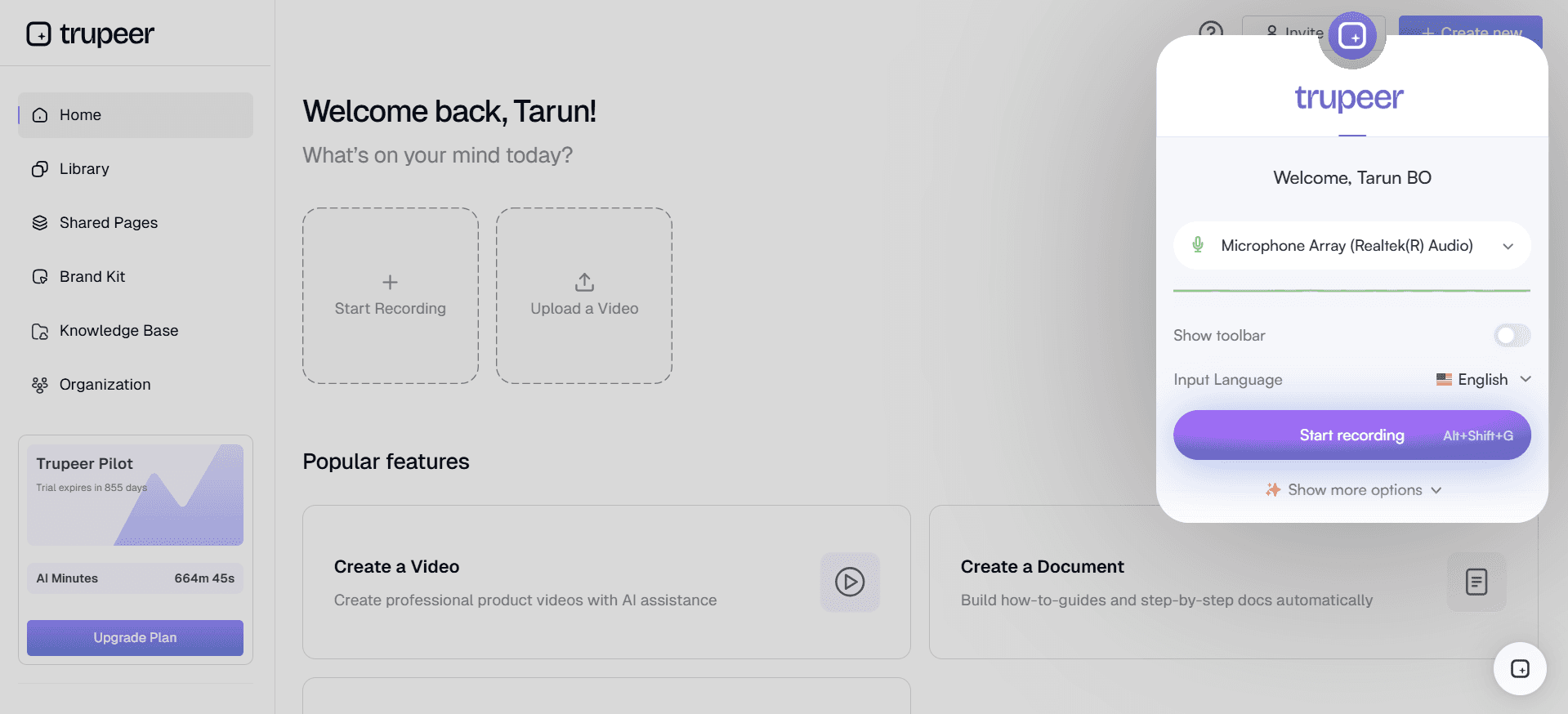
Trupeer es una herramienta de captura de pantalla versátil que se adapta a profesionales que buscan un conjunto completo de funciones. Destaca por ofrecer una experiencia fluida para capturar, anotar y compartir capturas de pantalla, lo que la hace ideal para entornos corporativos y equipos que priorizan la colaboración. Trupeer se distingue por sus avanzadas capacidades de IA, incluida la lectura de caracteres ópticos (OCR) y las anotaciones automatizadas, que ahorran tiempo y mejoran la productividad.
Con Trupeer, obtendrás una herramienta que admite capturas de pantalla completa, de región, con desplazamiento y de ventana, para que no se te escape ningún detalle. Está diseñada para ser fácil de usar, con controles intuitivos que permiten a los usuarios centrarse en crear visuales eficaces en lugar de aprender un software complejo.
Funciones clave
Anotaciones avanzadas impulsadas por IA
OCR para extraer texto
Compartición y colaboración basadas en la nube
Compatibilidad multiplataforma
Captura y edición de clips de vídeo
Atajos de teclado personalizables
Integraciones con las principales herramientas del entorno laboral
"Trupeer ha agilizado nuestra comunicación interna, ahorrándonos horas cada semana. Sus herramientas de anotación intuitivas son un cambio de juego." - Sarah L., Project Manager en Tech Innovators
Precios
Trupeer ofrece una experiencia premium sin plan gratuito. Los precios comienzan en 49 $ por usuario al mes, con planes enterprise disponibles para equipos más grandes.
Snagit
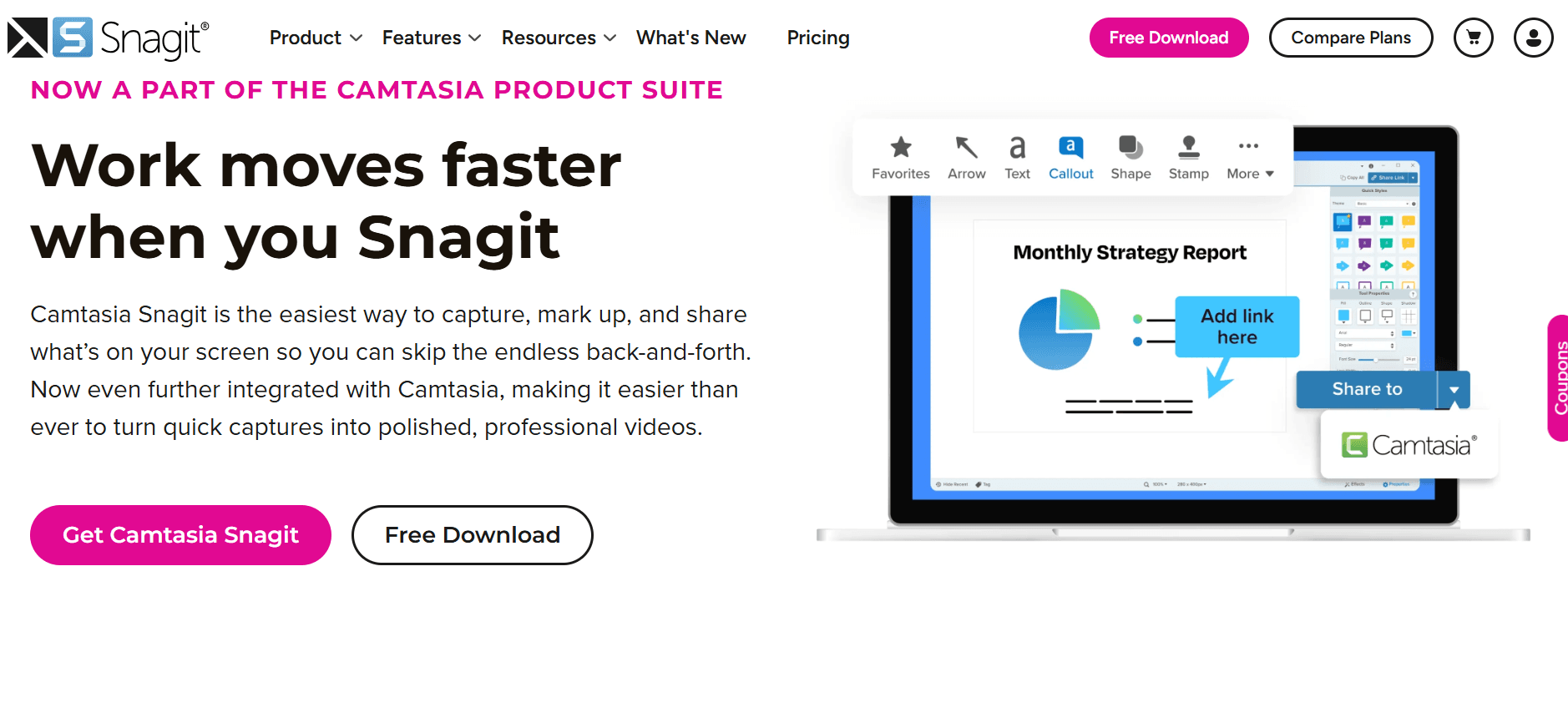
Snagit de TechSmith es una opción popular entre educadores y profesionales por sus funciones potentes y su facilidad de uso. Es especialmente adecuada para quienes necesitan crear tutoriales o documentación detallados, gracias a sus sólidas capacidades de captura y anotación. Snagit admite capturas de pantalla completa, de región y con desplazamiento, lo que la hace versátil para diversas tareas.
Una de las funciones más destacadas de Snagit es su capacidad para transformar rápidamente las capturas en visuales con aspecto profesional mediante una variedad de herramientas de edición. Esto la convierte en una opción ideal para usuarios que necesitan resultados pulidos con el mínimo esfuerzo.
Funciones clave
Captura con desplazamiento
Herramientas de anotación completas
Grabación de vídeo y recorte
Extracción de texto con OCR
Plantillas listas para editar rápidamente
Biblioteca en la nube para acceder fácilmente
Múltiples formatos de salida
Ventajas
Desventajas
Interfaz intuitiva para todos los niveles
No hay plan gratuito disponible
Herramientas potentes de anotación y edición
Consume muchos recursos en sistemas antiguos
Admite capturas de pantalla y de vídeo
Integraciones limitadas con herramientas de terceros
Precios
Snagit no ofrece una versión gratuita, pero los usuarios pueden probarla gratis durante 15 días. La versión completa comienza en 49,99 $ como compra única.
ShareX
ShareX es una herramienta de captura de pantalla gratuita y de código abierto, repleta de funciones, por lo que es la favorita de los entusiastas de la tecnología y los desarrolladores. Ofrece una amplia variedad de modos de captura, como pantalla completa, región y desplazamiento, además de una función única de superposición de webcam, relativamente rara en herramientas gratuitas.
ShareX es altamente personalizable, lo que permite a los usuarios adaptar su funcionalidad a sus necesidades específicas. Sin embargo, este nivel de personalización puede resultar abrumador para quienes empiezan o para quienes buscan una solución sencilla.
Funciones clave
Modos de captura completos
Flujos de trabajo personalizables
Admite la creación de GIF
Funciones de compartición mediante URL
Herramientas de anotación con edición básica
Compatibilidad con OCR para reconocimiento de texto
Gratis y de código abierto
Ventajas
Desventajas
Completamente gratis con funciones extensas
Curva de aprendizaje elevada para usuarios nuevos
Altamente personalizable y versátil
La interfaz puede estar desordenada
Admite flujos de trabajo avanzados con scripting
Recursos oficiales de soporte limitados
Precios
ShareX es totalmente gratuito, sin versiones de pago, lo que lo hace accesible para todo el mundo, desde particulares hasta equipos.
Lightshot
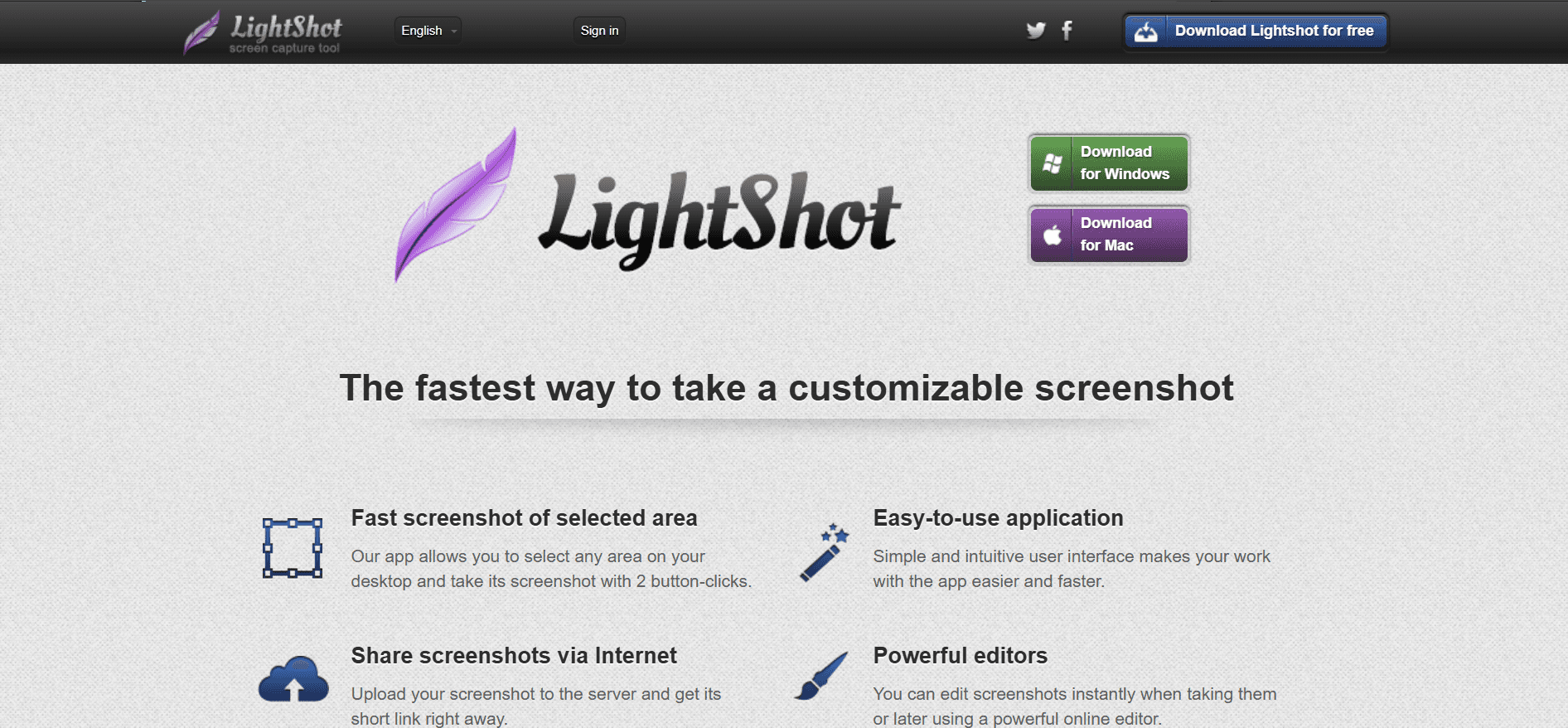
Lightshot es una herramienta de captura de pantalla sencilla y ligera, perfecta para usuarios que necesitan capturas rápidas y fáciles. Es especialmente popular entre usuarios ocasionales y quienes quieren una solución sin complicaciones para capturar regiones de su pantalla. Lightshot está disponible en varias plataformas, lo que garantiza que puedas capturar desde casi cualquier dispositivo.
Aunque Lightshot no incluye algunas funciones avanzadas presentes en herramientas más robustas, su sencillez y facilidad de uso la hacen atractiva para usuarios que priorizan la velocidad y la eficiencia por encima de interfaces repletas de funciones.
Funciones clave
Captura rápida de región
Subida instantánea a la nube
Herramientas básicas de anotación
Opciones de compartición sencillas
Disponibilidad multiplataforma
Interfaz simple e intuitiva
Ventajas
Desventajas
Extremadamente fácil de usar para capturas rápidas
Carece de modos de captura avanzados
Gratis y ligero
Opciones de anotación limitadas
Capacidad de compartición instantánea
No admite captura de vídeo
Precios
Lightshot se puede usar gratis, sin planes premium, lo que lo hace accesible para todos los usuarios que buscan una funcionalidad básica de captura.
Greenshot
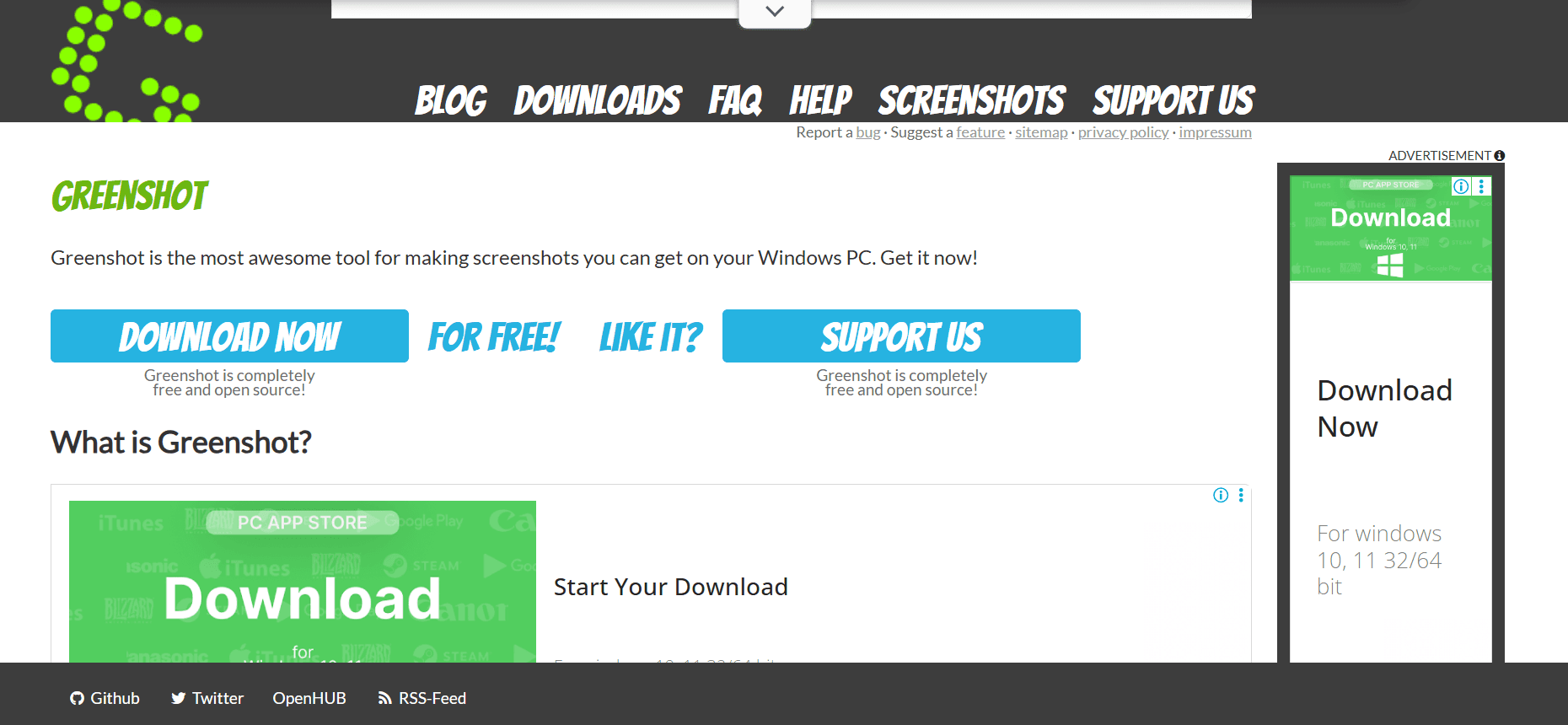
Greenshot es una herramienta de código abierto conocida por su sencillez y eficacia a la hora de capturar capturas de pantalla. Es especialmente apreciada en entornos empresariales donde se requiere una captura rápida y fiable. Greenshot ofrece opciones de captura de pantalla completa, de región y de ventana, lo que la hace versátil para diversas necesidades.
Aunque Greenshot no tiene el conjunto de funciones más amplio, proporciona herramientas esenciales para anotaciones y compartición, lo que la convierte en una opción fiable para usuarios que necesitan una funcionalidad directa sin complicaciones.
Funciones clave
Modos de captura básicos
Herramientas de anotación sencillas
Integración con Microsoft Office
Subida directa a servicios en la nube
Gratis y de código abierto
Aplicación ligera
Ventajas
Desventajas
Fácil de usar con funciones esenciales
Funciones avanzadas limitadas
Se integra bien con Office Suite
No tiene capacidades de captura de vídeo
Gratis y de código abierto
Herramientas de anotación básicas
Precios
Greenshot está disponible gratis, sin versión premium, lo que la convierte en una opción rentable tanto para empresas como para particulares.
Markup Hero
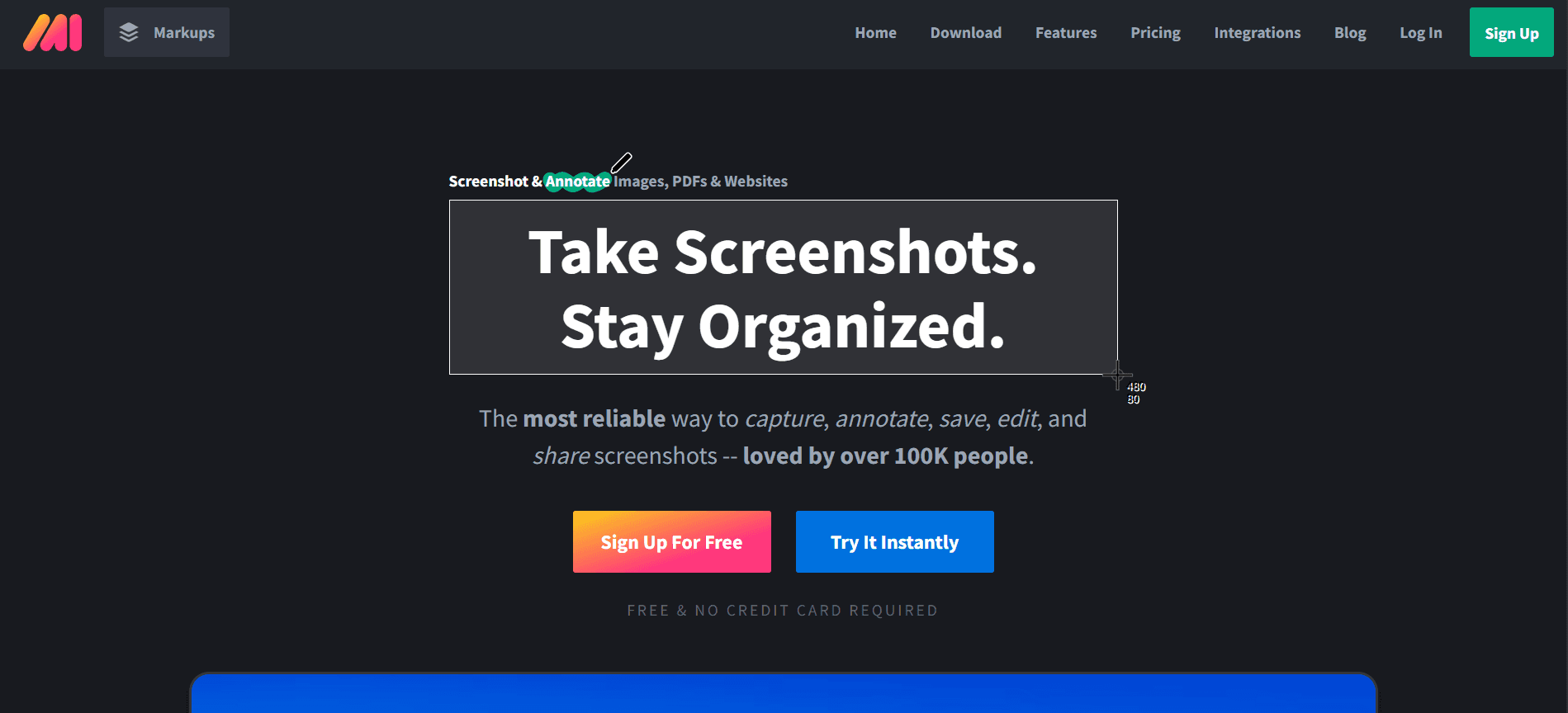
Markup Hero está diseñada para usuarios que necesitan anotar y compartir capturas de pantalla rápidamente. Es una herramienta excelente para educadores, diseñadores y para cualquiera que colabore a menudo de forma visual. Markup Hero se centra en la facilidad de uso y la velocidad, permitiendo a los usuarios capturar, anotar y compartir en solo unos clics.
Aunque no ofrece la gama más amplia de opciones de captura, su enfoque en la anotación y la compartición la convierte en una herramienta potente para quienes necesitan crear y distribuir visuales con rapidez.
Funciones clave
Captura y anotación rápidas
Almacenamiento y compartición basados en la nube
Funciones de colaboración en tiempo real
Integraciones con herramientas populares como Slack y Google Drive
Interfaz sencilla para facilitar el uso
Disponible en varias plataformas
Ventajas
Desventajas
Excelente para anotar y compartir rápido
Modos de captura limitados
Admite colaboración en tiempo real
Sin funcionalidad de captura de vídeo
Plan gratuito disponible con funciones esenciales
Funciones avanzadas detrás de un muro de pago
Precios
Markup Hero ofrece un plan gratuito con funciones esenciales, mientras que los planes premium comienzan en 5 $ por usuario al mes para capacidades avanzadas.
CloudApp
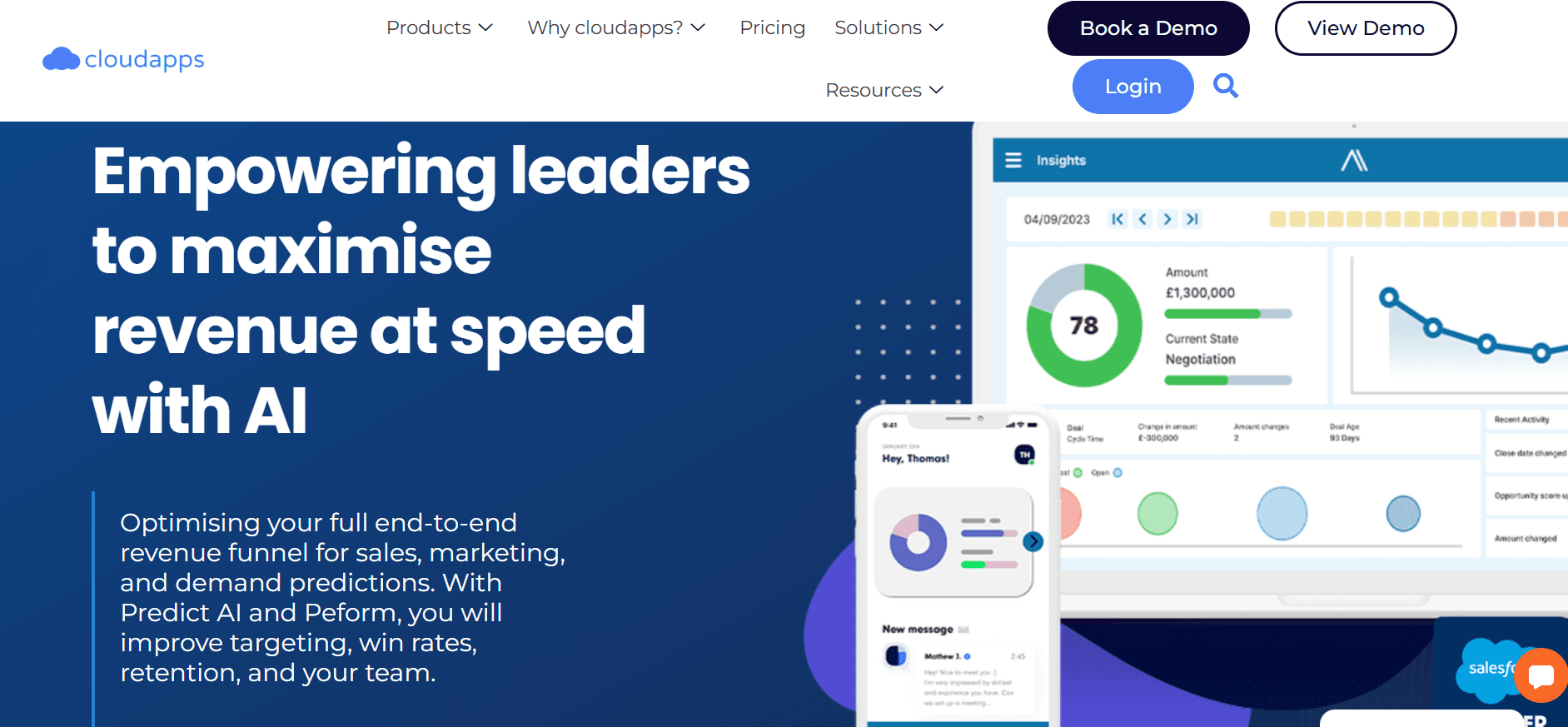
CloudApp, recientemente renombrada como Zight, es una herramienta potente preferida por equipos que necesitan tanto captura de pantalla como capacidades de vídeo. Ofrece una experiencia fluida para capturar, anotar y compartir tanto capturas de pantalla como grabaciones de pantalla, lo que la convierte en una solución completa para necesidades diversas.
El punto de venta distintivo de CloudApp es su integración con servicios en la nube, que permite a los usuarios acceder y compartir sus capturas desde cualquier lugar. Esto la hace especialmente útil para equipos y organizaciones remotas que priorizan la accesibilidad y la colaboración.
Funciones clave
Captura de pantalla y grabación de vídeo
Herramientas de anotación en tiempo real
Almacenamiento y compartición en la nube
Integraciones con herramientas del entorno laboral como Slack y Trello
Superposición de webcam para grabaciones personalizadas
Soporte para creación de GIF
Ventajas
Desventajas
Funciones completas de captura y compartición
El plan gratuito tiene funciones limitadas
Excelente para colaboración remota
Más cara que algunas alternativas
Admite capturas de pantalla y clips de vídeo
Puede ser exigente en recursos
Precios
CloudApp ofrece un plan gratuito limitado, con planes de pago que comienzan en 8 $ por usuario al mes, lo que proporciona funciones adicionales y capacidad de almacenamiento.
Retos de la captura de pantalla: con qué luchan los equipos
Limitaciones de la anotación
Las herramientas para marcar capturas de pantalla pueden ser insuficientes y provocar problemas de comunicación y errores.
Las opciones básicas de anotación carecen de precisión, lo que afecta a la claridad del mensaje transmitido.
La imposibilidad de personalizar las anotaciones dificulta la personalización y los esfuerzos de marca.
Los equipos a menudo dependen de herramientas externas para la edición avanzada, lo que aumenta la complejidad del flujo de trabajo.
Fricción al compartir
La dificultad para compartir capturas entre plataformas puede ralentizar la colaboración.
La integración limitada con la nube restringe el acceso a capturas desde varios dispositivos.
Los procesos de compartición manuales consumen tiempo y son propensos a errores.
Las preocupaciones sobre la seguridad de los datos con las opciones de compartición en la nube pueden dificultar su uso.
Sin captura con desplazamiento
La incapacidad de capturar páginas web o documentos largos de una sola vez frustra a los usuarios.
El ensamblaje manual de varias capturas es laborioso y poco eficiente.
La pérdida de contexto al dividir el contenido en varias imágenes puede confundir a los destinatarios.
No todas las herramientas ofrecen esta función, lo que limita las opciones para los usuarios.
Restricciones de formato
La falta de soporte para formatos de archivo diversos limita la utilidad de las imágenes capturadas.
Convertir archivos a formatos compatibles hace perder tiempo y recursos.
La incompatibilidad con otro software podría provocar pérdida de datos o corrupción.
Algunas herramientas imponen formatos propietarios, lo que complica la compartición y el almacenamiento.
Almacenamiento y organización
Sin soluciones de almacenamiento eficaces, los usuarios tienen dificultades para encontrar rápidamente capturas anteriores.
Las funciones de organización deficientes provocan espacios de trabajo digitales desordenados.
La falta de opciones de etiquetado y categorización complica la recuperación.
Los equipos dedican un tiempo excesivo a gestionar archivos en lugar de centrarse en tareas esenciales.
Reto
Proceso tradicional
Impacto en el negocio
Coste de tiempo
Limitaciones de la anotación
Uso de software de edición externo
Aumento de la tasa de errores
+2 horas/semana
Fricción al compartir
Adjuntos de correo electrónico
Colaboración retrasada
+3 horas/semana
Sin captura con desplazamiento
Varias capturas ensambladas manualmente
Menor eficiencia
+2,5 horas/semana
Restricciones de formato
Herramientas de conversión de archivos
Pérdida de productividad
+1,5 horas/semana
Almacenamiento y organización
Organización manual de carpetas
Tiempo perdido en la recuperación
+3 horas/semana
Estos retos ponen de manifiesto la necesidad de herramientas avanzadas de captura de pantalla que ofrezcan soluciones integradas para agilizar los flujos de trabajo y aumentar la productividad. La siguiente sección profundiza en las funciones esenciales que las herramientas modernas de captura de pantalla deberían tener para superar estos obstáculos de forma eficaz.
Funciones imprescindibles en herramientas modernas de captura de pantalla
Herramientas de anotación avanzadas
Las herramientas modernas de captura de pantalla deberían incluir funciones de anotación avanzadas que vayan más allá del texto y las flechas simples. Los usuarios deberían tener acceso a formas personalizables, llamadas y la capacidad de difuminar información sensible. Estas funciones mejoran la claridad y la eficacia de los visuales, garantizando que el mensaje se transmita con precisión. Herramientas como Trupeer destacan en este aspecto, ofreciendo anotaciones impulsadas por IA que ahorran tiempo y mejoran la precisión.
Este tipo de herramientas también deberían permitir una integración fluida con otras aplicaciones, de modo que los usuarios puedan anotar y compartir directamente dentro de su flujo de trabajo. Esta integración reduce la necesidad de cambiar entre aplicaciones, aumentando así la eficiencia y reduciendo el potencial de errores.
Compartición y colaboración sin fricciones
En la era del trabajo remoto, las capacidades de compartición y colaboración sin fricciones son esenciales. Las herramientas de captura de pantalla deben ofrecer una integración sólida con la nube, permitiendo a los usuarios almacenar y acceder a las capturas desde cualquier dispositivo. Las funciones de colaboración en tiempo real permiten a los equipos trabajar juntos de forma más eficaz, acelerando los procesos de toma de decisiones.
Por ejemplo, CloudApp ofrece excelentes opciones de almacenamiento y compartición en la nube, facilitando la colaboración entre equipos. Su integración con plataformas populares como Slack y Trello la convierte en una opción preferida para empresas que priorizan la colaboración.
Capacidad de captura con desplazamiento
La posibilidad de capturar contenido con desplazamiento es vital para los usuarios que necesitan documentar páginas web o documentos largos. Esta función elimina la necesidad de varias capturas y del ensamblaje manual, ahorrando tiempo y esfuerzo. Herramientas como Snagit y ShareX ofrecen una excelente funcionalidad de captura con desplazamiento, lo que las hace ideales para usuarios que trabajan con frecuencia con contenido web.
Además, capturar páginas completas de una sola vez garantiza que el contexto se conserve, mejorando la calidad de la documentación y la comunicación.
Reconocimiento óptico de caracteres (OCR)
La tecnología OCR es un cambio de juego para los usuarios que necesitan extraer texto de imágenes. Al reconocer y digitalizar el texto, el OCR permite a los usuarios editar y reutilizar la información sin tener que escribirla manualmente. Esta función es especialmente útil para crear documentos editables a partir de imágenes escaneadas o capturas de pantalla.
Herramientas como Trupeer y Snagit incorporan OCR, lo que las hace valiosas para profesionales que trabajan con materiales con mucho texto. Con OCR, los usuarios pueden agilizar los flujos de trabajo, reducir errores y mejorar la productividad.
Compatibilidad multiplataforma
Con la proliferación de distintos sistemas operativos, es crucial que las herramientas de captura de pantalla ofrezcan compatibilidad multiplataforma. Esto garantiza que los usuarios puedan capturar, editar y compartir contenido independientemente del dispositivo o sistema operativo que estén usando. La compatibilidad con Windows, macOS e incluso Linux puede ser un factor decisivo para muchos usuarios.
Trupeer y Markup Hero ofrecen compatibilidad multiplataforma, asegurando que los usuarios tengan una experiencia consistente en todos los dispositivos. Esta flexibilidad es vital para los equipos que trabajan en entornos diversos, ya que les permite mantener la productividad sin problemas de compatibilidad.
Interfaz de usuario intuitiva
Una interfaz fácil de usar es esencial para que cualquier herramienta sea eficaz. El software de captura de pantalla debe ser lo bastante intuitivo para usuarios primerizos, a la vez que ofrece funciones avanzadas para usuarios avanzados. Una interfaz limpia y organizada reduce la curva de aprendizaje y fomenta un uso más frecuente.
Herramientas como Lightshot y Greenshot se elogian por su sencillez y facilidad de uso, lo que las hace accesibles para usuarios de todos los niveles. Un diseño intuitivo garantiza que los usuarios puedan centrarse en sus tareas en lugar de tener que luchar con la herramienta.
Cómo elegir software de captura de pantalla según tu caso de uso
Notificación de errores
En el desarrollo de software, la notificación de errores es un proceso crítico que requiere una comunicación clara entre quienes prueban y quienes desarrollan. Las herramientas de captura de pantalla desempeñan un papel vital al proporcionar evidencia visual de los problemas, lo que facilita que los desarrolladores entiendan y reproduzcan los errores.
Principales retos:
Capturar elementos dinámicos como menús desplegables y tooltips
Anotar capturas de pantalla con notas detalladas
Compartir visuales rápidamente con equipos de desarrollo
Soluciones necesarias:
Modos de captura avanzados, incluidos región y ventana
Herramientas de anotación sólidas para mayor claridad
Integración fluida con software de seguimiento de errores como Jira
Herramienta
Se ajusta al caso de uso
Trupeer
Sí
Snagit
Sí
ShareX
Sí
Lightshot
Limitado
Greenshot
Sí
"Usar herramientas avanzadas de captura de pantalla ha mejorado drásticamente nuestro proceso de notificación de errores, reduciendo a la mitad el tiempo de comunicación." - Mike T., QA Lead en TechCorp
Documentación de producto
Crear documentación detallada de producto es esencial para guías de usuario, manuales y materiales de formación. Las capturas de pantalla ayudan a ilustrar procesos e interfaces complejos, haciendo que la documentación sea más fácil de usar y accesible.
Principales retos:
Capturar con precisión procesos paso a paso
Mantener la coherencia en los visuales
Actualizar la documentación con nuevas versiones del software
Soluciones necesarias:
Captura con desplazamiento para páginas largas
Plantillas para un formato coherente
Herramientas de edición sencillas para actualizaciones rápidas
Herramienta
Se ajusta al caso de uso
Trupeer
Sí
Snagit
Sí
CloudApp
Sí
Markup Hero
Limitado
Atención al cliente
Para los equipos de atención al cliente, las capturas de pantalla pueden mejorar significativamente la comunicación al proporcionar explicaciones visuales sobre problemas o soluciones del producto. Esto es especialmente valioso en soporte técnico, donde los usuarios pueden tener dificultades para describir sus problemas verbalmente.
Principales retos:
Explicar problemas complejos de forma visual
Ofrecer orientación paso a paso
Garantizar tiempos de respuesta rápidos
Soluciones necesarias:
Capacidades de captura y compartición instantáneas
Anotaciones en tiempo real para mayor claridad
Integración sencilla con sistemas CRM como Zendesk
Herramienta
Se ajusta al caso de uso
CloudApp
Sí
Snagit
Sí
Markup Hero
Sí
Lightshot
Limitado
Consejo: cuando trates consultas de soporte complejas, usa herramientas de captura de pantalla para grabar un breve vídeo guía. Esto puede aportar claridad que las imágenes estáticas no pueden.
Feedback de diseño
Para los equipos de diseño, intercambiar feedback sobre visuales es crucial. Las herramientas de captura de pantalla facilitan esto al permitir que los diseñadores anoten y compartan su trabajo fácilmente, fomentando la colaboración y la iteración.
Principales retos:
Ofrecer feedback detallado sobre elementos de diseño
Facilitar revisiones colaborativas
Seguir cambios y actualizaciones
Soluciones necesarias:
Funciones de anotación avanzadas para un feedback detallado
Herramientas de colaboración para revisiones del equipo
Control de versiones para seguir iteraciones de diseño
Herramienta
Se ajusta al caso de uso
Trupeer
Sí
CloudApp
Sí
Markup Hero
Sí
Greenshot
Limitado
5.Creación de base de conocimiento
Construir una base de conocimiento completa es esencial para la formación interna y la educación del cliente. Las capturas de pantalla ayudan a ilustrar instrucciones y procesos, haciendo que la base de conocimiento sea más atractiva e informativa.
Principales retos:
Documentar procesos complejos con claridad
Garantizar que los materiales estén actualizados
Integrar visuales con contenido basado en texto
Soluciones necesarias:
Captura con desplazamiento para documentación detallada
OCR para convertir imágenes en texto
Herramientas para actualizaciones y ediciones sencillas
Herramienta | Se ajusta al caso de uso |
|---|---|
Trupeer | Sí |
Snagit | Sí |
CloudApp | Sí |
ShareX | Limitado |
"Integrar capturas de pantalla en nuestra base de conocimiento no solo la ha hecho más completa, sino que también ha reducido significativamente nuestros tickets de soporte." - Lisa M., Knowledge Manager en EduTech Solutions
Buenas prácticas para capturar pantallas de forma eficaz
Antes de capturar
Identifica el propósito de la captura para seleccionar el modo de herramienta adecuado (pantalla completa, región, etc.).
Asegúrate de que tu pantalla esté libre de distracciones como pestañas innecesarias o notificaciones.
Planifica tus anotaciones con antelación para mantener un mensaje claro y conciso.
Revisa la configuración de captura, como la resolución y el formato, para ajustarla a tus requisitos.
Organiza tu espacio de trabajo para agilizar el proceso de captura y minimizar el tiempo perdido.
Durante la captura
Usa atajos de teclado para acceder rápidamente a las funciones de captura, ahorrando tiempo y esfuerzo.
Captura solo las áreas relevantes para mantener el enfoque y evitar la sobrecarga de información.
Anota en tiempo real para conservar tus ideas e insights iniciales.
Utiliza funciones de zoom para capturas detalladas cuando sea necesario.
Mantén la coherencia en el estilo y el formato para obtener resultados con aspecto profesional.
Después de capturar
Revisa las capturas para comprobar su claridad y precisión antes de compartirlas o almacenarlas.
Organiza las capturas en carpetas con nombres significativos para facilitar la recuperación.
Comparte las capturas usando servicios en la nube integrados para una colaboración fluida.
Actualiza regularmente tus capturas para reflejar cambios en el proceso o producto documentado.
Pide feedback a los miembros del equipo para perfeccionar las capturas y los procesos futuros.
Preguntas frecuentes
¿Qué es el software de captura de pantalla?
El software de captura de pantalla te permite hacer capturas de pantalla o grabar vídeos de la pantalla de tu ordenador. Se utiliza para crear contenido visual para tutoriales, documentación y comunicación. Estas herramientas suelen incluir funciones de anotación, compartición y edición para mejorar los visuales capturados.
¿Por qué necesito software de captura de pantalla?
El software de captura de pantalla es esencial para comunicar de forma eficaz información compleja de manera visual. Ayuda a crear tutoriales, documentar procesos, notificar errores y mejorar la atención al cliente. El contenido visual a menudo puede transmitir información con más claridad y rapidez que el texto por sí solo.
¿Cómo puedo capturar una ventana con desplazamiento?
Para capturar una ventana con desplazamiento, usa una herramienta con capacidad de captura con desplazamiento como Snagit o ShareX. Inicia el proceso de captura y selecciona la opción de ventana con desplazamiento. El software se desplazará automáticamente por el contenido, capturándolo todo en una sola imagen fluida.
¿Puedo editar mis capturas después de capturar?
Sí, la mayoría de las herramientas de captura de pantalla ofrecen funciones de edición básicas a avanzadas. Puedes recortar, anotar, añadir efectos y ajustar los colores. Estas funciones te ayudan a perfeccionar tus capturas, haciéndolas más informativas y profesionales antes de compartirlas o usarlas en documentación.
¿Hay una versión gratuita de Trupeer?
Trupeer no ofrece una versión gratuita; es una herramienta premium diseñada para uso profesional. Sin embargo, proporciona un periodo de prueba gratuito, que te permite explorar sus funciones antes de comprometerte con un plan de suscripción.
¿Cuáles son las opciones de precios de Snagit?
Snagit está disponible como compra única por 49,99 $, lo que la convierte en una opción asequible para muchos usuarios. Hay descuentos disponibles para instituciones educativas y gubernamentales. También puedes probarla gratis durante 15 días para evaluar si se ajusta a tus necesidades.
¿Cómo integro herramientas de captura de pantalla con otro software?
La integración depende de la herramienta y del software con el que quieras conectarla. Muchas herramientas ofrecen opciones de integración directa con plataformas como Slack, Trello y sistemas CRM. Consulta la documentación de la herramienta para ver instrucciones de integración específicas o usa opciones de API para conexiones personalizadas.
¿Se pueden usar herramientas de captura de pantalla en equipos remotos?
Por supuesto. Las herramientas de captura de pantalla son especialmente beneficiosas para equipos remotos, ya que facilitan una comunicación clara mediante contenido visual. Funciones como la compartición en la nube y la colaboración en tiempo real mejoran la productividad del equipo, independientemente de la ubicación geográfica.
¿Cuáles son los pasos para empezar con Trupeer?
Para empezar con Trupeer, regístrate en su sitio web, descarga la aplicación y sigue las instrucciones de configuración. Hay una prueba gratuita disponible para explorar sus funciones. Para una guía detallada, consulta los tutoriales y recursos proporcionados en su sitio web.
Últimas reflexiones
Elegir el software de captura de pantalla adecuado depende en gran medida de tus necesidades específicas y de tus casos de uso. Para quienes buscan una herramienta completa, Trupeer destaca por sus funciones avanzadas, lo que la convierte en una excelente opción para entornos profesionales. Sus capacidades impulsadas por IA y sus integraciones fluidas se adaptan a requisitos diversos, desde la notificación de errores hasta la atención al cliente.
Para descubrir cómo Trupeer puede mejorar la productividad y la comunicación de tu equipo, visita el sitio web de Trupeer para obtener más información y comenzar tu prueba gratuita. Descubre la diferencia que puede marcar hoy una herramienta de captura de pantalla potente en tu flujo de trabajo.
Blogs relacionados


