教程
如何在 MS Excel 中创建成绩单
学习如何在 Microsoft Excel 中创建专业的成绩单。逐步教程涵盖公式、格式和自动化,以便轻松计算学生成绩。

这里是逐步指南:
1. 设置基本结构:
打开一个新的 Excel 表格.
创建列用于学号、姓名、科目等,以及总分、百分比、成绩、结果(及格/不及格)。
在相应的列中输入学生的详细信息和分数。
2. 计算总分:在 "总分" 列中,使用 SUM 函数将每个学生的分数相加。
例如,如果三门科目的分数在 C2、D2 和 E2 单元格中,公式为 =SUM(C2:E2).
将此公式复制到所有学生以计算总分。
3. 计算百分比:在 "百分比" 列中,用 "总分" 除以最大可能分数并乘以 100.
如果最大可能分数是 300,则公式为 =(F2/300)*100 (假设总分在 F2 中)。
将此公式复制到下方。
4. 赋予等级:使用 IFS 或嵌套 IF 函数根据百分比赋予等级。
例如: =IFS(G2>=90,"A+",G2>=75,"A",G2>=60,"B",G2>=50,"C",G2>=35,"D",G2<35,"F") (假设百分比在 G2 中)。
这将根据百分比范围分配等级。
5. 确定及格/不及格状态: 使用 IF 函数检查百分比是否超过通过阈值(例如,35%)。
例如: =IF(G2>=35,"通过","不及格") (假设百分比在 G2 中)。
6. 应用条件格式:选择 "结果" 列中的单元格。
转到主页 > 条件格式 > 突出显示单元格规则 > 包含文本。
输入 "不及格" 并选择一种红色填充颜色用于不及格结果。
同样,您可以用绿色填充突出显示 "通过" 的结果。
7. 可选增强:您可以添加一个用于根据总分排名学生的列,使用 RANK 函数。
使用 VLOOKUP 函数从另一个表或表格中显示额外的学生信息。
使用 AVERAGE 函数计算学生的平均分数。
逐步指南:如何在 MS Excel 中创建成绩单
步骤 1
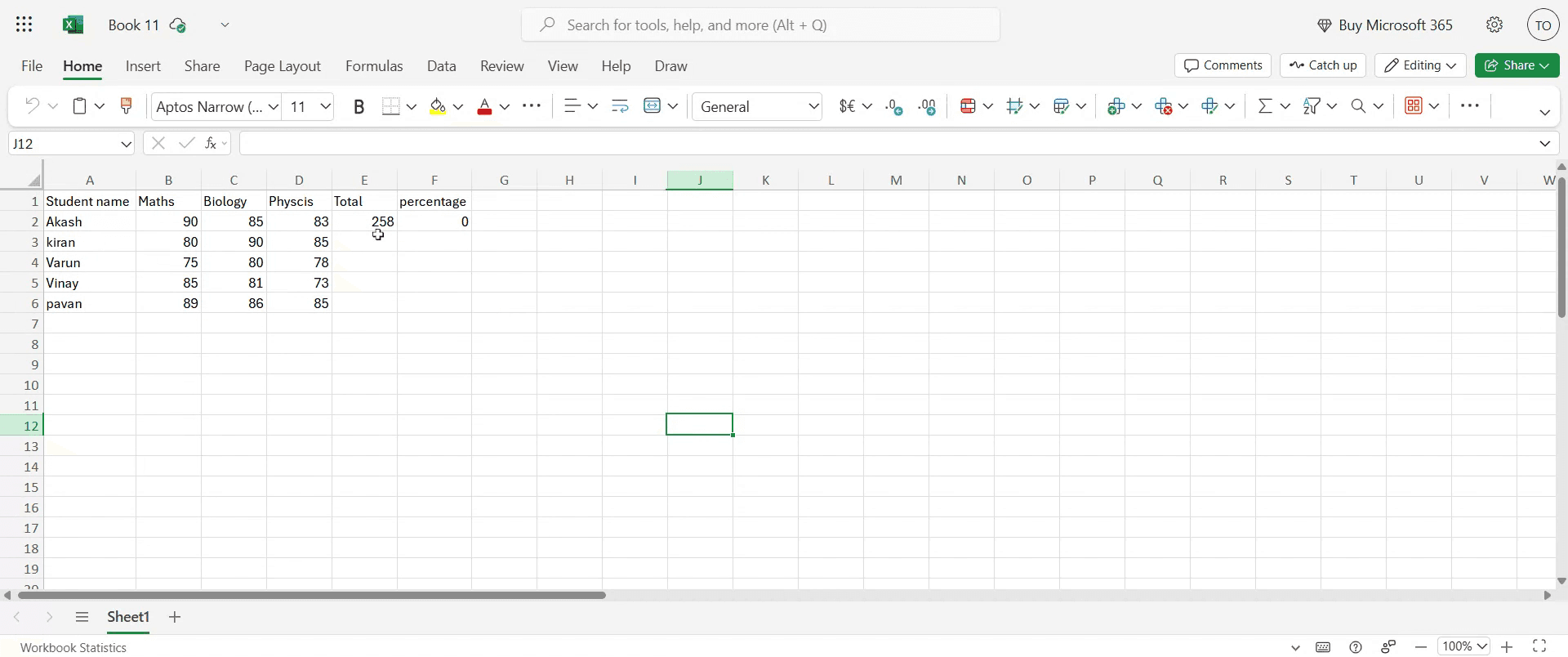
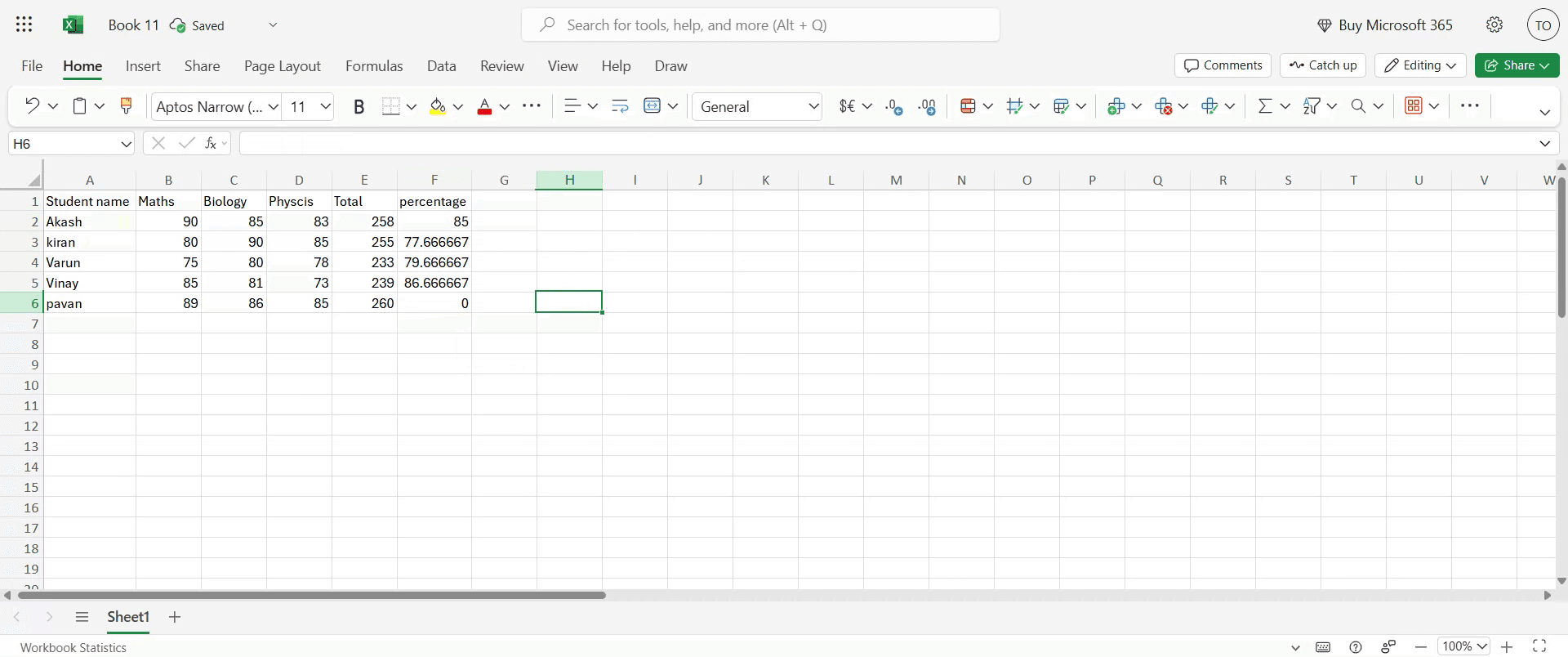
在表格中输入详细信息后,我们的下一个任务是计算总分。

步骤 2
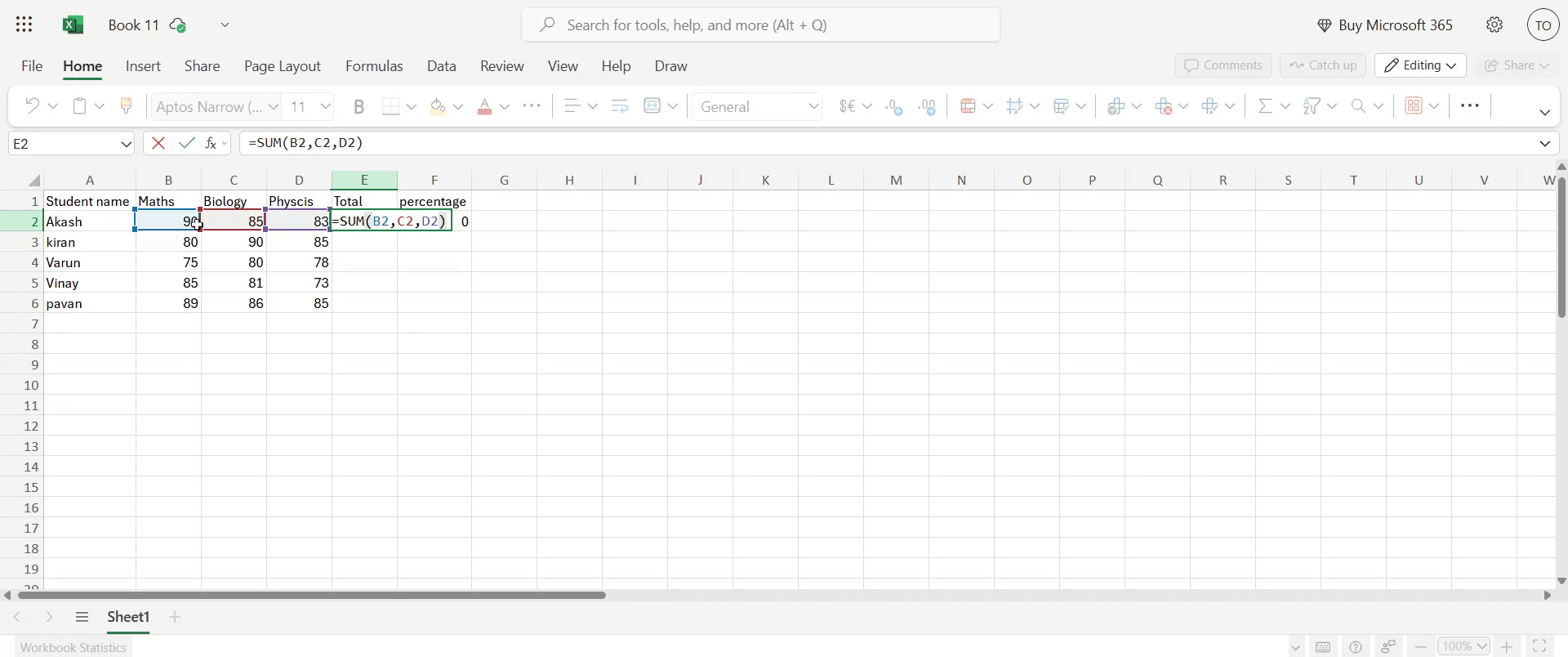
选择您想要显示总分的单元格。以这种格式输入公式: =SUM(cell2, cell3, cell4)。输入公式后,按 Enter。您将立即看到计算出的总分。

步骤 3
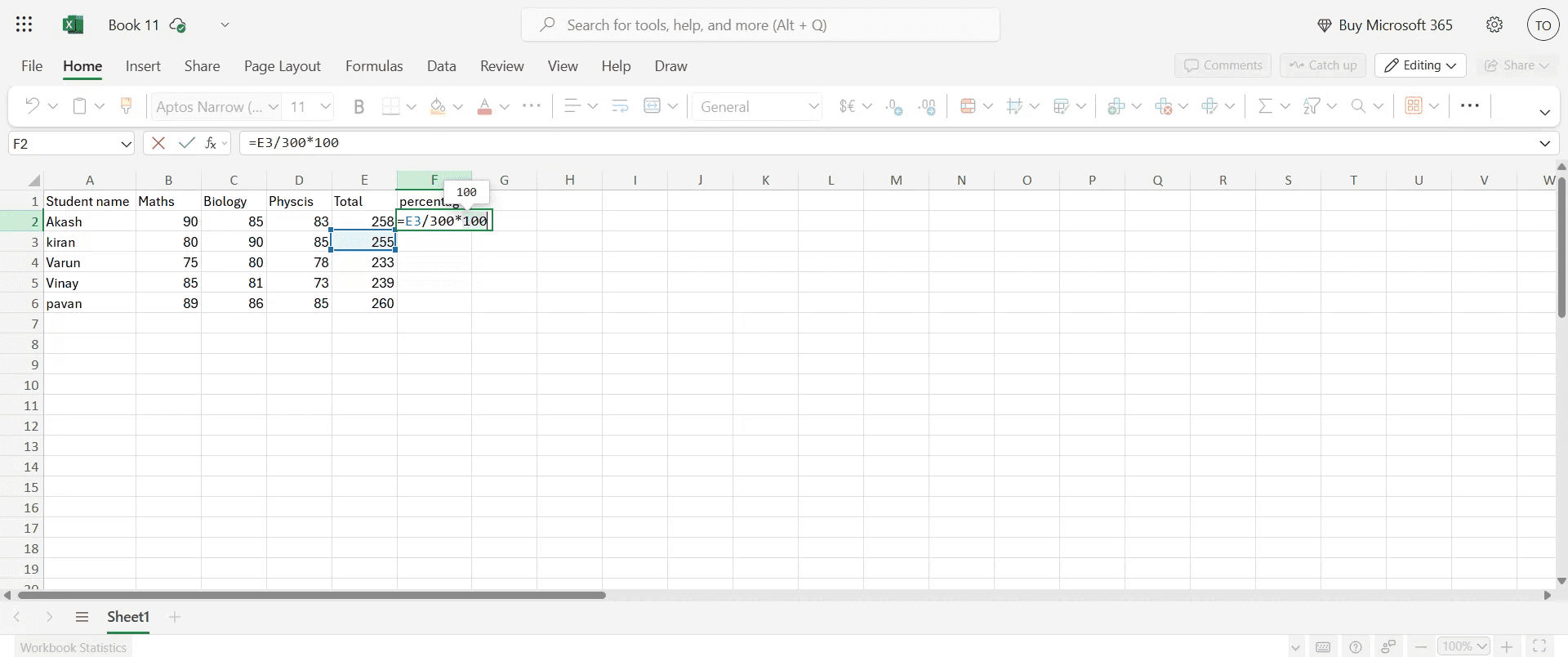
对于百分比计算,选择百分比单元格并输入公式: =(E3/TotalNumberOfSubjects)*100

步骤 4
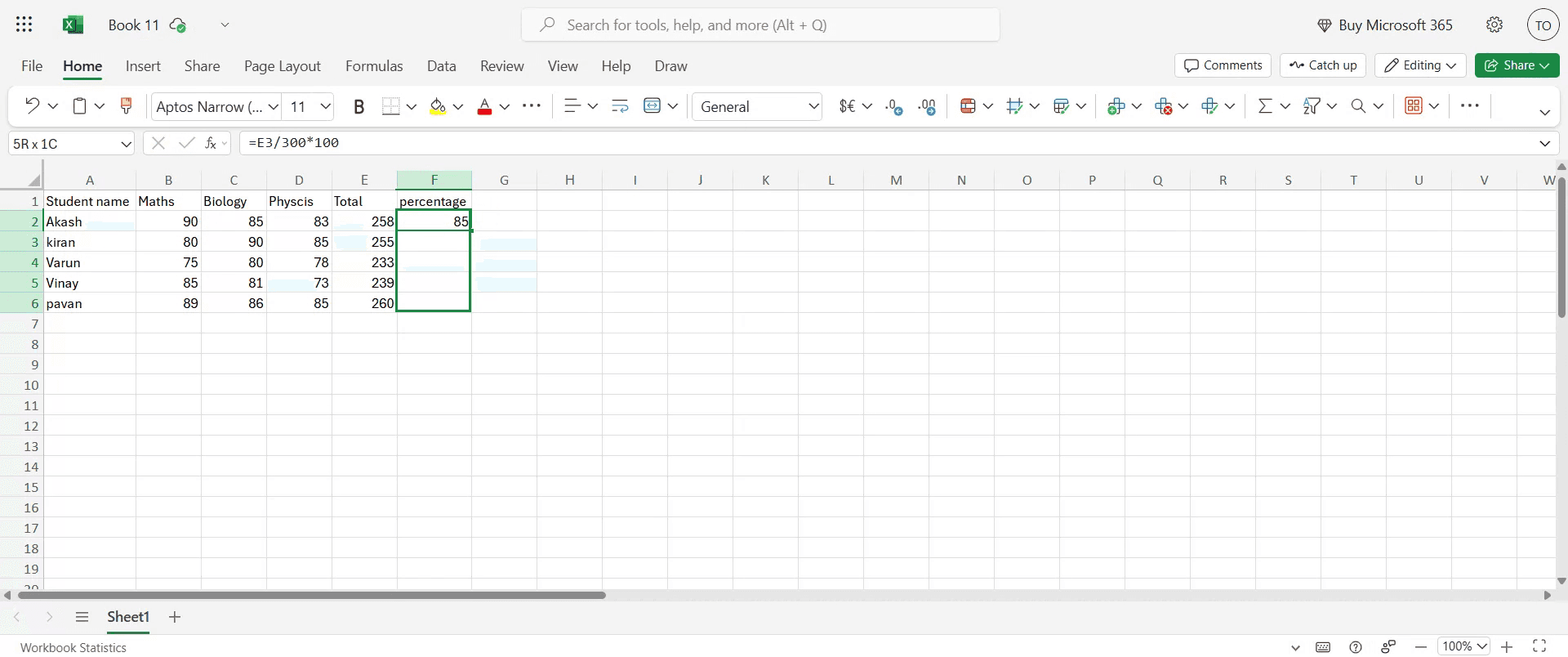
要在所有科目中应用百分比计算,使用拖放方法将公式扩展到其余单元格。

步骤 5
此操作将为每个科目显示百分比。

创建 Excel 成绩单的专业提示
打开 Microsoft Excel
启动 Microsoft Excel 并打开一个新的空工作簿,在这里您将设计您的成绩单。设置列标题
在第一行输入标题,例如学号、学生姓名、科目 1、科目 2、科目 3、总分、平均分和等级。输入示例数据
在每个科目下填写学生详细信息和分数。保持数据有序,以便于计算总和和平均值。计算总分
在总分列中,如果您的科目分数在 C、D 和 E 列,请使用公式 =SUM(C2:E2)。将公式向下拖动以应用于所有行。计算平均分
在平均分列中,使用类似 =AVERAGE(C2:E2) 的公式来计算每个学生的分数均值。添加等级系统
在等级列中,使用嵌套 IF 公式,例如:
=IF(F2>=90, "A+", IF(F2>=75, "A", IF(F2>=60, "B", IF(F2>=40, "C", "F"))))
这根据平均分或总分分配等级。
常见陷阱及避免方法
公式范围错误
确保您的公式(如 SUM 或 AVERAGE)包含正确的单元格。单元格引用中的错误可能导致总分或平均分错误。忘记向下复制公式
在一行中插入公式后,将其向下拖动以应用于所有学生。否则,仅会计算一行。覆盖公式单元格
锁定公式列或使用单元格保护以避免用户输入数据时意外覆盖。不标准化等级逻辑
确保您的等级系统一致并反映您的机构政策。仔细检查 IF 语句中使用的逻辑。忽视格式
普通表格可能难以阅读。使用边框、粗体标题和颜色编码,令成绩单视觉上更有条理。
有关在 Excel 中创建成绩单的常见问题
我如何在 Excel 中计算总分?
使用 =SUM(cell1:cellN) 将多个科目的分数相加。例如, =SUM(C2:E2) 将三门科目的分数相加。Excel 可以自动分配等级吗?
是的,使用 IF 或嵌套 IF 公式,您可以根据分数或平均分自动分配等级。我如何确保我的公式不会被删除?
通过转到审阅 → 保护工作表并锁定包含公式的单元格来保护表格。有没有办法突出显示不及格的学生?
是的,使用条件格式突出显示等级为 "F" 的行或平均分低于某一阈值的行。我可以重用我的成绩单设计吗?
是的,在设置第一个成绩单后,将其保存为 Excel 模板 (*.xltx),以便您可以将其结构重复用于新数据。如何在 Mac 上录制屏幕?
要 在 Mac 上录制屏幕,可以使用 Trupeer AI。它允许您捕获整个屏幕,并提供添加 AI 化身、语音解说、视频放大和缩小等 AI 功能。使用 trupeer 的 AI 视频翻译功能,您可以将视频翻译成 30 多种语言。如何在屏幕录制中添加 AI 化身?
要在屏幕录制中添加 AI 化身,您需要使用 AI 屏幕录制工具。 Trupeer AI 是一种 AI 屏幕录制工具,帮助您创建带有多个化身的视频,还帮助您为视频创建自己的化身。如何在 Windows 上录制屏幕?
要在 Windows 上录制屏幕,您可以使用内置的游戏工具(Windows + G)或类似 Trupeer AI 的高级 AI 工具,以获得更高级的功能,如 AI 化身、语音解说、翻译等。如何给视频添加语音解说?
要向视频添加语音解说,请下载 trupeer ai chrome 扩展。注册后,上传您的视频和语音,从 trupeer 选择所需的语音解说并导出编辑后的视频。我如何在屏幕录制中放大?
要 在屏幕录制时放大,请使用 Trupeer AI 中的缩放效果,在特定时刻放大和缩小,增强您视频内容的视觉效果。

这里是逐步指南:
1. 设置基本结构:
打开一个新的 Excel 表格.
创建列用于学号、姓名、科目等,以及总分、百分比、成绩、结果(及格/不及格)。
在相应的列中输入学生的详细信息和分数。
2. 计算总分:在 "总分" 列中,使用 SUM 函数将每个学生的分数相加。
例如,如果三门科目的分数在 C2、D2 和 E2 单元格中,公式为 =SUM(C2:E2).
将此公式复制到所有学生以计算总分。
3. 计算百分比:在 "百分比" 列中,用 "总分" 除以最大可能分数并乘以 100.
如果最大可能分数是 300,则公式为 =(F2/300)*100 (假设总分在 F2 中)。
将此公式复制到下方。
4. 赋予等级:使用 IFS 或嵌套 IF 函数根据百分比赋予等级。
例如: =IFS(G2>=90,"A+",G2>=75,"A",G2>=60,"B",G2>=50,"C",G2>=35,"D",G2<35,"F") (假设百分比在 G2 中)。
这将根据百分比范围分配等级。
5. 确定及格/不及格状态: 使用 IF 函数检查百分比是否超过通过阈值(例如,35%)。
例如: =IF(G2>=35,"通过","不及格") (假设百分比在 G2 中)。
6. 应用条件格式:选择 "结果" 列中的单元格。
转到主页 > 条件格式 > 突出显示单元格规则 > 包含文本。
输入 "不及格" 并选择一种红色填充颜色用于不及格结果。
同样,您可以用绿色填充突出显示 "通过" 的结果。
7. 可选增强:您可以添加一个用于根据总分排名学生的列,使用 RANK 函数。
使用 VLOOKUP 函数从另一个表或表格中显示额外的学生信息。
使用 AVERAGE 函数计算学生的平均分数。
逐步指南:如何在 MS Excel 中创建成绩单
步骤 1
在表格中输入详细信息后,我们的下一个任务是计算总分。

步骤 2
选择您想要显示总分的单元格。以这种格式输入公式: =SUM(cell2, cell3, cell4)。输入公式后,按 Enter。您将立即看到计算出的总分。

步骤 3
对于百分比计算,选择百分比单元格并输入公式: =(E3/TotalNumberOfSubjects)*100

步骤 4
要在所有科目中应用百分比计算,使用拖放方法将公式扩展到其余单元格。

步骤 5
此操作将为每个科目显示百分比。

创建 Excel 成绩单的专业提示
打开 Microsoft Excel
启动 Microsoft Excel 并打开一个新的空工作簿,在这里您将设计您的成绩单。设置列标题
在第一行输入标题,例如学号、学生姓名、科目 1、科目 2、科目 3、总分、平均分和等级。输入示例数据
在每个科目下填写学生详细信息和分数。保持数据有序,以便于计算总和和平均值。计算总分
在总分列中,如果您的科目分数在 C、D 和 E 列,请使用公式 =SUM(C2:E2)。将公式向下拖动以应用于所有行。计算平均分
在平均分列中,使用类似 =AVERAGE(C2:E2) 的公式来计算每个学生的分数均值。添加等级系统
在等级列中,使用嵌套 IF 公式,例如:
=IF(F2>=90, "A+", IF(F2>=75, "A", IF(F2>=60, "B", IF(F2>=40, "C", "F"))))
这根据平均分或总分分配等级。
常见陷阱及避免方法
公式范围错误
确保您的公式(如 SUM 或 AVERAGE)包含正确的单元格。单元格引用中的错误可能导致总分或平均分错误。忘记向下复制公式
在一行中插入公式后,将其向下拖动以应用于所有学生。否则,仅会计算一行。覆盖公式单元格
锁定公式列或使用单元格保护以避免用户输入数据时意外覆盖。不标准化等级逻辑
确保您的等级系统一致并反映您的机构政策。仔细检查 IF 语句中使用的逻辑。忽视格式
普通表格可能难以阅读。使用边框、粗体标题和颜色编码,令成绩单视觉上更有条理。
有关在 Excel 中创建成绩单的常见问题
我如何在 Excel 中计算总分?
使用 =SUM(cell1:cellN) 将多个科目的分数相加。例如, =SUM(C2:E2) 将三门科目的分数相加。Excel 可以自动分配等级吗?
是的,使用 IF 或嵌套 IF 公式,您可以根据分数或平均分自动分配等级。我如何确保我的公式不会被删除?
通过转到审阅 → 保护工作表并锁定包含公式的单元格来保护表格。有没有办法突出显示不及格的学生?
是的,使用条件格式突出显示等级为 "F" 的行或平均分低于某一阈值的行。我可以重用我的成绩单设计吗?
是的,在设置第一个成绩单后,将其保存为 Excel 模板 (*.xltx),以便您可以将其结构重复用于新数据。如何在 Mac 上录制屏幕?
要 在 Mac 上录制屏幕,可以使用 Trupeer AI。它允许您捕获整个屏幕,并提供添加 AI 化身、语音解说、视频放大和缩小等 AI 功能。使用 trupeer 的 AI 视频翻译功能,您可以将视频翻译成 30 多种语言。如何在屏幕录制中添加 AI 化身?
要在屏幕录制中添加 AI 化身,您需要使用 AI 屏幕录制工具。 Trupeer AI 是一种 AI 屏幕录制工具,帮助您创建带有多个化身的视频,还帮助您为视频创建自己的化身。如何在 Windows 上录制屏幕?
要在 Windows 上录制屏幕,您可以使用内置的游戏工具(Windows + G)或类似 Trupeer AI 的高级 AI 工具,以获得更高级的功能,如 AI 化身、语音解说、翻译等。如何给视频添加语音解说?
要向视频添加语音解说,请下载 trupeer ai chrome 扩展。注册后,上传您的视频和语音,从 trupeer 选择所需的语音解说并导出编辑后的视频。我如何在屏幕录制中放大?
要 在屏幕录制时放大,请使用 Trupeer AI 中的缩放效果,在特定时刻放大和缩小,增强您视频内容的视觉效果。
Here's a step-by-step guide:
1. Set up the basic structure:
Open a new Excel sheet.
Create columns for Roll No, Name, Subject etc., and Total, Percentage, Grade, Result (Pass/Fail).
Enter student details and marks in the respective columns.
2. Calculate Total Marks: In the "Total" column, use the SUM function to add up the marks for each student.
For example, if marks for three subjects are in cells C2, D2, and E2, the formula would be =SUM(C2:E2).
Copy this formula down to calculate totals for all students.
3. Calculate Percentage: In the "Percentage" column, divide the "Total" by the maximum possible marks and multiply by 100.
If the maximum possible marks are 300, the formula would be =(F2/300)*100 (assuming Total is in F2).
Copy this formula down.
4. Assign Grades: Use the IFS or nested IF functions to assign grades based on percentage.
For example: =IFS(G2>=90,"A+",G2>=75,"A",G2>=60,"B",G2>=50,"C",G2>=35,"D",G2<35,"F") (assuming Percentage is in G2).
This assigns grades based on percentage ranges.
5. Determine Pass/Fail Status: Use the IF function to check if the percentage is above a passing threshold (e.g., 35%).
For example: =IF(G2>=35,"Pass","Fail") (assuming Percentage is in G2).
6. Apply Conditional Formatting: Select the cells with the "Result" column.
Go to Home > Conditional Formatting > Highlight Cells Rules > Text that Contains.
Enter "Fail" and choose a red fill color for failed results.
Similarly, you can highlight "Pass" results with a green fill.
7. Optional Enhancements: You can add a column for ranking students based on their total marks using the RANK function.
Use the VLOOKUP function to display additional student information from another sheet or table.
Use AVERAGE function to calculate the average marks of students.
Step-by-Step-Guide: How to Create Marksheet in MS Excel
Step 1
Once the details have been entered into the sheet, our next task is to calculate the total marks.

Step 2
Select the desired cell where you want the total to appear. Enter the formula in this format: =SUM(cell2, cell3, cell4). After inputting the formula, press Enter. You will now see the calculated total marks displayed.

Step 3
For percentage calculation, select the percentage cell and input the formula: =(E3/TotalNumberOfSubjects)*100

Step 4
To apply the percentage calculation across all subjects, use the drag and drop method to extend the formula to the remaining cells.

Step 5
This action will display the percentage for each subject.

Here's a step-by-step guide:
1. Set up the basic structure:
Open a new Excel sheet.
Create columns for Roll No, Name, Subject etc., and Total, Percentage, Grade, Result (Pass/Fail).
Enter student details and marks in the respective columns.
2. Calculate Total Marks: In the "Total" column, use the SUM function to add up the marks for each student.
For example, if marks for three subjects are in cells C2, D2, and E2, the formula would be =SUM(C2:E2).
Copy this formula down to calculate totals for all students.
3. Calculate Percentage: In the "Percentage" column, divide the "Total" by the maximum possible marks and multiply by 100.
If the maximum possible marks are 300, the formula would be =(F2/300)*100 (assuming Total is in F2).
Copy this formula down.
4. Assign Grades: Use the IFS or nested IF functions to assign grades based on percentage.
For example: =IFS(G2>=90,"A+",G2>=75,"A",G2>=60,"B",G2>=50,"C",G2>=35,"D",G2<35,"F") (assuming Percentage is in G2).
This assigns grades based on percentage ranges.
5. Determine Pass/Fail Status: Use the IF function to check if the percentage is above a passing threshold (e.g., 35%).
For example: =IF(G2>=35,"Pass","Fail") (assuming Percentage is in G2).
6. Apply Conditional Formatting: Select the cells with the "Result" column.
Go to Home > Conditional Formatting > Highlight Cells Rules > Text that Contains.
Enter "Fail" and choose a red fill color for failed results.
Similarly, you can highlight "Pass" results with a green fill.
7. Optional Enhancements: You can add a column for ranking students based on their total marks using the RANK function.
Use the VLOOKUP function to display additional student information from another sheet or table.
Use AVERAGE function to calculate the average marks of students.
Step-by-Step-Guide: How to Create Marksheet in MS Excel
Step 1
Once the details have been entered into the sheet, our next task is to calculate the total marks.

Step 2
Select the desired cell where you want the total to appear. Enter the formula in this format: =SUM(cell2, cell3, cell4). After inputting the formula, press Enter. You will now see the calculated total marks displayed.

Step 3
For percentage calculation, select the percentage cell and input the formula: =(E3/TotalNumberOfSubjects)*100

Step 4
To apply the percentage calculation across all subjects, use the drag and drop method to extend the formula to the remaining cells.

Step 5
This action will display the percentage for each subject.

Start creating videos with our AI Video + Doc generator for free
Pro Tips for Creating a Marksheet in Excel
Open Microsoft Excel
Launch Microsoft Excel and open a new blank workbook where you’ll design your marksheet.Set up column headers
In the first row, enter headers such as Roll No, Student Name, Subject 1, Subject 2, Subject 3, Total, Average, and Grade.Enter sample data
Fill in student details and marks under each subject. Keep the data organized so it’s easy to calculate totals and averages.Calculate total marks
In the Total column, use a formula like =SUM(C2:E2) if your subject marks are in columns C, D, and E. Drag the formula down to apply it to all rows.Calculate average marks
In the Average column, use a formula like =AVERAGE(C2:E2) to calculate the mean of the marks for each student.Add a grading system
In the Grade column, use a nested IF formula like:
=IF(F2>=90, "A+", IF(F2>=75, "A", IF(F2>=60, "B", IF(F2>=40, "C", "F"))))
This assigns grades based on average or total marks.
Common Pitfalls and How to Avoid Them
Incorrect formula ranges
Make sure your formulas (like SUM or AVERAGE) include the correct cells. Mistakes in cell references can result in wrong totals or averages.Forgetting to copy formulas down
After inserting formulas in one row, drag them down to apply to all students. Otherwise, only one row will be calculated.Overwriting formula cells
Lock formula columns or use cell protection to avoid accidental overwriting by users entering data.Not standardizing grade logic
Ensure your grading system is consistent and reflects your institution’s policy. Review the logic used in IF statements carefully.Ignoring formatting
A plain sheet can be hard to read. Use borders, bold headers, and color coding to make the marksheet visually organized.
Pro Tips for Creating a Marksheet in Excel
Open Microsoft Excel
Launch Microsoft Excel and open a new blank workbook where you’ll design your marksheet.Set up column headers
In the first row, enter headers such as Roll No, Student Name, Subject 1, Subject 2, Subject 3, Total, Average, and Grade.Enter sample data
Fill in student details and marks under each subject. Keep the data organized so it’s easy to calculate totals and averages.Calculate total marks
In the Total column, use a formula like =SUM(C2:E2) if your subject marks are in columns C, D, and E. Drag the formula down to apply it to all rows.Calculate average marks
In the Average column, use a formula like =AVERAGE(C2:E2) to calculate the mean of the marks for each student.Add a grading system
In the Grade column, use a nested IF formula like:
=IF(F2>=90, "A+", IF(F2>=75, "A", IF(F2>=60, "B", IF(F2>=40, "C", "F"))))
This assigns grades based on average or total marks.
Common Pitfalls and How to Avoid Them
Incorrect formula ranges
Make sure your formulas (like SUM or AVERAGE) include the correct cells. Mistakes in cell references can result in wrong totals or averages.Forgetting to copy formulas down
After inserting formulas in one row, drag them down to apply to all students. Otherwise, only one row will be calculated.Overwriting formula cells
Lock formula columns or use cell protection to avoid accidental overwriting by users entering data.Not standardizing grade logic
Ensure your grading system is consistent and reflects your institution’s policy. Review the logic used in IF statements carefully.Ignoring formatting
A plain sheet can be hard to read. Use borders, bold headers, and color coding to make the marksheet visually organized.
Common FAQs About Creating a Marksheet in Excel
How do I calculate total marks in Excel?
Use =SUM(cell1:cellN) to add up marks across multiple subjects. For example, =SUM(C2:E2) adds three subject marks.Can Excel assign grades automatically?
Yes, using IF or nested IF formulas, you can assign grades based on marks or averages.How do I make sure my formulas don’t get deleted?
Protect the sheet by going to Review → Protect Sheet and lock cells that contain formulas.Is there a way to highlight students who failed?
Yes, use Conditional Formatting to highlight rows where the grade is "F" or where average is below a certain threshold.Can I reuse my marksheet design?
Yes, after setting up your first marksheet, save it as an Excel Template (*.xltx) so you can reuse the structure with new data.How to screen record on mac?
To screen record on a Mac, you can use Trupeer AI. It allows you to capture the entire screen and provides AI capabilities such as adding AI avatars, add voiceover, add zoom in and out in the video. With trupeer’s AI video translation feature, you can translate the video into 30+ languages.How to add an AI avatar to screen recording?
To add an AI avatar to a screen recording, you'll need to use an AI screen recording tool. Trupeer AI is an AI screen recording tool, which helps you create videos with multiple avatars, also helps you in creating your own avatar for the video.How to screen record on windows?
To screen record on Windows, you can use the built-in Game Bar (Windows + G) or advanced AI tool like Trupeer AI for more advanced features such as AI avatars, voiceover, translation etc.How to add voiceover to video?
To add voiceover to videos, download trupeer ai chrome extension. Once signed up, upload your video with voice, choose the desired voiceover from trupeer and export your edited video.How do I Zoom in on a screen recording?
To zoom in during a screen recording, use the zoom effects in Trupeer AI which allows you to zoom in and out at specific moments, enhancing the visual impact of your video content.
People also ask
How to Enable the Ruler in Microsoft Excel
How to Keep Top Row Visible Microsoft Excel
How to Insert a New Worksheet in Microsoft Excel
How to Add a Date Picker Calendar to Cells in MS Excel
How to Reference a Cell From Another Sheet in Microsoft Exce
Common FAQs About Creating a Marksheet in Excel
How do I calculate total marks in Excel?
Use =SUM(cell1:cellN) to add up marks across multiple subjects. For example, =SUM(C2:E2) adds three subject marks.Can Excel assign grades automatically?
Yes, using IF or nested IF formulas, you can assign grades based on marks or averages.How do I make sure my formulas don’t get deleted?
Protect the sheet by going to Review → Protect Sheet and lock cells that contain formulas.Is there a way to highlight students who failed?
Yes, use Conditional Formatting to highlight rows where the grade is "F" or where average is below a certain threshold.Can I reuse my marksheet design?
Yes, after setting up your first marksheet, save it as an Excel Template (*.xltx) so you can reuse the structure with new data.How to screen record on mac?
To screen record on a Mac, you can use Trupeer AI. It allows you to capture the entire screen and provides AI capabilities such as adding AI avatars, add voiceover, add zoom in and out in the video. With trupeer’s AI video translation feature, you can translate the video into 30+ languages.How to add an AI avatar to screen recording?
To add an AI avatar to a screen recording, you'll need to use an AI screen recording tool. Trupeer AI is an AI screen recording tool, which helps you create videos with multiple avatars, also helps you in creating your own avatar for the video.How to screen record on windows?
To screen record on Windows, you can use the built-in Game Bar (Windows + G) or advanced AI tool like Trupeer AI for more advanced features such as AI avatars, voiceover, translation etc.How to add voiceover to video?
To add voiceover to videos, download trupeer ai chrome extension. Once signed up, upload your video with voice, choose the desired voiceover from trupeer and export your edited video.How do I Zoom in on a screen recording?
To zoom in during a screen recording, use the zoom effects in Trupeer AI which allows you to zoom in and out at specific moments, enhancing the visual impact of your video content.
People also ask
How to Enable the Ruler in Microsoft Excel
How to Keep Top Row Visible Microsoft Excel
How to Insert a New Worksheet in Microsoft Excel
How to Add a Date Picker Calendar to Cells in MS Excel
How to Reference a Cell From Another Sheet in Microsoft Exce
Experience the new & faster way of creating product videos.
Instant AI Product Videos and Docs from Rough Screen Recordings.
Experience the new & faster way of creating product videos.
Instant AI Product Videos and Docs from Rough Screen Recordings.
Experience the new & faster way of creating product videos.
Instant AI Product Videos and Docs from Rough Screen Recordings.
在两分钟内制作出色的演示和文档
在两分钟内制作出色的演示和文档