4.8/5
برنامج مجاني لتسجيل الشاشة لڤيديوهات التدريب
أنشئ مقاطع فيديو تدريبية احترافية من خلال تسجيل شاشتك — بدون طاقم تصوير، وبدون استوديو، وبدون عناء.
جرّب مجانًا

برنامج تسجيل الشاشة لإنتاج فيديوهات التدريب يتيح لك تحويل أي سير عمل أو عملية أو شرح لكيفية استخدام برنامج إلى مورد تدريبي مصقول. سجّل شاشتك، أضف تعليقًا صوتيًا، احذف الأخطاء، وشارك المحتوى مع فريقك — كل ذلك من أداة واحدة. ما الذي يستبدله هذا فعليًا في سير عمل إنتاج التدريب؟ الطريقة القديمة: يقوم شخص بتسجيل سير العمل في Loom أو Camtasia. يقوم المحرر بقص الكلمات الحشو، وإضافة تأثيرات التكبير عند لحظات النقر، وإضافة التسميات التوضيحية، وتطبيق تنسيق العلامة التجارية، ثم التصدير إلى نظام إدارة التعلم (LMS). 4 إلى 8 ساعات من وقت المحرر لكل فيديو تدريبي. الطريقة الجديدة: يقوم شخص بتسجيل سير العمل فقط. تتولى الذكاء الاصطناعي قص المقاطع وتكبيرها وإضافة التسميات التوضيحية وتطبيق حزمة العلامة التجارية تلقائيًا. تختفي مساهمة المحرر في إنتاج فيديو التدريب الروتيني. معظم الفرق تنشر المسودة المُولدة تلقائيًا كما هي للتدريب الداخلي. بعض الفرق تقوم بمرور مراجعة مدته 5 إلى 10 دقائق للمحتوى الموجه للعملاء. مرحلة التحرير التي كانت تحدد تقويم الإنتاج تتقلص إلى استراحة قهوة.
سجّل شروحات البرامج خطوة بخطوة مع تعليق صوتي وكاميرا ويب لمحتوى تدريبي جذاب
حرّر التسجيلات مع القص وتكبيرات وتأثيرات Zoom وتعليقات توضيحية مصممة خصيصًا للفيديوهات التعليمية
أنشئ التسميات التوضيحية والنصوص تلقائيًا لجعل التدريب متاحًا وقابلًا للبحث
نظّم التسجيلات في قوائم تدريب ودورات تعليمية لمسارات تعلم منظمة
شارك عبر رابط، أو تضمينه في نظام إدارة التعلم (LMS)، أو نزّله للتوزيع دون اتصال
ما هو برنامج تسجيل الشاشة لفيديوهات التدريب؟
برنامج تسجيل الشاشة لفيديوهات التدريب هو أداة متخصصة مصممة لمساعدة المدربين ومصممي المحتوى التعليمي وخبراء المجال على التقاط سير عمل يتم على الشاشة وتحويله إلى محتوى تعلم فعّال. بخلاف مسجلات الشاشة العامة، يتضمن هذا البرنامج ميزات مخصصة للتدريب — مثل تأثيرات التكبير والتحريك التي تلفت الانتباه إلى عناصر واجهة المستخدم الأساسية، وعلامات الفصول التي تتيح للمتعلمين التنقل إلى مواضيع محددة، وتكامل الاختبارات الذي يتحقق من الفهم. إنه يbridges الفجوة بين معرفة كيفية القيام بشيء ما والقدرة على تدريسه على نطاق واسع. بدلًا من جدولة جلسات تدريب مباشرة لا تصل إلا إلى من في القاعة، تسجل مرة واحدة وتوزع في كل مكان — للموظفين الجدد في يومهم الأول، للفرق عن بُعد عبر المناطق الزمنية، وللعملاء الذين يفضلون التعلم الذاتي.
تقسيم الفئة الذي يستحق معرفته. من جهة: مسجلات الشاشة الأساسية مثل Loom وVidyard ومسجل شاشة macOS المدمج. تلتقط تسجيلات نظيفة لكنها تتخطى الميزات المخصصة للتدريب. لذلك تسجيل Loom مناسب لرسالة سريعة غير متزامنة، لكنه أقل فائدة كمنصة تدريب مصقولة تعيش في نظام إدارة التعلم (LMS) لمدة سنتين. ومن جهة أخرى: محررات الفيديو الكاملة مثل Camtasia وAdobe Premiere وFinal Cut Pro. تمتلك كل قوة الإنتاج، لكنها تفترض أن الفريق لديه محرر فيديو مخصص أو أنه مستعد لأن يصبح واحدًا. بين هاتين النهايتين تقع الفئة التي تحتاجها معظم فرق التدريب فعليًا: أدوات تجمع بين الالتقاط وميزات تدريب تلقائية بدرجة جودة عالية (إبراز المؤشر عند لحظات النقر، تكبير ذكي لعناصر واجهة المستخدم، إنشاء التسميات التوضيحية تلقائيًا، وتطبيق حزمة العلامة التجارية). Trupeer يقع في هذه الفئة الوسطى. كما يولد دليلًا مكتوبًا مطابقًا من نفس التسجيل، وهو ما ينتهي به الأمر لمعظم فرق التدريب إلى طلبه بمجرد أن يدركوا أن نصف المتعلمين يكتفون بالتمرير السريع بدلًا من المشاهدة.
كيف يعمل برنامج تسجيل الشاشة لفيديوهات التدريب؟
إنشاء فيديوهات تدريب من تسجيلات الشاشة عملية مبسطة من ثلاث خطوات:
الخطوة 1: خطط لعملية التسجيل وأعددها
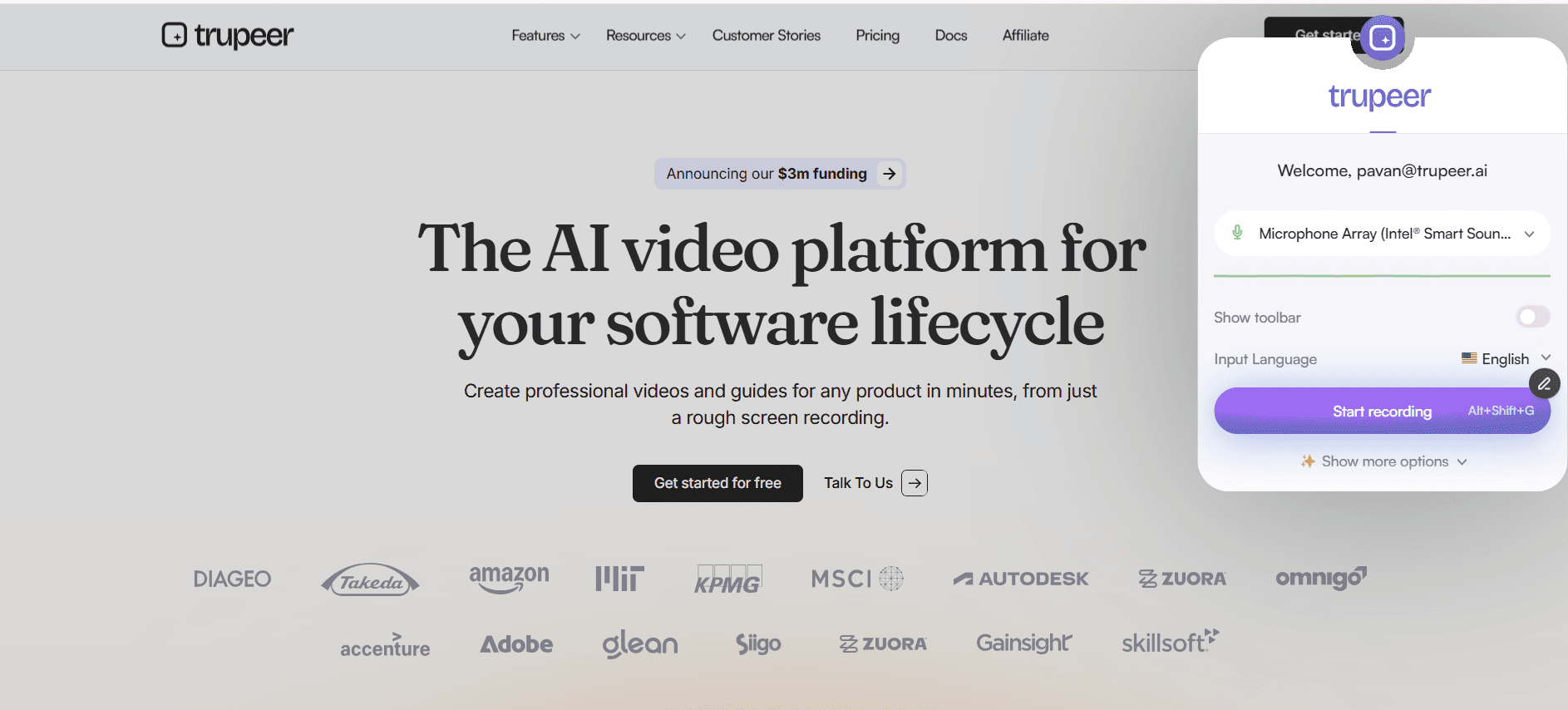
حدّد موضوع التدريب، وافتح التطبيق أو سير العمل الذي تريد عرضه، ثم اضبط إعدادات التسجيل لتحديد منطقة الالتقاط ومصدر الصوت وموقع كاميرا الويب والدقة. يضمن المخطط السريع أن يبقى التدريب مركزًا ومختصرًا.
الخطوة 2: سجّل شرح التدريب
اضغط على زر التسجيل وامشِ خلال العملية خطوة بخطوة، مع التعليق على كل إجراء أثناء التنفيذ. استخدم إبرازات نقرات الماوس وتعليقات توضيحية لحظية لإبراز الأزرار والقوائم وخانات الإدخال المهمة. إذا ارتكبت خطأ، فقط أوقف مؤقتًا واستمر — وسيتولى التحرير إزالته لاحقًا.
الخطوة 3: حرّر واطور ووزّع
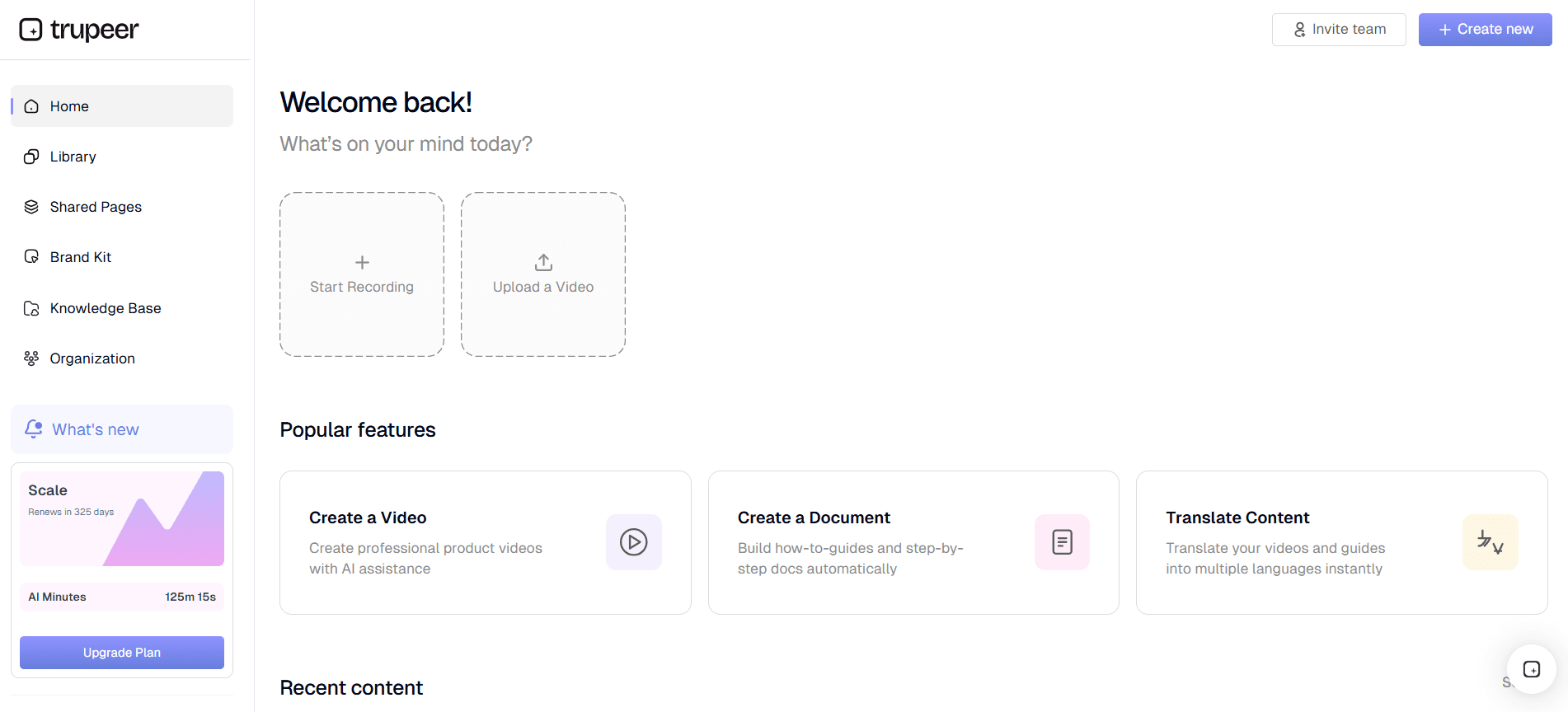
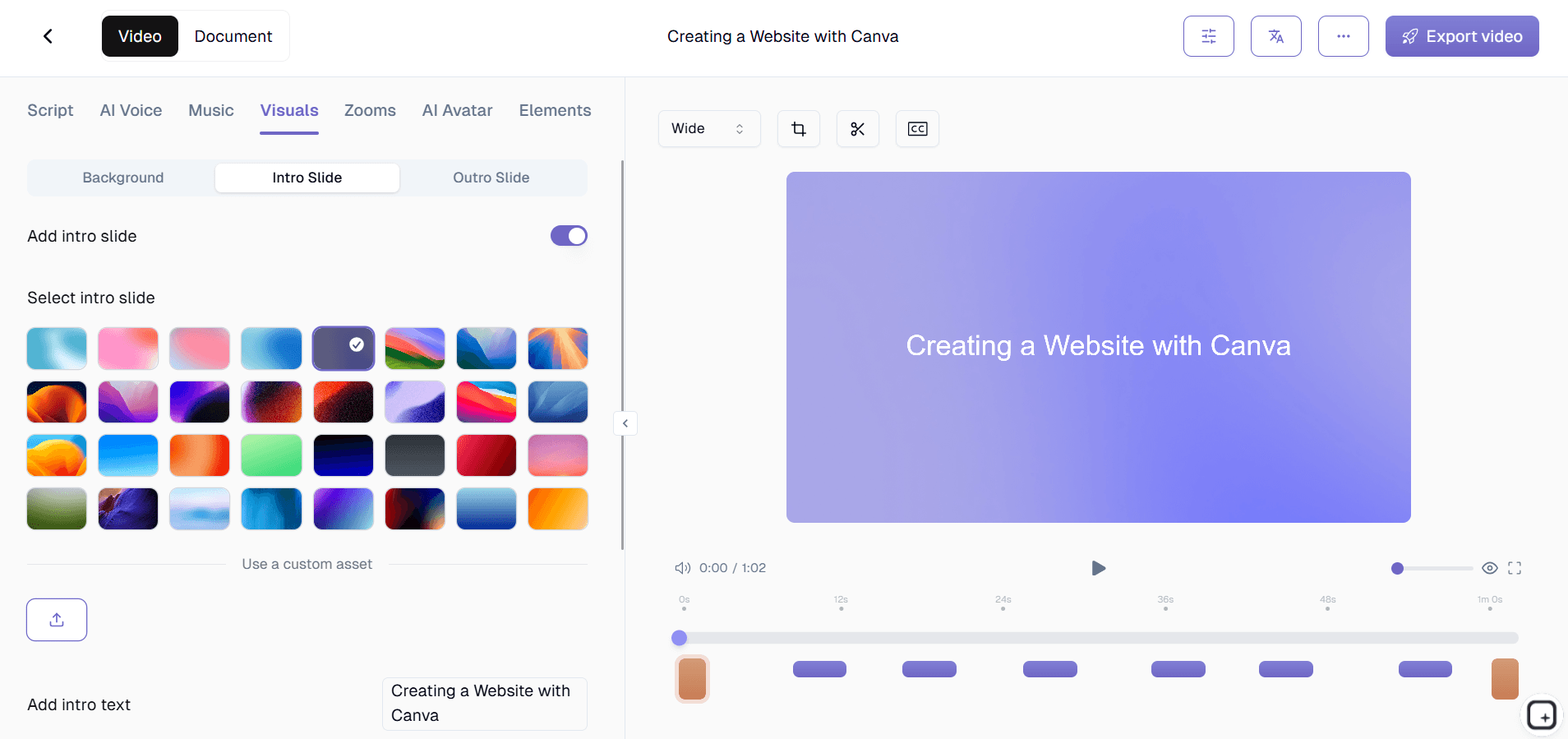
افتح التسجيل في المحرر المدمج. قص الأخطاء، وأضف تأثيرات تكبير لإبراز عناصر واجهة المستخدم الصغيرة، وأدرج علامات الفصول للتنقل السهل، ثم ضع طبقات نصية فوقية لأهم النقاط. صدّر فيديو التدريب النهائي وشاركه عبر نظام إدارة التعلم (LMS) أو ويكي الشركة أو رابط مشاركة بسيط.
أهم ميزات برنامج تسجيل الشاشة لفيديوهات التدريب
تأثيرات التكبير والتحريك (Zoom-and-Pan): قم بالتكبير تلقائيًا أو يدويًا إلى مناطق محددة من شاشتك لإبراز الأزرار الصغيرة أو قوائم منسدلة أو حقول النص التي قد يفوتها المشاهدون. حرّك بسلاسة بين مناطق مختلفة من الشاشة لتوجيه عين المتعلم خلال سير عمل متعدد الخطوات دون تشويش من قفزات أو قصات. كيف يبدو "التكبير تلقائيًا" في الواقع. يراقب الذكاء الاصطناعي تسلسل النقرات في تسجيلك. عندما تنقر داخل قائمة الإعدادات، يقوم الفيديو بالتكبير على منطقة القائمة حتى يتمكن المتدرب من رؤية ما قمت بفتحه. الأمر نفسه ينطبق على حقول النماذج وعناصر واجهة المستخدم الصغيرة. لا يتطلب أي شيء من ذلك عملًا يدويًا على الخط الزمني. لذلك، فيديو تدريب كان سيحتاج إلى 30 عملية قص تكبير يدوي في Camtasia يتم شحنه مع تطبيق كل هذه القصات تلقائيًا بناءً على ما اكتشفه الذكاء الاصطناعي في التسجيل. لماذا هذا مهم تحديدًا للتدريب. المتدربون الذين يشاهدون شرحًا لبرنامج يحتاجون إلى معرفة بالضبط أي زر تم النقر عليه. عنصر واجهة مستخدم صغير تم النقر عليه دون إبراز واضح يفوته نصف الجمهور. إبرازات النقر (حلقات ملوّنة، أو تأثيرات تموج، أو رسوم تسليط ضوئي حسب الإعداد) تحدد كل لحظة نقر تلقائيًا. والأمر نفسه بالنسبة لعرض اختصارات لوحة المفاتيح عند الحاجة. لذلك يتوقف المتعلمون عن السؤال "انتظر، ماذا نقرت للتو؟" ويبدأون باتباع الإجراء الفعلي.
إبراز نقرات الماوس وعرض ضغطات لوحة المفاتيح (Keystroke Display): اجعل كل نقرة مرئية عبر إبرازات نقر قابلة للتخصيص على شكل حلقات ملوّنة أو تأثيرات تموج أو رسوم تسليط ضوئي تُظهر بالضبط مكان هبوط المؤشر. اعرض اختصارات لوحة المفاتيح على الشاشة أثناء الضغط عليها، لتعليم المتعلمين سير عمل فعّال إلى جانب أسلوب النقر والنقرات القياسي. لماذا هذا مهم تحديدًا للتدريب. المتدربون الذين يشاهدون شرحًا لبرنامج يحتاجون إلى معرفة بالضبط أي زر تم النقر عليه. عنصر واجهة مستخدم صغير تم النقر عليه دون إبراز واضح يفوته نصف الجمهور. إبرازات النقر (حلقات ملوّنة، أو تأثيرات تموج، أو رسوم تسليط ضوئي حسب الإعداد) تحدد كل لحظة نقر تلقائيًا. والأمر نفسه بالنسبة لعرض اختصارات لوحة المفاتيح عند الحاجة. لذلك يتوقف المتعلمون عن السؤال "انتظر، ماذا نقرت للتو؟" ويبدأون باتباع الإجراء الفعلي.
علامات الفصول وفهرس المحتويات: أدخل علامات الفصول عند نقاط الانتقال الرئيسية في فيديو التدريب حتى يتمكن المتعلمون من القفز مباشرة إلى الموضوع الذي يحتاجون إليه. يظهر فهرس المحتويات المُولّد تلقائيًا في مشغل الفيديو، ما يجعل جلسات التدريب الطويلة قابلة للتنقل ويزيل الإحباط الناتج عن التمرير عبر محتوى غير ذي صلة. مثال استخدام واقعي. يفتح المتدرب فيديو تدريب مدته 12 دقيقة بحثًا عن الخطوة المحددة التي يحتاج المساعدة فيها. بدون فصول، يقوم بالتمرير عبر الخط الزمني محاولًا العثور عليها. مع الفصول المُولدة تلقائيًا وفهرس المحتويات في مشغل الفيديو، ينقر مباشرة على الخطوة 4 ويحصل على الإجابة خلال 30 ثانية. هذا هو الفرق بين فيديو تدريب يتم مشاهدته وبين فيديو تدريب يتم فتحه مرة واحدة ثم تركه دون العودة إليه.
تسجيل التعليق الصوتي وتحسين الصوت: سجّل التعليق الصوتي في الوقت الفعلي أثناء التقاط شاشتك، أو أضف تعليقًا صوتيًا بعد الإنتاج للحصول على نتيجة أكثر مصقولية. يعمل تحسين الصوت المدمج على إزالة ضوضاء الخلفية، وتوحيد مستويات الصوت، وتقليل الصدى لضمان أن يبدو تعليقك احترافيًا حتى عند تسجيله من مكتب منزلي. تنظيف الصوت الذي تقلل معظم فرق التدريب من تقديره. همهمة خلفية من مروحة مكتب منزلي. صدى من غرفة اجتماعات غير معزولة جيدًا. اختلافات في مستوى الصوت لأن التسجيل تم عبر عدة جلسات في أيام مختلفة. كل هذه الإشارات تُظهر للمتعلمين "إنتاجًا غير احترافي" وتقلل الثقة في محتوى التدريب. يعمل تحسين الصوت تلقائيًا على التسجيل، ويوحد مستوى الصوت ويقلل الضوضاء. لذلك يبدو التسجيل الذي تم إجراؤه على لابتوب في غرفة نوم شخص ما أقرب إلى جودة الاستوديو منه إلى "بعد ظهر الثلاثاء على طاولة المطبخ".
تعليقات توضيحية (Callout) وتراكبات النص: أضف أسهمًا ومؤشرات خطوات مرقمة ومربعات مميزة وتسميات نصية لجذب الانتباه إلى العناصر الحرجة في تسجيلك. تحوّل هذه التراكبات التعليمية لقطة شاشة خام إلى تجربة تدريب منظمة وسهلة المتابعة يمكن للمتعلمين استيعابها في المشاهدة الأولى. أين يقع هذا ضمن سير الإنتاج. يطبق الذكاء الاصطناعي إبرازات النقر وتأثيرات التكبير تلقائيًا. التعليقات التوضيحية والتعليقات هي الطبقة التي يضيف فيها الإنسان سياقًا لا يمكن للذكاء الاصطناعي استنتاجه من التسجيل وحده — مثل عبارة "هذه الخطوة حاسمة"، وتراكب "تحذير: هذا الإجراء نهائي"، ومؤشر الخطوة المرقم الذي يتطابق مع الدليل المكتوب إلى جانب الفيديو. لذلك يتم أتمتة عمل التعليقات التوضيحية الروتيني. يبقى عمل التعليق الذي يتطلب قرارًا بشريًا في يد الإنسان.
التسميات التوضيحية التلقائية وإنشاء النسخ النصية (Transcript): يولد الذكاء الاصطناعي المدعوم بالتعرّف على الكلام تلقائيًا تسميات توضيحية دقيقة ونصًا كاملًا لكل فيديو تدريب. تعمل التسميات التوضيحية على تحسين إمكانية الوصول للمتعلمين ذوي الإعاقة السمعية وتعزيز الفهم للناطقين بغير الإنجليزية كلغة أم، بينما تتيح النسخ النصية البحث الكامل عن النص عبر مكتبة التدريب بالكامل. الحد الأدنى لإمكانية الوصول الذي تطلبه معظم مراجعات المشتريات في المؤسسات. يتم إنشاء التسميات التوضيحية تلقائيًا من التعليق الصوتي لكل فيديو تدريب. يتم إنشاء النسخ النصية بالتوازي مع الفيديو وتصبح نصًا قابلاً للبحث. لذلك، عندما يبحث متعلم في مكتبة التدريب عن "تعويض المصروفات" سيجد الفيديو المناسب حتى لو لم يتضمن عنوان الفيديو تلك الكلمات حرفيًا. كما تتعامل النسخة النصية مع الاستخدام الثانوي للمتعلمين الذين يحتاجون إلى القراءة بدلًا من المشاهدة، مثل الناطقين بغير الإنجليزية، والمتعلمين الذين لديهم احتياجات وصول سمعية، والموظفين في المكاتب المفتوحة حيث لا يكون الصوت عمليًا.
تنظيم قائمة التشغيل والدورات التدريبية: اجمع فيديوهات التدريب ذات الصلة في قوائم تشغيل ودورات تعليمية منظمة مع تقدم تسلسلي أو حسب وتيرتك. عيّن الدورات للفرق أو للأفراد، وتتبع حالة الإكمال، وتأكد من أن المتعلمين يتبعون المنهج المقصود من المواضيع الأساسية إلى سير العمل المتقدمة. الوصف الحالي يذكر "دورات تعليمية منظمة مع تقدم تسلسلي أو حسب وتيرتك. عيّن الدورات للفرق أو للأفراد، وتتبع حالة الإكمال." وبحسب العمل السابق في هذه المحادثة، فإن النطاق الذي تم التحقق منه لدى Trupeer هو أقسام قاعدة المعرفة والفصول وإعدادات الرؤية، وليس تعيين الدورات لمستخدمين محددين أو تتبع الإكمال. هذه الميزات موجودة على طبقة نظام إدارة التعلم (LMS). يجدر التحقق مع فريق المنتج قبل نشر هذا البند كما هو. إذا كان النطاق الفعلي هو "تنظيم الفيديوهات في أقسام قاعدة المعرفة" بدلًا من "تعيين الدورات مع تتبع الإكمال"، فيجب إعادة صياغة البند ليتوافق مع الواقع.
تصدير متعدد الصيغ وتوافق مع نظام إدارة التعلم (LMS): صدّر فيديوهات التدريب بصيغ MP4 أو SCORM أو xAPI لدمج سلس مع أي نظام إدارة تعلم. أو بديلًا، شارك عبر رابط مباشر أو كود تضمين للتوزيع السريع عبر Slack أو البريد الإلكتروني أو Notion أو قاعدة المعرفة الداخلية لديك. البند الحالي يدّعي "صيغ MP4 أو SCORM أو xAPI لدمج سلس مع أي نظام إدارة تعلم". عمليات التصدير التي تم التحقق منها لدى Trupeer وفق فحوصات قاعدة المعرفة السابقة هي MP4 وPDF وWord (DOCX). لم يتم التحقق من تغليف SCORM في أي مكان ضمن هذه المحادثة. ظهرت المشكلة نفسها في صفحة مولد الفيديو التعليمي بالذكاء الاصطناعي. إذا لم يكن تصدير SCORM/xAPI ميزة فعلية لدى Trupeer، فهذا البند يضلل بشكل ملموس مشتري حلول التعلم والتطوير في المؤسسات الذين يحتاجون تحديدًا إلى تغليف SCORM لنظام إدارة التعلم (LMS) الخاص بهم. يجدر التحقق قبل النشر.
لماذا تختار برنامج تسجيل الشاشة لفيديوهات التدريب هذا؟
مخصص للتدريب: بخلاف مسجلات الشاشة العامة، فإن كل ميزة — من تأثيرات التكبير إلى علامات الفصول إلى تكامل الاختبارات — مصممة مع وضع المحتوى التعليمي في الاعتبار. المقارنة الواقعية. مسجلات الشاشة العامة (Loom ومسجل macOS وOBS) تلتقط بشكل نظيف لكنها تُسلّم اللقطات الخام. أدوات التدريب المخصصة (Trupeer وCamtasia وScreenPal في بعض الإعدادات) تتولى إبرازات النقر وتأثيرات التكبير وإخراجًا متسقًا مع العلامة التجارية يحول تسجيل الشاشة إلى محتوى تدريب فعلي. يظهر الفرق بشكل أوضح عند فتح موظف جديد لتسجيل Loom مقارنةً بوحدة تدريب مصقولة. يبدو Loom كأنك تشاهد شخصًا يعمل. تبدو الوحدة المصقولة كأنك تتلقى شرحًا. كلاهما له مكانه. بالنسبة للمحتوى الذي يعيش في نظام إدارة التعلم (LMS) لمدة سنتين، فإن النسخة المصقولة تستحق مجهود الإنتاج.
وسع التدريب دون زيادة التكاليف: سجّل مرة واحدة ووزّع على عدد غير محدود من المتعلمين. أزل تكلفة وجدولة جلسات التدريب المباشرة المتكررة. مثال عملي. مسؤول الامتثال الكبير في شركة تضم 300 شخص يشغّل تدريب منع التحرش السنوي كندوة مباشرة عبر الإنترنت. ساعة واحدة. يجب أن يكرر ذلك 8 مرات خلال السنة لاستيعاب الجداول والموظفين الجدد. هذا يعني 8 ساعات من وقت مسؤول كبير بالإضافة إلى تكلفة الاجتماع عبر جميع الحضور. تسجيل التدريب مرة واحدة وإرساله إلى نظام إدارة التعلم (LMS) يستبدل 7 من تلك الجلسات الثماني. يعود وقت المسؤول الكبير. يشاهد الموظفون الجدد في يومهم الأول بدلًا من انتظار الجلسة التالية المجدولة. يصبح تقرير الامتثال أنظف لأن وقت إكمال كل موظف يأتي من نظام إدارة التعلم (LMS) بدلًا من أوراق تسجيل الحضور.
جودة تدريب ثابتة: يتلقى كل متعلم نفس مستوى التعليم العالي، بغض النظر عن وقت أو مكان وصوله إلى المحتوى — دون أي تباين بين المدربين أو الجلسات. النمط الذي يفشل معظم برامج التدريب الداخلية. المدير A ينفذ تدريب الموظفين الجدد بطريقة في مارس. المدير B ينفذه بشكل مختلف في أبريل. بحلول يونيو، لدى الفريق ثلاث نسخ مختلفة من "طريقة إدخالنا للموظفين"، كل نسخة تحمل تفاصيل مختلفة وفجوات مختلفة. يظهر التباين بعد ستة أشهر كتجربة عميل غير متسقة أو وضع امتثال غير متسق. فيديو تدريب واحد يشاهده الجميع يخلق نسخة واحدة من الحقيقة. حدّث الفيديو، وعمّم التحديث في كل مكان. الاتساق الذي كان يتطلب وقت مرافقة (Shadowing) يحدث تلقائيًا.
مخرجات تعلم قابلة للقياس: تتبع من شاهد ماذا، ومدى تقدمه، وكيف كانت درجاته في الاختبارات المضمنة، لتزويدك ببيانات تساعدك على تحسين برامج التدريب باستمرار. البند الحالي يدّعي "تتبع من شاهد ماذا، ومدى تقدمه، وكيف كانت درجاته في الاختبارات المضمنة، لتزويدك ببيانات تساعدك على تحسين برامج التدريب باستمرار". وبحسب نفس المشكلات المشار إليها في قسم "أهم الميزات" أعلاه، فإن النطاق الذي تم التحقق منه لدى Trupeer هو تحليلات الإنتاج (الفيديوهات التي تم إنشاؤها، الدقائق التي استهلكها الذكاء الاصطناعي، والمحتوى الذي تم إرساله لكل مستخدم) وليس تحليلات جانب المتعلم (من شاهد، ومدى تقدمه، ودرجات الاختبارات). هذه الميزات موجودة على طبقة نظام إدارة التعلم (LMS). يجدر التحقق من نطاق التحليلات الفعلي قبل نشر هذا البند. بيانات فيديو التدريب التي يحصل عليها الفريق من Trupeer تتعلق بسرعة الإنتاج، وليس بمخرجات المتعلمين. إذا كنت تريد بيانات مخرجات التعلم، فإن نظام إدارة التعلم (LMS) يتولى هذه الجزئية من سير العمل.
برنامج تسجيل الشاشة لفيديوهات التدريب للفرق الداخلية
1. تستخدم الفرق الداخلية برنامج تسجيل الشاشة لتوثيق كل عملية متكررة — من تقارير المصروفات إلى إدخال بيانات CRM — ما يخلق مكتبة فيديوهات تلغي الأسئلة المتكررة مثل "كيف أفعل ذلك؟".
2. يقوم قادة الأقسام بتسجيل شروحات التدريب لعمليات طرح البرامج الجديدة، لضمان حصول كل عضو في الفريق على مقدمة شاملة بنفس المستوى بغض النظر عن موقعه أو جدول مناوباته.
3. تقلل فيديوهات التدريب المسجلة من عبء العمل على الموظفين الكبار الذين كانوا يقضون ساعات كل أسبوع في الإجابة عن نفس أسئلة إدخال الموظفين الجدد.
4. تقوم فرق الموارد البشرية بإنشاء فيديوهات تدريب على الامتثال مع نقاط تحقق للإقرار المضمنة، مع الحفاظ على سجل قابل للتدقيق يثبت أن كل موظف أكمل الوحدات المطلوبة. أنشئ أدلة منظمة بجانب فيديوهاتك باستخدام أداة دليل عملية Trupeer.
برنامج تسجيل الشاشة لفيديوهات التدريب لفرق SaaS
1. تنتج فرق تعليم العملاء في SaaS فيديوهات تدريب مخصصة للميزات، حيث تمشي المستخدمين خلال الإعداد والتكوين والاستخدام المتقدم — ما يقلل وقت تحقيق القيمة وحجم تذاكر الدعم.
2. تسجل فرق المنتج فيديوهات ملاحظات الإصدار التي تعرض الميزات الجديدة أثناء عملها، لتمنح المستخدمين سياقًا بصريًا لا يمكن أن توفره سجلات التغيير المكتوبة وحدها.
3. تنشئ فرق تمكين المبيعات فيديوهات تدريب تعلم المندوبين كيفية تقديم المنتج بفعالية، ما يضمن رسائل متسقة ويقلل وقت التأهيل للموظفين الجدد.
4. تنتج فرق الشركاء محتوى تدريب مشترك بعلامة مشتركة يستخدمه شركاء القنوات لتثقيف عملائهم، ما يوسع نطاق وصولك دون زيادة عدد الموظفين. سجّل شروحات المنتج باستخدام مسجل شاشة Trupeer.
برنامج تسجيل الشاشة لفيديوهات التدريب للشركات الناشئة
1. تستخدم الشركات الناشئة ذات الفرق الصغيرة تسجيل الشاشة لإنشاء محتوى تدريبي يتوسع مع نمو الشركة، لضمان توثيق المعرفة قبل أن تغادر من الباب.
2. يسجل المؤسسون فيديوهات تدريب المنتج للعملاء الأوائل، لتقديم تعليم على مستوى راقٍ يبني الولاء دون الحاجة إلى فريق نجاح عملاء مخصص.
3. يقوم قادة الهندسة بتوثيق إعداد بيئة التطوير وإجراءات النشر في فيديوهات التدريب، ما يقلل إدخال المطورين الجدد من أيام إلى ساعات.
4. تسجل فرق عمليات الشركات الناشئة التدريب للأدوات الداخلية وسير العمل، ما يخلق قاعدة معرفة ذاتية الخدمة تواكب دورات التطوير السريعة للشركة.
برنامج تسجيل الشاشة لفيديوهات التدريب للمؤسسات
1. تنتج أقسام التعلم والتطوير (L&D) في المؤسسات مئات فيديوهات التدريب سنويًا، باستخدام برنامج تسجيل الشاشة للحفاظ على الاتساق عبر المكاتب العالمية وآلاف الموظفين.
2. تسجل فرق تقنية المعلومات التدريب لعمليات ترحيل برامج المؤسسات — ترقيات ERP، انتقالات CRM، منصات تعاون جديدة — لضمان أقل قدر من التعطيل لعمليات الأعمال.
3. ينشئ فريق الامتثال مسارات تدريب مخصصة حسب الدور باستخدام تسجيلات شاشة للأنظمة وسير العمل الفعلية، ما يجعل السياسات المجردة ملموسة وقابلة للتنفيذ.
4. تقوم فرق تدريب المؤسسات بتصدير تسجيلات الشاشة بصيغة SCORM لدمج سلس مع منصات نظام إدارة التعلم (LMS) المعتمدة، مع الحفاظ على سير عمل التقارير والشهادات الحالي.
برنامج تسجيل الشاشة لفيديوهات التدريب للفرق عن بُعد
1. تستبدل الفرق عن بُعد الندوات التدريبية المباشرة بتسجيلات شاشة عند الطلب يشاهدها أعضاء الفريق وفق جدولهم الخاص، ما يلغي متاعب التنسيق بين المناطق الزمنية.
2. يسجل المديرون فيديوهات تدريب مخصصة لأعضاء الفريق الأفراد الذين يحتاجون دعمًا إضافيًا لأدوات أو سير عمل محددة، لتقديم إرشاد موجّه دون جدولة مكالمة.
3. تبني الفرق عن بُعد مكتبة فيديو مشتركة لجلسات التدريب المسجلة، ما يضمن الحفاظ على المعرفة المؤسسية وإتاحتها حتى مع تغيّر تكوين الفريق.
4. يتيح التدريب غير المتزامن عبر تسجيل الشاشة للموظفين عن بُعد التعلم وفق وتيرتهم، مع إمكانية الإيقاف مؤقتًا والرجوع للخلف وإعادة مشاهدة الأجزاء المعقدة حتى يصلوا إلى الإتقان.
برنامج تسجيل الشاشة لفيديوهات التدريب للمطورين
1. تسجل فرق تعليم المطورين شروحات بيئة التطوير المتكاملة (IDE) وجلسات تصحيح الأخطاء وعمليات مراجعة الكود، لتقديم أمثلة بصرية تكمل التوثيق المكتوب.
2. ينشئ فرق DevOps فيديوهات تدريب لإعداد خطوط أنابيب CI/CD، وتوفير البنية التحتية، وتكوين المراقبة، ما يقلل من المعرفة القبلية التي تعيق الاستجابة للحوادث.
3. يسجل المطورون الكبار شروحات القرارات المعمارية كمحتوى تدريبي، لمساعدة الفريق على فهم كيفية عمل النظام فحسب، بل ولماذا تم تصميمه بهذه الطريقة.
4. ينتج المدافعون عن المطورين دروسًا تعليمية مسجلة عبر الشاشة للمطورين الخارجيين الذين يدمجون مع APIs الشركة وSDKs وأدوات المطور — ما يدفع التبني عبر التعليم البصري.
برنامج تسجيل الشاشة لفيديوهات التدريب لفرق الإعداد والدعم
1. تنشئ فرق الإعداد قوائم تشغيل فيديو تدريب ليومهم الأول التي يعمل عليها الموظفون الجدد بشكل مستقل، تغطي كل شيء من إعداد تقنية المعلومات إلى ثقافة الشركة إلى تدريب الأدوات الخاصة بالدور.
2. تسجل فرق الدعم شروحات حل لأكثر 20 مشكلة شائعة لدى العملاء، وتضمينها في مقالات مركز المساعدة لتقليل التذاكر المتكررة.
3. يستخدم مديرو التدريب تحليلات المشاهدة لتحديد أي فيديوهات إعداد لديها معدلات إكمال منخفضة، ثم يعيدون هيكلة تلك الوحدات أو يعيدون تسجيلها لتحسين التفاعل.
4. تنشئ فرق الدعم فيديوهات تدريب داخلية تعلم الوكلاء كيفية التعامل مع التصعيد، واستخدام أدوات الدعم، واتباع شجرة قرارات استكشاف الأخطاء وإصلاحها — لتوحيد الجودة عبر الفريق. استكشف مسجل شاشة Trupeer للبدء في بناء مكتبة التدريب الخاصة بك.
النمط المشترك عبر هذه الفئات: يجب أن يتم إصدار محتوى التدريب، لكن لا يوجد أحد في هذه الفرق يعمل كمحرر فيديو. أخصائي التعلم والتطوير لديه عمل تصميم المنهج. مسؤول تعليم العملاء لديه عملاء لدعمهم. فريق تعليم المطورين لديه عمل تكامل خارجي. شريك أعمال الموارد البشرية لديه موظفون لإدخالهم. التسجيل أثناء تنفيذ الإجراء الفعلي يختصر خطوة التحرير والتغليف إلى مرحلة معالجة الذكاء الاصطناعي. لذلك، فيديو تدريب كان يتطلب سابقًا 4-8 ساعات من وقت المحرر لكل قطعة، أصبح يُصدر في نفس فترة بعد الظهر التي تم تسجيله فيها. معظم الفرق التي تتبنى هذا النمط تنتج محتوى تدريب أكثر في الشهر الأول باستخدام Trupeer مقارنة بما كانت قد أرسلته في الربع السابق.
مكان Trupeer بجانب Camtasia وLoom وScreenPal ومنصات التدريب المتخصصة
مساحة أدوات فيديو التدريب تضم عدة مجموعات متقاربة تستحق الفهم. Loom وVidyard هما مسجلات شاشة بدون تحرير تلقائي. لذلك يتم إرسال تسجيل Loom كما هو تمامًا كما تم تسجيله، بالكلمات الحشو كلها. مفيد للتدريب الداخلي السريع غير المتزامن. أقل فائدة للمحتوى الذي يعيش في نظام إدارة التعلم (LMS) لمدة سنتين ويمثل جودة تدريب الشركة للموظفين الجدد. Camtasia وScreenPal هما أدوات تحرير فيديوهات تدريب بقوة تحرير كبيرة. تنتج مخرجات مصقولة عندما يكون لدى الفريق القدرة على التحرير. نقطة التحول هنا: 4-8 ساعات من العمل لكل فيديو تدريب لشخص يجيد الأداة، وتستغرق وقتًا أطول للمستخدمين الجدد.
مجموعة مختلفة: أدوات تأليف الدورات مثل Articulate Storyline وiSpring وAdobe Captivate. هذه تبني دورات كاملة بتغليف SCORM مع سيناريوهات متفرعة واختبارات مدمجة وتتبع تقدم المتعلم. إذا كان التدريب يجب أن يكون دورة رسمية مع متطلبات مسبقة وتقييمات، فهذه هي الأدوات المناسبة. Trupeer لا يستبدلها في حالة الاستخدام هذه. منصات نظام إدارة التعلم (LMS) المتخصصة (Cornerstone وWorkday Learning وDocebo وTalentLMS) تستضيف التدريب وتتبع تقدمه، لكنها لا تساعد في إنتاج محتوى الفيديو. في معظم عمليات تدريب المؤسسات، ينتهي الأمر باستخدام أداتين: طبقة إنتاج لحجم فيديوهات التدريب الروتينية، بالإضافة إلى طبقة استضافة وتتبع في نظام إدارة التعلم (LMS). Trupeer يناسب طبقة الإنتاج.
التوصيف الصريح لـ Trupeer ضمن هذه المجموعة: إنه طبقة الإنتاج التي تتولى التحرير التلقائي تلقائيًا، وتولد دليلًا مكتوبًا مطابقًا بجانب كل فيديو، وتطبق حزمة العلامة التجارية بشكل متسق، وتترجم إلى أكثر من 65 لغة من مصدر واحد، وتتيح للفريق إعادة تسجيل خطوة واحدة تم تعديلها عندما يتغير الإجراء الأساسي. ما ليس: منشئ دورات بتغليف SCORM، أو منصة تحليلات من جانب المتعلم، أو أداة تأليف اختبارات وتقييمات. بالنسبة للفرق التي يكون تدريبها في الغالب عبارة عن شروحات برامج مسجلة على الشاشة وتوثيق الإجراءات — وهو ما يشكل معظم التدريب الداخلي في معظم شركات SaaS B2B — تم بناء Trupeer لهذا العمل. أما للفرق التي يكون تدريبها في الغالب دورات SCORM رسمية مع اختبارات وشهادات، فإن Articulate هو الخيار الأنظف.
تضيف إضافة متصفح تسجيل الشاشة هذه طبقات فوق Screenity، التي تم إنشاؤها في الأصل بواسطة Alyssa X وتم إصدارها بترخيص GNU GPLv3، مع تحسينات طورتها مجموعة Trupeer. الكود المصدري متاح هنا: https://github.com/trupeer-ai/trupeer-chrome-capture.
الميزات الرئيسية
تعديل التدريب
قم بالتكبير والتحريك وإضافة التعليقات التوضيحية إلى تسجيلاتك باستخدام أدوات مصممة خصيصًا للمحتوى التعليمي.
التسميات التوضيحية التلقائية
تجعل التسميات التوضيحية والنصوص المولدة بالذكاء الاصطناعي كل فيديو تدريبي متاحًا ويمكن البحث فيه.
منشئ الدورة
نظّم مقاطع الفيديو في قوائم تشغيل منظمة ومسارات تعليمية للتدريب المتسلسل أو بالتعلّم الذاتي.
كيف يعمل
الخطوة 1
قم بإعداد منطقة الالتقاط، ومصادر الصوت، وكاميرا الويب — ثم حدِّد موضوع التدريب الذي تريد تغطيته.
الخطوة 2
سجّل جولة على شاشتك مع تعليق صوتي، باستخدام تمييزات الماوس والتعليقات التوضيحية لإرشاد المتعلمين.
الخطوة 3
حرّر وأضف فصولًا وتعليقات توضيحية، ثم شارك عبر نظام إدارة التعلّم، أو الرابط، أو رمز التضمين.
الأسئلة الشائعة
كيف يختلف هذا عن مسجل الشاشة العادي؟
يتضمن هذا البرنامج ميزات مخصصة للتدريب مثل تأثيرات التكبير والتحريك، وإبراز نقرات الماوس، وعلامات الفصول، وتعليقات التوضيح، وتنسيقات التصدير المتوافقة مع أنظمة إدارة التعلم (LMS) التي لا توفرها مسجلات الشاشة العامة.
هل يمكنني إضافة اختبارات إلى مقاطع الفيديو التدريبية الخاصة بي؟
نعم. يمكنك تضمين أسئلة الاختبار في أي نقطة من الفيديو للتحقق من فهم المتعلم، مع تتبع النتائج في لوحة التحليلات الخاصة بك للتقارير على مستوى الفرد والفريق.
ما هي الصيغ التي يمكنني تصدير مقاطع فيديو التدريب بها؟
يمكنك التصدير بصيغة MP4 للاستخدام العام، أو بصيغ SCORM وxAPI للتكامل المباشر مع أنظمة إدارة التعلم. كما تتوفر أيضًا روابط قابلة للمشاركة وأكواد تضمين.
هل يمكن لفريقي التعاون في إنشاء فيديو تدريبي؟
نعم. يمكن لعدة أعضاء من الفريق المساهمة بالتسجيلات، ومراجعة التعديلات، وتنظيم المحتوى في دورات باستخدام مساحات عمل مشتركة مع أذونات قائمة على الأدوار.
كيف أجعل مقاطع الفيديو التدريبية الخاصة بي متاحة للجميع؟
يقوم البرنامج تلقائيًا بإنشاء التسميات التوضيحية والنصوص باستخدام التعرّف على الكلام بالذكاء الاصطناعي. كما يمكنك أيضًا إضافة تعليقات مرئية، والتنقل بين الفصول، وعرض اختصارات لوحة المفاتيح لتحسين إمكانية الوصول لجميع المتعلمين.



