Trupeer Blog
Summarise

تخيّل هذا: فريقك المسؤول عن طرح المنتج في السوق (GTM) مُكلَّف بإنشاء فيديو عرضٍ أنيق للمنتج لإطلاقٍ قادم. الوقت يداهمكم، ولا تملكون رفاهية إعداد استوديو كامل. ومع ذلك، هناك طلب مرتفع على فيديو بجودة استوديو يثير إعجاب أصحاب المصلحة والعملاء المحتملين على حد سواء. هنا يأتي دور برامج تسجيل الشاشة، إذ تقدّم حلاً عملياً لا يتنازل عن الاحترافية. ووفقاً لدراسات حديثة، يمكن أن تزيد تسجيلات الشاشة معدلات التفاعل بنسبة تصل إلى
60%
عند تنفيذها بالشكل الصحيح.
بالنسبة لفرق GTM، يكمن التحدي في اختيار أفضل برامج تسجيل الشاشة التي يمكنها تحويل لقطة شاشة بسيطة إلى قصة آسرة. الأمر لا يتعلق فقط بالتقاط الشاشة، بل بإيصال الرسالة بوضوح وتأثير. قد تتساءل كيف يمكن تحقيق ذلك بالضبط من دون ميزانية هوليوودية أو فريق مخصص لإنتاج الفيديو. يكمن الجواب في استخدام أدوات متقدمة تبسّط العملية، مما يسمح للفرق بالتركيز على صياغة الرسالة بدلاً من القلق بشأن العقبات التقنية. سيرشدك هذا الدليل خلال الخطوات والأدوات الأساسية اللازمة للارتقاء بتسجيلات الشاشة لديك إلى جودة الاستوديو، مع الحفاظ على العملية فعالة وذات كفاءة. سواء كنت مسوّقاً متمرساً أو بدأت للتو، فهذه الرؤى مصممة لمساعدتك على تقديم فيديوهات احترافية تلقى صدى لدى جمهورك.
لماذا يُعد تسجيل الشاشة بجودة الاستوديو مهماً؟
في المشهد التنافسي لتسويق المنتج، يمكن أن ينجح أو يفشل أي حملة بناءً على قدرتها على تقديم سرد مقنع. تسجيلات الشاشة التي تبدو كأنها لقطات هاوية قد تُضعف القيمة المتصورة لمنتجك، مما يؤثر في الانطباعات الأولى ويؤثر في النهاية على المبيعات. بالنسبة لفرق GTM، فإن القدرة على إنتاج حالات استخدام تسويق المنتجات بلمسة احترافية أمر بالغ الأهمية. فهو يضمن بقاء الجمهور منخرطاً وأن تُنقل قصة المنتج بفاعلية. ويكتسب هذا أهمية خاصة عند استهداف صناع القرار الذين لا يتوقعون أقل من التميز.
كما أن تسجيلات الشاشة بجودة الاستوديو تساعد أيضاً في ترسيخ هوية العلامة التجارية. فالمحتوى المرئي المتسق وعالي الجودة يعكس التزام العلامة التجارية بالتميز والاهتمام بالتفاصيل. عندما يرى العملاء المحتملون فيديو مُتقناً، فإنهم يربطون تلك الجودة بالمنتج نفسه. ويمكن لهذا الانطباع أن يؤثر بشكل كبير في قرارات الشراء. المخاطر عالية وهامش الخطأ ضيق. وفي عالمٍ يحكمه المحتوى المرئي، لا تستطيع فرق GTM أن تتأخر عن المنافسة. ومن خلال الاستفادة من قوة أدوات تسجيل الشاشة المتقدمة، يمكن للفرق إنتاج محتوى فيديو لا يقتصر على الإخبار، بل يلهم أيضاً اتخاذ إجراء.
ما فوائد إنتاج تسجيلات شاشة بجودة الاستوديو؟
إنشاء تسجيلات شاشة مصقولة يقدم مزايا عديدة تتجاوز الجماليات البحتة. إليك تفصيلاً للفوائد الرئيسية:
تعزيز التفاعل. تجذب الفيديوهات عالية الجودة الانتباه وتحافظ على تفاعل المشاهدين لفترة أطول. وهذا يؤدي إلى استيعاب أفضل للرسالة ودعوة أقوى إلى اتخاذ إجراء.
هوية احترافية للعلامة التجارية. تعزز الفيديوهات المتسقة وعالية الجودة صورة علامتك التجارية، وتغرس الثقة والاطمئنان لدى جمهورك.
تواصل فعّال. يمكن لفيديو مُحكم الصياغة أن ينقل المعلومات المعقدة بإيجاز، مما يقلل الحاجة إلى شروحات مطولة. هذه الكفاءة مثالية للبيئات سريعة الوتيرة.
قابلية التوسع. استخدام أدوات مثل أفضل برامج تسجيل الشاشة يسمح للفرق بإنتاج محتوى موحّد بسرعة، مما يسهل التحديثات والإصدارات المتكررة.
وصول أوسع. من خلال استخدام منصة فيديو بالذكاء الاصطناعي، يمكنك بسهولة توطين المحتوى، مما يجعله متاحاً لجمهور عالمي.
زيادة معدلات التحويل. غالباً ما تؤدي الفيديوهات المصقولة باحترافية إلى معدلات تحويل أعلى، لأنها توصل القيمة بفعالية وتبني الثقة لدى المشاهدين.
ما الميزات في Trupeer التي تساعدك على إنتاج تسجيلات شاشة بجودة الاستوديو؟
يوفر Trupeer مجموعة من الميزات المصممة للارتقاء بتسجيل الشاشة من مستوى أساسي إلى احترافي. كيف يمكن لكل واحدة من هذه القدرات أن تعزز عملية إنتاج الفيديو لديك:
تسجيل شاشة بالذكاء الاصطناعي مع تكبير تلقائي واكتشاف النقرات
تتيح لك هذه الميزة التقاط نشاط الشاشة بالتفصيل من دون تعديلات يدوية. يقوم الذكاء الاصطناعي تلقائياً بالتكبير على مناطق التفاعل، مما يضمن إبراز كل نقرة وإجراء لتحقيق أقصى قدر من الوضوح للمشاهد. وهذا لا يعزز فهم المشاهد فحسب، بل يوفر أيضاً الوقت أثناء مرحلة التحرير. يمكن لدقة وظيفة التكبير التلقائي أن تحدث فرقاً كبيراً في الحفاظ على انتباه المشاهد طوال التسجيل.
تسجيل شاشة صامت مع سرد تلقائي بالذكاء الاصطناعي
مع Trupeer، يمكنك تسجيل شاشتك بصمت والسماح للذكاء الاصطناعي بالتعليق الصوتي. وهذا مفيد بشكل خاص للفرق التي قد لا يتوفر لديها موهبة صوتية أو تحتاج إلى نسخ بلغات متعددة. يمكن تخصيص التعليق الصوتي بالذكاء الاصطناعي، مما يتيح لك ضبط الإيقاع والنبرة بما يناسب جمهورك. إنها طريقة سلسة لإضافة تعليق صوتي احترافي دون الحاجة إلى موارد إضافية.
إزالة كلمات الحشو تلقائياً
إحدى أبرز ميزات Trupeer هي قدرته على إزالة كلمات الحشو مثل "um" و"ah"، إلى جانب التوقفات الطويلة. تضمن هذه القدرة على التحرير التلقائي أن تحافظ تسجيلات الشاشة لديك على تدفق سلس واحترافي. كما أنها تلغي الحاجة إلى تحرير مكثف بعد الإنتاج، مما يتيح لك التركيز على المحتوى بدلاً من التنظيف.
صور رمزية بالذكاء الاصطناعي / فيديو بوجه متحدث
يتيح لك Trupeer دمج صور رمزية مولدة بالذكاء الاصطناعي في تسجيلات الشاشة لديك. هذه الميزة مثالية لإضافة لمسة شخصية إلى فيديوهاتك دون الحاجة إلى ظهور شخص على الكاميرا. اختر من مكتبة جاهزة أو أنشئ صورة رمزية مخصصة من خلال التوثيق المُنشأ تلقائياً. وهذا يضيف عنصراً بشرياً إلى التسجيلات، مما يجعلها أكثر قرباً وجاذبية.
التصدير متعدد الصيغ
بمجرد اكتمال التسجيل، يوفّر Trupeer خيارات تصدير متعددة، بما في ذلك MP4 وHTML وPDF. تضمن هذه المرونة إمكانية مشاركة المحتوى عبر منصات وصيغ مختلفة، مما يصل إلى جمهور أوسع. سواء كنت تضمّن فيديو على موقعك الإلكتروني أو تشاركه عبر البريد الإلكتروني، فإن إمكانات التصدير في Trupeer تجعل التوزيع سهلاً.
تعمل هذه الميزات مجتمعة على تحويل تسجيلات الشاشة لديك إلى فيديوهات مصقولة واحترافية. ومن خلال استخدام هذه القدرات، يمكن لفرق GTM إنتاج محتوى لا يلبّي التوقعات فحسب، بل يتجاوزها.
كيف تُنتج تسجيلات شاشة بجودة الاستوديو خطوة بخطوة باستخدام Trupeer؟
الخطوة 1: ابدأ تسجيل الشاشة بالذكاء الاصطناعي
ابدأ بتشغيل مسجل Trupeer المعتمد على المتصفح. لا حاجة للتثبيت، مما يوفر الوقت ويتجنب مشاكل التوافق. انقر على "بدء التسجيل" لبدء التقاط شاشتك. يضمن تسجيل الشاشة بالذكاء الاصطناعي في Trupeer مع التكبير التلقائي واكتشاف النقرات إبراز كل تفاعل، مما يبقي المشاهد مركزاً على العناصر المهمة. تضبط هذه الميزة التركيز تلقائياً بناءً على تفاعلات المستخدم، ما يوفر تجربة مشاهدة ديناميكية. وفي حال حدوث أي بطء في الشبكة، يُنصح بإغلاق التطبيقات غير الضرورية للحفاظ على سلاسة التسجيل.

الخطوة 2: استخدم التسجيل الصامت مع السرد بالذكاء الاصطناعي
للتعليق الصوتي المبسّط، اختر خيار تسجيل الشاشة الصامت. سيتولى Trupeer التعليق الصوتي باستخدام الذكاء الاصطناعي لإنشاء تعليق صوتي واضح واحترافي. يمكنك تخصيص الإيقاع والنبرة في قائمة الإعدادات، لضمان توافق التعليق الصوتي مع صوت علامتك التجارية. تلغي هذه الخطوة الحاجة إلى مسار صوتي منفصل، مما يقلل وقت الإنتاج. بعد التسجيل، عاين التعليق الصوتي للتأكد من توافقه مع رسالتك. وإذا لزم الأمر، أجرِ تعديلات على الإيقاع لتحقيق أفضل وضوح.

الخطوة 3: حسّن التسجيل بإزالة كلمات الحشو تلقائياً
بمجرد اكتمال التسجيل، تأتي ميزة إزالة كلمات الحشو التلقائية في Trupeer لتؤدي دورها. فهي تنظف الفيديو من أي "um" و"ah" ومن التوقفات الطويلة، لتخلق تدفقاً سردياً سلساً. تتوفر هذه الميزة من لوحة التحرير. ما عليك سوى النقر على "Enhance Video" ثم اختيار "Filler-Word Removal". تستغرق العملية أقل من دقيقة، مما يقلل بشكل كبير وقت ما بعد الإنتاج. هذا التحسين ضروري للحفاظ على تفاعل المشاهد ونقل الاحترافية.
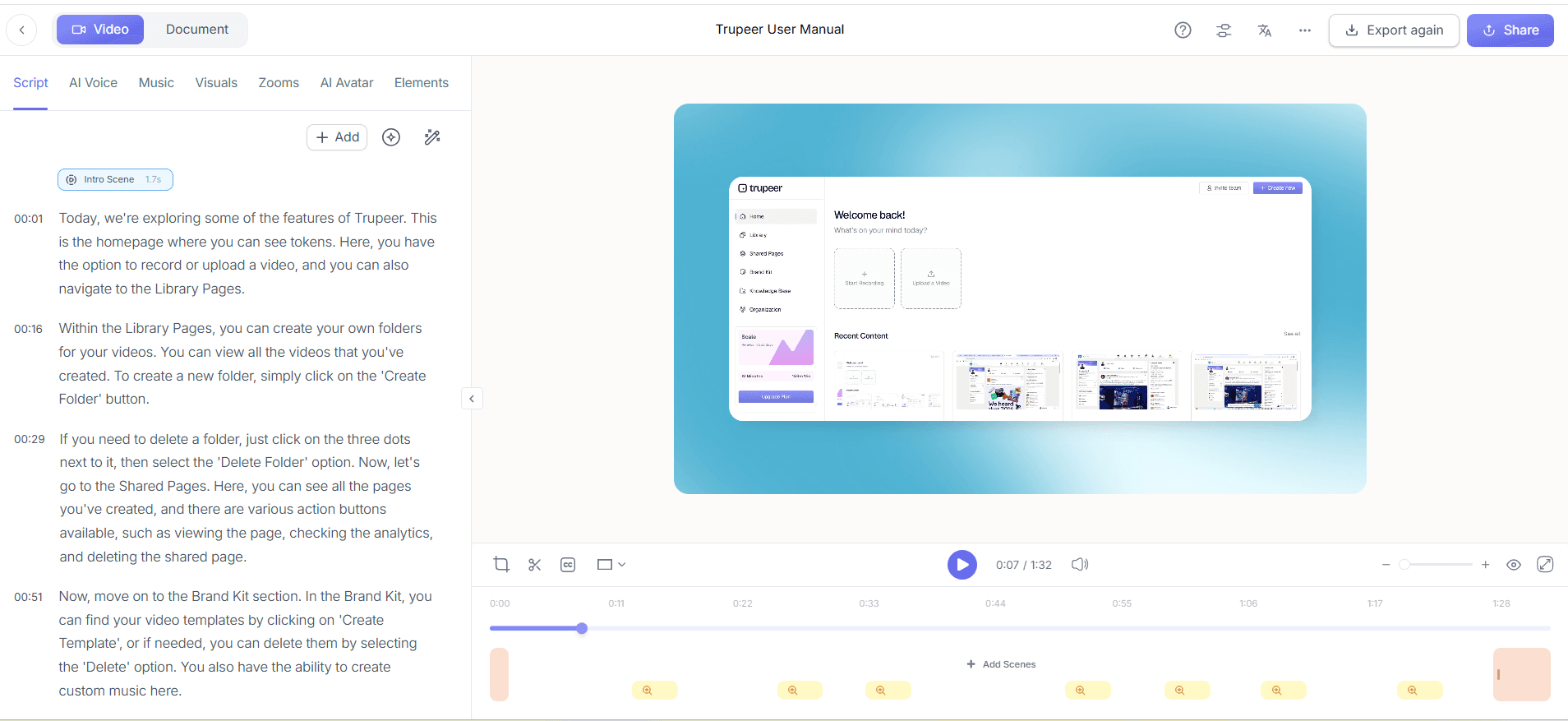
الخطوة 4: أضف صوراً رمزية بالذكاء الاصطناعي لإضفاء لمسة شخصية
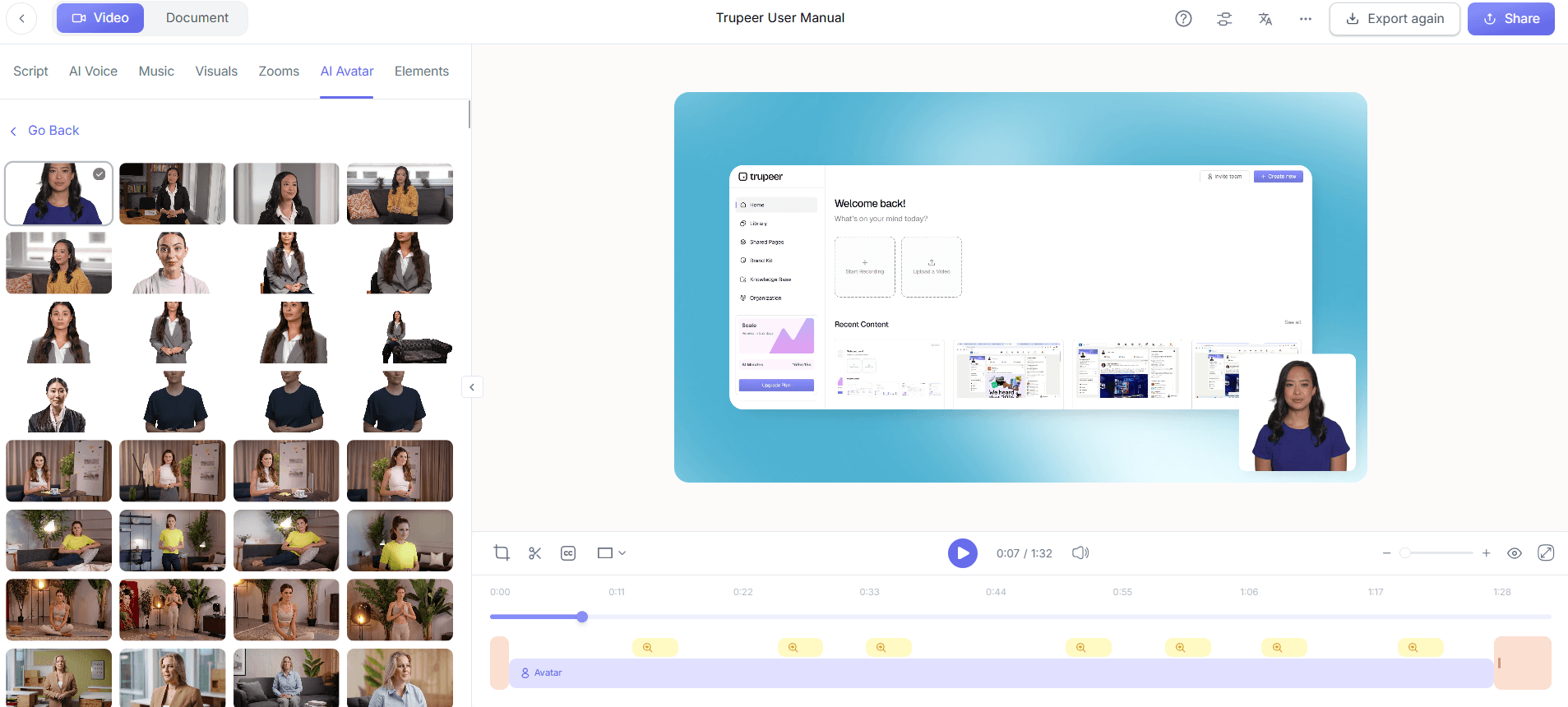
لجعل الفيديو أكثر جاذبية، ادمج صوراً رمزية بالذكاء الاصطناعي. انتقل إلى قسم "الصور الرمزية" واختر من مكتبة Trupeer الجاهزة أو أنشئ صورة رمزية مخصصة مع تكامل HeyGen. تضيف هذه الميزة عنصراً بشرياً من دون الحاجة إلى الظهور الفعلي في التسجيل. وهي مفيدة بشكل خاص في العروض التوضيحية للمنتج حيث يعزز التفاعل الشخصي ارتباط المشاهد. تأكد من أن تعابير الصورة الرمزية تتوافق مع نبرة الفيديو لتجنب أي تنافر.
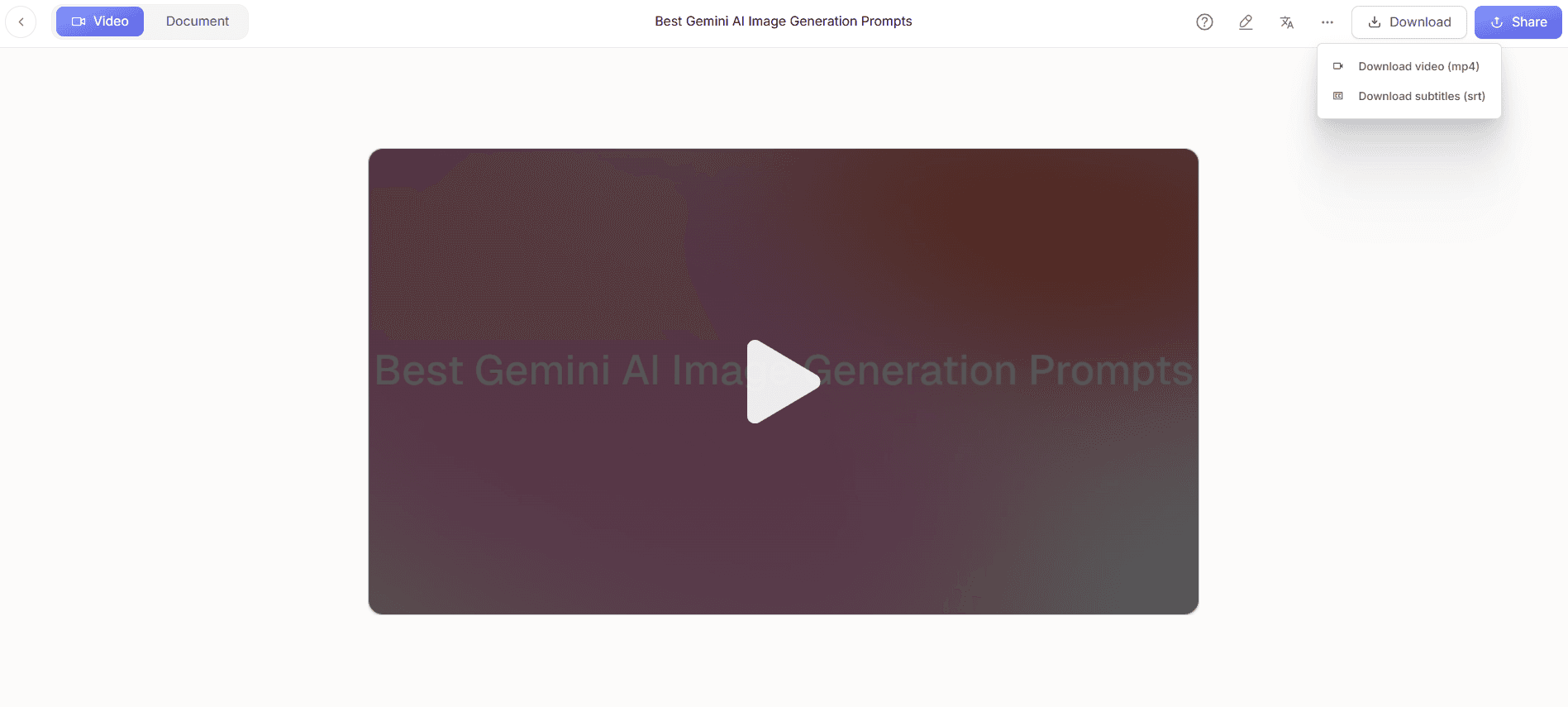
الخطوة 5: صدّر بصيغ متعددة
بعد الانتهاء من التعديلات، حان وقت تصدير الفيديو. انقر على "تصدير" واختر من بين صيغ MP4 أو HTML أو PDF. يدعم Trupeer التصدير متعدد الصيغ، مما يعني أنه يمكنك تكييف المخرجات لمختلف المنصات، سواء كنت تضمّنه في صفحة ويب أو تشاركه عبر البريد الإلكتروني. عملية التصدير سريعة، إذ تستغرق عادة أقل من دقيقتين. تضمن هذه المرونة قدرة المحتوى لديك على الوصول إلى شرائح جمهور مختلفة بفاعلية.
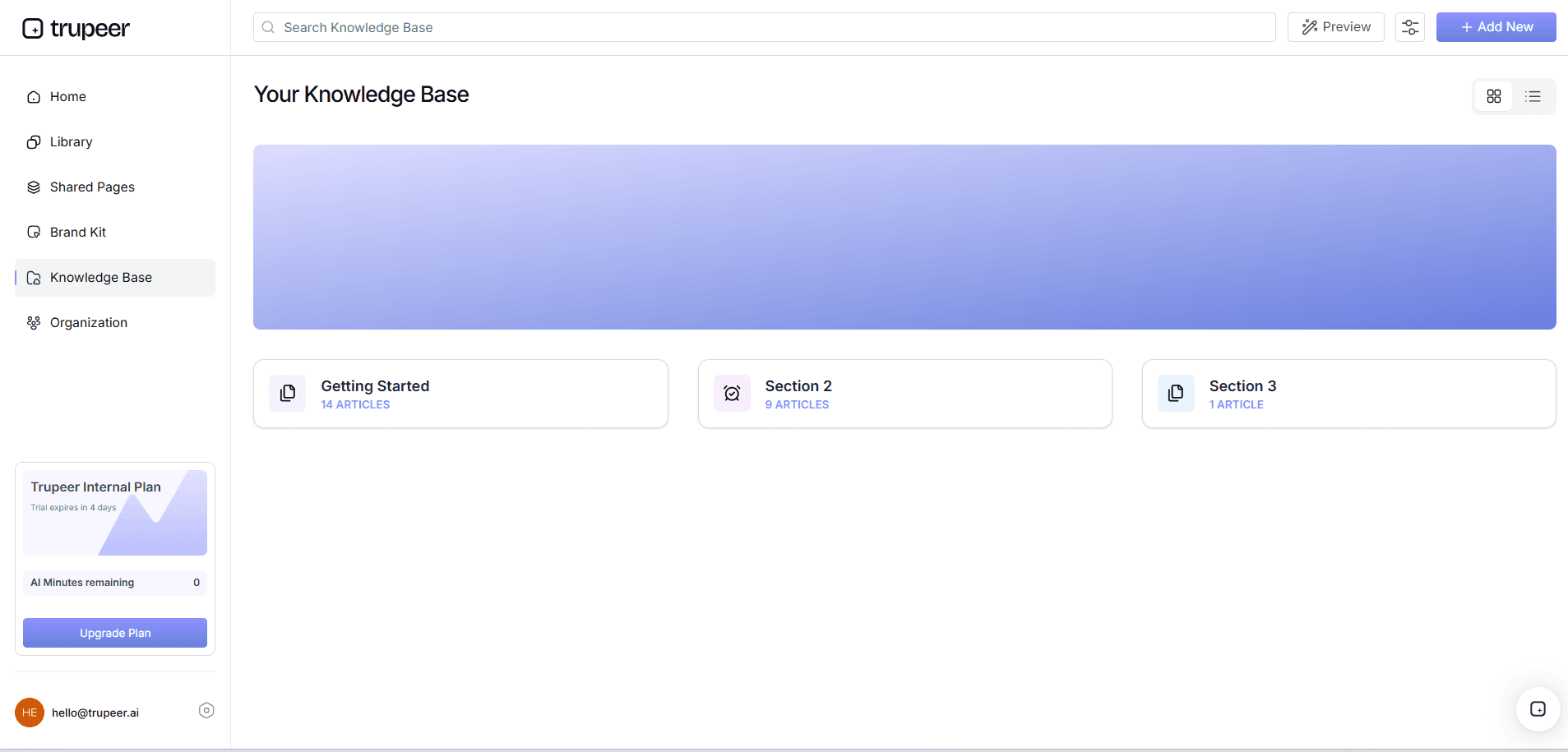
الخطوة 6: استضف وشارك عبر قاعدة معرفة قابلة للبحث بالذكاء الاصطناعي
أخيراً، ارفع الفيديو إلى قاعدة المعرفة القابلة للبحث بالذكاء الاصطناعي الخاصة بـ Trupeer. تتيح هذه الميزة للمستخدمين البحث عن مقاطع محددة باستخدام الطوابع الزمنية. وهي مثالية لإنشاء مورد شامل يمكن للمشاهدين من خلاله العثور بسهولة على المعلومات التي يحتاجونها. أنشئ نطاقاً مخصصاً لدمج سلس ضمن البنية التحتية الحالية لديك. تعزز هذه الخطوة سهولة الوصول، مما يجعل المحتوى لديك أصلاً قيماً لدعم العملاء والتفاعل المستمر معهم.
ما النصائح التي تساعدك على إنتاج تسجيلات شاشة بجودة الاستوديو؟
يتطلب إنتاج تسجيلات شاشة عالية الجودة الانتباه إلى التفاصيل والاستخدام الاستراتيجي للأدوات المتاحة. إليك بعض النصائح العملية لضمان تميز فيديوهاتك:
خطط لسيناريوك. اكتب سيناريو واضحاً ومختصراً قبل التسجيل. هذا يحافظ على تركيز الفيديو ويقلل الحاجة إلى تعديلات مكثفة.
حسّن إعداد الشاشة. تأكد من خلو شاشتك من المشتتات. أغلق التبويبات والتطبيقات غير الضرورية لتجربة تسجيل أكثر سلاسة.
استخدم هوية بصرية متسقة. طبّق قوالب تحمل علامتك التجارية للحفاظ على الاتساق البصري. هذا يعزز التعرف على العلامة التجارية.
استخدم استنساخ الصوت بالذكاء الاصطناعي. استخدم استنساخ الصوت بالذكاء الاصطناعي من Trupeer للحفاظ على صوت ثابت للعلامة التجارية عبر عدة فيديوهات.
عاين قبل الإنهاء. عاين الفيديو دائماً لاكتشاف أي أخطاء أو تعديلات مطلوبة في اللحظة الأخيرة.
اجمع الملاحظات. استخدم ميزات المراجعة التعاونية في Trupeer للحصول على ملاحظات الفريق وتنقيح المحتوى.
استكشف البدائل. قارن مع بدائل Scribe لإجراءات التشغيل القياسية للتأكد من أن مجموعة أدواتك تلبي الاحتياجات المتغيرة.
بالنسبة للجماهير العالمية، يضيف ترجمة الفيديو بالذكاء الاصطناعي نفس سير العمل عبر أكثر من 40 لغة مع مزامنة الشفاه.
الأسئلة الشائعة
كيف يعمل تسجيل الشاشة بالذكاء الاصطناعي في Trupeer؟
يلتقط تسجيل الشاشة بالذكاء الاصطناعي في Trupeer شاشتك بدقة، باستخدام التكبير التلقائي واكتشاف النقرات للتركيز على التفاعلات الأساسية. تضبط هذه الميزة العرض تلقائياً لإبراز إجراءات المستخدم، مما يجعل التسجيل ديناميكياً وجاذباً. وهي مصممة لتوفير الوقت من خلال إلغاء الحاجة إلى تعديلات يدوية أثناء عملية التحرير. يضمن الذكاء الاصطناعي أن تبقى أهم أجزاء عرضك واضحة التركيز، مما يعزز فهم المشاهدين واحتفاظهم بالمعلومة.
هل يستطيع Trupeer التعامل مع التعليقات الصوتية بلغات مختلفة؟
نعم، يمكن لـ Trupeer التعامل مع التعليقات الصوتية بلغات متعددة. تدعم المنصة الترجمة بالذكاء الاصطناعي إلى أكثر من 40 لغة، مع إمكانات مزامنة الشفاه. وهذا يجعلها مثالية للفرق العالمية أو المنتجات الموجهة إلى الأسواق الدولية. يمكنك اختيار اللغة المطلوبة من قائمة الإعدادات، وسيقوم Trupeer بإنشاء تعليق صوتي دقيق يتوافق مع سيناريوك. تسهّل هذه الميزة الوصول إلى جمهور أوسع وتضمن أن رسالتك تلقى صدى لدى جماهير لغوية مختلفة.
ما خيارات التصدير المتاحة مع Trupeer؟
يوفر Trupeer عدة خيارات للتصدير، بما في ذلك صيغ MP4 وHTML وPDF. يضمن هذا التنوع إمكانية مشاركة محتوى الفيديو على منصات متعددة، سواء كنت تحتاج إلى صيغة للتضمين على الويب أو للتوزيع عبر البريد الإلكتروني أو للعروض التقديمية غير المتصلة بالإنترنت. عملية التصدير مبسطة وتكتمل عادةً خلال دقائق. ومن خلال تقديم صيغ إخراج مرنة، يمكّن Trupeer فرق GTM من تلبية احتياجات التوزيع المتنوعة بكفاءة. وغالباً ما تبدأ الفرق التي تقارن الأدوات بـ مقارنة بدائل Loom قبل الاستقرار على سير عمل موحّد.
هل يقدم Trupeer أدوات للتعاون بين الفريق؟
نعم، يوفر Trupeer ميزات تعاونية قوية لسير عمل الفرق. تتضمن المنصة مسارات للمراجعة والموافقة، مما يتيح لأعضاء الفريق التعليق على تعديلات الفيديو والموافقة عليها قبل إنهائها. تبسّط هذه الميزة عملية إنشاء المحتوى وتضمن توافق جميع أصحاب المصلحة. ومن خلال تسهيل تعاون الفريق، يساعد Trupeer في الحفاظ على ضبط الجودة وتسريع الجدول الزمني للإنتاج، مما يجعل الالتزام بالمواعيد النهائية للمشروعات أسهل.
هل من الممكن دمج Trupeer مع وكلاء ذكاء اصطناعي آخرين؟
بالتأكيد، يتكامل Trupeer مع عدة وكلاء ذكاء اصطناعي، بما في ذلك تكامل MCP الذي يتيح لوكلاء مثل Claude الاستعلام عن مكتبة الفيديو لديك. يعزز هذا التكامل وظائف محتوى الفيديو لديك، مما يجعله قابلاً للبحث والوصول بطرق جديدة. وباستخدام قدرات الذكاء الاصطناعي، يضمن Trupeer أن تكون فيديوهاتك ليست مفيدة فقط، بل تفاعلية أيضاً، مما يوفر للمستخدمين تجربة سلسة. تُعد هذه الميزة مفيدة بشكل خاص للفرق التي تتطلع إلى توسيع فائدة أصول الفيديو الخاصة بها.
المدونات ذات الصلة


