Trupeer Blog

Visão Geral do Comprador
Criar um guia do utilizador de raiz pode parecer uma batalha difícil. Em média, as equipas gastam entre 8 a 12 horas a elaborar um único manual do utilizador, apenas para o encontrarem desatualizado com o lançamento seguinte do produto. Este ciclo constante de criação e obsolescência é um grande dreno de recursos. De acordo com um relatório recente, uns impressionantes 67% dos guias do utilizador são considerados obsoletos no primeiro ano de publicação.
67% dos guias do utilizador tornam-se obsoletos no primeiro ano de publicação.
Fonte: Relatório de Tendências da Documentação do Utilizador da TechInsights, 2025
Este guia foi concebido para equipas de documentação, gestores de produto e qualquer pessoa envolvida na criação de manuais do utilizador. Encontrará informações sobre as ferramentas mais recentes que podem automatizar e simplificar o processo de criação de guias do utilizador, garantindo que a sua documentação não só está atualizada como também é envolvente para os utilizadores.
Melhores Ferramentas para Criação de Guias do Utilizador: Comparação Direta
Funcionalidade | Trupeer | Scribe | Document360 | Tango | Notion | Confluence | GitBook | Archbee |
|---|---|---|---|---|---|---|---|---|
Captura Automática de Passos | Sim | Sim | Não | Sim | Não | Não | Limitado | Sim |
Redação com IA | Sim | Não | Sim | Não | Sim | Limitado | Não | Não |
Suporte de Vídeo | Sim | Limitado | Sim | Sim | Não | Limitado | Não | Sim |
Exportação para PDF | Sim | Sim | Sim | Não | Sim | Sim | Limitado | Sim |
Base de Conhecimento Web | Sim | Não | Sim | Limitado | Sim | Sim | Sim | Não |
Controlo de Versões | Sim | Não | Sim | Não | Limitado | Sim | Sim | Limitado |
Colaboração em Equipa | Sim | Sim | Sim | Limitado | Sim | Sim | Sim | Sim |
Pesquisa | Sim | Sim | Sim | Limitado | Sim | Sim | Sim | Sim |
Modelos | Sim | Não | Sim | Não | Sim | Limitado | Sim | Sim |
Versão Gratuita | Sim | Sim | Não | Sim | Sim | Limitado | Não | Não |
Trupeer
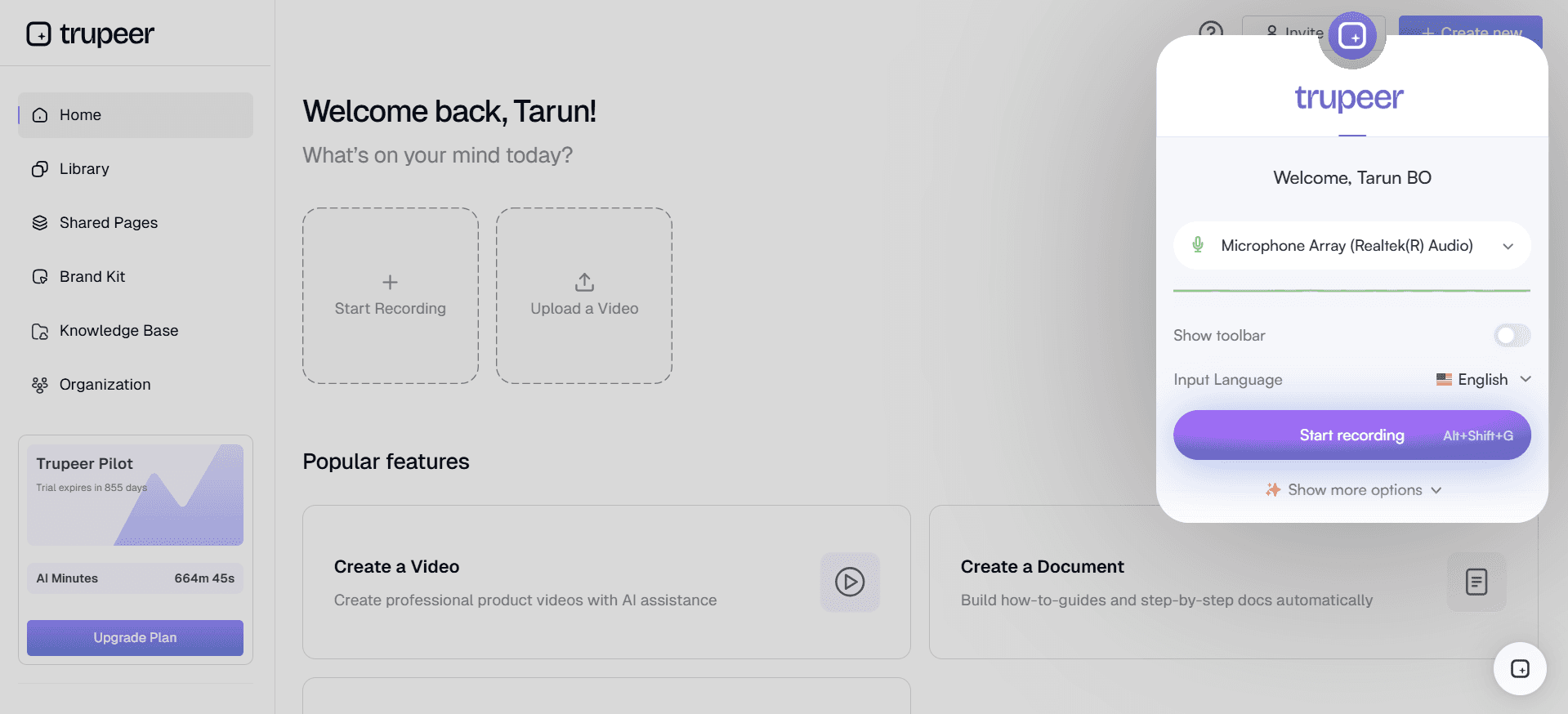
A Trupeer destaca-se como uma ferramenta dinâmica para criar guias do utilizador com facilidade. Foi concebida para equipas que precisam de produzir documentação abrangente rapidamente. A força da Trupeer reside na sua capacidade de gerar automaticamente conteúdo a partir de gravações de ecrã, reduzindo significativamente o tempo gasto em documentação manual. É particularmente útil para empresas tecnológicas que precisam de acompanhar atualizações rápidas de produto.
Principais Funcionalidades
Captura automática de guias passo a passo a partir da atividade no ecrã
Redação gerada por IA para conteúdo instrucional
Integração de vídeo fluida com guias de texto
Opções de exportação em vários formatos (PDF, web, HTML)
Controlo de versões para atualizações de documentos
Ferramentas robustas de colaboração em equipa
Modelos personalizáveis para diferentes tipos de guia
Funcionalidade de pesquisa avançada para acesso rápido
«A Trupeer transformou a forma como a nossa equipa gere a documentação, reduzindo o tempo de criação para metade.»
Vantagens | Desvantagens |
|---|---|
A geração automática poupa muito tempo. | Curva de aprendizagem para novos utilizadores. |
Integra vídeo de forma fluida com texto. | Acesso offline limitado. |
Suporta vários formatos de exportação. | Custo mais elevado para equipas maiores. |
Preço
Disponível versão gratuita; os planos pagos começam em $49/mês por utilizador.
Scribe
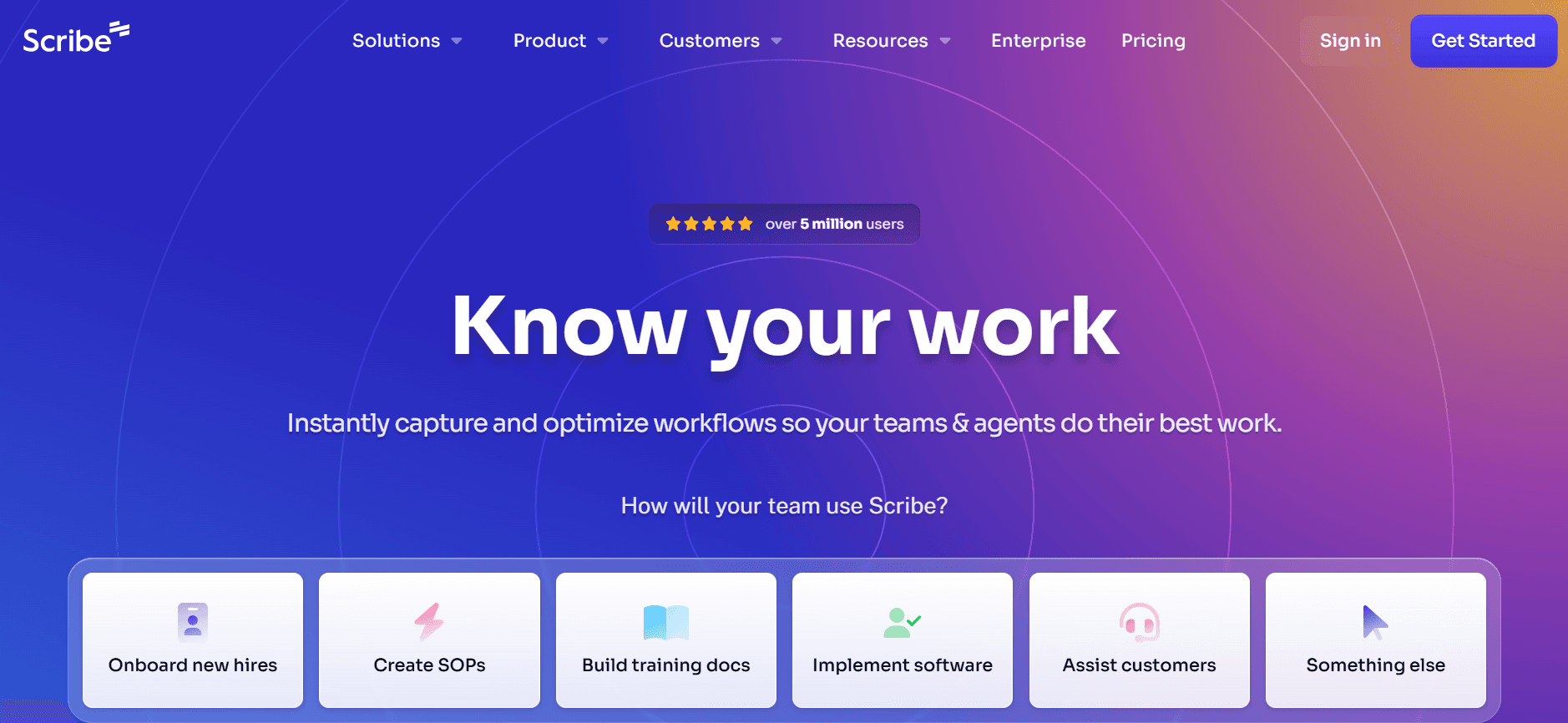
A Scribe é uma ferramenta intuitiva dirigida a pequenas empresas e startups que necessitam de soluções de documentação simples. Destaca-se na captura de processos passo a passo, tornando-a ideal para equipas que atualizam frequentemente os seus guias. O foco da Scribe na simplicidade garante que até utilizadores não técnicos possam criar documentação eficaz sem complicações.
Principais Funcionalidades
Captura de processos passo a passo
Interface de utilizador simples para navegação fácil
Suporte básico de vídeo para aprendentes visuais
Exportação para PDF para uso offline
Colaboração em tempo real para projetos de equipa
Pesquisa integrada para encontrar documentos rapidamente
Modelos personalizáveis para cumprir as diretrizes da marca
Integração com serviços cloud populares
Vantagens | Desvantagens |
|---|---|
Fácil de aprender e utilizar. | Funcionalidades avançadas limitadas. |
Boa para equipas e projetos pequenos. | Sem capacidades de redação com IA. |
Económica para startups. | Apenas suporte básico de vídeo. |
Preço
Disponível versão gratuita; os planos pagos começam em $12/mês por utilizador.
Document360
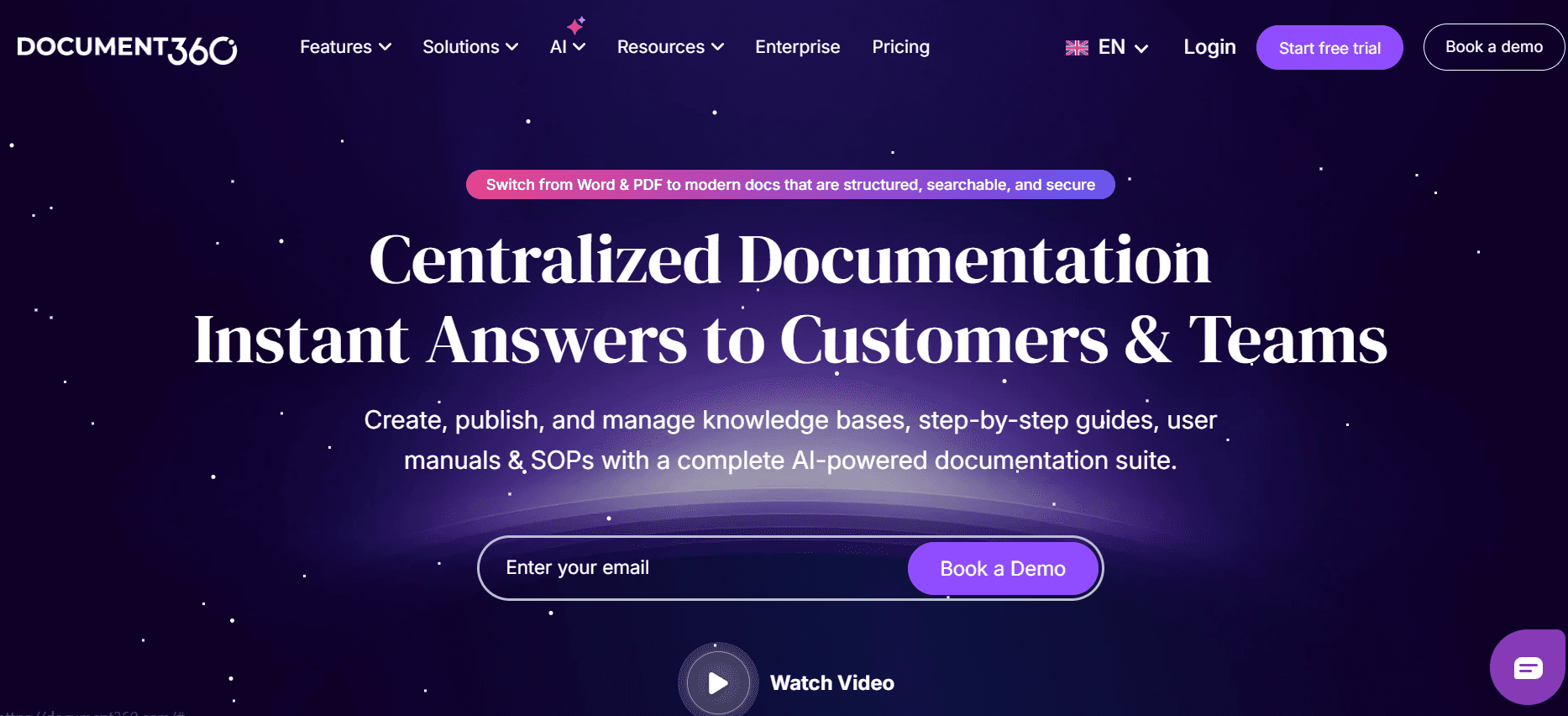
A Document360 destina-se a empresas que precisam de uma plataforma de documentação escalável e rica em funcionalidades. Foi concebida para equipas grandes que requerem uma base de conhecimento abrangente. Com as suas capacidades avançadas de IA, a Document360 automatiza a criação de conteúdo, garantindo que os guias sejam precisos e consistentes em toda a linha.
Principais Funcionalidades
Criação de conteúdo orientada por IA
Gestão abrangente da base de conhecimento
Integração de tutoriais em vídeo
Opções de exportação para PDF e web
Controlo de versões para o histórico de documentos
Ferramentas extensivas de colaboração
Modelos e identidade visual personalizáveis
Análises e relatórios avançados
Vantagens | Desvantagens |
|---|---|
Ótima para grandes organizações. | Excessiva para equipas pequenas. |
Funcionalidades avançadas de IA. | Preço mais elevado. |
Análises robustas para acompanhar a utilização. | Processo de configuração complexo. |
Preço
Sem versão gratuita; os planos começam em $99/mês por projeto.
Tango
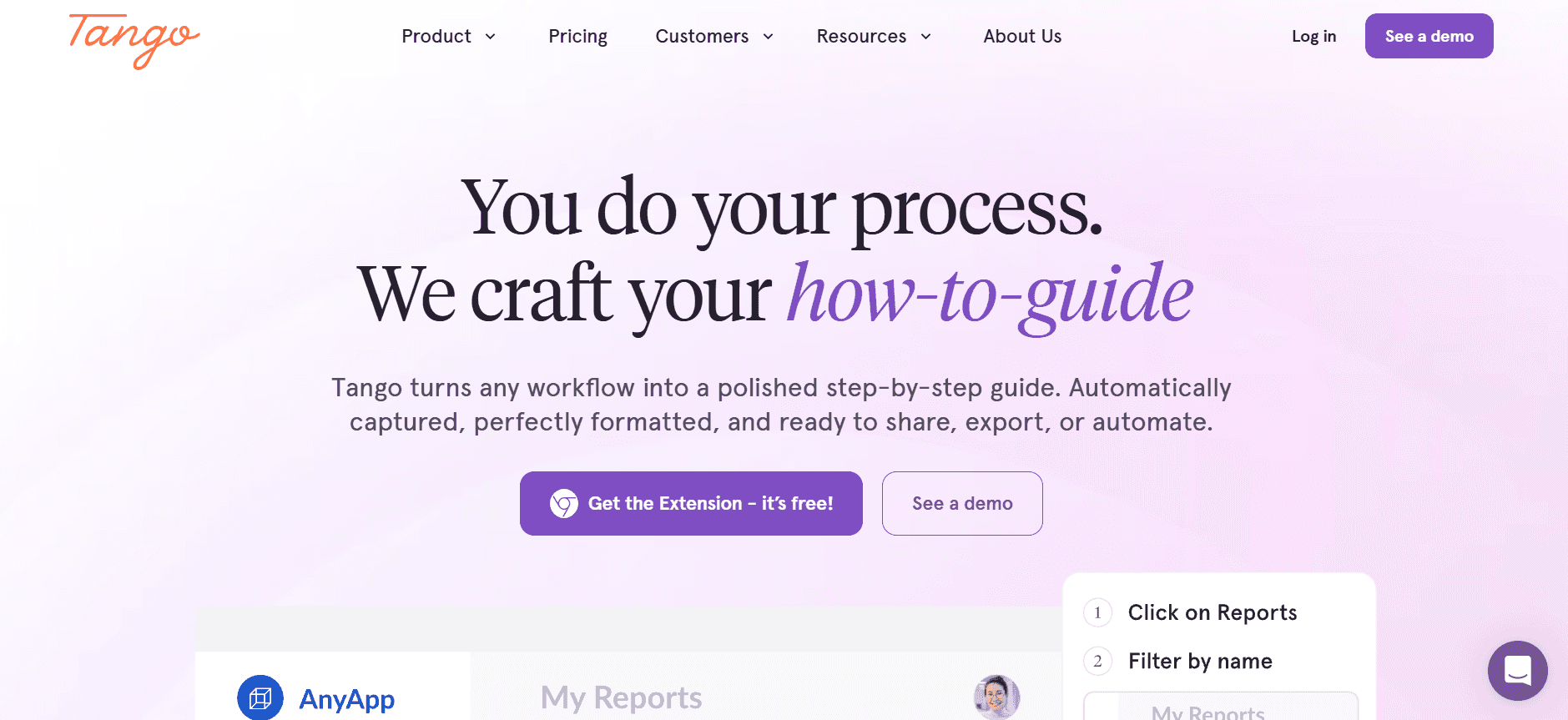
A Tango é perfeita para equipas que precisam de documentar processos rapidamente e de forma visual. É particularmente adequada para equipas criativas e marketers que necessitam de guias visualmente apelativos. Embora lhe faltem algumas funcionalidades avançadas, a sua simplicidade e abordagem centrada no design tornam-na uma favorita entre equipas mais pequenas.
Principais Funcionalidades
Documentação visual de processos
Interface fácil de utilizar
Suporte de vídeo com anotações
Opções de exportação limitadas
Ferramentas básicas de colaboração
Função de pesquisa integrada
Modelos de design personalizáveis
Integração com ferramentas de design
Vantagens | Desvantagens |
|---|---|
Ótima para documentação visual. | Faltam funcionalidades avançadas. |
Interface fácil de usar. | Formatos de exportação limitados. |
Económica para equipas pequenas. | Sem suporte de redação com IA. |
Preço
Disponível versão gratuita; os planos pagos começam em $20/mês por utilizador.
Notion
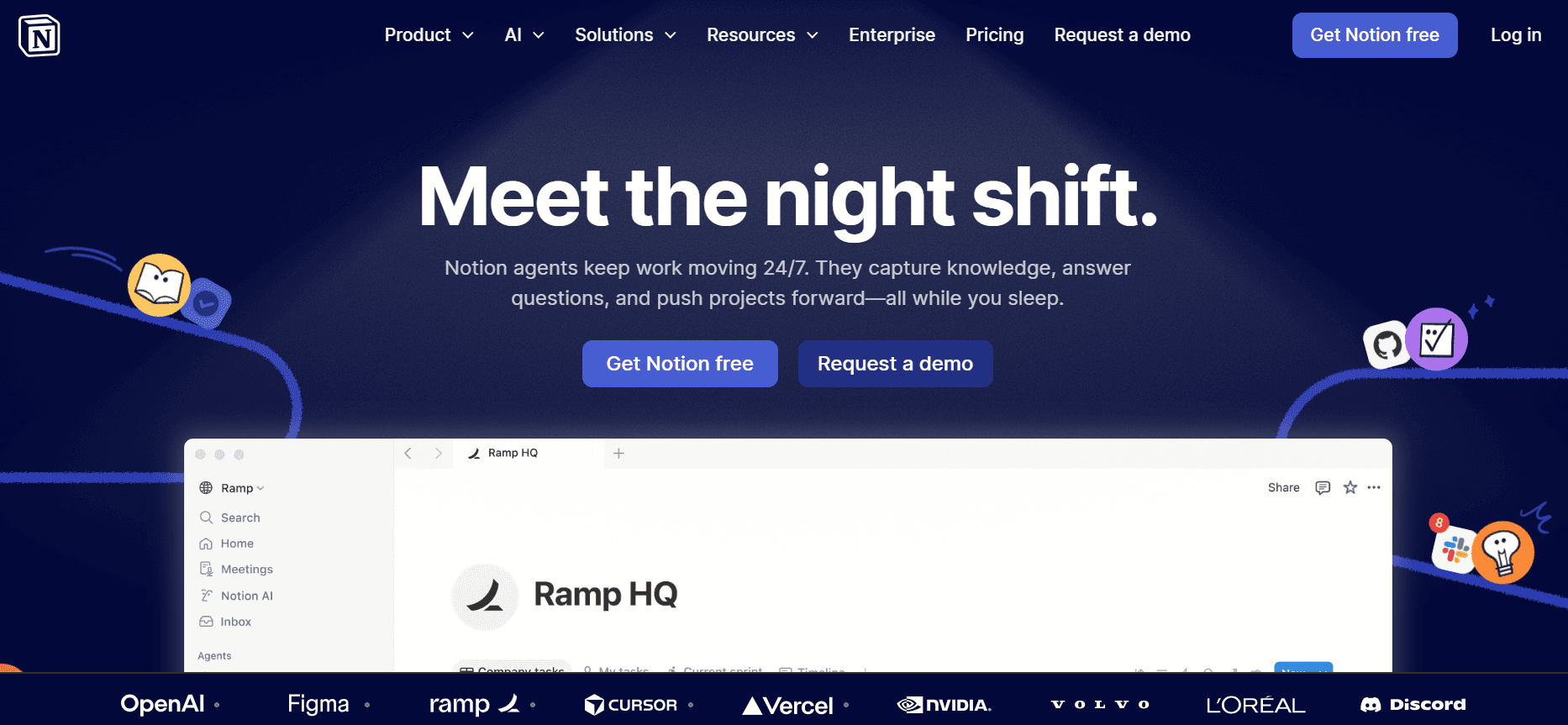
A Notion é uma ferramenta versátil que serve para muito mais do que apenas documentação. Foi concebida para equipas que precisam de um espaço de trabalho tudo-em-um que combine gestão de projetos, notas e documentação. A sua flexibilidade torna-a ideal para startups e equipas criativas que valorizam a personalização em vez da rigidez.
Principais Funcionalidades
Espaço de trabalho tudo-em-um para documentos e projetos
Modelos altamente personalizáveis
Funcionalidades de colaboração integradas
Controlo de versões básico
Estrutura de base de dados pesquisável
Capacidade de exportação para PDF
Ferramentas de colaboração e partilha
Integração com ferramentas de gestão de tarefas
Vantagens | Desvantagens |
|---|---|
Espaço de trabalho altamente personalizável. | Curva de aprendizagem acentuada para novos utilizadores. |
Ótima para colaboração em equipa. | Capacidades de IA limitadas. |
Multifuncional para várias tarefas. | Não é especializada em documentação. |
Preço
Disponível versão gratuita; os planos pagos começam em $8/mês por utilizador.
Confluence
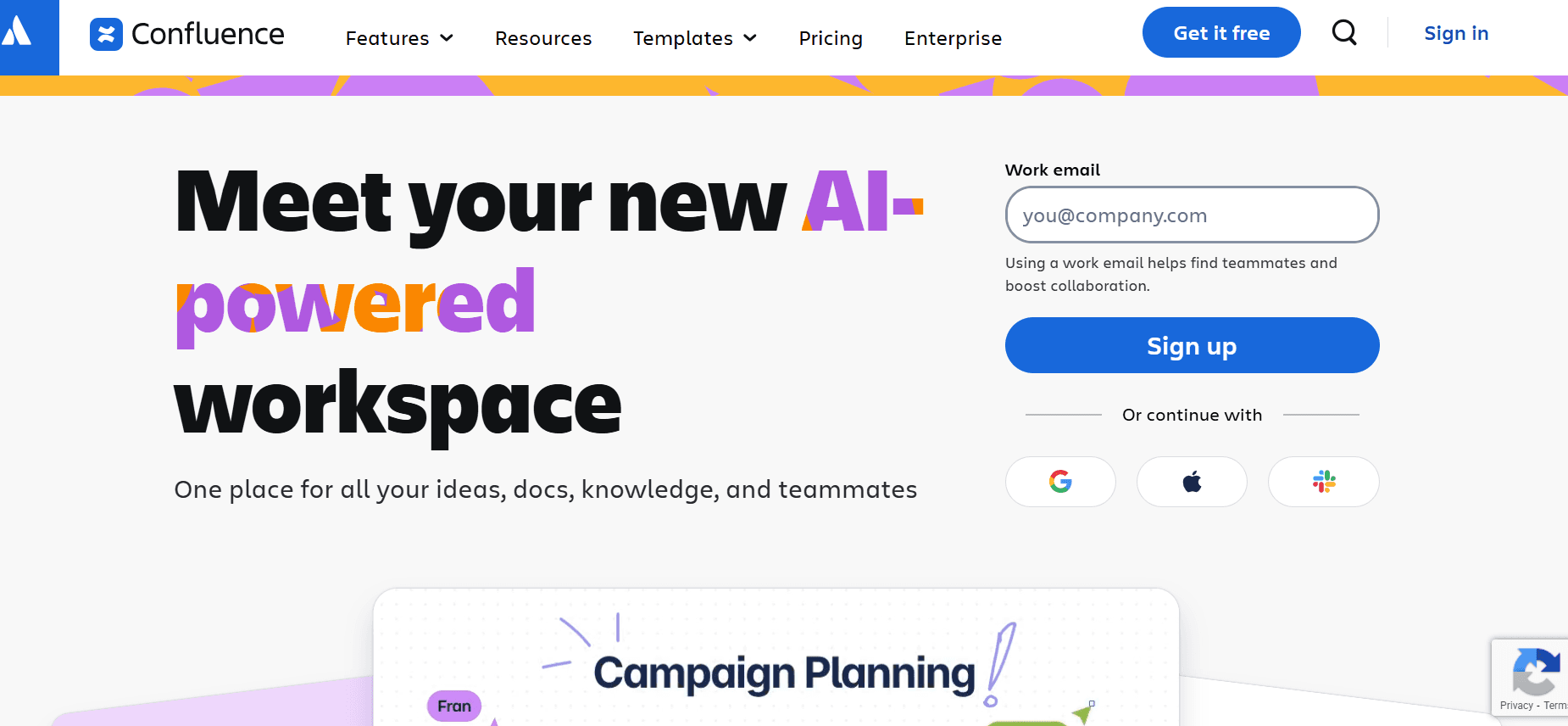
A Confluence da Atlassian é uma potência para documentação e colaboração de nível empresarial. Foi concebida para empresas que necessitam de uma plataforma robusta para gerir fluxos de trabalho de documentação complexos. A integração da Confluence com outros produtos da Atlassian torna-a uma escolha favorita para empresas tecnológicas.
Principais Funcionalidades
Documentação de nível empresarial
Forte integração com a suite Atlassian
Ferramentas extensivas de colaboração
Controlo de versões avançado
Modelos para documentos padronizados
Capacidades poderosas de pesquisa e organização
Análises e relatórios detalhados
Permissões e controlo de acesso personalizáveis
Vantagens | Desvantagens |
|---|---|
Integração fluida com outras ferramentas. | Não é ideal para equipas pequenas. |
Capacidades abrangentes de documentação. | Processo de configuração complexo. |
Funcionalidades de segurança fortes. | Curva de aprendizagem elevada. |
Preço
Sem versão gratuita; os planos começam em $10/mês por utilizador.
GitBook
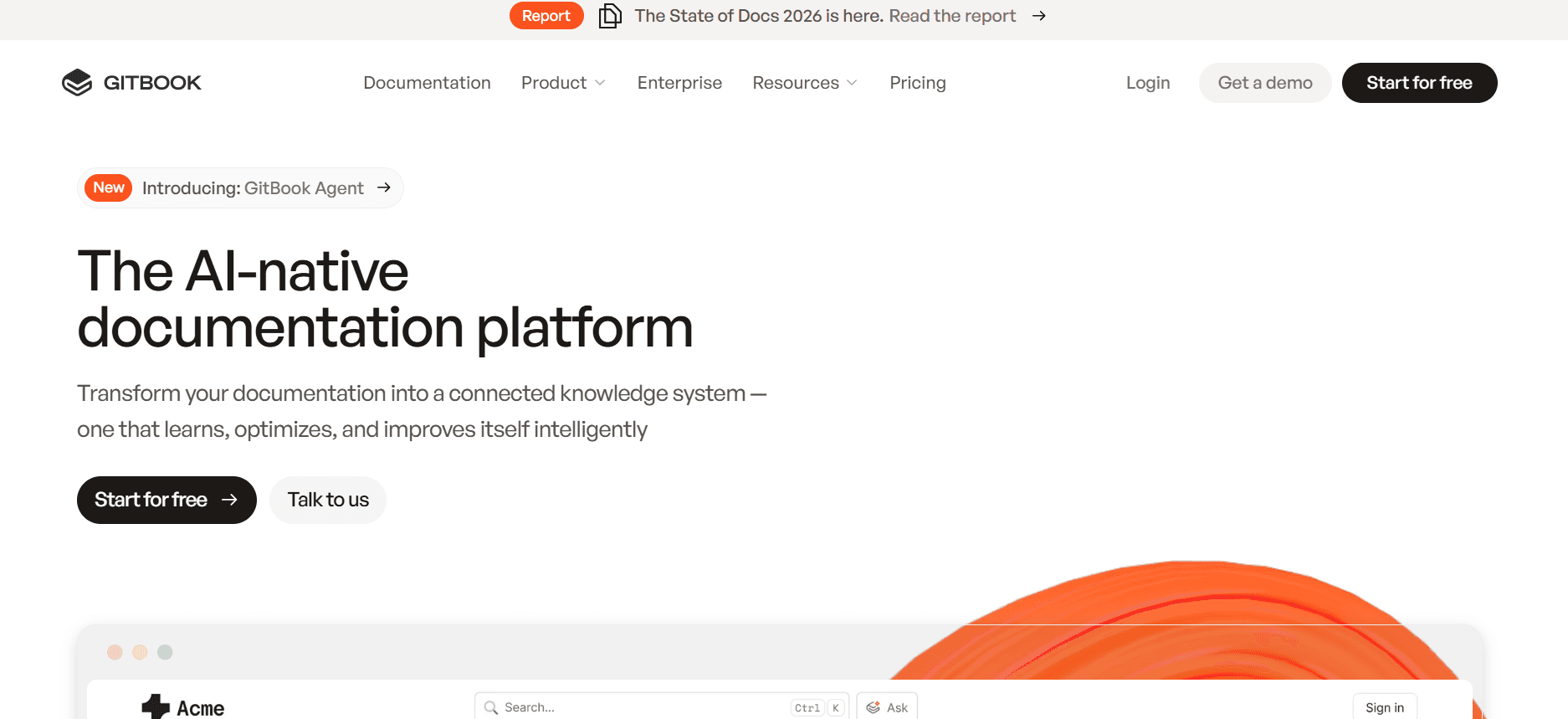
A GitBook oferece uma abordagem moderna à documentação, centrando-se na simplicidade e na colaboração. É especialmente útil para programadores e equipas técnicas que precisam de criar e manter documentação de API. A integração da GitBook com o GitHub é uma grande vantagem para equipas focadas em tecnologia.
Principais Funcionalidades
Interface moderna de documentação
Integração fluida com o GitHub
Ferramentas de colaboração em tempo real
Suporte a Markdown para edição fácil
Controlo de versões para atualizações de documentos
Suporte para domínio personalizado
Estrutura de conteúdo pesquisável
Fóruns da comunidade e de suporte
Vantagens | Desvantagens |
|---|---|
Ótima para documentação de programadores. | Limitada a públicos técnicos. |
Integração com sistemas de controlo de versões. | Conjunto de funcionalidades básico para utilizadores não técnicos. |
Capacidades de edição em tempo real. | Sem suporte de vídeo. |
Preço
Sem versão gratuita; os planos começam em $32/mês por utilizador.
Archbee
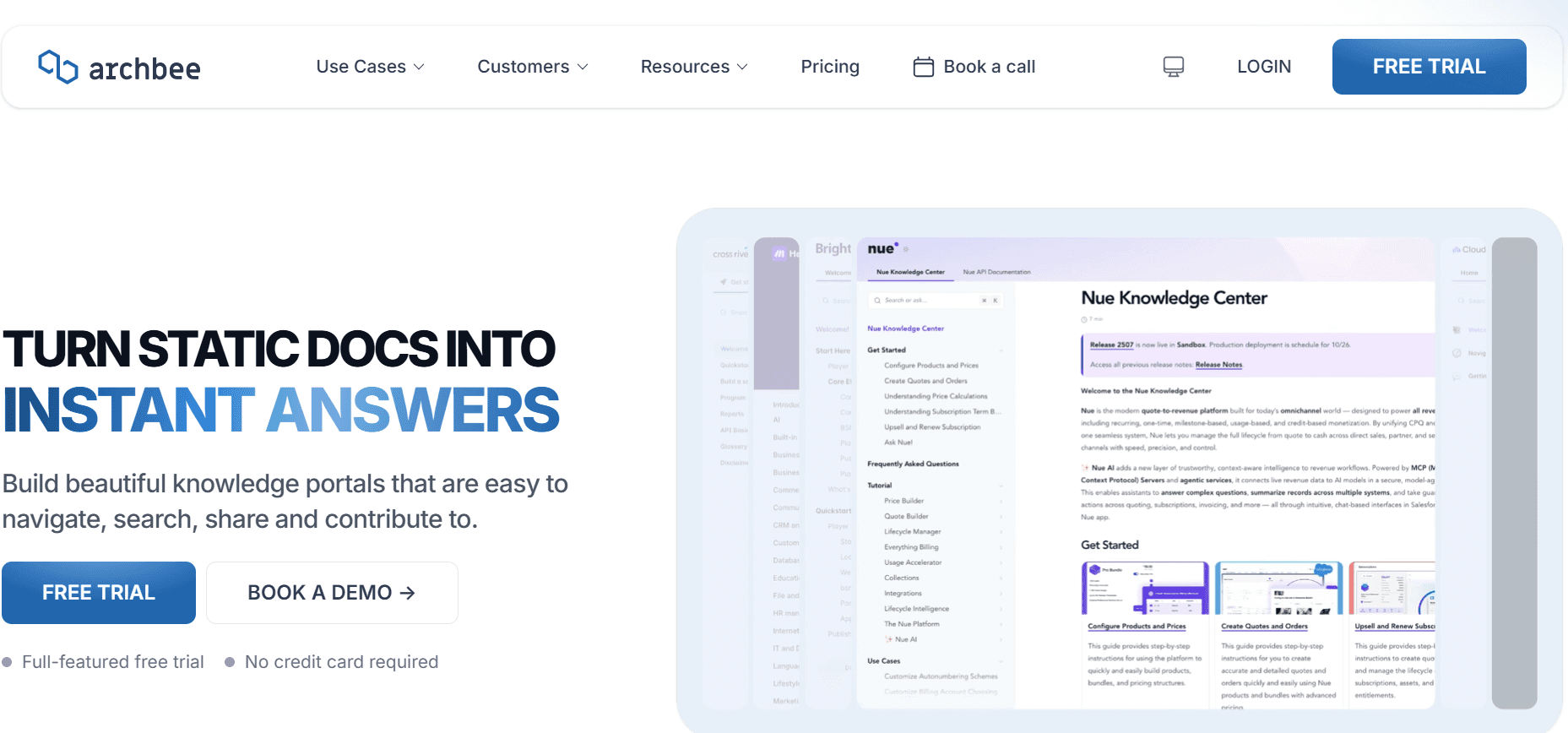
A Archbee foi concebida para startups e empresas tecnológicas que precisam de uma ferramenta de documentação leve e eficiente. É ideal para equipas que necessitam de uma plataforma simples, mas eficaz, tanto para documentação interna como externa. Com o seu foco na velocidade e na colaboração, a Archbee é perfeita para ambientes ágeis.
Principais Funcionalidades
Configuração rápida e fácil de utilizar
Ferramentas de colaboração em tempo real
Suporte a Markdown para equipas técnicas
Modelos de documentos personalizáveis
Base de conhecimento pesquisável
Integração com ferramentas SaaS populares
Controlo de versões para atualizações
Opções de domínio personalizado e identidade visual
Vantagens | Desvantagens |
|---|---|
Rápida e fácil de configurar. | Funcionalidades avançadas limitadas. |
Ótima para equipas ágeis. | Sem suporte de redação com IA. |
Modelos personalizáveis. | Ferramentas básicas de colaboração. |
Preço
Sem versão gratuita; os planos começam em $15/mês por utilizador.
Desafios da Criação de Guias do Utilizador: Com o Que as Equipas Têm Dificuldade
Processos de Documentação Manuais
Demorado: criar guias detalhados manualmente demora horas, envolvendo capturas de ecrã, formatação e revisão.
Propenso a erros: o erro humano pode resultar em falhas, levando à confusão do utilizador.
Intensivo em recursos: requer mão de obra significativa, muitas vezes desviando recursos de outras tarefas críticas.
Qualidade inconsistente: a variação no conhecimento e na experiência da equipa pode levar a documentação inconsistente.
Obsolescência do Conteúdo
Atualizações frequentes: os ciclos rápidos de desenvolvimento de produto tornam desafiante manter a documentação atualizada.
Informação desatualizada: os utilizadores podem seguir instruções antigas, levando a frustração e chamadas para o suporte.
Manutenção elevada: atualizações constantes exigem uma equipa dedicada para gerir alterações na documentação.
Falta de automação: sem ferramentas automatizadas, as atualizações manuais são morosas e ineficientes.
Pesquisa e Localização Deficientes
Funções de pesquisa inadequadas: os utilizadores têm dificuldade em encontrar informação relevante rapidamente.
Conteúdo fragmentado: a informação está muitas vezes dispersa por vários documentos e plataformas.
Frustração do utilizador: a dificuldade em localizar informação conduz a uma má experiência de utilização.
Maior carga de suporte: os utilizadores que não conseguem encontrar respostas recorrem ao contacto com o suporte.
Documentação em Silos
Várias plataformas: as equipas usam ferramentas diferentes como Notion, Word e Google Docs, causando fragmentação.
Falta de integração: ferramentas desconectadas complicam o fluxo de trabalho e a colaboração.
Silos de dados: a informação fica isolada, tornando difícil partilhá-la e aceder a ela em toda a organização.
Atualizações inconsistentes: diferentes versões dos documentos podem existir em simultâneo, causando confusão.
Formatação e Estilo Inconsistentes
Estilos de autoria variados: diferentes membros da equipa produzem guias em formatos e estilos distintos.
Problemas de identidade visual: a falta de padronização afeta a consistência da marca e o profissionalismo.
Necessidades de formação: novos membros da equipa precisam de formação para seguir o guia de estilo da empresa.
Retrabalho: as inconsistências muitas vezes exigem nova edição e nova formatação, desperdiçando tempo e recursos.
Desafio | Processo Tradicional | Impacto no Negócio | Custo de Tempo |
|---|---|---|---|
Processos de Documentação Manuais | Passos manuais, capturas de ecrã, edição | Elevado consumo de recursos, qualidade inconsistente | 8-12 horas por guia |
Obsolescência do Conteúdo | Atualizações manuais frequentes | Confusão do utilizador, aumento do suporte | 3-5 horas por atualização |
Pesquisa e Localização Deficientes | Fragmentado em várias plataformas | Frustração do utilizador, carga de suporte | Problema contínuo |
Documentação em Silos | Utilização de várias ferramentas não integradas | Silos de dados, ineficiências no fluxo de trabalho | Gestão contínua necessária |
Formatação e Estilo Inconsistentes | Autoria variada sem orientações | Retrabalho, inconsistências de marca | 2-4 horas por guia |
Funcionalidades Essenciais nas Ferramentas de Criação de Guias do Utilizador
Captura Automática de Passos a partir da Atividade no Ecrã
A captura automática de passos é uma mudança decisiva para as equipas de documentação. Esta funcionalidade permite às ferramentas registar as ações do utilizador diretamente a partir do ecrã, capturando cada clique e cada tecla premida. Reduz drasticamente o tempo necessário para criar guias ao eliminar a necessidade de capturas de ecrã e anotações manuais. Ferramentas como a Trupeer destacam-se nesta área, permitindo às equipas gerar guias completos em minutos.
Com a captura automática de passos, garante precisão e completude, uma vez que cada ação é documentada exatamente como ocorreu. Este nível de detalhe é inestimável para guias técnicos, onde a precisão é crucial. Também simplifica o processo para membros da equipa não técnicos que possam ter dificuldade com técnicas de documentação manuais.
Instruções de Passos Escritas por IA
A redação gerada por IA oferece uma forma fluida de converter os passos capturados em instruções coerentes e fáceis de utilizar. Ao aproveitar o processamento de linguagem natural, as ferramentas podem redigir descrições detalhadas para cada ação, fornecendo aos utilizadores orientações claras. Esta funcionalidade é particularmente benéfica para grandes organizações que produzem documentação extensa com regularidade.
A Document360 incorpora capacidades poderosas de IA, permitindo-lhe produzir documentação consistente e de elevada qualidade. A redação com IA reduz o peso sobre os redatores técnicos, libertando-os para se concentrarem em tarefas de nível superior, como estratégia de conteúdo e edição. Também garante que todos os guias do utilizador mantenham um tom e estilo uniformes, melhorando a experiência global do utilizador.
Incorporação de Vídeo Junto ao Texto
A incorporação de vídeos nos guias do utilizador melhora a experiência de aprendizagem ao atender a aprendentes visuais. Os vídeos oferecem uma forma dinâmica de demonstrar processos e conceitos que podem ser difíceis de transmitir apenas através de texto. Também permitem aos utilizadores ver o software em ação, o que pode melhorar a compreensão e a retenção.
A Tango é particularmente competente na integração de conteúdo de vídeo na documentação. Esta funcionalidade é essencial para empresas que procuram criar guias envolventes e ricos em multimédia. Os vídeos podem ser usados para destacar procedimentos complexos, fornecer orientações passo a passo ou oferecer contexto adicional que complemente o conteúdo escrito.
Exportação em Vários Formatos (PDF, Web, HTML)
A flexibilidade nos formatos de exportação é crucial para satisfazer as diversas necessidades dos utilizadores. Quer os utilizadores prefiram guias impressos, artigos online ou PDFs descarregáveis, oferecer vários formatos garante acessibilidade e conveniência. Esta funcionalidade é indispensável para empresas que distribuem documentação por vários canais.
A Trupeer e a Notion oferecem ambas opções robustas de exportação, permitindo às equipas adaptar facilmente o seu conteúdo a diferentes plataformas. Esta capacidade não só melhora a acessibilidade para o utilizador, como também apoia a consistência da marca em todos os formatos de documentação. Permite às equipas responder a diferentes preferências dos utilizadores, garantindo que todos possam aceder à informação da forma que preferirem.
Controlo de Versões e Fluxos de Trabalho de Atualização Rápidos
O controlo de versões é essencial para manter a documentação precisa e atualizada. Permite às equipas acompanhar alterações, reverter para versões anteriores e gerir atualizações de forma eficiente. Esta funcionalidade é particularmente importante para organizações que passam por atualizações frequentes de produto, pois garante que a documentação reflete as funcionalidades e especificações mais recentes do produto.
A Confluence fornece capacidades avançadas de controlo de versões, tornando-se uma escolha preferencial para empresas que necessitam de uma gestão de documentação detalhada. Os fluxos de trabalho de atualização rápida suportados pelo controlo de versões reduzem o tempo necessário para implementar alterações, garantindo que os guias do utilizador permanecem relevantes e precisos. Esta funcionalidade também promove a colaboração, permitindo que vários membros da equipa trabalhem num documento em simultâneo sem receio de sobrescrever as contribuições uns dos outros.
Como Escolher Ferramentas de Guias do Utilizador com Base no Seu Caso de Utilização
Manuais do Utilizador do Produto e Artigos do Centro de Ajuda
Criar manuais detalhados do utilizador do produto e artigos do centro de ajuda é crucial para melhorar a satisfação do cliente. Estes recursos precisam de ser abrangentes, fáceis de utilizar e de acesso simples. Muitas empresas têm dificuldade em manter documentação atualizada que acompanhe a evolução das funcionalidades do seu produto.
Principais Desafios:
Garantir que todas as funcionalidades do produto estão documentadas com precisão
Manter os manuais atualizados com as alterações do produto
Fornecer informação num formato fácil de utilizar
Soluções Necessárias:
Ferramentas com controlo de versões robusto
Capacidades de exportação em vários formatos
Redação assistida por IA para simplificar atualizações de conteúdo
Ferramenta | Controlo de Versões | Exportação em Vários Formatos | Redação com IA |
|---|---|---|---|
Document360 | Sim | Sim | Sim |
Confluence | Sim | Sim | Limitado |
Trupeer | Sim | Sim | Sim |
Documentação Interna de SOP
Para Procedimentos Operacionais Padrão (SOP) internos, é vital ter documentação clara, padronizada e facilmente editável. Os SOPs exigem muitas vezes atualizações frequentes para refletir alterações nos processos e precisam de estar acessíveis a todos os membros da equipa.
Principais Desafios:
Manter a consistência entre diferentes SOPs
Garantir atualizações rápidas para refletir alterações nos processos
Facilitar o acesso fácil a todos os membros da equipa
Soluções Necessárias:
Modelos personalizáveis para SOPs
Capacidades fáceis de colaboração e partilha
Base de dados pesquisável para encontrar SOPs rapidamente
Ferramenta | Modelos | Colaboração | Base de Dados Pesquisável |
|---|---|---|---|
Notion | Sim | Sim | Sim |
Archbee | Sim | Sim | Sim |
GitBook | Limitado | Sim | Sim |
Guias de Sistemas de TI e Administração
Os guias de sistemas de TI e administração requerem detalhes técnicos precisos e precisam de ser atualizados frequentemente para acompanhar as alterações do sistema. Estes guias devem estar acessíveis tanto a profissionais de TI como a pessoal não técnico que possa precisar de executar tarefas básicas.
Principais Desafios:
Documentar com precisão processos técnicos complexos
Atualizar a documentação com alterações de software e sistemas
Garantir que os guias são acessíveis a todo o pessoal relevante
Soluções Necessárias:
Integração com sistemas de controlo de versões
Suporte de redação técnica
Acesso multiutilizador para edição colaborativa
Ferramenta | Controlo de Versões | Redação Técnica | Acesso Multiutilizador |
|---|---|---|---|
Trupeer | Sim | Sim | Sim |
Confluence | Sim | Limitado | Sim |
GitBook | Sim | Sim | Sim |
Base de Conhecimento Voltada para o Cliente
Uma base de conhecimento voltada para o cliente deve ser fácil de utilizar e fornecer respostas abrangentes a perguntas comuns. Precisa de ser atualizada regularmente para garantir precisão e deve suportar vários formatos para responder a diversas preferências dos utilizadores.
Principais Desafios:
Fornecer informação precisa e atualizada
Garantir que a base de conhecimento é fácil de usar
Suportar vários formatos de conteúdo (texto, vídeo, etc.)
Soluções Necessárias:
Fluxos de atualização automatizados
Suporte para conteúdo multimédia
Capacidades avançadas de pesquisa
Ferramenta | Atualizações Automáticas | Suporte Multimédia | Capacidades de Pesquisa |
|---|---|---|---|
Trupeer | Sim | Sim | Sim |
Tango | Não | Sim | Limitado |
Document360 | Sim | Sim | Sim |
Melhores Práticas para a Criação de Guias do Utilizador
Antes de Começar
Identifique o público-alvo e as suas necessidades.
Defina o âmbito e os objetivos do guia do utilizador.
Reúna todos os recursos e informações necessários.
Crie um esquema estruturado para organizar o conteúdo de forma lógica.
Selecione as ferramentas adequadas às suas necessidades de documentação.
Durante o Processo de Criação
Use linguagem clara e concisa para melhorar a legibilidade.
Incorpore elementos visuais como capturas de ecrã e vídeos para ajudar na compreensão.
Guarde o seu trabalho regularmente e use controlo de versões para acompanhar alterações.
Garanta consistência de estilo e formatação em todas as secções.
Envolva as partes interessadas para obter feedback e validação.
Após a Conclusão
Faça uma revisão exaustiva e edite para garantir precisão e clareza.
Teste o guia com utilizadores reais para recolher feedback.
Publique o guia em vários formatos para acessibilidade.
Crie um sistema para atualizações e manutenção regulares.
Monitorize o envolvimento dos utilizadores para aperfeiçoar o conteúdo ao longo do tempo.
Perguntas Frequentes
Qual é o principal objetivo de um guia do utilizador?
Um guia do utilizador fornece instruções detalhadas sobre como utilizar um produto ou serviço. Tem como objetivo melhorar a experiência do utilizador, oferecendo orientações claras, sugestões de resolução de problemas e respostas a perguntas comuns.
Quem deve estar envolvido na criação de um guia do utilizador?
Idealmente, um guia do utilizador deve ser criado por uma equipa composta por redatores técnicos, gestores de produto e especialistas no assunto. O contributo das equipas de apoio ao cliente também pode ser valioso.
Como é que a automação pode melhorar a criação de guias do utilizador?
A automação pode reduzir significativamente o tempo e o esforço envolvidos na criação de guias do utilizador ao capturar passos automaticamente, gerar conteúdo e atualizar a documentação. Isto garante precisão e consistência.
Em que formatos deve estar disponível um guia do utilizador?
Para maximizar a acessibilidade, os guias do utilizador devem estar disponíveis em vários formatos, incluindo web, PDF e vídeo. Isto permite que os utilizadores escolham o formato que melhor se adapta às suas preferências e necessidades.
Existem ferramentas gratuitas para criar guias do utilizador?
Sim, várias ferramentas oferecem versões gratuitas com funcionalidades limitadas. A Trupeer, a Scribe e a Notion disponibilizam versões gratuitas que podem ser usadas para criar guias do utilizador básicos, embora as funcionalidades avançadas possam exigir planos pagos.
Que fatores influenciam o custo das ferramentas de guias do utilizador?
O custo é normalmente influenciado por fatores como o número de utilizadores, o leque de funcionalidades oferecidas e o nível de apoio ao cliente. As soluções empresariais tendem a ser mais caras devido às suas capacidades avançadas.
Quanto tempo demora a implementar uma nova ferramenta de guias do utilizador?
O tempo de implementação varia consoante a complexidade da ferramenta e o grau de familiaridade da equipa com software semelhante. Ferramentas simples como a Scribe podem ser configuradas em algumas horas, enquanto soluções mais complexas como a Confluence podem demorar vários dias.
Quais são as melhores práticas para transitar para uma nova ferramenta de documentação?
Comece por formar a sua equipa na nova ferramenta e migrar a documentação existente. Estabeleça orientações claras para a utilização da ferramenta e incentive o feedback para melhorar os processos. Atualize regularmente a sua equipa sobre novas funcionalidades e melhores práticas.
Considerações Finais
A ferramenta certa para criação de guias do utilizador pode transformar a forma como a sua equipa produz e gere documentação. Ao escolher uma ferramenta alinhada com o seu caso de utilização específico, pode melhorar a eficiência, a precisão e a satisfação dos utilizadores. Considere fatores como a facilidade de utilização, o conjunto de funcionalidades e as capacidades de integração ao tomar a sua decisão.
Explore como a Trupeer pode simplificar o seu processo de criação de guias do utilizador em Trupeer.ai. Descubra como pode poupar tempo, melhorar a qualidade da documentação e proporcionar uma melhor experiência tanto para a sua equipa como para os seus utilizadores.


