The last documentation tool you'll ever need

The last documentation tool you'll ever need

Grave o seu ecrã, carregue as suas regras de marca e obtenha um manual terminado, passo a passo, em minutos.

Grave o seu ecrã, carregue as suas regras de marca e obtenha um manual terminado, passo a passo, em minutos.

Experimente

Book a demo

Preparing Figma Files for Developer Handoff

Purpose

Use this aid before sharing a design file with the Engineering team to reduce back-and-forth communication and ensure asset accuracy.

Before You Start

Permissions

->

Ensure you have "Can Edit" access to the Figma file.

Organization

->

All main components should be published to the Team Library.

Naming

->

Use camelCase or kebab-case for layers that represent code variables.

Step 1: Organizing the Handoff Page

Create a dedicated page in your Figma file titled "Handoff". Move only the final, approved frames to this page. Avoid leaving "work-in-progress" iterations or loose sticky notes near the final frames, as this confuses the developer regarding which version is current.

Shot of Figma interface with a cursor pointing at a page.

As a new hire, your first priority is to "claim" a lead by changing the Lead Owner to yourself. This prevents duplicate outreach and ensures clear ownership of the prospect relationship from day one.

Step 2: Conducting Initial Discovery and Updating Status

Open a lead record and review the "Company" and "Website" fields. Once you have made your first outreach (call or email), update the Lead Status from "New" to "Working - Contacted."

The "Status" bar is a visual indicator for the entire team. Keeping this updated is vital because our automated marketing journeys will stop sending "introductory" emails once the status changes to "Working."

Preparing Figma Files for Developer Handoff

Purpose

Use this aid before sharing a design file with the Engineering team to reduce back-and-forth communication and ensure asset accuracy.

Before You Start

Permissions

->

Ensure you have "Can Edit" access to the Figma file.

Organization

->

All main components should be published to the Team Library.

Naming

->

Use camelCase or kebab-case for layers that represent code variables.

Step 1: Organizing the Handoff Page

Create a dedicated page in your Figma file titled "Handoff". Move only the final, approved frames to this page. Avoid leaving "work-in-progress" iterations or loose sticky notes near the final frames, as this confuses the developer regarding which version is current.

Shot of Figma interface with a cursor pointing at a page.

As a new hire, your first priority is to "claim" a lead by changing the Lead Owner to yourself. This prevents duplicate outreach and ensures clear ownership of the prospect relationship from day one.

Step 2: Conducting Initial Discovery and Updating Status

Open a lead record and review the "Company" and "Website" fields. Once you have made your first outreach (call or email), update the Lead Status from "New" to "Working - Contacted."

The "Status" bar is a visual indicator for the entire team. Keeping this updated is vital because our automated marketing journeys will stop sending "introductory" emails once the status changes to "Working."

Deal Pipeline & Forecast Management

Interaction Overview

Interaction Overview

->

Sales Account Executive & Sales Managers

Purpose

->

Quick-reference guide for updating deal stages and required properties to ensure forecasting accuracy.

Step 1: Deal Stage "Checklist"

Use this table to determine when to move a deal to the next stage. Each stage requires specific data points to be "saved".

Use this table to determine when to move a deal to the next stage. Each stage requires specific data points to be "saved".

Step 1: Deal Stage "Checklist"

Use this table to determine when to move a deal to the next stage. Each stage requires specific data points to be "saved".

Use this table to determine when to move a deal to the next stage. Each stage requires specific data points to be "saved".

Deal Pipeline & Forecast Management

Interaction Overview

Interaction Overview

->

Sales Account Executive & Sales Managers

Purpose

->

Quick-reference guide for updating deal stages and required properties to ensure forecasting accuracy.

Step 1: Deal Stage "Checklist"

Use this table to determine when to move a deal to the next stage. Each stage requires specific data points to be "saved".

Use this table to determine when to move a deal to the next stage. Each stage requires specific data points to be "saved".

Step 1: Deal Stage "Checklist"

Use this table to determine when to move a deal to the next stage. Each stage requires specific data points to be "saved".

Use this table to determine when to move a deal to the next stage. Each stage requires specific data points to be "saved".

Deal Pipeline & Forecast Management

Interaction Overview

Interaction Overview

->

Sales Account Executive & Sales Managers

Purpose

->

Quick-reference guide for updating deal stages and required properties to ensure forecasting accuracy.

Step 1: Deal Stage "Checklist"

Use this table to determine when to move a deal to the next stage. Each stage requires specific data points to be "saved".

Use this table to determine when to move a deal to the next stage. Each stage requires specific data points to be "saved".

Step 1: Deal Stage "Checklist"

Use this table to determine when to move a deal to the next stage. Each stage requires specific data points to be "saved".

Use this table to determine when to move a deal to the next stage. Each stage requires specific data points to be "saved".

Deal Pipeline & Forecast Management

Interaction Overview

Interaction Overview

->

Sales Account Executive & Sales Managers

Purpose

->

Quick-reference guide for updating deal stages and required properties to ensure forecasting accuracy.

Step 1: Deal Stage "Checklist"

Use this table to determine when to move a deal to the next stage. Each stage requires specific data points to be "saved".

Use this table to determine when to move a deal to the next stage. Each stage requires specific data points to be "saved".

Step 1: Deal Stage "Checklist"

Use this table to determine when to move a deal to the next stage. Each stage requires specific data points to be "saved".

Use this table to determine when to move a deal to the next stage. Each stage requires specific data points to be "saved".

Trusted by 30,000+ teams globally

  • Siigo logo

Processo

Built for every team that ships knowledge

Manuais de Formação

Procedimentos Operacionais Padrão

Gestão de Mudanças

Auxílios de Trabalho

Instruções passo a passo

Perguntas Frequentes

Use this procedure when a customer requests to move from a "Standard" to a "Professional" or "Enterprise" plan via support channels.

Processing Customer Subscription Upgrades

Zoho logo

Prerequisites

Module Access:

You must have "Write" permissions for the Accounts, Deals, and Quotes modules.

Verification:

Confirm the customer is the "Primary Contact" or an "Authorized Admin" before making billing changes.

Step 1: Verifying Current Subscription Status

Locate the customer's profile by searching their email or organization name in the global search bar. Once in the Accounts module, scroll down to the "Subscription Details" section to verify their current plan, seat count, and renewal date.

ZohoCRM customer portal.

As a new hire, your first priority is to "claim" a lead by changing the Lead Owner to yourself. This prevents duplicate outreach and ensures clear ownership of the prospect relationship from day one.

Step 2: Conducting Initial Discovery and Updating Status

Use this table to determine when to move a deal to the next stage. Each stage requires specific data points to be "saved".

Use this table to determine when to move a deal to the next stage. Each stage requires specific data points to be "saved".

Processo

Built for every team that ships knowledge

Manuais de Formação

Procedimentos Operacionais Padrão

Gestão de Mudanças

Auxílios de Trabalho

Instruções passo a passo

Perguntas Frequentes

Use this procedure when a customer requests to move from a "Standard" to a "Professional" or "Enterprise" plan via support channels.

Processing Customer Subscription Upgrades

Zoho logo

Prerequisites

Module Access:

You must have "Write" permissions for the Accounts, Deals, and Quotes modules.

Verification:

Confirm the customer is the "Primary Contact" or an "Authorized Admin" before making billing changes.

Step 1: Verifying Current Subscription Status

Locate the customer's profile by searching their email or organization name in the global search bar. Once in the Accounts module, scroll down to the "Subscription Details" section to verify their current plan, seat count, and renewal date.

ZohoCRM customer portal.

As a new hire, your first priority is to "claim" a lead by changing the Lead Owner to yourself. This prevents duplicate outreach and ensures clear ownership of the prospect relationship from day one.

Step 2: Conducting Initial Discovery and Updating Status

Use this table to determine when to move a deal to the next stage. Each stage requires specific data points to be "saved".

Use this table to determine when to move a deal to the next stage. Each stage requires specific data points to be "saved".

Processo

Built for every team that ships knowledge

Manuais de Formação

Procedimentos Operacionais Padrão

Gestão de Mudanças

Auxílios de Trabalho

Instruções passo a passo

Perguntas Frequentes

Use this procedure when a customer requests to move from a "Standard" to a "Professional" or "Enterprise" plan via support channels.

Processing Customer Subscription Upgrades

Zoho logo

Prerequisites

Module Access:

You must have "Write" permissions for the Accounts, Deals, and Quotes modules.

Verification:

Confirm the customer is the "Primary Contact" or an "Authorized Admin" before making billing changes.

Step 1: Verifying Current Subscription Status

Locate the customer's profile by searching their email or organization name in the global search bar. Once in the Accounts module, scroll down to the "Subscription Details" section to verify their current plan, seat count, and renewal date.

ZohoCRM customer portal.

As a new hire, your first priority is to "claim" a lead by changing the Lead Owner to yourself. This prevents duplicate outreach and ensures clear ownership of the prospect relationship from day one.

Step 2: Conducting Initial Discovery and Updating Status

Use this table to determine when to move a deal to the next stage. Each stage requires specific data points to be "saved".

Use this table to determine when to move a deal to the next stage. Each stage requires specific data points to be "saved".

Process

Detailed product guides in less than 10 minutes

Detailed product guides in less than 10 minutes

01

Purple gradient

REC

Purple gradient

REC

Purple gradient

REC

Grave o seu ecrã, carregue as suas regras de marca e obtenha um manual terminado, passo a passo, em minutos.

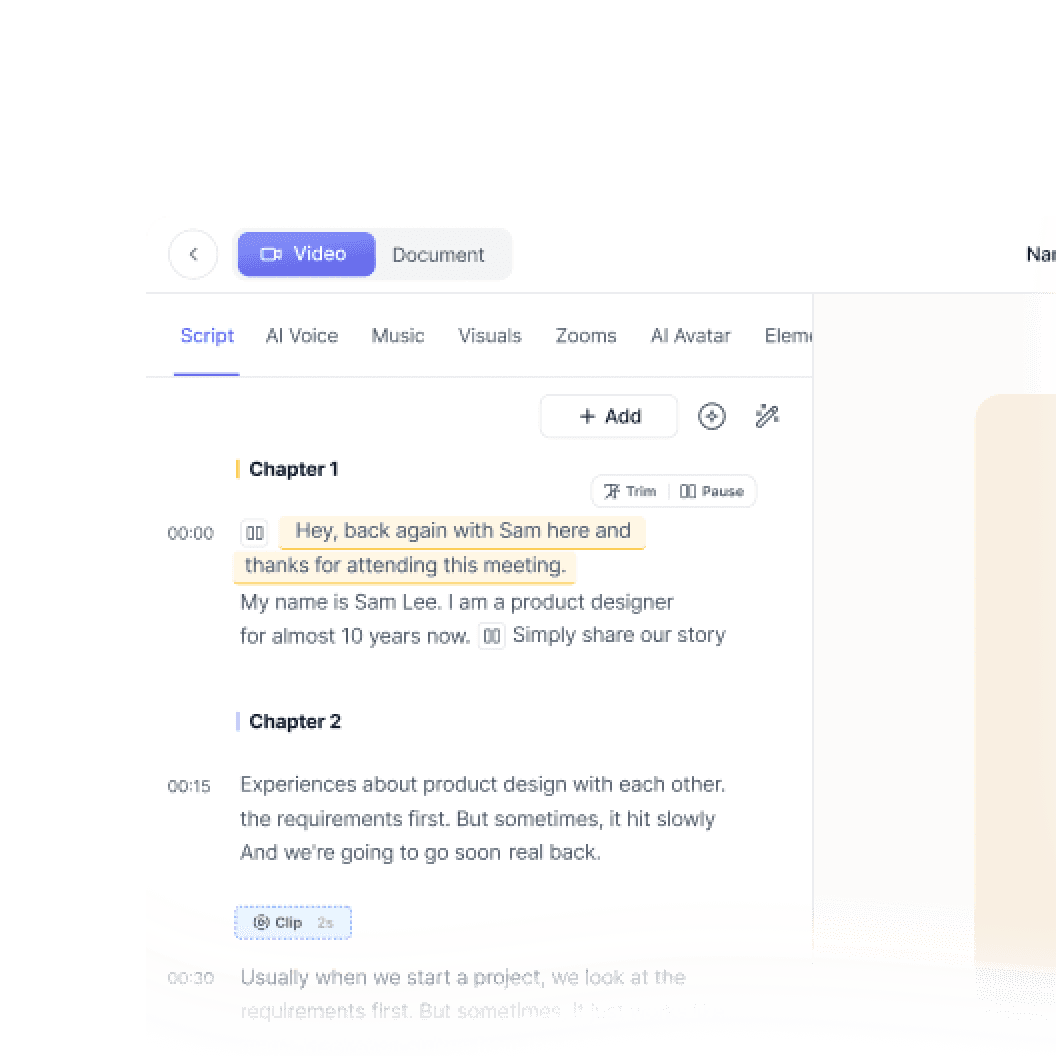
Record with the Trupeer extension or upload any existing video

Record with the Trupeer extension or upload any existing video

02

Orange gradient
Orange gradient
Orange gradient

AI generates a full document

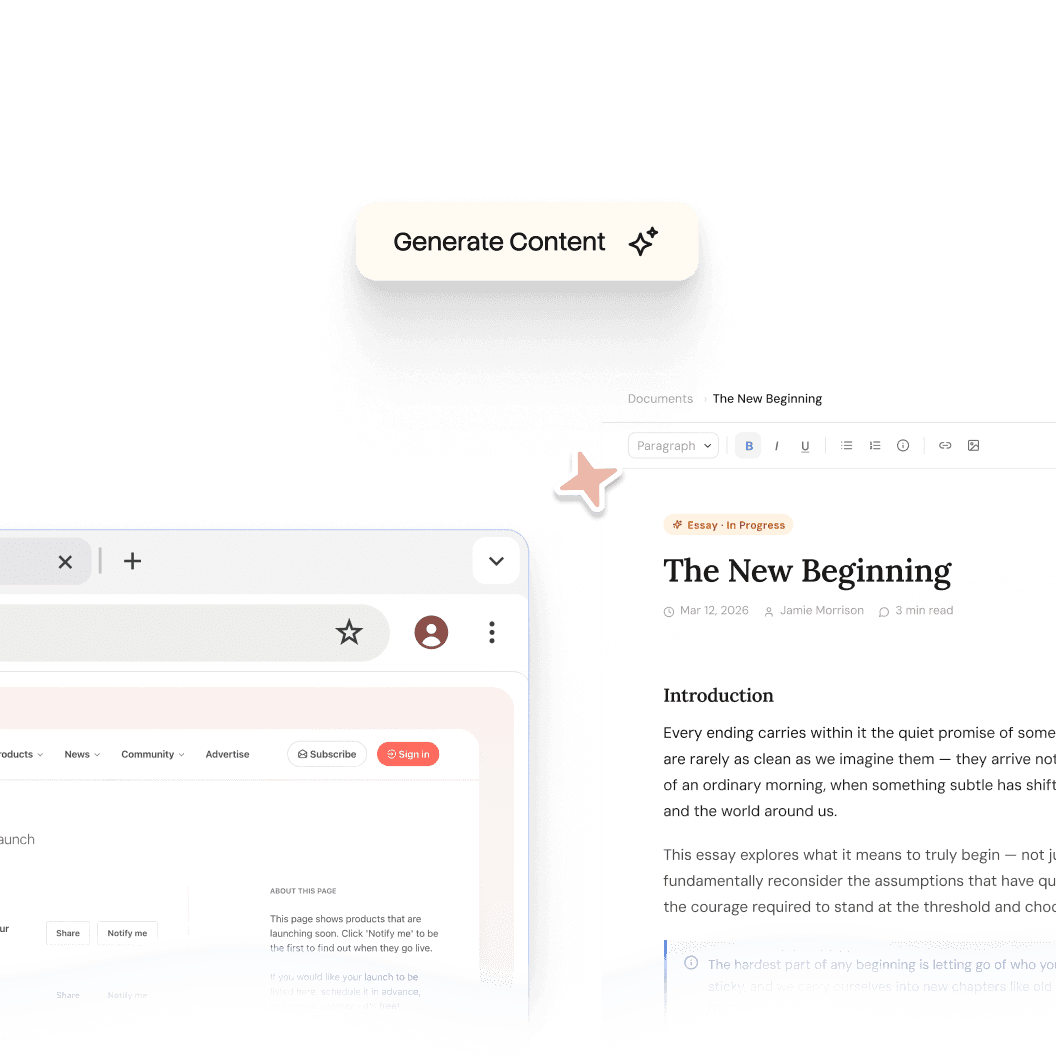
Get a fully formatted, 100% complete document with relevant screenshots, structured sections and contextual steps

Get a fully formatted, 100% complete document with relevant screenshots, structured sections and contextual steps

03

Pink gradient
Pink gradient
Pink gradient

Review and ship

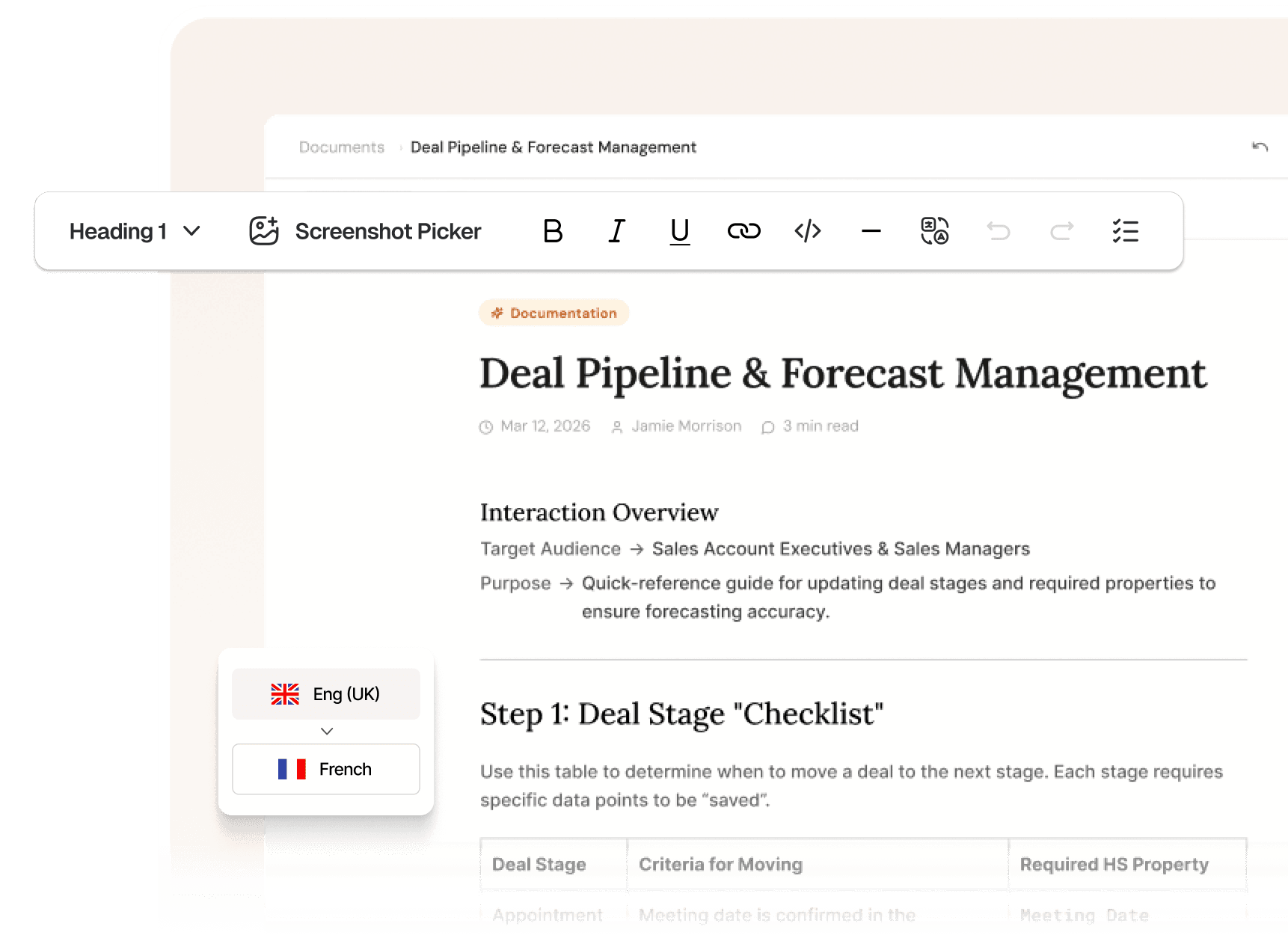
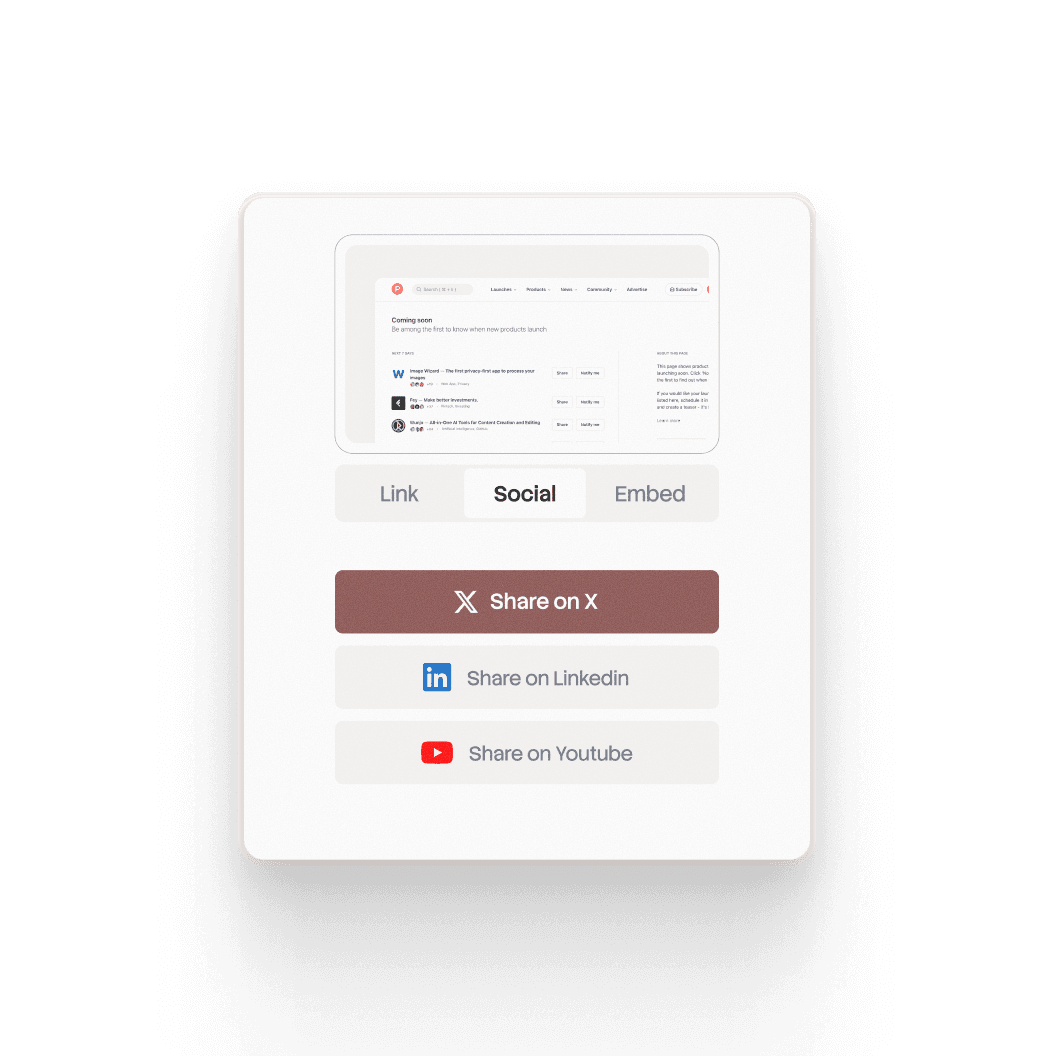
Review and make any edits like adding external screenshots, translating into multiple languages and share with clients and internal teams

Review and make any edits like adding external screenshots, translating into multiple languages and share with clients and internal teams

features

Finally, the most intelligent documentation writer that you wish existed

Finally, the most intelligent documentation writer that you wish existed

Purple gradient

DOC

Documentation generated

DOC

MP4

Meeting Recording

Uploaded

AI Documentation Writer

Upload a screen recording. Trupeer understands the context and delivers a complete document in minutes.

Logo

h1

Document title
in two lines

section

Section

step

Step One

section body

Body content in a few more lines that should take up the rest of the space here and it should have some tags on the side to indicate which type of content all these are, sort of like syntax tags.

Blue gradient

Mirror your brand rules

Upload an existing company document. Trupeer learns your structure, fonts, colors, and layout and applies it to every new guide.

Orange gradient

step 2

context

Detect action from any recording

Upload any recording. Trupeer uses vision-based analysis to accurately detect actions, decide what matters, and turn it into clear step-by-step documentation.

Purple gradient

DOC

Documentation generated

DOC

MP4

Meeting Recording

Uploaded

AI Documentation Writer

Upload a screen recording. Trupeer understands the context and delivers a complete document in minutes.

Logo

h1

Document title
in two lines

section

Section

step

Step One

section body

Body content in a few more lines that should take up the rest of the space here and it should have some tags on the side to indicate which type of content all these are, sort of like syntax tags.

Blue gradient

Mirror your brand rules

Upload an existing company document. Trupeer learns your structure, fonts, colors, and layout and applies it to every new guide.

Orange gradient

step 2

context

Detect action from any recording

Upload any recording. Trupeer uses vision-based analysis to accurately detect actions, decide what matters, and turn it into clear step-by-step documentation.

Purple gradient

DOC

Documentation generated

DOC

MP4

Meeting Recording

Uploaded

AI Documentation Writer

Upload a screen recording. Trupeer understands the context and delivers a complete document in minutes.

Logo

h1

Document title
in two lines

section

Section

step

Step One

section body

Body content in a few more lines that should take up the rest of the space here and it should have some tags on the side to indicate which type of content all these are, sort of like syntax tags.

Blue gradient

Mirror your brand rules

Upload an existing company document. Trupeer learns your structure, fonts, colors, and layout and applies it to every new guide.

Orange gradient

step 2

context

Detect action from any recording

Upload any recording. Trupeer uses vision-based analysis to accurately detect actions, decide what matters, and turn it into clear step-by-step documentation.

Gradient background

Testimonials

What our customers say about us

Gradient background

Testimonials

What our customers say about us

Gradient background

Testimonials

What our customers say about us

FAQ

Your questions, answered

Your questions, answered

Do I have to create a template first?

No. We don't use templates in the traditional sense. You just upload a PDF or a document you already like, and we reverse-engineer the layout to match it.

How accurate is the AI at writing the steps?

Highly. We don't just guess based on the image; we analyze the metadata of your clicks and the context of the screen transitions to describe exactly what is happening.

Can I edit the guide after it's generated?

Yes. You have full control. You can tweak the text, swap screenshots, or adjust the branding at any time before you ship.

Does this work with my existing Help Center?

Yes, You can export guides as branded PDFs, or embed them directly into platforms like Zendesk, Intercom, or Notion.

What if my product UI changes?

You don't have to start from scratch. You can update specific steps by recordong a quick 10-second clip of the new UI, and we'll swap it into your existing guide.

Is my data secure?

Always. We don't use your private product recordongs to train public models. Your brand assets and product data remain yours alone.

Do I have to create a template first?

No. We don't use templates in the traditional sense. You just upload a PDF or a document you already like, and we reverse-engineer the layout to match it.

How accurate is the AI at writing the steps?

Highly. We don't just guess based on the image; we analyze the metadata of your clicks and the context of the screen transitions to describe exactly what is happening.

Can I edit the guide after it's generated?

Yes. You have full control. You can tweak the text, swap screenshots, or adjust the branding at any time before you ship.

Does this work with my existing Help Center?

Yes, You can export guides as branded PDFs, or embed them directly into platforms like Zendesk, Intercom, or Notion.

What if my product UI changes?

You don't have to start from scratch. You can update specific steps by recordong a quick 10-second clip of the new UI, and we'll swap it into your existing guide.

Is my data secure?

Always. We don't use your private product recordongs to train public models. Your brand assets and product data remain yours alone.

Do I have to create a template first?

No. We don't use templates in the traditional sense. You just upload a PDF or a document you already like, and we reverse-engineer the layout to match it.

How accurate is the AI at writing the steps?

Highly. We don't just guess based on the image; we analyze the metadata of your clicks and the context of the screen transitions to describe exactly what is happening.

Can I edit the guide after it's generated?

Yes. You have full control. You can tweak the text, swap screenshots, or adjust the branding at any time before you ship.

Does this work with my existing Help Center?

Yes, You can export guides as branded PDFs, or embed them directly into platforms like Zendesk, Intercom, or Notion.

What if my product UI changes?

You don't have to start from scratch. You can update specific steps by recordong a quick 10-second clip of the new UI, and we'll swap it into your existing guide.

Is my data secure?

Always. We don't use your private product recordongs to train public models. Your brand assets and product data remain yours alone.