Trupeer Blog
Samenvatten

Creating an ERP demo video that resonates with your audience isn't just about showcasing features; it's about structuring your presentation in a way that guides the viewer logically through the benefits your product offers. Imagine you're a sales engineer at a mid-sized enterprise and you've got 15 minutes to show a potential client why your ERP solution is the best fit for their needs. The stakes are high: 73% of B2B buyers say a poor demo can derail their purchase decision. Your demo video must be concise, engaging, and informative to win their trust.
To achieve this, you need to craft a well-structured demo script that highlights your ERP system's core functionalities while addressing the specific pain points of your audience. Whether it's improving inventory management or simplifying financial reporting, your video should flow smoothly from one topic to the next. Learning how to write video script effectively can make all the difference. This approach not only keeps your viewers engaged but also ensures they walk away with a clear understanding of how your solution can solve their challenges.
Why does ERP demo video structure matter?
ERP demo videos are a crucial part of the pre sales use case process. They allow potential clients to see the software in action, bridging the gap between theoretical benefits and tangible, real-world applications. However, without a clear and logical structure, these videos can quickly become overwhelming, leaving viewers confused rather than convinced.
The first reason structured ERP demo videos are vital is they provide a clear narrative. Financial managers, operations directors, and IT specialists need to understand exactly how the software will enhance their workflows. A well-structured video will guide them through each feature, demonstrating its relevance to their specific needs. This structured approach helps eliminate any ambiguity, providing a straightforward path from problem to solution.
Secondly, a structured demo video can significantly impact the decision-making process. For instance, showcasing a smooth integration with existing systems can be a deciding factor for CIOs and IT managers. By organizing your video to highlight integration capabilities early on, you address one of their primary concerns right off the bat. Ultimately, a well-structured demo video can mean the difference between securing a deal and losing a potential customer to competitors.
What are the benefits of a structured ERP demo video?
Organizing your ERP demo video with a clear structure offers multiple benefits that extend beyond just making a good impression.
Improved Viewer Engagement. A structured video keeps the audience engaged, reducing drop-offs by maintaining a logical flow. This is crucial when you aim to make product demo video content that captivates.
Enhanced Understanding. By clearly segmenting your video, viewers can easily follow along and understand complex features, making it easier for them to see how your ERP solution fits their needs.
Efficient Communication. A well-organized demo allows you to communicate benefits succinctly, ensuring that all stakeholders, from CFOs to end-users, understand the value of your product.
Increased Conversion Rates. When prospects can easily grasp your ERP system's advantages, they’re more likely to move forward with the purchase, boosting your sales pipeline.
Professional Presentation. A structured demo video enhances your brand's credibility, showing your ERP solution as a polished, professional choice in a crowded market.
Reduced Handoff Friction. A single AI video platform lets ops hand off polished walkthroughs without editing.
Which Trupeer features help you create a structured ERP demo video?
Trupeer offers several capabilities designed to aid in crafting a structured ERP demo video, ensuring your presentation is both impactful and efficient.
AI screen recording with auto-zoom and click detection
This feature allows you to capture your screen effortlessly, focusing automatically on the areas you interact with the most. This means you can highlight specific features of your ERP system without manually editing the video later. As you navigate through the software, the system intelligently zooms in on clicks and actions, providing a clear view of what you're doing. This capability is invaluable for keeping your audience's attention on the most critical parts of the demo, making sure they don’t miss essential details.
Silent screen recording with automatic AI narration
Trupeer's silent screen recording feature lets you record your ERP demo without background noise, while its AI narration provides clear and precise commentary. This is particularly useful if you're presenting to an audience that prefers a more polished voiceover instead of live narration. The AI can be adjusted for tone and pace, ensuring the narration matches the professional image you want to project.
Automatic filler-word removal
When you're presenting a demo, the last thing you want is for filler words like "um" or "ah" to distract your audience. Trupeer's automatic filler-word removal feature cleans up your narrative, making it more polished and professional. This not only saves time spent on editing but also enhances the overall clarity and flow of your video, ensuring that your message is delivered effectively.
AI avatars / talking-head video
Adding a personal touch to your demo can significantly enhance viewer engagement. Trupeer's AI avatars and talking-head video feature allow you to incorporate a virtual presenter into your demo. This can be a stock avatar or a custom one created through script to video maker. It provides a human element to your presentation, making it more relatable and engaging for your audience.
Automatic SOP generation from any recording
One of the standout features of Trupeer is its ability to generate Standard Operating Procedures (SOPs) from your recordings. This capability is particularly beneficial for ERP demos, as it allows you to create detailed, step-by-step documentation that accompanies your video. This not only reinforces the information presented but also provides your audience with a tangible asset they can refer to later. By using Trupeer as an AI documentation platform, you simplify the follow-up process, ensuring that prospects have all the information they need to make an informed decision.
How do you structure an ERP demo video step by step with Trupeer?
Step 1: Capture the Screen
Start by opening Trupeer's browser-based recorder, which requires no installation. Select the screen recording option with auto-zoom and click detection. As you navigate through your ERP system, Trupeer will automatically focus on areas of interaction, ensuring viewers don't miss key features. This process typically takes about 30 minutes for a comprehensive demo, but it can vary based on the complexity of your ERP system. With the auto-zoom feature, you won't need to worry about manually adjusting the focus, saving time and enhancing viewer engagement.
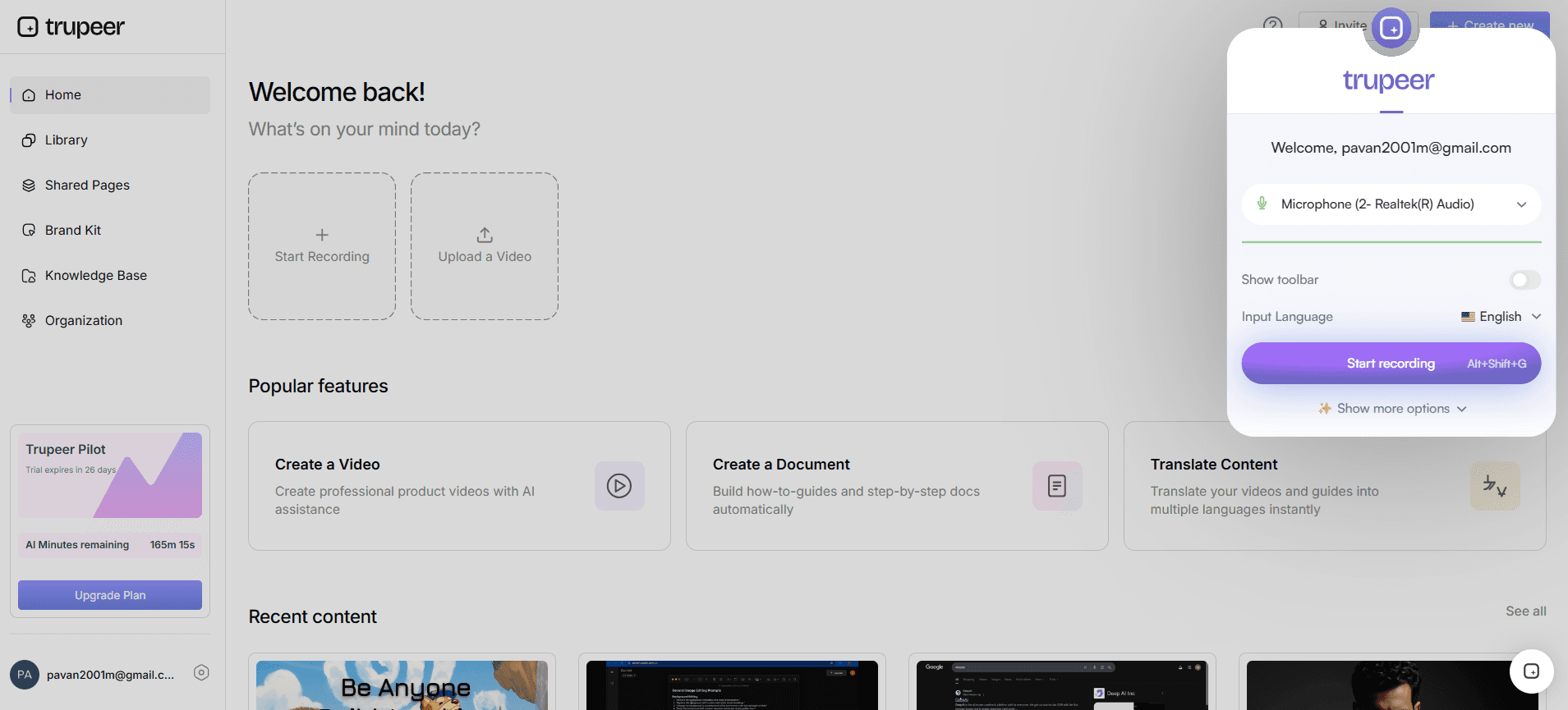
Step 2: Add AI Narration
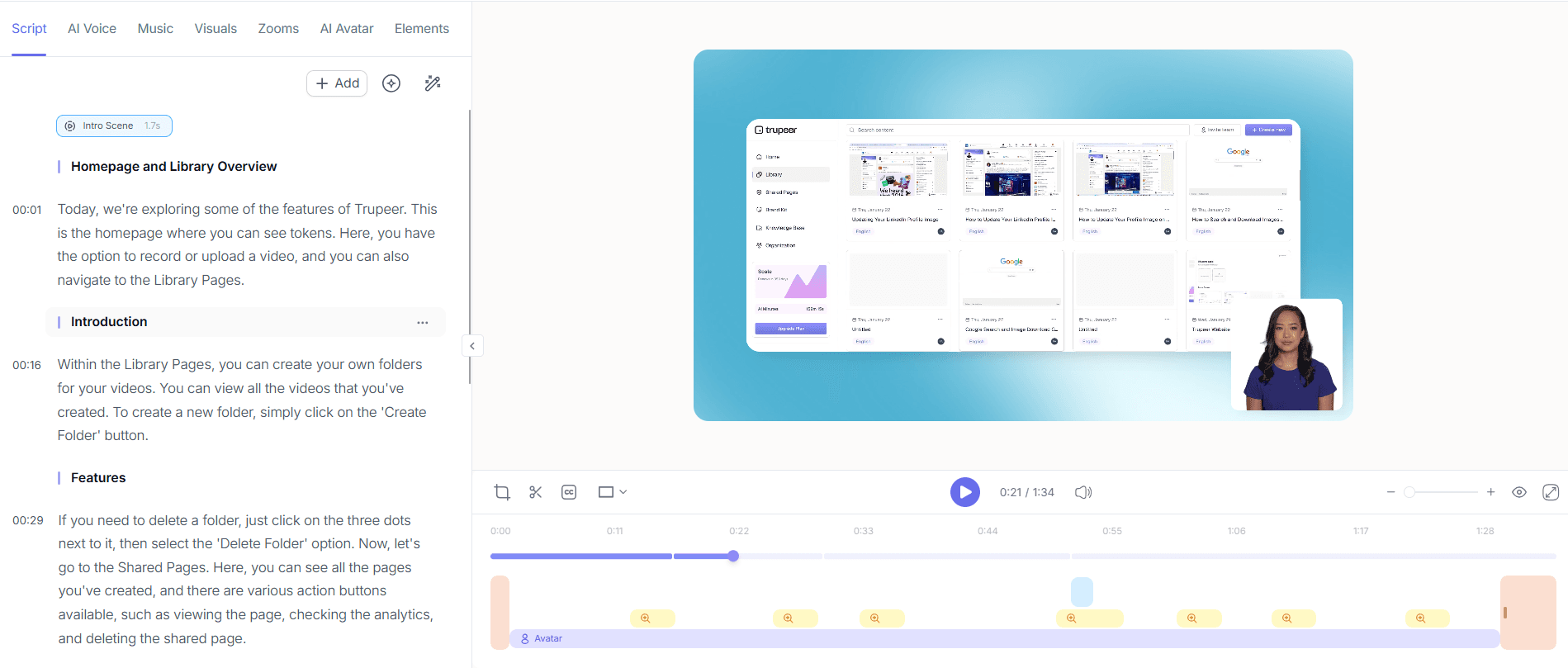
Once the recording is complete, use Trupeer's automatic AI narration feature. This tool will generate a voiceover that aligns with your demo's pace. You can choose from 65+ natural voices and adjust the tone and pace to match your audience's preferences. This step takes about 15 minutes and ensures your video maintains a professional tone without requiring you to record live narration. If your audience prefers a specific style, you can easily customize these settings.

Step 3: Edit the Video
Next, use Trupeer's AI-powered editing capabilities. The platform will automatically remove filler words like "um" and "ah," creating a clean and polished final product. This process typically takes around 10 minutes. also, Trupeer will detect and create chapters for your demo, making it easy for viewers to navigate through different sections. This feature is particularly useful for longer demos, where viewers might want to skip to sections most relevant to them.
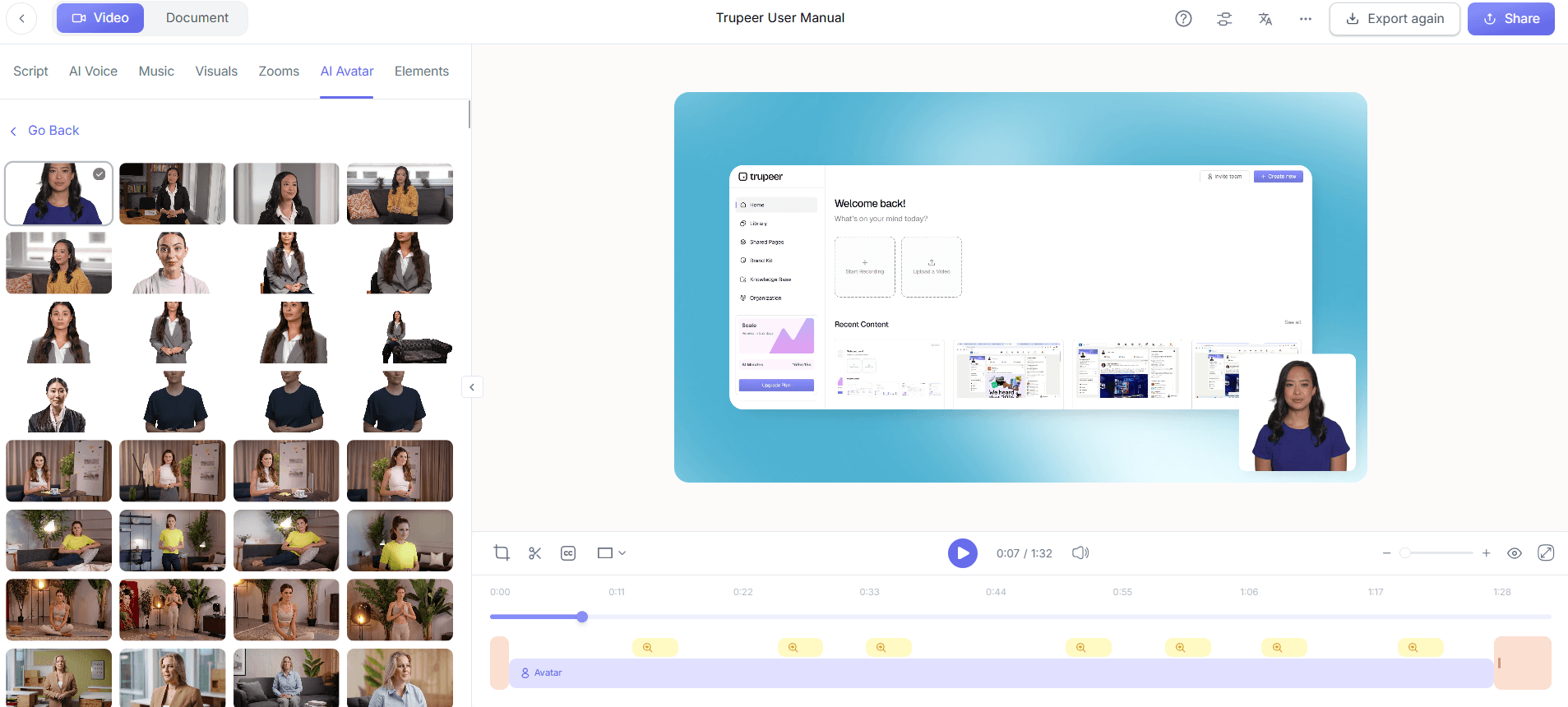
Step 4: Enhance with AI Avatars
Incorporate a personal touch by adding an AI avatar to your demo. Trupeer offers a library of stock avatars, or you can create a custom one using HeyGen integration. This step can take about 20 minutes, depending on customization needs. The avatar can act as a virtual presenter, providing a human element that makes your demo more engaging. It's especially useful if you want to maintain a consistent brand image across different demos. Teams weighing tools often start with a Loom alternatives comparison before standardizing on a workflow.
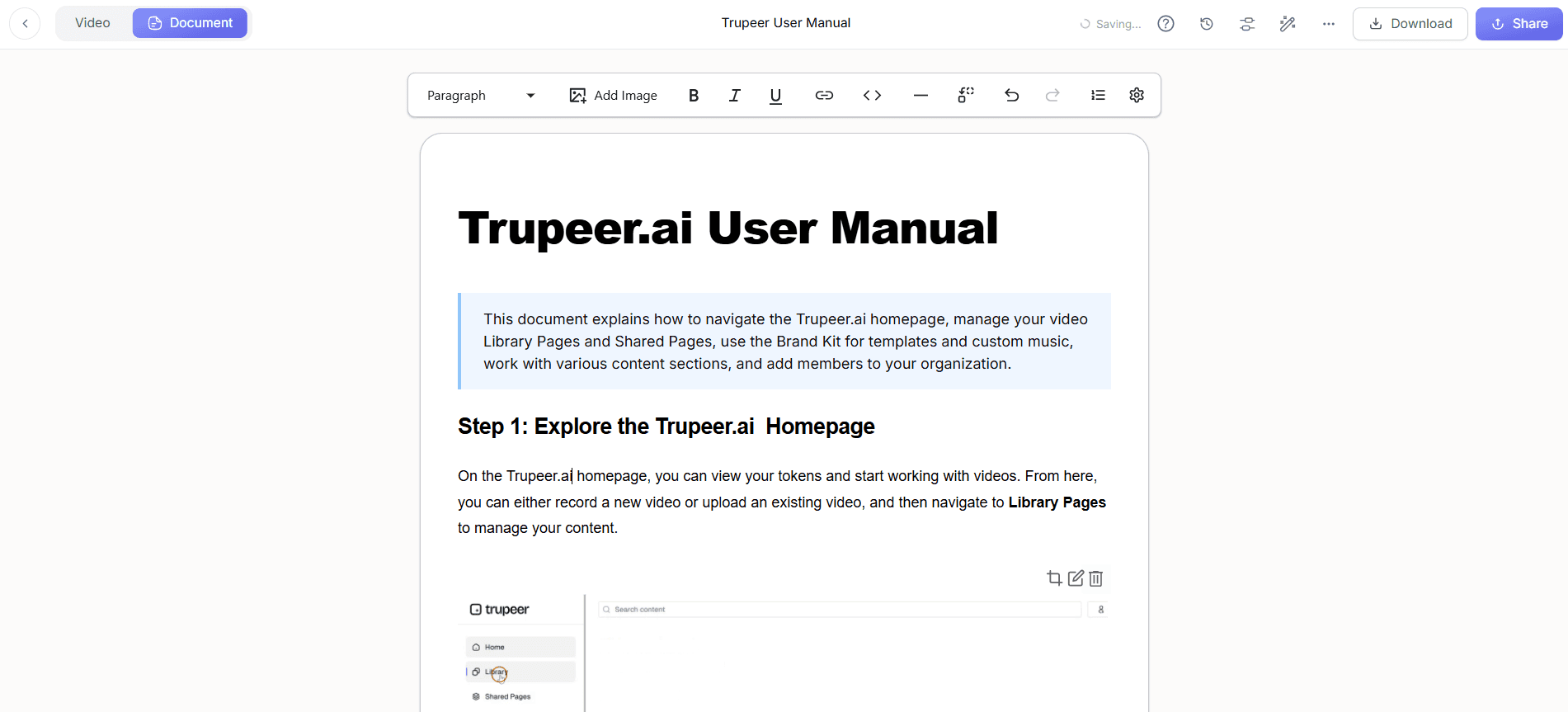
Step 5: Generate and Attach SOPs
Use Trupeer's automatic SOP generation feature to create detailed documentation from your recording. This takes approximately 10 minutes and results in a comprehensive, edit-ready SOP that can be exported in multiple formats like PDF or HTML. This documentation serves as a valuable resource for your audience, allowing them to refer back to specific steps outlined in your demo. It's a critical component that enhances the overall value of your presentation.
Step 6: Distribute and Measure Engagement
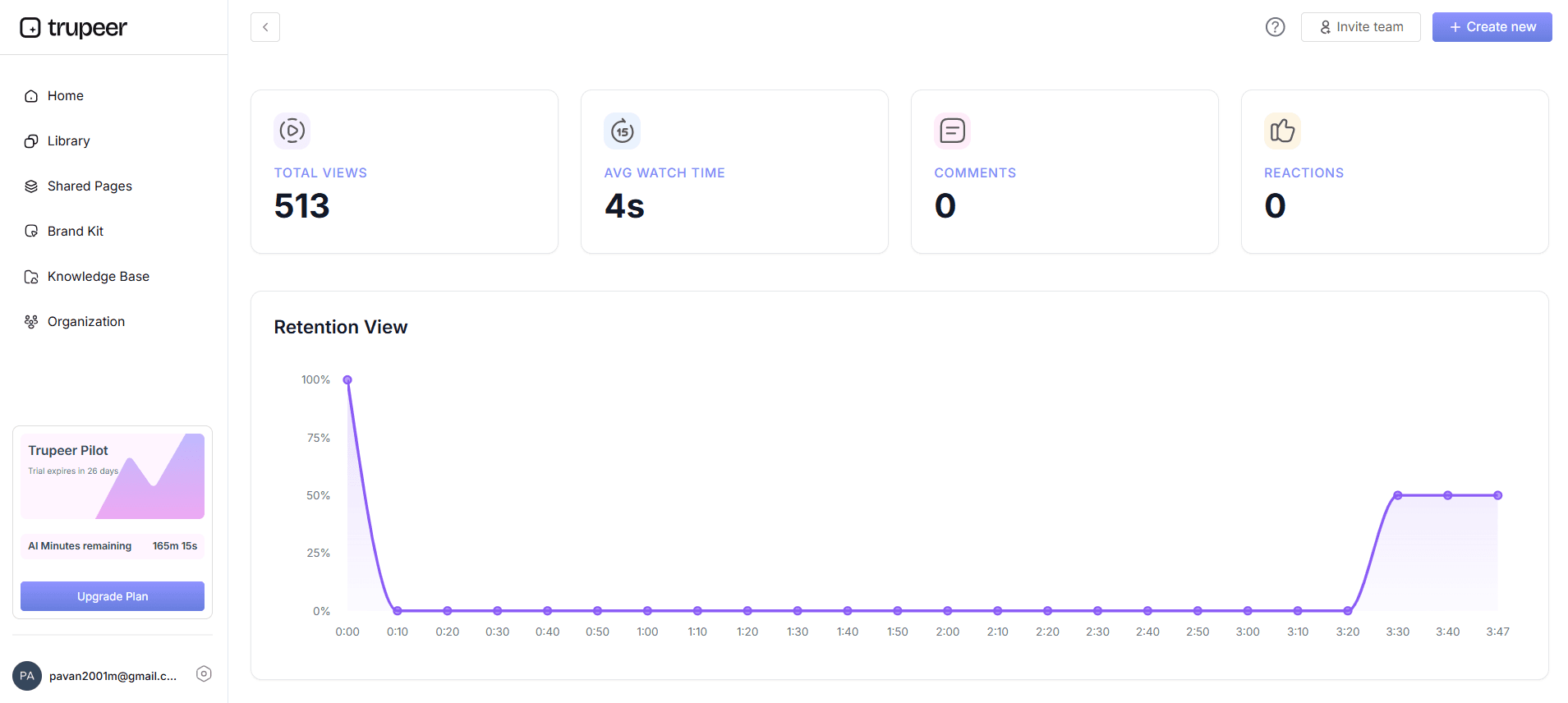
Finally, distribute your demo through Trupeer's custom-domain hosting with SSO, ensuring secure and brand-aligned delivery. Use the AI-searchable knowledge base to make your video easily accessible. This step involves embedding the video on your website or client-facing portals, a process that takes about 15 minutes. Trupeer will also provide viewer engagement analytics, helping you gauge interest levels and identify areas for improvement. This data is crucial for refining your demo strategy and maximizing impact.
What tips help you structure an ERP demo video?
Creating an effective ERP demo video requires more than just following steps; it's about fine-tuning details to enhance viewer experience and convey your message effectively. Here are some practical tips to ensure your demo is both engaging and informative.
Start with a Strong Hook. Begin your demo with a compelling statement or question that addresses a common pain point. This immediately captures attention.
Keep It Concise. Aim for a video length of 10-15 minutes to maintain viewer interest. Longer videos can lead to decreased engagement.
Focus on Key Features. Highlight the most impactful features first to ensure they aren't missed. Use a Scribe alternative comparison for SOPs to identify critical points.
Use Visual Aids. Incorporate charts or graphs to illustrate complex data. Visuals can make information more digestible and engaging.
Standardize Capture Style. Use a product demo video maker with auto-zoom so every recording looks on-brand.
Test Your Setup. Before recording, test your setup to ensure there are no technical issues. This avoids unnecessary retakes.
Review and Revise. After completing the demo, review it critically or seek feedback to make necessary adjustments.
Frequently asked questions
How long should an ERP demo video be?
An ERP demo video should ideally be between 10 to 15 minutes long. This duration balances the need to cover important features and benefits without overwhelming the viewer. If your demo covers highly complex content, consider breaking it into segments or chapters. These can be linked together, allowing viewers to navigate directly to their areas of interest. A shorter, focused demo maintains engagement and ensures that the key points are effectively communicated.
What should be included in an ERP demo video?
An ERP demo video should include an introduction, a walkthrough of key features, real-world application examples, and a summary of benefits. Start with a brief introduction that outlines the problem your ERP solution solves. Then, provide a detailed walkthrough of the software's most impactful features. Include examples of how these features apply in real-world scenarios. Conclude with a strong summary that ties everything together, emphasizing the software's unique selling points.
Why is structure important in an ERP demo video?
Structure is important in an ERP demo video because it helps viewers follow along and understand the content clearly. A structured video guides the audience through the presentation logically, ensuring that each point builds on the last. This approach minimizes confusion and enhances comprehension. A well-structured demo also allows you to highlight key features and benefits systematically, making it easier for viewers to see the value of your ERP solution.
Can Trupeer handle multilingual ERP demos?
Yes, Trupeer can handle multilingual ERP demos through its AI translation and dubbing features. This allows you to reach a global audience by translating your video into over 40 languages, complete with lip-sync. The AI video translation capability ensures that your demo is accessible to non-English speaking prospects, expanding your market reach. This feature is particularly useful for businesses operating in multiple regions with diverse language needs.
Is it necessary to include live narration in an ERP demo video?
No, live narration is not necessary in an ERP demo video. Trupeer offers automatic AI narration that can provide a polished voiceover without the need for live recording. This feature can be adjusted for tone and pace, ensuring it matches your brand's style and audience preferences. AI narration is a convenient option that saves time and maintains a consistent presentation quality, making it an effective alternative to live narration.
Gerelateerde blogs


