
Cara Menyematkan PDF di Notion
Pelajari cara menyematkan file PDF di Notion dengan mudah. Panduan ini memandu Anda melalui proses mengunggah, menautkan, dan menampilkan PDF langsung di ruang kerja Notion Anda
Here's a more detailed breakdown:
1. Open the Notion page: Navigate to the page where you want to embed the PDF.
2. Add a PDF block:
Type / to open the block menu. Type PDF or Embed and select the PDF block option. Alternatively, you can type /embed to add an embed block, which also works for PDFs.
3. Choose your PDF:
Upload: If the PDF is on your computer, click "Upload" and select the file. Embed Link: If the PDF is online, click "Embed link" and paste the PDF's URL.
Step-by-Step-Guide: How to Embed PDF in Notion
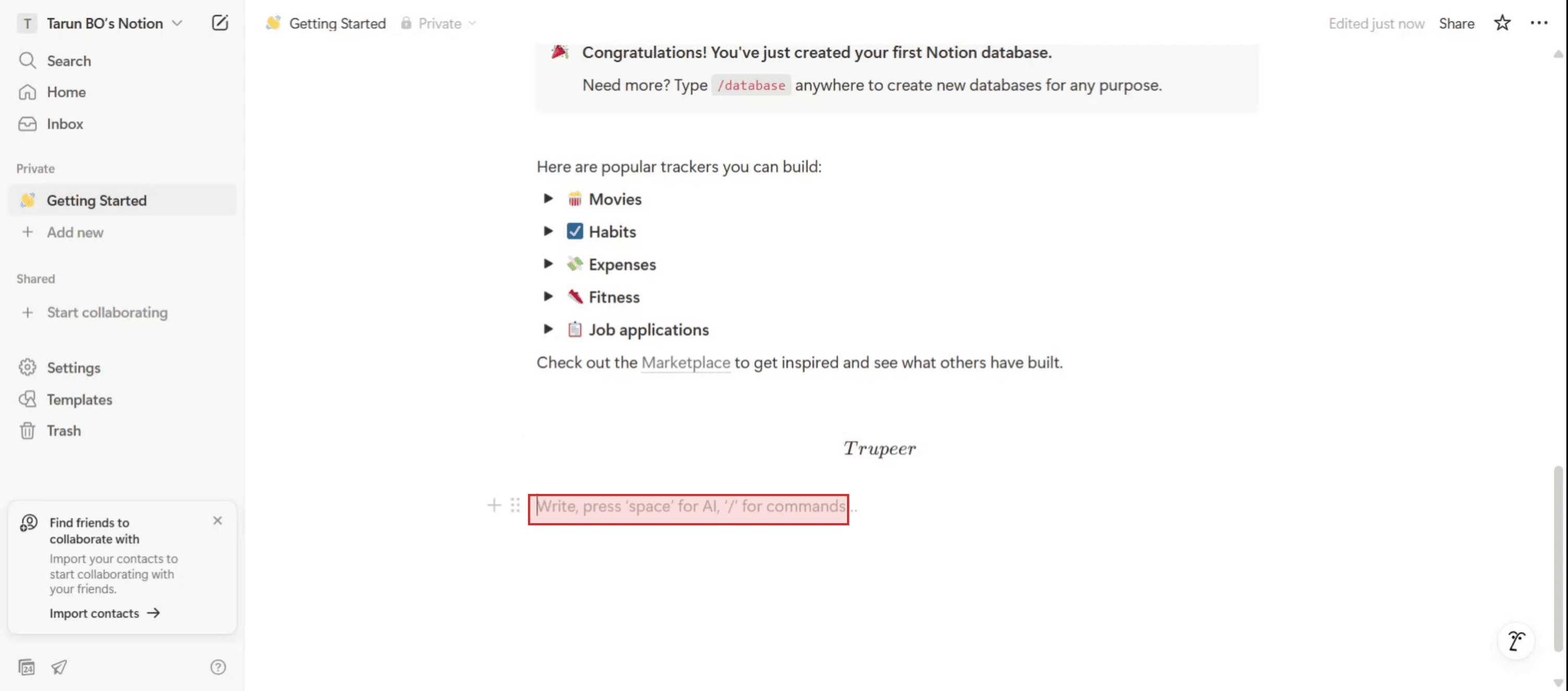
Step 1
From the keyboard, type a slash ("/") followed by the word "PDF".
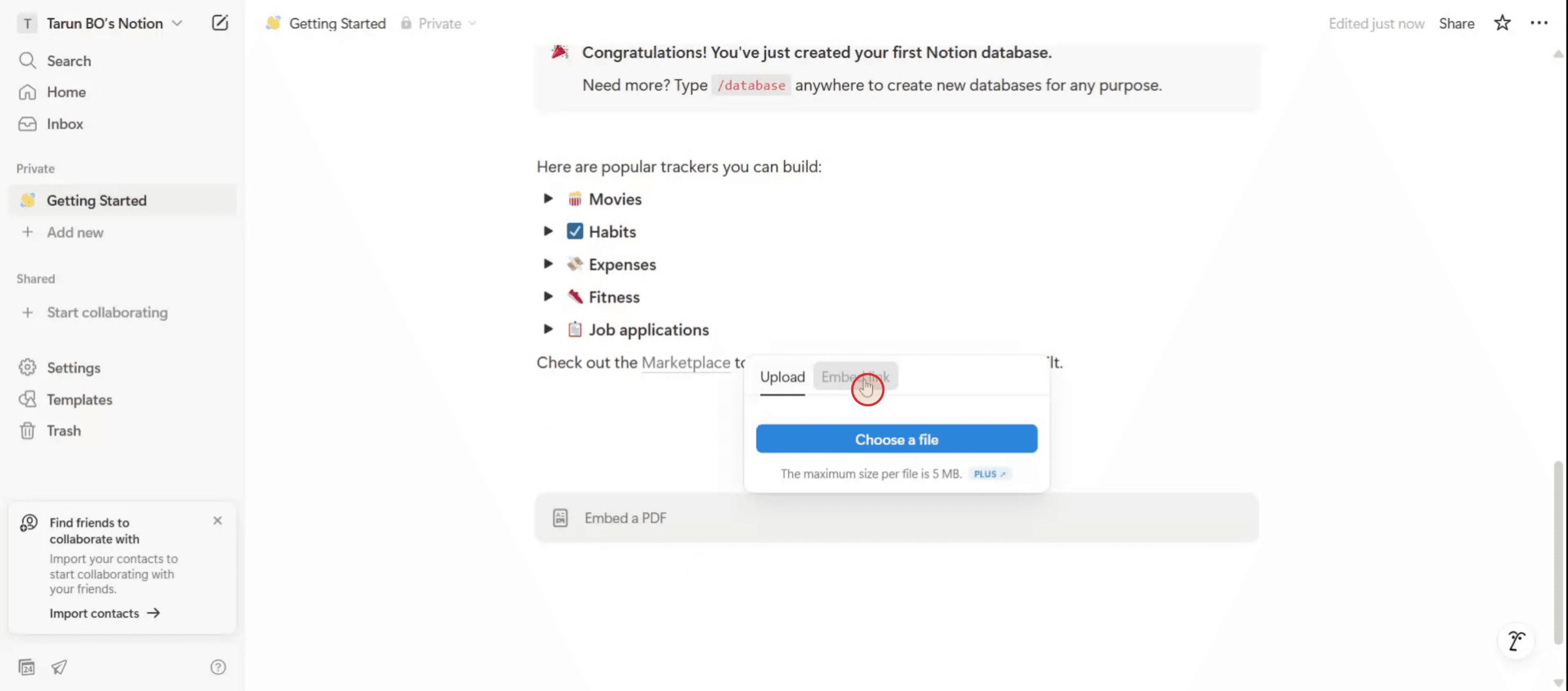
Step 2
Select the Embed Link option.
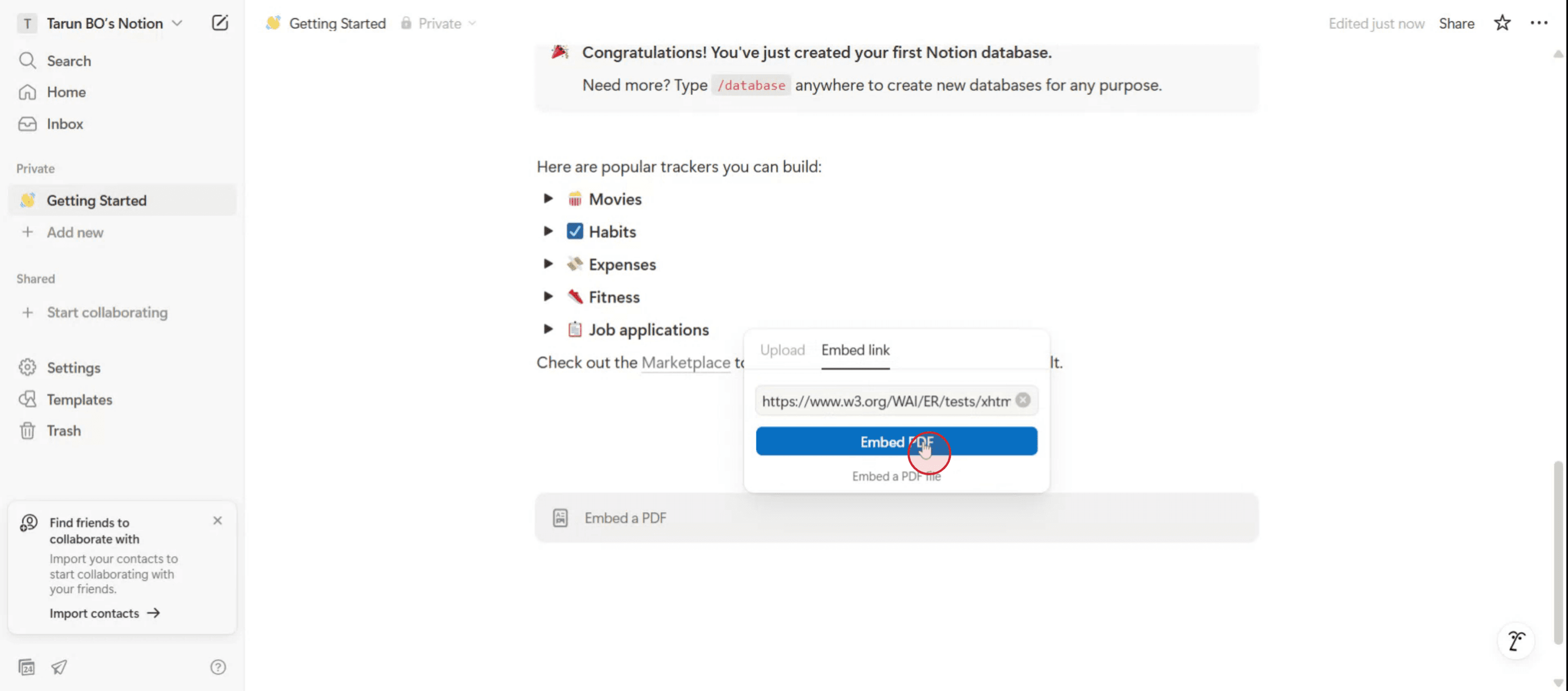
Step 3
After entering the link, click on the Embed PDF option.
Step 4
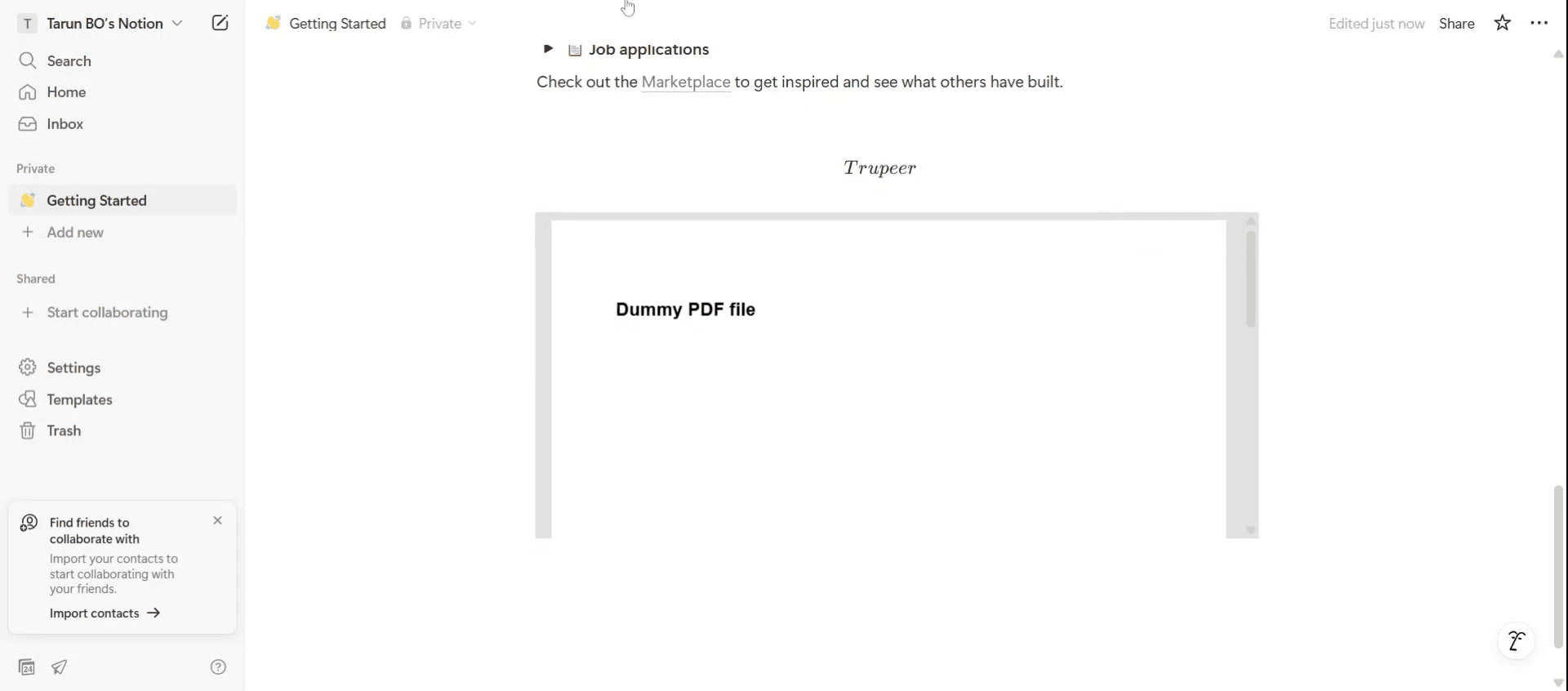
The PDF will now be embedded into your Notion page.
Tutorial Terkait


