Trupeer Blog
Zusammenfassen

Die Integration von Single Sign-On (SSO) in Ihre Wissensdatenbank kann den Zugriff für Ihr Team erheblich vereinfachen, den Anmeldeaufwand verringern und die Sicherheit erhöhen. Stellen Sie sich ein Szenario vor, in dem Ihr Support-Team, das über mehrere Plattformen hinweg arbeitet, auf ein zentrales Wissensarchiv zugreifen muss. Ohne SSO könnte das bedeuten, sich mehrere Passwörter merken zu müssen oder häufige Anmeldeprobleme zu haben. Die SSO-Integration mit vertrauenswürdigen Anbietern wie Okta oder Azure Active Directory (AD) ändert das. Sie sorgt dafür, dass der Zugriff so reibungslos wie möglich ist, sodass sich Teammitglieder auf den Kundenservice statt auf technische Hürden konzentrieren können. Tatsächlich berichten Unternehmen, die SSO einführen, von einer
50 % weniger Anfragen zum Zurücksetzen von Passwörtern
, was nicht nur Zeit spart, sondern auch Supportkosten senkt.
Dieser Leitfaden richtet sich an IT-Administratoren und Unternehmensleiter, die SSO für ihre Wissensdatenbanken implementieren müssen. Egal, ob Sie Okta oder Azure AD verwenden, das Verständnis der spezifischen Schritte und der damit verbundenen Vorteile ist entscheidend. Es steht viel auf dem Spiel: Mit effizientem Zugriff kann Ihr Team schnelleren und genaueren Support leisten. Durch die Integration von SSO in Ihre Wissensdatenbank verbessern Sie nicht nur die Benutzererfahrung, sondern auch die Datensicherheit. Wir haben die besten Wissensdatenbank-Beispiele zusammengestellt, um Sie bei Ihrem Setup zu inspirieren.
Warum ist die SSO-Wissensdatenbank-Integration wichtig?
Die SSO-Integration mit Ihrer Wissensdatenbank ist aus mehreren Gründen entscheidend, vor allem mit Blick auf Benutzererfahrung und Sicherheit. Wenn Ihr Team schnell auf Informationen zugreifen kann, ohne sich mit dem Merken mehrerer Passwörter herumzuschlagen, steigt die Produktivität. Das ist besonders wichtig für Kundendienstteams, die auf sofortigen Zugriff auf Informationen angewiesen sind, um Probleme schnell zu lösen. Jeder Moment, der mit dem Anmelden oder dem Abrufen vergessener Zugangsdaten verbracht wird, ist verlorene Zeit, die besser für die Unterstützung von Kunden genutzt werden könnte.
Aus Sicherheitssicht minimiert SSO die Angriffsfläche, indem es die Anzahl der Passwörter reduziert, die Nutzer verwalten müssen. Weniger Passwörter bedeuten weniger Möglichkeiten, dass sie kompromittiert werden. Außerdem ermöglicht die zentralisierte Zugriffskontrolle über Plattformen wie Okta oder Azure AD IT-Abteilungen, Sicherheitsrichtlinien effektiver durchzusetzen und Zugriffsmuster zu überwachen, was eine zusätzliche Sicherheitsebene bietet. Für Unternehmen bedeutet das, das Risiko von Datenlecks zu verringern und die Einhaltung von Branchenstandards sicherzustellen. Die Implementierung von SSO ist nicht nur eine Frage der Bequemlichkeit; sie spielt eine entscheidende Rolle in einem Customer-Success-Workflow, indem sie sicherstellt, dass Ihr Team ohne unnötige Hürden auf die richtigen Tools und Daten zugreifen kann.
Was sind die Vorteile der SSO-Integration mit einer Wissensdatenbank?
Die Integration von SSO in Ihre Wissensdatenbank bietet zahlreiche Vorteile, die die Art und Weise verändern können, wie Ihr Team auf Informationen zugreift und sie nutzt.
Erhöhte Sicherheit. Durch die Reduzierung der Anzahl der verwendeten Passwörter verringert SSO das Risiko passwortbezogener Sicherheitsverletzungen. Die zentralisierte Authentifizierung stellt sicher, dass nur autorisierte Nutzer auf sensible Daten zugreifen, und erhöht so die allgemeine Sicherheit.
Verbesserte Benutzererfahrung. Ein reibungsloser Anmeldeprozess bedeutet, dass Nutzer mehr Zeit mit den Inhalten verbringen, die sie benötigen. Das führt zu höherer Produktivität und einer besseren Benutzererfahrung, was für eine Wissensdatenbank entscheidend ist, die häufigen Zugriff erfordert.
Vereinfachtes IT-Management. Mit SSO können IT-Teams den Benutzerzugriff über eine einzige Oberfläche verwalten, wodurch der Verwaltungsaufwand sinkt. Diese Vereinfachung ermöglicht schnelleres Onboarding und Offboarding und spart Zeit und Ressourcen.
Umfassende Zugriffskontrolle. SSO bietet detaillierte Zugriffsprotokolle und Kontrolle und hilft Ihrem Unternehmen dabei, Nutzeraktivitäten effektiv zu überwachen und zu prüfen. Das ist für Compliance- und Sicherheitsprüfungen von entscheidender Bedeutung.
Kosteneinsparungen. Unternehmen können die Anzahl der Anfragen zum Zurücksetzen von Passwörtern um bis zu 50 % senken, wie von vielen Anwendern berichtet wird, was sich direkt in Kosteneinsparungen beim IT-Support niederschlägt.
Reibungslose Integration mit anderen Tools. SSO ermöglicht die einfache Integration mit anderen Business-Plattformen und schafft ein einheitliches Ökosystem, in dem Tools wie eine KI-Video-Plattform mit denselben Anmeldedaten zugänglich sind und die Effizienz der Arbeitsabläufe steigern.
Welche Trupeer-Funktionen helfen Ihnen, SSO mit einer Wissensdatenbank zu integrieren?
Trupeer bietet mehrere Funktionen, die die Integration von SSO in Ihre Wissensdatenbank einfach und effektiv machen.
KI-durchsuchbare Wissensdatenbank
Trupeers KI-durchsuchbare Wissensdatenbank wurde entwickelt, um die Interaktion der Nutzer mit Ihren Inhalten zu verbessern. Durch die Indizierung jeder Aufnahme mit Deep Links auf Zeitstempel-Ebene sorgt Trupeer dafür, dass Nutzer genau das finden, was sie brauchen, wenn sie es brauchen. Diese Funktion lässt sich nahtlos mit SSO integrieren und ermöglicht authentifizierten Nutzern, Informationen ohne wiederholte Anmeldungen zu suchen und darauf zuzugreifen. Sie unterstützt über 40 Sprachen und ist damit für globale Teams geeignet und stellt sicher, dass Sprache niemals ein Hindernis für den Zugriff auf wichtige Informationen darstellt.
Hosting auf eigener Domain mit SSO
Eine der herausragenden Funktionen von Trupeer ist das Hosting auf Ihrer eigenen Domain mit SSO-Funktionen. Diese Funktion ermöglicht es Ihnen, Ihre Wissensdatenbank auf Ihrer Domain zu hosten und Ihren Nutzern ein markengerechtes Erlebnis zu bieten, während die Sicherheitsvorteile von SSO erhalten bleiben. Sie macht mehrere Logins über verschiedene Plattformen hinweg überflüssig und sorgt für ein reibungsloses und einheitliches Nutzererlebnis. Dieses Setup ist ideal für Organisationen, die ihre Markenidentität bewahren und gleichzeitig die Sicherheit und den Komfort von SSO nutzen möchten.
Automatische SOP-Generierung aus jeder Aufnahme
Die KI-Dokumentationsplattform ermöglicht die automatische SOP-Generierung, eine Funktion, die die Erstellung von Standardarbeitsanweisungen aus Aufnahmen vereinfacht. Dies ist besonders nützlich für Teams, die konsistente Prozesse über verschiedene Abteilungen hinweg aufrechterhalten müssen. Mit SSO-Integration können Nutzer diese SOPs leicht aufrufen und sicherstellen, dass alle auf dem gleichen Stand sind. Das Ergebnis ist ein effizienterer und koordinierterer Betrieb mit weniger Fehlerquellen.
Einbettbare Video-Widgets für In-App-Anleitungen
Trupeers einbettbare Video-Widgets bieten In-App-Anleitungen, die sich nahtlos in Ihre Wissensdatenbank integrieren lassen. Diese Widgets sind besonders nützlich für Onboarding und Schulungen und bieten Nutzern innerhalb der von ihnen verwendeten Anwendung Schritt-für-Schritt-Anleitungen. Die SSO-Integration stellt sicher, dass Nutzer, die auf diese Widgets zugreifen, authentifiziert sind, was eine zusätzliche Sicherheitsebene bietet und sicherstellt, dass sensible Informationen nur denjenigen zur Verfügung stehen, die sie benötigen.
Viewer-Engagement-Analysen, Absprungraten und Heatmaps
Das Verständnis, wie Nutzer mit Ihrer Wissensdatenbank interagieren, ist für kontinuierliche Verbesserungen entscheidend. Trupeer bietet solide Viewer-Engagement-Analysen, einschließlich Absprungraten und Heatmaps, die Einblicke darin geben, wie Nutzer Inhalte konsumieren. Diese Daten sind wichtig, um Ihre Wissensdatenbank gezielt an die Bedürfnisse der Nutzer anzupassen. Mit SSO-Integration können Sie diese Kennzahlen genauer verfolgen, indem Sie sie mit authentifizierten Benutzerprofilen verknüpfen und so gezielte Verbesserungen sowie eine verbesserte Benutzererfahrung ermöglichen.
Wie integrieren Sie SSO mit Trupeer Schritt für Schritt in eine Wissensdatenbank?
Schritt 1: Richten Sie Ihr Trupeer-Konto ein
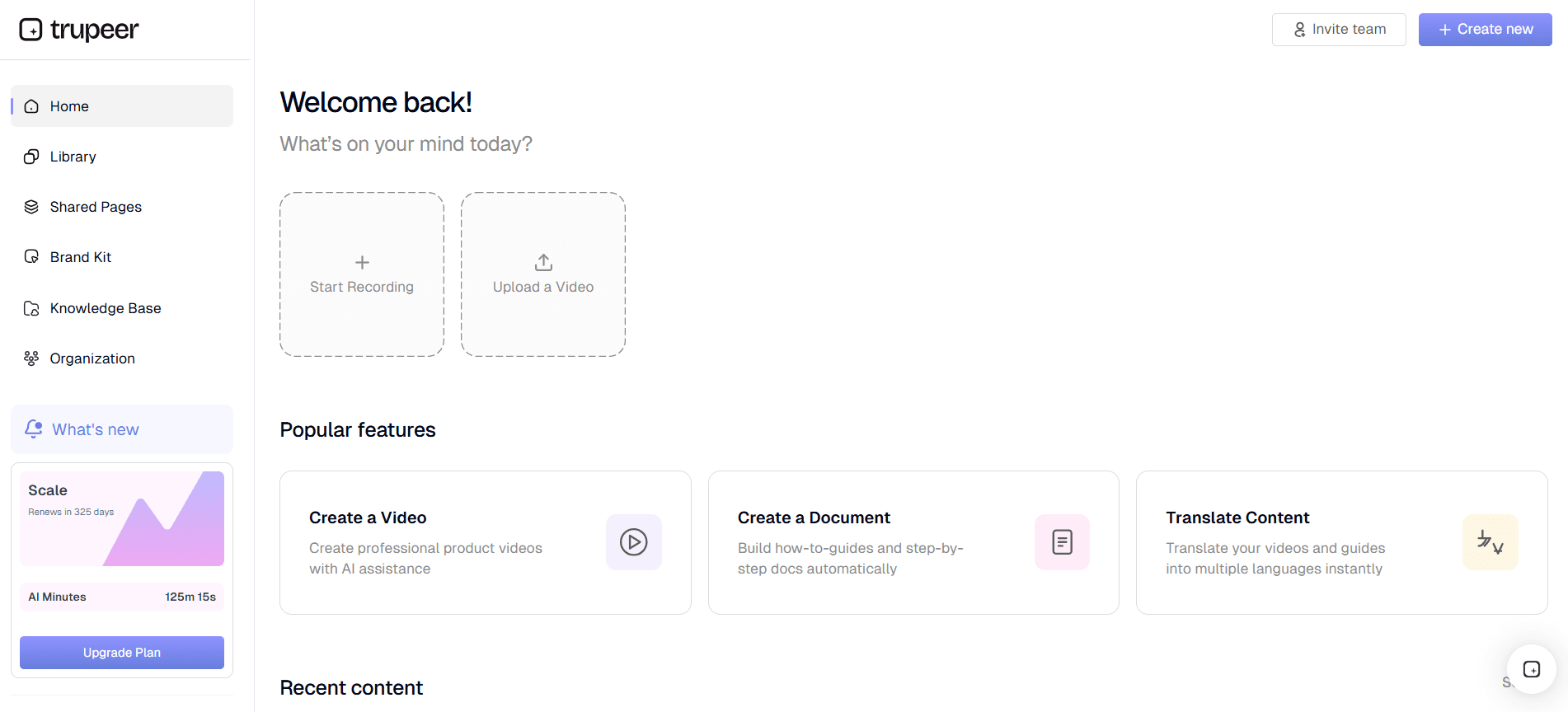
Beginnen Sie damit, sich in Ihr Trupeer-Konto einzuloggen. Wenn Sie noch keines haben, erstellen Sie ein Konto auf der Trupeer-Website. Sobald Sie angemeldet sind, navigieren Sie zur Einstellungsseite, wo Sie die Option zur Konfiguration Ihrer Wissensdatenbank-Einstellungen finden. Trupeer bietet einen browserbasierten Recorder, sodass keine Softwareinstallation erforderlich ist. Das macht den Einrichtungsprozess schnell und effizient. Stellen Sie sicher, dass Sie Ihre E-Mail-Adresse bestätigen und alle erforderlichen Benutzerberechtigungen in Trupeer einrichten. Dieses Setup kann in weniger als 10 Minuten abgeschlossen werden, sodass Sie für die nächsten Schritte bereit sind.
Schritt 2: SSO-Einstellungen konfigurieren
Gehen Sie im Trupeer-Dashboard im Bereich Sicherheitseinstellungen zum Abschnitt SSO. Hier finden Sie Optionen zur Integration mit Okta oder Azure AD. Wählen Sie Ihren bevorzugten SSO-Anbieter und folgen Sie den Anweisungen auf dem Bildschirm, um die spezifischen Anmeldedaten Ihrer Organisation einzugeben. Trupeer unterstützt den Import von Metadaten, was den Konfigurationsprozess vereinfacht, indem viele erforderliche Felder automatisch ausgefüllt werden. Stellen Sie sicher, dass die richtigen Details des Identitätsanbieters eingegeben werden, um Zugriffsprobleme zu vermeiden. Dieser Schritt dauert in der Regel etwa 20 Minuten, ist aber entscheidend für einen sicheren Zugriff.
Schritt 3: Mit Okta oder Azure AD integrieren
Um sich mit Okta zu integrieren, melden Sie sich bei Ihrem Okta-Dashboard an und erstellen Sie eine neue Anwendungsintegration. Wählen Sie SAML 2.0 als Anmeldemethode. Geben Sie die Trupeer-SSO-URL ein, die Sie in Ihren Trupeer-Einstellungen finden. Für Azure-AD-Nutzer navigieren Sie zu Ihren Unternehmensanwendungen, wählen Sie "Neue Anwendung" und geben Sie die Trupeer-SSO-URL ein. Diese Integrationen unterstützen die automatische Bereitstellung, sodass neue Nutzer reibungslos Zugriff erhalten, ohne manuelle Aktualisierungen. Der Integrationsprozess kann je nach Vertrautheit mit der Benutzeroberfläche der jeweiligen Plattform etwa 30 Minuten dauern. Trupeer liefert außerdem eine interne Wiki-Software für die Wissensdatenbank, die diesen Schritt ohne zusätzliche Einrichtung übernimmt.
Schritt 4: Testen Sie die SSO-Konfiguration
Sobald alles konfiguriert ist, ist es wichtig, die Integration zu testen, um sicherzustellen, dass alles reibungslos funktioniert. Verwenden Sie ein Testkonto, um sich über Ihren SSO-Anbieter anzumelden. Prüfen Sie, ob die Weiterleitung reibungslos zur Trupeer-Wissensdatenbank zurückführt. Wenn Probleme auftreten, überprüfen Sie Ihre Konfigurationseinstellungen erneut. Häufige Probleme sind falsche URL-Einträge oder nicht übereinstimmende Metadaten. Das Testen kann in der Regel innerhalb von 15 Minuten abgeschlossen werden und gibt Ihnen die Gewissheit, dass Ihr Setup korrekt funktioniert.
Schritt 5: Passen Sie Ihre Wissensdatenbank an
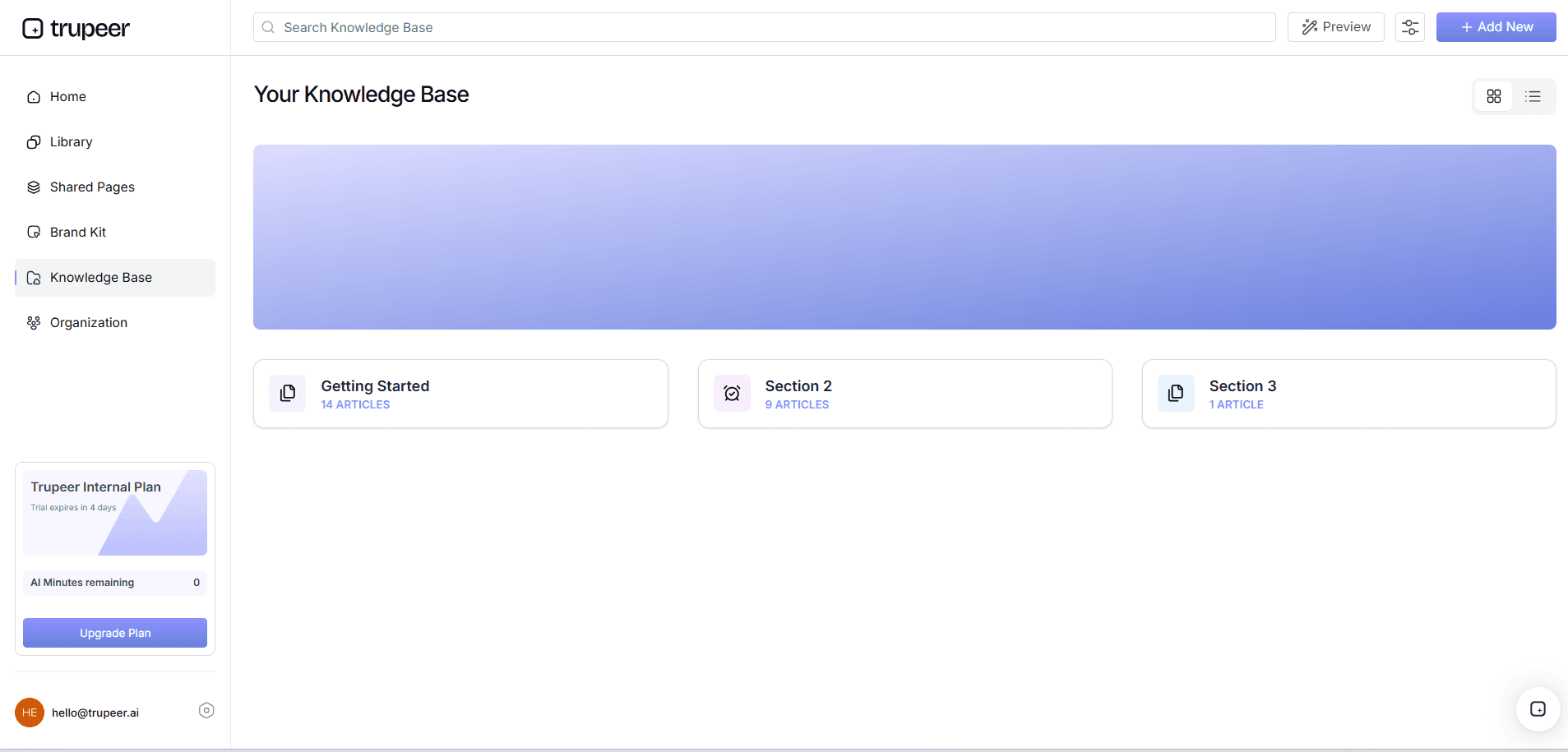
Mit konfiguriertem SSO passen Sie Ihre Trupeer-Wissensdatenbank an die Bedürfnisse Ihrer Organisation an. Verwenden Sie die Brand-Kits und gebrandeten Vorlagen von Trupeer, um sicherzustellen, dass Ihre Wissensdatenbank die Identität Ihres Unternehmens widerspiegelt. Diese Anpassung ist entscheidend für Konsistenz und Professionalität. Implementieren Sie KI-Voiceover-Funktionen für Videoinhalte, damit Nutzer Informationen in mehreren Sprachen abrufen können, was die Zugänglichkeit verbessert. Die Anpassung kann je nach Komplexität Ihrer Branding-Anforderungen zwischen 30 Minuten und einigen Stunden dauern. Für globale Zielgruppen erweitert das Hinzufügen von KI-Videoübersetzung denselben Workflow auf über 40 Sprachen mit Lip-Sync.
Schritt 6: Überwachen und pflegen Sie Ihr Setup
Überprüfen Sie Ihr SSO-Setup regelmäßig, um die fortlaufende Sicherheit und Leistung sicherzustellen. Verwenden Sie die Viewer-Engagement-Analysen von Trupeer, um zu überwachen, wie Nutzer mit Ihrer Wissensdatenbank interagieren. Diese Daten helfen dabei, Verbesserungsbereiche zu identifizieren und sicherzustellen, dass Nutzer effizient auf die benötigten Informationen zugreifen können. Bleiben Sie außerdem über Änderungen Ihres SSO-Anbieters auf dem Laufenden, die die Integration beeinträchtigen könnten. Routinemäßige Prüfungen und Wartungen können monatlich durchgeführt werden und dauern jeweils etwa 30 Minuten, sodass Ihr System zuverlässig und sicher bleibt.
Welche Tipps helfen Ihnen bei der Integration von SSO in eine Wissensdatenbank?
Die erfolgreiche Integration von SSO in Ihre Wissensdatenbank umfasst mehr als nur das Befolgen von Schritten. Hier sind einige praktische Tipps, um Ihr Setup zu optimieren und Ihren Nutzern ein reibungsloses Erlebnis zu bieten. Diese Tipps sind darauf ausgelegt, Sicherheit und Benutzerfreundlichkeit zu maximieren und sicherzustellen, dass Ihre Wissensdatenbank sowohl effizient als auch sicher ist.
Zugangsdaten regelmäßig aktualisieren. Stellen Sie sicher, dass Ihre SSO-Zugangsdaten aktuell sind, um unbefugten Zugriff zu verhindern.
Multi-Faktor-Authentifizierung verwenden. Fügen Sie eine zusätzliche Sicherheitsebene hinzu, indem Sie MFA in Verbindung mit SSO aktivieren.
Benutzerrollen standardisieren. Definieren Sie Benutzerrollen in Trupeer klar, um die Zugriffskontrolle zu vereinfachen.
Metadaten aktuell halten. Aktualisieren Sie regelmäßig Ihre SAML-Metadaten, um Verbindungsprobleme zu vermeiden.
Analysen verwenden. Verwenden Sie Engagement-Analysen, um das Nutzerverhalten zu verstehen und die Inhaltsauslieferung zu optimieren.
Benutzerschulungen durchführen. Bieten Sie Schulungen für Ihr Team an, damit es sich mit den neuen SSO-Prozessen vertraut macht.
Integrationsprotokolle überprüfen. Überprüfen Sie regelmäßig die Protokolle auf ungewöhnliche Zugriffsmuster, um die Sicherheitsüberwachung aufrechtzuerhalten.
Wenn SOPs im selben Zusammenhang zur Sprache kommen, hilft ein Vergleich von Scribe-Alternativen, den Umfang zu klären.
Häufig gestellte Fragen
Wie behebe ich Probleme bei der SSO-Anmeldung?
Wenn Sie auf Probleme bei der SSO-Anmeldung stoßen, beginnen Sie damit, die Konfigurationseinstellungen Ihres Identitätsanbieters in Trupeer zu überprüfen. Häufige Probleme entstehen oft durch falsche URL-Einträge oder veraltete SAML-Zertifikate. Stellen Sie sicher, dass Ihre SAML-Metadaten aktuell sind und die Einstellungen Ihres Identitätsanbieters mit denen in Trupeer konfigurierten übereinstimmen. Wenn die Probleme weiterhin bestehen, wenden Sie sich an die Support-Ressourcen Ihres SSO-Anbieters oder kontaktieren Sie den Trupeer-Support. Das regelmäßige Testen des Anmeldeprozesses kann helfen, Probleme frühzeitig zu erkennen.
Welche Sicherheitsvorteile bietet die Verwendung von SSO?
SSO erhöht die Sicherheit erheblich, indem es die Anzahl der Passwörter reduziert, die Nutzer verwalten müssen. Dadurch wird das Risiko verringert, dass schwache Passwörter verwendet oder unsicher gespeichert werden. SSO zentralisiert auch die Authentifizierung, sodass IT Sicherheitsrichtlinien durchsetzen und den Zugriff effektiver überwachen kann. Außerdem bietet SSO in Kombination mit MFA eine zusätzliche Sicherheitsebene und stellt sicher, dass selbst bei einem kompromittierten Passwort unbefugter Zugriff verhindert wird. Insgesamt vereinfacht SSO das Sicherheitsmanagement und reduziert gleichzeitig potenzielle Schwachstellen.
Kann SSO mit anderen Tools außer einer Wissensdatenbank integriert werden?
Ja, SSO kann mit einer Vielzahl von Tools außerhalb einer Wissensdatenbank integriert werden, darunter CRM-Systeme, Produktivitätsanwendungen und Kollaborationsplattformen. Diese Integration stellt sicher, dass Nutzer mit einem einzigen Satz von Zugangsdaten auf mehrere Systeme zugreifen können, was Produktivität und Sicherheit erhöht. Viele Organisationen entscheiden sich dafür, sich vor der Einführung von SSO über ihr gesamtes Tool-Set hinweg auf einen Vergleich von Loom-Alternativen zu standardisieren, um Kompatibilität und Sicherheit sicherzustellen.
Beeinflusst SSO die Systemleistung?
SSO verbessert in der Regel die Systemleistung, indem es den Anmeldeprozess vereinfacht und die Zeit verkürzt, die Nutzer für den Zugriff auf Anwendungen benötigen. Es zentralisiert die Authentifizierung, was zu schnelleren Anmeldezeiten und weniger Ausfallzeiten im Zusammenhang mit Passwortzurücksetzungen führen kann. Obwohl SSO auf der Ebene des Identitätsanbieters einen zusätzlichen Schritt einführt, wird dies in der Regel durch die Effizienzgewinne beim Umgang mit weniger Zugangsdaten ausgeglichen. Regelmäßige Wartung und Updates Ihrer SSO-Konfiguration können eine optimale Leistung sicherstellen, ohne die Systemgeschwindigkeit negativ zu beeinflussen.
Ist SSO für kleine Unternehmen geeignet?
SSO kann für kleine Unternehmen sehr vorteilhaft sein und bietet auch bei weniger Ressourcen verbesserte Sicherheit und Benutzererfahrung. Indem es die Anzahl der Passwörter reduziert, die Mitarbeiter sich merken müssen, verringert SSO die Wahrscheinlichkeit passwortbezogener Sicherheitsverletzungen. Kleine Unternehmen profitieren außerdem von der vereinfachten Benutzerverwaltung, die SSO bietet, wodurch das Onboarding und Offboarding von Mitarbeitern erleichtert wird. Mit Lösungen, die auf verschiedene Unternehmensgrößen zugeschnitten sind, ist SSO eine skalierbare Lösung, die mit Ihren Geschäftsanforderungen wachsen kann.
Verwandte Blogbeiträge


