Trupeer Blog
How AI Interprets Screen Recordings to Generate Step-by-Step Documentation
Imagine you're tasked with creating comprehensive documentation for a software rollout across your entire company. The stakes are high. Effective documentation could mean the difference between a smooth transition and chaos. Manual documentation is painstakingly slow and prone to human error. But what if you could use AI to interpret screen recordings and generate step-by-step instructions effortlessly? AI-powered documentation tools are making this a reality. For instance, Trupeer.ai's AI documentation generator can transform a 30-minute screen recording into a detailed guide in under 10 minutes. This technology is a big shift for operations managers and IT departments who need to create accurate, up-to-date documentation rapidly. By automating this process, you save countless hours and ensure that your team has access to high-quality resources. For more on how AI tools are changing documentation, check out this ai documentation generator.
Why does AI screen interpretation matter?
AI screen interpretation matters because businesses today rely heavily on efficient documentation for operational success. Operations managers, IT professionals, and team leads often face the challenge of keeping documentation updated and accurate. Manual methods are not only time-consuming but also error-prone, leading to inconsistencies and outdated information. When documentation fails to meet the necessary standards, it can result in miscommunication, decreased productivity, and even compliance issues. This is particularly critical in regulated industries where documentation accuracy and timeliness are non-negotiable.
The ability to automatically generate step-by-step documentation from screen recordings simplifies the process, ensuring that all team members are on the same page. This technology allows for quick updates and revisions, which are crucial in dynamic environments where software and processes frequently change. By using AI-driven tools, organizations can maintain a high level of accuracy and consistency in their documentation. This not only enhances operational efficiency but also enables teams to focus on more strategic initiatives rather than getting bogged down by administrative tasks. For a deeper understanding of how this can impact your organization's operations, explore this operations workflow.
What are the benefits of AI screen interpretation?
AI screen interpretation offers numerous benefits that can significantly enhance your documentation process and overall business operations.
Increased Efficiency. AI tools drastically reduce the time spent creating documentation. A task that might take hours manually can be completed in minutes, allowing teams to focus on other critical projects.
Improved Accuracy. By capturing and interpreting screen actions automatically, AI minimizes human errors, ensuring that the documentation accurately reflects actual processes and procedures.
Scalability. Whether you're a small business or a large corporation, AI tools can scale to meet your documentation needs without requiring additional resources or manpower.
Consistency. AI-generated documentation maintains a consistent style and format, which is crucial for brand integrity and user comprehension. ai/blog/best-documentation-software">best documentation software.
Accessibility. AI can enhance the accessibility of documentation by offering features such as multi-language support and voiceovers, making it easier for diverse teams to engage with the content. An AI video platform can further enhance this accessibility.
Cost Savings. Automating the documentation process reduces the need for extensive manual input, saving on labor costs and freeing up resources for other business-critical activities.
Which Trupeer features help you generate step-by-step documentation from screen recordings?
Trupeer offers several features that specifically aid in the generation of step-by-step documentation from screen recordings. These capabilities make the process smooth and efficient.
AI screen recording with auto-zoom and click detection
This feature automatically captures screen activities, zooming in on areas of interest and detecting clicks to create a comprehensive recording. This ensures that the critical actions are highlighted, making it easier to produce accurate documentation. When using Trupeer's AI documentation platform, you can trust that every important detail is captured without manual intervention.
Automatic SOP generation from any recording (edit-ready, exportable)
Trupeer's ability to automatically generate Standard Operating Procedures (SOPs) from recordings is a standout feature. Once a recording is completed, the system analyzes the content and produces an editable document. This is especially useful for teams that frequently update their processes. The generated SOPs are exportable in multiple formats, providing flexibility and ease of use. Check out how this auto updating documentation tool can simplify your workflow.
AI-searchable knowledge base with timestamp deep-links
Trupeer's knowledge base feature allows you to store and index all your recordings. The addition of timestamp deep-links means that users can quickly navigate to specific points in a video, making it easier to find the exact information they need. This video knowledge base is invaluable for teams that rely on video content for training and support.
AI translation into 40+ languages with lip-sync
Localization is critical for global businesses, and Trupeer's translation capabilities ensure that documentation is accessible to a wide audience. By providing translations in over 40 languages, complete with lip-sync for video content, Trupeer makes it easy to communicate processes across different regions. This feature is especially beneficial for multinational companies looking to maintain uniformity in their documentation.
Viewer engagement analytics, drop-off, and heatmaps
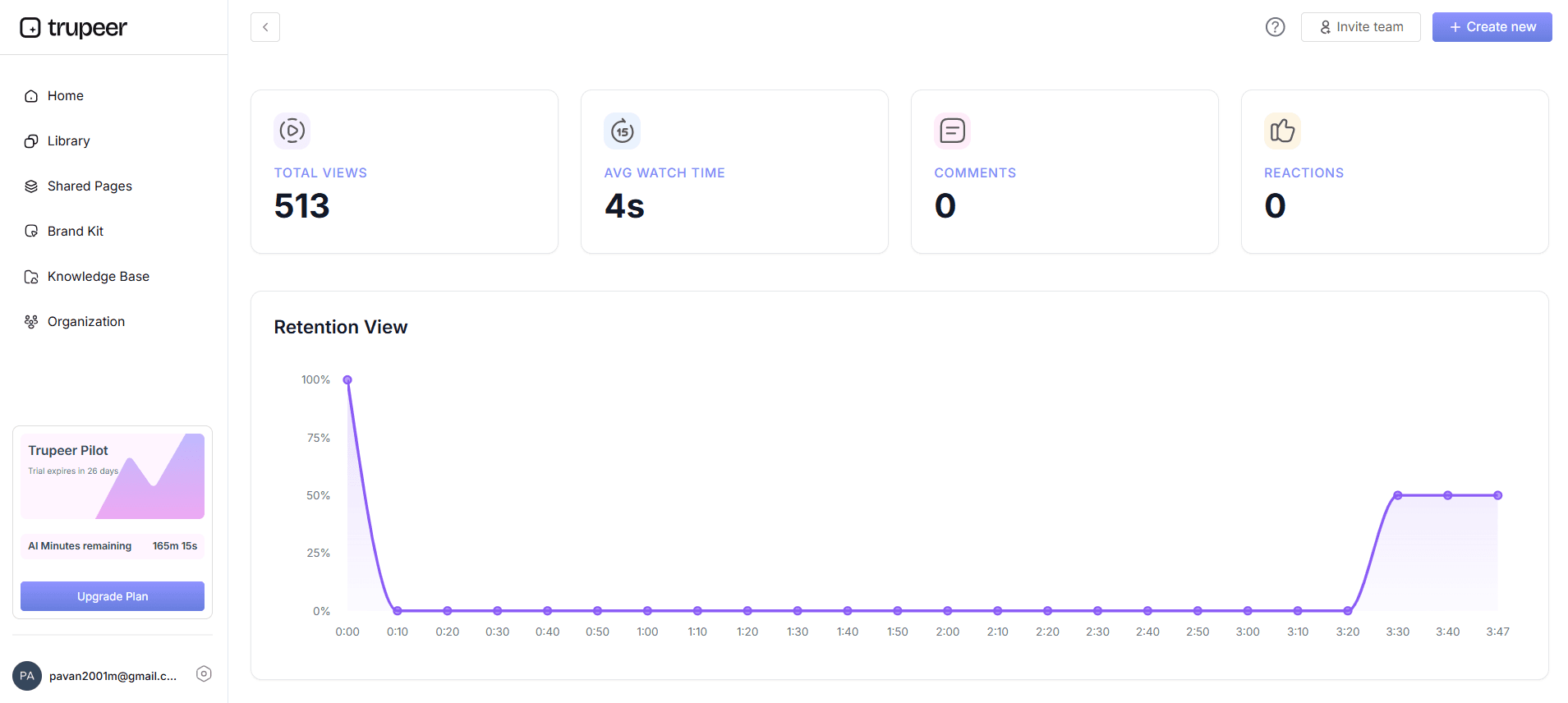
Understanding how your team interacts with documentation is crucial for continuous improvement. Trupeer provides detailed analytics on viewer engagement, including where users drop off and what sections they focus on. This data helps you refine your documentation to better meet the needs of your audience. By using these insights, you can ensure that your content remains relevant and effective.
How do you interpret screen recordings to generate step-by-step documentation with Trupeer?
Step 1: Record Your Screen
Begin by launching Trupeer's browser-based recorder or desktop app. Click on the "Start Recording" button to capture your screen. The AI will automatically zoom in on areas of interest and detect clicks, ensuring that all critical actions are highlighted. This feature is invaluable when documenting complex software processes, as it captures every detail without missing a beat. The recording continues silently in the background, allowing you to focus entirely on demonstrating the workflow. Once finished, click "Stop Recording" to save the session.

Step 2: Generate Automatic SOP
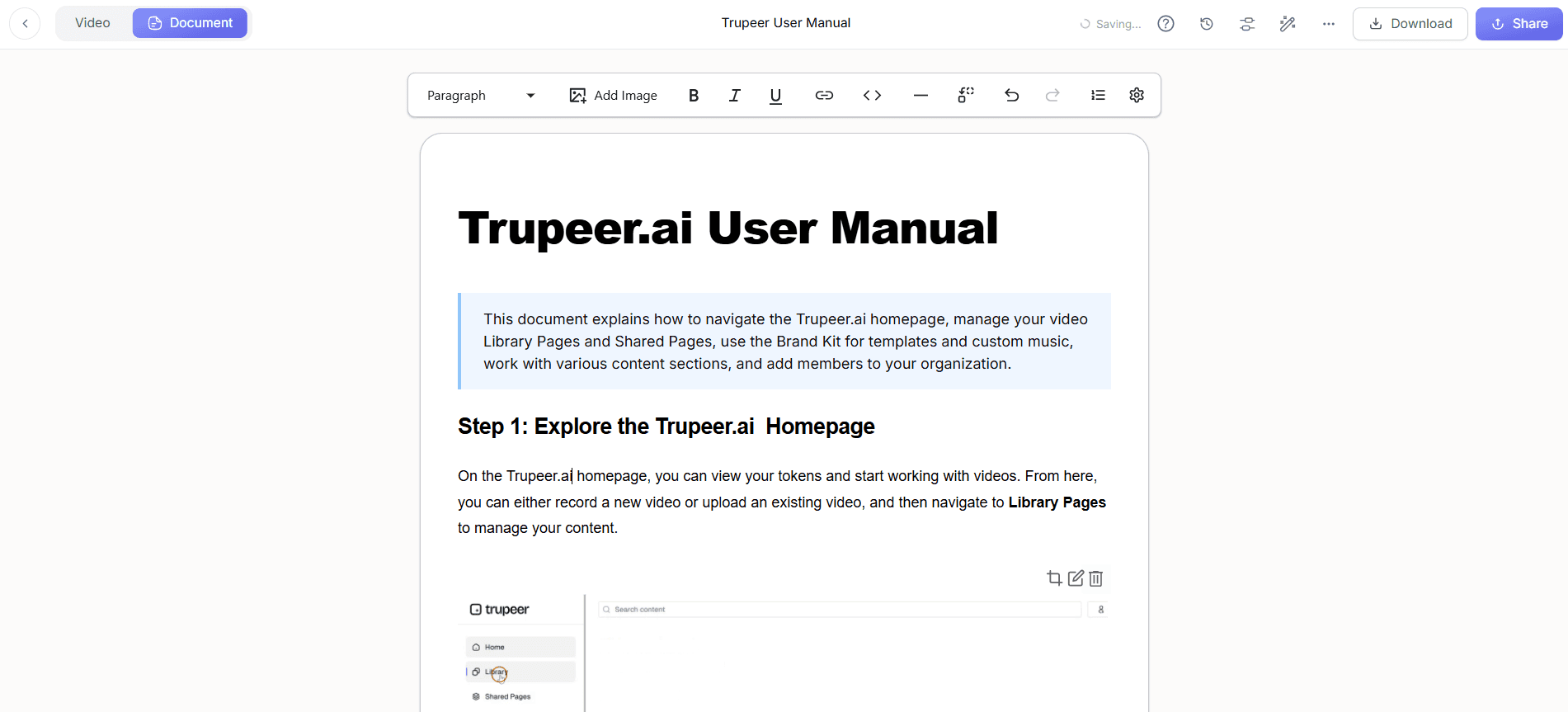
After recording, navigate to the Trupeer dashboard and select "Generate SOP" from your saved recordings. The AI analyzes the video and produces an edit-ready Standard Operating Procedure document. This process typically takes less than five minutes, regardless of recording length. The generated SOP includes a step-by-step breakdown of the actions, complete with screenshots and annotations. Use the editing tools to adjust any details or add custom instructions if needed. This flexibility ensures the documentation meets your specific requirements.

Step 3: Export Documentation
Once you're satisfied with the edits, click on "Export" to choose your preferred format, options include HTML, PDF, and SCORM. This multi-format export capability enables you to integrate documentation into various platforms or distribute it as standalone guides. The export process is straightforward and usually completes within a minute. This feature is particularly useful when needing to share documentation across different teams or systems, as it provides the versatility required for diverse operational needs. When SOPs come into the same conversation, a Scribe alternatives comparison helps clarify the scope.

Step 4: Translate for Global Teams
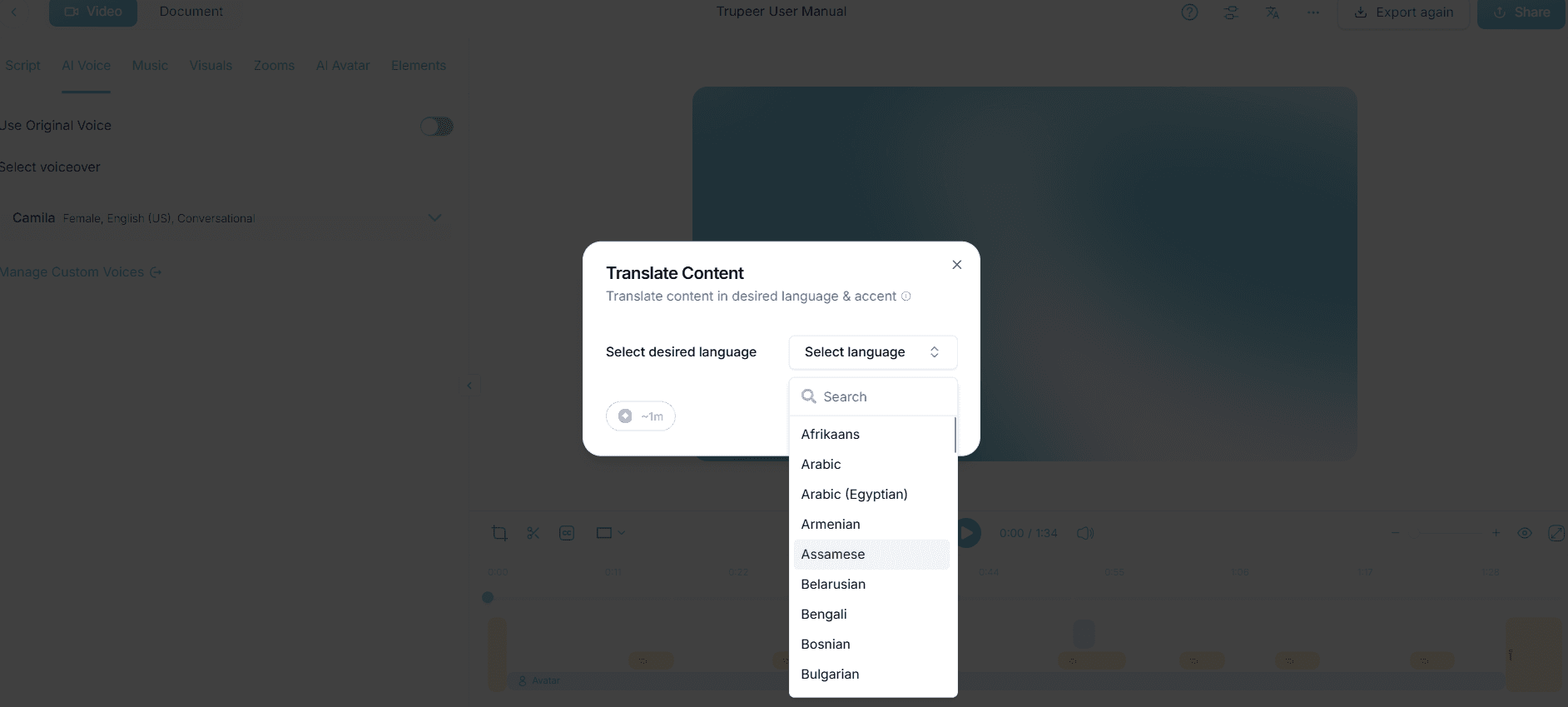
For organizations with an international presence, translating documentation is crucial. Trupeer offers AI translation in over 40 languages, complete with lip-sync for video content. Simply select the "Translate" option and choose your target language. The AI handles the translation process, ensuring linguistic accuracy and cultural relevance. This feature enhances accessibility, allowing global teams to understand procedures in their native language. The translation process is quick, typically taking just a few minutes per document.

Step 5: Incorporate AI Voiceovers
Enhance your documentation by adding AI-generated voiceovers. Trupeer provides more than 65+ natural voices, with adjustable pace and tone. Select the "Add Voiceover" option, choose a voice, and let the AI generate narration for your documentation. This feature is particularly beneficial for creating engaging multimedia guides or accommodating users who prefer auditory learning. The AI voiceover process is swift, usually completing within minutes, and offers a professional touch to your documentation.

Step 6: Analyze Viewer Engagement
Once your documentation is deployed, it's essential to analyze how users interact with it. Trupeer offers detailed viewer engagement analytics, including drop-off rates and heatmaps. Access these insights through the analytics dashboard to understand which sections users find most valuable or where they struggle. This data allows you to refine the documentation for better user experience and efficiency. Regularly reviewing these metrics ensures that your documentation remains relevant and effective over time.

What tips help you effectively use AI to interpret screen recordings for documentation?
Using AI to generate documentation from screen recordings can significantly simplify your workflow. Here are some practical tips to optimize this process and ensure high-quality outcomes.
Plan Your Recording. Before you start, outline the key steps and actions you need to capture. This ensures a smooth recording session and minimizes the need for retakes.
Use Consistent Visuals. Maintain a consistent visual style throughout your recordings by using branded templates. This creates a professional look and helps reinforce brand identity.
Keep It Concise. Focus on capturing only the essential steps. Long recordings can become cumbersome, and trimming them down later can be time-consuming.
Test Translations. When using AI translation, review the output to ensure it accurately reflects the original content. Small nuances can sometimes be lost in translation.
use Voice Cloning. For personalized touch in voiceovers, consider AI voice cloning. It ensures consistency and familiarity for your audience.
Regularly Update Content. Make sure your documentation reflects the latest processes and tools. use the auto-updating feature to keep content current.
Review Engagement Analytics. Use the analytics data to identify areas of improvement and make data-driven decisions about content updates.
Teams weighing tools often start with a Loom alternatives comparison before standardizing on a workflow.
Frequently asked questions
How does AI detect clicks and actions in screen recordings?
AI detects clicks and actions through a combination of computer vision and pattern recognition algorithms. These systems analyze pixel changes and cursor movements to identify user interactions on the screen. This detection is real-time and accurate, ensuring that all significant actions are captured without manual input. The precision of these algorithms allows AI to differentiate between intentional actions and passive movements, ensuring only relevant steps are included in the documentation.
Can AI-generated documentation be customized?
Yes, AI-generated documentation is highly customizable. Once the initial document is created, you can edit it to add specific instructions, modify steps, or incorporate additional media. Trupeer offers editing tools that allow you to adjust the content to meet your exact needs. This flexibility is crucial for tailoring documentation to different audiences or adapting to evolving processes. Customization ensures the final output aligns with your operational standards and requirements.
What formats can I export my documentation in?
Trupeer allows you to export documentation in multiple formats, including HTML, PDF, and SCORM. These options provide versatility in how you distribute and integrate your content. HTML is ideal for web-based platforms, PDF offers a universally accessible format, and SCORM is perfect for learning management systems. This range of formats ensures that your documentation can be easily shared and accessed by your intended audience, regardless of the platform they are using.
Is AI translation reliable for technical documentation?
AI translation is highly reliable for technical documentation, as it uses advanced natural language processing algorithms to ensure accuracy and context-appropriate translations. However, it's still recommended to review the translated content, especially for highly specialized terminology or industry-specific jargon. For peace of mind, ai/translation">video localization tool that offers quality assurance checks to ensure translations meet your standards.
Does AI-generated documentation improve user engagement?
Yes, AI-generated documentation can significantly improve user engagement. By providing clear, concise, and visually consistent instructions, users can easily follow along and understand the processes. The inclusion of interactive elements such as voiceovers and translations further enhances engagement by catering to diverse learning preferences. Analyzing engagement metrics allows you to refine the content to better meet user needs, leading to a more effective and accessible documentation experience.