Trupeer Blog
Özetle

LinkedIn için kısa ürün demo klipleri oluşturmak, markanızın potansiyel müşterilerle etkileşimini nasıl şekillendirdiği konusunda önemli bir fark yaratabilir. Yeni yazılım özelliğinizi tanıtmak için ayrıntılı bir ekran kaydı yaptığınızı düşünün. Ancak bu kaydı LinkedIn’de olduğu gibi paylaşmak kitlenizi bunaltabilir. Bunun yerine, onu daha kısa ve ilgi çekici parçalara bölmek, izleyicinizin zamanını fazla talep etmeden dikkat çekmenizi sağlar. Bu kısa klipler yalnızca LinkedIn’in önerilen video uzunluğu olan 15-30 saniyeye uymakla kalmaz; aynı zamanda etkileşim oranlarını da artırır. Araştırmalara göre,
30 saniyenin altındaki LinkedIn videoları, tamamının izlenme olasılığı %50 daha yüksektir.
Bu, kitlenizden farkındalık oluşturmak ve harekete geçmelerini sağlamak istediğinizde kritik önem taşır. Pazarlamacılar ve ürün yöneticileri için bu beceride ustalaşmak, ürün tekliflerinizin görünürlüğünü ve etkileşimini artırarak LinkedIn varlığınızı daha etkili hale getirebilir. Kitlenizi etkileyen bir ürün demo videosu nasıl oluşturacağınızı öğrenmek istiyorsanız okumaya devam edin.
Ekran kaydından LinkedIn için kısa ürün demo klipleri oluşturmak neden önemlidir?
Sosyal medyanın rekabetçi ortamında dikkat çekmek için hızlı olmak oyunun adıdır. LinkedIn’in algoritması, kullanıcıları etkileşime sokan içeriği destekler; bu da videolarınızın formatı ve uzunluğunun performansını önemli ölçüde etkileyebileceği anlamına gelir. Kısa ve odaklı ürün demo klipleri yalnızca izleyici tercihleriyle uyum sağlamakla kalmaz, aynı zamanda içeriğinizin erişimini ve etkileşimini de artırır. Şirketler için bu, ürünlerini profesyonel bir kitleyle yankı uyandıracak şekilde sergileme fırsatıdır.
Ürün yöneticileri ve pazarlamacılar, karmaşık özellikleri izleyicinin ilgisini kaybetmeden etkili biçimde göstermenin zorluğuyla karşılaşır. Uzun bir video, izleyicilerin harekete geçirici ifadeye (CTA) gelmeden önce ayrılmaları için daha fazla fırsat demektir. Öte yandan kısa klipler, ürününüzün en etkileyici yönlerini daha sindirilebilir parçalara ayırmanızı zorunlu kılar; böylece mesajınız hem net hem de akılda kalıcı olur. Bu yaklaşım, değeri kısa ve etkili biçimde iletmeyi hedefleyen bir ürün pazarlama kullanım senaryosuyla tam olarak örtüşür.
LinkedIn için kısa ürün demo klipleri oluşturmanın faydaları nelerdir?
LinkedIn için kısa ürün demo klipleri, pazarlama çalışmalarınızı güçlendirebilecek birkaç somut fayda sunar.
Etkileşimin Artması. Daha kısa videolar izleyicinin dikkatini daha iyi korur ve daha yüksek tamamlanma oranlarına yol açar. Bu, LinkedIn algoritması sıralamanızı yükseltebilir ve görünürlüğünüzü artırabilir.
Odaklı Mesaj. İçeriğinizi yoğunlaştırarak, yalnızca en kritik bilginin kitlenize ulaşmasını sağlarsınız; böylece mesajınız daha etkili olur.
Daha Kolay Paylaşılabilirlik. Kısa ve öz videolar, kullanıcıların paylaşmasını kolaylaştırır; böylece ek çaba harcamadan mesajınızı daha geniş bir kitleye ulaştırabilirsiniz.
Daha Güçlü Marka Algısı. Trupeer gibi bir video üretim platformu kullanarak klipleriniz boyunca tutarlı bir markalama sürdürebilir ve marka kimliğinizi pekiştirebilirsiniz.
Maliyet Verimliliği. Kısa klipler daha az prodüksiyon süresi gerektirir ve AI destekli video aracı gibi araçlarla oluşturulabilir; bu da kaynak harcamasını azaltır.
Daha İyi Analiz ve İçgörüler. Daha sindirilebilir içerikle, izleyici davranışları ve tercihleri hakkında daha net içgörüler toplayabilir; böylece daha hedefli pazarlama stratejileri geliştirebilirsiniz.
Daha derin bir bakış için ürün video oluşturma rehberimiz, ilgili oyun planını da kapsar.
Ekran kaydından LinkedIn için kısa ürün demo klipleri oluşturmanıza hangi Trupeer özellikleri yardımcı olur?
Trupeer, LinkedIn için etkili kısa ürün demo klipleri oluşturma sürecini basitleştirmek üzere tasarlanmış bir dizi özellik sunar.
Otomatik yakınlaştırma ve tıklama algılamalı AI ekran kaydı
Bu özellik, ekranınızı hassasiyetle yakalamanıza olanak tanır; fare tıklamaları ve önemli aksiyonlar gibi ilgi alanlarına otomatik olarak odaklanır. Böylece izleyicileriniz, herhangi bir manuel düzenleme yapmadan tam olarak neye odaklanmanızı istediğinizi görür. Özellikle netliğin kritik olduğu ürün demolarında işe yarar. Bir ürün demo videosu kaydı düzenleme aracı arayanlar için bu yetenek kayıt sürecini basitleştirir ve nihai çıktıyı iyileştirir.
Otomatik AI anlatımlı sessiz ekran kaydı
Bazen arka plan gürültüsü veya tutarsız anlatım izleyicileri dağıtabilir. Trupeer’in sessiz ekran kaydı, yakalama sonrasında anlatım eklemenize izin vererek bunu çözer. AI tarafından oluşturulan seslendirme, ton ve hıza göre ayarlanabilir; mesajınızın net ve profesyonel biçimde iletilmesini sağlar. Tüm video içeriğiniz boyunca yüksek bir kalite seviyesini korumak için idealdir.
Otomatik dolgu sözcüğü kaldırma
Bir ürün demosunu gereksiz duraklamalar ve dolgu sözcüklerden daha fazla zedeleyen pek bir şey yoktur. Trupeer’in özelliği bunları otomatik olarak kaldırır; böylece kısa ve cilalı bir video elde edersiniz. Bu, kliplerinizin profesyonel ve takip edilmesinin kolay olmasını sağlar; izleyici etkileşimini artırır. Bir video bilgi tabanıyla uyumlu içerik oluşturmak için bu yetenek son derece değerlidir.
AI avatarlar ve konuşan kişi (talking-head) videoları
Demolarınıza kişisel bir dokunuş eklemek için Trupeer, markanızı temsil edecek şekilde özelleştirilebilen AI avatarlar sunar. Bu özellik, videolarınıza sanal bir sunucu eklemenizi sağlar; böylece onları daha ilgi çekici ve daha ilişkilendirilebilir hale getirir. Stok avatarlar kullanın ya da özel bir avatar oluşturun, bu araç kamerada olmanıza gerek kalmadan ürün demolarınızı daha insani kılar.
Otomatik bölümler ve segment algılama
Trupeer’in otomatik segmentasyon yeteneği, daha uzun kayıtları mantıklı bölümlere ayırır ve kısa klipler oluşturmayı kolaylaştırır. Bu yalnızca düzenleme sürecinde zaman kazandırmakla kalmaz; aynı zamanda içeriği izleyici beklentileriyle uyumlu bir şekilde düzenlemenize de yardımcı olur. Dokümantasyon amaçları için bu özellik, otomatik oluşturulan dokümantasyon sistemine sorunsuz biçimde entegre olur.
Trupeer ile ekran kaydından LinkedIn için kısa ürün demo klipleri nasıl adım adım oluşturulur?
Adım 1: Ekranınızı Yakalayın
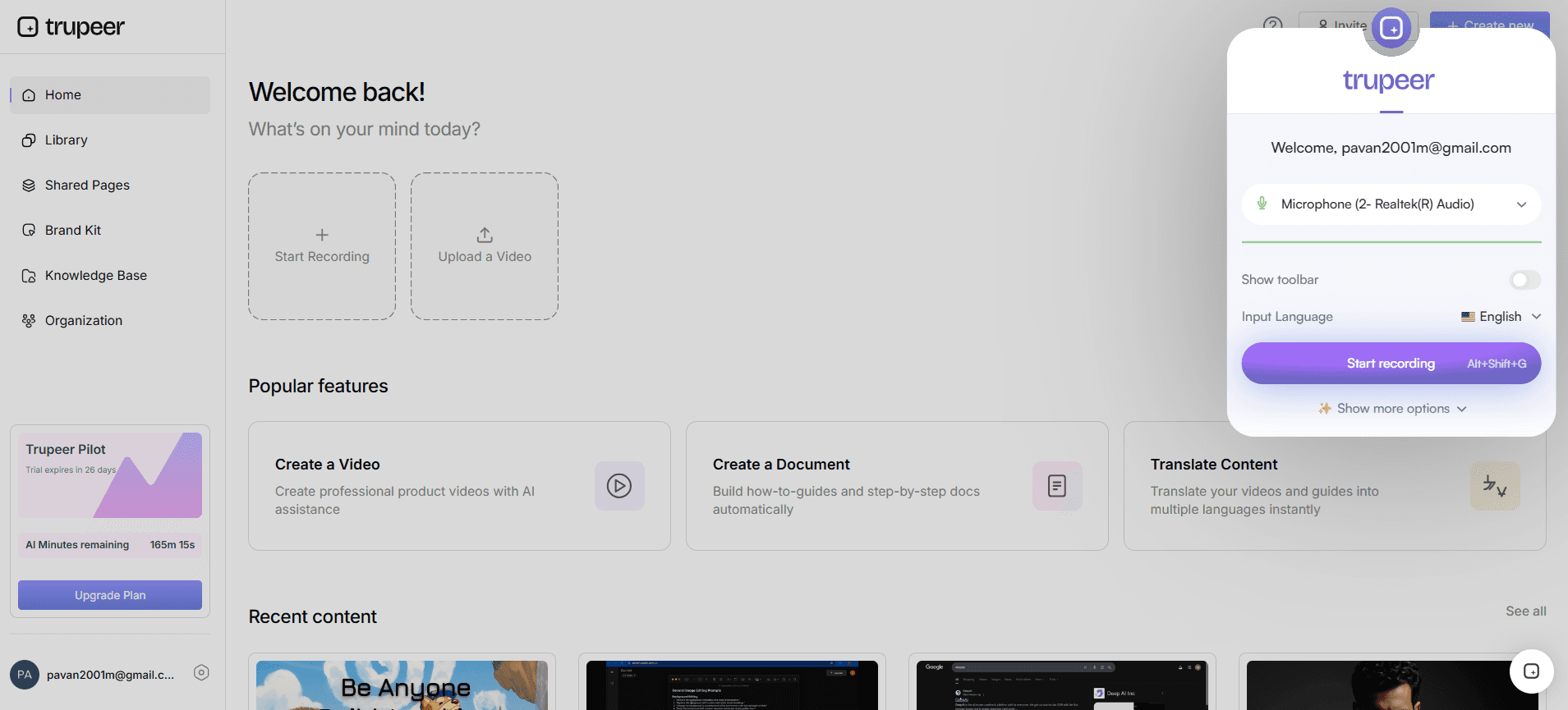
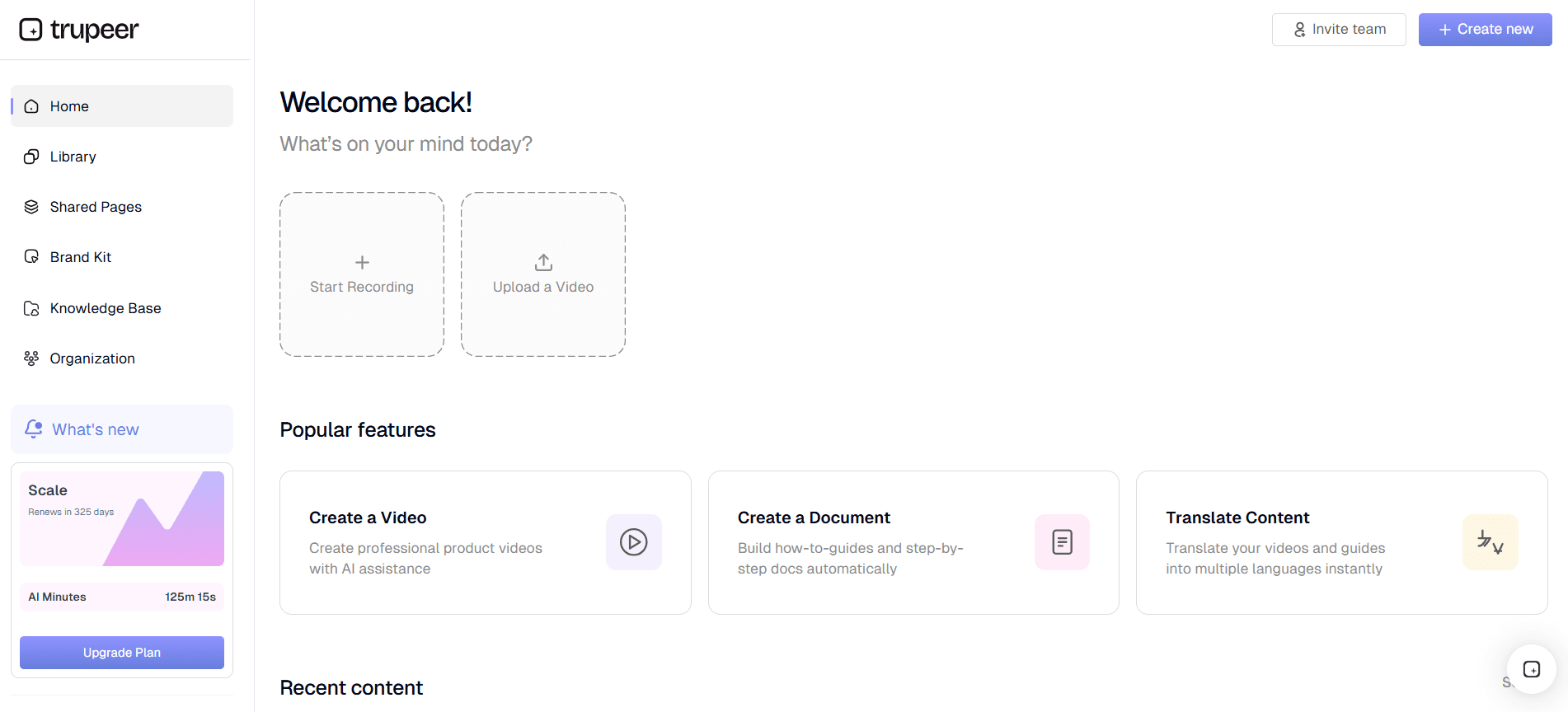
Trupeer’in tarayıcı tabanlı kayıtçısını kullanarak başlayın. Kurulum gerektirmediği için oldukça basittir. Ekran yakalamayı başlatmak için “Start Recording” düğmesine tıklayın. Trupeer’in AI ekran kaydı, fare tıklamaları ve yakınlaştırmalar gibi önemli aksiyonları otomatik olarak algılar. Bu sayede izleyicileriniz demo boyunca en kritik bölümlere odaklanır. Kayıt süreci akıcıdır; ancak gereksiz içerik yakalamamak için ekranınızın düzenli olduğundan emin olun. İşiniz bittiğinde “Stop Recording” seçeneğine tıklayın; videonuz düzenlemeye hazır olur. Bu süreç genellikle demo süreniz kadar, ayrıca kurulum için birkaç dakika daha sürer.
Adım 2: Dolgu Sözcüklerini Kaldırın
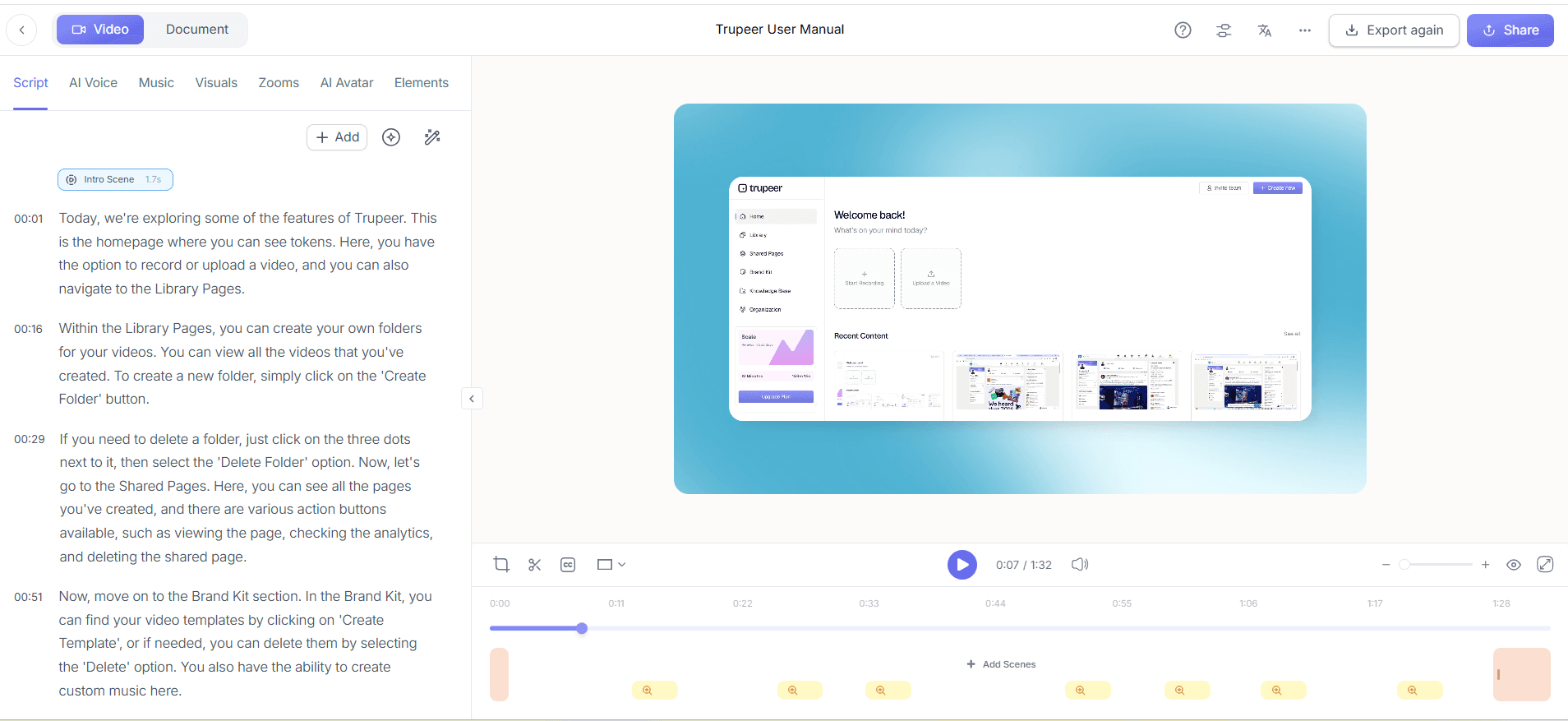
Yakalamadan sonra videonuzu sadeleştirmek için Trupeer’in otomatik dolgu sözcüğü kaldırma özelliğini kullanın. Bu adım, düzenleme paneline geçmeyi ve “Remove Filler Words” seçeneğini etkinleştirmeyi içerir. Trupeer’in AI’si “um” ve “ah” gibi sözcükleri tespit edip kaldırır ve uzun duraklamaları kısaltır; böylece klibiniz kısa ve profesyonel görünür. Bu, içeriği sıkı ve odaklı tutarak izleyici etkileşimini artırır ve video uzunluğunu %10’a kadar azaltabilir. Süreç hızlıdır; video uzunluğundan bağımsız olarak yalnızca birkaç dakika sürer.
Adım 3: AI Anlatım Ekleyin
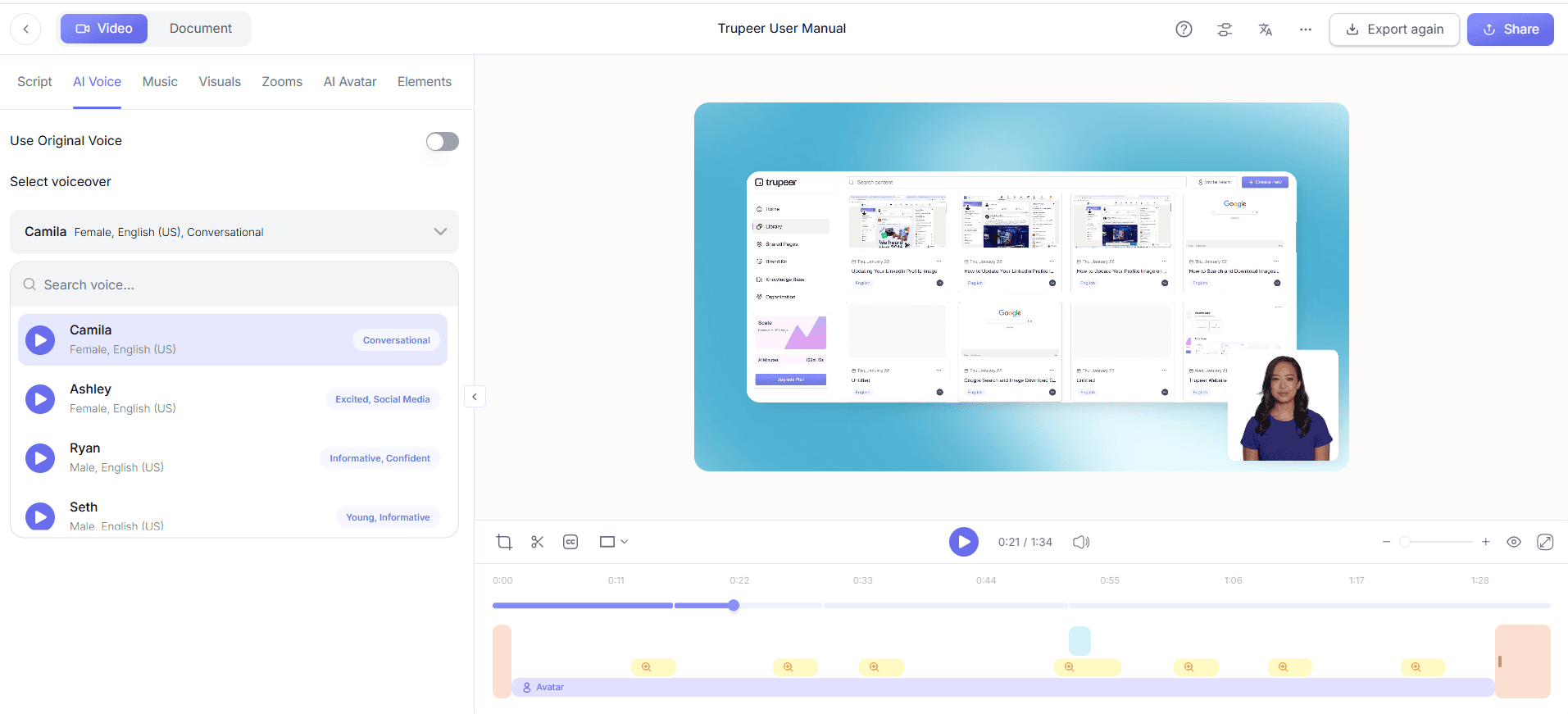
Sıradaki adım, Trupeer’in AI seslendirme özelliğiyle demo içeriğinizi zenginleştirmektir. “Add Narration” seçeneğini belirleyin, 65+ doğal sesten birini seçin ve anlatım hızını ile tonunu marka sesinize göre ayarlayın. Bu özellik, manuel ses kaydı yapma ihtiyacını ortadan kaldırarak net ve tutarlı bir yorum eklemenizi sağlar. AI anlatım, videonuza daha cilalı bir katman ekler; böylece onu daha ilgi çekici ve takip edilmesi daha kolay hale getirir. Gerekli anlatım miktarına bağlı olarak, bunun video başına yaklaşık 5 dakika sürmesini bekleyin.
Adım 4: AI Avatarları Ekleyin
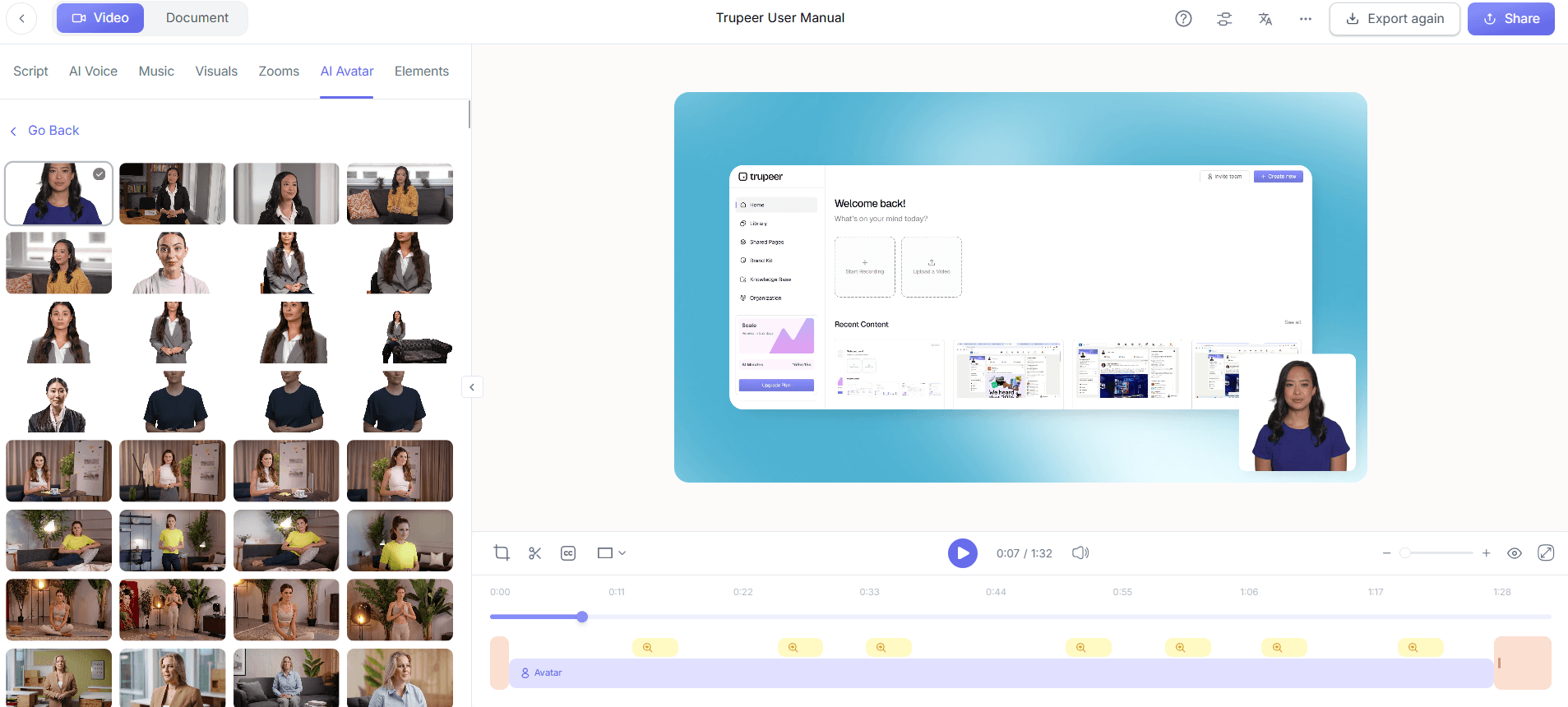
Demolarınızı kişiselleştirmek için Trupeer’in AI avatarlarını kullanın. HeyGen entegrasyonuyla ya bir stok avatar seçin ya da özel bir avatar oluşturun. “Add Avatar” bölümüne gidin, avatarınızı seçin ve video zaman çizelgesine yerleştirin. Bu özellik, izleyicilerin sanal bir sunucuyla bağlantı kurabilmesi sayesinde demo içeriğinizi daha ilişkilendirilebilir ve etkileşimli hale getirir. Avatar eklemek genellikle yaklaşık 10 dakika sürer ve demonuza daha insani bir his vererek izleyici tutma oranını önemli ölçüde artırabilir.
Adım 5: Videonuzu Bölümlere Ayırın
Trupeer’in otomatik bölümlerini ve segment algılamasını kullanarak demo içeriğinizi daha kısa kliplere ayırın. “Segment Video” seçeneğine tıklayın ve Trupeer’in mantıklı kırılmaları otomatik olarak algılamasına izin verin. Bu özellik, LinkedIn’e hazır klipler oluşturmak için özellikle faydalıdır; öne çıkarılacak önemli anları belirler. Gerekirse segmentleri LinkedIn stratejinize uyacak şekilde manuel olarak ayarlayın. Segmentasyon genellikle video uzunluğuna bağlı olarak birkaç dakika sürer ve sosyal medya platformları için mükemmel olan, kolay sindirilen klipler ortaya çıkarır.
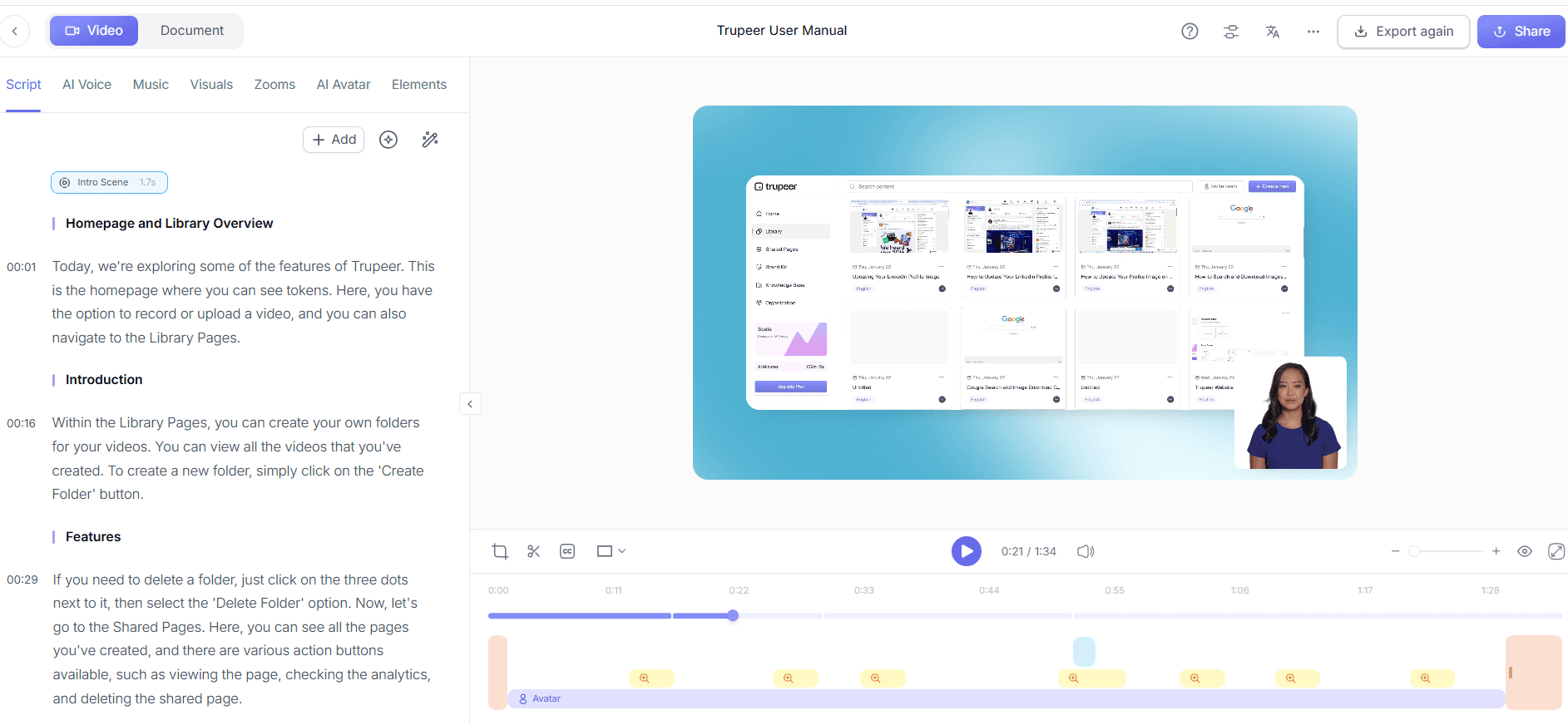
Adım 6: Dışa Aktarın ve Yükleyin
Son olarak, Trupeer’in çoklu format dışa aktarma seçeneklerini kullanarak kliplerinizi dışa aktarın. “Export” seçeneğini belirleyin ve LinkedIn uyumluluğu için MP4’ü seçin. Kliplerinizin LinkedIn’in önerdiği 15-30 saniyelik uzunluk aralığında olduğundan emin olun. Dışa aktardıktan sonra klipleri doğrudan LinkedIn’e yükleyin. Erişimi ve etkileşimi optimize etmek için ilgili hashtag’leri ve etkileyici bir açıklamayı kullanın. Tüm dışa aktarma ve yükleme süreci, internet hızınıza bağlı olarak klip başına yaklaşık 10 dakika sürebilir. Ekipler için Loom alternatiflerini karşılaştıranlar açısından bu basitleştirilmiş dışa aktarma süreci önemli bir avantajdır.
Ekran kaydından LinkedIn için kısa ürün demo klipleri oluşturmanıza yardımcı olacak ipuçları nelerdir?
LinkedIn için etkili kısa ürün demo klipleri oluşturmak yalnızca teknik becerilerden fazlasını gerektirir; stratejik planlama ve uygulama içerir. Çabalarınızı en üst düzeye çıkarmak için bazı ipuçları aşağıdadır.
Senaryonuzu Planlayın. Kayda başlamadan önce, önemli özelliklere odaklanan kısa bir senaryo yazın. Bu, demo içeriğinizi odaklı ve verimli tutar.
Tutarlı Markalama Kullanın. Tüm klipler boyunca tutarlı bir görsel stil sürdürmek için marka kitlerini ve şablonları uygulayın; böylece marka kimliğinizi güçlendirin.
Önemli Özellikleri Öne Çıkarın. Önemli özelliklere dikkat çekmek için otomatik yakınlaştırmayı kullanın; kritik detayların gözden kaçmamasını sağlayın.
Etkileşimi Yüksek Tutun. Her klibin sonunda, izleyicileri ürününüzle daha fazla etkileşime geçmeye teşvik eden harekete geçirici ifadeler ekleyin.
AI Avatarları Kullanın. Canlı sunucuya ihtiyaç duymadan kişisel bir dokunuş eklemek için avatarlardan yararlanın; bu da daha ilişkilendirilebilir bir deneyim sağlar.
Farklı Anlatım Stillerini Test Edin. Hangi AI ses tonunun kitlenizde daha iyi karşılık bulduğunu görmek için farklı ses tonlarıyla deney yapın.
En İyi Aracı Seçin. Başlangıçtan itibaren yüksek kaliteli kayıtlar aldığınızdan emin olmak için en iyi ekran kayıt aracını kullanın.
SOP’ler aynı konuşmada gündeme geldiğinde, Scribe alternatifleri karşılaştırması kapsamı netleştirmeye yardımcı olur.
Sık sorulan sorular
LinkedIn ürün demo kliplerim ne kadar uzun olmalı?
LinkedIn ürün demo klipleriniz ideal olarak 15 ila 30 saniye arasında olmalıdır. Bu süre en uygunudur; çünkü izleyici dikkat süreleri ve LinkedIn’in algoritma tercihleriyle uyumludur. Bu da tam izlenme ve etkileşim olasılığını artırır. Kısa klipler, mesajlarınızı kitlenizi bunaltmadan iletmenizi sağlar; böylece içeriğinizi paylaşma ve etkileşime girme ihtimali daha yüksektir. Kısa tutmak ayrıca farklı mesajları test etmenize ve hedef kitlenizde en iyi hangisinin karşılık bulduğunu görmenize olanak tanır.
Ürün demo klipleri oluşturmak için hangi araçları kullanabilirim?
Trupeer, ürün demo klipleri oluşturmak için harika bir araçtır. AI ekran kaydı, otomatik dolgu sözcüğü kaldırma ve AI anlatım gibi özellikler sunar; bu da oluşturma sürecini basitleştirir. Ayrıca Trupeer, AI avatarları ve segmentasyonu destekleyerek etkileşimli içerik üretmek için çok yönlü bir çözüm sunar. Başka araçlar da olsa, AI video çevirisi dahil Trupeer’in kapsamlı paketi, özellikle cilalı demoları verimli şekilde üretmek isteyen ekipler için üretkenliği artırmak ve kaliteyi korumak üzere tasarlanmıştır.
LinkedIn’de kısa klipler neden daha etkili?
Kısa klipler, platformun genellikle hızlı ve bilgilendirici içerikleri tercih eden profesyonel kitlesine hitap ettiği için LinkedIn’de daha etkilidir. Bu klipler, yüksek etkileşim oranlarını destekleyen LinkedIn algoritmasıyla uyumludur; böylece görünürlüğünüz artar. Daha kısa videoların tamamının izlenme, paylaşılma ve yorum alma olasılığı da daha yüksektir; bu da erişimi genişletir. Bilgiyi kısa ve öz sunarak izleyicilerinizin zamanına saygı gösterir, içeriğinizi daha çekici ve etkili hale getirirsiniz.
Ürün demolarımda AI avatarları kullanabilir miyim?
Evet, ürün demolarınızda AI avatarları kullanabilirsiniz. Trupeer, özelleştirilebilir bir dizi AI avatar sunar; böylece canlı bir sunucuya ihtiyaç duymadan kişisel bir dokunuş ekleyebilirsiniz. Bu özellik özellikle marka tutarlılığını korumak ve izleyicileri etkileşime geçirmek için faydalıdır. Avatarlar, daha ilişkilendirilebilir bir deneyim ve etkileşim sağlayarak demolarınızı daha dinamik hale getirir. Canlı kayıtların lojistiği olmadan insani bir unsur eklemek istediğinizde özellikle işe yarar.
Anlatım eklemek izleyici etkileşimini artırır mı?
Anlatım eklemek izleyici etkileşimini önemli ölçüde artırır. Trupeer’in AI anlatım özelliği, içeriğe dair net ve tutarlı yorumları eklemenizi sağlar; bu da izleyicinin içeriği daha iyi anlamasına yardımcı olur. Anlatım, izleyiciyi demo boyunca yönlendirir, önemli noktaları öne çıkarır ve ilgiyi korur. Bu özellik, izleyicilerin yalnızca izlemesini değil aynı zamanda sunulan bilgiyi anlamasını ve akılda tutmasını da sağlamada özellikle etkilidir; bu da daha iyi etkileşim ve daha yüksek dönüşüm oranlarına yol açar.
Frequently Asked Questions
How long should my LinkedIn product demo clips be?
What tools can I use to create product demo clips?
Why are short clips more effective on LinkedIn?
Can I use AI avatars in my product demos?
Does adding narration improve viewer engagement?
İlgili Bloglar



