Trupeer Blog
Summarise

Stel je voor dat je midden in het maken bent van een essentiële productdemo. Alles verloopt soepel, totdat die gevreesde achtergrondruis toeslaat. De hond blaft, of misschien zijn er bouwwerkzaamheden buiten je raam. Deze onderbrekingen kunnen verpesten wat een perfecte opname had kunnen zijn. Schermopname zonder audio biedt een oplossing: je kunt je schermactiviteiten netjes vastleggen en daarna professionele door AI gegenereerde voice-over toevoegen. Deze methode gaat niet alleen over het vermijden van ruis; het draait ook om efficiëntie en flexibiliteit. Stille schermopnames kunnen de productietijd met wel 40% verkorten, omdat je geen delen hoeft te pauzeren en opnieuw op te nemen door audiofouten.
Voor salesteams, docenten of iedereen die betrokken is bij digitale presentaties, kan deze techniek een grote verandering zijn. Je kunt je richten op wat het belangrijkst is: de visuals en de helderheid van je boodschap. Stille opnames zijn vooral nuttig voor mensen die werken in gedeelde kantoorruimtes of thuis, waar je de omgeving niet altijd kunt beheersen. Voor inzichten in de beste software voor schermopname die deze stijl van opnemen ondersteunt, kun je bekijken hoe verschillende tools zich tot elkaar verhouden.
Waarom is schermopname zonder audio belangrijk?
Schermopname zonder audio is van groot belang voor professionals die hun workflow willen vereenvoudigen en de kwaliteit van hun presentaties willen verbeteren. In de wereld van pre-sales, waar eerste indrukken cruciaal zijn, kan het geven van een scherpe en duidelijke presentatie het verschil maken. Salesmedewerkers moeten de waarde van hun producten efficiënt overbrengen en vertrouwen daarbij vaak op visuele demonstraties om belangrijke functies uit te lichten. Met stille schermopname kunnen salesteams zich richten op het maken van visueel boeiende verhalen zonder afleiding door inconsistente audio, zodat hun boodschap helder en krachtig wordt overgebracht.
Ook de sectoren onderwijs en training profiteren sterk van deze aanpak. Docenten en trainers staan vaak voor de uitdaging om content te maken in omgevingen waar het lastig is om ruis te beheersen. Opname zonder audio stelt hen in staat instructievideo's vast te leggen zonder onderbrekingen, waardoor de flow en focus van de les behouden blijven. Daarna kunnen ze door AI gegenereerde voice-overs toevoegen, zodat de content toegankelijk en professioneel is. Deze flexibiliteit is essentieel voor docenten die snel materialen van hoge kwaliteit moeten produceren en moeten voldoen aan de eisen van uiteenlopende leeromgevingen. Door stille schermopname in hun workflow te integreren, kunnen professionals in verschillende sectoren de kwaliteit en efficiëntie van hun contentcreatieproces verbeteren.
Wat zijn de voordelen van schermopname zonder audio?
Kiezen voor schermopname zonder audio biedt verschillende duidelijke voordelen die contentcreatie en levering verbeteren.
Ruisvrije helderheid. Verwijdert problemen met omgevingsgeluid, waardoor de visuele focus schoner wordt, wat vooral nuttig is in lawaaierige omgevingen.
Tijdbesparing. Vermindert de noodzaak voor herkansingen, omdat audiofouten je opnameproces niet verstoren, wat tot wel 40% aan productietijd bespaart.
Flexibele voice-over. Je kunt na de opname door AI gegenereerde voice-overs toevoegen en de vertelling afstemmen op verschillende doelgroepen of talen zonder opnieuw op te nemen.
Maatwerk. Pas het tempo en de toon van de voice-over aan om aan te sluiten bij de gewenste stijl, zodat consistentie en professionaliteit in elk project gewaarborgd zijn.
Wereldwijde reikwijdte. Gebruik de mogelijkheden van het AI-videoplatform om content te vertalen en te lokaliseren voor diverse doelgroepen, waardoor je bereik en betrokkenheid toenemen.
Optimalisatie van middelen. Vereenvoudigt het productieproces, waardoor teams zich kunnen richten op contentkwaliteit in plaats van technische problemen, waardoor het voor veel gebruikers de beste software voor schermopname is.
Welke functies van Trupeer helpen je audiovrije schermopnames te maken?
Trupeer biedt een reeks mogelijkheden die specifiek zijn ontworpen om je ervaring met audiovrije schermopnames te verbeteren. Deze functies vereenvoudigen het opname- en bewerkingsproces en zorgen voor resultaten van professionele kwaliteit.
Stille schermopname met automatische AI-narratie
De stille schermopnamefunctie van Trupeer legt je schermactiviteiten vast zonder audio, zodat je je volledig op de visuele inhoud kunt richten. Deze functie is ongelooflijk nuttig voor wie werkt in omgevingen met onvoorspelbare geluidsniveaus. Nadat je je scherm hebt vastgelegd, genereert de AI van Trupeer een natuurlijk klinkende narratie die je kunt aanpassen aan de gewenste toon en het gewenste tempo. Deze mogelijkheid zorgt ervoor dat je presentatie gepolijst en professioneel is, zelfs als de oorspronkelijke opnameomgeving niet ideaal was.
AI-schermopname met auto-zoom en klikdetectie
Verbeter je opnames met de door AI gestuurde auto-zoom en klikdetectie van Trupeer. Deze functie belicht automatisch belangrijke delen van je scherm, zodat de aandacht van kijkers wordt gericht op de belangrijkste onderdelen van je presentatie. Hierdoor verbetert het begrip en de betrokkenheid van de kijker zonder dat handmatige bewerking nodig is. Dit is vooral nuttig in situaties waarin precisie en helderheid van het grootste belang zijn bij de keuze van de beste schermopnametool.
AI-voice-over in meer dan 65 natuurlijke stemmen
Trupeer biedt een uitgebreide bibliotheek met meer dan 65 natuurlijke stemmen voor door AI gegenereerde narratie. Deze variatie stelt je in staat een stem te kiezen die het beste past bij de toon en stijl van je presentatie. Of je nu een formele stem nodig hebt voor professionele settings of een meer ontspannen toon voor educatieve content, Trupeer heeft het voor je. De mogelijkheid om het tempo en de toon aan te passen, maakt de narratie nog persoonlijker en zorgt ervoor dat deze perfect aansluit op je visuele content.
Automatische SOP-generatie vanuit elke opname
De mogelijkheid van Trupeer om automatisch Standard Operating Procedures (SOP's) uit je opnames te genereren, is een grote verandering. Deze functie zet je schermopname om in gedetailleerde documentatie, compleet met stapsgewijze instructies. Het is vooral nuttig voor training en onboarding, waar duidelijke, beknopte documentatie essentieel is. Het AI-documentatieplatform zorgt ervoor dat je SOP's exporteerbaar en bewerkbaar zijn, waardoor het eenvoudig is om je materialen up-to-date en relevant te houden.
Door AI doorzoekbare kennisbank met deep-links op tijdstempels
Trupeer verbetert de toegankelijkheid van je content met zijn AI-doorzoekbare kennisbank. Deze functie indexeert je opnames, zodat gebruikers via deep-links op basis van tijdstempels snel specifieke fragmenten kunnen vinden. Het is een onschatbaar hulpmiddel voor teams die snel toegang nodig hebben tot bepaalde informatie zonder hele video's door te hoeven zoeken. Deze mogelijkheid bespaart niet alleen tijd, maar vergroot ook de bruikbaarheid van je opgenomen materialen, waardoor ze een krachtigere bron worden voor training en referentie.
Hoe maak je stap voor stap audiovrije schermopnames met Trupeer?
Stap 1: Start de opname
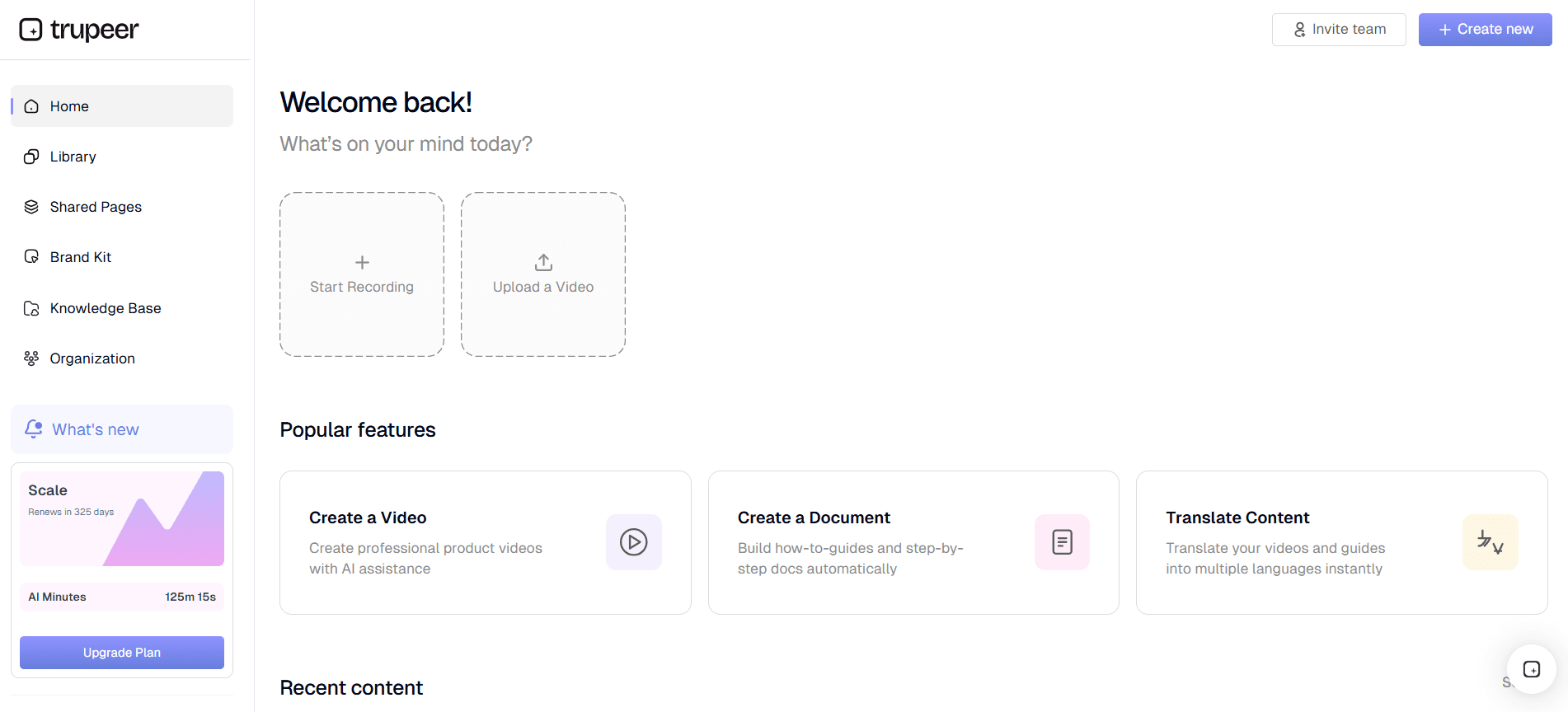
Begin met inloggen op je Trupeer-account en open het dashboard. Klik op de knop “Opnemen” en kies de optie “Stille schermopname”. Hiermee kun je je schermactiviteiten vastleggen zonder audio. Deze functie is beschikbaar in zowel de browsergebaseerde recorder als de desktopapp, zodat je kunt kiezen wat het beste bij je past. Zodra je deze optie hebt geselecteerd, geef je het deel van het scherm op dat je wilt opnemen. De interface van Trupeer begeleidt je door deze stappen, waardoor het eenvoudig is om een opnamesessie te starten die zich uitsluitend richt op de visuele aspecten.

Stap 2: Gebruik Auto-Zoom en klikdetectie
Zodra je met opnemen begint, activeert Trupeer's AI automatisch de functies auto-zoom en klikdetectie. Deze mogelijkheden verbeteren de ervaring van de kijker door tijdens de opname dynamisch te focussen op belangrijke acties en klikken. Je hoeft instellingen niet handmatig aan te passen; de AI verzorgt deze verbeteringen in realtime. Deze stap is cruciaal om kijkers betrokken te houden en ervoor te zorgen dat belangrijke interacties op het scherm worden uitgelicht, wat vooral nuttig is in tutorial- of demonstratievideo's waarin helderheid essentieel is.
Stap 3: Beëindig de opname en open het bestand
Zodra je alle benodigde schermactiviteiten hebt vastgelegd, klik je op “Stop” om de opname te beëindigen. Trupeer slaat de video automatisch op in je dashboard, waar je hem kunt bekijken. Deze directe toegang stelt je in staat de visuele kwaliteit te controleren voordat je verdergaat. Het opgeslagen bestand is in een formaat dat klaar is voor verdere verbetering of directe download, wat flexibiliteit biedt voor verschillende workflows. Als aanpassingen nodig zijn, kun je eenvoudig specifieke segmenten opnieuw opnemen zonder je zorgen te maken over audio-verschillen.
Stap 4: Voeg door AI gegenereerde narratie toe
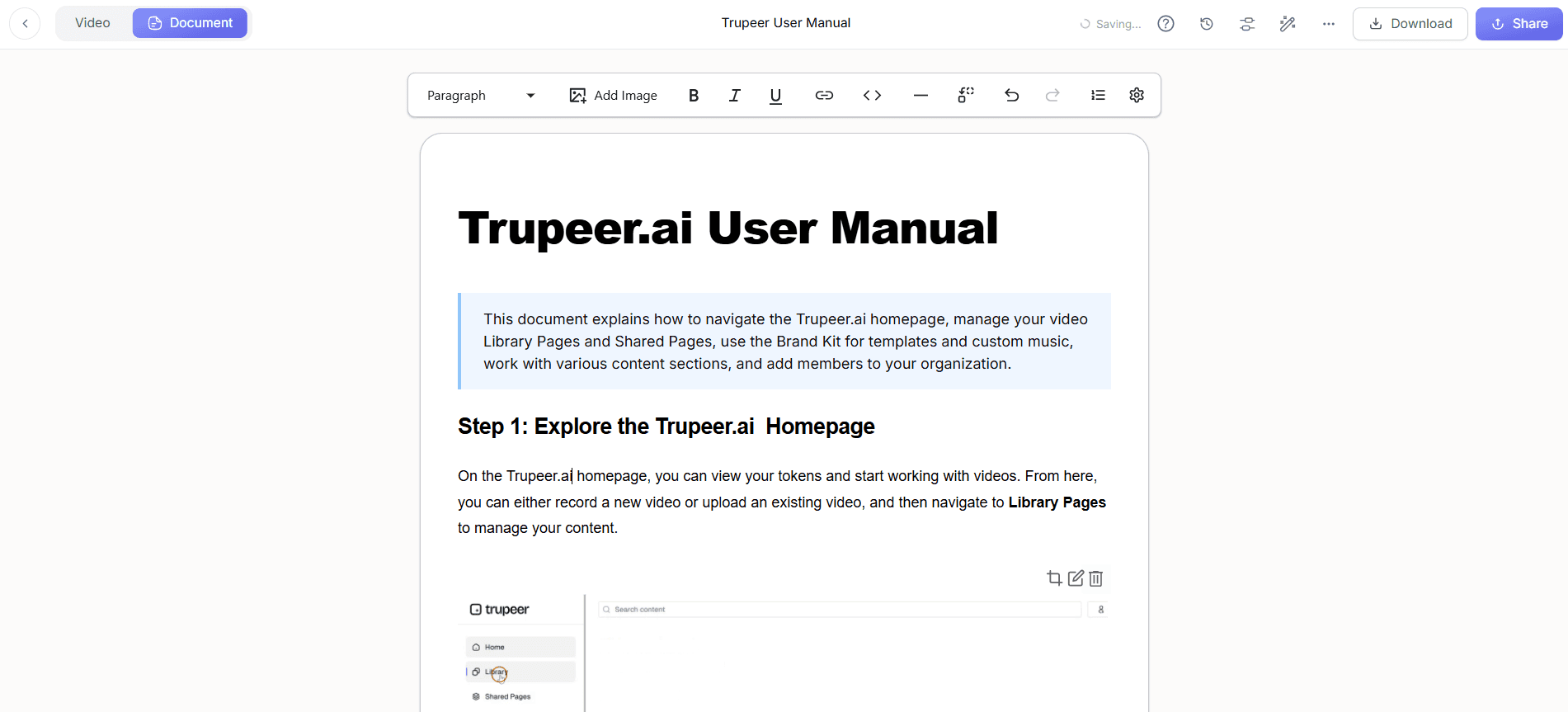
Nu je opname compleet is, klik je op de knop “Bewerken” naast je video op het dashboard. Selecteer “AI Voice-over” en blader door de bibliotheek van Trupeer met meer dan 65 natuurlijke stemmen. Kies een stem die het beste past bij de toon die je nastreeft. Je kunt het tempo en de toon aanpassen zodat ze aansluiten op je visuele content. Deze door AI gegenereerde narratie kan soepel worden toegevoegd zonder dat je aparte audiotracks hoeft op te nemen, wat je productieproces aanzienlijk vereenvoudigt. Het hele proces van het toevoegen en aanpassen van narratie is intuïtief en kost slechts een paar minuten.

Stap 5: Genereer SOP's automatisch
Gebruik Trupeer’s automatische SOP-generatiefunctie door “Genereer SOP” te selecteren op het dashboard. Deze tool zet je schermopname om in een gedetailleerd, stapsgewijs document. De SOP bevat screenshots en tekstuele beschrijvingen van belangrijke acties, waardoor het een onschatbare bron is voor training en onboarding. Deze functie bespaart je uren handmatig documentatiewerk en zorgt voor consistentie in je instructiemateriaal. De gegenereerde SOP's kunnen in verschillende formaten worden geëxporteerd, waaronder PDF en HTML, waardoor distributie en delen eenvoudig zijn. Teams die tools afwegen, beginnen vaak met een vergelijking van Loom-alternatieven voordat ze een workflow standaardiseren.
Stap 6: Deel en distribueer
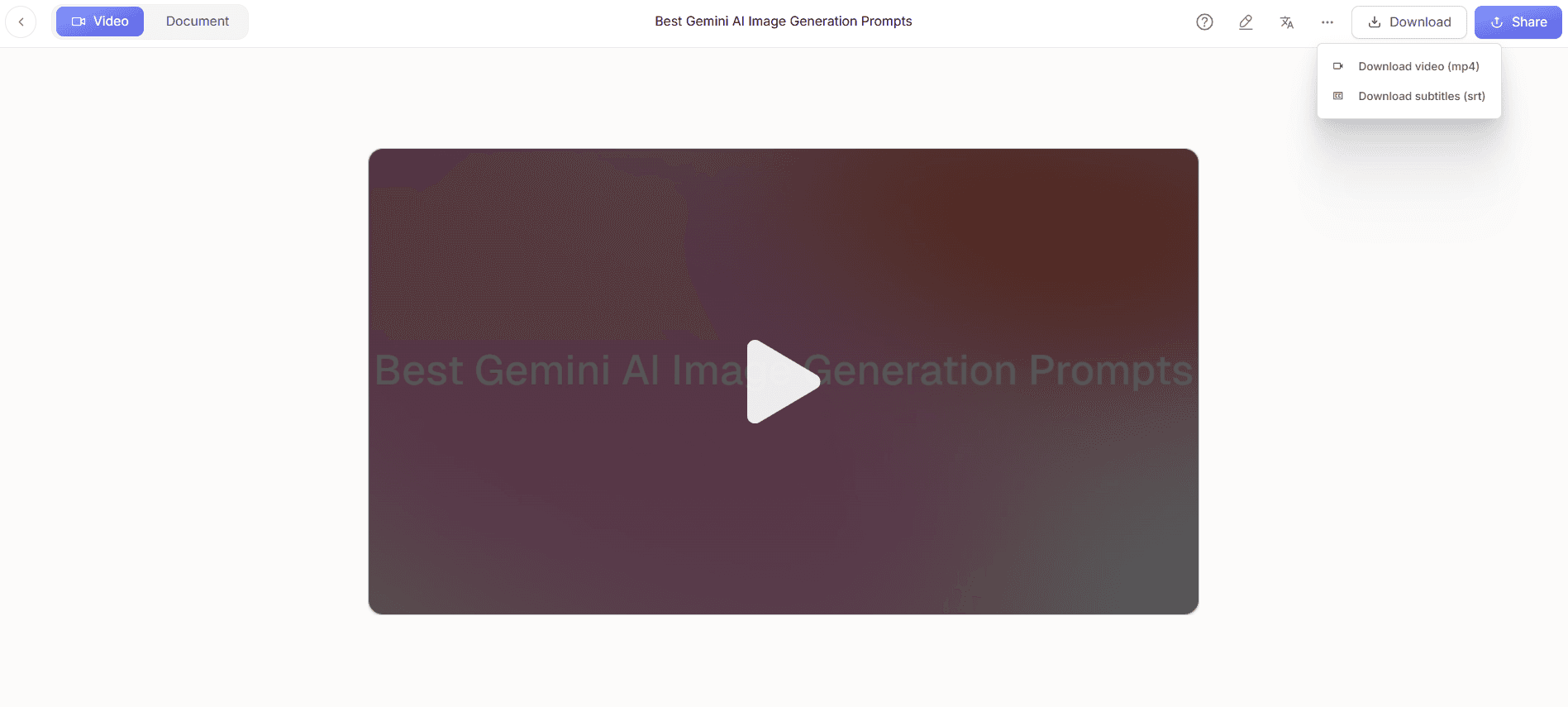
Zodra je video en bijbehorende documenten klaar zijn, is het tijd om ze te delen. Trupeer biedt verschillende distributieopties, waaronder directe deellinks, insluitwidgets op websites en hosting op aangepaste domeinen met single sign-on (SSO). Deze opties maken een soepele integratie in je bestaande systemen mogelijk. Ook kun je de betrokkenheid van kijkers analyseren via Trupeer's analyticsdashboard, dat inzicht geeft in hoe gebruikers met je content omgaan. Deze gegevens kunnen toekomstige presentaties sturen en helpen je aanpak te verfijnen voor maximale impact.
Welke tips helpen je bij het maken van audiovrije schermopnames?
Het maken van effectieve audio-vrije schermopnames vereist een combinatie van strategische planning en technische uitvoering. Hier zijn enkele praktische tips om je workflow en uitvoeringskwaliteit te verbeteren.
Plan je script. Schets je narratie voordat je opneemt, zelfs als die door AI wordt gegenereerd, zodat alles samenhangt en je geen belangrijke punten mist.
Kies de juiste AI-stem. Selecteer een stem die past bij de toon van je content voor een betere betrokkenheid van het publiek. Trupeer biedt meer dan 50 opties voor verschillende behoeften.
Gebruik Auto-Zoom. Schakel auto-zoom in om belangrijke acties uit te lichten, waardoor je opnames boeiender en makkelijker te volgen worden.
Focus op visuele helderheid. Zorg ervoor dat je scherm overzichtelijk is en logisch is geordend om verwarring bij kijkers te voorkomen en het begrip te verbeteren.
Gebruik SOP-generatie. Gebruik Trupeer’s SOP-functie om gedetailleerde handleidingen te maken op basis van je opnames, zodat je tijd bespaart op documentatie.
Test verschillende formaten. Experimenteer met verschillende exportformaten om te ontdekken wat het beste werkt voor de behoeften van je publiek en je distributiekanalen.
Houd betrokkenheid in de gaten. Gebruik analytics om te volgen hoe kijkers met je content omgaan, zodat je toekomstige presentaties kunt verfijnen voor betere resultaten. Vergelijk tools voor inzichten via vergelijking van Scribe-alternatieven.
Veelgestelde vragen
Hoe voeg ik AI-narratie toe aan een schermopname?
Om AI-narratie toe te voegen aan een schermopname met Trupeer, voltooi je eerst je stille schermopname. Open daarna de opname op je Trupeer-dashboard en selecteer “Bewerken”. Kies de optie “AI Voice-over” en blader door de beschikbare stemmen. Selecteer de meest geschikte en pas het tempo en de toon aan zodat ze aansluiten op je content. Deze functie stelt je in staat narratie soepel over de opname heen te leggen en zorgt ervoor dat je eindproduct gepolijst en professioneel is. De sterke AI-mogelijkheden van Trupeer vereenvoudigen dit proces, waardoor het zelfs toegankelijk is voor mensen die nieuw zijn met audiobewerking.
Wat maakt stille schermopname nuttig?
Stille schermopname is nuttig omdat het omgevingsgeluid elimineert, waardoor de focus ligt op hoogwaardige visuals en audioverbeteringen achteraf. Deze aanpak is ideaal voor omgevingen waar geluidsbeheersing lastig is of wanneer je content snel moet produceren zonder opnieuw op te nemen door audiofouten. Het biedt ook flexibiliteit bij het toevoegen en aanpassen van narratie aan verschillende behoeften van doelgroepen, waardoor het een veelzijdige tool is voor allerlei professionele settings zoals salesdemo's en educatieve tutorials.
Kan Trupeer audiovrije opnames vertalen naar andere talen?
Ja, Trupeer kan audiovrije opnames naar andere talen vertalen met zijn AI-vertaalmogelijkheden. Nadat je door AI gegenereerde narratie hebt toegevoegd, kun je de vertaalfunctie van Trupeer gebruiken om meertalige content te maken. Dit is vooral nuttig om diverse wereldwijde doelgroepen te bereiken en de toegankelijkheid te verbeteren. Het platform ondersteunt meer dan 40 talen, zodat je content effectief kan worden gecommuniceerd in verschillende regio's. Dit proces is vereenvoudigd, waardoor snel en efficiënt vertalen mogelijk is zonder dat voor elke taal aparte opnames nodig zijn.
Biedt Trupeer analytics voor audiovrije opnames?
Ja, Trupeer biedt uitgebreide analytics voor audiovrije opnames. Het analyticsdashboard biedt inzicht in de betrokkenheid van kijkers, inclusief heatmaps en uitvalpunten. Deze gegevens helpen je te begrijpen hoe je doelgroep met je content omgaat, zodat je toekomstige presentaties kunt verfijnen voor betere betrokkenheid en effectiviteit. Door deze inzichten te gebruiken, kun je verbeterpunten identificeren en je contentstrategie afstemmen op de specifieke behoeften van je doelgroep, waardoor de impact van je schermopnames maximaal wordt.
Is Trupeer geschikt voor het maken van educatieve content?
Trupeer is zeer geschikt voor het maken van educatieve content dankzij de sterke functieset, waaronder AI-videotranslatie en SOP-generatie. Deze tools vergemakkelijken het maken van instructiemateriaal van hoge kwaliteit met minimale inspanning. Docenten kunnen duidelijke en boeiende video's produceren zonder zich zorgen te maken over achtergrondgeluid, en de mogelijkheid om door AI gegenereerde narratie toe te voegen zorgt ervoor dat de content zowel toegankelijk als professioneel is. Ook helpen de analytics van het platform docenten de effectiviteit van hun materiaal te beoordelen, wat waardevolle feedback oplevert voor voortdurende verbetering.
Gerelateerde blogs


