Trupeer Blog
Ringkas

Bayangkan Anda menjalankan tim yang melek teknologi dan terus mencari cara untuk meningkatkan efisiensi serta komunikasi. Anda memiliki perpustakaan video demo dan dokumentasi yang terus bertambah setiap hari. Namun, bagaimana cara memastikan kekayaan informasi ini mudah diakses oleh semua orang yang membutuhkannya? Menghubungkan perpustakaan demo Trupeer Anda ke Claude Desktop menggunakan MCP (Multi-Channel Platform) adalah langkah besar. Ini memungkinkan tim Anda untuk menanyakan konten video secara langsung, menyederhanakan proses, serta meningkatkan berbagi pengetahuan. Bahkan, tim yang mengintegrasikan perpustakaan video dengan platform AI mengalami peningkatan produktivitas hingga 30%.
Trupeer menawarkan rangkaian alat berbasis AI yang membuat pembuatan dan pengelolaan video menjadi lancar. Alat-alat ini tidak hanya meningkatkan kualitas video Anda, tetapi juga memudahkan untuk ditemukan dan digunakan. Dengan menghubungkan Trupeer ke Claude Desktop, Anda dapat memanfaatkan kemampuan ini untuk meningkatkan kinerja tim Anda. Baik Anda bertanggung jawab atas pelatihan, dukungan, atau pengembangan produk, integrasi ini dapat membuat perbedaan besar dalam cara tim Anda beroperasi secara efektif. Untuk informasi lebih lanjut tentang AI video editing dan bagaimana hal itu dapat meningkatkan operasional Anda, lanjutkan membaca.
Mengapa menghubungkan Trupeer ke Claude Desktop menggunakan MCP itu penting?
Dalam lanskap bisnis, akses cepat dan andal terhadap informasi sangatlah penting. Bagi tim yang sangat bergantung pada konten video, kemampuan untuk mencari dan menggunakan materi ini secara efektif dapat menghasilkan penghematan waktu yang signifikan. Dengan menghubungkan Trupeer ke Claude Desktop melalui MCP, Anda membuat repositori terpusat tempat tim Anda dapat langsung mengakses konten video apa pun yang mereka perlukan. Ini sangat penting bagi tim customer support yang perlu menyelesaikan masalah dengan cepat dan efisien. Ketika kepuasan pelanggan dipertaruhkan, setiap detik sangat berarti.
Selain itu, mengintegrasikan konten video ke dalam alur kerja Anda dapat meningkatkan proses pelatihan dan onboarding. Karyawan baru dapat mengakses beragam informasi langsung dari desktop mereka, sehingga mengurangi kurva pembelajaran dan mempercepat proses onboarding. Ini bukan hanya soal menghemat waktu, tetapi juga memastikan setiap anggota tim memiliki sumber daya yang dibutuhkan untuk menjalankan perannya secara efektif. Di era ketika adopsi AI menjadi hal yang umum, integrasi seperti ini dapat memberi organisasi Anda keunggulan kompetitif. Untuk wawasan lebih lanjut tentang AI adoption use case, pertimbangkan implikasi yang lebih luas bagi industri Anda.
Apa manfaat menghubungkan Trupeer ke Claude Desktop menggunakan MCP?
Menghubungkan Trupeer ke Claude Desktop menggunakan MCP menawarkan beberapa manfaat utama yang dapat mengubah cara tim Anda mengakses dan menggunakan konten video.
Aksesibilitas yang Ditingkatkan. Dengan akses langsung melalui Claude Desktop, tim Anda dapat dengan cepat menemukan dan mengambil konten video apa pun yang mereka butuhkan, menghemat waktu serta meningkatkan efisiensi.
Berbagi Pengetahuan yang Lebih Baik. Integrasi ini memungkinkan distribusi informasi yang lancar, sehingga lebih mudah bagi anggota tim untuk berbagi wawasan dan strategi yang diturunkan dari konten video.
Alur Kerja yang Disederhanakan. Dengan konten video yang tersedia dengan mudah, tim dapat menyederhanakan alur kerja mereka, mengurangi waktu yang dihabiskan untuk mencari sumber daya dan meningkatkan produktivitas. Misalnya, video prospecting menjadi lebih efisien dengan pengambilan data yang lebih cepat.
Waktu Onboarding yang Lebih Singkat. Karyawan baru dapat mengakses perpustakaan video pelatihan langsung dari desktop mereka, sehingga mereka bisa lebih cepat siap dan dengan pengawasan yang lebih minim.
Manajemen Konten yang Terpusat. Semua konten video Anda disimpan dalam satu platform, sehingga memudahkan pengelolaan dan mengurangi risiko sumber daya yang sudah usang atau tersesat. Ini sangat bermanfaat bagi mereka yang menggunakan AI video platform untuk mengelola konten.
Keterlibatan yang Meningkat. Tim lebih cenderung berinteraksi dengan konten video ketika konten tersebut mudah diakses, sehingga menghasilkan retensi informasi yang lebih baik serta rapat dan presentasi yang lebih dinamis.
Fitur Trupeer apa yang membantu Anda terhubung ke Claude Desktop menggunakan MCP?
Rangkaian fitur Trupeer yang solid membuatnya sangat cocok untuk diintegrasikan dengan Claude Desktop melalui MCP. Berikut adalah beberapa kemampuan yang memfasilitasi koneksi ini.
AI Screen Recording dengan Auto-Zoom dan Click Detection
Fitur ini memastikan setiap tindakan penting di layar Anda terekam dengan jelas dan ringkas. Fungsi auto-zoom menyoroti area kunci, sementara click detection memastikan tidak ada detail penting yang terlewat. Ketelitian seperti ini sangat penting saat membuat konten untuk kebutuhan pelatihan atau dukungan, karena memastikan penonton memahami tindakan yang sedang didemonstrasikan. Kemampuan ini merupakan bagian penting dari membuat perpustakaan video Anda dapat dicari oleh AI, karena memungkinkan penandaan metadata dan pengindeksan yang lebih detail.
Silent Screen Recording dengan Automatic AI Narration
Terkadang, cara terbaik untuk merekam tutorial adalah tanpa gangguan kebisingan latar. Fitur silent screen recording Trupeer, yang dipadukan dengan automatic AI narration, memungkinkan Anda membuat video yang jelas dan fokus. Dengan lebih dari 65+ suara alami yang tersedia, Anda dapat memilih nada dan tempo yang paling sesuai dengan suara merek Anda. Fitur ini sangat berguna untuk membuat materi pelatihan yang distandarkan, memastikan semua konten disajikan dengan cara yang konsisten dan profesional. Untuk pengeditan yang lebih lanjut, ai/tools/video-trimmer">video trimmer tool untuk menyempurnakan konten Anda.
Automatic SOP Generation dari Any Recording
Standard Operating Procedures (SOPs) sangat penting untuk menjaga konsistensi di seluruh organisasi Anda. Dengan Trupeer, Anda dapat secara otomatis menghasilkan SOP dari rekaman video apa pun. Ini tidak hanya menghemat waktu, tetapi juga memastikan prosedur Anda selalu up-to-date. Format yang dapat diekspor, termasuk HTML dan PDF, memudahkan Anda membagikan dokumen ini ke seluruh tim. Fitur ini merupakan komponen utama dari AI documentation platform kami, yang menyederhanakan pembuatan dan distribusi sumber daya penting.
AI Dubbing untuk Audiens Non-Bahasa Inggris
Fitur AI dubbing Trupeer memungkinkan Anda menerjemahkan dan menyulihsuarakan konten video Anda ke lebih dari 40 bahasa. Ini sangat berharga bagi organisasi yang memiliki jangkauan global, karena memungkinkan Anda menjangkau audiens yang lebih luas tanpa perlu upaya produksi video terpisah. Teknologi lip-sync memastikan audio dubbing sesuai dengan gerakan pembicara, sehingga memberikan pengalaman menonton yang lancar. Fitur ini merupakan bagian dari komitmen kami untuk membuat konten video dapat diakses oleh audiens di seluruh dunia.
AI-Searchable Knowledge Base dengan Timestamp Deep-Links
Trupeer's AI-searchable knowledge base mengubah cara tim Anda berinteraksi dengan konten video. Dengan mengindeks setiap rekaman menggunakan deep link tingkat timestamp, pengguna dapat langsung melompat ke bagian tertentu dari sebuah video. Fitur ini secara drastis mengurangi waktu yang dihabiskan untuk mencari informasi, sehingga anggota tim dapat fokus pada hal yang benar-benar penting dan menerapkan pengetahuan tersebut secara efektif. Kemampuan untuk membuat video knowledge base memastikan tim Anda selalu memiliki akses ke konten yang paling relevan, tepat saat mereka membutuhkannya.
Bagaimana cara menghubungkan Trupeer ke Claude Desktop menggunakan MCP langkah demi langkah?
Langkah 1: Siapkan Konten Anda
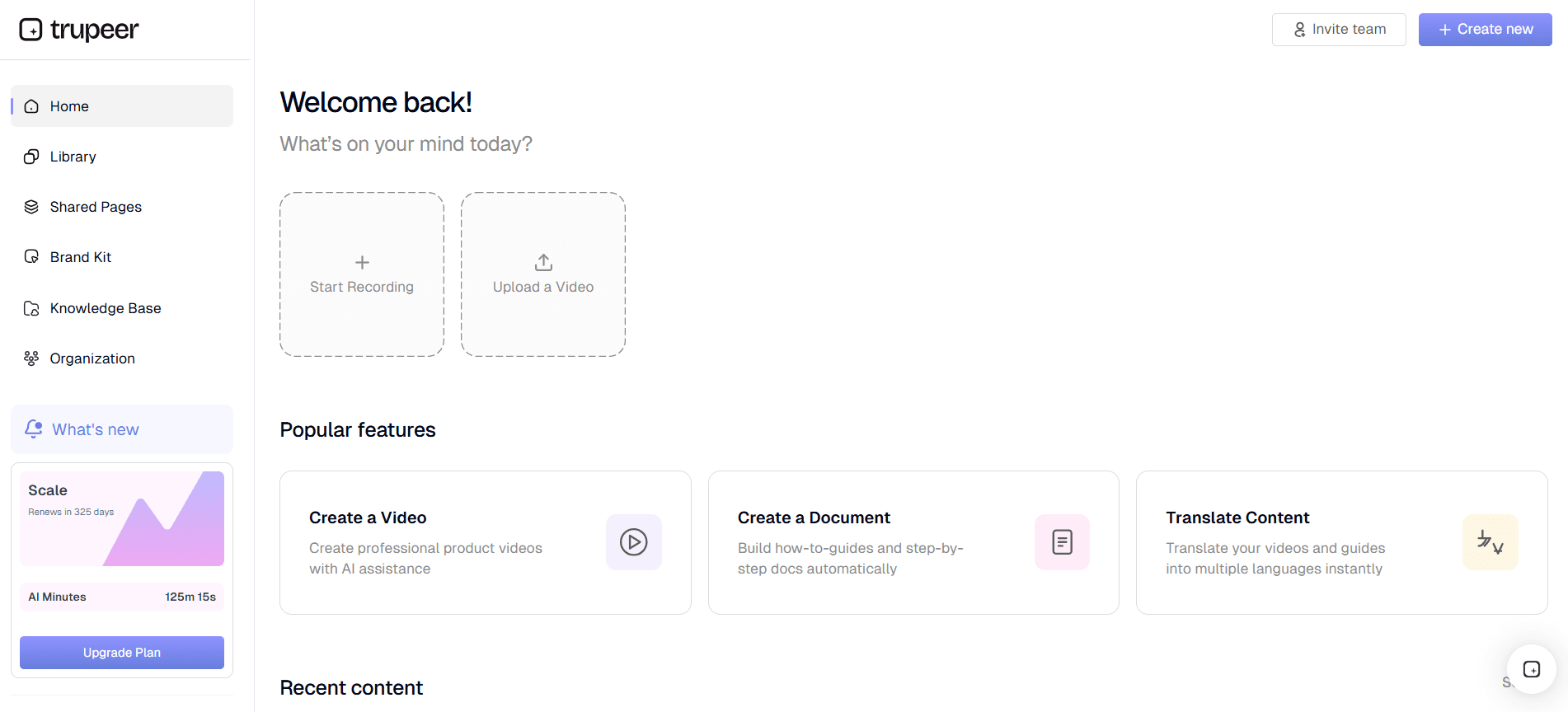
Sebelum Anda dapat menghubungkan Trupeer ke Claude Desktop menggunakan MCP, Anda perlu memastikan konten video Anda terorganisasi dan diberi tag dengan benar. Gunakan AI screen recording Trupeer dengan auto-zoom dan click detection untuk menangkap video berkualitas tinggi yang menyoroti tindakan dan detail penting. Mulailah dengan menjalankan aplikasi desktop Trupeer. Pilih fitur screen recording dan atur auto-zoom agar elemen penting lebih ditonjolkan. Setelah direkam, gunakan click detection untuk memberi tag pada interaksi di dalam video. Proses ini biasanya memakan waktu beberapa menit per video, tergantung durasi dan kompleksitas, tetapi memastikan konten Anda menarik sekaligus informatif.
Langkah 2: Edit dan Tingkatkan Video
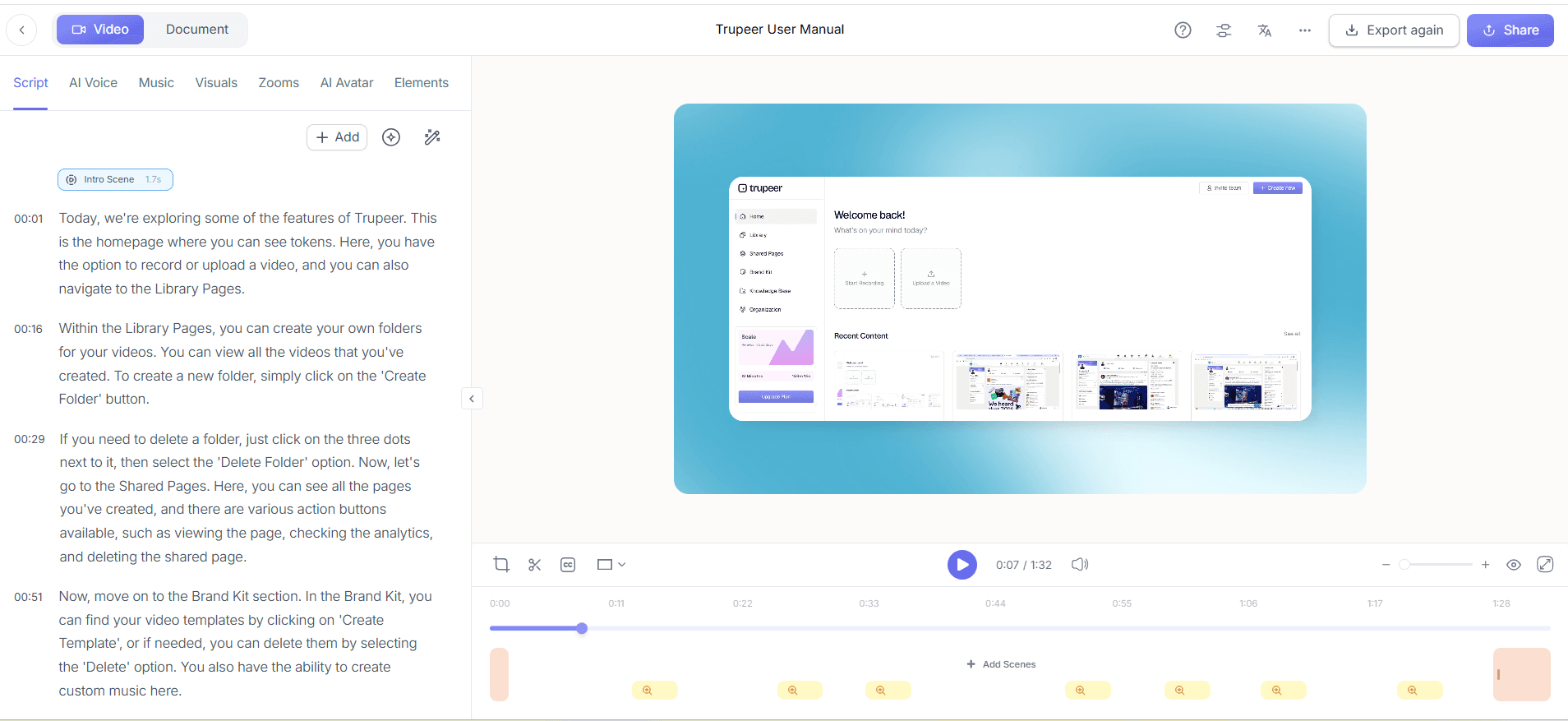
Setelah perekaman, saatnya meningkatkan video Anda menggunakan kemampuan pengeditan Trupeer. Buka video di editor Trupeer dan gunakan fitur automatic filler-word removal untuk membersihkan konten, menghapus suara seperti "um" atau "ah". Lalu, terapkan AI voiceover pada salah satu dari 50+ suara alami yang tersedia untuk memberikan narasi yang jelas. Sesuaikan tempo dan nada agar sesuai dengan preferensi audiens Anda. Langkah ini penting untuk menjaga minat penonton dan dapat memakan waktu sekitar 10-15 menit per video, tergantung pilihan pengeditan Anda dan panjang video. Saat SOP dibahas dalam percakapan yang sama, Scribe alternatives comparison membantu memperjelas cakupannya.
Langkah 3: Buat Dokumentasi Pendukung
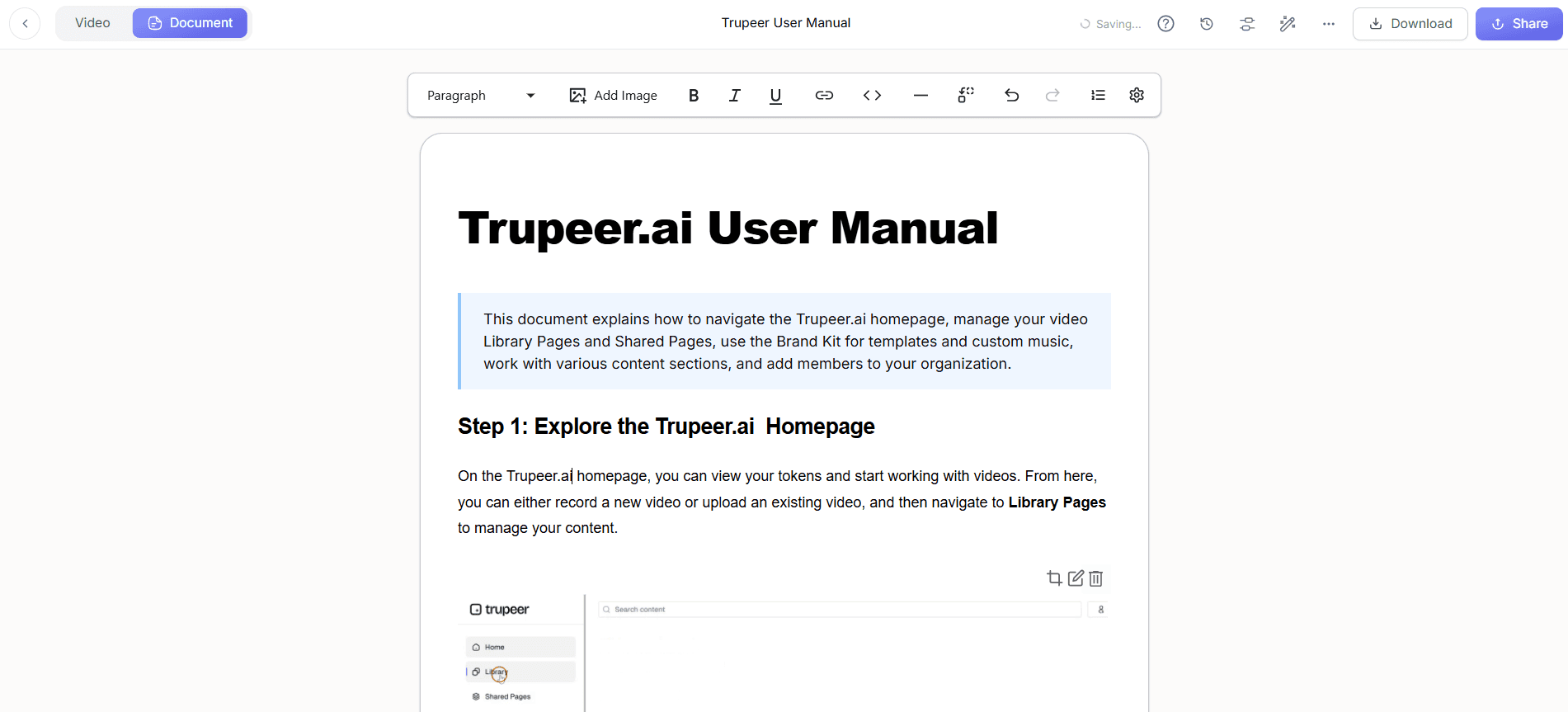
Dengan konten video Anda siap, langkah berikutnya adalah membuat dokumentasi pendukung. Gunakan fitur automatic SOP generation Trupeer untuk membuat panduan terperinci dari rekaman Anda. Cukup pilih video di dashboard Trupeer dan pilih opsi pembuatan SOP. Sistem akan menghasilkan dokumen yang siap diedit yang dapat Anda ekspor dalam berbagai format, seperti PDF atau HTML. Dokumen ini terhubung langsung ke videonya, sehingga setiap pembaruan pada video akan otomatis tercermin dalam dokumentasi. Proses ini umumnya hanya memakan waktu beberapa menit, sehingga memberikan waktu penyelesaian yang cepat untuk pembuatan konten.
Langkah 4: Terjemahkan dan Lokalisasi Konten
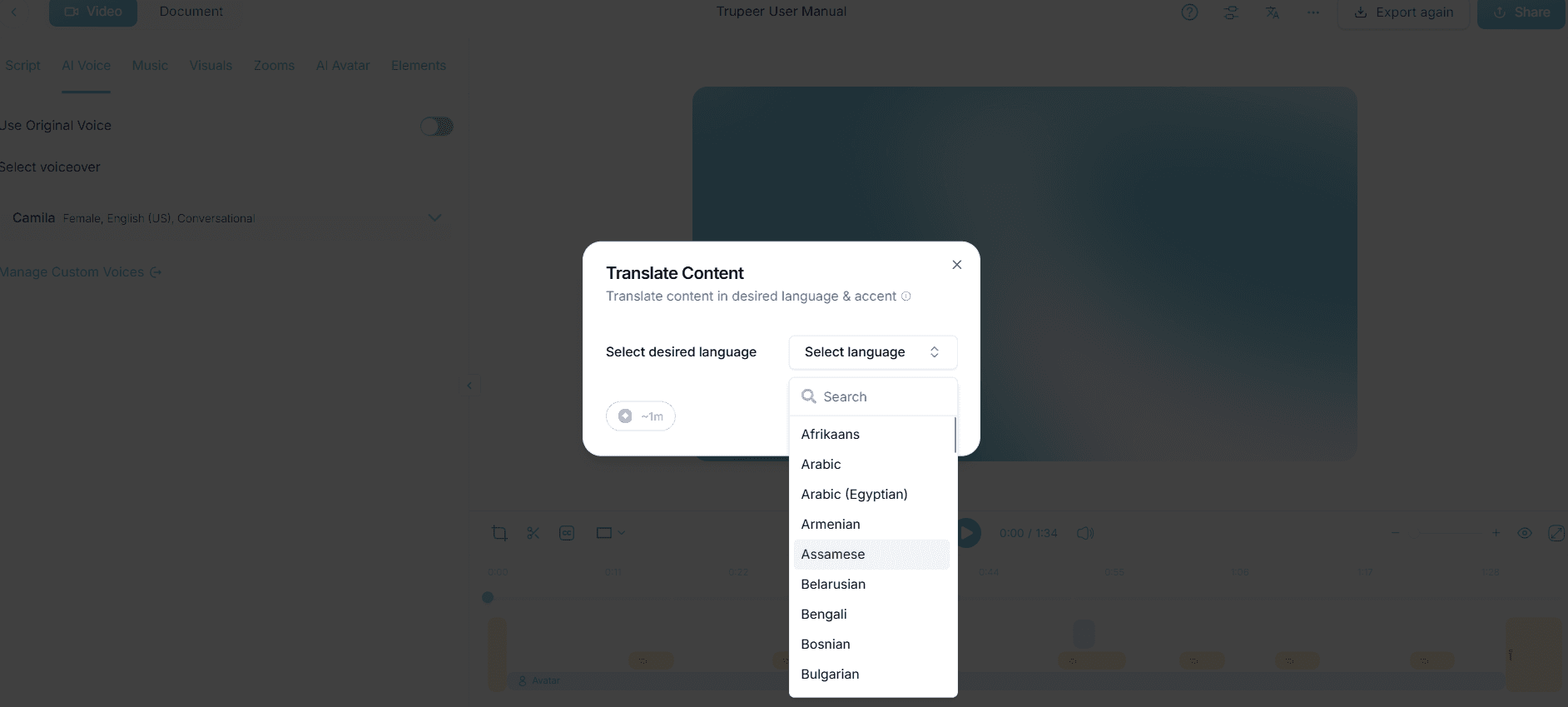
Untuk tim global, menerjemahkan dan melokalisasi konten video adalah hal yang penting. Gunakan fitur AI translation dan dubbing Trupeer untuk mengubah video Anda menjadi lebih dari 40 bahasa. Pilih opsi terjemahan di pengaturan video, tentukan bahasa target, lalu biarkan Trupeer menangani sisanya. AI memastikan lip-sync dan dubbing yang akurat, sehingga konten yang diterjemahkan terasa alami dan profesional. Bergantung pada durasi video, langkah ini dapat memakan waktu 20-30 menit, tetapi secara signifikan memperluas jangkauan audiens Anda dan memastikan inklusivitas.
Langkah 5: Integrasikan dengan Claude Desktop
Sekarang, Anda siap untuk terhubung dengan Claude Desktop menggunakan MCP. Pertama, buka pengaturan integrasi MCP di Trupeer. Pilih Claude Desktop sebagai target integrasi Anda dan ikuti petunjuk di layar untuk menautkan akun Anda. Integrasi ini memungkinkan Claude Desktop menanyakan perpustakaan video Trupeer Anda secara langsung, menggunakan AI untuk mencari konten tertentu di dalam video. Langkah ini memakan waktu sekitar 15 menit, tergantung kecepatan jaringan dan konfigurasi sistem Anda. Setelah terhubung, tim Anda dapat menggunakan Claude Desktop untuk mengakses dan berinteraksi dengan konten video dengan lancar.
Langkah 6: Pantau dan Optimalkan Penggunaan
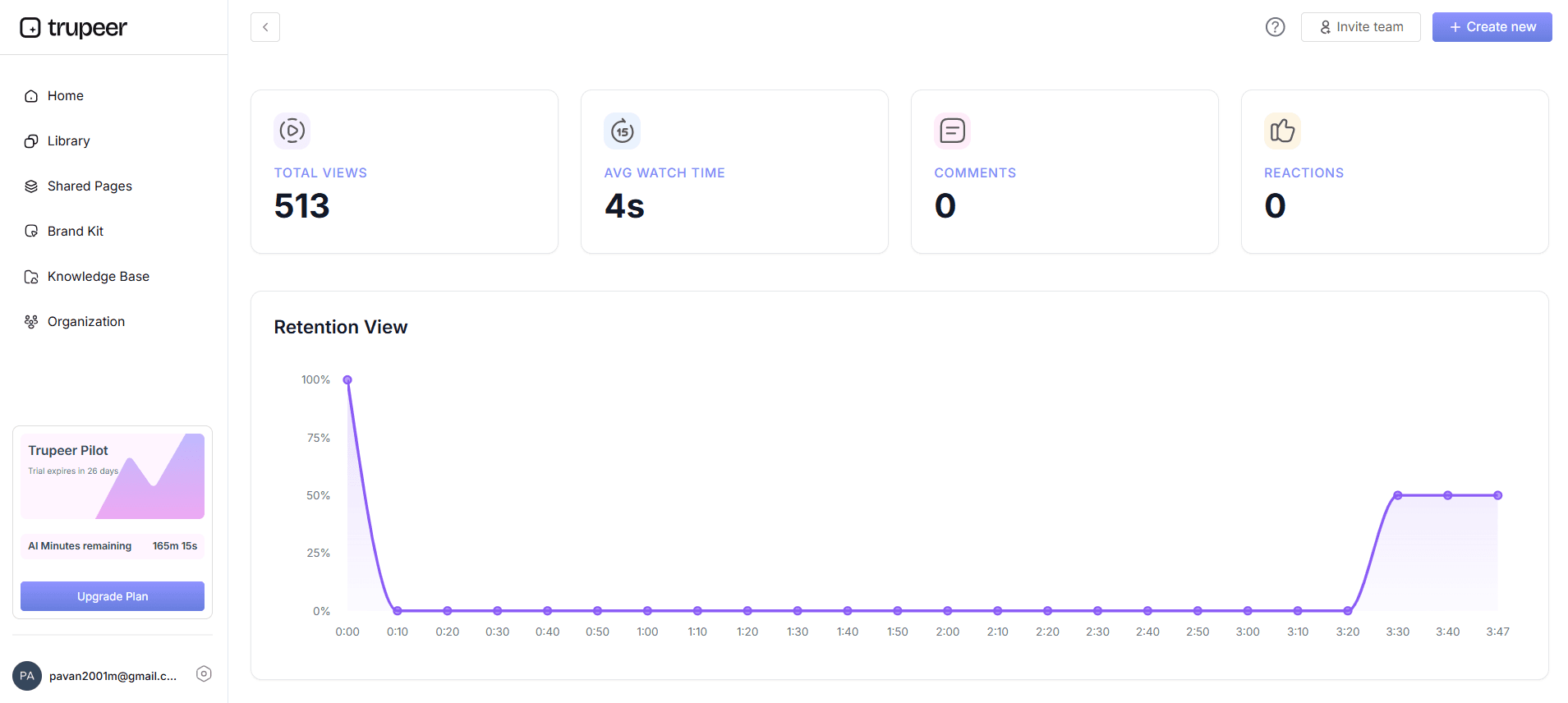
Setelah integrasi, penting untuk memantau bagaimana tim Anda menggunakan konten video. Gunakan viewer engagement analytics Trupeer untuk melacak video mana yang paling populer dan di bagian mana pengguna cenderung berhenti. Akses analitik ini dari dashboard Trupeer, tempat Anda dapat melihat heatmaps dan engagement graphs. Data ini membantu Anda mengidentifikasi area yang perlu ditingkatkan dan mengoptimalkan konten agar keterlibatan lebih baik. Pemantauan rutin, idealnya mingguan atau dua mingguan, memastikan konten Anda tetap relevan dan efektif, memberikan nilai maksimal bagi tim Anda.
Tips apa yang membantu Anda menghubungkan Trupeer ke Claude Desktop menggunakan MCP?
Menghubungkan Trupeer ke Claude Desktop menggunakan MCP dapat menjadi strategi yang sangat efektif untuk mengelola konten video, tetapi ada beberapa praktik terbaik yang perlu diikuti agar berhasil. Berikut tujuh tips praktis untuk membantu Anda memaksimalkan integrasi ini.
Standarkan Rekaman Anda. Gunakan pengaturan yang konsisten untuk screen recording, seperti resolusi dan kualitas audio, untuk menjaga keseragaman di seluruh perpustakaan video Anda. video tutorial tool membantu menstandarkan elemen-elemen ini.
Gunakan AI Narration dengan Bijak. Pilih suara yang sesuai dengan nada merek Anda dan sesuaikan tempo agar penonton tetap terlibat tanpa merasa kewalahan.
gunakan Fitur AI Translation. Pertimbangkan nuansa budaya saat menerjemahkan konten, memastikan materi yang diterjemahkan terasa relevan bagi audiens target.
Tinjau Analitik Secara Berkala. Periksa viewer engagement analytics untuk mengidentifikasi video mana yang berkinerja baik dan mana yang perlu ditingkatkan. Sesuaikan konten berdasarkan wawasan ini.
Optimalkan agar Mudah Dicari. Beri tag pada video dan dokumentasi secara menyeluruh untuk meningkatkan kemampuan pencarian di dalam Claude Desktop. Ini dapat secara drastis mengurangi waktu yang dihabiskan untuk menemukan konten yang tepat.
gunakan Branded Templates. Terapkan brand kits dan template untuk memastikan semua video mengikuti pedoman visual perusahaan Anda, sehingga langsung dikenali dan terlihat profesional.
Pertimbangkan Alternatif. Jika Anda sedang mengeksplorasi opsi lain, tinjau Loom alternative comparison untuk melihat bagaimana Trupeer menonjol pada fitur tertentu.
Pertanyaan yang sering diajukan
Bagaimana cara mulai menggunakan MCP dengan Trupeer dan Claude Desktop?
Mulailah dengan memastikan akun Trupeer dan Claude Desktop sama-sama aktif. Buka pengaturan integrasi di Trupeer dan pilih MCP sebagai jenis integrasi Anda. Ikuti petunjuk untuk menghubungkan ke Claude Desktop, pastikan semua izin diberikan. Penyiapan ini memakan waktu sekitar 15 menit. Setelah terhubung, Anda dapat dengan mudah menanyakan perpustakaan video Trupeer Anda dari Claude Desktop, sehingga mempermudah akses ke informasi penting. Pastikan konten Anda diberi tag dan diorganisasi dengan benar untuk memaksimalkan manfaat integrasi.
Apa yang terjadi jika ada masalah dengan integrasi?
Jika Anda mengalami masalah, pertama periksa koneksi jaringan Anda, karena sebagian besar masalah berasal dari gangguan konektivitas. Pastikan Trupeer dan Claude Desktop sama-sama sudah diperbarui ke versi terbaru. Jika masalah berlanjut, konsultasikan panduan troubleshooting di bagian bantuan Trupeer. Masalah yang terus-menerus mungkin memerlukan dukungan, jadi jangan ragu untuk menghubungi tim customer service Trupeer. Mereka dapat membantu Anda menyelesaikan masalah integrasi dengan cepat, sekaligus meminimalkan gangguan pada alur kerja Anda.
Bisakah saya menyesuaikan suara AI pada rekaman Trupeer?
Ya, Trupeer memungkinkan Anda menyesuaikan AI voiceover secara ekstensif. Anda dapat memilih dari 65+ suara alami, lalu menyesuaikan pitch dan tempo agar sesuai dengan gaya merek Anda. Fitur ini tersedia selama fase pengeditan video, saat Anda memilih pengaturan AI voiceover. Menyesuaikan suara memastikan konten Anda tidak hanya terdengar profesional, tetapi juga konsisten dengan identitas merek Anda, sehingga meningkatkan keterlibatan dan kepuasan penonton secara keseluruhan.
Apakah Trupeer mendukung integrasi multibahasa?
Tentu, Trupeer mendukung integrasi multibahasa, menawarkan AI translation dan dubbing dalam lebih dari 40 bahasa. Fungsionalitas ini ideal untuk tim global atau bagi Anda yang ingin memperluas ke pasar baru. AI memastikan terjemahan yang akurat dan lip-sync, sehingga konten Anda dapat diakses dan terasa relevan bagi audiens yang lebih luas. ai/translation">AI video translation capabilities dan lihat bagaimana hal itu dapat membantu organisasi Anda.
Apakah memungkinkan untuk melacak keterlibatan video melalui Claude Desktop?
Ya, Anda dapat melacak keterlibatan video bahkan saat konten diakses melalui Claude Desktop. Trupeer menyediakan analitik terperinci, termasuk viewer engagement, drop-off points, dan heatmaps. Wawasan ini tersedia di dashboard Trupeer dan dapat diakses bersama perpustakaan video Anda. Memantau metrik ini sangat penting untuk mengoptimalkan konten dan memastikan konten tersebut memenuhi kebutuhan tim Anda. Tinjau analitik ini secara berkala untuk menyempurnakan strategi dan memaksimalkan dampak konten video Anda.
Perlukah Anda membangun ulang SOP Anda di sekitar AI agents dan MCP?
Anda tidak perlu membuang panduan Anda; Anda hanya perlu menyusunnya agar terstruktur dan mudah diakses sehingga AI dapat menggunakannya. Trupeer, salah satu MCP integration, menghasilkan panduan terstruktur dari rekaman yang benar-benar dapat digunakan oleh agen.


