Trupeer Blog

Imagine you're tasked with rolling out a new ERP system across multiple departments in your company. Live training sessions could be a logistical nightmare, with schedules to coordinate and the challenge of keeping remote employees engaged. Yet, effective training is non-negotiable to ensure that everyone can use the ERP's capabilities fully. The stakes are high: a poorly executed ERP training can lead to significant operational inefficiencies, costing the company both time and money. According to recent industry reports,
companies can lose up to 20% of their potential ROI on ERP systems due to inadequate training.
To address these challenges, many organizations are turning to screen recording as a way to scale training efforts without live sessions. It's a practical solution for disseminating information efficiently, and it's especially beneficial for companies with distributed teams or high turnover rates. For those exploring the best screen recording software, this strategy offers a way to create consistent, accessible, and reusable training materials that can be tailored to specific needs.
Why does ERP training without live sessions matter?
Implementing an ERP system is a significant investment, and the success of this investment hinges largely on how well employees use the system. Traditional live training sessions can be resource-intensive, requiring considerable time and effort from trainers and employees alike. also, these sessions often fail to accommodate varying learning paces and styles. By relying on screen recording, companies can address these challenges head-on. Screen recording enables the creation of standardized training content that can be accessed anytime, anywhere, allowing employees to learn at their own pace. This flexibility is crucial for onboarding new employees or retraining staff after updates to the ERP system. Not only does this approach save time, but it also ensures that the content delivered is consistent, reducing the risk of miscommunication or incomplete training. Screen recordings can capture complex workflows in action, offering a visual guide that can be more effective than written instructions.
Another critical factor in choosing screen recording over live sessions is the ability to reach a wider audience without the logistical constraints of scheduling. In a global organization, different time zones can make live sessions impractical. Screen recordings eliminate this barrier, enabling consistent training across geographies. also, training videos offer a repeatable resource that employees can revisit as needed, reinforcing learning and aiding retention. This method also reduces the burden on trainers, who can focus on creating high-quality content that serves multiple purposes. In essence, screen recording for ERP training provides a scalable and efficient solution to a complex problem, ensuring that all employees receive the same quality of training regardless of their location or schedule.
What are the benefits of ERP training without live sessions?
Transitioning to screen-recorded ERP training offers several distinct advantages. Each one contributes to a more efficient, effective, and scalable training process.
Scalability. Screen recordings allow you to train an unlimited number of employees without the logistical challenges of coordinating live sessions. This is particularly beneficial for large organizations or those with distributed teams.
Consistency. Recorded sessions ensure that every employee receives the same training, eliminating discrepancies that can occur with different trainers. This consistency is crucial for maintaining standards and ensuring everyone is on the same page.
Flexibility. Employees can access training materials at their convenience, allowing them to learn at their own pace. This is especially useful for accommodating different learning styles and schedules.
Cost-effectiveness. By reducing the need for live sessions, companies can save on travel and accommodation costs for trainers and participants. The best screen recording softwares can further minimize costs by automating parts of the training process.
Enhanced engagement. Visual and interactive content can be more engaging than traditional training methods. Using an AI video platform can help you create dynamic content that captures attention and improves information retention.
Reusability. Once created, screen recordings can be used repeatedly for future training sessions, making them a long-term asset for employee onboarding and continuous learning.
Which Trupeer features help you conduct ERP training without live sessions?
Trupeer offers a suite of features tailored to simplify ERP training through screen recording. These tools are designed to enhance the training process, making it more efficient and accessible.
AI screen recording with auto-zoom and click detection
This feature simplifies the process of capturing detailed ERP workflows by automatically zooming in on critical actions and detecting mouse clicks. This ensures that viewers can clearly see each step of the process without manual adjustments. It's particularly useful for demonstrating complex tasks within the ERP system. The automatic zoom feature highlights the most relevant parts of the screen, making it easier for employees to follow along and understand the workflow. This capability is essential for creating engaging and informative training materials that are easy to navigate.
Silent screen recording with automatic AI narration
Trupeer's silent screen recording capability allows for distraction-free video capture, while the automatic AI narration provides clear and concise explanations of each step. This dual capability ensures that the focus remains on the task at hand, with the narration enhancing understanding without overwhelming the viewer. This feature is particularly beneficial when creating training content for complex ERP processes, as it provides a smooth and professional audio-visual experience.
Browser-based recorder (no install) and desktop app
Trupeer offers both a browser-based recorder and a desktop app, providing flexibility in how you capture screen recordings. The browser-based option is ideal for quick recording sessions without the need for software installation, while the desktop app offers more solid features for comprehensive training modules. This flexibility ensures that you can choose the best method for your needs, whether you're creating a quick tutorial or an in-depth training session.
Automatic filler-word removal
This feature simplifies the editing process by automatically removing filler words such as "um" and "ah," as well as long pauses. This ensures that the final product is polished and professional, without the need for extensive manual editing. By eliminating these distractions, your training videos remain focused and engaging, improving information retention and viewer experience.
AI voiceover in 65+ natural voices
With Trupeer's AI voiceover capability, you can choose from over 65+ natural voices to narrate your training videos. This feature allows you to match the tone and style of your content to your audience, enhancing engagement and comprehension. The adjustable pace and tone options ensure that the narration complements the visual content, making it easier for viewers to follow along. This capability is especially useful for creating localized training materials that resonate with diverse audiences.
How do you use screen recording to train employees on ERP without live sessions step by step with Trupeer?
Step 1: Initiate Recording
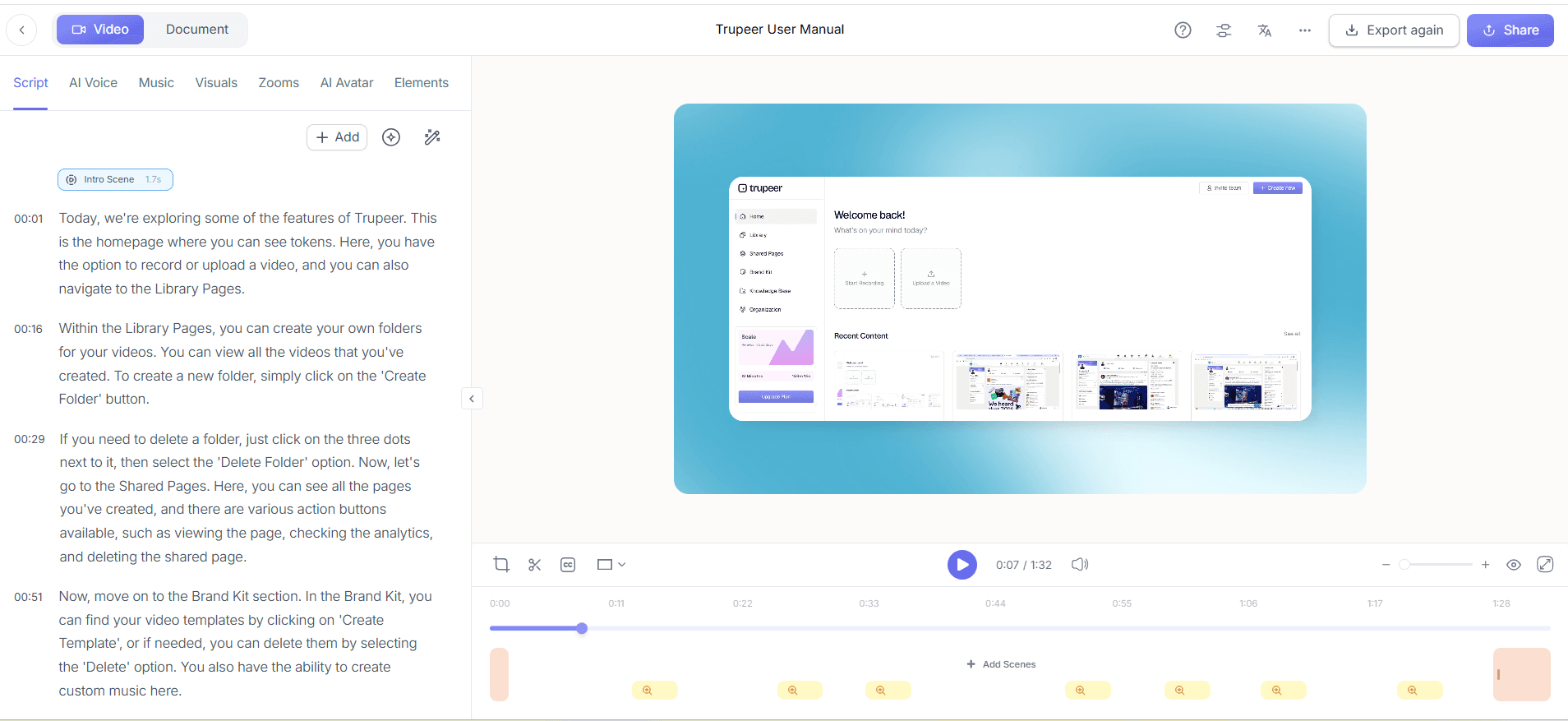
Start by accessing Trupeer's browser-based recorder, which requires no installation and is perfect for quick setups. Log into your Trupeer account, navigate to the screen recording section, and click on the "Start Recording" button. This will launch the recording interface. use the AI screen recording with auto-zoom and click detection to capture detailed ERP workflows. The system will automatically focus on areas of interest, like clicks or data entries, ensuring clarity. Expect the recording setup to take less than five minutes. If you're capturing a process with many details, plan your script to ensure you highlight every necessary step.

Step 2: Add AI Narration
After recording, enhance your video with Trupeer's silent screen recording with automatic AI narration. Select the "Add Narration" option in the editing menu. Trupeer offers over 65+ natural voice options to suit your brand's tone. Choose your preferred voice and adjust the pace and tone to match the content's complexity. The AI will analyze your video and automatically generate a narration script, which you can review and edit if necessary. This process typically takes 10 to 15 minutes, depending on video length. AI narration ensures a professional touch, especially for multilingual audiences.

Step 3: Edit and Polish
Next, use Trupeer's automatic filler-word removal to simplify your video. Access the editing tools and select "Filler-Word Removal." This feature will automatically eliminate unnecessary "ums" and "ahs," making your video more professional. The process is quick, generally taking about five minutes. This step is crucial for maintaining viewer engagement, as it reduces distractions and keeps the focus on the content. also, review the video for any segments that may require manual trimming or adjustments to enhance clarity.
Step 4: Generate Documentation
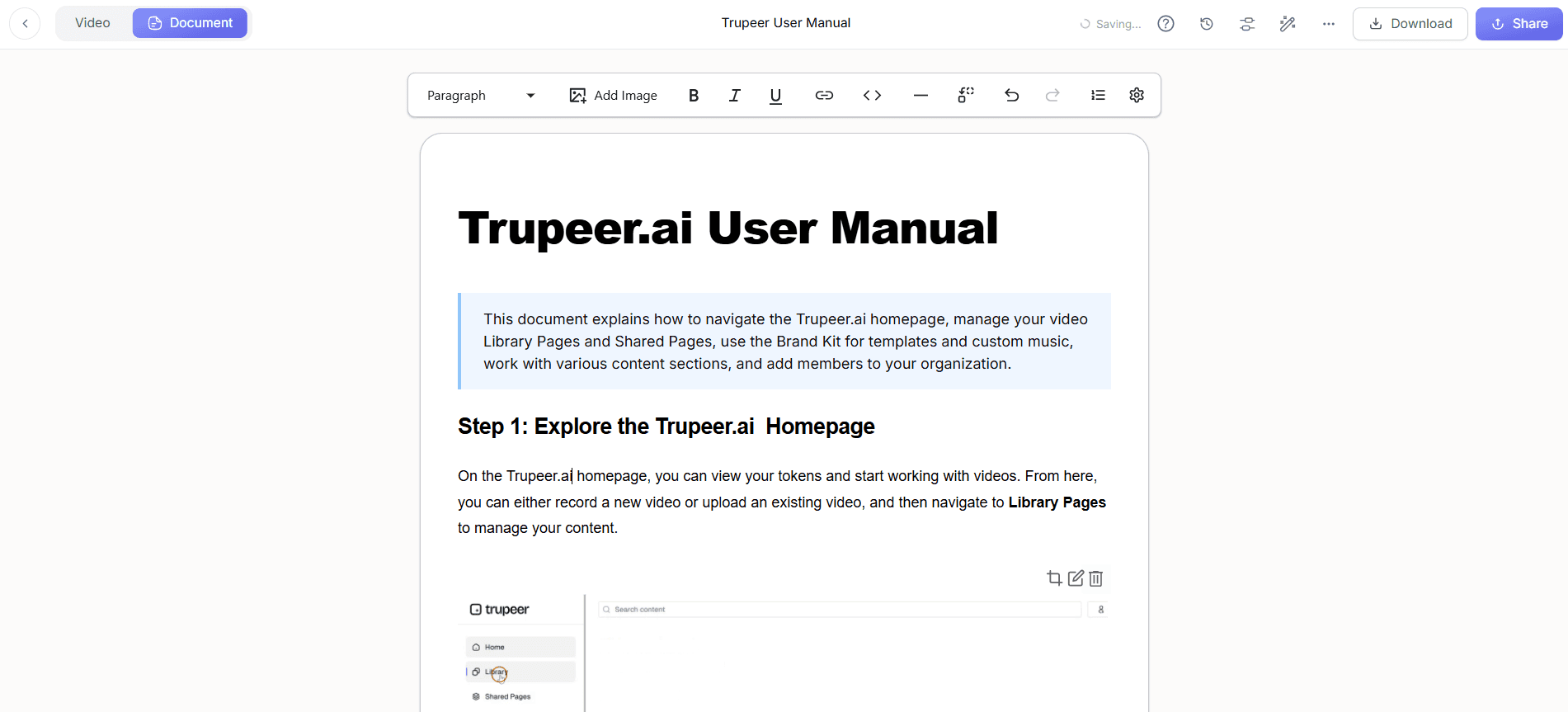
Use Trupeer's automatic SOP generation to create detailed, edit-ready documentation from your recording. After finalizing your video, click on "Generate SOP" in the export menu. Trupeer will analyze the video and produce a structured document outlining each step covered in the tutorial. This feature saves time and ensures consistency across training materials. The documentation is ready for export in multiple formats, including PDF and HTML, within 10 minutes. This step is ideal for providing employees with a reference guide that complements the video content. When SOPs come into the same conversation, a Scribe alternatives comparison helps clarify the scope.
Step 5: Localize Content
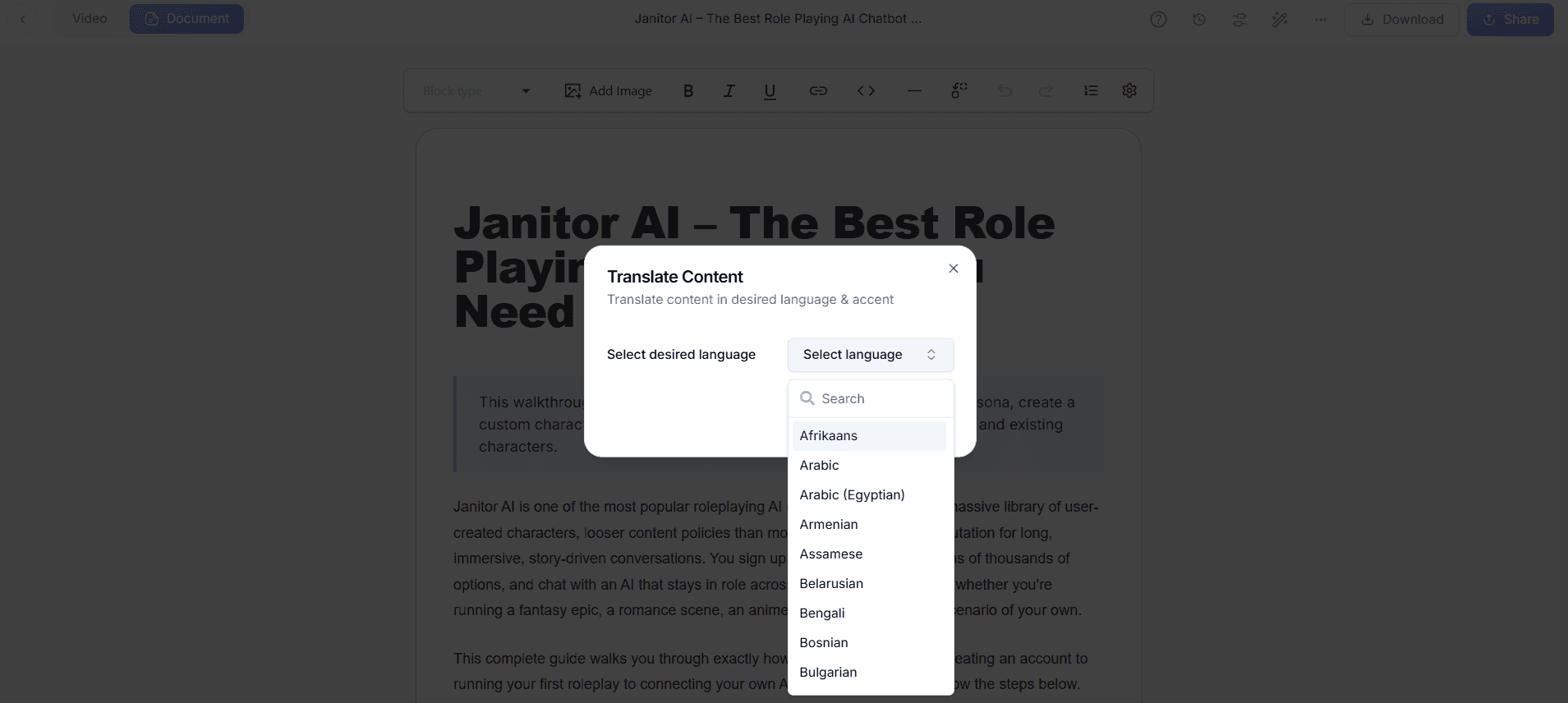
For teams with diverse linguistic needs, use Trupeer's AI translation into 40+ languages with lip-sync. After your video and documentation are complete, select the "Translate" option in the export menu. Choose the target language, and Trupeer will automatically translate the audio and synchronize lip movements, if applicable. The process is efficient, typically taking about 15 to 20 minutes per video. This feature is essential for global teams, ensuring that language barriers don't hinder training effectiveness. It's also a valuable tool for companies operating in multilingual markets.
Step 6: Distribute and Track Engagement
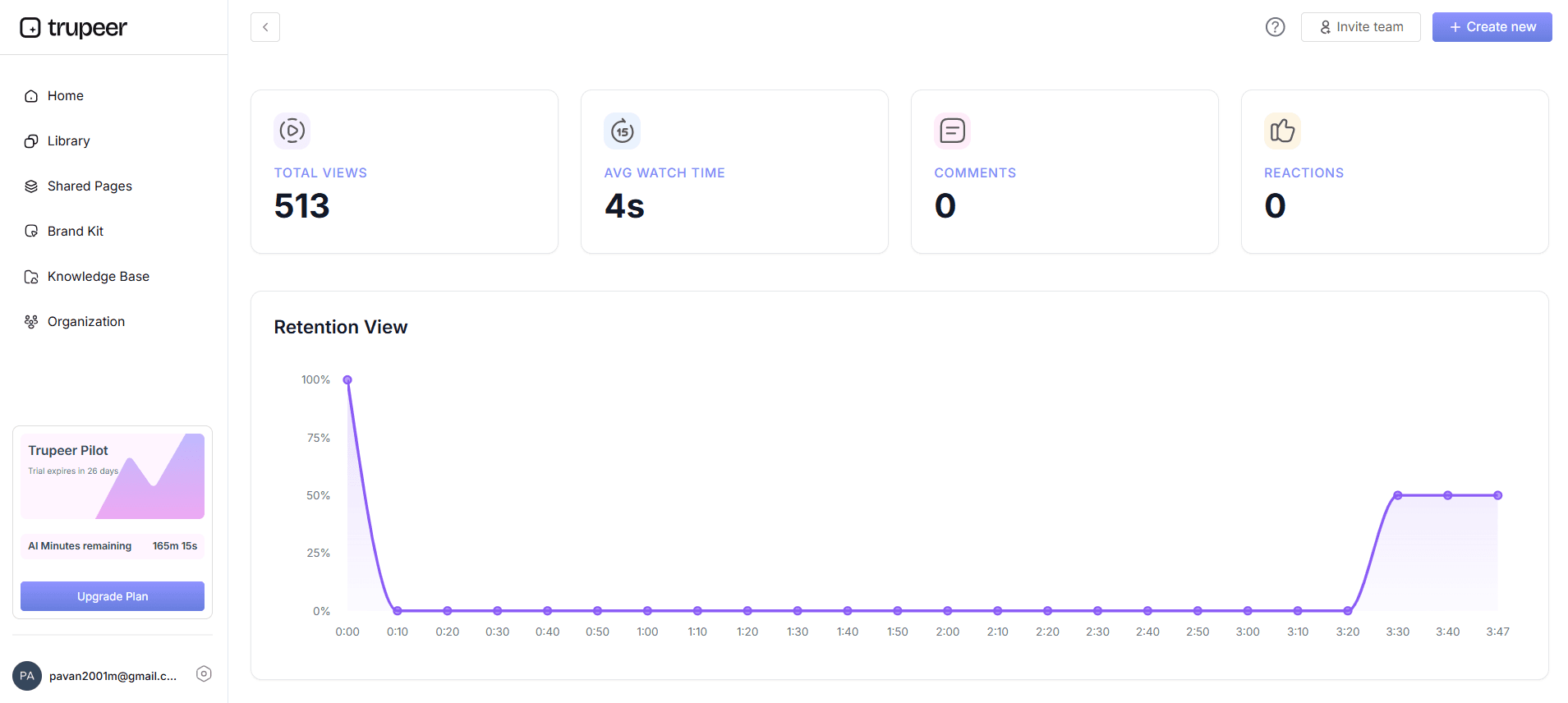
Finally, distribute your training materials using Trupeer's AI-searchable knowledge base. Upload your video and accompanying documentation, ensuring easy access for all employees. Enable timestamp deep-links to allow users to jump directly to relevant sections. Use Trupeer's viewer engagement analytics to track how employees interact with the content. Review heatmaps and drop-off points to identify areas needing improvement. This data-driven approach helps refine future training sessions and ensures high engagement levels. The entire distribution setup can be completed in under an hour.
What tips help you use screen recording to train employees on ERP without live sessions?
Successfully deploying screen recording for ERP training involves more than just the technical setup. Here are some strategic tips to maximize effectiveness and engagement.
Plan Your Script. Before recording, outline a clear script or storyboard. This helps maintain focus and ensures all critical points are covered.
Keep Videos Concise. Aim for videos that are 5 to 10 minutes long. This length is ideal for maintaining attention and facilitating easy comprehension.
Use Visual Cues. Incorporate highlights or annotations to draw attention to essential elements. These cues aid understanding, especially for complex tasks.
Standardize Formats. Consistent video styles and formats help employees know what to expect, improving their learning experience.
use Analytics. Regularly review engagement metrics to identify which parts of the content resonate and which don't, allowing for targeted improvements.
Update Regularly. Ensure your content reflects the latest ERP features and processes. This is crucial for maintaining relevance and accuracy.
Encourage Feedback. Solicit feedback from employees to refine your training materials. This can help identify gaps and improve overall effectiveness.
Teams weighing tools often start with a Loom alternatives comparison before standardizing on a workflow.
Frequently asked questions
How do you choose the right screen recording tool for ERP training?
Choosing the right tool depends on your specific needs, such as ease of use, features, and integration capabilities. Trupeer offers an AI screen recording for employee training with unique features like AI narration and auto-zoom. Consider the scalability of the tool, its ability to produce high-quality recordings, and the support for localization and documentation. Evaluating these factors against your training objectives will guide your decision.
What are the common challenges in ERP training without live sessions?
Common challenges include ensuring content engagement, managing updates, and catering to different learning styles. Without live interaction, it's harder to gauge understanding and adapt content in real-time. However, using analytics tools provided by platforms like Trupeer can help monitor engagement levels and identify parts of the training that need improvement. Regular feedback loops are crucial for continuous enhancement of the training materials.
Can screen recording replace live ERP training sessions entirely?
Screen recording can complement live sessions but may not fully replace them in all scenarios. It offers scalability and flexibility, but some complex topics might benefit from live interaction. For these cases, a blended approach, combining both recorded content and live Q&A sessions, can be effective. This ensures comprehensive coverage of the material while using the strengths of both methods.
Why is localization important in ERP training videos?
Localization ensures that the training content is accessible and relevant to a global workforce. With Trupeer's video localization tool, you can translate content into multiple languages, making it inclusive for non-English speakers. This not only improves comprehension but also boosts engagement by respecting cultural nuances. Effective localization is crucial for multinational organizations aiming to implement ERP systems consistently across different regions.
Does Trupeer support integration with other training platforms?
Yes, Trupeer supports integration with various platforms to simplify your training workflow. This includes exporting content in multiple formats compatible with popular Learning Management Systems (LMS). By enabling smooth content transfer, Trupeer helps maintain consistency across different training modules and platforms. These integrations are designed to enhance the overall efficiency and reach of your training programs.
Verwandte Blogbeiträge


