Trupeer Blog
Shrnout
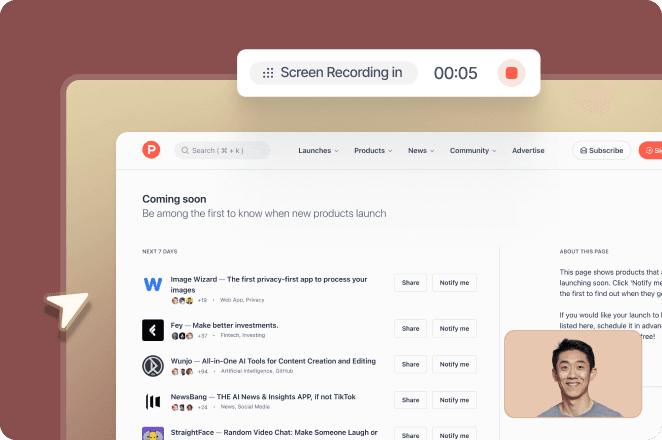
Video is everywhere, and it's only getting bigger. The global video streaming market is projected to reach $416.8 billion by 2030, meaning there has never been a better time to start creating. But editing is where most people get stuck, and choosing the right video editing software makes all the difference.
The good news: you don’t need years of experience or an expensive suite to create videos that look clean, polished and ready for YouTube, TikTok, training or your next product launch. Today there is excellent free video editing software for beginners, and professional video editing software has become easier to learn and more affordable than ever.
In this guide, we compare the best video editing software in 2026, both free and paid, with the key features, limitations and pricing of each tool, so you can pick the right one for your skill level and budget.
✨ Bonus: We’ll also show you how Trupeer can help you generate training videos, step-by-step guides and even talking avatars, all from a screen recording.
Best Video Editing Software at a Glance (Free and Paid)
Here’s a quick comparison of the best video editing software for beginners and professionals, including which tools offer a free plan.
Tool | Best for | Best features | Pricing |
Trupeer | Beginners and editors creating any kind of video with AI-powered tools | AI screen editing, automatic voiceovers, drag-and-drop visuals, instant translations, no timeline needed | Free trial; Pro from $40/month billed annually |
DaVinci Resolve | Professional editing, color grading and audio at no cost | Hollywood-grade color grading, Fairlight audio, Fusion visual effects, multicam editing | Free; Studio $295 one-time |
CyberLink PowerDirector | Fast editing with advanced effects on any device | 4K support, keyframe control, dynamic motion tracking, royalty-free media library | Free version; PowerDirector 365 from $59.99/year |
Adobe Premiere Pro | Professional-grade editing with full creative control | Multicam editing, text-based editing, AI-assisted tools, seamless Adobe integration | From $22.99/month (annual plan) |
Filmora | Quick edits with a modern interface and creative flair | Motion tracking, audio ducking, preset templates, drag-and-drop effects | Free version with watermark; from $49.99/year |
Movavi | Beginner-friendly editing with guided workflows | Step-by-step wizards, built-in effects, title presets, AI background removal | Free trial; Video Suite from $99.95/year |
iMovie (Mac & iOS) | Simple video creation for Apple users | Trailers and storyboards, cinematic filters, seamless iCloud sync, basic timeline editing | Free |
CapCut | Mobile-first editing with viral-ready effects | Auto captions, beat sync, effects library, background remover | Free; paid Standard and Pro plans (price varies by region) |
Clipchamp | Browser-based editing with Microsoft 365 access | Webcam recording, built-in stock, brand kit, timeline editing with templates | Free; Premium included with Microsoft 365 Personal and Family |
Prices checked in October 2026. Vendors change plans and regional pricing often, so confirm on each official site before you buy.
What Is Video Editing Software?
Video editing software is a program that lets you cut, arrange and enhance video clips to create a finished video. Most video editors use a timeline, where you trim footage, add music, titles, transitions and effects, then export the result as a file such as an MP4 for YouTube, social media or your team.
Today’s video editing software ranges from free, beginner-friendly apps that run in your browser or on your phone to professional video editing software used to cut films, TV and ads. Many tools now add AI features, such as automatic captions, background removal and AI voiceovers, that make editing much faster. If you’re making training videos and have never edited before, start with a beginner-friendly video editor built for that job.
How to Choose the Best Video Editing Software
Whether you want free video editing software for beginners or professional video editing software for client work, look for these features:
Intuitive interface: Eliminate visual clutter with a distinct media library, timeline, and preview window
Drag-and-drop timeline: Move clips, music, and images directly onto your timeline without dealing with hidden menus
Built-in templates or presets: Apply ready-made transitions, effects, and layout formats to save time and avoid creative blocks
Formats and resolutions: Choose standard file export formats (MP4, WebM, 720p, 1080p), adjust quality settings, and share marketing videos directly to YouTube or Instagram
AI-powered tools: Use features like auto-captioning, background removal, or text-to-speech to simplify your workflow and produce content faster
Free plan limits: Check whether the free version adds a watermark, caps export resolution or locks AI features behind a paid plan
Room to grow: If you plan to edit more seriously, look for professional features such as multicam editing, color grading and keyframe animation
🧠 Fun Fact: The first-ever motion picture was a photography experiment. In 1878, Eadweard Muybridge shot 24 still photos of a horse in motion to settle a bet. When played in sequence, it became one of the earliest motion pictures. And why did he do this? To answer: do all four hooves ever leave the ground?
The 9 Best Video Editing Software in 2026
Here are our top picks, from free video editing software for beginners to professional video editing software used by editors and studios.
1. Trupeer: Best AI Video Editing Software for Product, Training and How-To Videos
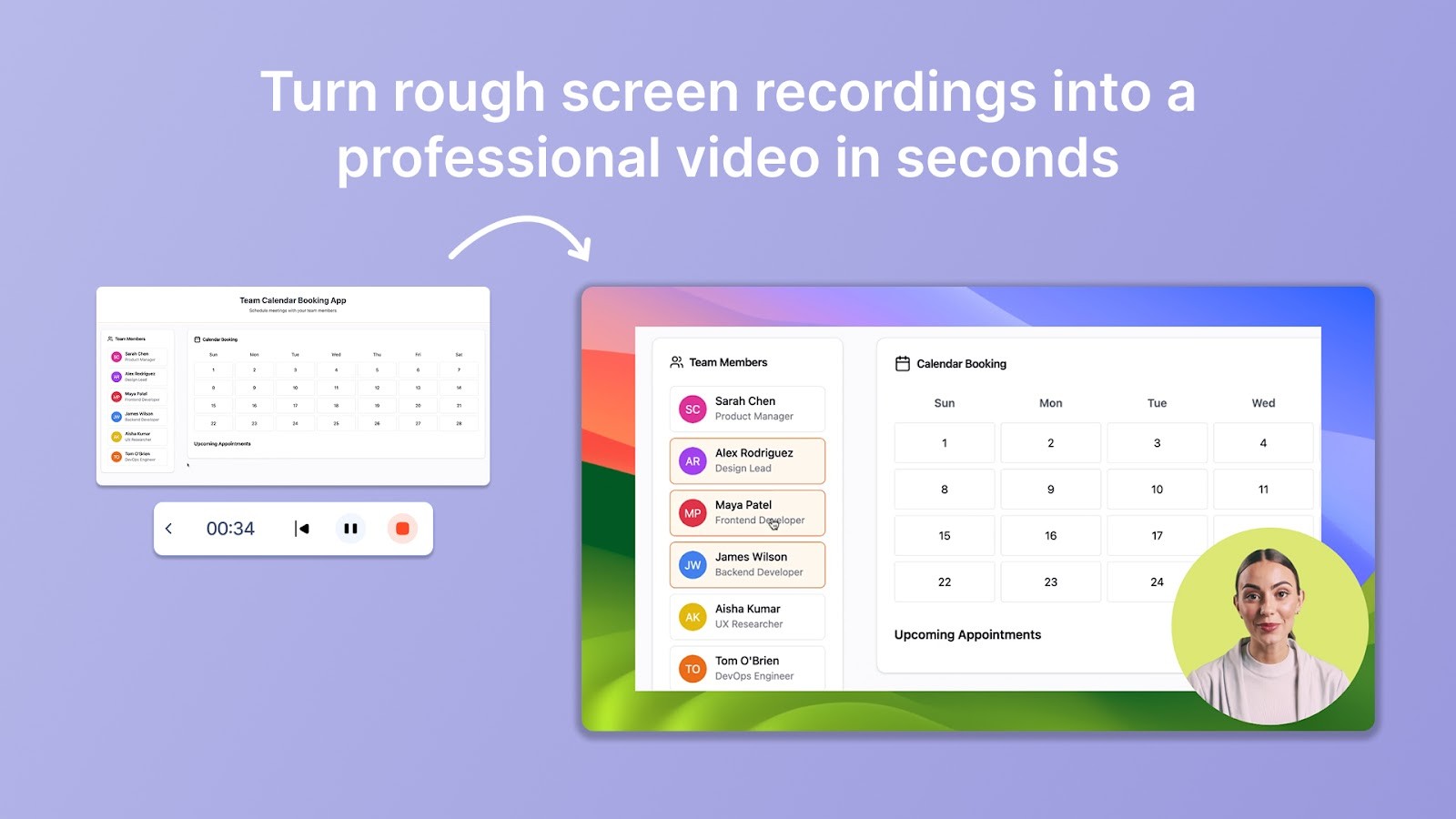
Generate Polished Videos With Trupeer
If you're new to video editing, Trupeer’s AI Screen Recorder takes away the pressure of getting everything perfect on the first try. Record a browser tab, a window or your entire screen with the Trupeer Chrome extension, or upload an existing video, and walk through your demo, tutorial or product walkthrough without juggling complex software.
It also turns your rough walkthrough into a polished video with auto-edited visuals, AI-generated voiceovers, and dynamic zoom effects that follow your clicks.
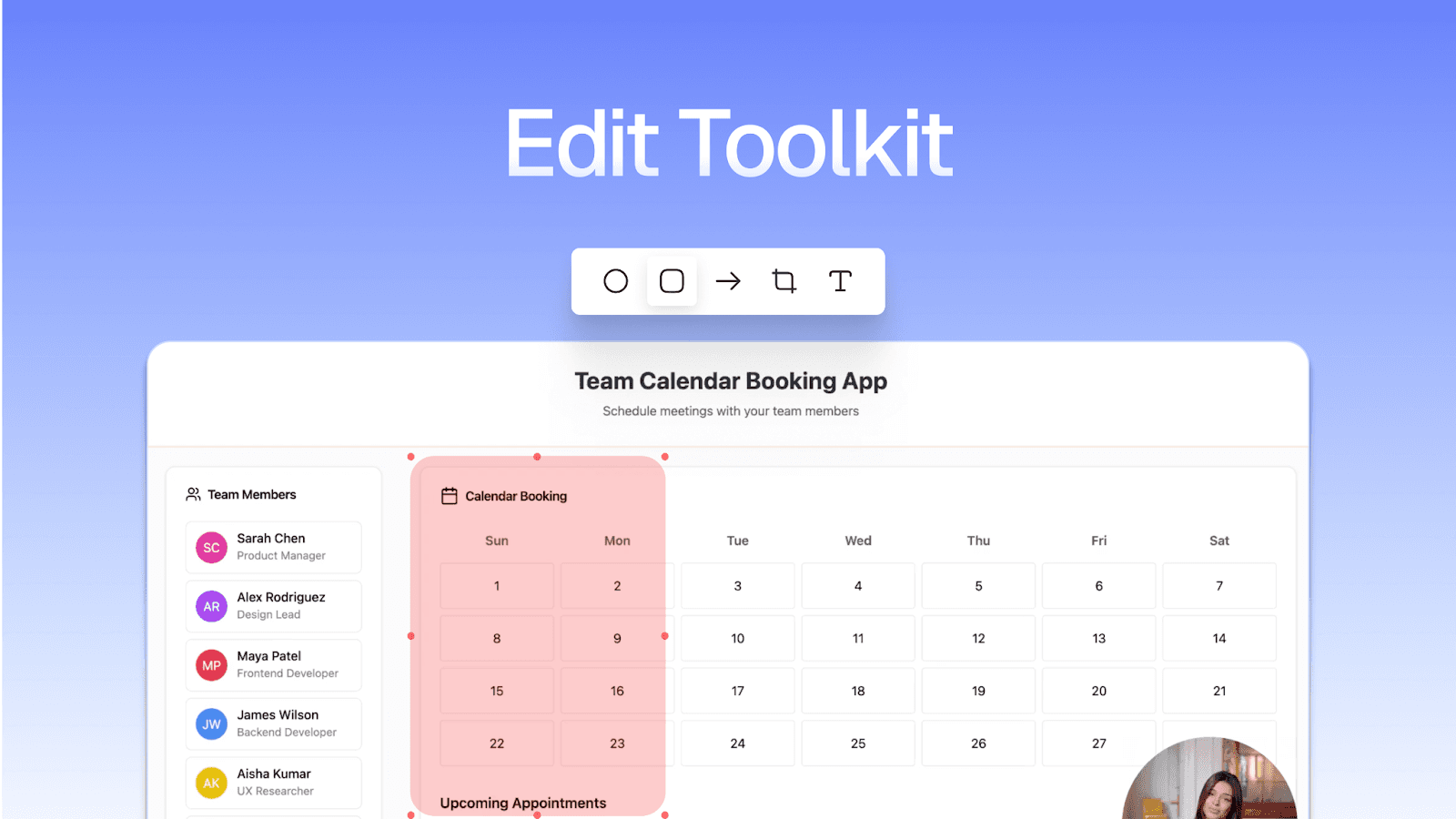
Let’s say you’re recording a how-to video on setting up your CRM. After recording, Trupeer automatically analyzes your screen actions and speech. The screen recording software generates a full transcript, detects clicks and pauses, and even identifies mistakes you corrected while talking. You can trim out the pauses and tighten your demo without scrubbing through timelines.
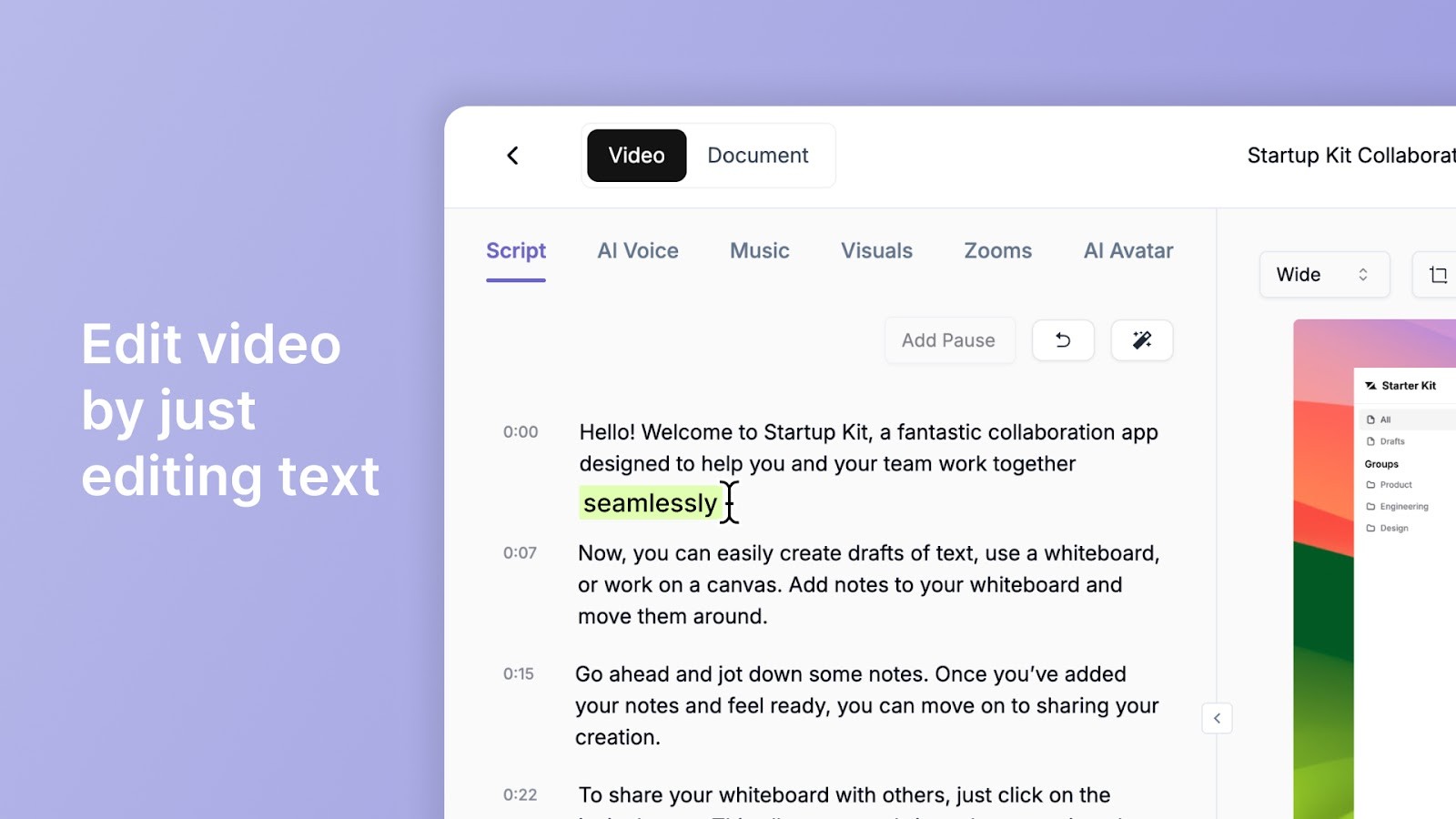
Trupeer’s AI Video editor perfects your script by removing filler words like ‘uh’ and ‘so basically…’ and fixes grammar issues. For example, if you said, ‘Now I’m just gonna click… oh wait, that’s the wrong tab,’ the AI rewrites it into a smooth explanation and syncs it with your video.
Don’t want to re-record your voice? You don’t have to. Trupeer lets you choose from over 100 natural-sounding AI voiceovers, including different accents, styles, and tones to match your brand's vibe.
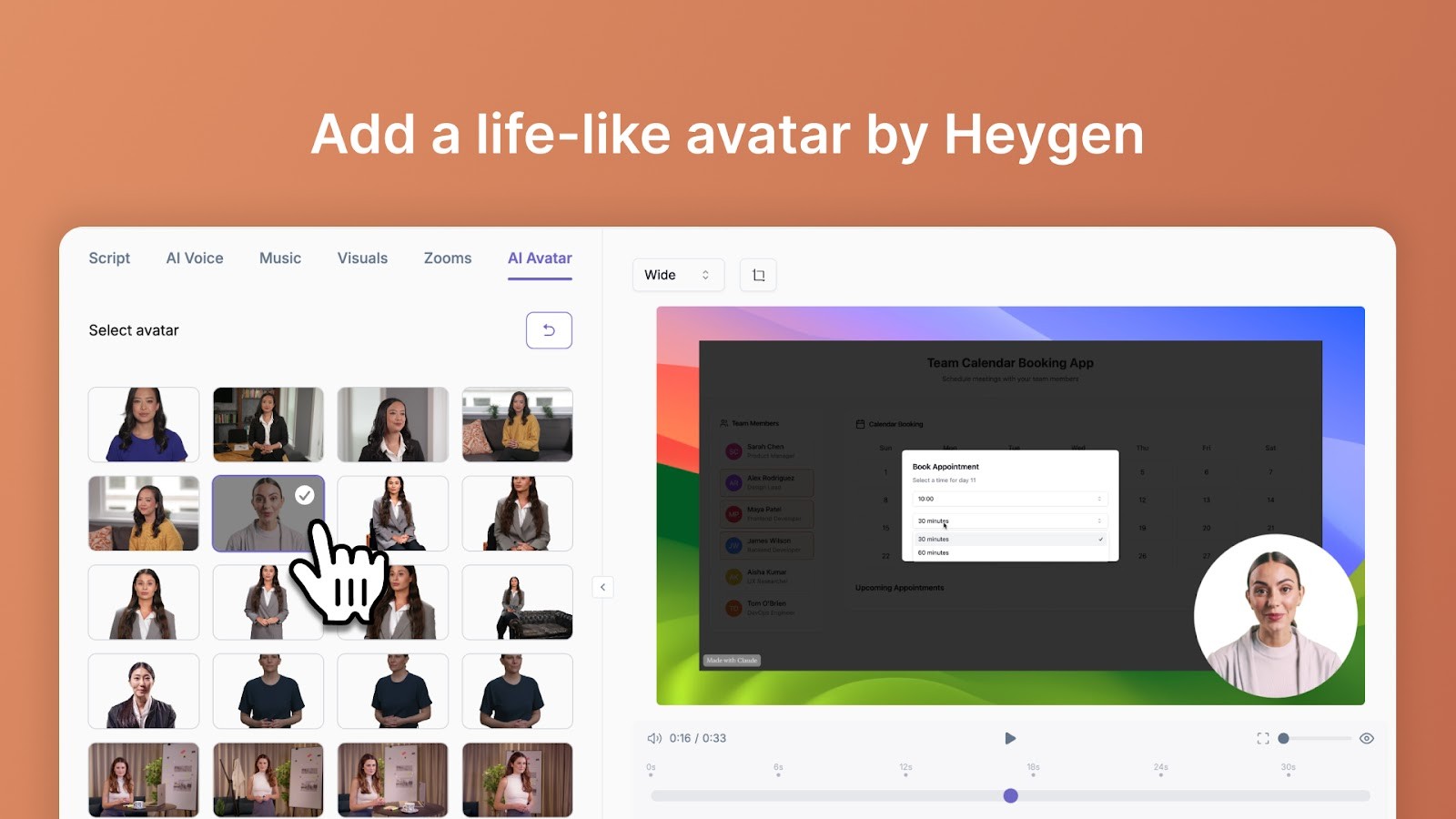
And if you want to make it look like your video came from a pro team, Trupeer adds zoom effects where you click, overlays HD wallpapers, or branded slides.
With its advanced AI avatar generator, you can add an AI avatar to your video, perfect if you want an on-screen presence without actually being on camera.
Shubham Sadavat, GM - Product Strategy & Operations, shares how Trupeer makes a difference at Zetwerk: “At Zetwerk, we have distributed teams across geographies and functions. Knowledge transfer across hundreds of tools is a hassle. Trupeer helps us fix that at scale—with rich videos and guides that live forever.”
Trupeer best features
AI voiceovers: Choose from 100+ natural-sounding AI voices or create a custom AI voice, with no need to record your own audio
Extensive export options: Upload your edited video to your device as an MP4 or share a link directly
Create documentation: Let Trupeer AI create step-by-step written documentation from your video, complete with screenshots, summaries, and instructions
Custom branding: Keep videos consistent with your brand by adding logos, colors, and fonts, all without needing a designer or editor
Instant translation for global reach: Translate your videos and documentation into 65+ languages with AI voiceovers
Edit with AI: Rewrite your script with AI, adjust zooms and refresh the voiceover without touching a timeline
Trupeer pricing
Free trial
Pro: $40/month billed annually ($49 month-to-month)
Scale: $199/month billed annually ($249 month-to-month)
Enterprise: Custom pricing
Trupeer ratings and reviews
G2: 4.8/5 (35+ reviews)
What are real-life users saying about Trupeer?
This G2 review really says it all:
“I create onboarding videos for my customers and send them instantly. It has cut down the time I spend explaining things over and over again”
📽️ Trupeer Insight: If you’re recording videos for internal knowledge dissemination, Trupeer's Training Video Generator can turn a screen recording into a structured training session. You can upload your footage or generate one with an avatar that lip-syncs to your script. It’s one of the best video editing software options for beginners, especially if you’re making user guides, internal process videos, or onboarding courses.
Create Structured Training Videos With Trupeer
2. DaVinci Resolve: Best Free Professional Video Editing Software
DaVinci Resolve from Blackmagic Design is the rare professional video editing software you can download for free. The free version is not a stripped-down demo: it combines editing, color grading, visual effects and audio post-production in one app, and it runs on Windows, Mac and Linux.
Its color grading tools are an industry standard in film and TV, and the Cut page gives beginners a simpler, faster way to assemble a video before moving to the full Edit page. If you want the best free video editing software with room to grow into professional work, DaVinci Resolve is hard to beat.
DaVinci Resolve best features
Grade footage with the same color tools used on films and TV shows
Mix, clean up and master audio in the built-in Fairlight page
Create titles, motion graphics and visual effects with Fusion
Edit multicam footage and work with high-resolution formats
DaVinci Resolve limitations
The learning curve is steep for complete beginners compared with simpler video editors
It needs a fairly powerful computer, especially for 4K editing and effects
Some advanced AI tools and higher-end formats require the paid Studio version
DaVinci Resolve pricing
DaVinci Resolve: Free
DaVinci Resolve Studio: $295 one-time
3. CyberLink PowerDirector: Best Video Editing Software for Windows Beginners

PowerDirector 365 for Mac brings professional-grade editing to your desktop, with a beginner-friendly interface.
Got a YouTube video or a cinematic idea in mind? PowerDirector makes it easier to bring it to life with tools like AI voice cleanup, one-click color correction, object tracking, and green screen effects.
CyberLink PowerDirector best features
Access a built-in media library, including stock videos, music, and motion graphics
Use customizable templates and animations to produce polished content
Edit with drag-and-drop features, multi-track timeline, and speed adjustment tools
CyberLink PowerDirector limitations
Exporting high-resolution videos can be slow on older devices
Full access to premium effects, stock assets, and AI tools requires a paid subscription
CyberLink PowerDirector pricing
PowerDirector 365 Essential: Free, with limited features
PowerDirector 365: $59.99/year or $24.99/month
PowerDirector 2026: $139.99 one-time (perpetual license)
CyberLink PowerDirector ratings and reviews
G2: 4.3/5 (40+ reviews)
Capterra: 4.3/5 (100+ reviews)
💡 Pro Tip: Use the And-But-Therefore (ABT) framework to keep viewers engaged. The A sets up the story (This happened…), B introduces conflict or contrast (But then…), and the T offers a resolution (Therefore…). Use visual transitions and sound cues to emphasize the shifts in story phases within your pick of the best video editing software for beginners.
4. Adobe Premiere Pro: Best Professional Video Editing Software
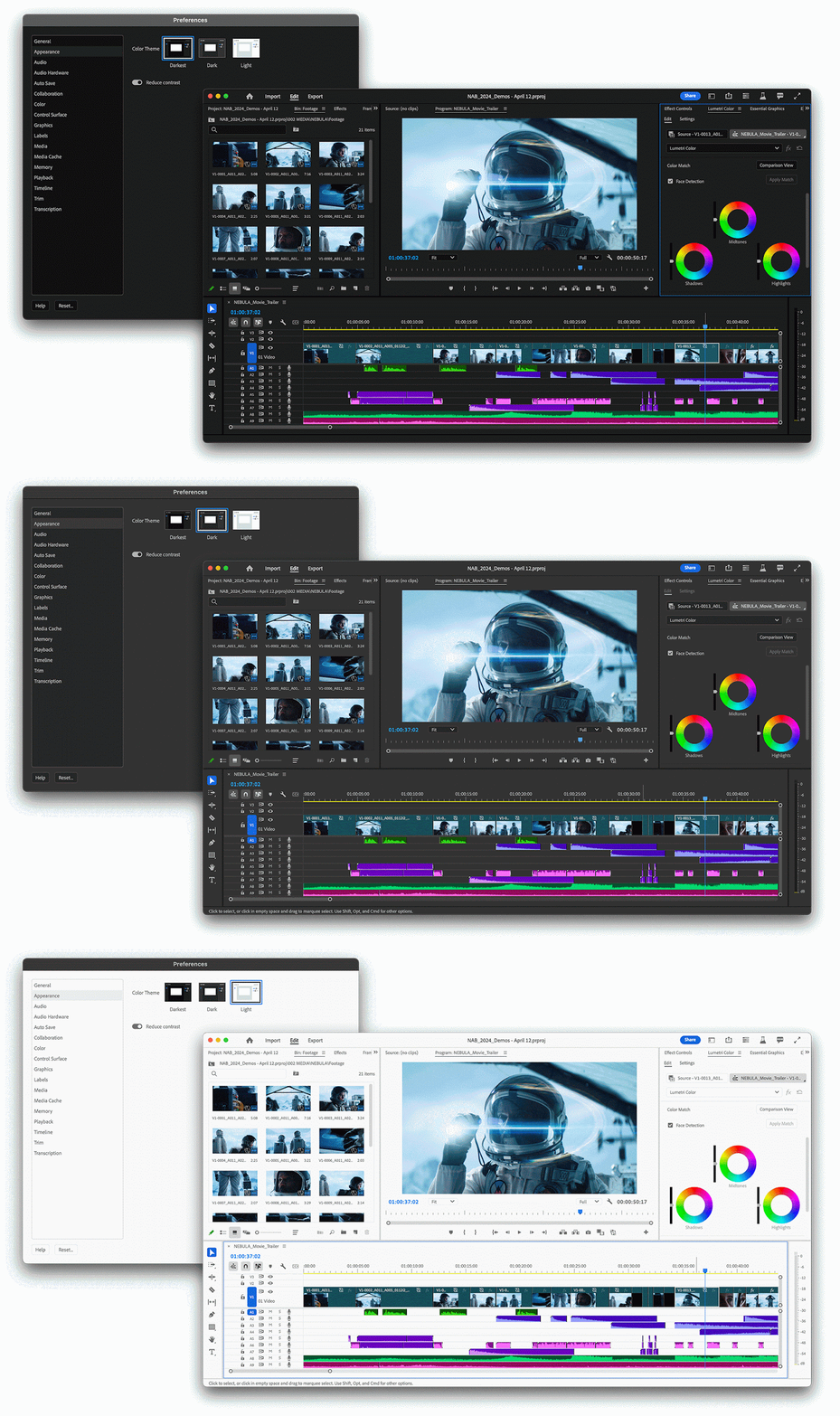
Adobe Premiere Pro is designed for video editors who want to work efficiently without compromising quality. From trimming footage and mixing audio to crafting titles, its tools enable precision editing.
For added convenience, the Adobe Express Chrome extension can be used alongside Premiere Pro to quickly generate and repurpose assets directly from your browser. Instantly balance color across mixed footage without LUTs, great for multi-camera projects.
Adobe Premiere Pro best features
Edit clips directly through transcribed text using the Text-Based Editing
Use Generative Extend to stretch your clips or fill in missing moments, including ambient sound
Find specific shots in seconds using everyday language with its AI-powered Media Intelligence
Adobe Premiere Pro limitations
Performance can lag or crash during larger projects, especially on computers without high-end specifications
Several users report sluggish app startups and slow installation speeds, which makes it inefficient in comparison to the other best video editing software for beginners
Adobe Premiere Pro pricing
Premiere Pro: $22.99/month on an annual plan, or $34.49/month month-to-month
Creative Cloud Pro: $69.99/month (all Creative Cloud apps)
Adobe Premiere Pro ratings and reviews
G2: 4.5/5 (1,600+ reviews)
Capterra: 4.7/5 (500+ reviews)
What are real-life users saying about Adobe Premiere Pro?
One reviewer puts it this way:
Whats helpful in Adobe Premiere Pro is the tools that are best and the shortcuts to use the tools make it more ease to use so. We use it frequently for our editing projects. The UI is friendly after the long use. ….The thing I dislike about Adobe Premiere Pro is that, the UI is a bit confusing but yeah over time we can use it properly.
🔍 Did You Know? YouTube was founded on February 14, 2005, by former PayPal employees Chad Hurley, Steve Chen, and Jawed Karim. It was originally pitched as a video dating site before becoming the world’s largest video-sharing platform. Just over a year after launch, Google saw the platform’s potential and acquired YouTube for $1.65 billion in October 2006.
5. Filmora: Best Video Editing Software for YouTube Creators
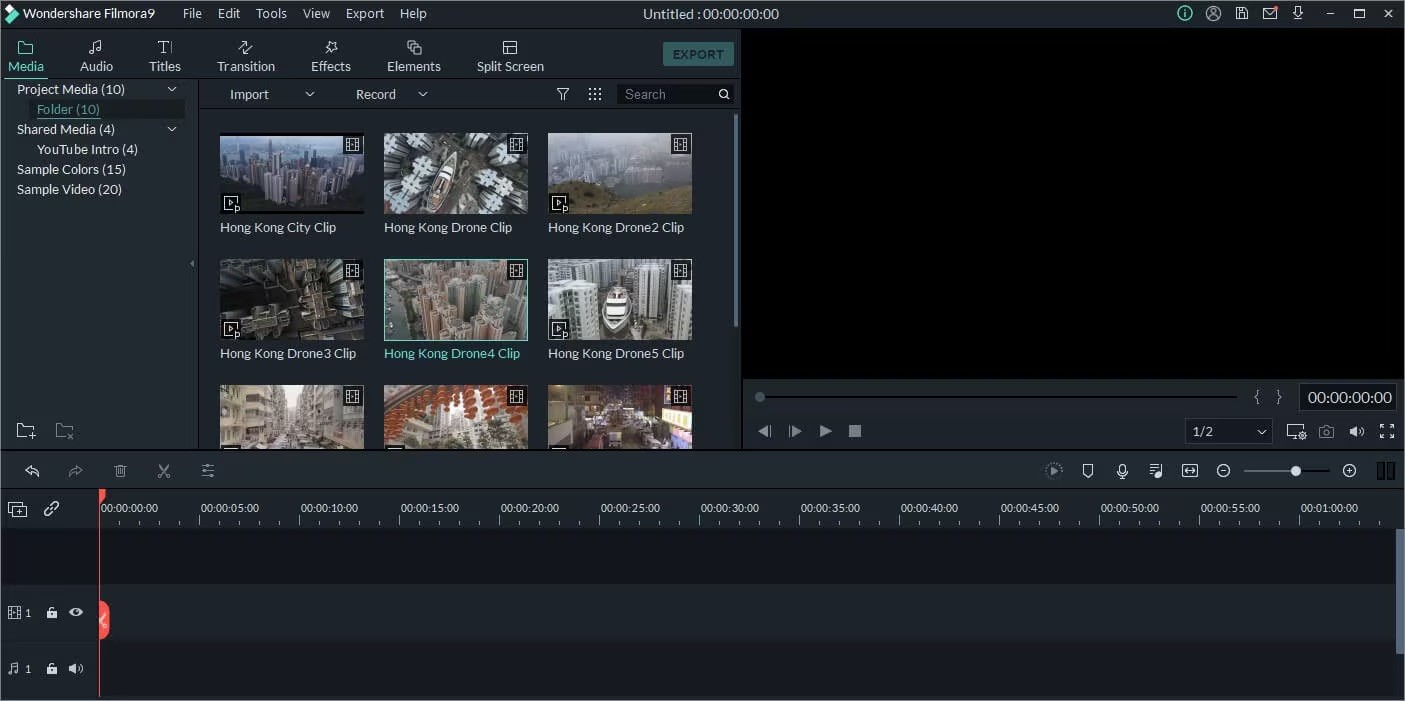
Filmora combines powerful automation with a clean, beginner-friendly interface. From basic cuts to advanced tricks like motion tracking, video masking, and color grading, it keeps things simple but powerful.
What makes it stand out? A vast library of effects, transitions, stickers, and AR elements you can just drag and drop. It even comes with AI tools to clean up audio, blur faces, or remove video backgrounds in seconds. Filmora is a great option for editing YouTube videos, social media clips, tutorials, or just cool personal projects.
Filmora best features
Identify scene changes and cut longer videos into cleaner, more structured segments
Separate people or products from backgrounds without a green screen
Sync multiple camera angles on a single timeline and switch between views smoothly
Sharpen blurry footage and upscale frame rates using cloud-powered tools
Filmora limitations
Lacks advanced features for color correction and LUT manipulation as compared to other best video editing software for beginners
Features like AI captions, background removal, and voice matching may require manual adjustments
Filmora pricing
Free: Watermark on exports
Annual plan: From $49.99/year
Perpetual license: From $79.99 one-time
Filmora ratings and reviews
G2: 4.5/5 (500+ reviews)
Capterra: 4.5/5 (700+ reviews)
📽️ Trupeer Insight: Trupeer instantly converts screen recordings into structured technical writing. It’s a simple way to document workflows, create user manuals, or build internal SOPs. Export your content in the format you prefer and share it across teams in just a few clicks.
Turn Your Videos Into Documentation With Trupeer
6. Movavi: Best for Guided, Step-by-Step Editing
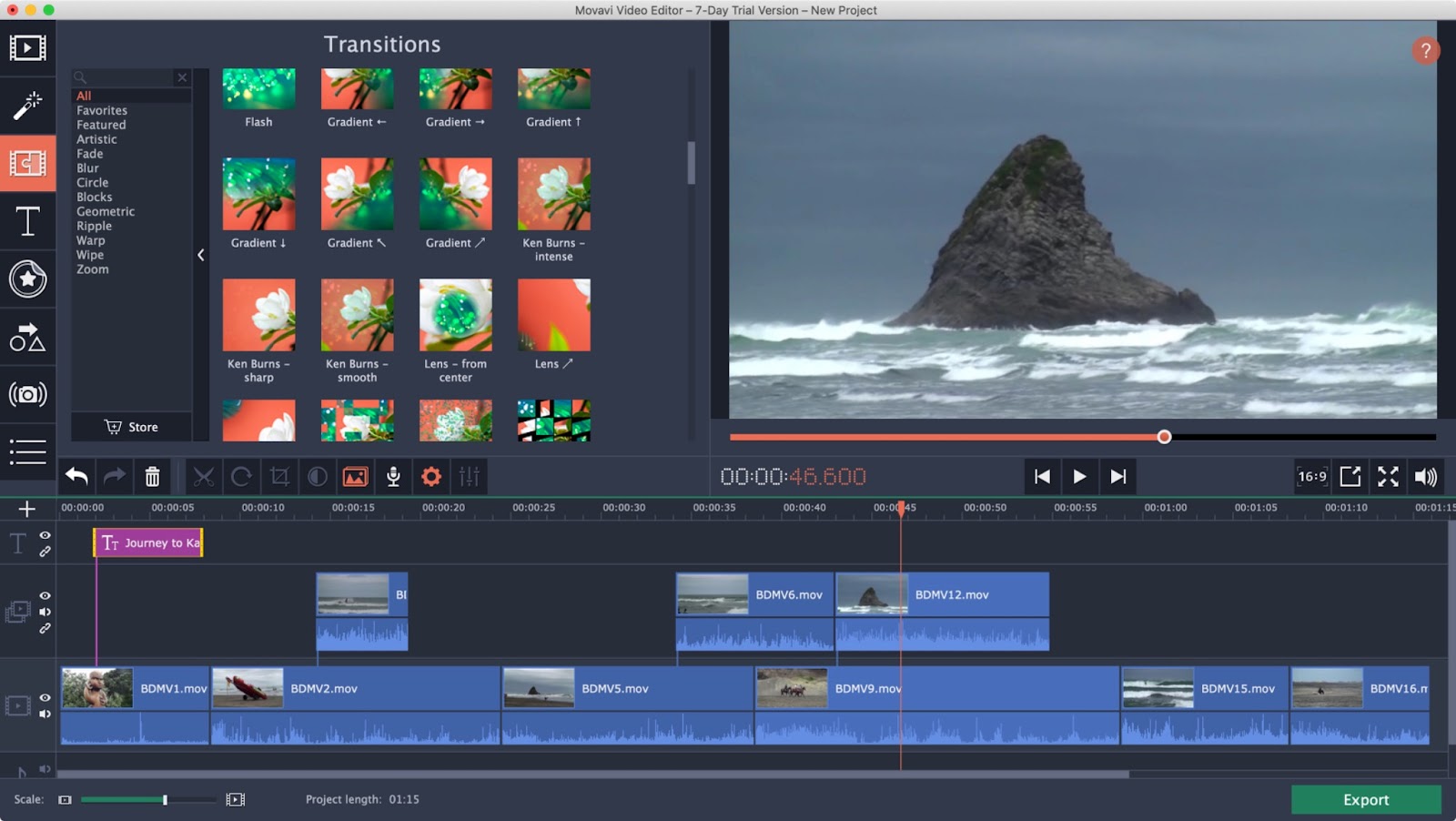
Movavi Video Editor makes video creation approachable for beginners with its drag-and-drop interface, one-click AI features, and pre-built templates. All you have to do is cut, crop, and color-correct with tools designed to feel useful from day one.
With a collection of built-in effects, transitions, and overlays, Movavi lets you produce polished content for YouTube, social media, or professional use, like employee onboarding videos.
Movavi best features
Hover over filters, transitions, and overlays to see them in action before applying
Mix video layers with cinematic effects like lightning, fire, and double exposure to create stylized vlogs and highlight reels
Attach graphics, emojis, or images to moving objects in your video with AI Motion Tracking
Movavi limitations
It may feel restrictive to users who want deep control over keyframes, audio mixing, or multi-cam editing
Free trial exports include a Movavi watermark, making them less usable for public or client-facing content
Movavi pricing
Video Suite: $29.95/month
Video Suite Plus: $99.95/year
Lifetime licenses: Available as a one-time purchase
Movavi ratings and reviews
G2: 4.7/5 (400+ reviews)
Capterra: 5/5 (50+ reviews)
What are real-life users saying about Movavi?
According to one G2 review:
Movavi Video Editor continues to impress with its balance of user-friendliness and powerful features, making it an excellent choice for both beginners and intermediate video editors….Sometimes it hangs meaning feels heavy in rendering. If there is a trial version free for 7 days, then it must include those features which the paid version has.
7. iMovie: Best Free Video Editing Software for Mac and iPhone
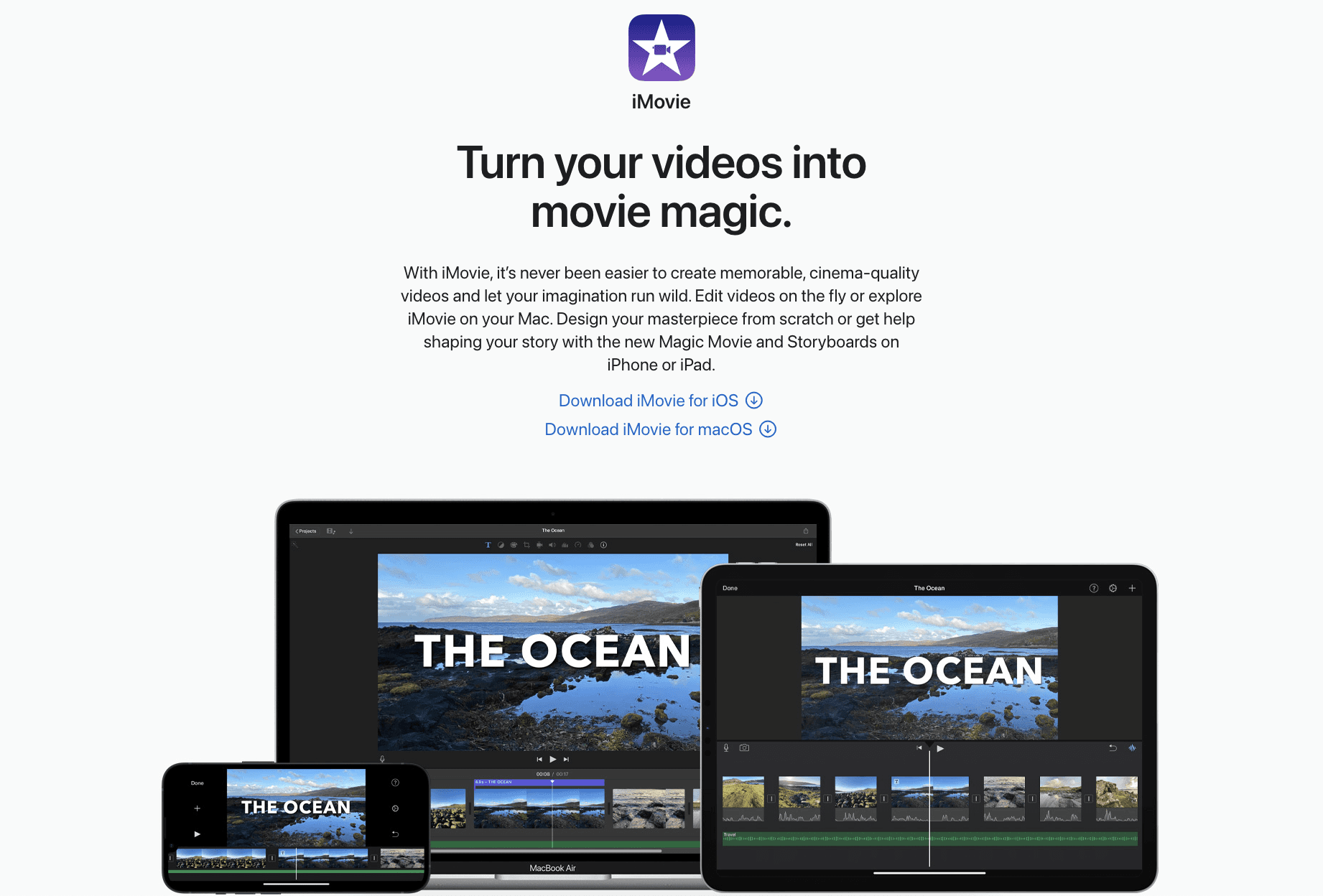
If you're in the Apple ecosystem and want an easy way to start editing videos, iMovie is your go-to tool. You can turn spontaneous footage into cinematic clips using Magic Movie, edit on the go, and access pro-like features without the intimidating interface of high-end editors.
Magic Movie instantly assembles your clips into styled edits, complete with music and transitions. While Storyboards offer structured templates that teach visual storytelling step-by-step.
iMovie best features
Create interactive videos with genre-specific shot lists and examples
Add immersive backdrops and adjust focus points for a professional touch
Start a project on your iPhone and pick it up on your Mac or iPad with iCloud or AirDrop without re-importing files
Add split screens, picture-in-picture, fade-ins, and ProRes support with a tap or swipe
iMovie limitations
Only works on iOS or macOS; there’s no version for Windows or Android users
Lacks advanced features like custom transitions, motion graphics, or keyframe animations for precise editing, unlike other best video editing software for beginners
iMovie pricing
Free
iMovie ratings and reviews
G2: 4.3/5 (540+ reviews)
Capterra: 4.5/5 (420+ reviews)
🧠 Fun Fact: Louis Le Prince’s Roundhay Garden Scene (1888) runs for a mere 2.11 seconds, but it holds the Guinness World Record for the oldest surviving film. It features his family members in a garden, and one brother casually playing the accordion.
8. CapCut: Best Free Video Editing Software for Social Media

CapCut offers an intuitive interface across mobile and desktop, allowing you to trim, merge, add music, apply filters, and adjust video speed. Built by ByteDance (yes, the same company behind TikTok), CapCut combines beginner-friendliness with a toolkit deep enough for serious creators.
The platform offers advanced tools, including green screen editing, keyframe animations, and buttery-smooth slow motion, powered by optical flow. It’s free to use with optional pro upgrades and works across mobile, desktop, and browser.
CapCut best features
Access a rich media library filled with royalty-free music, stickers, filters, and visual effects to boost creativity without external downloads
Automate editing tasks with AI-powered tools like auto-captioning, text-to-speech, motion tracking, and background removal
Export polished videos without watermarks, even in the free version
CapCut limitations
Exported files may not integrate smoothly with pro-grade software like Adobe Premiere Pro or Avid
Doesn’t allow third-party plug-ins, limiting customization for experienced users
CapCut pricing
Free: Core editing tools
Standard and Pro: Monthly or yearly subscriptions; CapCut says prices vary by region, device and promotion
CapCut ratings and reviews
G2: Not enough reviews
Capterra: Not enough reviews
📽️ Trupeer Insight: Record your screen with Trupeer to create quick, high-quality product demo videos that show value. Highlight key actions, add voiceovers to explain benefits, and trim unnecessary steps to keep viewers engaged. Perfect for onboarding, landing pages, or quick sales pitches.
Screen-record walkthroughs with Trupeer
9. Clipchamp: Best Free Video Editing Software for Windows

Next up on our list for the best video editing software for beginners, we have Clipchamp, Microsoft’s built-in video editor for Windows. You can access it through the Start Menu, Microsoft Photos, Media Player, and even OneDrive. This makes it convenient to start editing right where your content lives.
With Clipchamp, you can build videos using a combination of your own media, ready-to-go templates, and a stock library of royalty-free music, images, and clips. The platform features essential tools such as trimming, cropping, filters, and animated text, while also introducing AI-assisted features that enhance editing speed and accuracy.
Clipchamp best features
Record directly from your screen, webcam, or both, great for tutorials, presentations, and game content
Enhance footage with AI tools like silence removal, automatic subtitles, background cleanup, and voiceovers in 400+ voices
Use ready-made templates for social media, work, or school to cut down on time and effort
Clipchamp limitations
Browser-based editing can lag with large files or slower internet connections
Lacks timeline precision and layer complexity found in professional-grade tools
Clipchamp pricing
Free: Core editing and 1080p exports
Premium: Included with Microsoft 365 Personal and Family subscriptions
Clipchamp ratings and reviews
G2: 4.2/5 (30+ reviews)
Capterra: 4.3/5 (80+ reviews)
What are real-life users saying about Clipchamp?
As one user put it:
Clipchamp is very dynamic with AI inside for easy video creation and a lot of features that you can use in video editing manipulations. It is incomparable….Business account or school account is not allowed in Clipchamp, very odd. I think it is more of the necessity of organizations to create or edit videos.
🔍 Did You Know? The 18-second video ‘Me at the Zoo’ was uploaded on April 23, 2005, by YouTube co-founder Jawed Karim. It’s simple: Karim stands in front of an elephant enclosure and talks about trunks. That’s it. Over 45 million views later, it’s now a legendary digital relic.
Best Free Video Editing Software
If you don’t want to pay yet, these are the best free video editing software options. Each one lets you export finished videos without a subscription, though limits differ:
DaVinci Resolve: The best free video editing software for serious editing, with professional color, audio and effects tools on Windows, Mac and Linux
CapCut: Free video editing software for social media, with templates, auto captions and effects on mobile, desktop and web
iMovie: Free and simple for Mac, iPhone and iPad users
Clipchamp: Free video editing software built into Windows, with screen and webcam recording
PowerDirector 365 Essential and Filmora: Free versions to try, with limited features or a watermark on exports
When you compare video editing software free plans, check three things: whether exports carry a watermark, the maximum export resolution, and which AI features are included.
Best Professional Video Editing Software
Professional video editing software is built for long projects, client work and broadcast-quality output. Expect advanced color grading, multicam editing, precise audio mixing and support for high-resolution formats.
Adobe Premiere Pro: The most widely used professional editor, with deep integration across Adobe apps such as After Effects
DaVinci Resolve Studio: Professional editing and industry-standard color grading for a one-time $295 license
Final Cut Pro: Apple’s professional video editing software for Mac, sold as a one-time purchase
Best Video Editing Software for Beginners
If you are just starting out, the best video editing software for beginners is the one that removes the learning curve. iMovie, Clipchamp and Filmora offer clean interfaces and templates. If your goal is how-to videos, walkthroughs or product demos, Trupeer is the fastest route: record your screen, and AI handles the script, voiceover and zooms for you.
Free vs Paid Video Editing Software: Which Should You Choose?
Free video editing software is enough for most personal projects, school work and social media videos. Paid video editing software makes sense when you need watermark-free 4K exports, premium stock assets, advanced AI tools or professional features such as multicam editing and color grading. A good approach is to start with a free plan, then upgrade only when you hit a real limit.
Conclusion
Video creation has become more accessible than ever. You no longer need to be a professional editor or own expensive software to produce high-quality videos. The best video editing software today, whether free or professional, focuses on simplicity, automation and creative freedom, giving anyone the ability to tell a compelling story through video. For training content specifically, training video creation software that needs no editing at all can save even more time.
If you’re looking to create tutorials, training sessions, product demos, or marketing videos without spending hours editing, Trupeer is an excellent place to start. Its AI-powered screen recorder, automatic voiceovers, and avatar generator help you turn raw ideas into polished videos no timeline editing, no technical skills required.
With tools like Trupeer leading the way, video editing is no longer a daunting task. It’s about transforming your everyday workflows into engaging stories that inform, train, or inspire. So, take that first step record your screen, let AI handle the hard part, and start creating videos that stand out.
Start your video creation journey with Trupeer today and see how effortlessly you can bring your ideas to life.
So, what are you waiting for? Try Trupeer today! ✅
Related reading
Frequently Asked Questions
What is the best video editing software?
The best video editing software depends on what you make. Adobe Premiere Pro and DaVinci Resolve are the top professional choices, Filmora and PowerDirector suit creators who want an easier timeline, and Trupeer is the fastest option for product demos, training and how-to videos made from screen recordings.
What video editing software do professionals use?
Most professional editors use Adobe Premiere Pro, DaVinci Resolve Studio, Final Cut Pro or Avid Media Composer. These professional video editing software tools offer advanced color grading, multicam editing and high-resolution export.
What is the easiest video editing software for beginners?
If you’re new to video editing, Trupeer, Filmora and iMovie are among the easiest tools to start with. Trupeer is ideal for AI-powered screen recording videos, while Filmora and iMovie offer clean interfaces and built-in templates that simplify editing.
Is there video editing software that is free with no watermark?
Yes. DaVinci Resolve, iMovie, Clipchamp and the free version of CapCut let you export videos without a watermark. Some other free versions, such as Filmora’s, add a watermark until you upgrade.
What features should beginners look for in video editing software?
Look for drag-and-drop editing, AI-powered features like auto captions and background removal, ready-made templates, and a free plan without heavy export limits. These simplify your workflow and help you create professional videos quickly.
Do I need video editing experience to use Trupeer?
Not at all. Record your screen with the Trupeer Chrome extension or upload a video, click Generate AI Content, and Trupeer creates a polished video and a step-by-step guide. You edit the script like a document instead of working on a timeline.
Can Trupeer help create training and onboarding videos?
Yes. Trupeer’s Training Video Generator turns screen recordings into structured tutorials and onboarding sessions, complete with AI voiceovers and visuals, ideal for internal training or product education.
Does Trupeer support multi-language videos?
Yes. Trupeer can translate videos and documentation into 65+ languages with AI voiceovers, making it ideal for global teams and multilingual audiences.
Související blogy