Trupeer Blog
Обобщение

Imagine this: You're preparing for a crucial sales meeting with a potential client who's already juggling multiple priorities. You've got one shot to make a powerful first impression. What if you could deliver a clear, engaging, and informative message before the meeting even starts? Enter pre-meeting async demos. These videos are a big shift for setting the stage, aligning expectations, and maximizing the impact of your live interaction.
Yet, crafting the perfect pre-meeting video is not without its challenges. You need to balance between providing enough information to engage the viewer and keeping it concise to respect their time. According to recent data, attention spans are diminishing, with
viewers typically dropping off after just 8 minutes
. Therefore, every second counts in your async demo.
This content is particularly relevant for sales professionals, product managers, and customer success teams who aim to deliver polished and effective messages. Integrating sales demo best practices into your workflow is crucial to ensuring that your pre-meeting videos aren't just watched but also remembered and acted upon.
Why does creating effective pre-meeting videos matter?
Creating effective pre-meeting videos is crucial for several reasons. Firstly, these videos help establish a strong foundation for the upcoming live meeting. They allow you to present key information, demonstrate product value, and address potential objections upfront. This can significantly decrease the time spent on initial explanations during the live meeting, allowing more time for personalized discussions and negotiations.
Also, async demos are a vital component of the pre sales workflow. They enable sales teams to deliver consistent messaging across different stakeholders, ensuring that everyone is on the same page from the very start. This consistency reduces the risk of miscommunication and misalignment, which can be costly in terms of time and resources. also, pre-meeting videos cater to various learning preferences, allowing prospects to consume information at their own pace, which can enhance their understanding and retention of key points.
What are the benefits of effective pre-meeting videos?
Crafting effective pre-meeting videos brings a host of advantages that can significantly enhance your sales process.
Enhanced engagement. By providing prospects with tailored content before the meeting, you increase their engagement and interest in your product. This leads to more meaningful discussions during the live meeting.
Time savings. A well-structured async demo can cut down repetitive explanations, allowing your team to focus on addressing specific client needs and concerns, ultimately shortening the sales cycle.
Consistency in messaging. Using a sop best practices approach ensures that each team member delivers the same high-quality message, reducing the risk of miscommunication.
Broader reach. Pre-meeting videos can be shared with multiple stakeholders, increasing the chances of reaching decision-makers who may not attend the live meeting.
Improved retention. Visual and auditory elements of videos have been shown to improve information retention, making it more likely that key messages will stick with your audience.
Data-driven insights. Platforms like Trupeer offer viewer analytics, providing valuable insights into which parts of the video resonate most, allowing for continuous improvement.
When SOPs come into the same conversation, a Scribe alternatives comparison helps clarify the scope.
Which Trupeer features help you create effective pre-meeting videos?
Trupeer offers a suite of tools designed to enhance your pre-meeting video creation process, ensuring your content is impactful and professional.
AI screen recording with auto-zoom and click detection
This feature allows you to record your screen effortlessly while automatically highlighting key actions and areas of interest. The auto-zoom functionality ensures that your viewers' attention is directed to the most important parts of the screen, enhancing clarity and engagement. Whether you're demonstrating a complex software feature or handling a website, this tool ensures that your message is clear and focused.
AI voiceover in 65+ natural voices, adjustable pace and tone
With Trupeer’s AI voiceover capabilities, you can add a professional touch to your videos without needing to record your own voice. The tool offers over 65+ natural voices, each with adjustable pace and tone, allowing you to match the mood and style of your presentation. This is particularly useful for maintaining consistency across different videos or tailoring the delivery to suit your audience’s preferences.
Automatic filler-word removal ("um", "ah", long pauses)
Nothing detracts from a polished presentation like unnecessary filler words. Trupeer’s automatic filler-word removal feature cleans up your audio, making your message sound more professional and concise. This tool is invaluable for maintaining a smooth flow in your recordings, ensuring that your viewers focus on the content rather than verbal distractions.
Auto chapters and segment detection
For longer videos or those covering multiple topics, Trupeer’s auto chapters and segment detection feature is a big shift. It automatically breaks down your video into easily navigable sections, allowing viewers to jump directly to the parts they're most interested in. This feature not only enhances user experience but also aids in better retention and understanding of the content. Trupeer also ships a best ai training video generator that handles this step without extra setup.
AI-searchable knowledge base
Trupeer's AI-searchable knowledge base indexes every recording with timestamp-level deep links, making it easy for your team and clients to find specific information quickly. This capability is especially beneficial for creating a comprehensive repository of pre-meeting videos that can be referenced and shared across the organization, ensuring everyone has access to the most up-to-date content.
How do you create effective pre-meeting videos step by step with Trupeer?
Step 1: Capture Your Screen with AI Assistance
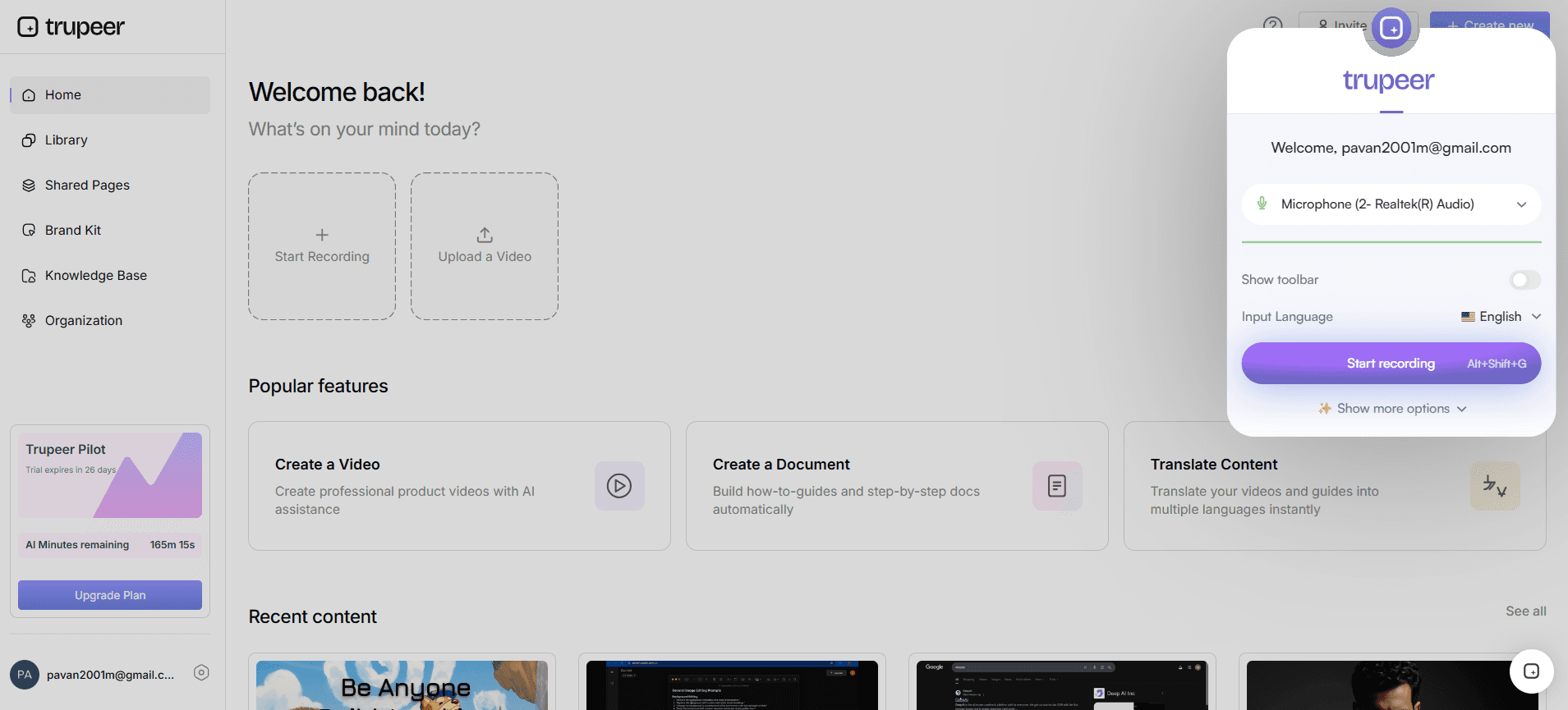
Start by using Trupeer's AI screen recording with auto-zoom and click detection. This feature allows you to effortlessly capture your screen while the AI highlights key actions and zooms into important areas. To begin, open Trupeer on your desktop or browser, and select the screen recording option. As you navigate through your demo, the AI automatically zooms in on clicks and significant movements, ensuring viewers’ focus is exactly where it needs to be. This step takes about 10-15 minutes, depending on the complexity of the demo. The automatic adjustments save time and eliminate the need for manual editing later.
Step 2: Enhance Audio with AI Voiceover
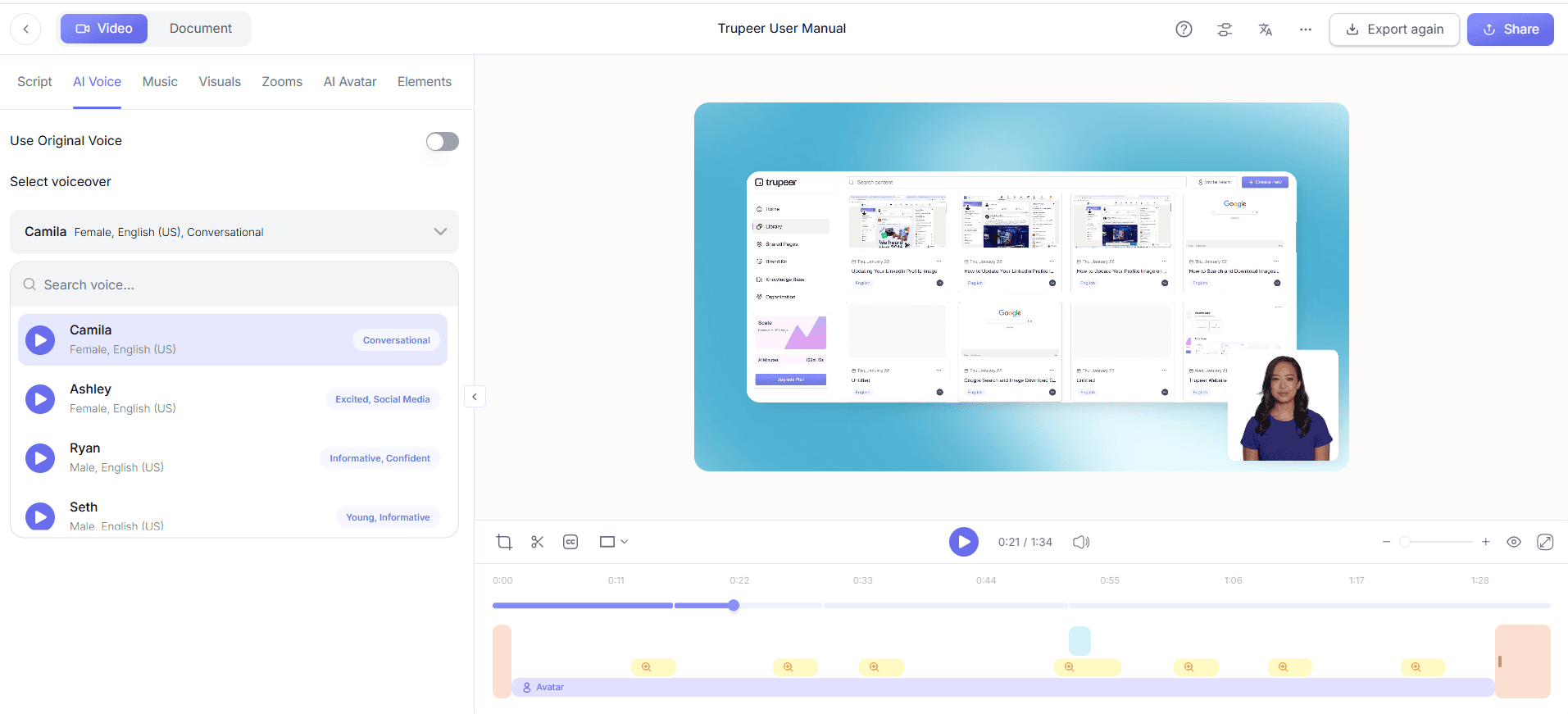
Once your screen recording is complete, enhance it with Trupeer's AI voiceover in 65+ natural voices. This capability allows you to choose a voice that matches your brand's tone and adjust the pace to suit your content. Select the voiceover option in the editing menu, choose a voice, and decide on the pacing. It takes only a few minutes to apply this feature, transforming your raw video into a polished presentation. This step is crucial for maintaining professionalism, especially if you're not comfortable recording your voice.
Step 3: Remove Filler Words Automatically
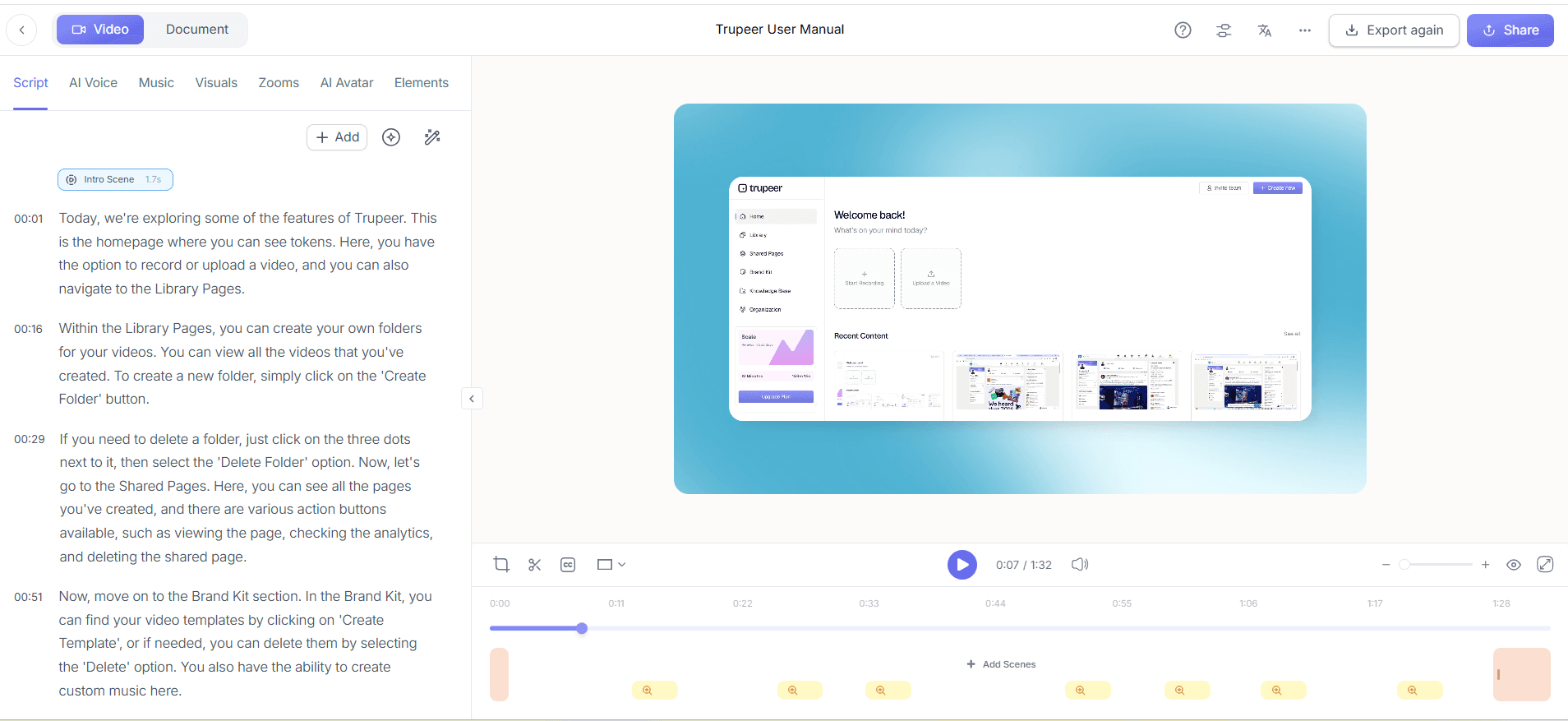
Next, clean up your audio using Trupeer's automatic filler-word removal feature. This function identifies and eliminates unnecessary "ums," "ahs," and long pauses, ensuring your video flows smoothly. Navigate to the audio editing section and activate the filler-word removal. The AI processes your recording in seconds, instantly enhancing clarity. This step is particularly beneficial for maintaining viewer engagement, as it sharpens the delivery and keeps the focus on the content.
Step 4: Add Auto Chapters for Easy Navigation
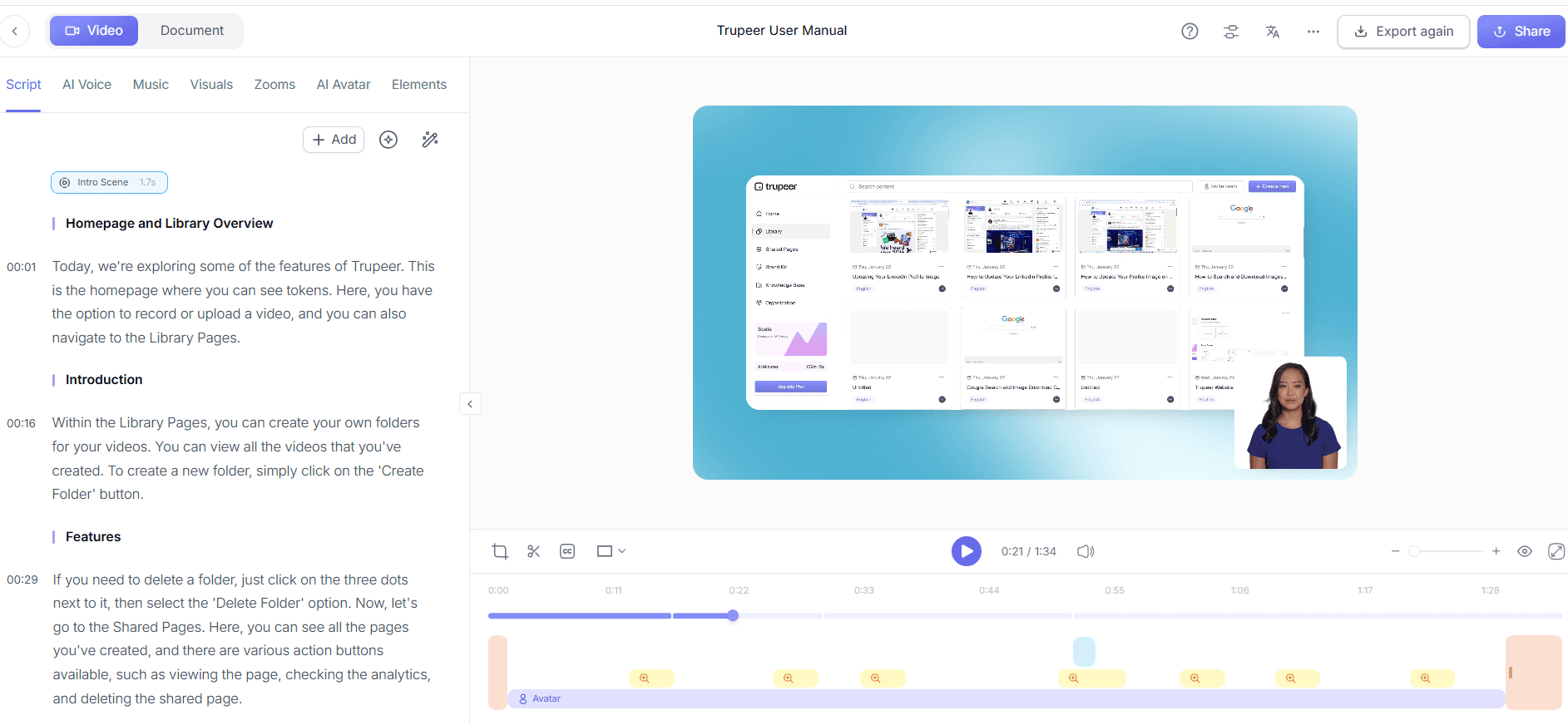
Enhance viewer experience by using Trupeer's auto chapters and segment detection. This feature automatically divides your video into logical sections, making it easier for viewers to find specific content. After finalizing your video, select the auto chapters option. The AI analyzes the video and creates a navigable table of contents within minutes. This is particularly useful for longer demos, allowing viewers to jump to sections of interest, which can significantly improve engagement and retention. Many teams pair this with a documentation platform that generates written guides from the same recording, so the pitch and the how-to stay in sync.
Step 5: Translate and Localize Content
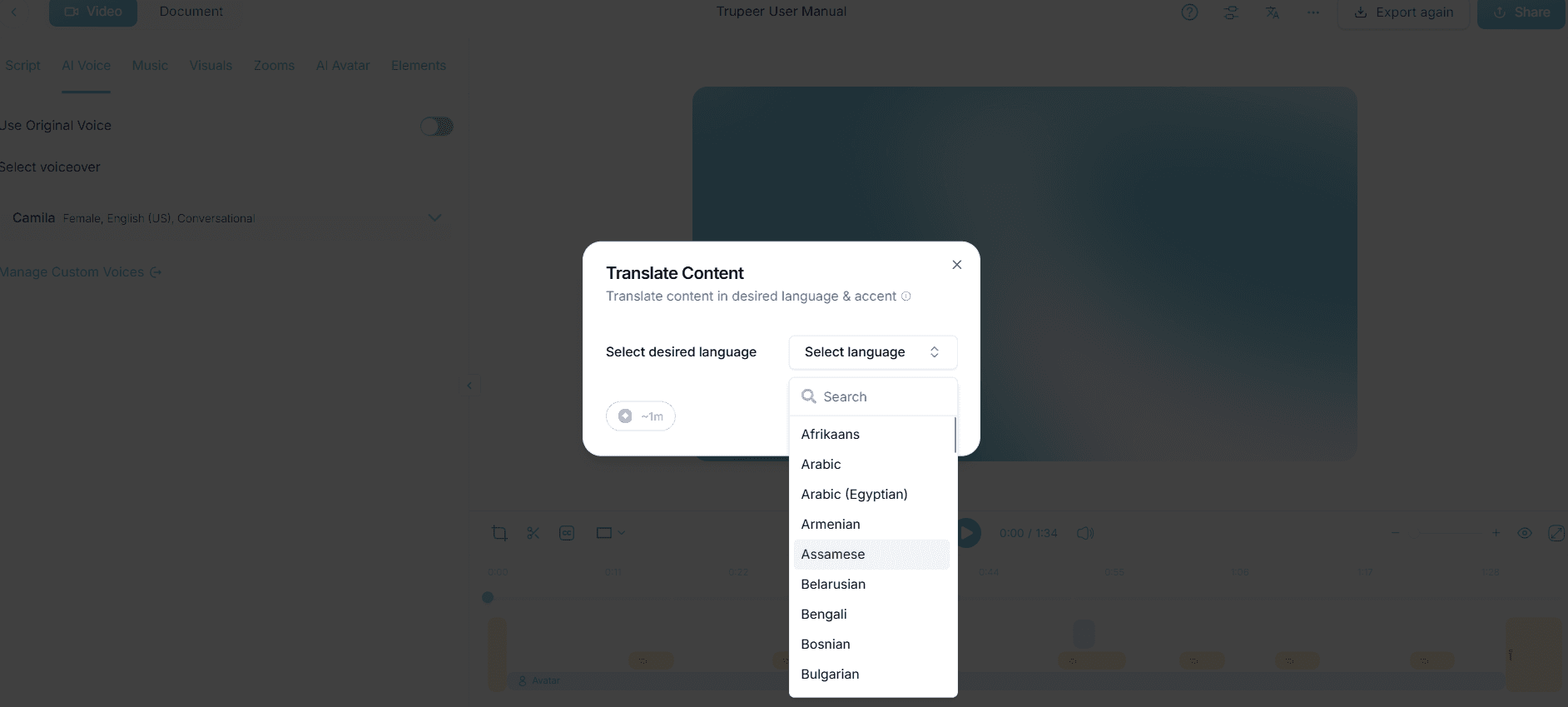
To reach a broader audience, use Trupeer's AI translation into 40+ languages with lip-sync. In the localization menu, choose the languages you want to translate your video into. The AI handles the translation and synchronizes the dubbing with the video within a short span, usually under 10 minutes. This step is crucial if your audience includes non-English speakers, ensuring your message is accessible and understandable to diverse viewers. Teams weighing tools often start with a Loom alternatives comparison before standardizing on a workflow.
Step 6: Distribute Through Custom Portals
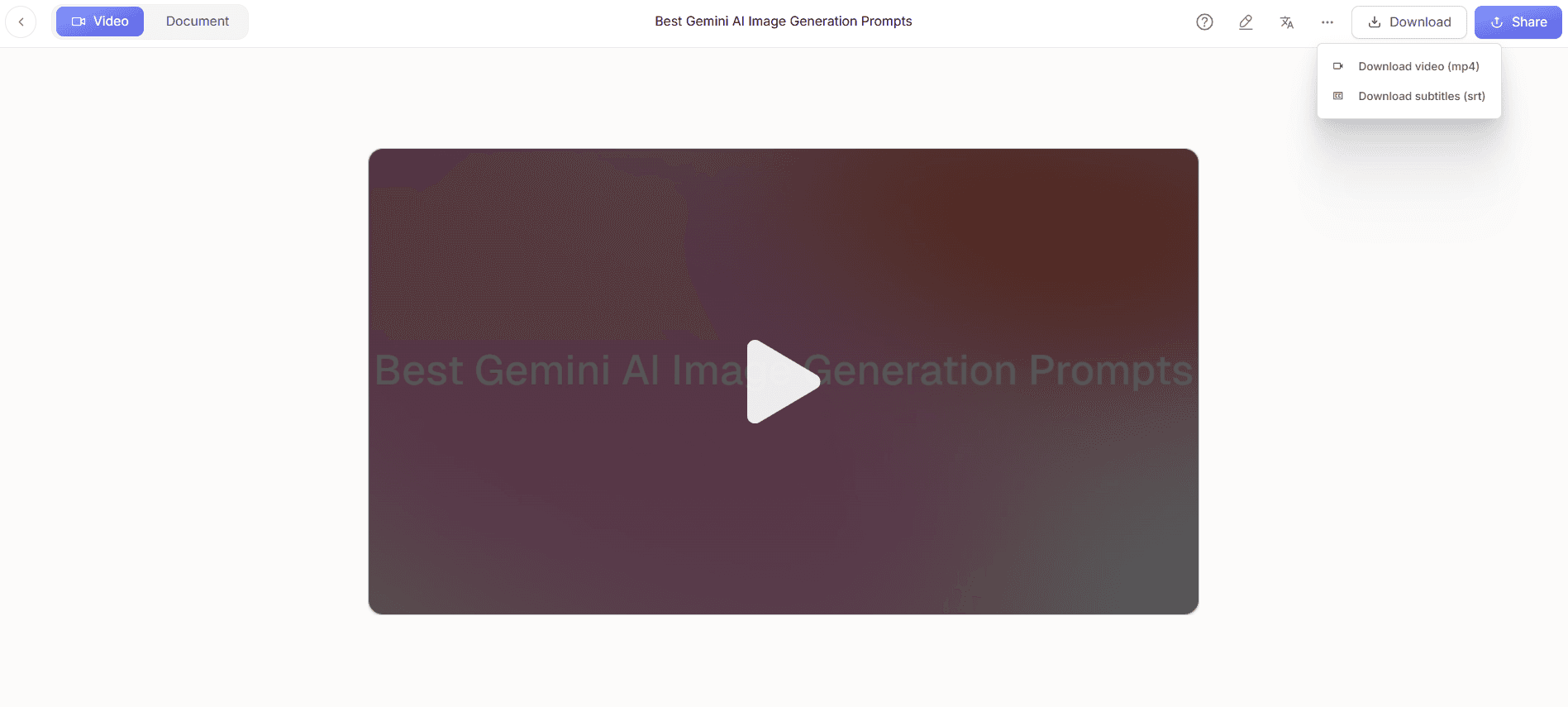
Finally, distribute your video using Trupeer's shared pages and client-facing portals. After completing the video, select the distribution option and create a custom page or portal. This allows you to control who has access to your content and provides a professional presentation layer. The setup process takes about 5 minutes, ensuring your video reaches the right audience efficiently. This step is essential for maintaining security and professionalism in content distribution.
What tips help you create effective pre-meeting videos?
Creating effective pre-meeting videos requires more than just technical skills. Here are some practical tips to ensure your videos are impactful and engaging:
Keep it concise. Aim for a video length of 5-7 minutes to maintain attention and ensure key points are delivered effectively.
Focus on key messages. Highlight the most important features or benefits to avoid overwhelming your audience with too much information.
Use engaging visuals. Incorporate clear visuals and animations to illustrate complex ideas and maintain viewer interest.
Test your setup. Ensure your recording environment is quiet and your tech is functioning properly to avoid interruptions during recording.
Get feedback. Share a draft with colleagues to gather feedback and refine your content before finalizing.
Standardize your style. Use a product demo video recording editing tool to ensure consistency in video style and quality.
Review analytics. After distribution, analyze viewer engagement data to identify strong and weak points in your video.
Teams ship this workflow end-to-end using Trupeer's AI video platform, which turns raw recordings into polished output without an editor.
Frequently asked questions
How do I ensure my pre-meeting video is engaging?
To make your pre-meeting video engaging, focus on concise messaging and visual appeal. Use Trupeer’s AI tools like auto-zoom and click detection to keep the focus on critical content. Incorporate a strong narrative that aligns with your prospect's needs and challenges. Engaging visuals and professional voiceovers also contribute to a compelling presentation. Finally, use analytics to gauge viewer engagement and make adjustments for future videos.
What is the ideal length for a pre-meeting video?
The ideal length for a pre-meeting video is typically between 5 and 7 minutes. This timeframe is long enough to convey essential information yet short enough to maintain viewer attention. Keeping your video within this range ensures that key points are delivered without overwhelming the audience. Analyze viewer drop-off rates using Trupeer’s viewer engagement analytics to fine-tune your video length.
Can I use Trupeer for multilingual audiences?
Yes, Trupeer is equipped with AI translation into 40+ languages, making it ideal for multilingual audiences. The platform ensures accurate translations with lip-sync, enhancing the viewer's experience. This feature is particularly beneficial for companies addressing global markets, as it makes your content accessible and relatable to diverse audiences. This capability ensures your message is consistent across different languages and regions, broadening your reach.
What are the key features of Trupeer for pre-meeting videos?
Trupeer offers several key features for creating effective pre-meeting videos. These include AI screen recording with auto-zoom, an AI voiceover with multiple voice options, and automatic filler-word removal. also, auto chapters and segment detection help organize the content, while AI translation broadens your audience reach. The platform also supports distribution through shared pages, ensuring your content is presented professionally and securely.
Does Trupeer support video localization?
Absolutely, Trupeer supports video localization through its AI translation and dubbing capabilities. The platform can translate videos into over 40 languages with synchronized lip-sync, ensuring that the localized content maintains the same impact as the original. This feature is essential for reaching non-English speaking audiences and expanding your market presence. ai/translation">video localization tool page.
Свързани блогове


