Trupeer Blog
Ringkas

Bayangkan Anda diminta membuat video tutorial perangkat lunak yang detail untuk tim Anda, tetapi Anda memerlukannya tanpa suara. Mengapa tanpa suara? Karena narasi AI akan ditambahkan nanti, sehingga menghasilkan produk akhir yang rapi dan profesional. Pendekatan ini semakin populer, terutama saat Anda perlu membuat konten yang mudah diedit dan jelas untuk dipahami. Namun, merekam layar yang bersih tanpa audio tidak sesederhana yang terdengar.
Faktanya, 70% kesalahan dalam perekaman layar dapat ditelusuri ke persiapan dan pelaksanaan yang kurang baik.
Baik Anda seorang manajer proyek yang membutuhkan tutorial sempurna untuk melatih karyawan baru, atau seorang instructional designer yang mengerjakan modul e-learning, risikonya tinggi. Video yang ditangkap dengan buruk dapat menimbulkan kesalahpahaman, meningkatkan waktu pelatihan, dan pada akhirnya berdampak pada produktivitas Anda. Panduan ini ditujukan bagi siapa pun yang ingin memanfaatkan kekuatan rekaman tanpa suara untuk menjaga standar tinggi dan menyederhanakan alur kerja mereka. Jika Anda sedang mencari software screen capture terbaik untuk mendukung upaya ini, Anda berada di tempat yang tepat.
Mengapa perekaman tanpa suara untuk screen capture itu penting?
Perekaman tanpa suara di aplikasi screen capture lebih dari sekadar opsi; ini adalah pilihan strategis bagi banyak bisnis. Saat Anda merekam layar tanpa suara, Anda menyiapkan landasan untuk menambahkan narasi buatan AI. Ini memastikan konsistensi pesan, nada, dan tempo di seluruh video Anda. Bagi perusahaan yang sangat berinvestasi dalam pelatihan dan pengembangan, kemampuan untuk menambahkan narasi AI multibahasa berarti menjangkau audiens yang lebih luas tanpa kerumitan melakukan pengambilan ulang konten. Sebagai bagian dari alur kerja adopsi AI, screen capture tanpa suara menawarkan kanvas bersih untuk penyesuaian dalam berbagai bahasa dan konteks.
Bagi pemangku kepentingan seperti koordinator pelatihan, tim quality assurance, dan pembuat konten, perekaman tanpa suara sangat penting. Ini memungkinkan mereka fokus sepenuhnya pada pengambilan visual berkualitas tinggi tanpa perlu khawatir tentang audio yang menyertainya. Pemisahan ini membuat proses pascaproduksi menjadi lebih terarah, di mana voiceover profesional dapat disinkronkan dengan visual, sehingga menghasilkan produk akhir yang lebih rapi. Hasilnya adalah alur kerja yang efisien yang mengurangi kesalahan dan ketidakkonsistenan, menghemat waktu dan sumber daya. Dengan mengintegrasikan screen capture tanpa suara ke dalam proses bisnis Anda, Anda dapat secara signifikan meningkatkan kualitas dan kejelasan konten instruksional Anda, sehingga memperbaiki keterlibatan serta retensi pembelajar.
Apa manfaat screen capture tanpa suara?
Fokus pada screen capture tanpa suara menawarkan beberapa manfaat utama yang meningkatkan nilainya dalam lingkungan profesional.
Kualitas yang Konsisten. Rekaman tanpa suara mengurangi noise latar dan variasi audio, memastikan semua video mempertahankan tingkat konsistensi visual dan audio yang tinggi—yang penting untuk software screen recording terbaik.
Fleksibilitas yang Lebih Baik. Tanpa audio yang direkam sebelumnya, tim memiliki kebebasan untuk mengedit dan memperbarui konten visual tanpa perlu khawatir menyamakan audio, sehingga revisi menjadi lebih cepat.
Lokalisasi yang Lebih Baik. Video tanpa suara dapat dengan mudah disesuaikan untuk berbagai bahasa dan wilayah dengan menambahkan narasi AI yang dilokalkan, sehingga memudahkan menjangkau audiens global melalui platform video AI.
alur kerja yang disederhanakan. Dengan memisahkan tugas audio dan video, tim dapat bekerja secara bersamaan, mempercepat proses produksi dan memudahkan untuk memenuhi tenggat waktu yang ketat.
Efisiensi Biaya. Mengurangi kebutuhan akan pengisi suara profesional atau waktu studio menurunkan biaya, sehingga sumber daya dapat dialokasikan ke area produksi lain yang lebih kritis.
Keterlibatan yang Meningkat. Dengan berfokus pada visual yang jelas, rekaman tanpa suara memastikan perhatian penonton diarahkan ke aspek penting dari konten, sehingga menghasilkan tingkat keterlibatan yang lebih tinggi.
Fitur Trupeer apa yang membantu Anda merekam screen tanpa suara?
Trupeer menawarkan rangkaian fitur yang dirancang khusus untuk meningkatkan proses screen recording tanpa suara, memastikan Anda mendapatkan hasil maksimal dari rekaman Anda.
Screen recording tanpa suara dengan narasi AI otomatis
Fitur screen recording tanpa suara Trupeer memungkinkan Anda menangkap visual berkualitas tinggi tanpa gangguan audio apa pun. Kemampuan ini ditingkatkan dengan narasi AI otomatis, yang memungkinkan Anda menambahkan voiceover setelah rekaman. Anda dapat memilih dari lebih dari 65+ suara alami, menyesuaikan tempo dan nada agar sesuai dengan kebutuhan konten. Fitur ini sempurna untuk membuat konten multibahasa atau saat Anda perlu memperbarui narasi tanpa mengubah video itu sendiri, sehingga Trupeer menjadi alat screen recording terbaik untuk berbagai kebutuhan.
Voiceover AI dalam 65+ suara alami, tempo dan nada yang dapat disesuaikan
Setelah merekam video tanpa suara Anda, alat voiceover AI Trupeer menawarkan lebih dari 65+ suara alami untuk dipilih. Artinya, Anda dapat menyesuaikan narasi agar sesuai dengan audiens Anda, baik saat menargetkan lingkungan bisnis profesional maupun suasana yang lebih santai. Opsi tempo dan nada yang dapat disesuaikan memastikan narasi selaras dengan visual, sehingga meningkatkan pemahaman dan retensi. Fleksibilitas ini sangat berharga bagi bisnis yang ingin mempertahankan suara merek yang konsisten dan menarik di seluruh konten mereka.
Pembuatan SOP otomatis dari rekaman apa pun
Pembuatan SOP otomatis Trupeer mengubah screen recording Anda menjadi prosedur operasi standar yang detail. Fitur ini sangat berguna untuk dokumentasi pelatihan dan kepatuhan, karena mengekstrak langkah-langkah dan instruksi kunci langsung dari video. SOP yang dihasilkan siap diedit dan dapat diekspor dalam berbagai format. Kemampuan ini tidak hanya menghemat waktu, tetapi juga memastikan akurasi dan konsistensi dalam materi pelatihan Anda, mendukung platform dokumentasi AI.
Avatar AI / video talking-head
Untuk menambahkan unsur manusia pada rekaman tanpa suara Anda, Trupeer menyediakan avatar AI dan video talking-head. Anda dapat memilih dari pustaka stok atau membuat avatar kustom untuk mewakili merek atau anggota tim Anda. Fitur ini ideal untuk tutorial, webinar, atau konten apa pun di mana keterlibatan personal menjadi kunci. Dengan mengintegrasikan avatar, Anda dapat membuat video Anda lebih terasa relevan dan menarik, yang dapat meningkatkan retensi penonton serta hasil pembelajaran.
Knowledge base yang dapat dicari dengan AI dengan deep-link berdasarkan timestamp
Knowledge base Trupeer yang dapat dicari dengan AI memungkinkan Anda mengatur dan mengakses screen recording Anda secara efisien. Setiap video diindeks dengan deep-link berdasarkan timestamp, sehingga memudahkan menemukan bagian atau topik tertentu dalam sebuah rekaman. Fitur ini penting bagi tim yang perlu merujuk kembali ke konten sebelumnya untuk keperluan pelatihan, dukungan, atau dokumentasi. Sifat knowledge base yang dapat dicari berarti Anda dapat dengan cepat mengambil dan membagikan informasi, sehingga memfasilitasi kolaborasi dan komunikasi yang lebih baik di antara tim Anda. ai/knowledge-base">video knowledge base.
Bagaimana cara merekam screen tanpa suara langkah demi langkah dengan Trupeer?
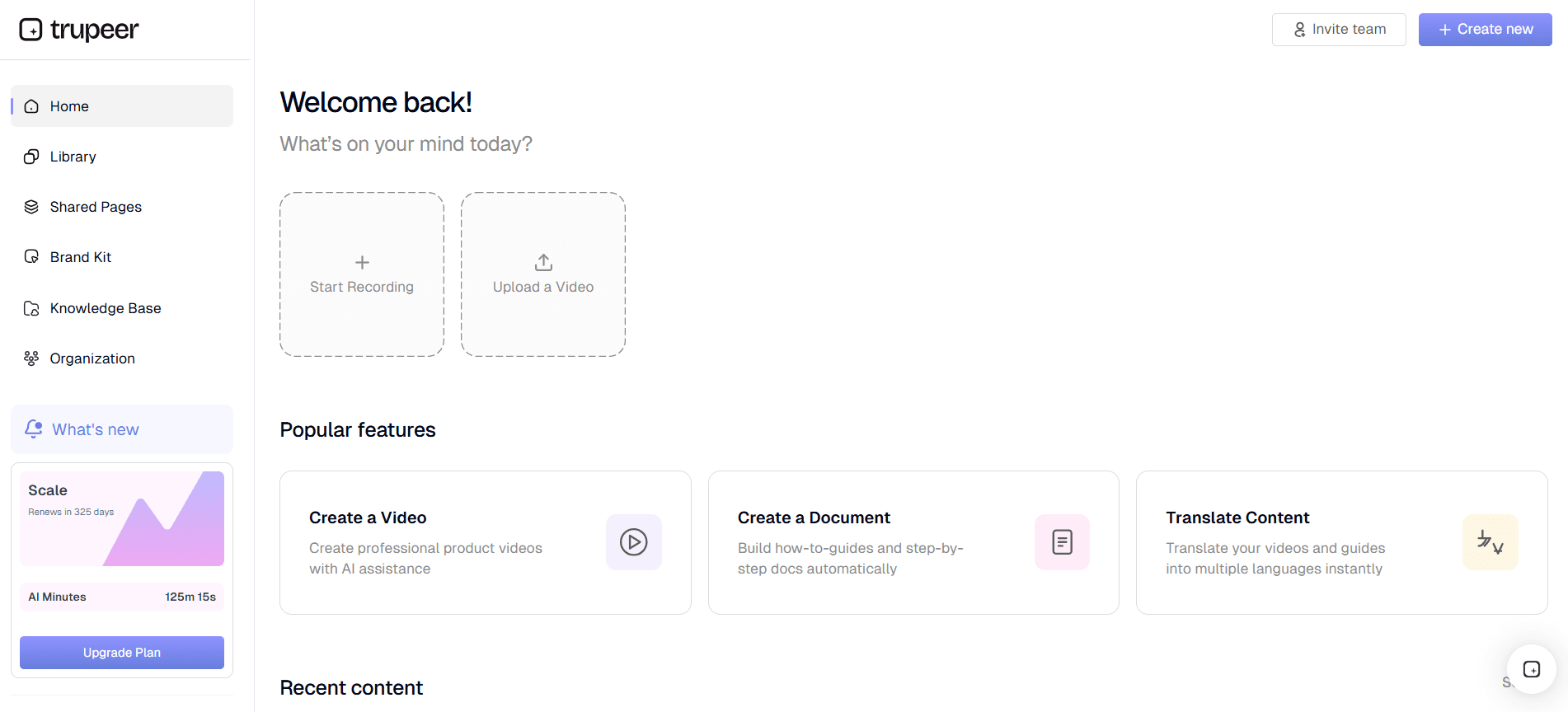
Langkah 1: Siapkan Lingkungan Rekaman Anda
Mulailah dengan memilih lingkungan rekaman Anda dengan cermat. Buka recorder berbasis browser Trupeer, yang tidak memerlukan instalasi, sehingga cepat untuk memulai. Pastikan screen Anda bersih, tanpa jendela yang tidak perlu terbuka. Ini meminimalkan gangguan dan memastikan fokus yang jelas pada tugas yang ada. Pilih area layar yang ingin Anda tangkap dengan memilih antara layar penuh, jendela aplikasi, atau tab browser tertentu. Fitur auto-zoom Trupeer akan membantu menyorot tindakan secara otomatis, tetapi penting untuk menyiapkan workspace Anda dengan rapi agar fungsi ini optimal. Tahap persiapan ini mungkin memakan waktu sekitar 5 menit, tetapi menjadi fondasi yang kuat untuk rekaman yang bersih.
Langkah 2: Mulai Screen Recording Tanpa Suara
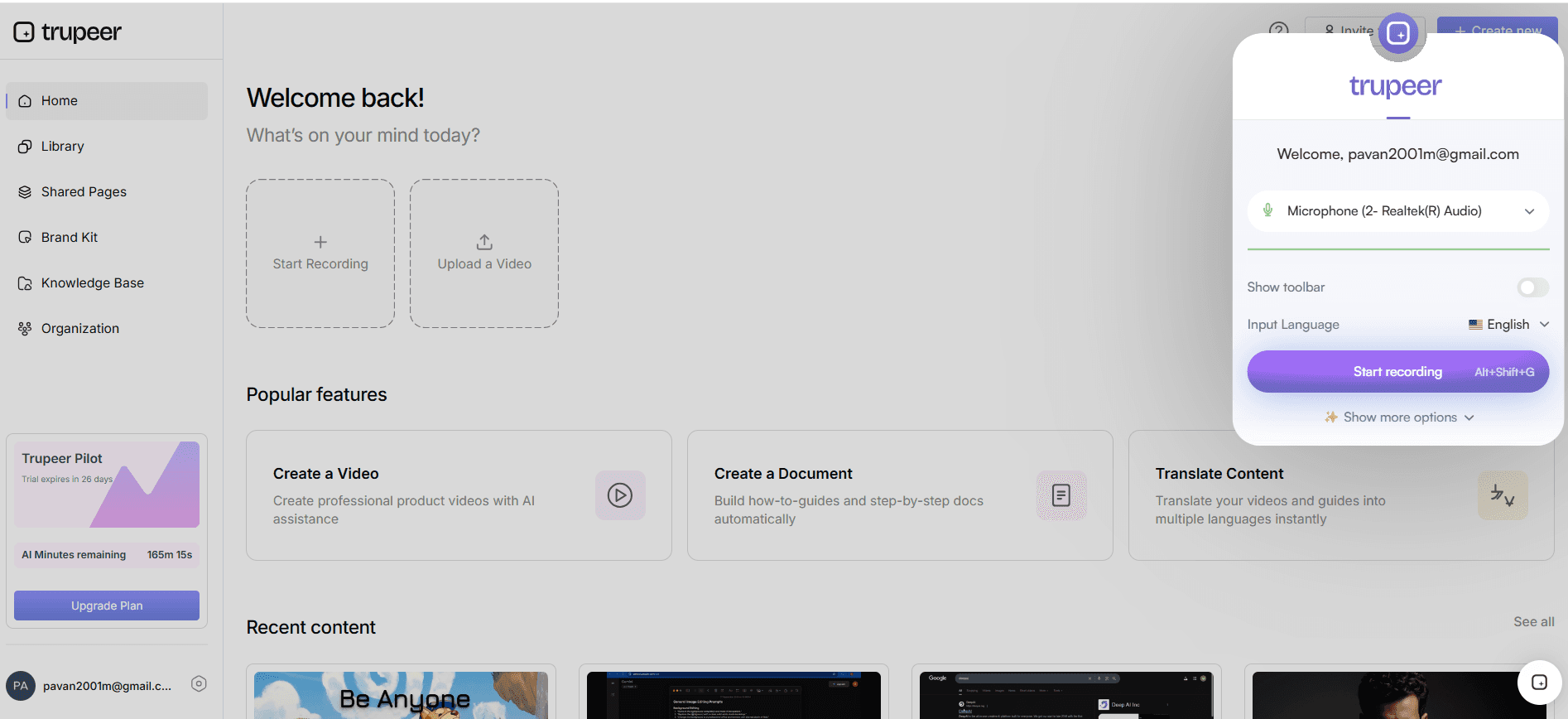
Setelah lingkungan Anda siap, klik tombol ‘Record’ pada antarmuka Trupeer untuk memulai screen recording tanpa suara. Pilih opsi perekaman tanpa suara untuk memastikan tidak ada audio yang ditangkap. Platform Trupeer akan secara otomatis mendeteksi klik dan menyorotnya, sehingga meningkatkan kejelasan visual tutorial Anda. Proses ini meminimalkan pengeditan manual nanti. Biasanya, pengaturan awal dan memulai rekaman memakan waktu sekitar 2 menit. Jika Anda merekam proses yang panjang, pertimbangkan untuk membaginya menjadi beberapa segmen agar tetap jelas dan mudah dikelola.
Langkah 3: Tangkap Tindakan Utama dengan Auto-Zoom
Saat Anda merekam, Trupeer menggunakan auto-zoom berbasis AI untuk memfokuskan pada tindakan penting, seperti mengklik tombol atau mengetik di kolom. Fitur ini memastikan penonton dapat mengikuti tutorial dengan mudah. Anda tidak perlu menyesuaikan zoom secara manual, sehingga menghemat waktu dan tenaga. Jika suatu tindakan tidak disorot seperti yang diharapkan, Anda dapat menjeda rekaman dan menyesuaikan area fokus secara manual. Kemampuan beradaptasi ini penting untuk menjaga kualitas tutorial yang tinggi. Alokasikan sekitar 10-15 menit untuk langkah ini, tergantung pada kompleksitas tugas Anda.
Langkah 4: Gunakan AI Voiceover untuk Narasi
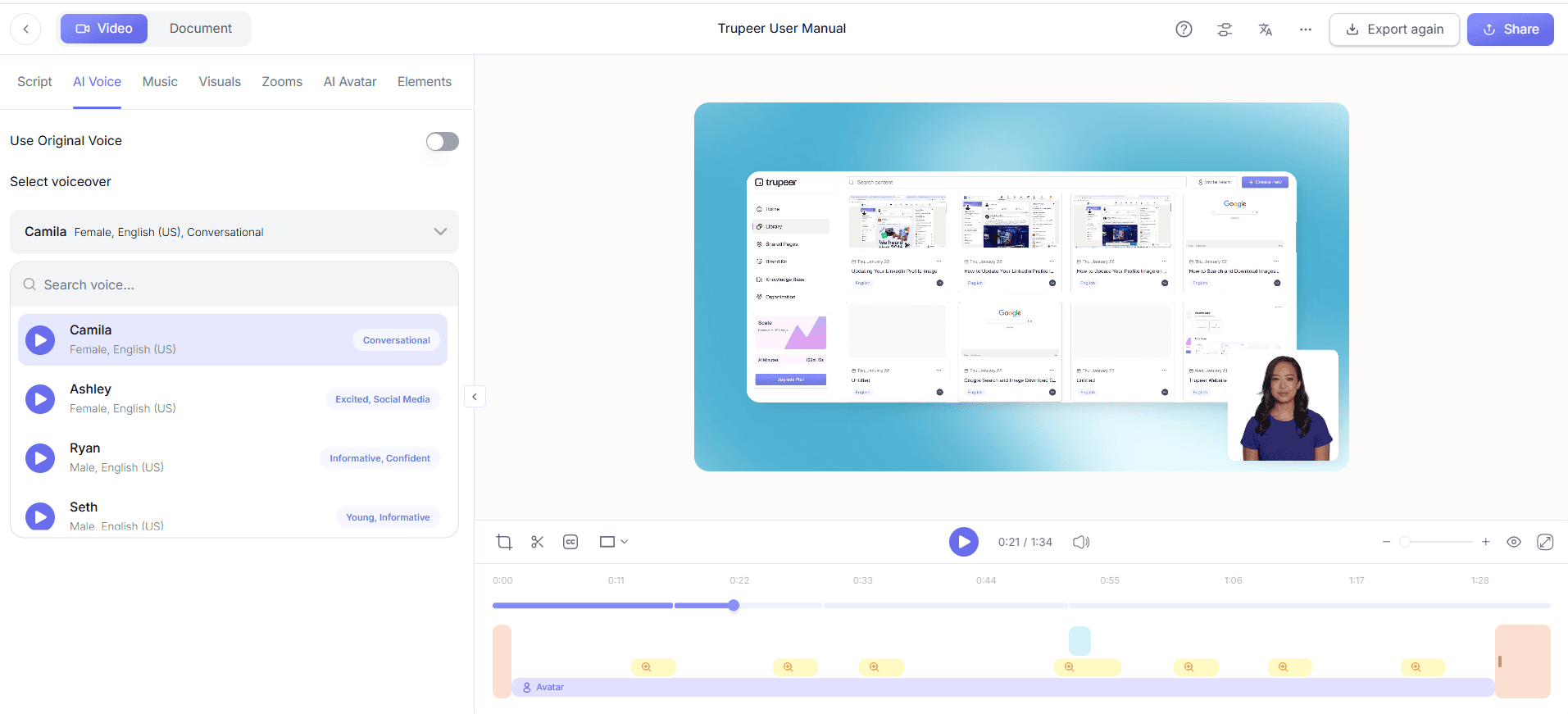
Setelah menangkap video tanpa suara Anda, buka suite pengeditan pascaperekaman Trupeer. Pilih fitur AI voiceover untuk menambahkan narasi. Pilih dari lebih dari 65+ suara alami dan sesuaikan tempo serta nada agar sesuai dengan konten video. Fitur ini memungkinkan Anda menambahkan konteks dan penjelasan ke visual tanpa merekam audio selama penangkapan awal. Proses menambahkan dan menyempurnakan narasi biasanya memakan waktu 15-20 menit, tergantung pada durasi video Anda.
Langkah 5: Buat dan Edit SOP
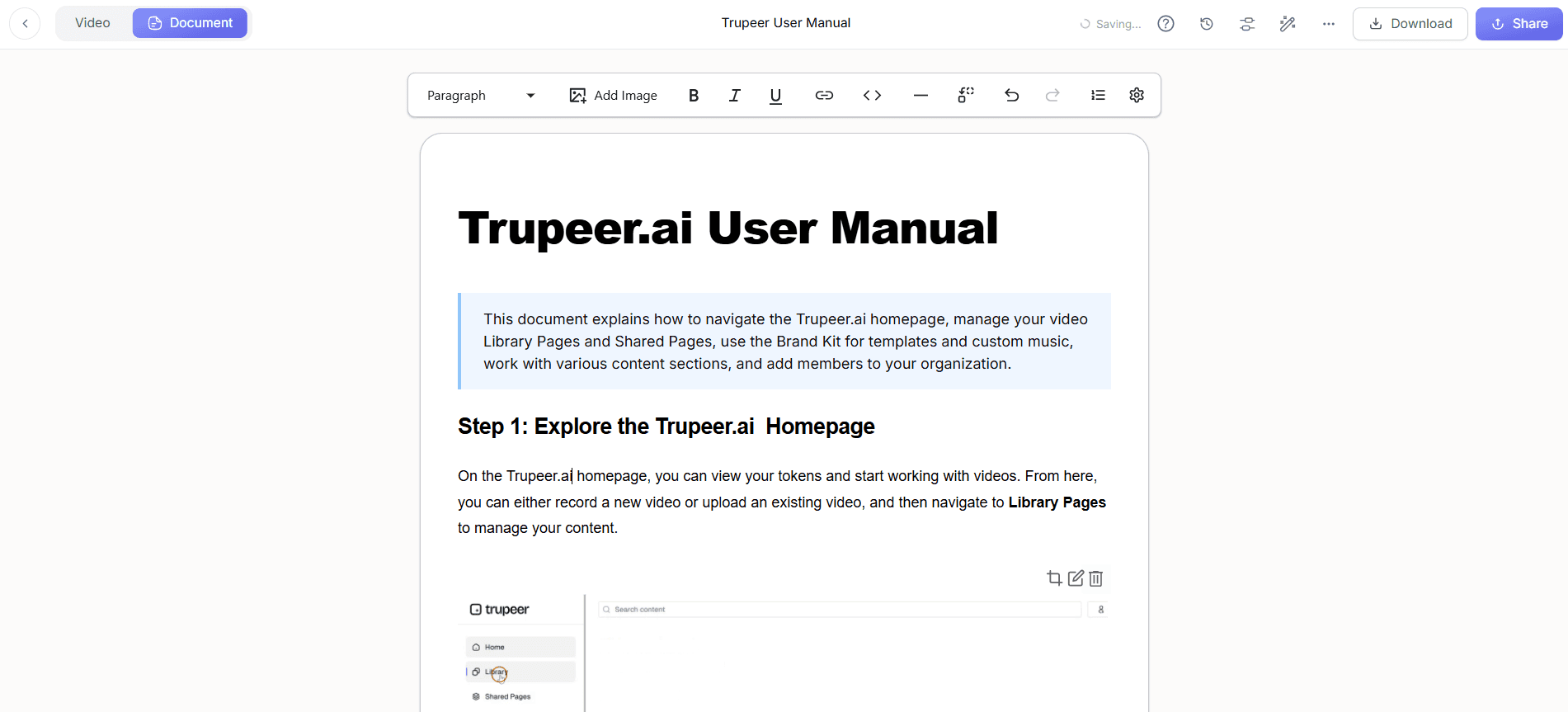
Setelah video Anda selesai dengan narasi, gunakan alat pembuatan SOP otomatis Trupeer. Fitur ini mengubah tindakan yang Anda rekam menjadi prosedur operasi standar yang detail, lengkap dengan instruksi langkah demi langkah. Tinjau dan edit SOP untuk memastikan akurasi dan kelengkapan. Anda dapat mengekspor dokumentasi ini dalam berbagai format, seperti PDF atau HTML, sehingga serbaguna untuk berbagai kebutuhan. Langkah ini memakan waktu sekitar 10 menit, tetapi dapat menghemat waktu yang signifikan saat onboarding karyawan baru atau saat mengadakan sesi pelatihan.
Langkah 6: Publikasikan dan Bagikan Melalui Knowledge Base
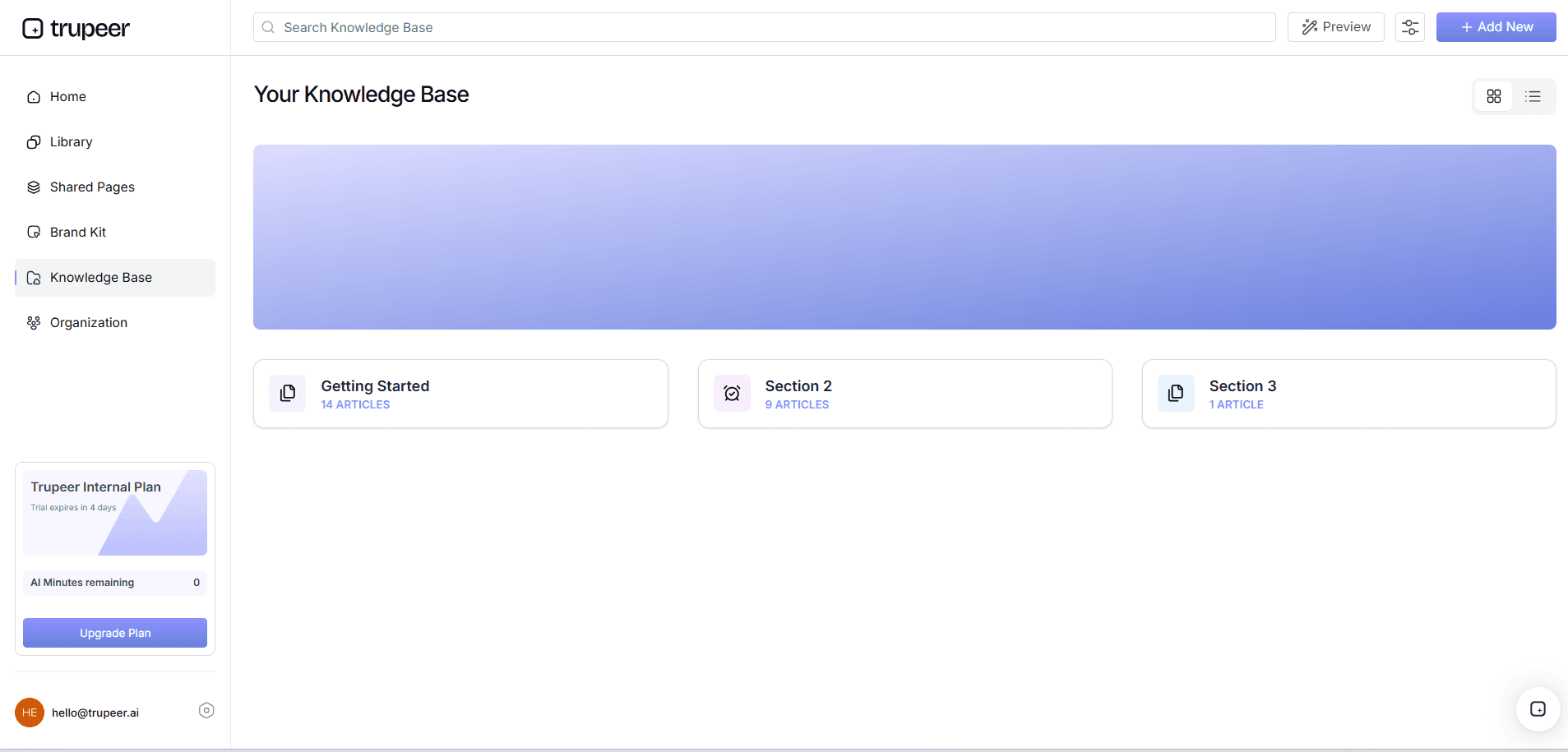
Terakhir, publikasikan video dan SOP yang sudah selesai ke knowledge base Trupeer yang dapat dicari dengan AI. Platform ini mengindeks setiap rekaman dengan deep link level timestamp, sehingga memungkinkan anggota tim menemukan bagian tertentu dengan cepat. Fitur ini sangat berharga untuk keperluan pelatihan dan dukungan, memastikan konten Anda mudah diakses dan dapat dicari. Proses publikasi memakan waktu sekitar 5 menit. Dengan menggunakan screen recording untuk employee training tool, Anda memastikan konten Anda tidak hanya berkualitas tinggi, tetapi juga didistribusikan secara efektif.
Tips apa yang membantu Anda mendapatkan screen capture tanpa suara yang bersih?
Untuk mendapatkan screen recording tanpa suara yang bersih, beberapa tips strategis dapat secara signifikan meningkatkan kualitas dan efisiensi pekerjaan Anda. Tips ini dirancang untuk membantu Anda mengoptimalkan pengaturan dan memaksimalkan fitur Trupeer.
Siapkan Workspace Anda. Pastikan desktop Anda tertata sebelum merekam agar gangguan tetap minimal dan fokus pada tugas yang ada.
Gunakan Fitur Auto-Zoom. gunakan auto-zoom Trupeer untuk menyorot area penting di layar Anda, memastikan perhatian penonton diarahkan dengan tepat.
Rencanakan Rekaman Anda. Gariskan langkah-langkah yang akan Anda rekam untuk menghindari jeda yang tidak perlu dan memastikan alur video berjalan lancar.
gunakan AI Voiceover. Menambahkan narasi AI setelah rekaman memungkinkan instruksi yang konsisten dan jelas tanpa perlu merekam ulang audio.
Edit Secara Proaktif. Gunakan alat pengeditan Trupeer untuk memotong bagian yang tidak perlu dan menyempurnakan video Anda agar lebih jelas dan menarik.
Uji Sebelum Menyelesaikan. Pratinjau video Anda untuk memastikan semuanya tertangkap sesuai rencana, lalu lakukan penyesuaian yang diperlukan sebelum dipublikasikan.
Jelajahi Alternatif. Pertimbangkan alternatif Scribe untuk SOP untuk memastikan Anda menggunakan alat yang paling efektif sesuai kebutuhan Anda.
Tim yang menimbang alat sering kali memulai dengan perbandingan alternatif Loom sebelum menstandarkan pada sebuah alur kerja.
Pertanyaan yang sering diajukan
Bagaimana cara memastikan screen capture saya berkualitas tinggi?
Untuk memastikan screen capture berkualitas tinggi, siapkan lingkungan Anda dengan menutup aplikasi yang tidak perlu dan menata workspace agar konten yang relevan lebih terlihat. gunakan fitur auto-zoom dan deteksi klik Trupeer untuk memfokuskan pada tindakan penting. Ini tidak hanya meningkatkan kejelasan, tetapi juga menjaga penonton tetap terlibat. juga, rencanakan rekaman Anda untuk menghindari jeda atau gangguan yang tidak perlu, sehingga menghasilkan video yang lancar dan profesional. Setelah rekaman selesai, gunakan alat pengeditan Trupeer untuk menyempurnakan video Anda lebih lanjut, memotong gangguan apa pun dan menonjolkan poin-poin penting.
Apa yang harus saya lakukan jika rekaman saya berisi kesalahan?
Jika rekaman Anda berisi kesalahan, suite pengeditan Trupeer dapat membantu Anda memperbaikinya secara efisien. Gunakan alat pengeditan untuk memotong kesalahan atau bagian yang tidak relevan. Anda juga dapat merekam ulang bagian tertentu dari video dan menyambungkannya dengan lancar. Fitur AI voiceover Trupeer memungkinkan Anda menyesuaikan narasi agar sesuai dengan perubahan apa pun, sehingga memastikan konsistensi di seluruh video. Fleksibilitas ini memastikan bahwa meskipun ada kesalahan, produk akhir Anda tetap rapi dan profesional.
Mengapa memilih perekaman tanpa suara dibandingkan perekaman yang menyertakan audio?
Perekaman tanpa suara menawarkan fleksibilitas dan kontrol yang lebih besar dalam proses pascaproduksi. Dengan menangkap visual tanpa audio, Anda dapat menambahkan narasi buatan AI nanti, sehingga memastikan konsistensi dalam nada dan pesan. Pendekatan ini sangat bermanfaat untuk konten multibahasa atau saat pembaruan sering terjadi, karena memungkinkan perubahan tanpa perlu merekam ulang seluruh video. juga, rekaman tanpa suara mengurangi masalah noise latar dan menghilangkan kebutuhan akan lingkungan rekaman yang tenang, sehingga proses menjadi lebih efisien dan lebih minim gangguan.
Bisakah Trupeer menangani narasi multibahasa?
Ya, Trupeer unggul dalam menangani narasi multibahasa. Dengan fitur voiceover AI-nya, Anda dapat memilih dari lebih dari 65+ suara alami dalam berbagai bahasa. Ini memudahkan pembuatan konten yang dilokalkan sesuai kebutuhan audiens yang berbeda. Integrasi platform dengan alat terjemahan AI juga semakin mendukung fungsionalitas ini, menyediakan terjemahan yang akurat serta kemampuan lip-sync. Keberagaman ini ideal untuk bisnis yang beroperasi di pasar yang beragam, memastikan pesan Anda jelas dan konsisten di seluruh wilayah.
Apakah Trupeer menawarkan solusi untuk terjemahan video?
Ya, Trupeer menyediakan solusi yang solid untuk terjemahan video melalui kemampuan AI video translation-nya. Fitur ini memungkinkan Anda menerjemahkan video ke lebih dari 40 bahasa, lengkap dengan lip-sync yang akurat. Ini adalah alat yang kuat untuk membuat konten yang dilokalkan tanpa perlu penyesuaian manual yang ekstensif. Proses terjemahan disederhanakan, sehingga Anda dapat menjangkau audiens yang lebih luas secara efektif. Dengan menggunakan platform terjemahan video Trupeer, Anda dapat memastikan konten Anda dapat diakses dan menarik bagi penonton di seluruh dunia.
Frequently Asked Questions
How can I ensure my screen capture is high quality?
What should I do if my recording includes errors?
Why choose silent recording over audio-included capture?
Can Trupeer handle multilingual narrations?
Does Trupeer offer solutions for video translation?



