Trupeer Blog
Summarise

Stellen Sie sich vor: Ihr Produktteam hat gerade einen detaillierten Video-Walkthrough Ihrer neuesten Feature-Veröffentlichung abgeschlossen. Er ist gründlich, aufschlussreich, und alle sind sich einig, dass er alle Aspekte abdeckt. Jetzt sollen Sie diese Aufzeichnung in ein Testskript für User Acceptance Testing (UAT) umwandeln. Die Messlatte liegt hoch, denn ein gut geschriebenes UAT-Testskript kann den Testprozess erheblich vereinfachen und sicherstellen, dass jeder kritische Nutzerpfad geprüft wird, bevor das Produkt auf den Markt kommt. Laut einer Umfrage der Tech Research Group,
Unternehmen, die detaillierte UAT-Prozesse integrieren, verzeichnen eine Reduzierung von Fehlern nach der Veröffentlichung um 30 %.
Das hat erhebliche Auswirkungen auf die Produktqualität und die Kundenzufriedenheit. Diese Aufgabe richtet sich an Produktmanager, QA-Spezialisten und technische Redakteure, die funktionsreiche Walkthroughs in umsetzbare Skripte umwandeln müssen. Das Ziel? Sicherstellen, dass in der entscheidenden UAT-Phase nichts durch die Maschen fällt. Wenn Sie Ihre Remote-Teams aufeinander abstimmen und Ihre Software-Releases verbessern möchten, kann auch das Verständnis dafür, wie man Inhalte für ein Videoskript schreiben, eine entscheidende Rolle spielen.
Warum ist das Schreiben eines UAT-Testskripts aus einer Produkt-Walkthrough-Aufzeichnung wichtig?
Das Erstellen von UAT-Testskripten aus Produkt-Walkthrough-Aufzeichnungen ist aus mehreren Gründen ein entscheidender Schritt im Softwareentwicklungszyklus. Erstens dienen diese Skripte als letzte Kontrollinstanz, bevor ein Produkt den Markt erreicht. Sie stellen sicher, dass die Software die geschäftlichen Anforderungen erfüllt und für Endanwender wie erwartet funktioniert. Ohne diesen Schritt besteht das Risiko, ein Produkt freizugeben, das die Bedürfnisse der Nutzer nicht erfüllt oder kritische Mängel aufweist, was zu kostspieligen Nachbesserungen nach dem Launch und zu Schäden am Ruf der Marke führen kann.
Auch die Einbindung tatsächlicher Endanwender in den Testprozess mithilfe dieser Skripte kann unschätzbares Feedback liefern. Dieser Feedback-Loop hilft, Usability-Probleme zu identifizieren, die für Entwickler oder Tester möglicherweise nicht offensichtlich sind. Außerdem stimmt er die Funktionalität des Produkts auf die Erwartungen der Nutzer und die Geschäftsziele ab und schafft so ein kohärenteres und zufriedenstellenderes Nutzererlebnis. Für Betriebsteams kann die Integration von UAT-Skripten in ihre Workflows die Abläufe vereinfachen und den Zeit- und Ressourcenaufwand für die Fehlersuche nach dem Launch reduzieren. Der Operations-Anwendungsfall hebt oft hervor, wie strukturierte Test-Frameworks die Teameffizienz und Produktzuverlässigkeit optimieren.
Welche Vorteile bietet die Verwendung von Produkt-Walkthrough-Aufzeichnungen zum Erstellen von UAT-Testskripten?
Die Verwendung von Produkt-Walkthrough-Aufzeichnungen zum Entwurf von UAT-Testskripten bietet mehrere greifbare Vorteile. So kann dieser Ansatz Ihren Testprozess verbessern:
Erhöhte Genauigkeit. Die Verwendung einer Walkthrough-Aufzeichnung stellt sicher, dass jedes Detail erfasst wird, und reduziert das Risiko, kritische Funktionen oder Nutzerpfade während des Tests zu übersehen.
Zeitersparnis. Das direkte Umwandeln von Aufzeichnungen in Skripte kann die Vorbereitungszeit erheblich verkürzen und Teams ermöglichen, sich auf beste Produkt-Walkthrough-Software zu konzentrieren.
Konsistenz beim Testen. Eine aufgezeichnete Walkthrough-Aufzeichnung bietet eine einheitliche Grundlage für alle Testskripte und stellt sicher, dass alle Tester die gleichen Verfahren befolgen und dieselben Nutzerabläufe bewerten.
Verbesserte Kommunikation. Das Teilen von videobasierten Skripten erleichtert es Entwicklungs- und QA-Teams, Testfälle zu verstehen und zu besprechen, und fördert so eine bessere Zusammenarbeit.
Weniger Nacharbeit. Mit umfassenden, aus Aufzeichnungen abgeleiteten Skripten sinkt die Wahrscheinlichkeit, Fehler zu übersehen, wodurch Nachbesserungen nach dem Launch minimiert werden.
Kosteneinsparungen. Weniger Fehler und weniger Nacharbeit führen zu geringeren Entwicklungskosten, was oft zu Einsparungen führt, die für andere Prioritäten wie den Einsatz einer KI-Videoplattform für eine verbesserte Kommunikation verwendet werden können.
Welche Trupeer-Funktionen helfen Ihnen, aus einer Produkt-Walkthrough-Aufzeichnung ein UAT-Testskript zu erstellen?
Trupeer bietet mehrere Funktionen, mit denen sich eine Produkt-Walkthrough-Aufzeichnung in ein umfassendes UAT-Testskript verwandeln lässt. Diese Funktionen vereinfachen den Prozess und verbessern die Qualität Ihrer Testskripte.
KI-Bildschirmaufnahme mit Auto-Zoom und Klickerkennung
Diese Funktion vereinfacht das Erfassen komplexer Benutzerinteraktionen, indem sie während einer Aufnahme automatisch den Fokus auf aktive Elemente legt. Mit Auto-Zoom und Klickerkennung stellen Sie sicher, dass keine Benutzeraktion unbemerkt bleibt. Diese Präzision ermöglicht detailliertere und genauere UAT-Testskripte, da jeder kritische Punkt der Benutzerreise erfasst wird. Viele Teams halten diese Funktion für unverzichtbar, um konsistente und detaillierte Aufzeichnungen zu erstellen, die die Grundlage für zuverlässige Testskripte bilden.
Automatische SOP-Generierung aus jeder Aufnahme
Die Fähigkeit von Trupeer, Standardarbeitsanweisungen (SOPs) direkt aus Aufzeichnungen zu generieren, ist von unschätzbarem Wert. Diese Funktion wandelt Ihren Walkthrough automatisch in ein bearbeitbares Dokument um, das als Grundlage für Ihr UAT-Testskript dient. Die automatisch generierte Dokumentation lässt sich exportieren und leicht in Ihren Workflow integrieren, wodurch die Vorbereitungszeit erheblich verkürzt wird. Die Nutzung dieser automatisch generierten Dokumentation hilft Ihnen, Konsistenz und Genauigkeit über alle Testskripte hinweg zu wahren.
KI-Voiceover in über 65 natürlichen Stimmen, anpassbares Tempo und anpassbarer Ton
Voiceovers können ein leistungsstarkes Werkzeug sein, wenn Sie Produkt-Walkthroughs überprüfen. Mit Trupeer können Sie Ihren Aufzeichnungen KI-generierte Voiceovers hinzufügen, die eine klare und professionelle Vertonung liefern und das Verständnis verbessern. Diese Funktion unterstützt über 65 natürliche Stimmen, die Sie in Tempo und Ton an die Bedürfnisse Ihrer Zielgruppe anpassen können. Durch den Einsatz dieser Voiceovers können Sie ansprechendere und informativere Aufzeichnungen erstellen, die sich in effektivere UAT-Testskripte übersetzen lassen.
KI-durchsuchbare Wissensdatenbank mit Deep-Links mit Zeitstempel
Wenn Sie Trupeers KI-durchsuchbare Wissensdatenbank in Ihren Workflow integrieren, können Sie jede Aufzeichnung mit Deep-Links auf Zeitstempel-Ebene indexieren. Diese Fähigkeit ermöglicht es Testern und Entwicklern, bestimmte Momente in einem Walkthrough schnell zu finden, was die Skripterstellung und ein fokussierteres Testen erleichtert. Sie verbessert die Zusammenarbeit und stellt sicher, dass alle Zugriff auf die relevantesten Informationen haben, genau dann, wenn sie diese benötigen.
KI-Avatare / Talking-Head-Video
Das Hinzufügen von KI-Avataren zu Ihren Aufzeichnungen kann diese ansprechender und zugänglicher machen. Trupeer bietet eine Bibliothek mit Standard-Avataren sowie Optionen für benutzerdefinierte Avatare über die HeyGen-Integration. Diese Avatare können Ihren Walkthrough vertonen und den Inhalt zugänglicher und visuell ansprechender machen. Durch den Einsatz von Talking-Head-Videos können Sie für Tester ein immersiveres Erlebnis schaffen, was zu aufschlussreicherem Feedback und robusteren UAT-Testskripten führen kann. Diese Funktion ist besonders nützlich für Teams, die komplexe Informationen in einem leicht verdaulichen Format präsentieren müssen.
Wie schreiben Sie Schritt für Schritt mit Trupeer ein UAT-Testskript aus einer Produkt-Walkthrough-Aufzeichnung?
Schritt 1: Zeichnen Sie Ihren Walkthrough auf
Beginnen Sie mit Trupeers KI-Bildschirmaufnahme mit Auto-Zoom und Klickerkennung, um Ihren Produkt-Walkthrough aufzuzeichnen. Mit dieser Funktion können Sie direkt über Ihren Browser aufnehmen, ohne etwas installieren zu müssen. Starten Sie einfach das Aufnahme-Tool, und es fokussiert automatisch auf aktive Elemente wie Mausklicks und hervorgehobene Bereiche. Dadurch entsteht eine präzise Aufnahme, die jede Benutzerinteraktion erfasst. In der Regel dauert es rund 12 Minuten, um eine 10-minütige Aufnahme abzuschließen, einschließlich der Verarbeitungszeit. Achten Sie darauf, während des Walkthroughs alle kritischen Nutzerpfade und Funktionen abzudecken, um eine umfassende Erfassung sicherzustellen.

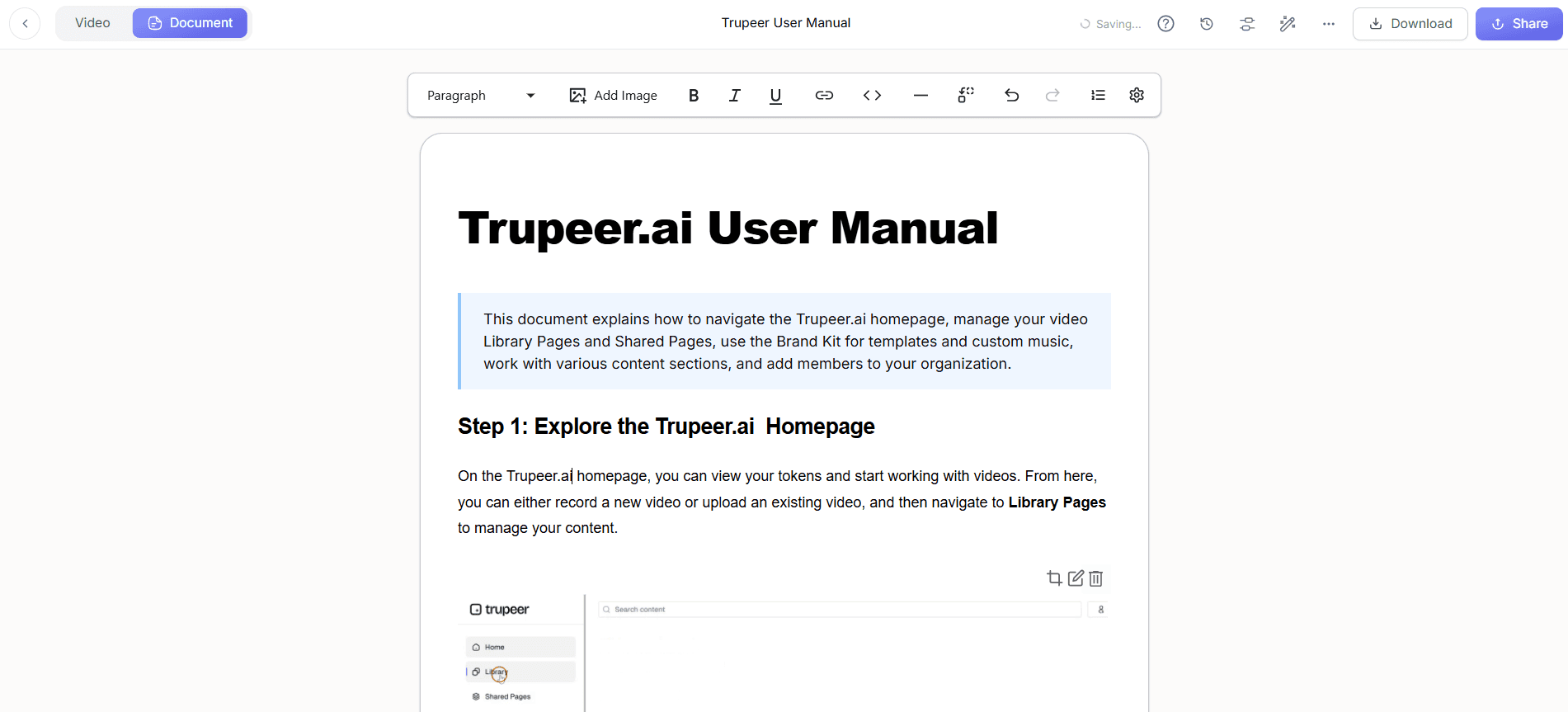
Schritt 2: Generieren Sie aus der Aufzeichnung ein SOP
Nach Abschluss der Aufnahme nutzen Sie Trupeers automatische SOP-Generierungsfunktion. Dieses Tool wandelt das aufgezeichnete Video in ein bearbeitbares Dokument um und legt damit das Fundament für Ihr UAT-Testskript. Greifen Sie auf die Funktion zu, indem Sie in Ihrem Aufnahme-Dashboard auf 'Generate SOP' klicken. Das System verarbeitet das Video und erstellt eine Schritt-für-Schritt-Anleitung, die jede in der Aufnahme ausgeführte Aktion beschreibt. Dieser Vorgang dauert in der Regel weniger als fünf Minuten. Das generierte Dokument lässt sich in verschiedenen Formaten exportieren, sodass Sie es leicht mit Ihrem Team zur Überprüfung und Zusammenarbeit teilen können. Teams, die Tools vergleichen, beginnen oft mit einem Vergleich von Loom-Alternativen, bevor sie einen Workflow standardisieren.
Schritt 3: Mit KI-Voiceover erweitern
Damit Ihr Walkthrough ansprechender und informativer wird, fügen Sie ein KI-Voiceover hinzu. Trupeer bietet über 65 natürliche Stimmen, sodass Sie diejenige auswählen können, die am besten zu Ihrer Zielgruppe passt. Durch Auswahl der Option 'Add Voiceover' können Sie Tempo und Ton an die Anforderungen des Skripts anpassen. Dadurch fällt es Testern leichter, mitzugehen und den Kontext jedes Schritts zu verstehen. Das Hinzufügen eines Voiceovers zu einer 10-minütigen Aufnahme dauert etwa 3–5 Minuten und ist damit eine schnelle Erweiterung, die das Verständnis des Skripts erheblich verbessern kann.

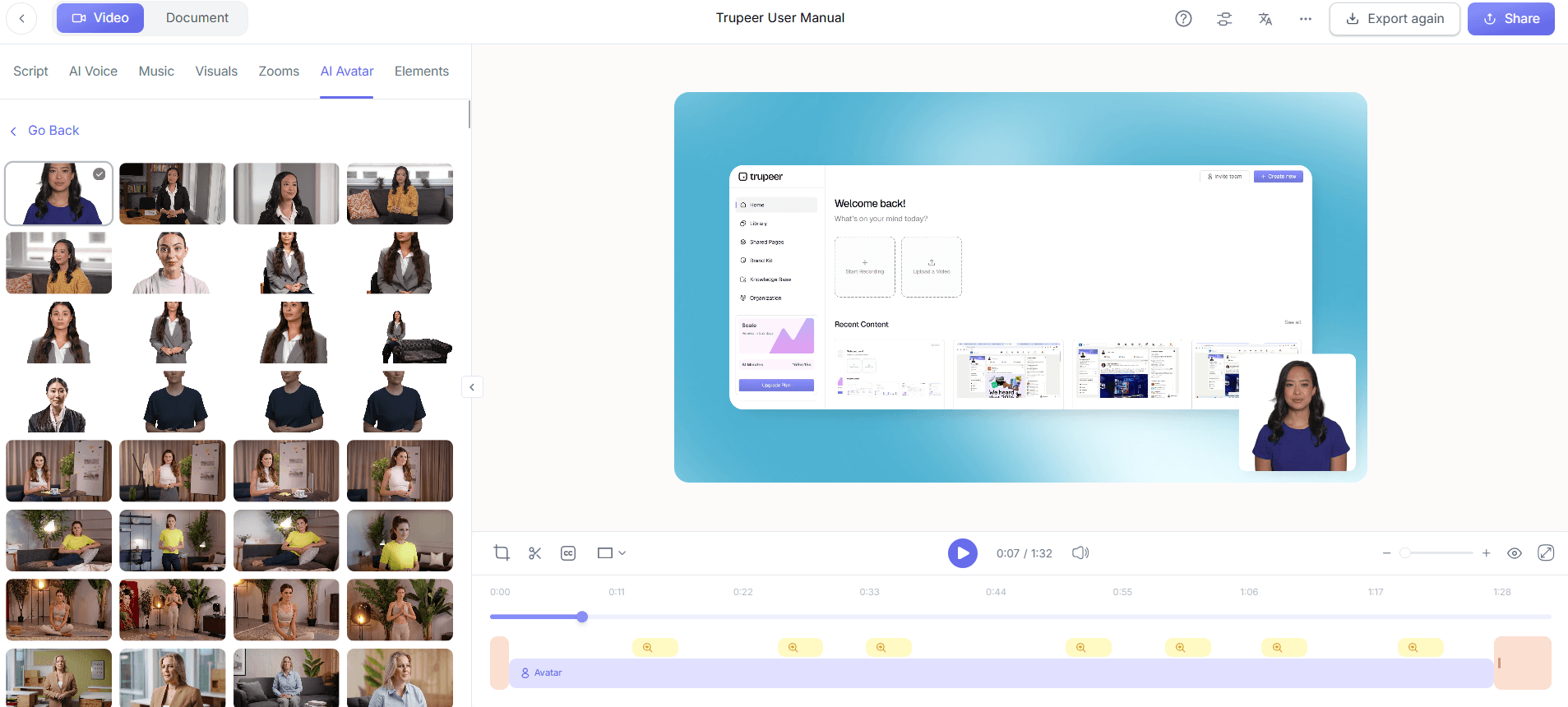
Schritt 4: Erstellen Sie einen KI-Avatar für die visuelle Narration
Nutzen Sie Trupeers KI-Avatare, um Ihrem Walkthrough ein visuelles Element hinzuzufügen. Mit dieser Funktion können Sie aus einer Bibliothek von Avataren wählen oder über die HeyGen-Integration einen benutzerdefinierten Avatar erstellen. Durch Klicken auf 'Add Avatar' können Sie ein Talking-Head-Video einblenden, das den Walkthrough kommentiert. Diese visuelle Hilfe macht den Inhalt nicht nur ansprechender, sondern hilft auch dabei, die Aufmerksamkeit der Zuschauer zu halten. Sie ist besonders nützlich für komplexe Szenarien, bei denen visuelle Hinweise das Verständnis unterstützen können. Rechnen Sie damit, dass dieser Schritt Ihre Vorbereitungszeit um weitere 5–7 Minuten verlängert.
Schritt 5: Annotieren und segmentieren Sie die Aufnahme
Mit Ihrer erweiterten Aufnahme können Sie Trupeers automatische Kapitel- und Segmenterkennung verwenden. Diese Funktion zerlegt das Video in logische Abschnitte und macht es einfacher, während des Testens auf bestimmte Teile zu verweisen. Sie erreichen dies, indem Sie im Dashboard 'Segment Video' auswählen. Das System erkennt automatisch Änderungen in Szenen und Aktionen und erstellt Kapitel, die Sie bearbeiten oder zusammenführen können. Dieser Schritt ist entscheidend, um sicherzustellen, dass Ihr UAT-Testskript gut organisiert und leicht nachzuvollziehen ist; er dauert in der Regel etwa 2–3 Minuten.
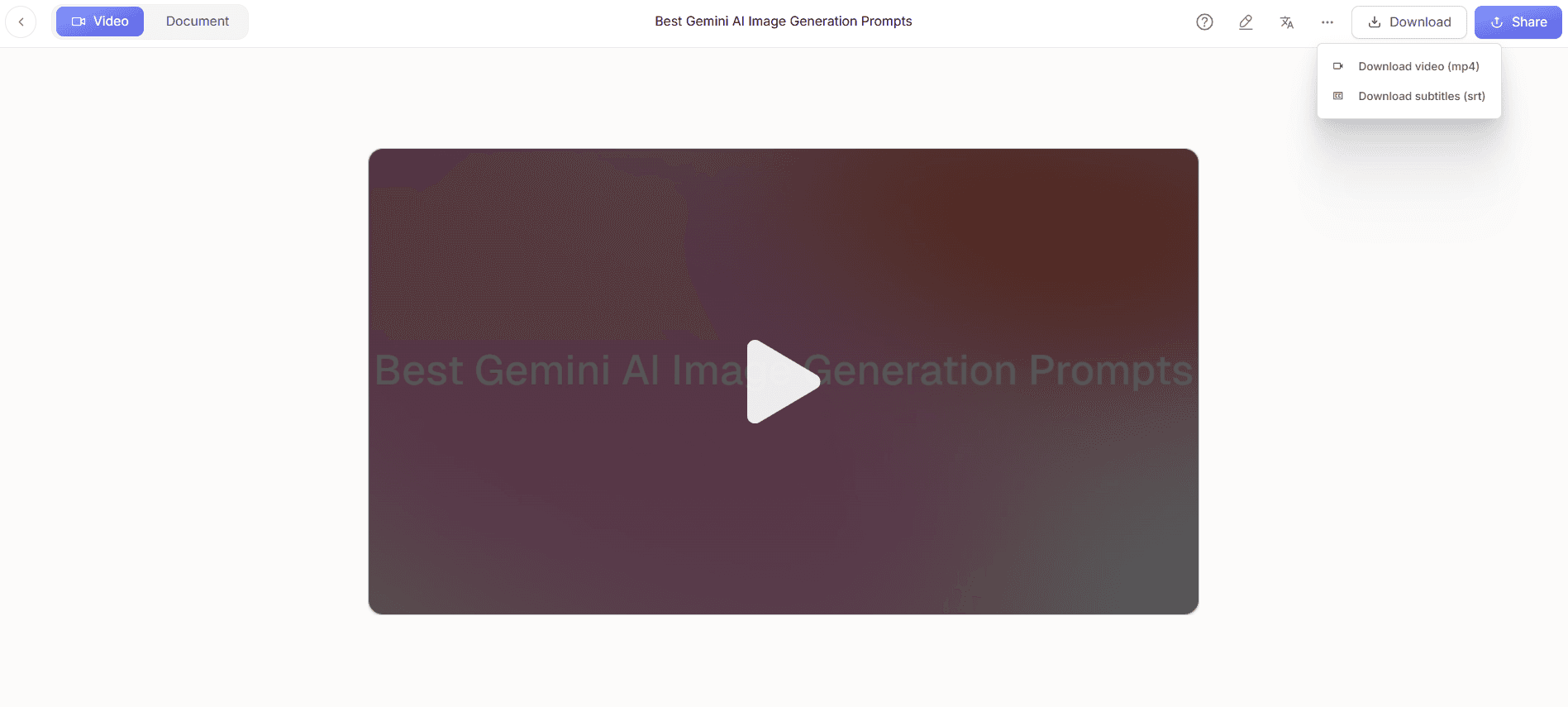
Schritt 6: Exportieren und teilen Sie Ihr UAT-Testskript
Zum Schluss exportieren Sie das erweiterte Video und die begleitende Dokumentation in Ihrem bevorzugten Format, z. B. HTML, PDF oder SCORM. Trupeer bietet Optionen, diese Inhalte über die KI-durchsuchbare Wissensdatenbank oder über Hosting mit eigener Domain zu teilen. Klicken Sie einfach auf 'Export' und wählen Sie das gewünschte Format sowie die gewünschte Vertriebsart. So stellen Sie sicher, dass alle Stakeholder Zugriff auf das Testskript haben und es leicht prüfen und Feedback geben können. Das Teilen über die Wissensdatenbank ermöglicht außerdem Deep-Links mit Zeitstempeln, sodass Tester schnell zu relevanten Abschnitten navigieren können.
Welche Tipps helfen Ihnen dabei, aus einer Produkt-Walkthrough-Aufzeichnung ein UAT-Testskript zu erstellen?
Das Erstellen eines UAT-Testskripts aus einer Walkthrough-Aufzeichnung erfordert sorgfältige Aufmerksamkeit fürs Detail. Hier sind einige Tipps, die Ihnen helfen, die Wirksamkeit Ihrer Skripte zu maximieren:
Mit einem klaren Ziel beginnen. Definieren Sie, was Sie mit dem Testskript erreichen möchten. So stellen Sie sicher, dass alle notwendigen Nutzerpfade abgedeckt sind.
Einheitliche Terminologie verwenden. Verwenden Sie im gesamten Skript eine einheitliche Sprache, um Verwirrung unter Testern und Stakeholdern zu vermeiden.
Visualisierungen einbeziehen. Verwenden Sie Screenshots und kommentierte Visualisierungen, um komplexe Schritte zu verdeutlichen und das Verständnis sowie die Genauigkeit zu verbessern.
Einem logischen Ablauf folgen. Strukturieren Sie das Skript so, dass es die Nutzerreise widerspiegelt und Testern ermöglicht, dem Prozess reibungslos zu folgen.
Endanwender frühzeitig einbeziehen. Holen Sie während des Erstellungsprozesses Feedback von tatsächlichen Nutzern ein, um sicherzustellen, dass das Skript den realen Anforderungen entspricht.
Ihre Skripte regelmäßig aktualisieren. Halten Sie die Skripte mit Produkt-Updates auf dem neuesten Stand, damit sie relevant und korrekt bleiben.
Wettbewerbswerkzeuge prüfen. Werfen Sie einen Blick auf den Vergleich von Scribe-Alternativen, um Einblicke in die Verwendung unterschiedlicher Tools für SOPs zu erhalten.
Häufig gestellte Fragen
Wie stellen Sie sicher, dass ein UAT-Testskript umfassend ist?
Damit Ihr UAT-Testskript umfassend ist, decken Sie alle Benutzerszenarien ab und nehmen Sie für jede Funktionalität detaillierte Schritte auf. Beginnen Sie damit, den Produkt-Walkthrough gründlich zu prüfen, damit jede Funktion dokumentiert ist. Beziehen Sie Endanwender ein, um zu validieren, dass das Skript ihren realen Aufgaben entspricht. Halten Sie das Skript außerdem mit allen Produktänderungen auf dem neuesten Stand. Verwenden Sie Tools wie Trupeers KI-Bildschirmaufnahme für eine präzise Erfassung und berücksichtigen Sie das Feedback von Testern, um Lücken zu schließen. Dieser Prozess stellt sicher, dass alle potenziellen Benutzerinteraktionen getestet werden und reduziert das Risiko von Fehlern nach dem Launch.
Welche Rolle spielt KI bei der Erstellung von UAT-Testskripten?
KI spielt eine bedeutende Rolle bei der Erstellung von UAT-Testskripten, indem sie den Erfassungs- und Dokumentationsprozess automatisiert. Trupeers KI-Funktionen, wie die automatische SOP-Generierung und das KI-Voiceover, vereinfachen die Skripterstellung und erhöhen die Klarheit. Durch die Automatisierung dieser Aufgaben reduziert KI den Zeitaufwand für manuelle Dokumentation und minimiert menschliche Fehler. Außerdem ermöglicht sie detailliertere und genauere Skripte, da KI Interaktionen erkennen und hervorheben kann, die menschlichen Beobachtern entgehen könnten. Dies führt zu gründlicherem Testen und zu einer höheren Produktqualität bei der Veröffentlichung. Für ein globales Publikum erweitert die KI-Videoübersetzung denselben Workflow auf über 40 Sprachen mit Lippensynchronisation.
Warum verwenden Sie eine Produkt-Walkthrough-Aufzeichnung als Grundlage für ein UAT-Testskript?
Die Verwendung einer Produkt-Walkthrough-Aufzeichnung als Grundlage für ein UAT-Testskript bietet einen realistischen und detaillierten Einblick in die Interaktionen der Nutzer mit dem Produkt. Sie erfasst jeden Schritt, den ein Nutzer ausführt, und stellt sicher, dass keine kritische Funktion übersehen wird. Diese Methode erleichtert auch die klare Kommunikation zwischen Teammitgliedern, da die Aufzeichnung als visuelle Referenz dient. Außerdem spart sie Zeit, weil umfangreiches manuelles Schreiben von Skripten entfällt. Der aufgezeichnete Walkthrough wird zu einer einzigen Quelle der Wahrheit und sorgt so für Konsistenz und Genauigkeit beim Testen.
Kann Trupeer bei mehrsprachigen UAT-Testskripten helfen?
Ja, Trupeer kann mit seinen KI-Übersetzungsfunktionen bei mehrsprachigen UAT-Testskripten helfen. Diese Funktion unterstützt Übersetzungen in über 40 Sprachen und ermöglicht es Ihnen, Skripte zu erstellen, die auch nicht englischsprachige Tester berücksichtigen. Der Übersetzungsprozess umfasst Lippensynchronisation und Synchronisation, sodass der übersetzte Inhalt seinen ursprünglichen Kontext und Ton beibehält. Durch die Bereitstellung mehrsprachiger Unterstützung ermöglicht Trupeer vielfältige Testumgebungen und stellt sicher, dass Ihr Produkt die Bedürfnisse eines globalen Publikums erfüllt. Dieser Ansatz erhöht die Inklusivität und Reichweite Ihres Testprozesses.
Was sollte in einem UAT-Testskript enthalten sein?
Ein UAT-Testskript sollte klare Ziele, detaillierte Schritte für jedes Benutzerszenario, erwartete Ergebnisse und Validierungskriterien enthalten. Beginnen Sie mit einer Zusammenfassung des Zwecks und Umfangs des Tests. Jeder Schritt sollte die spezifischen Benutzeraktionen und die entsprechenden Systemreaktionen beschreiben. Fügen Sie bei Bedarf Screenshots oder Visualisierungen hinzu, um das Verständnis zu unterstützen. Stellen Sie sicher, dass das Skript leicht verständlich ist, indem Sie eine einheitliche Terminologie und eine logische Reihenfolge verwenden. Regelmäßige Aktualisierungen und Überprüfungen sind entscheidend, damit das Skript mit Produktänderungen und Nutzerfeedback übereinstimmt. Diese Gründlichkeit stellt sicher, dass das Testskript die Produktfunktionalität wirksam validiert.
Verwandte Blogbeiträge


