Trupeer Blog

Imagine a healthcare facility where every patient, regardless of their education level or tech-savviness, can effortlessly navigate an online patient portal. These portals are essential tools, providing access to medical records, appointment scheduling, and even telehealth visits. But not everyone finds them intuitive. Some patients struggle due to their varying levels of health literacy and comfort with technology. Statistics show that
patients who receive personalized educational materials are 72% more likely to engage with online health platforms
. This is why creating tailored walkthrough videos is crucial. Such videos need to accommodate different user types, ensuring everyone can benefit from the digital resources available. This is especially important in 2026, as the healthcare industry continues to shift towards more digital interfaces. The challenge is real: how do you create content that serves everyone effectively?
Why does creating patient portal walkthrough videos for different user types matter?
Healthcare providers face a significant challenge in ensuring that all patients, regardless of their technical skills or educational background, can effectively use patient portals. These portals are designed to improve patient engagement by providing easy access to medical information and services. Yet, when patients struggle to navigate these systems, it leads to frustration and underutilization. This can result in missed appointments, lack of follow-up on medical advice, and overall dissatisfaction with healthcare services. Trupeer also ships a create engaging videos with an ai spokesperson that handles this step without extra setup.
For instance, older adults or those with limited health literacy may find it difficult to understand the functionalities of a patient portal. This is where creating training videos tailored to different user levels becomes essential. By offering clear and easy-to-follow instructions, healthcare providers can bridge the gap, making these digital tools more accessible and effective. The goal is to enhance patient experience and engagement, ultimately leading to better health outcomes. By addressing these diverse needs, healthcare providers can ensure equitable access to digital health services.
What are the benefits of creating patient portal walkthrough videos for different user types?
Creating patient portal walkthrough videos tailored to different user types can significantly enhance patient engagement and satisfaction. Here are the key benefits:
Increased Patient Engagement. Tailored videos meet patients at their level of understanding, enhancing their ability to use online resources effectively. This targeted approach boosts engagement rates.
Reduced Support Costs. With clear, instructional content, patients are less likely to require additional support, lowering the costs associated with customer service.
Improved Health Outcomes. When patients understand how to access their health information, they are more likely to follow medical advice and maintain better communication with healthcare providers, leading to improved health outcomes.
Enhanced Patient Satisfaction. Providing resources that cater to different literacy levels can lead to higher satisfaction scores as patients feel more enabled and confident in managing their health.
Efficient Training Solutions. Healthcare staff can spend less time on patient education and more time on patient care, thanks to resources like instructional videos that do the heavy lifting.
simplified Communication. Videos that explain portal functionalities clearly can minimize misunderstandings and ensure patients receive accurate information, reducing the need for follow-up clarification.
Many teams pair this with a documentation platform that generates written guides from the same recording, so the pitch and the how-to stay in sync.
Which Trupeer features help you create patient portal walkthrough videos for different user types?
Trupeer offers a range of features designed to make creating patient portal walkthrough videos both efficient and effective. These features are particularly beneficial for tailoring content to different user types, ensuring clarity and accessibility.
AI screen recording with auto-zoom and click detection
This feature allows you to capture your screen effortlessly, highlighting the most important actions with auto-zoom and click detection. It's especially useful for creating walkthroughs where you need to emphasize certain parts of the portal interface. By automatically zooming in on key areas and tracking clicks, it ensures that viewers can easily follow along without missing critical steps.
Silent screen recording with automatic AI narration
With this capability, you can capture screen activity quietly, while Trupeer's AI generates a natural-sounding narration. This feature is ideal for creating videos that need to cater to a diverse audience. By providing a clear and articulate voiceover, it supports users who might benefit from auditory guidance in addition to visual cues, enhancing the video's overall accessibility. Teams ship this workflow end-to-end using Trupeer's AI video platform, which turns raw recordings into polished output without an editor.
AI avatars / talking-head video
Using Trupeer's AI avatars can personalize your instructional videos by adding a human touch. This feature includes a stock library and options for custom avatars, providing flexibility in presentation style. It's particularly useful when addressing different patient education levels, as the avatar can communicate empathetically and clearly, improving user engagement.
AI translation into 40+ languages with lip-sync
This feature is crucial for creating inclusive content that reaches a broader audience. By translating videos into over 40 languages and synchronizing the lip movements, Trupeer ensures that non-English speaking users receive equally effective guidance. This capability makes your content more accessible and culturally relevant, which is important in diverse healthcare settings.
Viewer engagement analytics, drop-off, and heatmaps
Understanding how patients interact with your videos is key to improving their effectiveness. Trupeer's analytics provide insights into viewer behavior, highlighting where users engage or drop off. This data can inform future video creation, allowing you to tailor content more precisely to different user needs. By continually refining your approach based on real-world feedback, you can increase the overall impact of your educational materials.
How do you create patient portal walkthrough videos for different user types step by step with Trupeer?
Step 1: Capture the Screen
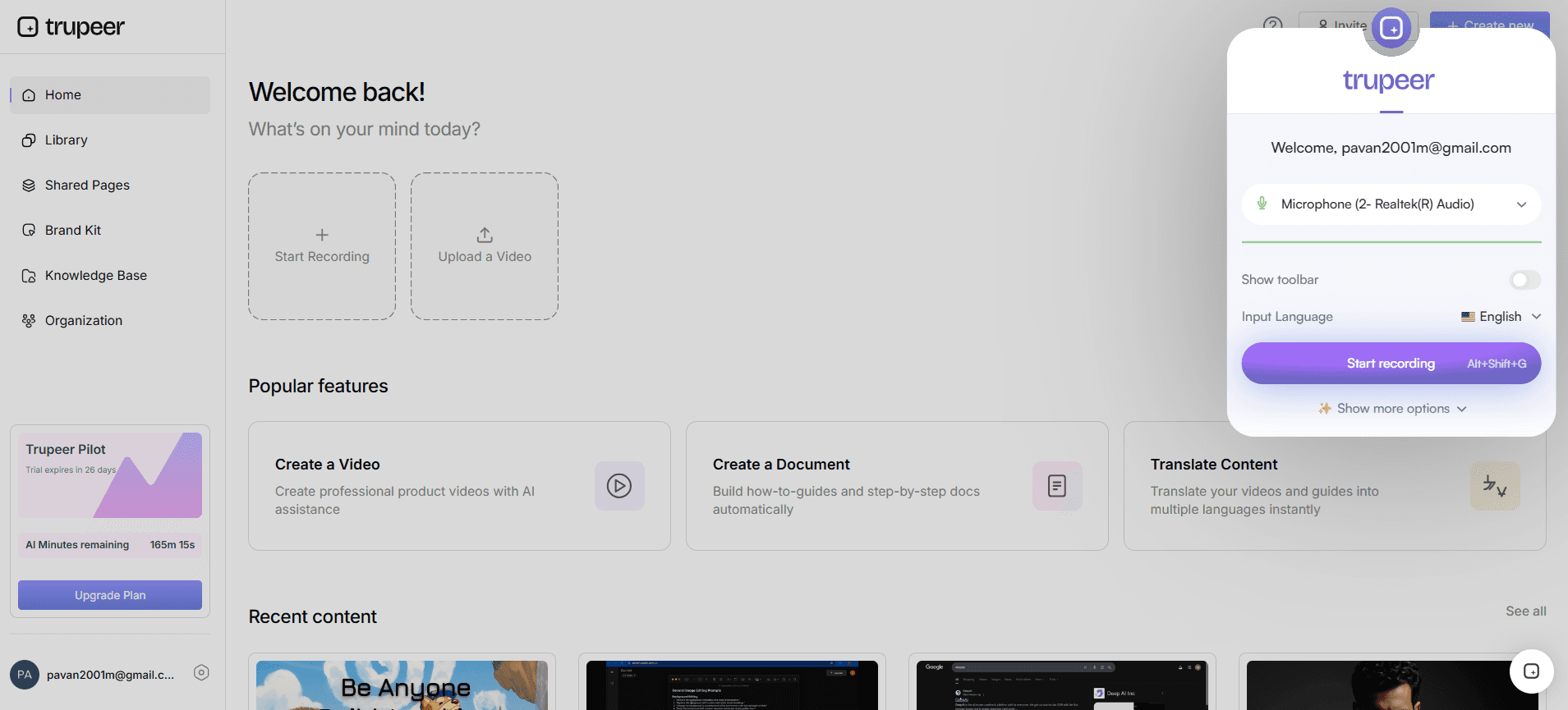
Begin by launching Trupeer's browser-based recorder. This tool requires no installation, making it easy to start capturing immediately. Select the patient portal interface you want to record. The AI screen recording feature with auto-zoom and click detection will highlight key interactions, ensuring viewers focus on essential elements. As you navigate the portal, Trupeer automatically tracks and zooms into sections where you click. This captures viewer attention and ensures they can follow along without getting lost. Typically, a 5-minute recording session is ample for a comprehensive walkthrough, but you can adjust based on the complexity of the portal. When SOPs come into the same conversation, a Scribe alternatives comparison helps clarify the scope.
Step 2: Add AI Narration
Trupeer's silent screen recording with automatic AI narration will enhance your video. Once the recording is complete, select the automatic narration option. Choose from over 65+ natural voice options, adjusting the pace and tone to match your audience's needs. The AI generates a clear and concise voiceover, explaining each step of the portal navigation. This feature is especially useful for users who benefit from auditory instructions. The entire process takes just a few minutes, and you can preview the narration to ensure it aligns with your educational goals before finalizing the video.

Step 3: Incorporate AI Avatars
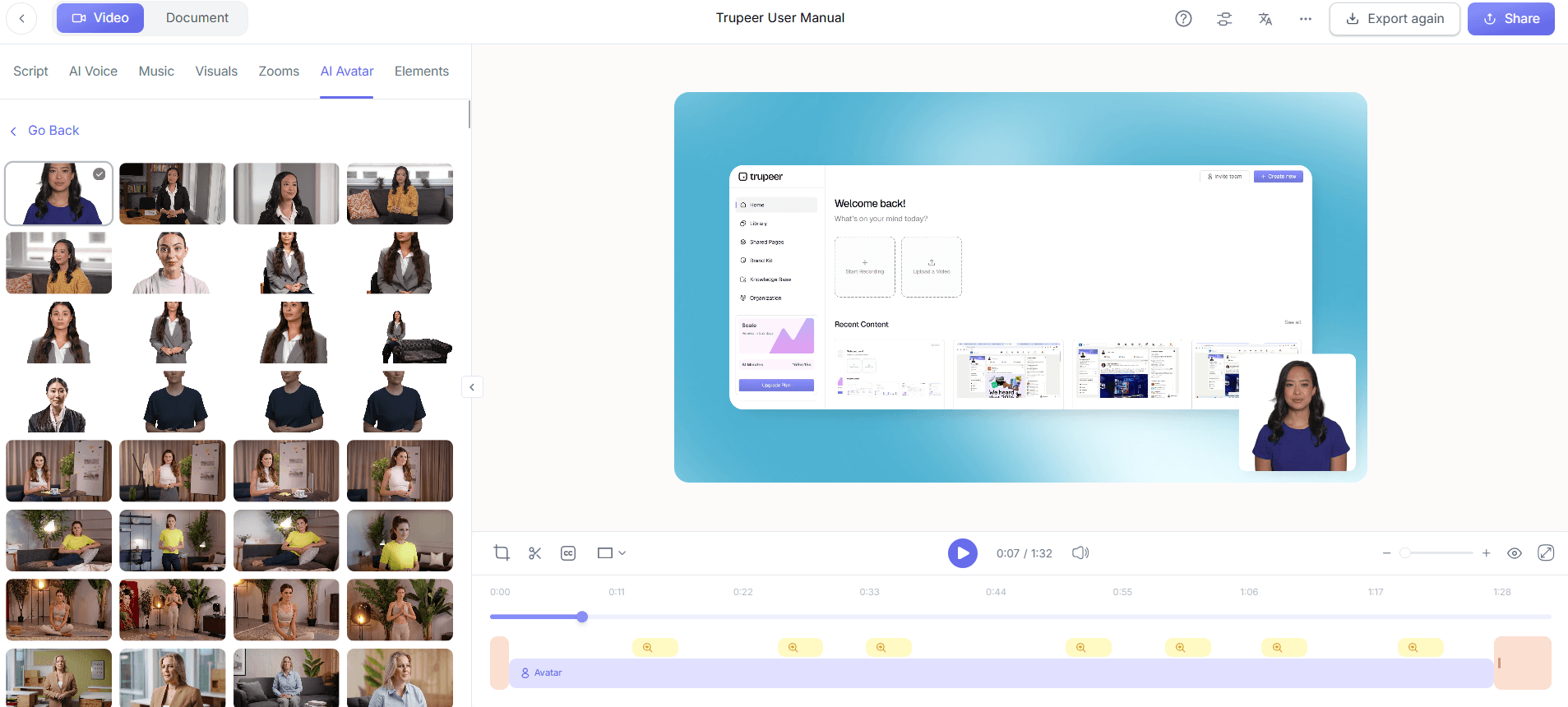
To add a personal touch, incorporate an AI avatar into your video. Trupeer offers both a stock library and custom avatar options through its HeyGen integration. Choose an avatar that resonates with your audience's demographic, such as a friendly healthcare professional. The avatar can introduce the video and provide commentary, making the tutorial more engaging. This step humanizes the digital experience, making users feel more connected. Uploading and integrating the avatar is straightforward, requiring just a few clicks to position it appropriately within your video timeline.
Step 4: Translate and Localize
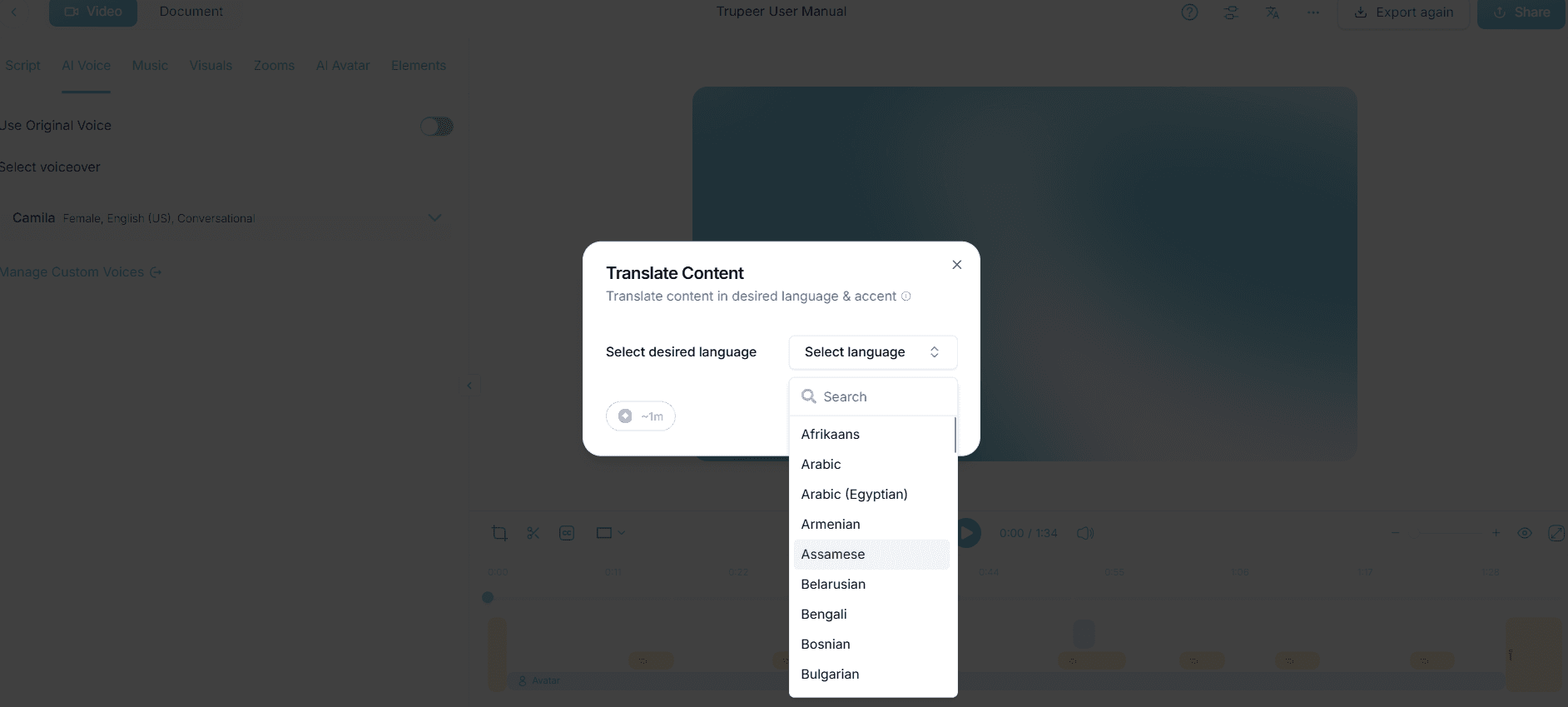
For broader reach, use Trupeer's AI translation into over 40 languages with lip-sync. Select the languages relevant to your patient demographics. Trupeer's AI not only translates the narration but also adjusts the avatar's lip movements to match, ensuring a smooth viewing experience. This step ensures your video is accessible to non-English speakers, expanding its effectiveness. It typically takes about 15 minutes for the AI to process and generate translated versions, depending on the video's length and complexity.
Step 5: Edit and Enhance
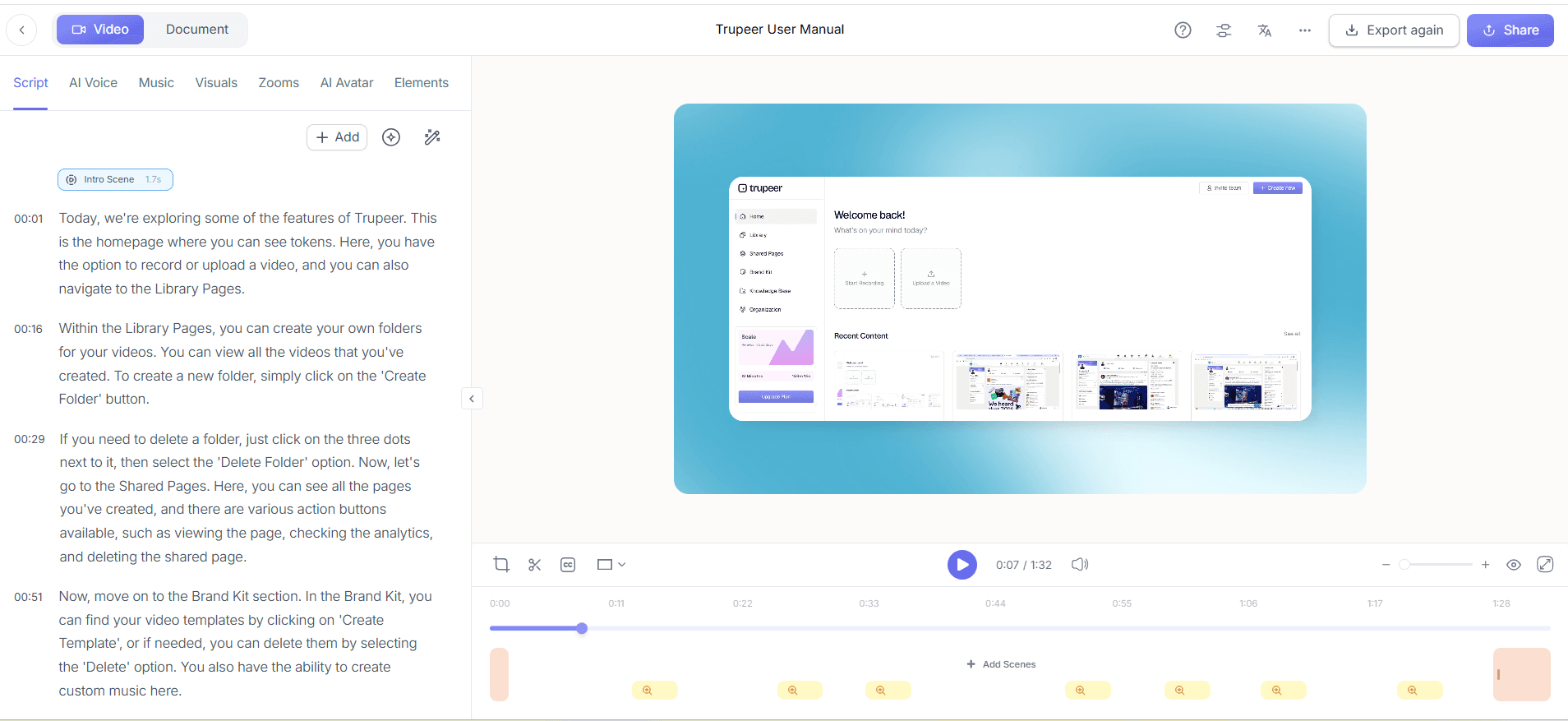
Enhance your video by removing any filler words or unnecessary pauses with Trupeer's automatic filler-word removal. This feature simplifies the content, ensuring it remains concise and professional. also, use Trupeer's brand kits and branded templates to maintain a consistent visual style that aligns with your organization’s branding. This not only reinforces brand identity but also adds a layer of professionalism. The editing process is intuitive, allowing you to make adjustments quickly before finalizing the video for distribution.
Step 6: Distribute and Analyze
Once your video is complete, distribute it via Trupeer's AI-searchable knowledge base. Host the video on a custom domain with SSO for secure access. This ensures only authorized users can view the content. use Trupeer's viewer engagement analytics to track how patients interact with your video. The analytics provide insights into where viewers drop off or engage most, informing future content adjustments. Expect to see engagement metrics within 24 hours of video distribution, allowing you to quickly iterate on your approach for maximum impact.
What tips help you create patient portal walkthrough videos for different user types?
Creating effective patient portal walkthrough videos requires strategic planning and execution. Here are some practical tips to ensure your videos are well-received by diverse audiences:
Understand Your Audience. Segment your audience based on their tech literacy and health literacy levels. Tailor your content to meet these varying needs.
Use Clear Language. Avoid medical jargon. Use simple, direct language that any user, regardless of education level, can understand. This is critical for accessibility.
Keep It Concise. Aim for videos that are no more than 5-7 minutes long. Lengthy videos can lead to disengagement and decreased information retention.
Incorporate Visual Cues. Use graphics and icons to highlight important steps. Visual aids can help clarify instructions and improve understanding.
Test with Real Users. Conduct usability testing with a sample of your target audience. Gather feedback to refine your content before full-scale distribution.
Offer Multiple Formats. Provide downloadable transcripts and step-by-step guides alongside your video. This caters to different learning preferences.
Update Regularly. Technologies and interfaces change. Ensure your videos remain accurate by reviewing and updating them regularly.
Teams weighing tools often start with a Loom alternatives comparison before standardizing on a workflow.
Trupeer also ships a create your own custom ai avatar video that handles this step without extra setup.
Frequently asked questions
How can I make patient portal videos more engaging?
Including interactive elements such as quizzes or clickable links within the video can enhance engagement. also, using AI video translation and avatars can make the content more relatable and accessible to a wider audience. Personalizing the video with an empathetic avatar and providing clear, concise instructions also helps maintain viewer interest. Regularly updating content to reflect any changes in the portal interface keeps the information relevant and engaging.
What should I include in a patient portal walkthrough video?
A comprehensive patient portal walkthrough video should cover the login process, navigation of key features, and how to access vital information such as medical records, appointment scheduling, and telehealth services. Include tips for troubleshooting common issues, and ensure the language is simple and jargon-free. Visual aids and clear instructions are vital. Providing a brief introduction about the video’s purpose and the benefits of using the portal can set the right context for viewers.
Can Trupeer help with creating videos in multiple languages?
Yes, Trupeer excels in creating multilingual videos through its AI translation feature, which supports over 40 languages and provides lip-sync capabilities. This ensures your content is accessible and relatable to non-English speaking audiences. By offering translated voiceovers synchronized with the visual content, you maintain a smooth viewer experience. This capability is crucial for healthcare providers serving diverse populations, ensuring all patients can benefit from the instructional content.
Why is it important to tailor videos to different user types?
Different users have varying levels of comfort with technology and health literacy, so tailoring videos ensures that each group can understand and use patient portals effectively. Customized content addresses the specific needs of each user type, leading to higher engagement and better patient satisfaction. By doing so, you also reduce the likelihood of errors and misunderstandings, enhancing the overall effectiveness of the portal as a healthcare tool.
Does using AI avatars improve video effectiveness?
AI avatars can significantly enhance video effectiveness by adding a personable and engaging element. They help in maintaining viewer interest and can convey complex instructions in a relatable manner. With customizable avatars, you can tailor the presentation to align with your audience's demographic, increasing relatability and trust. This personalization is particularly beneficial in healthcare, where clear communication is essential for patient understanding and compliance.


