Trupeer Blog
Opsummer
Training videos used to need a production team: a scriptwriter, a narrator, a video editor, sometimes a studio. Most L&D, HR and operations teams do not have that, so training stays in slide decks and long documents that people skim. AI changes that. Today a subject matter expert can turn a screen recording, a PowerPoint or a script into a polished training video in an afternoon. This guide explains how to make a training video with AI, which method to use for which kind of content, a step-by-step workflow, and how to keep quality high without a production team.
What a Production Team Did, and What AI Does Now
Production task | Traditional way | With AI |
|---|---|---|
Script | Writer drafts and revises | AI drafts from a recording, document or outline; you edit |
Narration | Voice actor or staff recording in a quiet room | AI voiceover in a consistent voice, regenerated when the script changes |
Presenter | Filming a person on camera | Optional AI avatar |
Editing | Editor cuts, zooms and adds callouts | AI trims, adds zooms and highlights; you fine-tune |
Captions | Manual transcription | Automatic captions |
Translation | Agencies and re-recording | AI translation of script, voice and captions |
Documentation | Written separately | Step-by-step guide generated from the same recording |
What AI does not replace is knowing what to teach. The subject matter expert still decides the learning goal, checks accuracy and adds the context only they know.
Three Ways to Create Training Videos With AI
Method | How it works | Best for |
|---|---|---|
Screen recording to video | Record the task once; AI writes the script, adds voiceover, zooms and a written guide | Software training, system rollouts, how-to and process videos |
Document or slides to video | Upload a PowerPoint, Word document or PDF; AI turns it into a narrated video | Existing training material, policies, onboarding decks |
Script to avatar video | Write or generate a script; an AI presenter delivers it | Compliance, culture, announcements and soft-skills topics |
Most teams use more than one. Software and process training is usually fastest from a screen recording, while existing decks can be converted with document to video.
How Welltower trained 150 new employees across three countries
Welltower’s Redevelopment team grew from 30 to 180 people in two years. Every new hire had to learn dense, workflow-heavy software, including Yardi, Smartsheet and custom Excel forms, and the only way to learn was to watch a colleague or wait for a one-on-one call. Madison Crimi-DeMichele was tasked with building SOPs and training for a department growing faster than documentation could keep up.
With Trupeer AI, Madison became a one-person production team. Subject matter experts record their screens, and she turns the recordings into consistent, polished training videos. The videos also serve as the first draft of written SOPs, so one recording covers both.
In 10 months, Madison created 50+ training videos that now serve 180 employees across three countries. The same library has extended to vendors and on-site operators, and HR and Marketing are adopting the platform next.
“Send it to Madison for her AI video.”
— How VPs across Welltower now refer to the documentation process
Read the full Welltower story →
How to Make a Training Video With AI: 8 Steps
1. Define one learning goal
Write a single sentence: “After this video, employees will be able to…”. One video should teach one task or idea. If you need several goals, plan a short series instead.
2. Know your audience
Decide who is watching, what they already know and where they will watch, such as during onboarding, inside an LMS or at the moment they need help. This shapes length, tone and how much background to include.
3. Choose the method and prepare the source
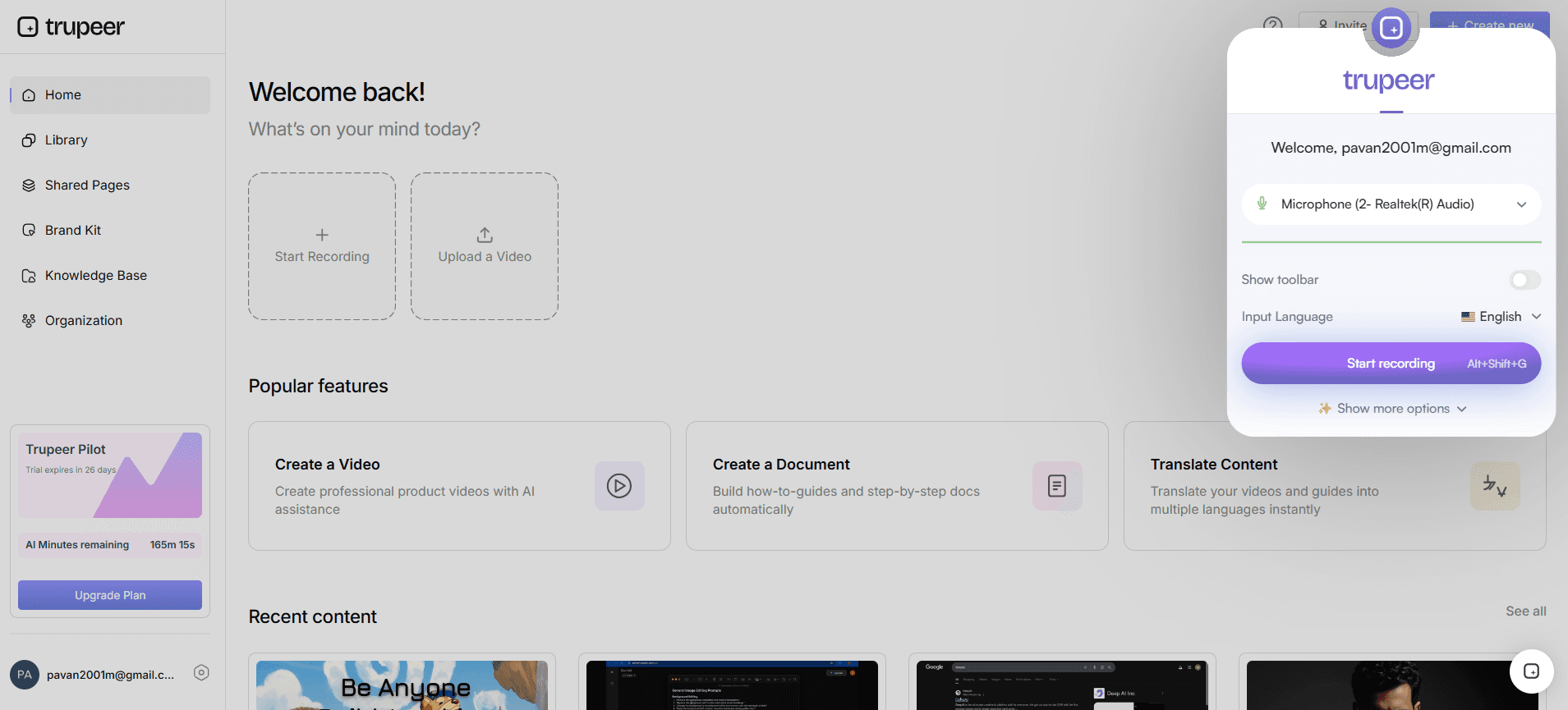
For software tasks, record the workflow at a steady pace using realistic test data. For existing material, tidy the slides or document so each section covers one point. For avatar videos, write a short outline of the key messages.
4. Generate the first draft
Let the AI produce the script, voiceover and visuals. Treat this as a draft, not the finished video.
5. Edit the script for accuracy and clarity
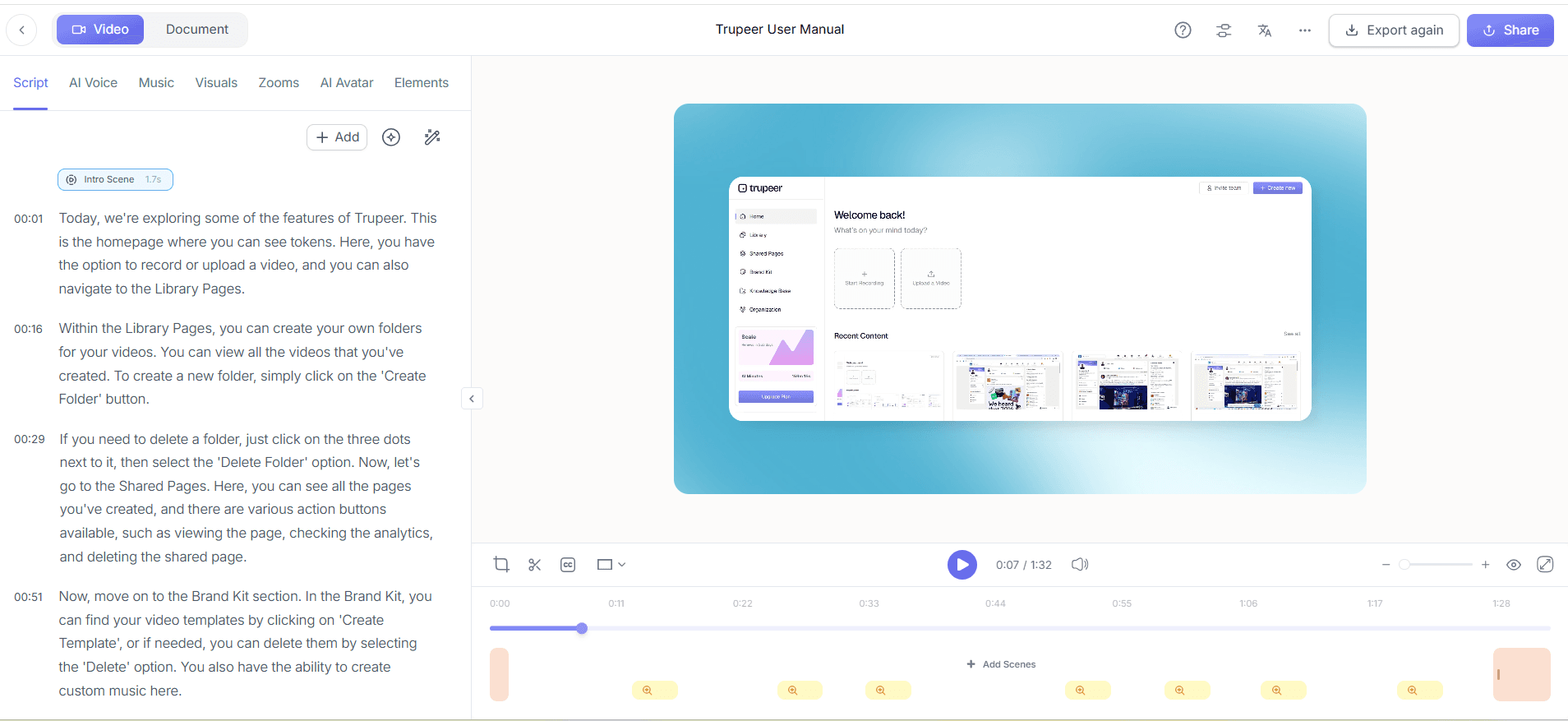
Read the script aloud. Use the exact names of buttons and menus, keep sentences short, and add context the recording cannot show, such as why a step matters. Aim for about two minutes per task; our 2-minute training video script formula shows how to fit a task into that length.
6. Add voice, branding and captions
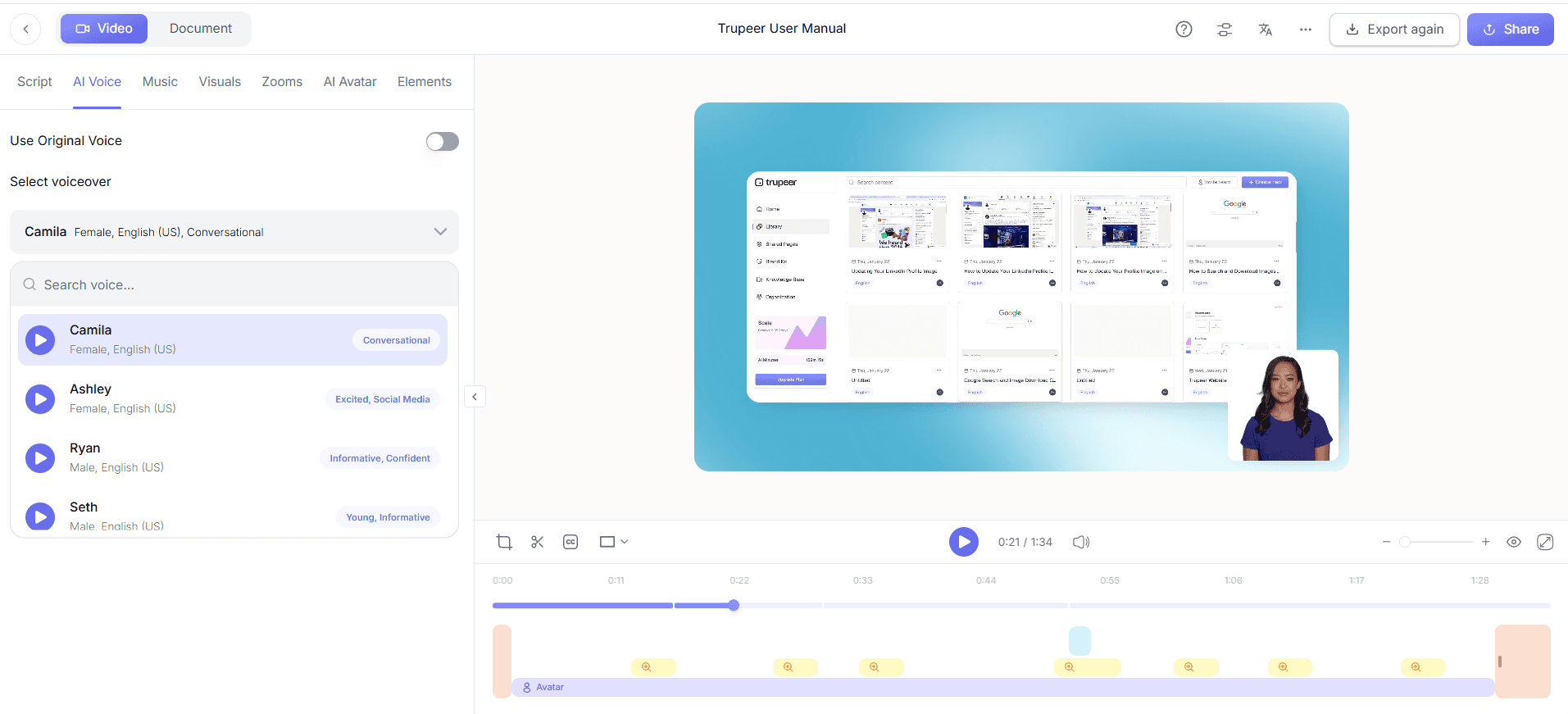
Pick a clear voice and keep it the same across a series. Apply your brand colors and logo, and turn on captions for accessibility and for people watching without sound.
7. Translate for global teams
If employees work in several languages, translate the script, voice and captions rather than re-recording. Learn more about translation.
8. Publish, measure and maintain
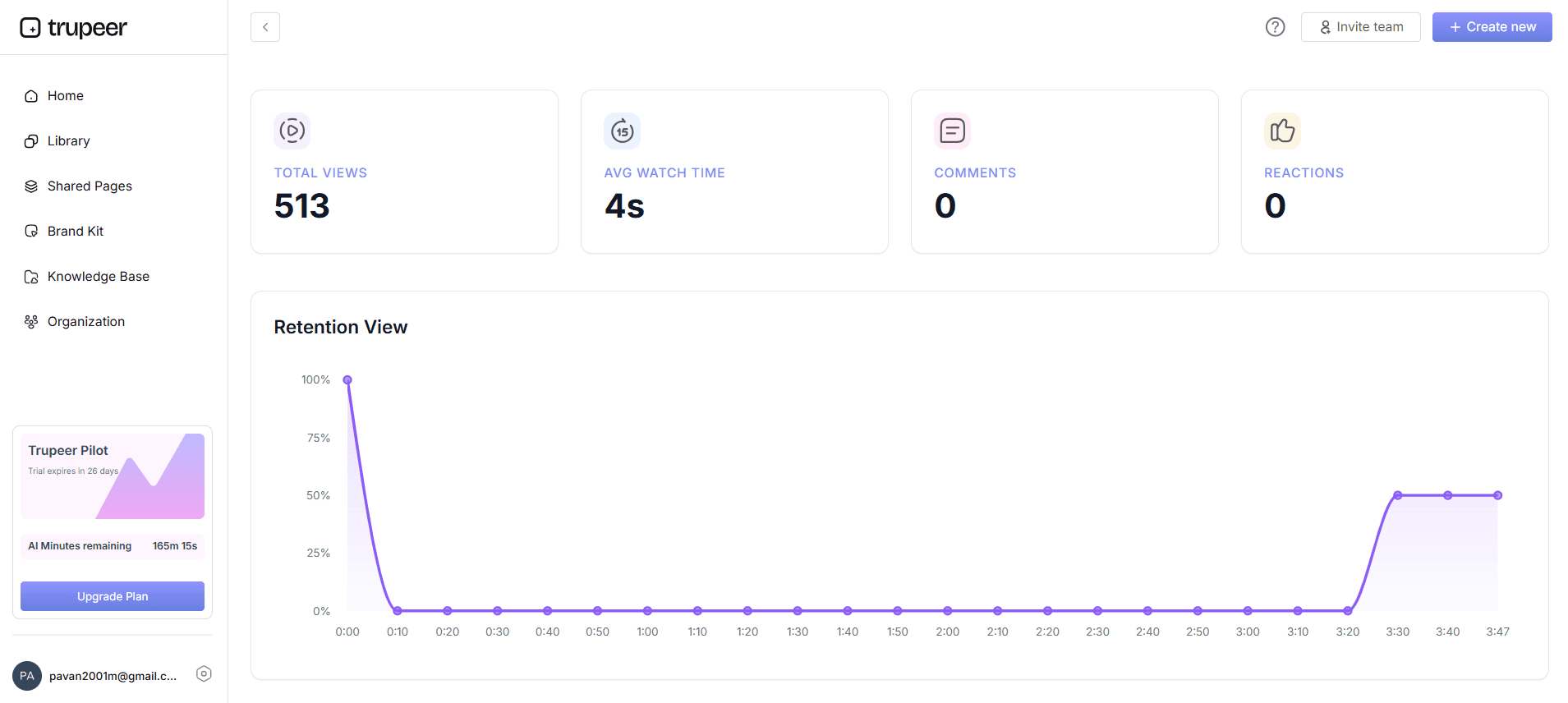
Publish where people learn and look for help: your LMS, intranet, a knowledge base or the tool itself. Track views and search behavior, and update the video when the process or software changes.
Example: A Software Training Video Without a Production Team
An operations lead needs to teach 200 employees a new expense approval process:
Writes the goal: “Managers will be able to approve or reject an expense report in the new system.”
Records the approval workflow once in the browser using a test account
Generates the video, script and step-by-step guide with AI
Edits the script to add the approval rules and what happens after rejection
Adds captions and the company brand, then translates for teams in two other countries
Publishes the video and guide in the company knowledge base and links them from the rollout email
No camera, studio or editor is involved, and when the system changes, the lead re-records the affected steps and regenerates the video.
How to Plan a Training Video Series
Most topics need more than one video. Plan the series before you record:
List the tasks a person needs to complete, in the order they will do them
Give each task its own video of two to five minutes
Name videos consistently, starting with the action, such as “How to submit an expense report”
Add a short overview video that explains why the change matters and what the series covers
Group videos into a path for onboarding or a system rollout, with the written guides alongside
Video | Purpose |
|---|---|
1. Why we are switching to the new expense system | Context and what changes |
2. How to submit an expense report | Core task for all employees |
3. How to attach receipts from your phone | Common follow-up task |
4. How to approve or reject an expense report | Task for managers |
5. What to do if your report is rejected | Troubleshooting |
Who Does What Without a Production Team
Role | Responsibility |
|---|---|
Subject matter expert | Records or provides the source and checks accuracy |
Reviewer, often L&D or a manager | Checks the learning goal, clarity and tone |
Content owner | Publishes, tracks usage and schedules updates |
Compliance or legal (when needed) | Approves regulated or policy content |
What It Costs: Production Team vs AI
A traditional production adds up across people and time: scripting, filming or recording narration, editing, captioning, translation and every re-shoot when software changes. With AI tools, most of that becomes a subscription plus the subject matter expert’s time to record and review.
Traditional production: agency or in-house video staff, studio or equipment, voice talent, editing hours and translation services, repeated for each update
AI workflow: a tool subscription, for example Trupeer Pro at $40 a month billed annually (see pricing), plus the expert’s time to record and review each video
The biggest saving is usually maintenance. Updating an AI-generated video after a software change means re-recording one workflow, not booking a new production.
Tips for Engaging Training Videos
Teach one task per video and keep it short
Show the real screen or real example rather than describing it
Start with the outcome, not a long introduction
Use zooms and highlights so people can see where to click
Pair every video with a written guide for quick reference
Organize videos into a learning path for onboarding; see training video production for planning a full library
Checklist Before You Publish a Training Video
The video teaches one clear goal stated in the first few seconds
Every step matches the current version of the software or process
Button and menu names in the script match the screen
No personal, customer or confidential data is visible
Captions are on and checked for product names
Brand, voice and naming match the rest of the series
A written guide or summary is attached
An owner and review date are recorded
Common Mistakes When Making Training Videos With AI
Publishing the AI draft without checking accuracy
Covering several tasks in one long video
Using sample data that confuses learners
Inconsistent voices and branding across a series
No owner, so videos go out of date after the next software update
Best Tools for Creating Training Videos With AI
Tool | Best for |
|---|---|
Trupeer | Software and process training from screen recordings or documents, with a written guide from every video |
Synthesia | Presenter-led training with AI avatars from a script |
Colossyan | Avatar-based training scenarios and interactive learning videos |
Guidde | Short narrated video guides for how-to content |
Camtasia | Detailed manual editing when you need full control |
Descript | Editing recorded audio and video by editing the transcript |
For a ready workflow, try the AI training video generator.
How Trupeer Creates Training Videos Without a Production Team
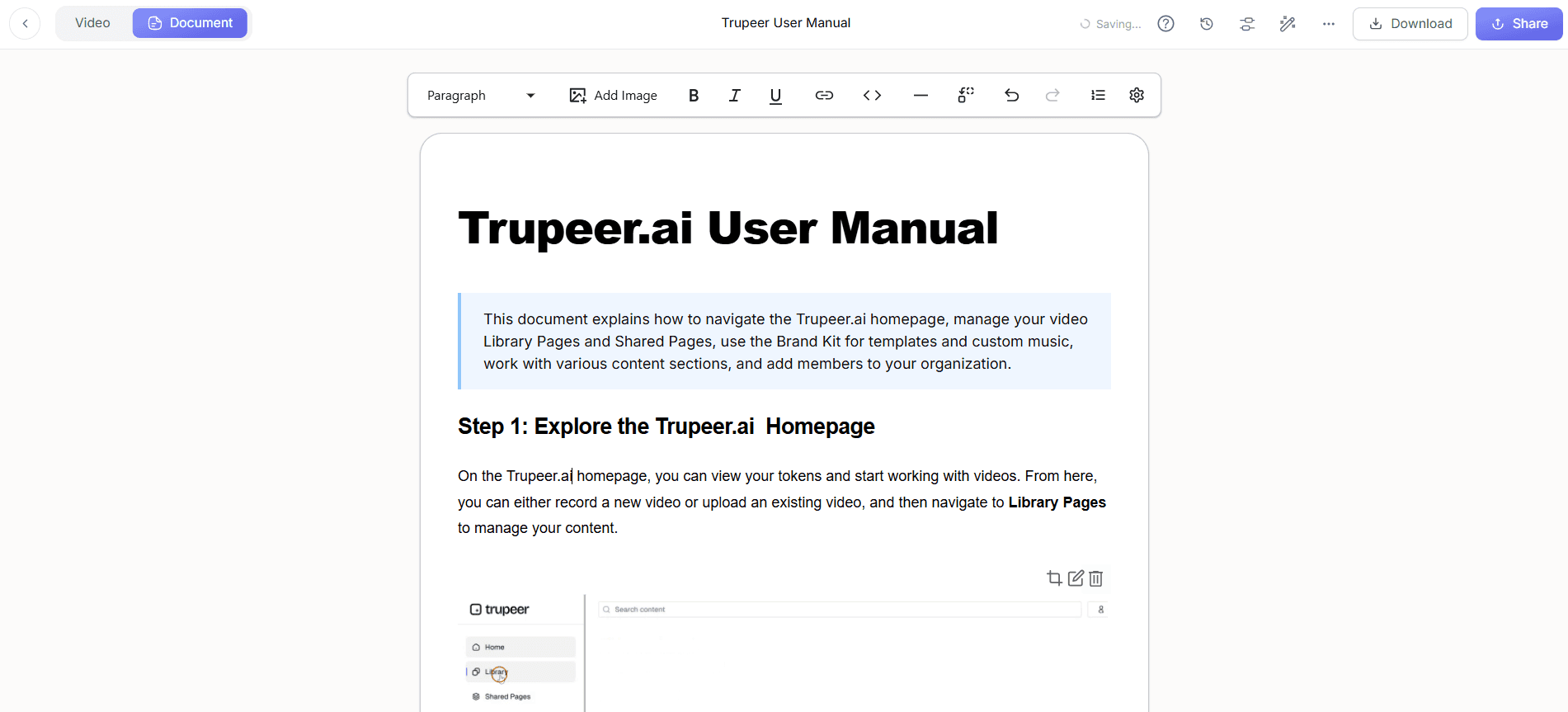
Record a workflow with the Trupeer Chrome extension, or upload a video, PowerPoint, Word or PDF file, and click Generate AI Content. Trupeer writes the script, adds an AI voiceover and zooms, and creates a step-by-step guide with screenshots. Edit the script with Rewrite with AI, add an AI avatar or custom voice, apply your brand kit, translate the video and guide, and publish them in a searchable knowledge base or embed them in your LMS. See Trupeer for training videos.
Final Thoughts
You no longer need a production team to make good training videos. Start with one clear learning goal, choose the AI method that fits the content, let AI handle the script, voice and editing, and keep a subject matter expert in charge of accuracy. Short, current, well-organized videos will do more for learning than a few expensive productions.
Frequently Asked Questions
How do you make a training video?
Define one learning goal, choose a method such as screen recording, slides or an AI avatar, generate a draft, edit the script for accuracy, add voice, captions and branding, then publish where employees learn.
How do you make training videos for employees?
Focus each video on one task employees need to do, record or convert existing material with AI, keep videos short, pair them with written guides, and organize them into an onboarding or learning path.
How can I create training videos with AI?
Use an AI video tool to turn a screen recording, document or script into a narrated video. The AI writes the script, generates the voiceover and edits the video, and you review it for accuracy.
Can AI convert Word documents or PDFs into training videos?
Yes. Tools such as Trupeer can turn a Word document, PDF or PowerPoint into a narrated training video and documentation.
How do you write a training video script?
Start with the learning goal, keep one action per step, use the exact names shown on screen, and read it aloud to check timing. About 260 to 300 words fits a two-minute video.
How do you create engaging training videos?
Keep them short and focused, show the real task, start with the outcome, use zooms and highlights, add captions, and pair each video with a written guide.
What is the best training video software?
It depends on the content. Trupeer suits software and process training, Synthesia and Colossyan suit avatar-led training, and Camtasia suits detailed manual editing.
How long should a training video be?
Most training videos work best at two to five minutes, covering one task or concept. Longer topics should be split into a series.
Related Blogs