Trupeer Blog

Imagine you've just launched a new SaaS platform. It's packed with features that can change how businesses operate. But there's a problem: many users skip the text instructions you painstakingly crafted. They're overwhelmed by the sheer volume of words, or they simply prefer visual aids. This isn't an isolated issue. In fact,
studies show that 72% of users prefer to learn about a product through video over text
. This shift towards visual learning is crucial for user engagement and retention. But how do you create in-app video guidance that caters to these users without alienating those who still value text? The answer lies in designing effective in-app video guidance specifically for non-readers while balancing the needs of text-readers. This content is crucial for product managers, UX designers, and customer success teams seeking to enhance user experience and reduce churn. If you're looking to find the best video platforms onboarding solutions, you're in the right place.
Why does designing in-app video guidance for users who skip text instructions matter?
Creating in-app video guidance for users who skip text instructions is more than just a nod to convenience. It's a strategic business move that can significantly impact user engagement and satisfaction. In a world where attention spans are dwindling, the ability to quickly and effectively convey information is crucial. For businesses, this means fewer support tickets, faster onboarding, and ultimately, higher retention rates. The stakes are high. If users can't quickly understand how to use your product, they're more likely to abandon it, leading to increased churn and lost revenue.
Also, as more organizations adopt SaaS solutions, the competition is fierce. Companies need to differentiate themselves, and one way to do this is through exceptional user experience. Video guidance offers a dynamic way to engage users by providing a more interactive experience. This is particularly important for customer education, where understanding the product's functionality is key to its success. The right video guidance can help users grasp complex concepts more quickly than text alone, reducing the learning curve. For product managers and UX designers, this is a crucial consideration, as it directly impacts the product's adoption and success.
What are the benefits of designing in-app video guidance for users who skip text instructions?
Designing in-app video guidance for non-readers offers several tangible benefits. These benefits not only enhance user experience but also provide measurable outcomes for businesses.
Enhanced User Engagement. Videos capture attention more effectively than text, leading to longer session durations and increased interaction with the app. This is particularly beneficial for retaining users who might otherwise disengage.
Faster Onboarding. Users can get up to speed with your product more quickly when they have access to visual tutorials. This reduces the time needed for training and allows users to start realizing value sooner.
Reduced Support Costs. A well-designed video guidance system can decrease the number of support tickets by offering clear, visual explanations for common issues. This helps reduce the burden on your customer support team and can lead to cost savings.
Better Retention Rates. By providing an engaging and informative onboarding experience, users are more likely to stick with your product long-term. This can lead to improved retention rates and increased customer loyalty.
Scalable Training Solution. Video content can be easily updated and scaled, ensuring that all users have access to the most current information. This makes it a versatile tool for ongoing training and product updates.
Consistent Messaging. Videos ensure that all users receive the same high-quality, consistent information. This is especially important for maintaining brand messaging and ensuring that all users have a uniform understanding of the product.
For a deeper look, our guide on ai video editing covers the adjacent playbook.
Teams ship this workflow end-to-end using Trupeer's AI video platform, which turns raw recordings into polished output without an editor.
Which Trupeer features help you design in-app video guidance for users who skip text instructions?
Trupeer offers several features that can significantly enhance your ability to create effective in-app video guidance. These capabilities simplify the process and ensure high-quality outcomes.
AI Screen Recording with Auto-Zoom and Click Detection
Trupeer's AI screen recording automatically adjusts the frame to focus on relevant areas of the screen. This feature is invaluable for creating instructional videos that guide the user's attention to specific parts of the interface. The auto-zoom function ensures viewers don't miss critical details, making the guidance more effective. Click detection highlights user actions, providing a clear visual cue that enhances understanding. This can be especially useful for complex workflows where precision is key.
Silent Screen Recording with Automatic AI Narration
For those who need a quieter option, Trupeer's silent screen recording with automatic AI narration is a big shift. This capability allows you to capture on-screen actions without audio distractions, while the AI generates a natural-sounding narration. This dual approach combines visual and auditory learning, catering to a broader range of user preferences. It's perfect for environments where silence is necessary but instructional clarity can't be compromised.
AI Avatars and Talking-Head Videos
Trupeer offers AI avatars and talking-head videos to add a personal touch to your guidance. Users respond better to human-like interactions, and this feature provides just that. You can select from a stock library or create custom avatars to match your brand's tone. HeyGen integration allows for further customization, ensuring your video content aligns with your brand identity. This personalized approach can make users feel more connected to your product, enhancing engagement.
Automatic SOP Generation from Any Recording
With Trupeer, you can generate automatic Standard Operating Procedures (SOPs) from any video recording. This feature is particularly useful for creating comprehensive guides that can be reused across your organization. The SOPs are edit-ready and exportable, making it easy to update and distribute them as needed. By automating the documentation process, you save time and ensure consistency in your training materials. This capability is part of Trupeer's AI documentation platform, designed to simplify knowledge sharing.
AI Translation into 40+ Languages with Lip-Sync
Trupeer's AI translation feature ensures your video content is accessible to a global audience. It offers translation into over 40 languages, complete with lip-sync to maintain the video's integrity. This feature is vital for organizations with a diverse user base, as it allows you to communicate effectively with non-English speakers. By making your guidance accessible in multiple languages, you can expand your reach and improve user experience across different regions.
How do you design in-app video guidance step by step with Trupeer?
Step 1: Capture the Screen
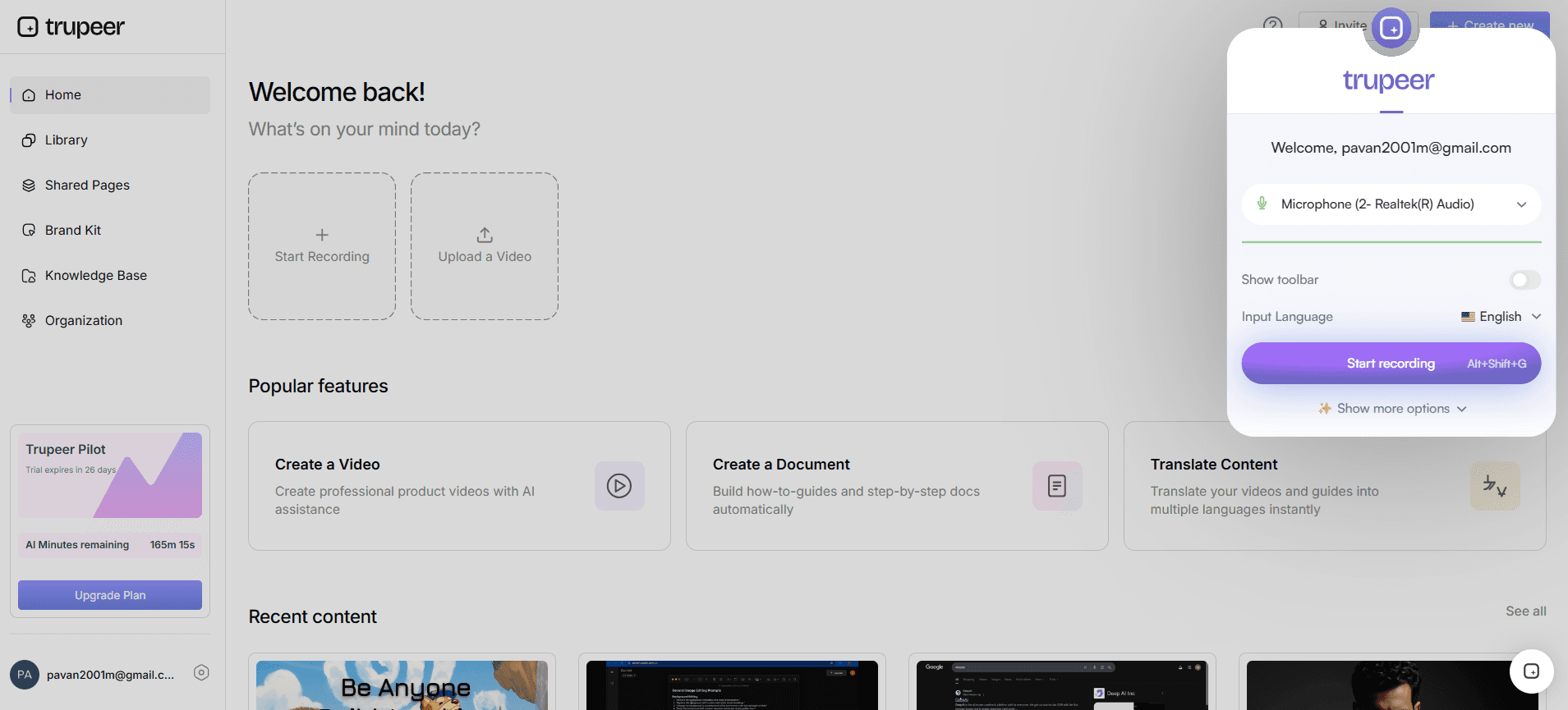
Start by launching Trupeer's browser-based recorder, which requires no installation. Choose the "AI screen recording" mode to capture your screen efficiently. This feature automatically detects clicks and zooms into relevant areas, ensuring that your instructional video remains focused and clear. Recording a typical session might take around 10-15 minutes, depending on the complexity of the task. During this process, the AI is actively analyzing your actions to enhance the final output. If you make a mistake, don't worry; Trupeer allows you to pause and resume recording smoothly, ensuring an uninterrupted capture session.
Step 2: Add AI Narration
Once the screen capture is complete, proceed to add narration using Trupeer's "Silent screen recording with automatic AI narration" feature. Select from over 50 natural-sounding voices to match the tone of your brand. Adjust the pace and tone to ensure clarity and engagement. This step usually takes about 5 minutes, as the AI generates narration that aligns with your recorded actions. If you prefer a specific voice, you can even use the AI voice cloning feature to create a unique voice based on a short sample. This customization helps maintain consistency in your instructional videos.

Step 3: Edit and Enhance
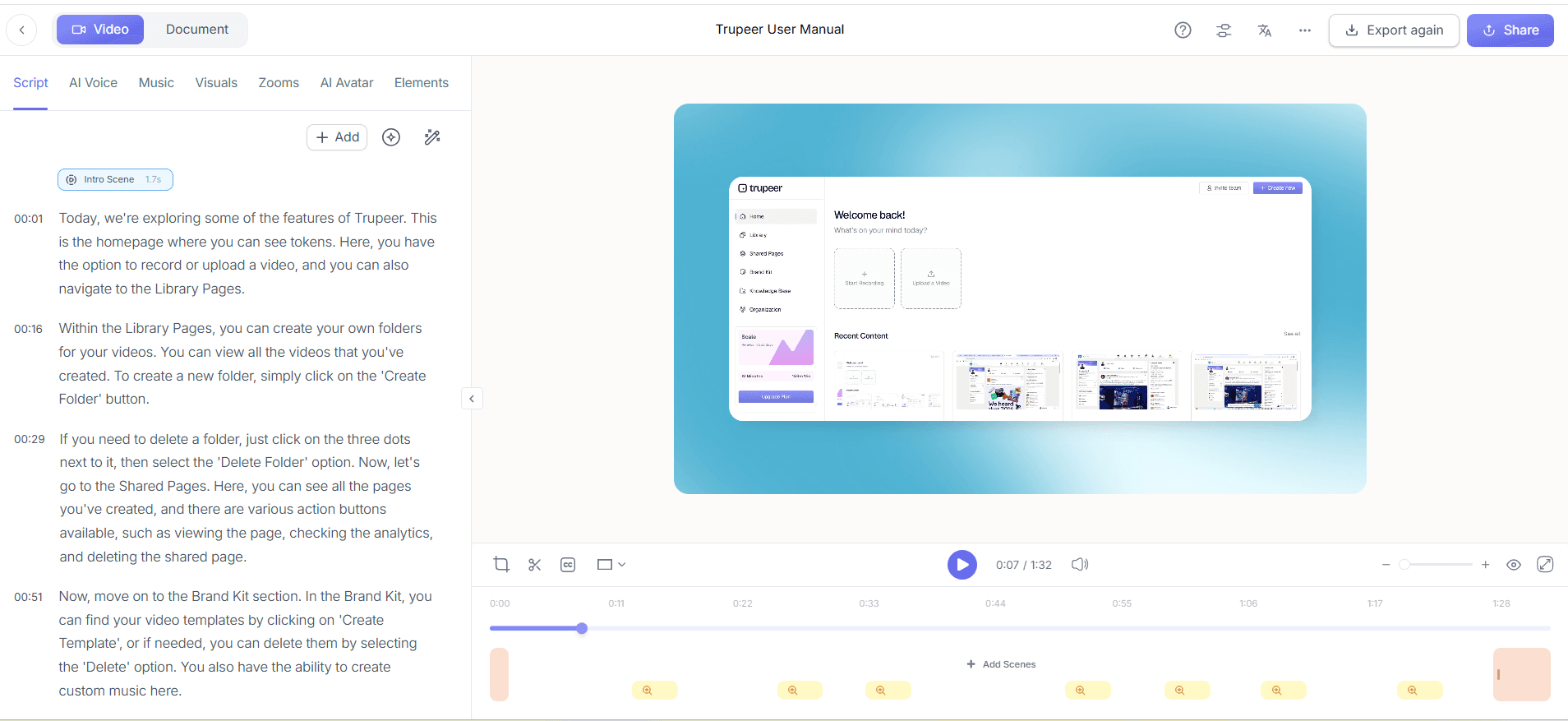
After adding narration, it's time to refine your video using Trupeer's editing tools. Automatic filler-word removal is particularly useful here, as it eliminates unnecessary pauses and words like "um" or "ah," making the video more polished. This process is quick, often taking less than 3 minutes. You can also use the "Auto chapters and segment detection" feature to break the video into digestible sections. This segmentation aids users in handling the content efficiently, especially if they need to revisit specific parts.
Step 4: Create a Talking-Head Video
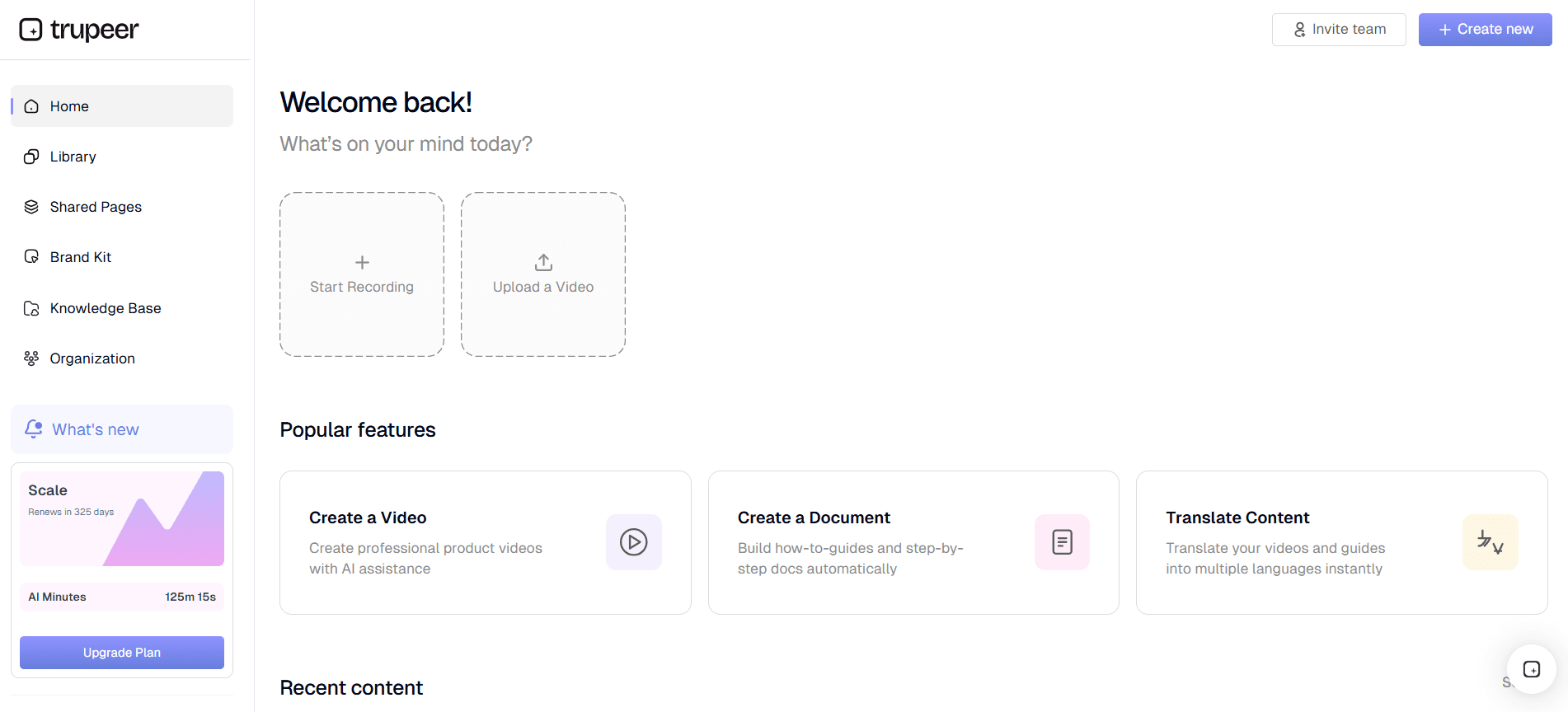
To add a personal touch, incorporate a talking-head video using Trupeer's AI avatars. Choose an avatar from the stock library or create a custom one through HeyGen integration. Position the avatar in a corner of the video to provide a face-to-face experience without obstructing important content. This step enhances user engagement by making the video feel more interactive and relatable. The entire process, from selecting an avatar to integrating it into your video, can be completed in about 10 minutes.
Step 5: Localize the Content
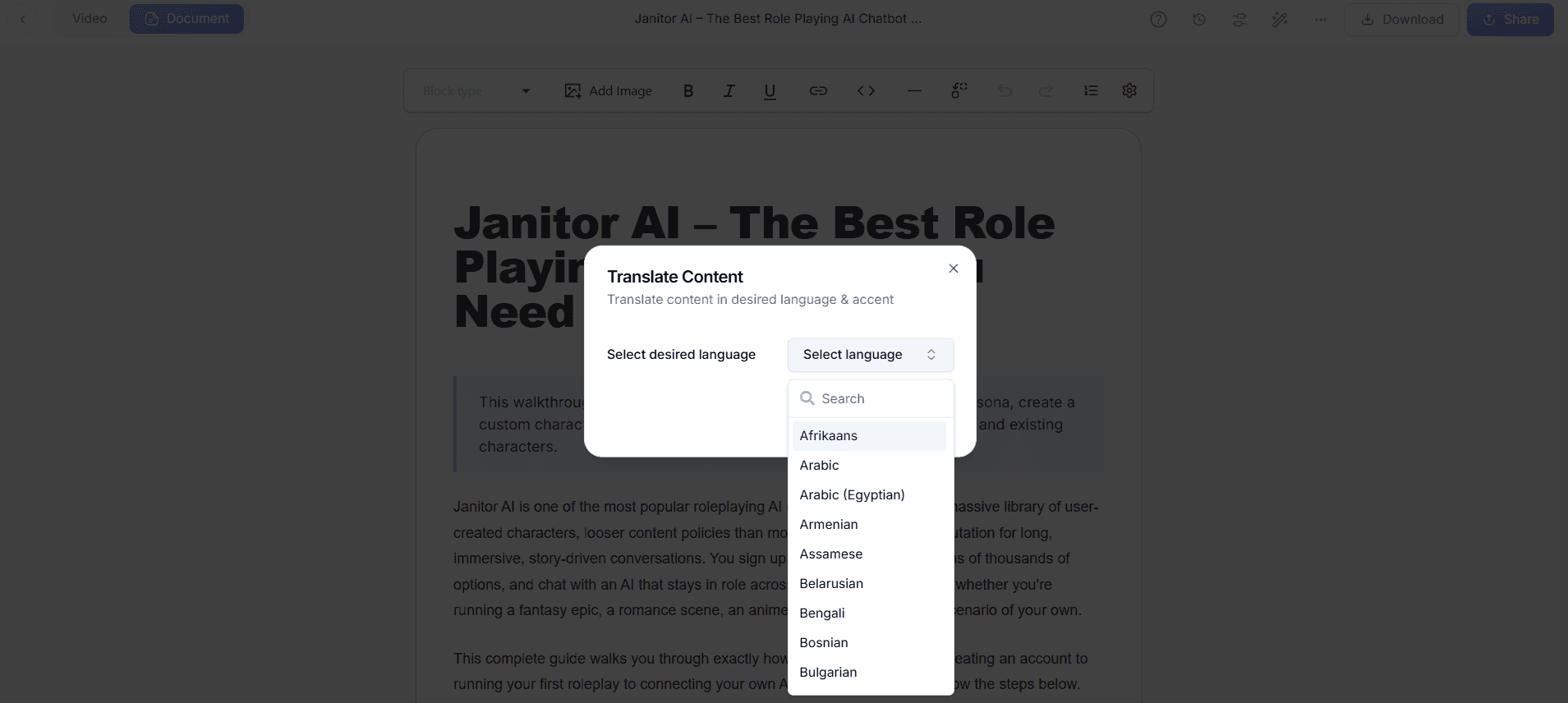
To ensure your video guidance is accessible to a global audience, use Trupeer's AI translation capabilities. The platform offers translation into more than 40 languages, complete with lip-sync to maintain authenticity. This feature allows you to cater to non-English speaking users, expanding your reach and improving user satisfaction. Translating and syncing a 10-minute video can take approximately 15 minutes. By localizing your content, you can ensure that all users, regardless of language, have a smooth learning experience.
Step 6: Publish and Embed
Finally, distribute your video using Trupeer's "Embeddable video widgets for in-app guidance." This allows you to integrate the video directly into your application, providing users with immediate access to guidance without leaving the platform. Set up takes around 5 minutes, and you can customize the widget to match your app's design. Once embedded, the video becomes an integral part of the user experience, offering instant support and reducing potential friction points. For more insights on alternatives, see the Loom vs Trupeer comparison.
What tips help you design in-app video guidance for users who skip text instructions?
Creating effective in-app video guidance requires careful planning and execution. Here are some practical tips to enhance your video content and ensure it meets the needs of non-readers.
Keep Videos Concise. Aim for videos that are no longer than 3-5 minutes to maintain user engagement. Break down complex processes into shorter segments.
Use Visual Cues. Highlight important sections or actions with visual markers such as arrows or highlights. This draws attention to key points.
Provide a Script. Prepare a script before recording to ensure clarity and consistency in your narration. This reduces the chance of errors and filler words.
Test on Different Devices. Ensure your videos are accessible and viewable across various devices and screen sizes to accommodate all users.
Gather User Feedback. Regularly solicit feedback on your videos to identify areas for improvement. This helps you tailor content to user needs.
Update Regularly. Keep your videos current with product updates. Use Trupeer's auto-updating documentation to reflect changes quickly.
Standardize Branding. Use branded templates to maintain a consistent look and feel throughout your videos. This reinforces brand identity.
When SOPs come into the same conversation, a Scribe alternatives comparison helps clarify the scope.
Frequently asked questions
How can I make my video guidance more engaging?
To make your video guidance more engaging, focus on visual and auditory elements that captivate users. Incorporate AI avatars or talking-head videos to create a personal connection. Use Trupeer's auto-zoom and click detection to keep viewers focused on essential actions. Keep videos concise, ideally between 3-5 minutes, to sustain attention. Lastly, add interactive elements such as quizzes or clickable links to encourage active participation. Regularly updating content and incorporating user feedback can also boost engagement levels.
What is the best way to distribute in-app video guidance?
The most effective way to distribute in-app video guidance is by embedding video widgets directly within your application. This provides users with immediate access to guidance without handling away from the app. Trupeer offers embeddable video widgets that can be customized to align with your app's design. also, hosting videos on a searchable knowledge base allows users to find relevant content easily.
Why should I consider localizing my video content?
Localizing your video content is crucial for reaching a global audience. By translating your videos into multiple languages, you ensure accessibility for non-English speakers, expanding your user base. Trupeer offers translation into over 40 languages with lip-sync, maintaining the video's authenticity. Localized content improves user satisfaction and engagement, as users can access information in their native language. This approach also demonstrates a commitment to inclusivity and enhances your brand's reputation on an international scale.
Can Trupeer help reduce the cost of producing video guidance?
Yes, Trupeer can significantly reduce the cost of producing video guidance. Its AI-powered features automate tasks such as screen recording, narration, and editing, minimizing the need for extensive manual input. The platform's automatic filler-word removal and SOP generation simplify the production process, saving time and resources. By using Trupeer's free text to video generator, you can create high-quality content without the need for expensive equipment or personnel. This efficiency makes Trupeer a cost-effective solution for creating engaging video guidance.
Does Trupeer support AI video translation?
Yes, Trupeer supports AI video translation, making it a valuable tool for global communication. The platform offers translation into over 40 languages, complete with lip-sync technology to preserve the video's integrity. This feature ensures that your video guidance is accessible to a diverse audience, improving user experience and expanding your reach. By using Trupeer's AI video translation capabilities, you can cater to non-English speaking users, enhancing engagement and satisfaction across different markets.


